M7C-MID118MID
Hena Digital Technology (Shenzhen) Co., Ltd.
Click to zoom
Application Details
- Equipment Class
- DTS - Digital Transmission System
- Date of Grant
- Feb 18, 2014
- Application Purpose
- Original Equipment
- Date of Application
- Feb 18, 2014
- Equipment Note
- MID
- Frequency Range
- 2412.00000000 - 2472.00000000
- Country
- China
Documents & Files
Document Text
Text extracted from the exhibit documents filed with the FCC. Open a document above to read the original.
Users Manual
USER MANUAL MID1306CM MID-1306CM AMLOGIC MXS方案 4.2 前后双摄像头 ENGLISH MANUAL 标准说明书,70g书纸,135x102mm,钉装 Table of Contents Table of Contents......................................P1 Features..................................................P2 Unit at a Glance .......................................P3 Getting Started....................................P4-P5 About Applications...............................P5-P6 Preinstalled Applications...........................P6 Connect to a Wi-Fi network...................P7-P8 Optional Connections................................P9 Specifications.........................................P10 Troubleshooting...............................P10-P11 1 Features 2 Browse the Web. Visit your favorite websites Check your e-mail Keep in touch with friends and family Watch YouTube™ videos Browse the world’s most popular video- sharing community Read your favorite books Download thousands of books with the included E-book reader * Discover thousands of apps for Android™ Games, applications, and more with marketplace(need for customer installed) Connect to the Internet wirelessly High-speed Wi-Fi 802.11 b/g/n networking Enjoy your media library anywhere Portable powerhouse plays popular music, video,and photo formats microSD memory card reader Increase your storage capacity (up to 32 GB supported) Built-in camera Convenient front-facing camera(0.3MP), rear 2MP Automatic orientation detection Read any way you want; the display adjusts automatically! Reading books in the ePub format requires the included E-book reader application. Requires optional HDMI cable (Type A-to-Type C). 1080p HD video playback requires a video file encoded at 1080p. Streaming video quality will be affected by the source, and the quality and condition of your network connection. 3 Unit at a Glance 4. Power Press to turn the unit on, or to turn the screen on or off. Press and hold to access the Power Off menu. 5. Headphone Audio output connection for headphones. 6. HDMI Connect to a TV or other displays. 7.USB HOST Connect to a USB device. 8.USB OTG Connect to a USB device or a computer to transfer data (e.g. music, videos,photos, files). 9.Reset Reset the tablet. 10. Adapter In Charge and power the tablet with adapter. 11.microSD Load external microSD memory cards here. 1 2 3 4 5 6 7 9 8 10 11 1. VOL-/VOL+ Press VOL- to decrease the volume level. Press VOL+ to increase the volume level. 2. Back Press to return to the previous screen. If the keyboard is on the screen, Press to close the keyboard. 3.Camera Use it to take pictures or capture videos. Getting Started Turning the Tablet on or off 2. Touch ok the screen to turn off the tablet. Turning the Screen On or off (Standby) When the tablet is on, you can turn off the screen to conserve battery power. Simply press the Power key once to turn the screen off. Press the Power key again to turn the screen back on. To turn the tablet on: Press and hold the Power key until the LCD screen turns on. Wait until the Home screen appears; the tablet is now ready for use. To turn the tablet off: 1.Press and hold the Power key until the Device Options menu appears. To conserve battery power, the screen can be set to turn off automatically when the tablet is not in use (between 15 seconds and 30 minutes). This Screen timeout option can be found in the Display menu. 4 Getting Started 5 Unlocking the Screen About Applications To open an application, touch the application icon on the home screen or in the Launcher where you can tap the icon right up on the home screen to get in.. Launcher screen: The screen shown above is for illustrative purposes only. Reserves the right to modify and improve the final list of applications available on the tablet. When the screen turns off, you will have to unlock the screen when you turn it back on. To unlock the screen, drag the lock icon across the screen towards the lock icon. . About Applications 6 Preinstalled Applications Some applications have been installed on your tablet for your convenience. These applications include: Browse the web. Perform simple mathematical operations. Take pictures or videos with the frontfacing camera. Check your e-mail. Play music. Access the Settings menu to adjust the tablet’s options. Preinstalled Applications Installing Applications You can also download an install additional applications from the device’s applications marketplace, the web browser, or other sources. The tablet must be set to allow installation of applications from non-Market sources. The Unknown sources option can be set in the Application settings menu. 7 Connect to a Wi-Fi network The Notification bar displays icons that indicate your tablet’s Wi-Fi status. Notification that an open Wi-Fi network is in range. Connected to a Wi-Fi network (waves indicate connection strength). When Wi-Fi is on, the tablet will look for and display a list of available Wi-Fi networks. [no icon] There are no Wi-Fi networks in range, or the Wi-Fi radio is off. 1. Turn on the Wi-Fi radio if it is not already on. To turn on Wi-Fi: a.Go to the Home screen: Press the Home key. b.Open the Settings menu: tap the icon right up on the home screen to get into the launcher, then touch Settings icon. c.Open the Wireless & networks menu: Slide the icon to ON status. If a network that you have connected to previously is found, the tablet will connect to it.If you don’t see your network in the list, you can force the tablet to re-scan. To scan for networks, tap the Menu key, and then touch Scan. 8 Connect to a Wi-Fi network To learn about how to add a Wi-Fi network when it is not in range or when the router is set to obscure the network name (SSID); or to configure advanced Wi-Fi options, please refer to the manual. When you have successfully connected to a Wi-Fi network, the Notifications bar at the the low of the screen will show a Wi-Fi signal indicator. 2. Select an available Wi-Fi network to connect to: In the same Wi-Fi settings menu above,touch a network in…
Text truncated - open the document above for the full version.
External Photos
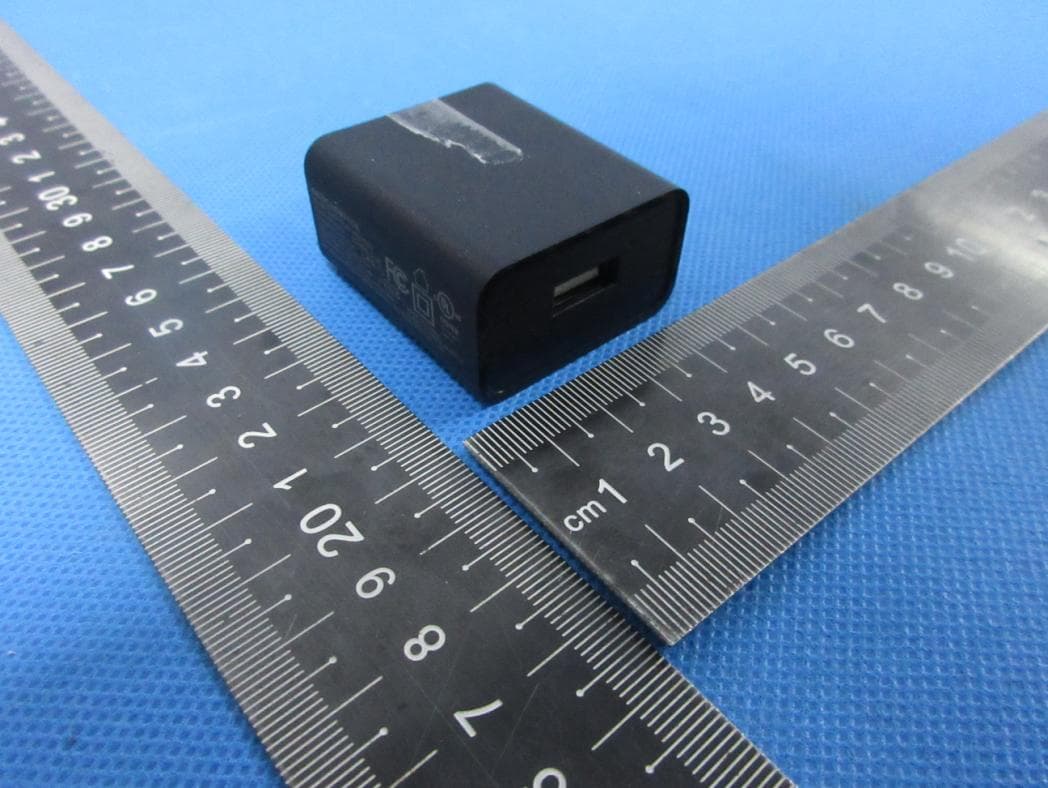
Hena Digital Technology (Shenzhen) Co., Ltd. Model: MID-1306 REPORT NO.: STR14018478I-1 FCC PART 15.247 EXHIBIT 2 - EUT EXTERNAL PHOTOGRAPHS EUT View 1 EUT View 2 Hena Digital Technology (Shenzhen) Co., Ltd. Model: MID-1306 REPORT NO.: STR14018478I-1 FCC PART 15.247 EUT View 3 EUT View 4 Hena Digital Technology (Shenzhen) Co., Ltd. Model: MID-1306 REPORT NO.: STR14018478I-1 FCC PART 15.247 EUT View 5 EUT View 6 Hena Digital Technology (Shenzhen) Co., Ltd. Model: MID-1306 REPORT NO.: STR14018478I-1 FCC PART 15.247 EUT View 7
ID Label/Location Info
Hena Digital Technology (Shenzhen) Co., Ltd. Model: MID-1306 REPORT NO.: STR14018478I-1 FCC PART 15.247 EXHIBIT 1 - PRODUCT LABELING Proposed FCC ID Label Format FCC ID: M7C-MID118 This device complies with Part 15 of the FCC Rules. Operation is subject to the following two conditions: (1) This device may not cause harmful interference, and (2) this device must accept any interference received, including interference that may cause undesired operation. Specifications: Text is Black in color and justified. Labels are printed in indelible ink on permanent adhesive silk-screened onto the EUT or shall be affixed at a conspicuous location on the EUT. Proposed Label Location on EUT FCC ID Label Location
ID Label/Location Info
Hena Digital Technology (Shenzhen) Co., Ltd. Model: MID-1306 REPORT NO.: STR14018478I-1 FCC PART 15.247 EXHIBIT 1 - PRODUCT LABELING Proposed FCC ID Label Format FCC ID: M7C-MID118 This device complies with Part 15 of the FCC Rules. Operation is subject to the following two conditions: (1) This device may not cause harmful interference, and (2) this device must accept any interference received, including interference that may cause undesired operation. Specifications: Text is Black in color and justified. Labels are printed in indelible ink on permanent adhesive silk-screened onto the EUT or shall be affixed at a conspicuous location on the EUT. Proposed Label Location on EUT FCC ID Label Location
Internal Photos
Hena Digital Technology (Shenzhen) Co., Ltd. Model: MID-1306 REPORT NO.: STR14018478I-1 FCC PART 15.247 EXHIBIT 3 - EUT INTERNAL PHOTOGRAPHS EUT Housing and Board View Solder Board-Component View 1 Wi-Fi Antenna Hena Digital Technology (Shenzhen) Co., Ltd. Model: MID-1306 REPORT NO.: STR14018478I-1 FCC PART 15.247 Solder Board-Component View 2 Solder Board-Component View 3 Hena Digital Technology (Shenzhen) Co., Ltd. Model: MID-1306 REPORT NO.: STR14018478I-1 FCC PART 15.247 Solder Board-Component View 4
RF Exposure Info
RF Exposure Requirements Product Description: MID Model No.: MID-1306 FCC ID: M7C-MID118 Acorrding to the KDB-447498 D01 V05, the following RF exposure evaluation shall to demonstrate RF exposure compliance. Wi-Fi (802.11b/g/n) Tx frequency range: 2412~2472MHz Device category: Portable Device (Distance: 5mm) Maximum Conducted Output Power: 7.48dBm Maximum Antenna Gain: 2.0 dBi Maximum EIRP Output Power: 8.8716mW (9.48dBm) Limit: 10mW Source-based time-averaged EIRP output power is 8.8716 mW < 10 mW So the transmitter complies with the RF exposure requirements and the SAR is not required.
Test Report
Hena Digital Technology (Shenzhen) Co., Ltd. Model: MID-1306 REPORT NO.: STR14018478I-1 PAGE 1 OF 65 FCC PART 15.247 FCC Part 15C Measurement and Test Report For Hena Digital Technology (Shenzhen) Co., Ltd. 3F, South Tower, Jiuzhou Electric Building, Southern No, 12Rd, High-tech Industrial Park, Nanshan District, Shenzhen, China FCC ID: M7C-MID118 FCC Rule(s): FCC Part 15C Product Description: MID Tested Model: MID-1306 Report No.: STR14018478I-1 Tested Date: 2014-01-15 to 2014-02-11 Issued Date: 2014-02-12 Tested By: Daniel Liu / Engineer Reviewed By: Lahm Peng / EMC Manager Approved & Authorized By: Jandy so / PSQ Manager Prepared By: Shenzhen SEM.Test Technology Co., Ltd. 1/F, Building A, Hongwei Industrial Park, Liuxian 2nd Road, Bao'an District, Shenzhen, P.R.C.(518101) Tel.: +86-755-33663308 Fax.: +86-755-33663309 Website: www.semtest.com.cn Note: This test report is limited to the above client company and the product model only. It may not be duplicated without prior permitted by Shenzhen SEM.Test Technology Co., Ltd. Hena Digital Technology (Shenzhen) Co., Ltd. Model: MID-1306 REPORT NO.: STR14018478I-1 PAGE 2 OF 65 FCC PART 15.247 TABLE OF CONTENTS 1. GENERAL INFORMATION ................................................................................................................................... 3 1.1 PRODUCT DESCRIPTION FOR EQUIPMENT UNDER TEST (EUT) ............................................................................... 3 1.2 TEST STANDARDS ................................................................................................................................................... 4 1.3 TEST METHODOLOGY ............................................................................................................................................. 4 1.4 TEST FACILITY ....................................................................................................................................................... 4 1.5 EUT SETUP AND TEST MODE ................................................................................................................................. 5 2. SUMMARY OF TEST RESULTS ........................................................................................................................... 6 3. RF EXPOSURE ......................................................................................................................................................... 7 3.1 STANDARD APPLICABLE ......................................................................................................................................... 7 3.2 TEST RESULT.......................................................................................................................................................... 7 4. ANTENNA REQUIREMENT .................................................................................................................................. 8 4.1 STANDARD APPLICABLE ......................................................................................................................................... 8 4.2 EVALUATION INFORMATION .................................................................................................................................. 8 5. POWER SPECTRAL DENSITY ............................................................................................................................. 9 5.1 STANDARD APPLICABLE ......................................................................................................................................... 9 5.2 TEST EQUIPMENT LIST AND DETAILS ..................................................................................................................... 9 5.3 TEST PROCEDURE ................................................................................................................................................... 9 5.4 ENVIRONMENTAL CONDITIONS .............................................................................................................................. 9 5.5 SUMMARY OF TEST RESULTS/PLOTS .................................................................................................................... 10 6. 6DB BANDWIDTH ................................................................................................................................................. 16 6.1 STANDARD APPLICABLE ....................................................................................................................................... 16 6.2 TEST EQUIPMENT LIST AND DETAILS ................................................................................................................... 16 6.3 TEST PROCEDURE ................................................................................................................................................. 16 6.4 ENVIRONMENTAL CONDITIONS ............................................................................................................................ 16 6.5 SUMMARY OF TEST RESULTS/PLOTS .................................................................................................................... 17 7. RF OUTPUT POWER ............................................................................................................................................ 23 7.1 STANDARD APPLICABLE ....................................................................................................................................... 23 7.2 TEST EQUIPMENT LIST AND DETAILS ................................................................................................................... 23 7.3 TEST PROCEDURE ................................................................................................................................................. 23 7.4 ENVIRONMENTAL CONDITIONS ............................................................................................................................ 23 …
Text truncated - open the document above for the full version.
Test Setup Photos
Hena Digital Technology (Shenzhen) Co., Ltd. Model: MID-1306 REPORT NO.: STR14018478I-1 FCC PART 15.247 EXHIBIT 4 - TEST SETUP PHOTOGRAPHS Conducted Emission Test Setup Radiation Emission Test Setup (Below 30MHz) Hena Digital Technology (Shenzhen) Co., Ltd. Model: MID-1306 REPORT NO.: STR14018478I-1 FCC PART 15.247 Radiation Emission Test Setup (30MHz to 1GHz) Radiation Emission Test Setup (Above 1GHz)
Contact Information
Applicant
Yang tunbo(Compliance engineer)
Test Firm
SEM.Test Compliance Service Co., Ltd.Jandy So
Technical Specifications
| # | Rule Parts | Frequency Range | Power Output |
|---|---|---|---|
| 1 | 15C | 2.41 GHz - 2.47 GHz | 5.60 mW |
Other Applications from Hena Digital Technology (Shenzhen) Co., Ltd.
M7CM15QF6
Apr 11, 2022Tablet PC
Equipment Class
DSS - Part 15 Spread Spectrum Transmitter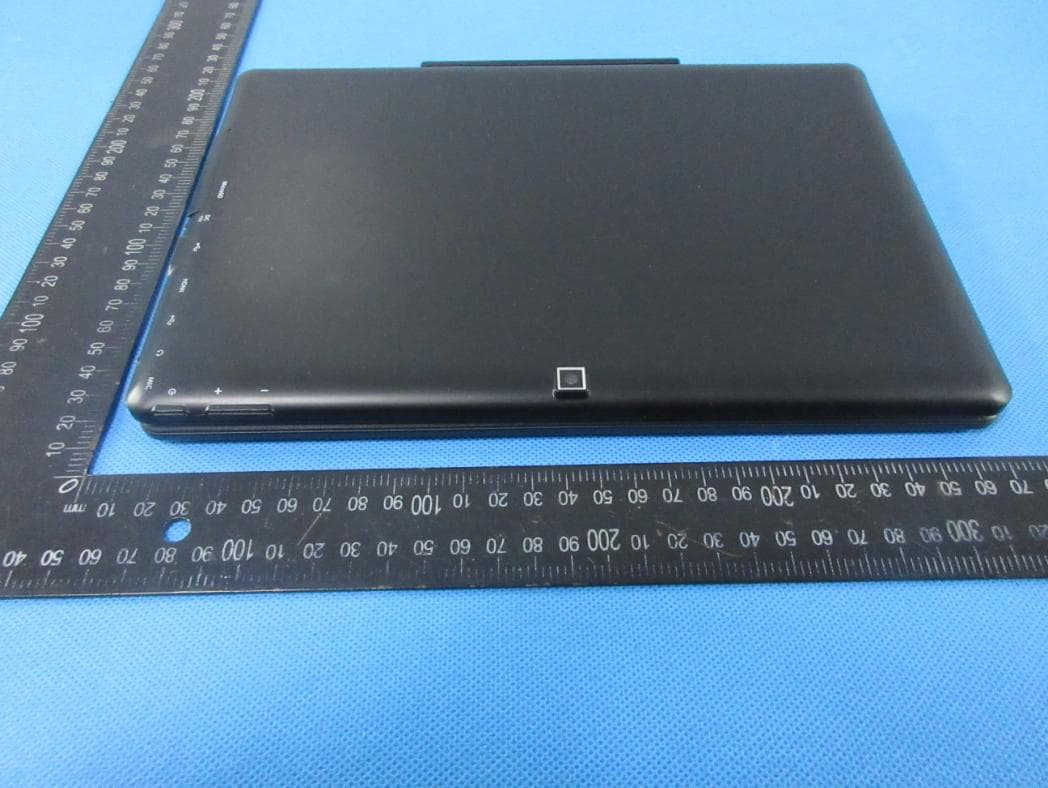
M7CMG10Q16
Apr 11, 2022Notebook
Equipment Class
DSS - Part 15 Spread Spectrum Transmitter
M7C-PAD842IW
Dec 30, 2015MID
Equipment Class
DTS - Digital Transmission System
M7C-PAD941IW
Nov 16, 2015MID
Equipment Class
DTS - Digital Transmission System
M7C-MID121
Sep 01, 2015MID
Equipment Class
DSS - Part 15 Spread Spectrum Transmitter