MCLJ07H06901802.11a/b/g Mini PCI Card w/PP2170 Series Laptop
HON HAI Precision Ind. Co., Ltd.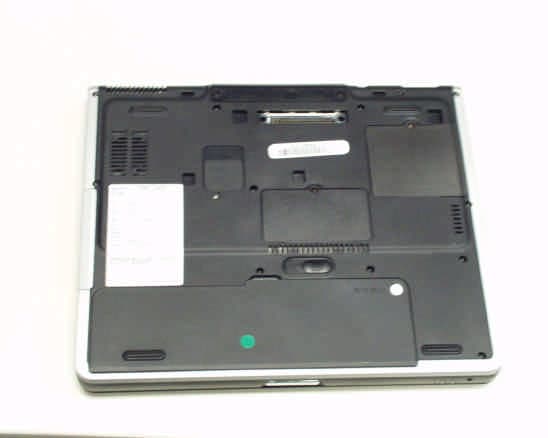
Click to zoom
Application Details
- Equipment Class
- NII - Unlicensed National Information Infrastructure TX
- Date of Grant
- May 01, 2003
- Application Purpose
- Original Equipment
- Date of Application
- Jan 28, 2003
- Equipment Note
- 802.11a/b/g Mini PCI Card w/PP2170 Series Laptop
- Frequency Range
- 5180.00000000 - 5320.00000000
- Country
- Taiwan
Documents & Files
Document Text
Text extracted from the exhibit documents filed with the FCC. Open a document above to read the original.
Users Manual
HP 802.11a/b WLAN Mini PCI User Manual - - 1 Chapter 1 About the Wireless Mini PCI Card.............................................................2 1-1 Introduction...........................................................................................................2 1-2 Using a Wireless Local Area Network.................................................................2 1-3 Features and Requirements...................................................................................3 Chapter 2 Network Configuring and Planning............................................................4 2-1 Peer-to-Peer Network...........................................................................................4 2-2 Base Station Network...........................................................................................5 Chapter 3 Wireless Lan Installation.............................................................................6 3-1 System Requirements...........................................................................................6 3-2 Installation and Uninstall Process.........................................................................6 Chapter 4 Wireless Utility and Configuration...........................................................13 4-1 Windows Wireless Utility...................................................................................13 Appendix A Glossary........................................................................................................27 - - 2 Chapter 1 About the Wireless Mini PCI Card 1-1 Introduction The HP 802.11a/b Mini PCI card allows you to access wireless Local Area Networks, share a local printer and files with others in your network, access the Internet, and roam about the office—wire-free. This wireless Local Area Network solution is designed for both large and small businesses, and it is scalable so that you can add users and new network features as your networking needs grow. 1-2 Using a Wireless Local Area Network This product is a Local Area Network (LAN) device. A LAN is composed of two or more computers that are connected to each other in order to share files or common equipment such as a printer or a modem. A wireless LAN provides the same functionality of a wired network, but it eliminates the need to install networking cables and other networking equipment. Not only is a wireless LAN easier to deploy, but it also allows for “roaming.” For example, when using a notebook PC with a HP 802.11a/b Mini PCI card, you can roam from a conference room to an office without being disconnected from the network. - - 3 1-3 Features and Requirements An 802.11a/b based wireless LAN includes the following features: • Support for the IEEE 802.11a/b standard • 2.4-GHz or 5-GHz band operation • 802.11b Network data rate up to 11 Mbps and 802.11a Network data rate up to 54 Mbps • Wired Equivalent Privacy (WEP) encryption, LEAP, TKIP, AES-CCM support • Support for Windows XP, 2K, 98SE, ME driver To participate in a wireless LAN, you need the following items: • HP 802.11a/b Mini PCI card • Software CD containing application, drivers, software reference guide, and help file • A notebook PC with a Mini PCI Type III slot, a CD drive The HP 802.11a/b Mini PCI card is Wi-Fi (Wireless Fidelity) certified and will work with any other Wi-Fi certified base station or wireless client adapter. - - 4 Chapter 2 Network Configuring and Planning A wireless LAN can be configured for two different modes of operation. While each method has its advantages, one may be better suited for your needs. Review the following configurations to determine which mode is best for you. • Peer-to-Peer Network • Base Station Network 2-1 Peer-to-Peer Network A Peer-to-Peer network is also called an “ad hoc” network. This mode is the easiest to deploy and is ideal for small offices. As a user on this type of network, you are able to share files with other employees, print to a shared office printer, and access the Internet through a shared modem. However, with peer-to-peer networking, your computer is only able to communicate with other wireless clients that are within a certain range and in your wireless workgroup. Characteristics Networked computers send data directly to each other Advantages • Simple setup • Cost efficiency Disadvantages Communication is limited to those who are located in a certain range - - 5 2-2 Base Station Network A Base Station network is also called an “infrastructure” network. The key difference between a wireless Base Station network and a peer-to-peer network is the addition of one extra element—the base station or access point. Additionally, the wireless Base Station can provide access to an existing wired LAN. This link allows computers on the infrastructure wireless LAN to access the other wired LAN’s resources and tools, including Internet access, electronic mail delivery, file transfer, and printer sharing. Characteristics Networked computers communicate with each other through a dedicated base station. All data transmitted between the computers on this wireless LAN passes through the base station. Advantages • Extended range: The access point extends the range of the wireless LAN. Each computer can communicate with other computers equipped by wireless networks that are within the range of the access point. • Roaming: As you move throughout the building, the HP 802.11a/b WLAN Mini PCI card determines the best access point to use to ensure continuous communication with the network. • Network connectivity: An access point can provide wireless LAN access to an existing wired network by bridging the two networks together. This gives users of the wireless LAN access to all the functions of a wired network—from file server access to electronic mail and the Internet. Disadvantages Because this network mode offers more features, it requires additional components and setup time to deploy. - - 6 Chapter 3 Wireless Lan Installation 3-1 System Req…
Text truncated - open the document above for the full version.
Users Manual
HP 802.11a/b WLAN Mini PCI User Manual - - 1 Chapter 1 About the Wireless Mini PCI Card.............................................................2 1-1 Introduction...........................................................................................................2 1-2 Using a Wireless Local Area Network.................................................................2 1-3 Features and Requirements...................................................................................3 Chapter 2 Network Configuring and Planning............................................................4 2-1 Peer-to-Peer Network...........................................................................................4 2-2 Base Station Network...........................................................................................5 Chapter 3 Wireless Lan Installation.............................................................................6 3-1 System Requirements...........................................................................................6 3-2 Installation and Uninstall Process.........................................................................6 Chapter 4 Wireless Utility and Configuration...........................................................13 4-1 Windows Wireless Utility...................................................................................13 Appendix A Glossary........................................................................................................27 - - 2 Chapter 1 About the Wireless Mini PCI Card 1-1 Introduction The HP 802.11a/b Mini PCI card allows you to access wireless Local Area Networks, share a local printer and files with others in your network, access the Internet, and roam about the office—wire-free. This wireless Local Area Network solution is designed for both large and small businesses, and it is scalable so that you can add users and new network features as your networking needs grow. 1-2 Using a Wireless Local Area Network This product is a Local Area Network (LAN) device. A LAN is composed of two or more computers that are connected to each other in order to share files or common equipment such as a printer or a modem. A wireless LAN provides the same functionality of a wired network, but it eliminates the need to install networking cables and other networking equipment. Not only is a wireless LAN easier to deploy, but it also allows for “roaming.” For example, when using a notebook PC with a HP 802.11a/b Mini PCI card, you can roam from a conference room to an office without being disconnected from the network. - - 3 1-3 Features and Requirements An 802.11a/b based wireless LAN includes the following features: • Support for the IEEE 802.11a/b standard • 2.4-GHz or 5-GHz band operation • 802.11b Network data rate up to 11 Mbps and 802.11a Network data rate up to 54 Mbps • Wired Equivalent Privacy (WEP) encryption, LEAP, TKIP, AES-CCM support • Support for Windows XP, 2K, 98SE, ME driver To participate in a wireless LAN, you need the following items: • HP 802.11a/b Mini PCI card • Software CD containing application, drivers, software reference guide, and help file • A notebook PC with a Mini PCI Type III slot, a CD drive The HP 802.11a/b Mini PCI card is Wi-Fi (Wireless Fidelity) certified and will work with any other Wi-Fi certified base station or wireless client adapter. - - 4 Chapter 2 Network Configuring and Planning A wireless LAN can be configured for two different modes of operation. While each method has its advantages, one may be better suited for your needs. Review the following configurations to determine which mode is best for you. • Peer-to-Peer Network • Base Station Network 2-1 Peer-to-Peer Network A Peer-to-Peer network is also called an “ad hoc” network. This mode is the easiest to deploy and is ideal for small offices. As a user on this type of network, you are able to share files with other employees, print to a shared office printer, and access the Internet through a shared modem. However, with peer-to-peer networking, your computer is only able to communicate with other wireless clients that are within a certain range and in your wireless workgroup. Characteristics Networked computers send data directly to each other Advantages • Simple setup • Cost efficiency Disadvantages Communication is limited to those who are located in a certain range - - 5 2-2 Base Station Network A Base Station network is also called an “infrastructure” network. The key difference between a wireless Base Station network and a peer-to-peer network is the addition of one extra element—the base station or access point. Additionally, the wireless Base Station can provide access to an existing wired LAN. This link allows computers on the infrastructure wireless LAN to access the other wired LAN’s resources and tools, including Internet access, electronic mail delivery, file transfer, and printer sharing. Characteristics Networked computers communicate with each other through a dedicated base station. All data transmitted between the computers on this wireless LAN passes through the base station. Advantages • Extended range: The access point extends the range of the wireless LAN. Each computer can communicate with other computers equipped by wireless networks that are within the range of the access point. • Roaming: As you move throughout the building, the HP 802.11a/b WLAN Mini PCI card determines the best access point to use to ensure continuous communication with the network. • Network connectivity: An access point can provide wireless LAN access to an existing wired network by bridging the two networks together. This gives users of the wireless LAN access to all the functions of a wired network—from file server access to electronic mail and the Internet. Disadvantages Because this network mode offers more features, it requires additional components and setup time to deploy. - - 6 Chapter 3 Wireless Lan Installation 3-1 System Req…
Text truncated - open the document above for the full version.
Users Manual
HP WLAN 802.11 a/b/g User Manual Chapter 1 About the HP WLAN 802.11a/b/g device.................................................3 1-1 Introduction...........................................................................................................3 1-2 Using a Wireless Local Area Network.................................................................3 1-3 Features and Requirements...................................................................................4 Chapter 2 Network Configuring and Planning............................................................5 2-1 Ad-Hoc Network..................................................................................................5 2-2 Access Point (Infrastructure) Network.................................................................6 Chapter 3 Atheros Client Utility Installation...................................................................7 3-1 Atheros Client Utility Installation........................................................................7 Chapter 4 Atheros Client Utility (ACU) Configuration............................................10 4-1 Atheros Client Utility icon.................................................................................10 4-2 Current Status Tab...............................................................................................11 4-3 Profile Management............................................................................................14 4-3-1 Create or Modify a Profile.............................................................................15 4-3-2 Security Settings in Profile Management........................................................17 4-3-3 Advanced settings in Profile Management......................................................21 4-4 Diagnostic Tab....................................................................................................22 4-5 Action Menu.......................................................................................................23 4-5-1 Enable/Disable Radio......................................................................................23 4-5-2 Enable/Disable Tray Icon................................................................................23 Chapter 5 Wireless Configuration using Windows XP.....................................................24 5-1 Configuring Your Wireless Networking Settings...............................................24 5-2 Advanced Wireless Settings...............................................................................24 5-3 Disabling the Radio............................................................................................25 5-4 Help and Support Information............................................................................25 Appendix A – Atheros Client Utility Uninstall Process...................................................26 Appendix B - Glossary......................................................................................................29 Appendix C –Wireless Notices.........................................................................................30 Chapter 1 About the HP WLAN 802.11a/b/g device 1-1 Introduction The HP WLAN 802.11a/b/g device allows you to access Wireless Local Area Networks (WLANs), share a local printer and files with others in your network, access the Internet, and roam about the office—wirelessly. This wireless Local Area Network solution is designed for both large and small businesses, and it is scalable so that you can add users and new network features as your networking needs grow. The HP WLAN 802.11a/b/g device is a dual band WLAN device that allows for access to both 2.4Ghz and 5Ghz WLAN technologies. The HP WLAN 802.11a/b/g device will operate with at a maximum data rate of 11Mbps with 802.11b (2.4Ghz), 54Mbps with 802.11g (2.4Ghz) wireless networks and a maximum data rate of 54Mbps with 802.11a (5Ghz) wireless networks. The HP WLAN 802.11a/b/g device will automatically detect and seamlessly roam between both 802.11b (2.4Ghz), 802.11g (2.4Ghz) and 802.11a (5Ghz) wireless networks 1-2 Using a Wireless Local Area Network A wireless LAN provides the same functionality of a wired network, but it eliminates the need to install networking cables and other networking equipment. Not only is a wireless LAN easier to deploy, but it also allows for mobility through “roaming.” For example the HP WLAN 802.11a/b/g device can roam from a conference room to an office without being disconnected from the network. 1-3 Features and Requirements The HP WLAN 802.11a/b/g device includes the following features: Wireless Features • Support for the IEEE 802.11a standard • Support for the IEEE 802.11b standard • Operates within the 2.4-GHz band • Operates within the 5Ghz band • Maximum data rate of up to 54 Mbps (802.11a/g) • Maximum data rate of up to 11 Mbps (802.11b) Interoperability • WiFi certified at 5Ghz to ensure wireless interoperability with other WiFi (802.11a) certified devices. • WiFi certified at 2.4Ghz to ensure wireless interoperability with other WiFi (802.11b) certified devices. Security • Cisco Client Extension compatibility (including LEAP) • Wired Equivalent Privacy (WEP) encryption, operating with 64bit, 128bit or 152 bit encryption • AES-CCM Encryption support • Support for Windows 802.1X supplicants Chapter 2 Network Configuring and Planning A wireless LAN can be configured for two different modes of operation. While each method has its advantages, one may be better suited for your needs. Review the following configurations to determine which mode is best for you. • Ad-Hoc Network • Access Point (Infrastructure) Network 2-1 Ad-Hoc Network An Ad-Hoc network is the simplest to deploy and is ideal for small offices. Ad-Hoc wireless networks can be comprised of two or more wireless client configured to communicate with one another. All Ad-hoc clients communicate directly with each other without using an a…
Text truncated - open the document above for the full version.
Users Manual
HP WLAN 802.11 a/b/g W500 User Manual MPCI Module for use in Notebook Computers Chapter 1 About the HP WLAN 802.11a/b/g device.................................................3 1-1 Introduction...........................................................................................................3 1-2 Using a Wireless Local Area Network.................................................................3 1-3 Features and Requirements...................................................................................4 Chapter 2 Network Configuring and Planning............................................................5 2-1 Ad-Hoc Network..................................................................................................5 2-2 Access Point (Infrastructure) Network.................................................................6 Chapter 3 Atheros Client Utility Installation...................................................................7 3-1 Atheros Client Utility Installation........................................................................7 Chapter 4 Atheros Client Utility (ACU) Configuration............................................10 4-1 Atheros Client Utility icon.................................................................................10 4-2 Current Status Tab...............................................................................................11 4-3 Profile Management............................................................................................14 4-3-1 Create or Modify a Profile.............................................................................15 4-3-2 Security Settings in Profile Management........................................................17 4-3-3 Advanced settings in Profile Management......................................................21 4-4 Diagnostic Tab....................................................................................................22 4-5 Action Menu.......................................................................................................23 4-5-1 Enable/Disable Radio......................................................................................23 4-5-2 Enable/Disable Tray Icon................................................................................23 Chapter 5 Wireless Configuration using Windows XP.....................................................24 5-1 Configuring Your Wireless Networking Settings...............................................24 5-2 Advanced Wireless Settings...............................................................................24 5-3 Disabling the Radio............................................................................................25 5-4 Help and Support Information............................................................................25 Appendix A – Atheros Client Utility Uninstall Process...................................................26 Appendix B - Glossary......................................................................................................29 Appendix C –Wireless Notices.........................................................................................30 Chapter 1 About the HP WLAN 802.11a/b/g device 1-1 Introduction The HP WLAN 802.11a/b/g device allows you to access Wireless Local Area Networks (WLANs), share a local printer and files with others in your network, access the Internet, and roam about the office—wirelessly. This wireless Local Area Network solution is designed for both large and small businesses, and it is scalable so that you can add users and new network features as your networking needs grow. The HP WLAN 802.11a/b/g device is a dual band WLAN device that allows for access to both 2.4Ghz and 5Ghz WLAN technologies. The HP WLAN 802.11a/b/g device will operate with at a maximum data rate of 11Mbps with 802.11b (2.4Ghz), 54Mbps with 802.11g (2.4Ghz) wireless networks and a maximum data rate of 54Mbps with 802.11a (5Ghz) wireless networks. The HP WLAN 802.11a/b/g device will automatically detect and seamlessly roam between both 802.11b (2.4Ghz), 802.11g (2.4Ghz) and 802.11a (5Ghz) wireless networks 1-2 Using a Wireless Local Area Network A wireless LAN provides the same functionality of a wired network, but it eliminates the need to install networking cables and other networking equipment. Not only is a wireless LAN easier to deploy, but it also allows for mobility through “roaming.” For example the HP WLAN 802.11a/b/g device can roam from a conference room to an office without being disconnected from the network. 1-3 Features and Requirements The HP WLAN 802.11a/b/g device includes the following features: Wireless Features • Support for the IEEE 802.11a standard • Support for the IEEE 802.11b standard • Operates within the 2.4-GHz band • Operates within the 5Ghz band • Maximum data rate of up to 54 Mbps (802.11a/g) • Maximum data rate of up to 11 Mbps (802.11b) Interoperability • WiFi certified at 5Ghz to ensure wireless interoperability with other WiFi (802.11a) certified devices. • WiFi certified at 2.4Ghz to ensure wireless interoperability with other WiFi (802.11b) certified devices. Security • Cisco Client Extension compatibility (including LEAP) • Wired Equivalent Privacy (WEP) encryption, operating with 64bit, 128bit or 152 bit encryption • AES-CCM Encryption support • Support for Windows 802.1X supplicants Chapter 2 Network Configuring and Planning A wireless LAN can be configured for two different modes of operation. While each method has its advantages, one may be better suited for your needs. Review the following configurations to determine which mode is best for you. • Ad-Hoc Network • Access Point (Infrastructure) Network 2-1 Ad-Hoc Network An Ad-Hoc network is the simplest to deploy and is ideal for small offices. Ad-Hoc wireless networks can be comprised of two or more wireless client configured to communicate with one another. All Ad-hoc clients communic…
Text truncated - open the document above for the full version.
Users Manual
DRAFT - Revised: 11-17-02 Compaq CONFIDENTIAL—For Internal Use Only 11/12/02 File: Sapphire-Intro.fm b Hardware Guide Sapphire Document Part Number: 309971-001 April 2003 [Abstract goes here, or delete this line.] DRAFT - Revised: 11-17-02 Compaq CONFIDENTIAL—For Internal Use Only 11/12/02 File: Sapphire-Intro.fm © 2003 HP HP notice Hardware Guide First Edition February 2003 Document Part Number: 309971-001 DRAFT - Revised: 10-28-02 Hardware Guideiii Compaq CONFIDENTIAL—For Internal Use Only 11/13/02 File: 309971-001TOC.fm Contents 1 Notebook Features Contents of the Packing Box . . . . . . . . . . . . . . . . . . . . . . 1–1 Notebook Features . . . . . . . . . . . . . . . . . . . . . . . . . . . . . . 1–2 Pointing Device Components . . . . . . . . . . . . . . . . . . 1–2 Top Components . . . . . . . . . . . . . . . . . . . . . . . . . . . . 1–3 Left Side Components . . . . . . . . . . . . . . . . . . . . . . . . 1–5 Right Side Components . . . . . . . . . . . . . . . . . . . . . . . 1–6 Front View Components . . . . . . . . . . . . . . . . . . . . . . 1–7 Rear Panel Components. . . . . . . . . . . . . . . . . . . . . . . 1–8 Bottom Components . . . . . . . . . . . . . . . . . . . . . . . . . 1–9 Lights . . . . . . . . . . . . . . . . . . . . . . . . . . . . . . . . . . . . 1–10 2 Pointing Devices and Keyboard Using a Pointing Device. . . . . . . . . . . . . . . . . . . . . . . . . . 2–1 Using the Pointing Stick . . . . . . . . . . . . . . . . . . . . . . 2–2 Using the TouchPad. . . . . . . . . . . . . . . . . . . . . . . . . . 2–3 Using an External Mouse . . . . . . . . . . . . . . . . . . . . . 2–3 Setting Pointing Device Preferences . . . . . . . . . . . . . 2–4 Using Hotkeys and Shortcut Keys . . . . . . . . . . . . . . . . . . 2–5 Fn and Function Keys . . . . . . . . . . . . . . . . . . . . . . . . 2–5 Hotkey and Shortcut Key Quick Reference . . . . . . . 2–6 Display Help (Fn+F1) . . . . . . . . . . . . . . . . . . . . . . . . 2–6 Initiate Standby (Fn+F3) . . . . . . . . . . . . . . . . . . . . . . 2–7 Switching Display and Image (Fn+F4) . . . . . . . . . . . 2–7 Initiating Quick Controls (Fn+F6). . . . . . . . . . . . . . . 2–8 Viewing Battery Charge Information (Fn+F8) . . . . . 2–8 Adjusting the Screen Brightness (Fn+F9 and Fn+F10) . . . . . . . . . . . . . . . . . . . . . . . . . . . . . . . . . . . 2–8 ivHardware Guide DRAFT - Revised: 10-28-02 Compaq CONFIDENTIAL—For Internal Use Only 11/13/02 File: 309971-001TOC.fm Displaying System Information (Fn+Esc) . . . . . . . . . 2–8 Using Hotkeys and Shortcut Keys with External Keyboards . . . . . . . . . . . . . . . . . . . . . . . . . . 2–9 Using Quick Launch Buttons . . . . . . . . . . . . . . . . . . . . . 2–10 Keypads . . . . . . . . . . . . . . . . . . . . . . . . . . . . . . . . . . . . . 2–11 Using the Internal Keypad . . . . . . . . . . . . . . . . . . . . 2–11 Using an External Keypad . . . . . . . . . . . . . . . . . . . . 2–13 3 Battery Packs Inserting or Removing the Primary Battery Pack . . . . . . 3–2 Using the Optional Travel Battery . . . . . . . . . . . . . . . . . . 3–4 Inserting or Removing the Battery Pack . . . . . . . . . . 3–4 Attaching or Detaching the Travel Battery and the Notebook . . . . . . . . . . . . . . . . . . . . . . . . . . . . . . . 3–6 Charging a Battery Pack. . . . . . . . . . . . . . . . . . . . . . . . . . 3–9 Monitoring the Charge of a Battery Pack . . . . . . . . . . . 3–11 Displaying Charge Information on the Screen . . . . 3–12 Displaying Charge Information on a Battery Pack. . . . . . . . . . . . . . . . . . . . . . . . . . . . . . . 3–13 Managing Low-Battery Conditions . . . . . . . . . . . . . . . . 3–14 Identifying Low-Battery Conditions . . . . . . . . . . . . 3–14 Resolving Low-Battery Conditions . . . . . . . . . . . . . 3–15 Calibrating a Battery Pack . . . . . . . . . . . . . . . . . . . . . . . 3–16 When to Calibrate . . . . . . . . . . . . . . . . . . . . . . . . . . 3–16 How to Calibrate . . . . . . . . . . . . . . . . . . . . . . . . . . . 3–17 Conserving Battery Power . . . . . . . . . . . . . . . . . . . . . . . 3–19 Conserving Power as You Work . . . . . . . . . . . . . . . 3–19 Selecting Power Conservation Settings . . . . . . . . . . 3–20 Storing a Battery Pack . . . . . . . . . . . . . . . . . . . . . . . . . . 3–21 Disposing of a Used Battery Pack . . . . . . . . . . . . . . . . . 3–22 Finding More Power Information . . . . . . . . . . . . . . . . . 3–22 Hardware Guidev DRAFT - Revised: 10-28-02 Compaq CONFIDENTIAL—For Internal Use Only 11/13/02 File: 309971-001TOC.fm 4 Hard Drive Caring for Drives . . . . . . . . . . . . . . . . . . . . . . . . . . . . . . . 4–1 Hard Drive Activity Light . . . . . . . . . . . . . . . . . . . . . . . . 4–2 Replacing the Primary Hard Drive. . . . . . . . . . . . . . . . . . 4–2 5 Audio and Video Using Audio Features. . . . . . . . . . . . . . . . . . . . . . . . . . . . 5–1 Adjusting Volume . . . . . . . . . . . . . . . . . . . . . . . . . . . 5–2 Using the Audio Line-In Jack . . . . . . . . . . . . . . . . . . 5–3 Using the Audio Line-Out Jack . . . . . . . . . . . . . . . . . 5–3 Using Video Features . . . . . . . . . . . . . . . . . . . . . . . . . . . . 5–3 Connecting a Device to the S-Video-Out Jack . . . . . 5–4 Changing the Video Mode. . . . . . . . . . . . . . . . . . . . . 5–5 6 Communication Devices Connecting a Modem Cable. . . . . . . . . . . . . . . . . . . . . . . 6–1 Using the RJ-11 Cable . . . . . . . . . . . . . . . . . . . . . . . . 6–3 Using a Country-Specific Adapter Cable . . . . . . . . . 6–4 Connecting a Network Cable . . . . . . . . . . . . . . . . . . . . . . 6–5 Linking to an Infrared Device . . . . . . . . . . . . . . . . . . . . . 6–6 Setting Up an Infrared Transmission. . . . . . . . . . . . . 6–7 Using Standby with Infrared . . . . . . . . . . . . . . . . . . . 6–8 Using Wireless LAN . . . . . . . . . . . . . . . . . . . . . . . . . . . . 6–8 7 External Devices Connecting a Monitor or Projector . . . . . . .…
Text truncated - open the document above for the full version.
Contact Information
Applicant
Mrs. Rio Chen(Compliance Deputy Manager)
Technical Contact
COMPLIANCE CERTIFICATION SERVICESSTEVE CHENG
[email protected]408-463-0885
561F MONTEREY RD. · MORGAN HILL, California · United States
Non-Technical Contact
COMPLIANCE CERTIFICATION SERVICESCHRISTINE VU
[email protected]408-463-0885
Test Firm
Compliance Certification Services IncSteve Cheng
Technical Specifications
| # | Rule Parts | Frequency Range | Power Output |
|---|---|---|---|
| 1 | 15E | 5.18 GHz - 5.32 GHz | 56.00 mW |
Other Applications from HON HAI Precision Ind. Co., Ltd.
MCLT77W968
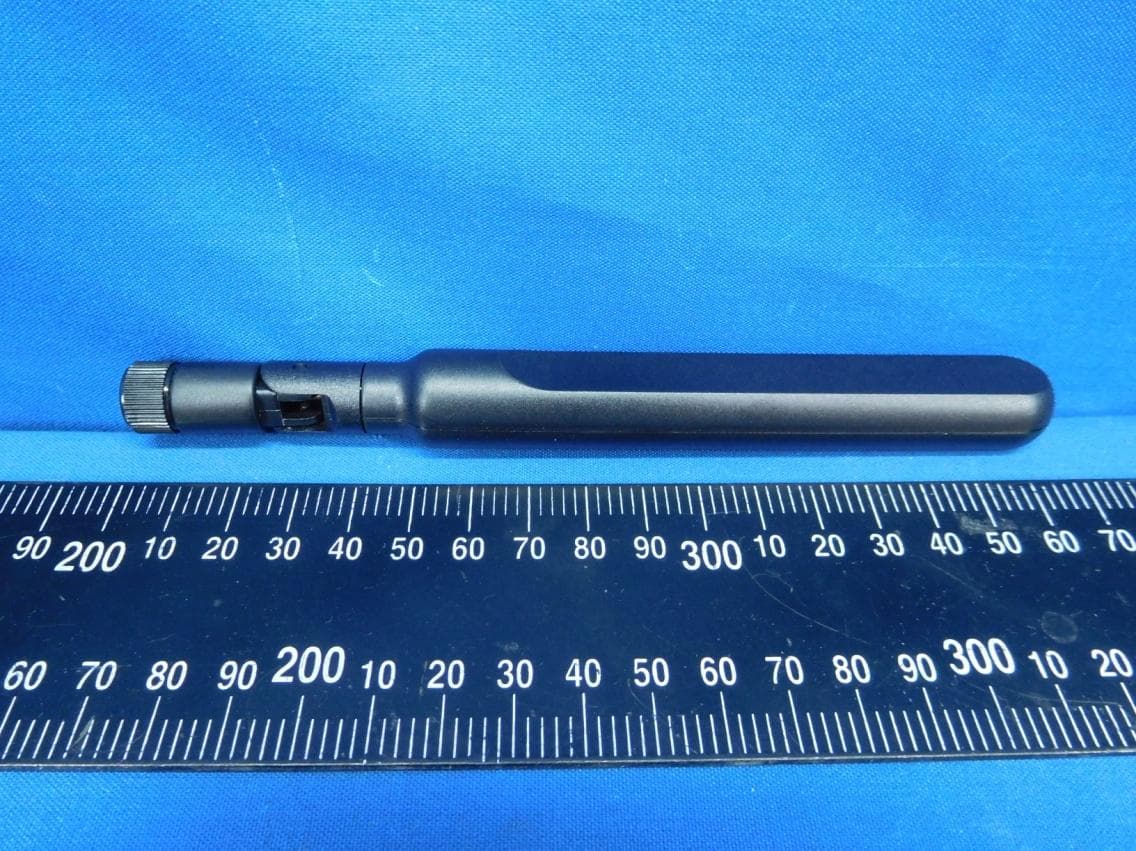
Jun 03, 2021LTE M.2 Module
Equipment Class
CBE - Citizens Band End User Devices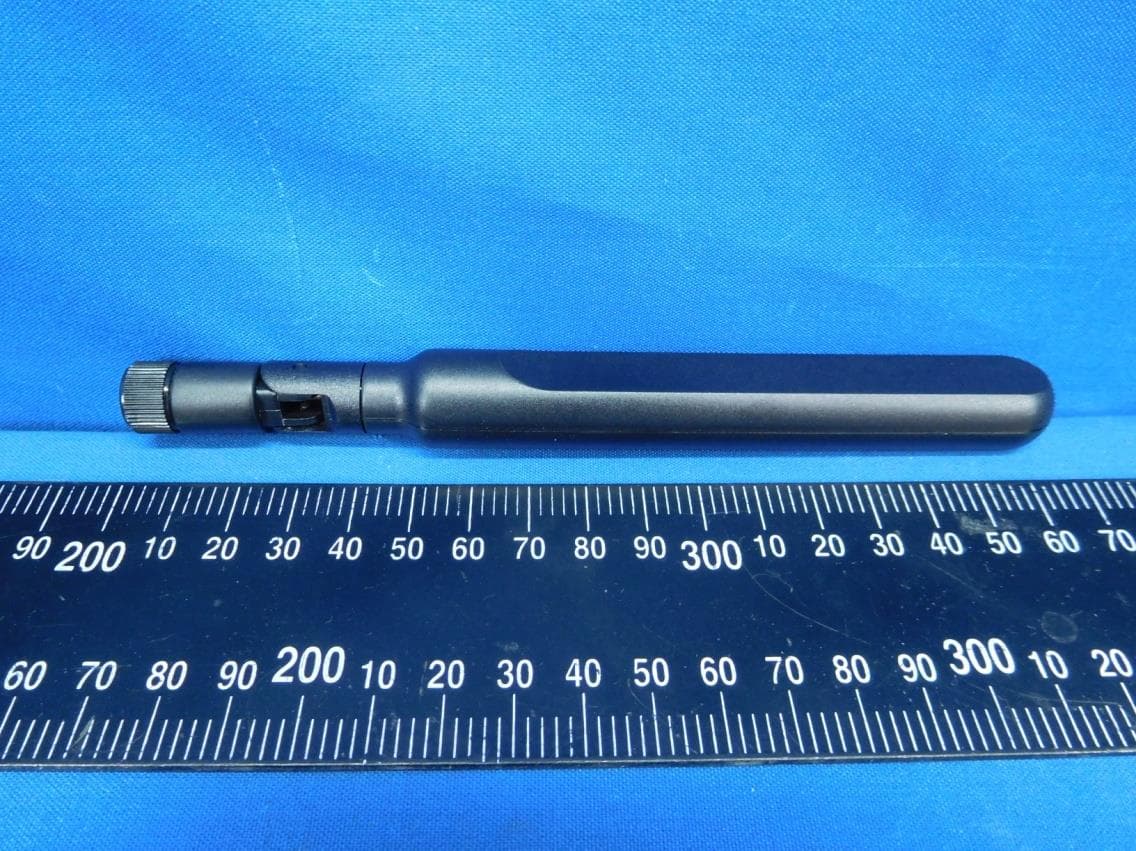
MCLT77W968C9
Feb 13, 2020LTE M.2 Module
Equipment Class
PCB - PCS Licensed Transmitter
MCLADB1761WF
Jun 03, 2015IP Set-Top Box with Wi-Fi 11ac
Equipment Class
DTS - Digital Transmission System
MCLADB1761W
Jun 02, 2015IP Set-Top Box
Equipment Class
DTS - Digital Transmission System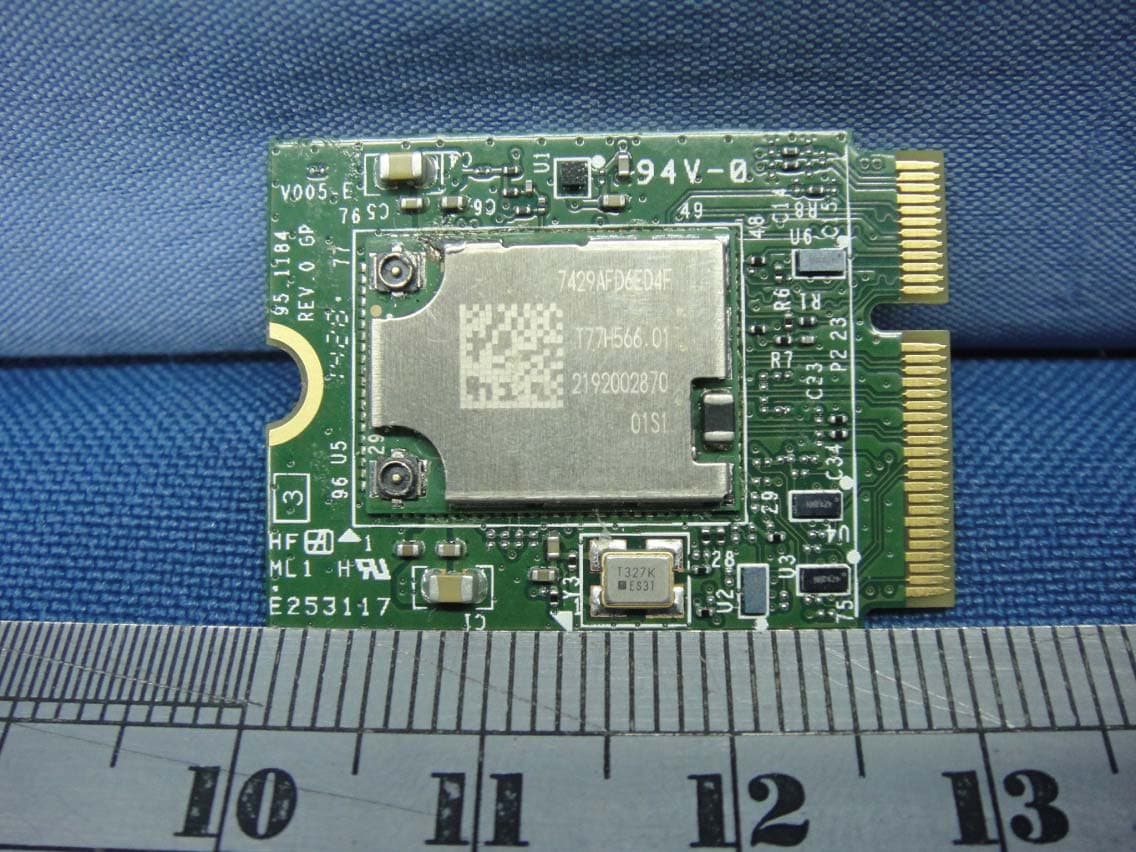
MCLT77H566
Feb 16, 2015WiFi/BT Module
Equipment Class
DTS - Digital Transmission System