NRQ-BROR01Bluetooth USB Adapter
Aiptek International Inc
Click to zoom
Application Details
- Equipment Class
- DSS - Part 15 Spread Spectrum Transmitter
- Date of Grant
- Jan 05, 2003
- Application Purpose
- Original Equipment
- Date of Application
- Jan 05, 2003
- Equipment Note
- Bluetooth USB Adapter
- Frequency Range
- 2402.00000000 - 2480.00000000
- Company
- Aiptek International Inc
- Country
- Taiwan
Documents & Files
Document Text
Text extracted from the exhibit documents filed with the FCC. Open a document above to read the original.
Users Manual
Electronic ManualElectronicManual Bluetooth USB Adapter FCC Statement This device complies with part 15 of the FCC rules. Operation is subject to the following two conditions. (1) This device may not cause harmful interference and (2) This device must accept any interference received, including interference that cause undesired operation. You are cautioned that changes or modifications not expressly approved by the party responsible for compliance could void your authority to operate the equipment. Bluetooth USB Adapter User Guide Table of Content Quick Installing Guide Step 1. Installing Software Step 2. Insert Bluetooth USB Adapter into a USB port Step 3. Setup Tray Application How to Use Bluetooth Service 1. Search for Other Bluetooth Device 2. Service Discovery 3. Bluetooth Service (Profile) Explanation 4. Pairing 5. Troubleshooting 6. Important Notices for WindowsXP OS This Bluetooth USB Adapter User Guide is for quick guide of installing procedure and trouble shooting. If you want to understand complete functions of Bluetooth, please refer to BTW (Bluetooth for Windows) Guide on CD in the package (The file name is English version only). Bluetooth is a registered trademark of Bluetooth SIG. All other products and product names mentioned herein are trademarks of their respective companies. Widcomm’s “BTW Users Guide.pdf”, Step 1. Installing Software 1. Insert the CD into CD/DVD drive on your PC. The CD (*If your OS are WindowsXP, please refer to should start automatically and present you with an installation menu. item mportant Notices for WindowsXP OS simultaneously)“I” 2. Choose "Bluetooth Manager". 3. Click " Next ". (see figure 1) 4. If you agree with the license terms, select " I accept the terms in the license agreement " and click " Next " . (see figure 2) Quick Installing Guide Figure 1 Figure 2 Step 2. Insert Bluetooth USB Adapter into USB Port 1. Insert Bluetooth USB Adapter into a free USB port after restartng Windows. 2.Windows should inform you that new hardware has been found and install the drivers automatically. If you Insert Bluetooth USB Adapter correctly, you will see LED lighting, and it will flash when date has been transmitted. 5. Ensure the device name and type are correct then click " Next " . (see figure 3) 6. click " Next " 7. click " Install " 8. click " Finish " 9. Click"Yes" to restart Windows. (see figure 4) Figure 4 Figure 3 Step 3. Setup Tray Application After you have installed the software and have inserted the Blue tooth USB Adapter into a free USB Port, please check a new icon likeon the Windows system tray located in the bottom right hand corner of your Windows desktop. If you move the mouse onto the icon, you should see a popup message Bluetooth Configuration". (see figure 5)“ This is the Bluetooth System Tray icon. Right ""click on it, select Setup then you will see the following screen.(see figure 6) The "Computer Name" you see here should be the same as your computer name or the name you choose during the installation process. The computer type is either "Desktop" or "Laptop". The security mode may be set to "High" or "Medium". Medium is the default setting. This means that anyone can connect to your system and use your services without having to type in a password. You can protect your individual services with a passkey and/or encryption by choosing High security mode. Figure 5 Figure 6 To insure that your hardware is working properly, click on the Hardware tab. If the Device Status shows "NA" then your USB Adaptor has not been detected by the software. If the device is not plugged into USB port in your computer, please insert it again. If Device Status in Device Properties is "The Device is working normally", press the "OK" button. Congratulation! You have completed the installation process. (see Figure 7) Figure 7 How to Use Bluetooth Service 1. Search for Other Bluetooth Device After installation of the Bluetooth software you will have a new icon on your Windows desktop (see Figure 8). Double-click on this icon to bring up "My Bluetooth Places" (see Figure 9). To discover nearby Bluetooth devices, click the "Entire Bluetooth Neighborhood" icon. It will try to discover other Bluetooth devices within radio range. If any devices are discovered they will be displayed in the Entire Bluetooth Neighborhood. The search may take a few minutes if there are many discoverable Bluetooth devices within range. Figure 8 Figure 9 2. Service Discovery Each Bluetooth device has services (profiles) you can access. To find out which services (profiles) a device supports, double click on that device. You will see all of the services listed, detailed explanations are on the next page. We suggest you to read on-line help (press F1). You can find more of detail setting about the profiles in it. (see Figure 10). Figure 10 allows a Bluetooth client to wirelessly send a fax via another Bluetooth device which can dial to telephone network (ex: Bluetooth Mobile Phone). establishes a Bluetooth wireless connection that allows your computer to perform file system operations on another Bluetooth-enabled device. You can browse, drag/drop, open, print, cut/copy, paste, delete, rename, etc. establishes a Bluetooth wireless connection between two devices so that they can transfer PIM (Personal Information Manager) data such as business cards, calendar items, email messages, and notes from one device to the other. establishes a Bluetooth wireless connection between two devices and uses the connection to synchronize PIM data between the two devices. establishes a Bluetooth wireless connection between two devices. If another Bluetooth-enable device has connected to internet, you can share its internet connection by using this service. Fax File Transfer Information Exchange Information Synchronization Network Access 3. Bluetooth Services (Profiles) Explanation Bluetooth Serial Port Dial-Up Networking allows you to establishes a Bluetooth wireless connection between two devices. Th…
Text truncated - open the document above for the full version.
Block Diagram
Bluetooth controller
Cover Letter(s)
We retested the radiated emission of channel 0 of the sample Aiptek Bluetooth USB adapter and found the field strength at 2401.88 MHz to be 107.9 dBuV/m as shown on p. 13 of the attached report. The radiated output power EIRP is calculated to be 18.75 mW (antenna gain = 0 dBi = 1) via the equations you sent me.
External Photos
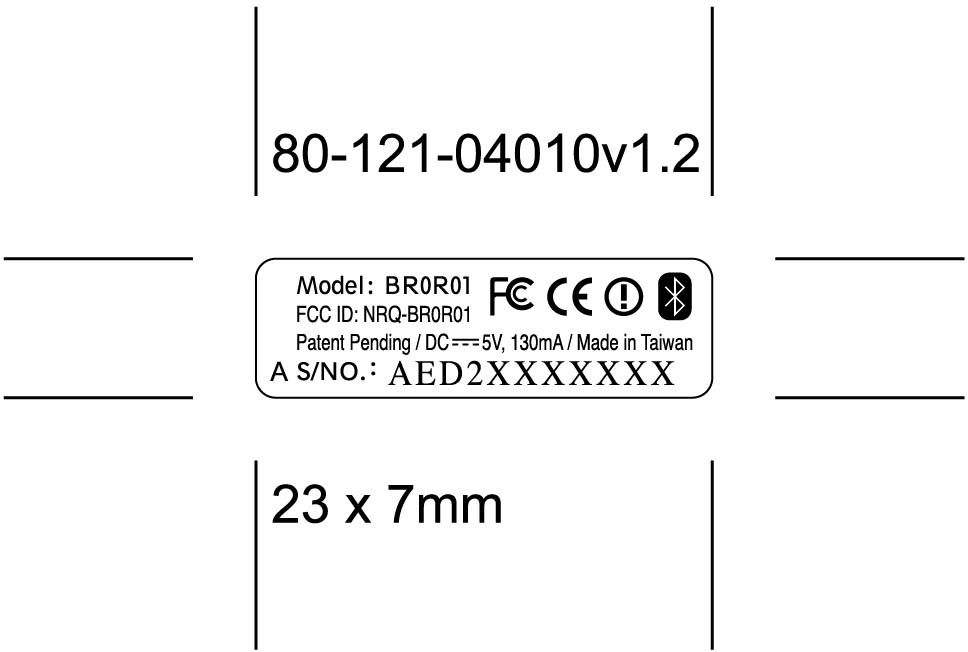
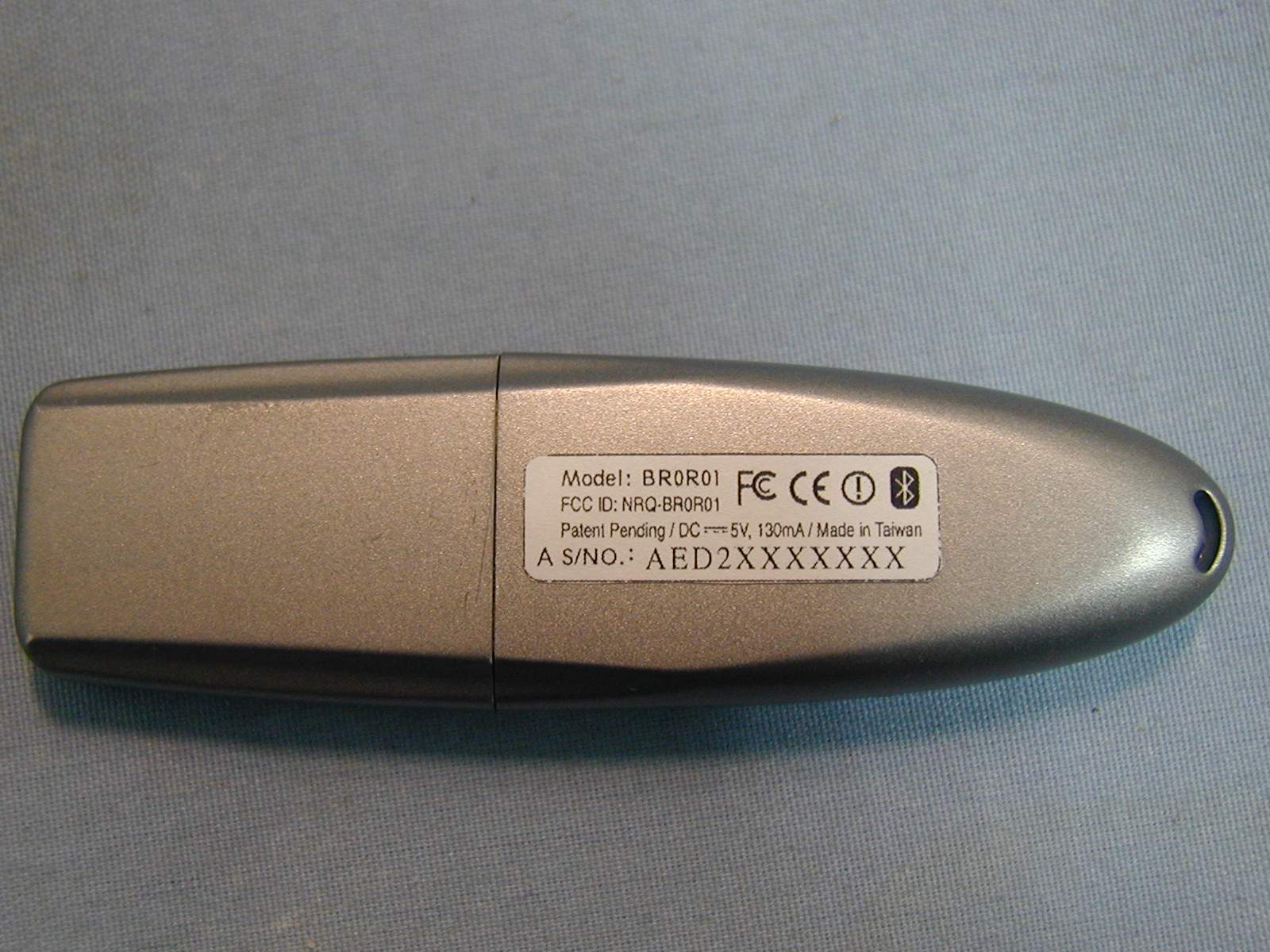
- EUT front side with cover & without cover Spectrum Research & Testing Lab., Inc. No. 101-10, Ling 8, Shan-Tong Li, Chung-Li City, Taoyuan, Taiwan, R.O.C. - EUT back side
Internal Photos
- EUT inside Spectrum Research & Testing Lab., Inc. No. 101-10, Ling 8, Shan-Tong Li, Chung-Li City, Taoyuan, Taiwan, R.O.C. - PCB NO.1 front & back side Spectrum Research & Testing Lab., Inc. No. 101-10, Ling 8, Shan-Tong Li, Chung-Li City, Taoyuan, Taiwan, R.O.C. - PCB NO.2 front & back side
Operational Description
Operational description of the Bluetooth USB Adapter The device uses a spread spectrum, frequency hopping, full-duplex signal at up to 1600 hops/sec. The signal hops among 79 frequencies at 1 MHz intervals to give a high degree of interference immunity. Up to seven simultaneous connections can established and maintained. Other specifications as below: ¾ Frequency Band: 2400~2483.5MHz ¾ Rated RF power output: 13dBm ¾ Modulation type: GFSK ¾ Bit rate of transmission: 1 Mbps ¾ Supports both point-to-point and point-to-multipoint connections Data and Voice access points Bluetooth wireless technology facilitates real-time voice and data transmissions, which makes it possible to connect any portable and stationary communication device as easily as switching on the lights. You can, for instance, surf the Internet and send e-mails on your portable PC or notebook regardless of whether you are wirelessly connected through a mobile phone or through a wire-bound connection (PSTN, ISDN, LAN, xDSL). Voice Up to three simultaneous synchronous voice channels are used, or a channel which simultaneously supports asynchronous data and synchronous voice. Each voice channel supports a 64 kb/s synchronous (voice) channel in each direction. Data The asynchronous data channel can support maximal 723.2 kb/s asymmetric (and still up to 57.6 kb/s in the return direction), or 433.9 kb/s symmetric. • a Master can share an asynchronous channel with up to 7 simultaneously active Slaves in a Piconet. • by swapping active and parked slaves out respectively in the piconet, 255 slaves can be virtually connected using the PM_ADDR (a device can participate again within 2 ms). • to park even more slaves the BD_ADDR can be used. There is no limitation to the number of slaves that can be parked. Slaves can participate in different piconets and a master of one piconet can be the slave in another, this is known as a scatternet. Up to 10 piconets within range can form a scatternet, with a minimum of collisions. Cable replacement Bluetooth wireless technology eliminates the need for numerous, often proprietary, cable attachments for connection of practically any kind of communication device. Connections are instant and they are maintained even when devices are not within line of sight. The range of each radio is approximately 10 meters, but it can be extended to around 100 meters with an optional amplifier.
Test Report
Spectrum Research & Testing Lab., Inc. No. 101-10, Ling 8, Shan-Tong Li, Chung-Li City, Taoyuan, Taiwan TEST REPORT Reference No.:A02101401 Report No.:FCCA02091102-01 FCC ID:NRQ-BROR01 Page:2 of 54 Date:Mar. 24, 2003 TABLE OF CONTENTS 1. DOCUMENT POLICY AND TEST STATEMENT................................................4 1.1 DOCUMENT POLICY.........................................................................................4 1.2 TEST STATEMENT............................................................................................4 2. DESCRIPTION OF EUT AND TEST MODE.......................................................4 2.1 GENERAL DESCRIPTION OF EUT...................................................................4 2.2 DESCRIPTION OF SUPPORT UNIT..................................................................5 2.3 DESCRIPTION OF TEST MODE.......................................................................5 3. DESCRIPTION OF APPLIED STANDARDS......................................................5 4 TECHNICAL CHARACTERISTICS TEST.............................................................6 4.1 CONDUCTED EMISSION TEST........................................................................6 4.1.1 LIMIT..................................................................................................................6 4.1.2 TEST EQUIPMENT............................................................................................6 4.1.3 TEST SETUP.....................................................................................................7 4.1.4 TEST PROCEDURE..........................................................................................7 4.1.5 EUT OPERATING CONDITION.........................................................................7 4.1.6 TEST RESULT...................................................................................................8 4.2 RADIATED EMISSION TEST.............................................................................9 4.2.1 LIMIT..................................................................................................................9 4.2.2 TEST EQUIPMENT.......................................................................................10 4.2.3 TEST SET-UP...............................................................................................11 4.2.4 TEST PROCEDURE......................................................................................11 4.2.5 EUT OPERATING CONDITION....................................................................12 4.2.6 TEST RESULT..............................................................................................12 4.3 CHANNEL SEPARATION TEST......................................................................16 4.3.1 LIMIT................................................................................................................16 4.3.2 TEST EQUIPMENT.......................................................................................16 4.3.3 TEST SET-UP...............................................................................................16 4.3.4 TEST PROCEDURE......................................................................................16 4.3.5 EUT OPERATING CONDITION....................................................................16 4.3.6 TEST RESULT..............................................................................................17 4.4 QUANTITY OF HOPPING CHANNEL TEST...................................................21 4.4.1 LIMIT................................................................................................................21 4.4.2 TEST EQUIPMENT.......................................................................................21 4.4.3 TEST SET-UP...............................................................................................21 4.4.4 TEST PROCEDURE......................................................................................21 4.4.5 EUT OPERATING CONDITION....................................................................21 4.4.6 TEST RESULT..............................................................................................22 4.5 AVERAGE TIME OF OCCUPANCY TEST.........................................................23 4.5.1 LIMIT................................................................................................................23 4.5.2 TEST EQUIPMENT.......................................................................................23 Spectrum Research & Testing Lab., Inc. No. 101-10, Ling 8, Shan-Tong Li, Chung-Li City, Taoyuan, Taiwan TEST REPORT Reference No.:A02101401 Report No.:FCCA02091102-01 FCC ID:NRQ-BROR01 Page:3 of 54 Date:Mar. 24, 2003 4.5.3 TEST SET-UP...............................................................................................23 4.5.4 TEST PROCEDURE......................................................................................23 4.5.5 EUT OPERATING CONDITION....................................................................23 4.5.6 TEST RESULT..............................................................................................24 4.6 20DBC BANDWIDTH TEST.............................................................................28 4.6.1 LIMIT................................................................................................................28 4.6.2 TEST EQUIPMENT.......................................................................................28 4.6.3 TEST SET-UP...............................................................................................28 4.6.4 TEST PROCEDURE......................................................................................28 4.6.5 EUT OPERATING CONDITION....................................................................28 4.6.6 TEST RESULT..............................................................................................29 4.7…
Text truncated - open the document above for the full version.
Test Setup Photos
PHOTOS OF TESTING - Conducted test - Radiated test
Contact Information
Applicant
Leo Lin(Deputy Manager)
Test Firm
Spectrum Research & Testing Lab.Linda Chiang
Technical Specifications
| # | Rule Parts | Frequency Range | Power Output |
|---|---|---|---|
| 1 | 15C | 2.40 GHz - 2.48 GHz | 19.00 mW |
Other Applications from Aiptek International Inc
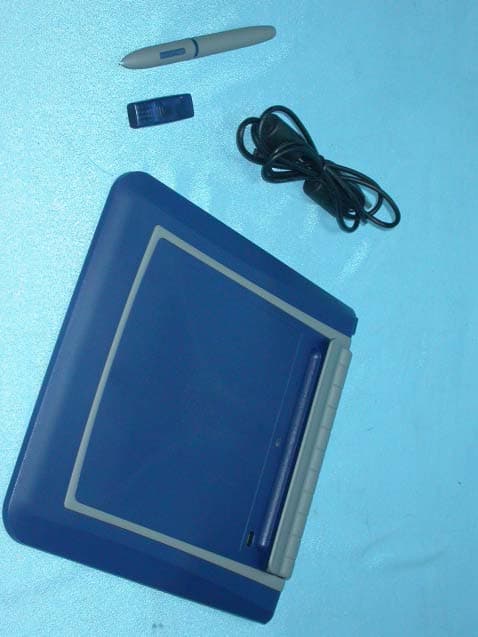
NRQRMKT05
Feb 16, 2004Bluetooth Tablet
Equipment Class
DSS - Part 15 Spread Spectrum Transmitter
NRQRXOB31
Dec 21, 2003SecuCam AV100 - Transmitter
Equipment Class
DXX - Part 15 Low Power Communication Device TransmitterNRQ-BROR02
Oct 28, 2002Bluetooth USB Adapter
Equipment Class
DSS - Part 15 Spread Spectrum Transmitter
NRQUT4030M
Apr 25, 2000Tablet
Equipment Class
JBP - Part 15 Class B Computing Device Peripheral
NRQUT8060M
Apr 25, 2000Tablet
Equipment Class
JBP - Part 15 Class B Computing Device Peripheral