NRQRMKT05Bluetooth Tablet
Aiptek International Inc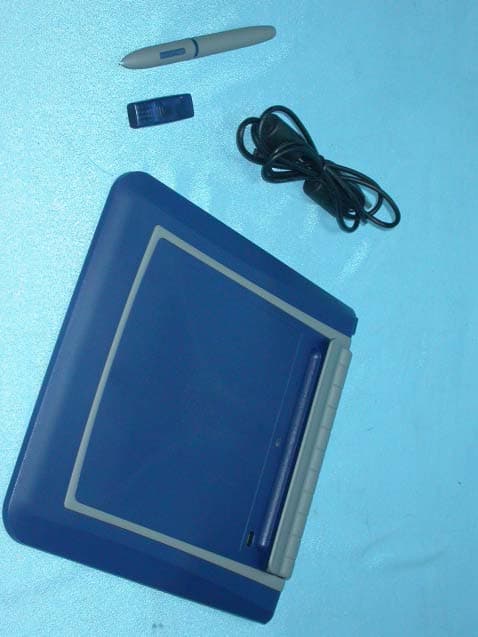
Click to zoom
Application Details
- Equipment Class
- DSS - Part 15 Spread Spectrum Transmitter
- Date of Grant
- Feb 16, 2004
- Application Purpose
- Original Equipment
- Date of Application
- Feb 16, 2004
- Equipment Note
- Bluetooth Tablet
- Frequency Range
- 2402.00000000 - 2480.00000000
- Company
- Aiptek International Inc
- Country
- Taiwan
Documents & Files
Document Text
Text extracted from the exhibit documents filed with the FCC. Open a document above to read the original.
Users Manual
Bluetooth TabletBluetooth Tablet F C C C a u t i o n FCC Caution F C C C a u t i o n FCC RF Radiation Exposure Statement: The equipment complies with FCC RF radiation exposure limits set for the for an uncontrolled environment. This transmitter must not be co-located or operated in conjunction with any other antenna or transmitter. Changes or modifications to this unit not expressly approved by the party responsible for compliance could void the user authority to operate the equipment. The device complies with Part 15 of the FCC rules. Operation is subject to the following two conditions (1) This device may not cause harmful interference, and (2) this device must accept any interference received, including interference that may cause undesired operation. F C C C a u t i o n FCC Caution F C C C a u t i o n FCC RF Radiation Exposure Statement: The equipment complies with FCC RF radiation exposure limits set for the for an uncontrolled environment. This transmitter must not be co-located or operated in conjunction with any other antenna or transmitter. Changes or modifications to this unit not expressly approved by the party responsible for compliance could void the user authority to operate the equipment. The device complies with Part 15 of the FCC rules. Operation is subject to the following two conditions (1) This device may not cause harmful interference, and (2) this device must accept any interference received, including interference that may cause undesired operation. 5. Environment 6. Maintenance 7. Troubleshooting 8. Specification C o n t e n t s C o n t e n t s Contents 1 2 Contents Introduction 1. Installation Bluetooth Adapter Driver Installation (For Wireless) Step1 Bluetooth USB/ Tablet Manager Installation (For Wireless/ Wired) Step2 2. Setup Initial Setup (For Wireless) Pairing Your Bluetooth Tablet (For Wireless) Step1 Step2 3. Configuration Customizing Your Tablet (For Wireless/Wired) Step1 Step2 Adjusting Your Wireless Pen Sensitivity (For Wireless/Wired) 4. Disconnection Disconnection (For Wireless) Disconnection (For Wireless) Option1 Option2 Option3 Disconnection (For Wired) 3 6 10 11 12 17 19 20 25 27 28 29 30 31 32 33 35 5. Environment 6. Maintenance 7. Troubleshooting 8. Specification C o n t e n t s C o n t e n t s Contents 1 2 Contents Introduction 1. Installation Bluetooth Adapter Driver Installation (For Wireless) Step1 Bluetooth USB/ Tablet Manager Installation (For Wireless/ Wired) Step2 2. Setup Initial Setup (For Wireless) Pairing Your Bluetooth Tablet (For Wireless) Step1 Step2 3. Configuration Customizing Your Tablet (For Wireless/Wired) Step1 Step2 Adjusting Your Wireless Pen Sensitivity (For Wireless/Wired) 4. Disconnection Disconnection (For Wireless) Disconnection (For Wireless) Option1 Option2 Option3 Disconnection (For Wired) 3 6 10 11 12 17 19 20 25 27 28 29 30 31 32 33 35 I n t r o d u c t i o n I n t r o d u c t i o n Introduction 3 4 Introduction Thank you for purchasing Bluetooth Tablet. Your Bluetooth Tablet provides two modes of connection with PC: Wireless mode and wired mode . Both modes provide pleasant and comfortable environment. Please notice that the setup procedure of wireless and wired mode are different, and these will be stressed through this manual. icon represents wireless mode, while icon represents wired mode. Wireless ModeWired Mode I n t r o d u c t i o n I n t r o d u c t i o n Introduction 3 4 Introduction Thank you for purchasing Bluetooth Tablet. Your Bluetooth Tablet provides two modes of connection with PC: Wireless mode and wired mode . Both modes provide pleasant and comfortable environment. Please notice that the setup procedure of wireless and wired mode are different, and these will be stressed through this manual. icon represents wireless mode, while icon represents wired mode. Wireless ModeWired Mode 1 Installation Bluetooth Adapter Driver Installation (For Wireless) Step1 Bluetooth USB/ Tablet Manager Installation (For Wireless/ Wired) Step2 B l u e t o o t h A d a p t e r D r i v e r I n s t a l l a t i o n Bluetooth Adapter Driver Installation Insert the driver CD into CD/ DVD drive, then the automatic installation will begin. Please click on Bluetooth Adapter Driver to continue installation. " ” Click Next "". If you agree with the license terms, select I accept the terms in the license agreement " ". Then click "Next". 5 6 1 2 3 Step1 (For Wireless) 1 . I N S T A L L A T I O N 1 . I n s t a l l a t i o n 1 Installation Bluetooth Adapter Driver Installation (For Wireless) Step1 Bluetooth USB/ Tablet Manager Installation (For Wireless/ Wired) Step2 B l u e t o o t h A d a p t e r D r i v e r I n s t a l l a t i o n Bluetooth Adapter Driver Installation Insert the driver CD into CD/ DVD drive, then the automatic installation will begin. Please click on Bluetooth Adapter Driver to continue installation. " ” Click Next "". If you agree with the license terms, select I accept the terms in the license agreement " ". Then click "Next". 5 6 1 2 3 Step1 (For Wireless) 1 . I N S T A L L A T I O N 1 . I n s t a l l a t i o n If your Bluetooth Adapter has not been plugged into a USB port, the following message will be shown. Insert a Bluetooth Adapter into a free USB port and click OK to continue. Windows should inform you that new hardware has been found. "" 7 8 Click "Next". Click "Install". When the "Driver Signature Notice" dialog box appears, click "OK" to continue. If Bluetooth Adapter is fully inserted to the USB port, the LED indicator of Bluetooth Adapter will light up in green. !! Click "Finish". Congratulations! You have completed Bluetooth Adapter Driver installation. Bluetooth icons will appear on your desktop after installation. 4 5 7 8 9 B l u e t o o t h A d a p t e r D r i v e r I n s t a l l a t i o n 1 . I n s t a l l a t i o n 6 U S B 10 Click "Finish". If your Bluetooth Adapter has not been plugged into a USB port, the following message will be shown. Insert a Bluetooth Adapter into a free USB port an…
Text truncated - open the document above for the full version.
Users Manual
13 14 I n i t i a l S e t u p Note: If there are more than one computer that may connect to your computer, you will need to use a unique name. To continue, click Next. !! The Initial Bluetooth Configuration Wizard window will now allow you to enable or disable Bluetooth Services. To continue, click Next. The Bluetooth Services Selection will allow you to disable/enable any services that you do not wish to offer. (Refer to the Bluetooth Services section for detailed information on services). Uncheck/ Check by clicking on the check boxes. Enabled Service Disabled Service By default all services are enabled (all check boxes ticked) To continue and click Next Note: You can choose to disable or enable services at anytime. !! 4 5 The Initial Bluetooth Configuration Wizard will allow you to choose whether to search and configure other Bluetooth devices. To search and configure device(s) click Next. Or (Recommended) To continue, click Skip. Note: You can configure connecting Bluetooth devices at anytime. !! 6 2 . S e t u p 13 14 I n i t i a l S e t u p Note: If there are more than one computer that may connect to your computer, you will need to use a unique name. To continue, click Next. !! The Initial Bluetooth Configuration Wizard window will now allow you to enable or disable Bluetooth Services. To continue, click Next. The Bluetooth Services Selection will allow you to disable/enable any services that you do not wish to offer. (Refer to the Bluetooth Services section for detailed information on services). Uncheck/ Check by clicking on the check boxes. Enabled Service Disabled Service By default all services are enabled (all check boxes ticked) To continue and click Next Note: You can choose to disable or enable services at anytime. !! 4 5 The Initial Bluetooth Configuration Wizard will allow you to choose whether to search and configure other Bluetooth devices. To search and configure device(s) click Next. Or (Recommended) To continue, click Skip. Note: You can configure connecting Bluetooth devices at anytime. !! 6 2 . S e t u p 15 16 I n i t i a l S e t u p The Bluetooth Device Selection window will attempt to search for any Bluetooth devices in the area (area can be up to 10 metres). 7 Bluetooth Adapter has found the Bluetooth Tablet. Click on the icon to select the Bluetooth Tablet and then click Next. 8 9 Click Next. 99 Click Skip. 10 Click Finish. Congratulations! You have completed initial Setup. Please restart your computer later. 11 Restart your computer. Click Yes. 12 2 . S e t u p 15 16 I n i t i a l S e t u p The Bluetooth Device Selection window will attempt to search for any Bluetooth devices in the area (area can be up to 10 metres). 7 Bluetooth Adapter has found the Bluetooth Tablet. Click on the icon to select the Bluetooth Tablet and then click Next. 8 9 Click Next. 99 Click Skip. 10 Click Finish. Congratulations! You have completed initial Setup. Please restart your computer later. 11 Restart your computer. Click Yes. 12 2 . S e t u p 17 2 . S e t u p 18 P a i r i n g Y o u r B l u e t o o t h T a b l e t Pairing Your Bluetooth Tablet Step2 Pairing- Pairing allows two devices to be setup and will recognize each other whenever these two devices meet again. You need to pair each time you wish to connect your tablet. What is Pairing? 1 2 3 Double click the My Bluetooth Places on your desktop. Click View devices in range. Now your computer is searching for all the Bluetooth devices in range. Please wait. Note: Make sure that batteries have been installed and your Bluetooth Tablet is switched on before pairing. (See Bluetooth Tablet Hardware Installation) !! Your computer has found the Bluetooth Tablet when icon appears. This icon indicates that the Bluetooth Tablet is connected to PC. (For Wireless) 4 Double click the icon. The Bluetooth Connection Status Window will appear. Bluetooth Conncection Status Window Connected/Disconnected Connected Device Name Connected Time Data Sent/Received Connection Quality Disconnect/Connect Close the Window See 5. Environment. Note: As your Bluetooth Tablet is connecting to PC, you can go to Step3 to test your tablet. !! 17 2 . S e t u p 18 P a i r i n g Y o u r B l u e t o o t h T a b l e t Pairing Your Bluetooth Tablet Step2 Pairing- Pairing allows two devices to be setup and will recognize each other whenever these two devices meet again. You need to pair each time you wish to connect your tablet. What is Pairing? 1 2 3 Double click the My Bluetooth Places on your desktop. Click View devices in range. Now your computer is searching for all the Bluetooth devices in range. Please wait. Note: Make sure that batteries have been installed and your Bluetooth Tablet is switched on before pairing. (See Bluetooth Tablet Hardware Installation) !! Your computer has found the Bluetooth Tablet when icon appears. This icon indicates that the Bluetooth Tablet is connected to PC. (For Wireless) 4 Double click the icon. The Bluetooth Connection Status Window will appear. Bluetooth Conncection Status Window Connected/Disconnected Connected Device Name Connected Time Data Sent/Received Connection Quality Disconnect/Connect Close the Window See 5. Environment. Note: As your Bluetooth Tablet is connecting to PC, you can go to Step3 to test your tablet. !! 20 C u s t o m i z i n g Y o u r T a b l e t Customizing Your Tablet Step1 (For Wireless/Wired) USB Tablet provides a testing function for you to find out the best settings for your pen. Wired USB Tablet 3 For wireless tablet - Make sure that you have completed all the previous steps in Chapter 1 and Chapter 2. For wired tablet - Make sure that you have connected your tablet To PC via a USB cable and have installed the battery of the pen. Wireless USB Tablet USB Tablet icon (Wireless) USB Tablet icon (Wired) Note: If you cannot find and , click Start menu and then click Run and enter atwtusb. Click OK and or will show up. !! 1 If your tablet is enabled as a Bluetooth Tablet, will appear in Windows System tray…
Text truncated - open the document above for the full version.
Users Manual
20 C u s t o m i z i n g Y o u r T a b l e t Customizing Your Tablet Step1 (For Wireless/Wired) USB Tablet provides a testing function for you to find out the best settings for your pen. Wired USB Tablet 3 For wireless tablet - Make sure that you have completed all the previous steps in Chapter 1 and Chapter 2. For wired tablet - Make sure that you have connected your tablet To PC via a USB cable and have installed the battery of the pen. Wireless USB Tablet USB Tablet icon (Wireless) USB Tablet icon (Wired) Note: If you cannot find and , click Start menu and then click Run and enter atwtusb. Click OK and or will show up. !! 1 If your tablet is enabled as a Bluetooth Tablet, will appear in Windows System tray. While your tablet is enabled as a wired tablet, will appear in Windows System tray. Left-click or icon and the USB Tablet Window will pop up. 2 19 3 . C o n f i g u r a t i o n 3 Configuration Customizing Your Tablet (For Wireless/Wired) Step1 Adjusting Your Wireless Pen Sensitivity (For Wireless/Wired) Step2 1 22 There are two buttons on the wireless pen. Both of them can correspond to mouse click. Click category tabs Pen [Absolute mode] - the area of the tablet corresponds to the whole area of the screen. For example, if place your wireless pen in the top right hand corner, the mouse pointer will always be at the top right of the screen. Mouse [Relative mode] - acts like a mouse, moves in relation to where the mouse pointer currently is. For example, place your wireless pen anywhere on the tablet. If you move up, the mouse pointer will follow, regardless of where you start on the tablet. Change the length unit of tablet size in inch/cm. C u s t o m i z i n g Y o u r T a b l e t Tracking Mode Click OK to save changes. About USB Tablet Window 2 Buttons Pull-down menu of Side Buttons of your wireless pen None Left click Left double click Right click Right double click Middle click Middle double click ScrollBar Move Up/Down ScrollBar Move Pull-down menu Click the Side Buttons menu and choose one function for each Side Button. Default Side Button 1= Right click Side Button 2= Left double click 21 3 . C o n f i g u r a t i o n 1 1 22 There are two buttons on the wireless pen. Both of them can correspond to mouse click. Click category tabs Pen [Absolute mode] - the area of the tablet corresponds to the whole area of the screen. For example, if place your wireless pen in the top right hand corner, the mouse pointer will always be at the top right of the screen. Mouse [Relative mode] - acts like a mouse, moves in relation to where the mouse pointer currently is. For example, place your wireless pen anywhere on the tablet. If you move up, the mouse pointer will follow, regardless of where you start on the tablet. Change the length unit of tablet size in inch/cm. C u s t o m i z i n g Y o u r T a b l e t Tracking Mode Click OK to save changes. About USB Tablet Window 2 Buttons Pull-down menu of Side Buttons of your wireless pen None Left click Left double click Right click Right double click Middle click Middle double click ScrollBar Move Up/Down ScrollBar Move Pull-down menu Click the Side Buttons menu and choose one function for each Side Button. Default Side Button 1= Right click Side Button 2= Left double click 21 3 . C o n f i g u r a t i o n 1 24 The control tab allows configuration of the active working area of the tablet to a smaller area. C u s t o m i z i n g Y o u r T a b l e t 3 Control 23 3 . C o n f i g u r a t i o n 1. The Full Area button allows the entire area of the tablet to be used. (Default setting) 2. To select a smaller active area, use the wireless pen and on the tablet click on the upper left corner of the area you wish to select, then move your wireless pen to the lower right of the area you wish to select and click. 1 3 2 Function Key 4 The function key tab allows you to view or change existing shortcuts. To change a shortcut click on .. And search for the file you wish to link the function key to. You may also type the location. Once a function key is linked, the next time you want to access that file or location, just click on the respective function key. There are F1 - F12 to view or change F9 onwards, click Page Down. Note:To use a short cut, you move your pointer, use the wireless pen and point to the top of the active area. And F1 to F12 will appear along the top of the screen. !! 3. When selected you will see the active area in black, and inactive in grey. The black area in the Working Area Setting corresponds to the same area on your tablet. The active area can now be adjusted in two ways. The Offset moves the selected active area. The Dimensions allows you to adjust the size of the selected active area more precisely. 24 The control tab allows configuration of the active working area of the tablet to a smaller area. C u s t o m i z i n g Y o u r T a b l e t 3 Control 23 3 . C o n f i g u r a t i o n 1. The Full Area button allows the entire area of the tablet to be used. (Default setting) 2. To select a smaller active area, use the wireless pen and on the tablet click on the upper left corner of the area you wish to select, then move your wireless pen to the lower right of the area you wish to select and click. 1 3 2 Function Key 4 The function key tab allows you to view or change existing shortcuts. To change a shortcut click on .. And search for the file you wish to link the function key to. You may also type the location. Once a function key is linked, the next time you want to access that file or location, just click on the respective function key. There are F1 - F12 to view or change F9 onwards, click Page Down. Note:To use a short cut, you move your pointer, use the wireless pen and point to the top of the active area. And F1 to F12 will appear along the top of the screen. !! 3. When selected you will see the active area in black, and inactive in grey. The black area in the Working Area Setting corresponds to the same area on your tablet. The active…
Text truncated - open the document above for the full version.
Users Manual
28 D i s c o n n e c t i o n Disconnection Option1 (For Wireless/) 27 4 . D i s c o n n e c t i o n 4 Disconnection Disconnection (For Wireless) Option1 Disconnection (For Wireless) Option2 Option3 Disconnection (For Wired) Keep pressing the unpair button for at least 4 seconds and the tablet will be disconnected. Unpair Button 1 2 3 Double click the My Bluetooth Places on your desktop. Click View devices in range. Now your computer is searching for all the Bluetooth devices in range. Please wait. Your computer has found the Bluetooth Tablet when icon appears. This icon indicates that the Bluetooth Tablet is connected to PC. Click Disconnect. Now you can safely disconnect your Bluetooth Tablet. 30 29 4 . D i s c o n n e c t i o n D i s c o n n e c t i o n Disconnection (For Wired) Disconnection (For Wireless) Option3Option2 Unplug the USB cable and the tablet will be disconnected. 4 1 2 3 Double click the My Bluetooth Places on your desktop. Click View devices in range. Now your computer is searching for all the Bluetooth devices in range. Please wait. Your computer has found the Bluetooth Tablet when icon appears. This icon indicates that the Bluetooth Tablet is connected to PC. Click Disconnect. Now you can safely disconnect your Bluetooth Tablet. 30 29 4 . D i s c o n n e c t i o n D i s c o n n e c t i o n Disconnection (For Wired) Disconnection (For Wireless) Option3Option2 Unplug the USB cable and the tablet will be disconnected. 4 31 5 . E n v i r o n m e n t 5 Environment Environment always influences the receiving quality of your tablet. The best environment for tablet is where no other cordless products are functioning, such as microwave ovens and dish dryers. Up to 10m (open space) Cement walls and wooden walls absorb radio wave and decrease receiving quality. Open space without barriers is the best environment for your tablet. Cement Wall Up to 10m (open space) 32 M a i n t e n a n c e 1. Do not drop, puncture or disassemble the tablet. 2. Remove batteries during long periods between use. 3. Avoid all contact with water and dry hands before using. 4. Do not expose the tablet to high temperature or leave it in direct sunlight. 5. Avoid pressing hard on the tablet body. 6 Maintenance 31 5 . E n v i r o n m e n t 5 Environment Environment always influences the receiving quality of your tablet. The best environment for tablet is where no other cordless products are functioning, such as microwave ovens and dish dryers. Up to 10m (open space) Cement walls and wooden walls absorb radio wave and decrease receiving quality. Open space without barriers is the best environment for your tablet. Cement Wall Up to 10m (open space) 32 M a i n t e n a n c e 1. Do not drop, puncture or disassemble the tablet. 2. Remove batteries during long periods between use. 3. Avoid all contact with water and dry hands before using. 4. Do not expose the tablet to high temperature or leave it in direct sunlight. 5. Avoid pressing hard on the tablet body. 6 Maintenance 33 7 . T r o u b l e s h o o t i n g 7 Troubleshooting 34 T r o u b l e s h o o t i n g What is the Bluetooth Adapter software that I am installing? Many Bluetooth Adaptors use the Bluetooth Adapter software to work with the adaptor and connect with other Bluetooth devices. When I search for my tablet, many devices appear that I do not recognize. Because Bluetooth has a range of up to 100 metres, you will detect devices beyond the tablet that you are searching for. My tablet connection drops out when I use my cordless phone. Bluetooth uses the 2.4Ghz unlicenced ISM band, which is the same as some high end cordless phones, video transmitters, and some other wireless devices. Even though Bluetooth uses frequency hopping to prevent interference with these devices, at times it may interfere. My computer does not detect the USB Bluetooth Adaptor. Please check the power status of your battery or try again. You may need to get a technician to make sure your USB port drivers are installed correctly. The light on my tablet does not light up. You may have accidently pressed the unpair button located just above the right hand corner of the active area of your tablet. If so, switch the tablet off for three seconds, and on again. Have your tablet within 2 meters. You tablet should light up and be usable. My tablet still does not light up, when I switch it on. You will need to replace the batteries of the tablet. It requires 2 AA batteries. My tablet lights up, but my pen does not respond. Check that you have the correct pen that was bundled with your unit, tap you pen gently on the tablet. The pen should respond now. My pen still does not respond. You will need to repair the devices, please see the pairing section. There is a longer than usually delay with my tablet. You will need to move closer to your computer and try replacing the batteries. Or you may check whether your PC is stable. I have lost my nib (the tip of my pen) Your pen is supplied with two spare nibs, which you can use to replace the tip. The pressure sensitivity does not seem to work in my application. Check that your application supports pressure sensitivity and also that it is enabled in the application that you are using. 33 7 . T r o u b l e s h o o t i n g 7 Troubleshooting 34 T r o u b l e s h o o t i n g What is the Bluetooth Adapter software that I am installing? Many Bluetooth Adaptors use the Bluetooth Adapter software to work with the adaptor and connect with other Bluetooth devices. When I search for my tablet, many devices appear that I do not recognize. Because Bluetooth has a range of up to 100 metres, you will detect devices beyond the tablet that you are searching for. My tablet connection drops out when I use my cordless phone. Bluetooth uses the 2.4Ghz unlicenced ISM band, which is the same as some high end cordless phones, video transmitters, and some other wireless devices. Even though Bluetooth uses frequency hopping to prevent interference with these devices, at tim…
Text truncated - open the document above for the full version.
External Photos
Company : AIPTEK International Inc. Page : 1 of 5 Product : Bluetooth Tablet Model : RMK-T05 Company : AIPTEK International Inc. Page : 2 of 5 Product : Bluetooth Tablet Model : RMK-T05 Company : AIPTEK International Inc. Page : 3 of 5 Product : Bluetooth Tablet Model : RMK-T05 Company : AIPTEK International Inc. Page : 4 of 5 Product : Bluetooth Tablet Model : RMK-T05 Company : AIPTEK International Inc. Page : 5 of 5 Product : Bluetooth Tablet Model : RMK-T05
ID Label/Location Info
Company: AIPTEK International Inc. Model: RMK-T05 Product : Bluetooth Tablet Bluetooth Tablet Model No: RMK-T05 FCC IDNRQRMKT05 This device complies with part 15 of the FCC Rules. Operation is subject to the following two conditions: [1] this device may not cause harmful interference and [2] this device must accept any interference received, including interference that may cause undesired operation. S/N Made in Taiwan
Internal Photos
Company : AIPTEK International Inc. Page : 1 of 19 Product : Bluetooth Tablet Model : RMK-T05 Company : AIPTEK International Inc. Page : 2 of 19 Product : Bluetooth Tablet Model : RMK-T05 Company : AIPTEK International Inc. Page : 3 of 19 Product : Bluetooth Tablet Model : RMK-T05 Company : AIPTEK International Inc. Page : 4 of 19 Product : Bluetooth Tablet Model : RMK-T05 Company : AIPTEK International Inc. Page : 5 of 19 Product : Bluetooth Tablet Model : RMK-T05 Company : AIPTEK International Inc. Page : 6 of 19 Product : Bluetooth Tablet Model : RMK-T05 Company : AIPTEK International Inc. Page : 7 of 19 Product : Bluetooth Tablet Model : RMK-T05 Company : AIPTEK International Inc. Page : 8 of 19 Product : Bluetooth Tablet Model : RMK-T05 Company : AIPTEK International Inc. Page : 9 of 19 Product : Bluetooth Tablet Model : RMK-T05 Company : AIPTEK International Inc. Page : 10 of 19 Product : Bluetooth Tablet Model : RMK-T05 Company : AIPTEK International Inc. Page : 11 of 19 Product : Bluetooth Tablet Model : RMK-T05 Company : AIPTEK International Inc. Page : 12 of 19 Product : Bluetooth Tablet Model : RMK-T05 Company : AIPTEK International Inc. Page : 13 of 19 Product : Bluetooth Tablet Model : RMK-T05 Company : AIPTEK International Inc. Page : 14 of 19 Product : Bluetooth Tablet Model : RMK-T05 Company : AIPTEK International Inc. Page : 15 of 19 Product : Bluetooth Tablet Model : RMK-T05 Company : AIPTEK International Inc. Page : 16 of 19 Product : Bluetooth Tablet Model : RMK-T05 Company : AIPTEK International Inc. Page : 17 of 19 Product : Bluetooth Tablet Model : RMK-T05 Company : AIPTEK International Inc. Page : 18 of 19 Product : Bluetooth Tablet Model : RMK-T05 Company : AIPTEK International Inc. Page : 19 of 19 Product : Bluetooth Tablet Model : RMK-T05
Operational Description
35 8 . S p e c i f i c a t i o n 8 Specification 36 S p e c i f i c a t i o n Bluetooth Module Bluetooth Module: Fully compliant with Bluetooth v1.1 Module type: Bluetooth v1.1 class B Module Chip: Microtune Module Interface: Serial Port Interface (SPI) Module Clock: 1.5MHz clock Operating Voltage: 3V DC +/- 5% Operating Temperature: 32 °F to 112 °F (0 °C to 45 °C) Storage Temperature: -4 °F to 131°F (-10 °C to 55 °C) Operating Humidity: 0 to 70 % (non-condensing) Storage Humidity: 0 to 90 % (non-condensing) Link Coverage: Up to 15 meters (Open Space) Pen Pen Battery: AAA battery*1 Proximity: 8 mm(minimum) Product Optional Accessory USB Cable: Mini USB 4 pins connector cable CD: Include Tablet driver, FreeNotes, OfficeInk Battery: 2* rechargeable battery (GP 1800) Battery Charger: BATTERY CHARGER, GPKB01UL, GP Bluetooth Adapter: Bluetooth v1.1 (Microchip Chip) Tablet Product Dimension: 201*176*58 Working Area: 152*114 Resolution: 500 Lines per inch (LPI) Maximum Position: X:3000, Y:2250 Macro Key: None Accuracy: +/- 2 mm Product Weight: 444g Data Interface: USB, Bluetooth Unmarry Switch: Continually push 3 seconds Battery: AA rechargeable battery*2 Power Consumption in Bluetooth Mode: -Pen in proximity:150mA, 3V/ 195mA, 2.4V -Pen out of proximity: 110mA, 3V/150mA, 2.4V Power Consumption in USB Mode: 25mA, 5V( pen in proximity) 35 8 . S p e c i f i c a t i o n 8 Specification 36 S p e c i f i c a t i o n Bluetooth Module Bluetooth Module: Fully compliant with Bluetooth v1.1 Module type: Bluetooth v1.1 class B Module Chip: Microtune Module Interface: Serial Port Interface (SPI) Module Clock: 1.5MHz clock Operating Voltage: 3V DC +/- 5% Operating Temperature: 32 °F to 112 °F (0 °C to 45 °C) Storage Temperature: -4 °F to 131°F (-10 °C to 55 °C) Operating Humidity: 0 to 70 % (non-condensing) Storage Humidity: 0 to 90 % (non-condensing) Link Coverage: Up to 15 meters (Open Space) Pen Pen Battery: AAA battery*1 Proximity: 8 mm(minimum) Product Optional Accessory USB Cable: Mini USB 4 pins connector cable CD: Include Tablet driver, FreeNotes, OfficeInk Battery: 2* rechargeable battery (GP 1800) Battery Charger: BATTERY CHARGER, GPKB01UL, GP Bluetooth Adapter: Bluetooth v1.1 (Microchip Chip) Tablet Product Dimension: 201*176*58 Working Area: 152*114 Resolution: 500 Lines per inch (LPI) Maximum Position: X:3000, Y:2250 Macro Key: None Accuracy: +/- 2 mm Product Weight: 444g Data Interface: USB, Bluetooth Unmarry Switch: Continually push 3 seconds Battery: AA rechargeable battery*2 Power Consumption in Bluetooth Mode: -Pen in proximity:150mA, 3V/ 195mA, 2.4V -Pen out of proximity: 110mA, 3V/150mA, 2.4V Power Consumption in USB Mode: 25mA, 5V( pen in proximity)
Test Report
Ecom Sertech Corp. Rm. 258, Bldg. 17, NO.195, Sec. 4 Chung Hsing Rd.,Chu -Tung Chen, Hsinchu, Taiwan 310, R.O.C TEL:886 - 3 - 5918012 FAX : 886 - 3 - 5825720 FCC ID :NRQRMKT05 Report No.:ER04-01-004FRF Page 1 of 46 TEST REPORT Product Name : Bluetooth Tablet Model Number : RMK-T05 Applicant : AIPTEK International Inc. Address : No. 19 Industry E. Rd. IV, Hsinchu Science Park, Hsin-Chu Taiwan, R.O.C. 300 Received Date : Jan. 02, 2004 Tested Date : Jan. 02 ~ 31, 2004 Notes : 1. This report will be invalid if duplicated or photocopied in part. 2. This report refers only to the specimen(s) submitted to testing, and be i…
Text truncated - open the document above for the full version.
Contact Information
Applicant
Leo Lin(Deputy Manager)
Test Firm
ECOM Sertech Corp.C. Wu
Technical Specifications
| # | Rule Parts | Frequency Range | Power Output |
|---|---|---|---|
| 1 | 15C | 2.40 GHz - 2.48 GHz | 1.08 mW |
Other Applications from Aiptek International Inc
NRQRXOB31
Dec 21, 2003SecuCam AV100 - Transmitter
Equipment Class
DXX - Part 15 Low Power Communication Device Transmitter
NRQ-BROR01
Jan 05, 2003Bluetooth USB Adapter
Equipment Class
DSS - Part 15 Spread Spectrum TransmitterNRQ-BROR02
Oct 28, 2002Bluetooth USB Adapter
Equipment Class
DSS - Part 15 Spread Spectrum Transmitter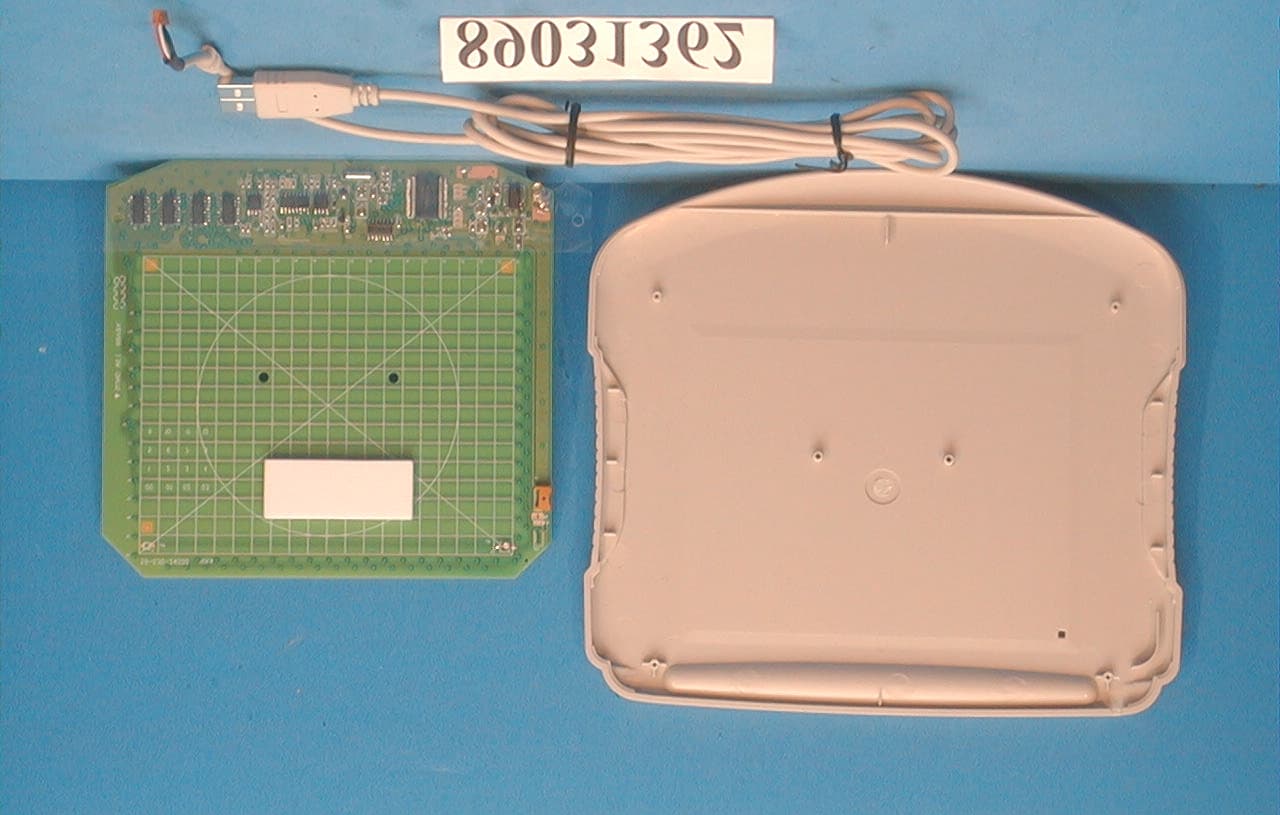
NRQUT4030M
Apr 25, 2000Tablet
Equipment Class
JBP - Part 15 Class B Computing Device Peripheral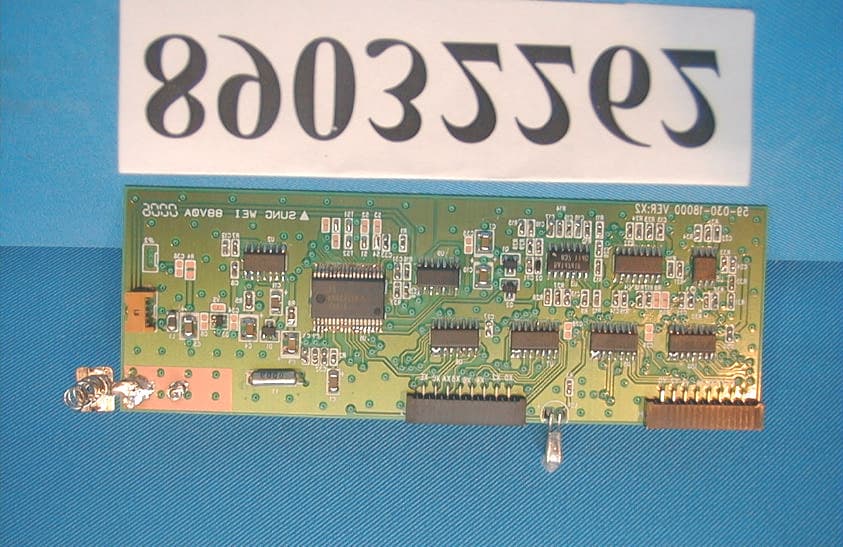
NRQUT8060M
Apr 25, 2000Tablet
Equipment Class
JBP - Part 15 Class B Computing Device Peripheral