O8F-747SmartPhone With Bluetooth
Palm Inc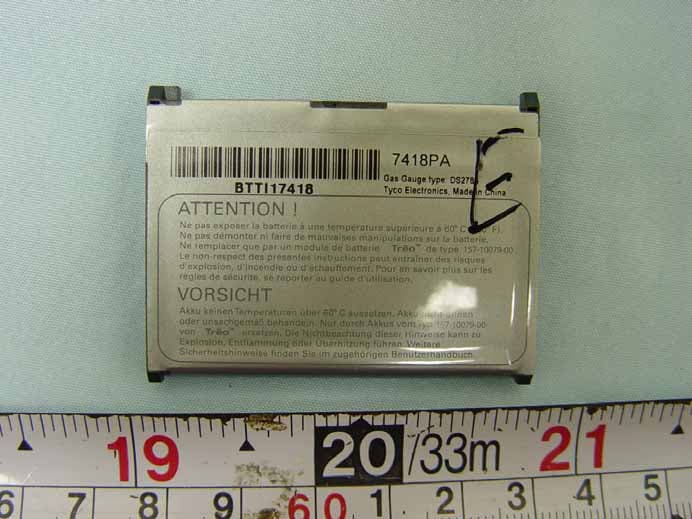
Click to zoom
Application Details
- Equipment Class
- DSS - Part 15 Spread Spectrum Transmitter
- Date of Grant
- Oct 08, 2007
- Application Purpose
- Original Equipment
- Date of Application
- Oct 08, 2007
- Equipment Note
- SmartPhone With Bluetooth
- Frequency Range
- 2402.00000000 - 2480.00000000
- Company
- Palm Inc
- Country
- United States
Documents & Files
Document Text
Text extracted from the exhibit documents filed with the FCC. Open a document above to read the original.
Users Manual
User Guide Your Palm ® Centro ™ 690 Smart Device Intellectual property notices © 2006–2007 Palm, Inc. All rights reserved. Blazer, HotSync, Palm, Palm OS, Centro, VersaMail, and the Palm and Centro logos are among the trademarks or registered trademarks owned by or licensed to Palm, Inc. This product contains ACCESS Co., Ltd.’s NetFront 3.0 Internet browser software. © 1996-2005 ACCESS Co., Ltd. and ACCESS Systems America, Inc. NetFront is the trademark or registered trademark of ACCESS Co., Ltd. in Japan and in other countries except the United States of America. NetFront is a registered trademark of NetFront Communications, Inc. in the United States of America and is used under a license. A portion of this software includes software modules developed by the Independent JPEG group. Documents To Go is a trademark or registered trademark of DataViz, Inc. © All rights reserved. All other brand and product names are or may be trademarks of, and are used to identify products or services of, their respective owners. This product is protected by one or more of the following United States patents: 7,007,239; 6,976,226; 6,975,304; 6,965,375; 6,961,567; 6,961,029; 6,957,397; 6,952,571; 6,950,988; 6,947,975; 6,947,017; 6,943,667; 6,940,490; 6,924,752; 6,907,233; 6,906,701; 6,906,741; 6,901,276; 6,850,780; 6,845,408; 6,842,628; 6,842,335; 6,831,662; 6,819,552; 6,804,699; 6,795,710; 6,788,285; 6,781,824; 6,781,575; 6,766,490; 6,745,047; 6,744,451; 6,738,852; 6,732,105; 6,724,720; 6,721,892; 6,712,638; 6,708,280; 6,697,639; 6,687,839; 6,685,328; 6,665,803; 6,618,044; 6,590,588; 6,539,476; 6,532,148; 6,523,124; 6,519,141; 6,516,202; 6,490,155; 6,480,146; 6,457,134; 6,456,247; 6,442,637; 6,441,824; 6,437,543; 6,429,625; 6,425,087; 6,389,572; 6,388,877; 6,381,650; 6,363,082; 6,344,848; 6,317,085; 6,241,537; 6,222,857; 6,185,423; 6,147,314; 6,115,248; 6,064,342; D421,251; D429,252; D466,128; D478,091. Patent pending. This product also is licensed under United States patent 6,058,304. This product is protected by certain intellectual property rights of Microsoft. Use or distribution of such technology outside of this product is prohibited without a license from Microsoft. Disclaimer and limitation of liability Palm, Inc. and its suppliers assume no responsibility for any damage or loss resulting from the use of this guide. Palm, Inc. and its suppliers assume no responsibility for any loss or claims by third parties that may arise through the use of this software. Palm, Inc. and its suppliers assume no responsibility for any damage or loss caused by deletion of data as a result of malfunction, dead battery, or repairs. Be sure to make backup copies of all important data on other media to protect against data loss. Recycling This symbol indicates that Palm products should be recycled and not be disposed of in unsorted Municipal waste. Palm products should be sent to a facility that properly recycles electrical and electronic equipment. For information on environmental programs visit: palm.com/environment Palm Take Back and Recycling Program As part of Palm’s corporate commitment to be a good steward of the environment, we strive to use environmentally friendly materials, reduce waste, and develop the highest standards in electronics recycling. Our recycling program keeps Palm handheld devices, Treo smartphones, and mobile companions out of landfills through evaluation and disposition for reuse and recycling. Palm customers may participate in the recycling program free of charge. Visit www.palm.com/recycle or in the US call 877-869-7256 for additional details and information about how you can help reduce electronic waste. PN: XXX-XXXXX-XX v. 1.0 CONTENTS iii Contents Welcome . . . . . . . . . . . . . . . . . . . . . . . . . . . . . . . . . . . . . . . . . . . . . . . . . . . . . . . . . . . 1 What’s in the box? . . . . . . . . . . . . . . . . . . . . . . . . . . . . . . . . . . . . . . . . . . . . . . . . . . 1 What do I need to get started? . . . . . . . . . . . . . . . . . . . . . . . . . . . . . . . . . . . . . . . . 2 Where can I learn more? . . . . . . . . . . . . . . . . . . . . . . . . . . . . . . . . . . . . . . . . . . . . . 3 Chapter 1: Setting up . . . . . . . . . . . . . . . . . . . . . . . . . . . . . . . . . . . . . . . . . . . . . . . . . . 5 Centro ™ 690 overview . . . . . . . . . . . . . . . . . . . . . . . . . . . . . . . . . . . . . . . . . . . . . . . 7 Inserting the SIM card and battery . . . . . . . . . . . . . . . . . . . . . . . . . . . . . . . . . . . . . . 9 Charging the battery . . . . . . . . . . . . . . . . . . . . . . . . . . . . . . . . . . . . . . . . . . . . . . . . . 11 Maximizing battery life . . . . . . . . . . . . . . . . . . . . . . . . . . . . . . . . . . . . . . . . . . . . . . . 14 Making your first call . . . . . . . . . . . . . . . . . . . . . . . . . . . . . . . . . . . . . . . . . . . . . . . . 15 Setting up your computer for synchronization . . . . . . . . . . . . . . . . . . . . . . . . . . . . . 17 Synchronizing information—the basics . . . . . . . . . . . . . . . . . . . . . . . . . . . . . . . . . . 23 Chapter 2: Moving around on your Palm Centro 690 smart device . . . . . . . . . . . . . . . 27 Moving around the screen . . . . . . . . . . . . . . . . . . . . . . . . . . . . . . . . . . . . . . . . . . . . 29 Using the keyboard . . . . . . . . . . . . . . . . . . . . . . . . . . . . . . . . . . . . . . . . . . . . . . . . . 33 Opening applications . . . . . . . . . . . . . . . . . . . . . . . . . . . . . . . . . . . . . . . . . . . . . . . . 37 Chapter 3: Your phone . . . . . . . . . . . . . . . . . . . . . . . . . . . . . . . . . . . . . . . . . . . . . . . . . 41 Turning your Centro ™ 690 smart device on and off . . . . . . . . . . . . . . . . . . . . . . . . . 43 Making calls . . . . . . . . . . . . . . . . . . . . . . . . . . . . . . . . . . . . . . . . . . . . . . . . . . . . . . . 45 Receiving calls . . . . . . . . . . . . . . . . . . . . . . . . . . . …
Text truncated - open the document above for the full version.
Users Manual
YOUR EMAIL AND OTHER MESSAGES THE VERSAMAIL ® APPLICATION 95 4 CHAPTER You can rearrange the message list to make it easier to find and view messages. •In the Inbox, select Sort, and then select one of the following: By Subject, By Sender, By Size, or By Date. •To quickly switch between folders in list view, select the folder pick list at the top of the screen and select the desired folder. Deleting selected messages from the Inbox When you delete a message from the Inbox, it moves to the Trash folder. 1Select the bullet next to the icon of each message that you want to delete. To select adjacent messages, drag the stylus so that it touches the bullet to the left of each message. Lift the stylus and drag again to select more adjacent messages. 2Press Menu. 3Select Delete on the Message menu. 4If a confirmation dialog box appears, select OK to confirm the deletion. Deleting messages by date You can quickly delete a group of messages by selecting a range of dates. 1Press Menu. 2Select Delete Old on the Message menu. 3Select the folder and a date range for the messages you want to delete. 4Select OK. 5If a confirmation dialog box appears, select OK to confirm the deletion. Switching accounts If you create more than one email account in VersaMail, you need to switch from account to account to get, send, and This message has high priority. TIPTo delete a single message, select the envelope icon next to the message, and then select Delete from the list. TIPTo empty (or purge) the Trash folder, open the Message menu and select Empty Trash. YOUR EMAIL AND OTHER MESSAGES THE VERSAMAIL ® APPLICATION 96 4 CHAPTER otherwise manage the messages in each account. 1Press Menu. 2Select Accounts, and then select an account. Customizing your email settings You can customize the VersaMail settings for each individual email account on your Centro. The preferences you set apply only to the email account you are currently viewing. If you have multiple accounts, configure each account separately. You can set up a schedule to automatically retrieve email messages; set preferences for how and when messages are retrieved; add a signature to an outgoing message; and more. For complete information on all the email settings you can customize, see the User Guide for the VersaMail Application on your computer. Windows: Start > Programs > Palm Mac: Insert the Palm Installation CD and click the link to the User Guide for the VersaMail Application in the Documentation folder. Scheduling Auto Sync You can set up VersaMail to automatically download new email messages to your Centro 690 with the Auto Sync feature. 1Press Menu. 2Select Options, and then select Preferences. 3Select Auto Sync. DID YOU KNOW?If you assigned VersaMail to a quick button, you can press that button repeatedly to switch between your email accounts. TIPYou need to set up a separate Auto Sync schedule for each email account. This feature may not work with email accounts that require VPN connection. YOUR EMAIL AND OTHER MESSAGES THE VERSAMAIL ® APPLICATION 97 4 CHAPTER 4Check the Auto-sync box. 5Select the Every pick list and select the time interval, from 5 minutes to 12 hours. NOTEIf you set a more frequent interval, you may need to recharge your Centro battery more often. 6Select the Start Time and End Time boxes, and then select the hour, the minute, and AM or PM to enter the time for the first and last Auto Sync to take place. Select OK. 7Select the days you want the schedule to be active. You can choose any number of days, but you can set up only one schedule for each email account. 8Select OK, and then select Get Mail. Viewing the Activity Log The Activity Log lists ongoing and completed background transactions, such as downloading email, between the server and your email account. 1From the Inbox, press Menu. 2Select Options, and then select View Activity Log. 3Select a listed action. 4Do either of the following: •To cancel an ongoing action, select Stop. If the action has already been completed, Stop does not appear. •To view the details of a completed action, select Details. 5Select Done. Selecting alert tones When you schedule Auto Sync for a given account, you can choose a sound—such as a bird, a phone, or an alarm—to let you know when new email arrives. 1From any mailbox screen, press Menu. 2Select Options, and then select Preferences. 3Select Alerts. 4Check the Alert me of new mail box. TIPAfter you set up a scheduled Auto Sync and select Get Mail, only new messages are retrieved during Auto Sync. YOUR EMAIL AND OTHER MESSAGES THE VERSAMAIL ® APPLICATION 98 4 CHAPTER 5Select the Alert Sound pick list, and then select a sound. Your Centro plays a brief demo of the sound. 6Select OK. Setting preferences for getting messages 1From any mailbox screen, press Menu. 2Select Options, and then select Preferences. 3Select Incoming. 4Set any of the following preferences, and then select OK. Get: Indicates whether to get message subjects only or entire messages. Ask Every Time: Indicates if you want to see a dialog box for selecting subjects only or entire messages each time you retrieve email. If the box is unchecked, messages are retrieved according to the option you select in the Get pick list. Unread messages (IMAP accounts only): Downloads only unread mail to your Centro 690. If you don’t check this box and you select Get & Send, all the messages on your mail server are downloaded to your Inbox, including messages you’ve read. Mail from last: Gets messages sent within the number of days you specify. Download attachments: Automatically downloads files attached to email, except for attachments that exceed the maximum message size. Maximum message size: Sets the maximum size of an incoming email TIPThe POP protocol does not support retrieval of unread mail only from the server. If you have a POP email account, VersaMail downloads all messages regardless of whether you have read them, and regardless of whether the Unread messages box is checked. YOUR E…
Text truncated - open the document above for the full version.
Users Manual
YOUR APPLICATION AND INFO MANAGEMENT TOOLS USING EXPANSION CARDS 195 9 CHAPTER 1Insert the expansion card into the expansion card slot. The Card category of Applications View automatically appears. 2Select the category pick list in the title bar, and select All. 3Select the icon for the application in which you want to open the item. For example, to view a picture, select Pics&Videos. Copying applications between an expansion card and your Centro You can copy applications from your Centro to your expansion card and vice versa. 1Press Applications. 2Press Menu. 3Select Copy from the App menu. 4Select the Copy To pick list and select the destination: Phone or <card name>. 5Select the From pick list and select the location of the application you want to copy: Phone or <card name>. 6Highlight the application you want to copy. 7Select Copy. TIPBefore you copy an application to an expansion card, make sure that it is compatible with Palm OS software version 5.4.5 or later. Some applications do not work with expansion cards and do not allow you to store files in a location that is separate from the application. YOUR APPLICATION AND INFO MANAGEMENT TOOLS USING EXPANSION CARDS 196 9 CHAPTER Viewing expansion card information The Card Info application displays general information about the expansion card that is currently in the expansion slot, and it enables you to rename and format a card. •Press Applications and select Card Info. Renaming an expansion card If you change the contents of an expansion card, you may at some point want to rename the card to better match its contents. 1Insert the expansion card into the expansion card slot. 2Select the category pick list at the top of the screen and select All. 3Select Card Info . 4Press Menu. 5Select Rename Card from the Card menu. 6Enter a new name for the card. 7Select OK. Formatting an expansion card Formatting an expansion card is similar to formatting a disk on a computer. When you format an expansion card, you erase all the information stored on the card. TIPIf you have trouble copying info to, renaming, or formatting an expansion card, make sure the card is not write-protected. Press Applications and select Card Info. If a “This card is read-only” message appears, the card is write-protected. See the instructions that came with your card for additional info. YOUR APPLICATION AND INFO MANAGEMENT TOOLS USING EXPANSION CARDS 197 9 CHAPTER 1Insert the expansion card into the expansion card slot. 2Select the category pick list at the top of the screen and select All. 3Select Card Info . 4Press Menu. 5Select Format Card from the Card menu. 6Enter a new name for the card. 7Select OK. TIPIf you format a card, any photos or documents that were previously stored on the card are deleted from your desktop software the next time you sync. You can recover these files from the backup folder, or you can prevent the deletion by temporarily changing your sync settings for the affected application to Desktop overwrites handheld. YOUR APPLICATION AND INFO MANAGEMENT TOOLS USING EXPANSION CARDS 198 9 CHAPTER CHAPTER 10 Your personal settings Customizing your Palm ® Centro ™ 690 is a great way to make it match your lifestyle and work even harder for you. On your Centro , you can easily customize the sounds, fonts, screen colors, and more. Take advantage of different levels of security. Prevent making an accidental (and expensive) phone call by locking the keyboard. Some settings can help extend the life of your Centro battery. There are lots of ways to make your Centro work better for you. Benefits •Access applications quickly •Make your screen easy to read •Conserve power •Enjoy your Centro 690 more In this chapter System sound settings. . . . . . . . . . . . . . . . . . . . . . . . . . . . . . . . . . . 201 Display and appearance settings . . . . . . . . . . . . . . . . . . . . . . . . . . . 202 Applications settings . . . . . . . . . . . . . . . . . . . . . . . . . . . . . . . . . . . . 205 Locking your Centro and info . . . . . . . . . . . . . . . . . . . . . . . . . . . . . . 207 System settings . . . . . . . . . . . . . . . . . . . . . . . . . . . . . . . . . . . . . . . . 214 Connecting to a VPN . . . . . . . . . . . . . . . . . . . . . . . . . . . . . . . . . . . . 216 YOUR PERSONAL SETTINGS SYSTEM SOUND SETTINGS 201 10 CHAPTER System sound settings Silencing sounds You can immediately silence all alerts, ringtones, music that plays through the built-in speaker, and system sounds by sliding the Ringer switch to Sound Off. This does not mute the audio during a phone call. 1Slide the Ringer switch to Sound Off . Your Centro 690 vibrates once to let you know that you’ve turned sounds off. 2To hear all sounds again, slide the Ringer switch to Sound On. NOTE For info on setting the vibrate option, see the section on setting alert tones in the chapters that describe the individual applications. Sliding the Ringer switch back to Sound On restores the previous sound settings. Setting system volume levels You can set the volume level for system sounds, such as the tone that plays when you synchronize. 1Press Applications and select Sounds . 2Select the Application pick list and select System. TIPIf the Ringer switch is set to Sound Off, the ringer setting overrides the sound settings and all sounds are turned off. Sound Off Sound On YOUR PERSONAL SETTINGS DISPLAY AND APPEARANCE SETTINGS 202 10 CHAPTER 3Select the System Volume and Game Vo l u m e pick lists and select the volume levels. 4Select Done. Display and appearance settings Adjusting the brightness Depending on the lighting conditions in which you’re using your Centro, you may need to adjust the brightness of the screen. 1Press Option , and then press Backlight . 2Press Left and Right to adjust the brightness. 3Select Done. Changing the screen font You can change the screen font in Calendar, Contacts, Memos, Messaging, Tasks, and Web. The font styles may vary between applications, and some applications may …
Text truncated - open the document above for the full version.
Cover Letter(s)
Federal Communications Commission 7435 Oakland Mills Road Columbia MD 21046 Subject: Request for Confidentiality FCC ID: O8F-747 To Whom It May Concern: Pursuant to the provisions of Sections 0.457 and 0.459 of the Commission’s rules (47 CFR §§ 0.457, 0.459), we are requesting the Commission to withhold the following attachments as confidential document from public disclosure indefinitely. Schematic Diagram Block Diagram Theory of Operation Tune-up Procedure Above mentioned document contains detailed system and equipment description are considered as proprietary information in operation of the equipment. The public disclosure of above documents might be harmful to our company and would give competitor an unfair advantage in the market. In additional to above mentioned documents, pursuant to Public Notice DA 04-1705 of the Commission’s policy, in order to comply with the marketing regulations in 47 CFR §2.803 and the importation rules in 47 CFR §2.1204, while ensuring that business sensitive information remains confidential until the actual marketing of newly authorized devices. We are requesting the commission to grant short-term confidentiality request on the following attachments until Oct 30, 2007: External Photos Internal Photos Test Setup Photos User Manual It is our understanding that all measurement test reports, FCC ID label format and correspondent during certification review process cannot be granted as confidential documents and those information will be available for public review once the grant of equipment authorization is issued. Best Regards David Woo Sr. Compliance Engineer Palm, Inc. July 13, 2007
Cover Letter(s)
Palm, Inc. 950 W Maude Avenue MS 22L02 Sunnyvale, CA 94085-2801 Date: June 7, 2007 Power of Attorney To whom it may concern, Please be notified that we, Palm, Inc. have assigned Sporton International Inc., located at No. 52, Hwa Ya 1 st Rd ., Hwa Ya Technology Park, Kwei-Shan Hsiang, Tao Yuan Hsien, Taiwan, R.O.C., as our agent. Any and all acts carried out by Sporton International Inc., on the matters of relating to all processes required in the FCC and IC approval and any communication needed with the national authority, shall have the same legal authority as acts on our own behalf. This authorization is limited to the product of as following: FCC ID: O8F-747 IC: 3905A-747 Any acknowledgement and response, please send it to Sporton International Inc. directly. Should you have any questions or comments regarding this matter, please have my best attention. Sincerely yours, David Woo Palm, Inc. Tel: 408-617-7780 E-Mail: [email protected]
Cover Letter(s)
47173 Benicia Street, Fremont CA 94538 Tel: 510-771-1000, Fax: 510-661-0888 Federal Communication Commissions 7435 Oakland Mills Road Columbia MD 21046 Subject: Request FCC to replace previous submitted user manual Ref: Applicant: Palm Inc. FCC ID:O8F-747 Grant date: 10/09/2007 To Whom It May Concern: CCS-TCB issued the grant on Oct. 09, 2007, during the upload the process, CCS uploaded a file named “ TCB Q and A “ under Cover letter exhibit type. As pointed out by the applicant today, TCB Q and A file contains a lots of confidential information which is not related to this application. CCS-TCB is requesting the Commissions to supersede the following exhibit with modified TCB Q and A file. Exhibit Type: Cover Letter; File Type: PDF; Description: TCB Q and A Once above application is placed in audit mode, CCS-TCB will upload revised TCB Q and A. Attached is applicant statement which indicated that Palm is aware TCB Q and A file uploaded on Oct.09, 2007 is available for public viewing. Best Regards Mike Kuo / V.P. Compliance Certification Services Dec. 17, 2007
Cover Letter(s)
from "[email protected]" <[email protected]> hide details Jun 15 Reply to [email protected] cc [email protected] date Jun 15, 2007 10:31 PM subject Palm, Inc., FCC ID: O8F-747, Assessment NO.: AN07T6888, Notice#1 Dear Jones, Please provide the following exhibits as required by FCC 2.1033(b) for this application so that the review can be completed. Further technical review will be performed when the application is complete. Please note that you will receive 3 different notices related to this product. Two notices are for FCC and one is for Industry Canada. Each notice is different and requires a separate response. If you have questions, please ask. 1. Installation/User manual with required statements for RF exposure and Part 15 statements from 15.19, 15.21 and 15.105. (See below) 2. Internal photos 3. External photos 4. Operation theory including detailed modulation description for all modes 5. Confidentiality request 6. Agent authorization letter 7. FCCID label 8. FCCID label location The user manual statements required by Part 15 are shown below. Please note that additional statements are required related to RF exposure requirements. NOTE: This equipment has been tested and found to comply with the limits for a Class B digital device, pursuant to part 15 of the FCC Rules. These limits are designed to provide reasonable protection against harmful interference in a residential installation. This equipment generates, uses and can radiate radio frequency energy and, if not installed and used in accordance with the instructions, may cause harmful interference to radio communications. However, there is no guarantee that interference will not occur in a particular installation. If this equipment does cause harmful interference to radio or television reception, which can be determined by turning the equipment off and on, the user is encouraged to try to correct the interference by one or more of the following measures: -Reorient or relocate the receiving antenna. -Increase the separation between the equipment and receiver. -Connect the equipment into an outlet on a circuit different from that to which the receiver is connected. -Consult the dealer or an experienced radio/TV technician for help. Changes or modifications not expressly approved by <company name> could void the user's authority to operate this equipment. The following statement is normally required to be on the FCCID label. If the device is too small, the statement must be included in the user manual. This device complies with part 15 of the FCC Rules. Operation is subject to the following two conditions: (1) This device may not cause harmful interference, and (2) This device must accept any interference received, including interference that may cause undesired operation. The items indicated above must be submitted before processing can continue on the above referenced application. Failure to provide the requested information within 30 days of the original e-mail date may result in application dismissal and forfeiture of the filing fee. Also, please note that partial responses increase processing time and should not be submitted. Any questions about the content of this correspondence should be directed to the e-mail address listed below the name of the sender. FCC ID: O8F-747, Assessment NO.: AN07T6888, Notice#1 Please provide the following exhibits as required by FCC 2.1033(b) for this application so that the review can be completed. Further technical review will be performed when the application is complete. Please note that you will receive 3 different notices related to this product. Two notices are for FCC and one is for Industry Canada. Each notice is different and requires a separate response. If you have questions, please ask. 1. Installation/User manual with required statements for RF exposure and Part 15 statements from 15.19, 15.21 and 15.105. (See below) Answer : Statements have been uploaded in the user manual. 2. Internal photos Answer : Internal photos have been uploaded. 3. External photos Answer : External photos have been uploaded. 4. Operation theory including detailed modulation description for all modes Answer : Operations descriptions have been uploaded. 5. Confidentiality request Answer: Palm, David, will discuss with Mike Kuo . 6. Agent authorization letter Answer: Letter has been uploaded. 7. FCCID label Answer: Label has been uploaded. 8. FCCID label location Answer: Label has been uploaded. The user manual statements required by Part 15 are shown below. Please note that additional statements are required related to RF exposure requirements. NOTE: This equipment has been tested and found to comply with the limits for a Class B digital device, pursuant to part 15 of the FCC Rules. These limits are designed to provide reasonable protection against harmful interference in a residential installation. This equipment generates, uses and can radiate radio frequency energy and, if not installed and used in accordance with the instructions, may cause harmful interference to radio communications. However, there is no guarantee that interference will not occur in a particular installation. If this equipment does cause harmful interference to radio or television reception, which can be determined by turning the equipment off and on, the user is encouraged to try to correct the interference by one or more of the following measures: -Reorient or relocate the receiving antenna. -Increase the separation between the equipment and receiver. -Connect the equipment into an outlet on a circuit different from that to which the receiver is connected. -Consult the dealer or an experienced radio/TV technician for help. Changes or modifications not expressly approved by <company name> could void the user's authority to operate this equipment. The following statement is normally required to be on the FCCID label. If the device is too small, the statement must be included in the user manual. from "[email protected]…
Text truncated - open the document above for the full version.
Cover Letter(s)
1 December 17, 2007 Federal Communications Commission Authorization and Evaluation Division 7435 Oakland Mills Road Columbia, Maryland 21046 Re: FCC ID: O8F-747 Grant date: Oct. 09, 2007 To Whom It May Concern: Palm just found out one of uploaded exhibit named “TCB Q and A” contains confidential information. Palm is requesting CCS-TCB to replace TCB Q and A file with information only related to the above applicant. Palm is acknowledged that TCB Q and A file is available for public viewing since Oct. 09, 2007. Sincerely, Manthos Economou / Sr. Manager, Corporate Compliance Palm, Inc.
External Photos
REPORT NO. : 750806 SPORTON International Inc. Page Number : 1 OF 4 TEL : 886-2-2696-2468 Issued Date : July 6, 2007 FAX : 886-2-2696-2255 Version : Rev.01 External Photographs of EUT 750806 REPORT NO. : 750806 SPORTON International Inc. Page Number : 2 OF 4 TEL : 886-2-2696-2468 Issued Date : July 6, 2007 FAX : 886-2-2696-2255 Version : Rev.01 750806 REPORT NO. : 750806 SPORTON International Inc. Page Number : 3 OF 4 TEL : 886-2-2696-2468 Issued Date : July 6, 2007 FAX : 886-2-2696-2255 Version : Rev.01 750806 REPORT NO. : 750806 SPORTON International Inc. Page Number : 4 OF 4 TEL : 886-2-2696-2468 Issued Date : July 6, 2007 FAX : 886-2-2696-2255 Version : Rev.01 750806
ID Label/Location Info
This drawing and the data disclosed herein andherewith are to be considered proprietary and is notto be reproduced, used or disclosed in whole or inpart without the permission of palm, Inc. Rev. Date (y/m/d) 1 2006/12/11 2005/00/002005/00/002005/00/002005/00/00 26AECOLayers Color/Finish Spec. 1. 2. 3.4.5.6.7.8.9.10.11.12.13.14.15.16.17. Graphics Color PMS 429 U Background Color PMS 8400 U........ Notes Project Name ARTWORK, LABEL, AGENCY, ZEPPELIN Drawing Name Rev 7 Sheet 1/1 Part Number: ArtworkEVT3 Agency Label 2007/04/052007/04/17 DVT Agency LabelLabel Outline change 7 2007/05/06 Added FCC & IC ID.. 400-10372-00 SCALE 100% SCALE 200% FOR REFERENCE ONLY The label will be inside of the battery compartment.
Internal Photos
FCC TEST REPORT REPORT NO. : 750806 SPORTON International Inc. Page Number : 1 OF 15 TEL : 886-2-2696-2468 Issued Date : July 6, 2007 FAX : 886-2-2696-2255 Report Version : Rev.01 APPENDIX B. Internal Photographs of EUT 750806 FCC TEST REPORT REPORT NO. : 750806 SPORTON International Inc. Page Number : 2 OF 15 TEL : 886-2-2696-2468 Issued Date : …
Text truncated - open the document above for the full version.
Contact Information
Applicant
Helen Zhao(Sr. Regulatory Compliance Engineer)
Test Firm
Sporton International Inc.W. Huang
Technical Specifications
| # | Rule Parts | Frequency Range | Power Output |
|---|---|---|---|
| 1 | 15C | 2.40 GHz - 2.48 GHz | 2.00 mW |
Other Applications from Palm Inc

O8F-BROY
Feb 21, 2011Phone
Equipment Class
PCE - PCS Licensed Transmitter held to ear
O8F-BROU
Feb 10, 2011Phone
Equipment Class
DXX - Part 15 Low Power Communication Device Transmitter
O8F-ROAE
Oct 18, 2010CDMA/1x EVDO phone with 802.11 b/g and Bluetooth
Equipment Class
DTS - Digital Transmission System
O8F-ROAU
Oct 18, 2010UMTS Phone with 802.11b/g and Bluetooth
Equipment Class
PCE - PCS Licensed Transmitter held to ear
O8F-ROAY
Oct 05, 2010GSM phone with 802.11a/b/g and Bluetooth
Equipment Class
DTS - Digital Transmission System