O8FCAGEMSGSM Cellphone with Bluetooth
Palm Inc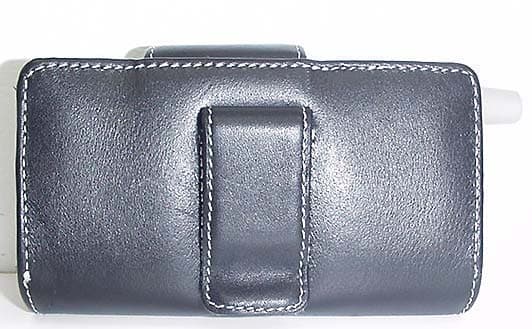
Click to zoom
Application Details
- Equipment Class
- PCE - PCS Licensed Transmitter held to ear
- Date of Grant
- Oct 26, 2004
- Application Purpose
- Original Equipment
- Date of Application
- Oct 26, 2004
- Equipment Note
- GSM Cellphone with Bluetooth
- Frequency Range
- 1850.20000000 - 1909.80000000
- Company
- Palm Inc
- Country
- United States
Documents & Files
Document Text
Text extracted from the exhibit documents filed with the FCC. Open a document above to read the original.
Users Manual
FCC :: 189 FCC FCC Statement This device has been tested and found to comply with the limits for a Class B digital device, pursuant to part 15 of the FCC Rules. These limits are designed to provide reasonable protection against harmful interference 1. A palmOne™ brand body-worn accessory that has been tested for SAR compliance and is intended for use with this product. 2. An accessory that contains NO metal (snaps, clips, etc) and provides AT LEAST 1.5 cm of separation between the body user’s and the unit. Do NOT use the device in a manner such that it is in direct contact with the body (i.e. on the lap or in a breast pocket). Such use will likely exceed FCC RF safety exposure limits. See www.fcc.gov/oet/rfsafety/ for more information on RF exposure safety. RF Safety Exposure To Radio Frequency Energy (SAR) Radio transmitting devices radiate Radio Frequency (RF) energy during its operation. RF energy can be absorbed into the human body and potentially can cause adverse health effects if excessive levels are absorbed. The unit of measurement for human exposure to RF energy is “Specific Absorption Rate” (SAR). The Federal Communications Commission (FCC), Industrie Canada (IC), and other agencies around the world have established limits that incorporate a substantial safety margin designed to assure the safety of all persons using this equipment. In order to certify this unit for sale in the US, Canada and Europe this unit has been tested for RF exposure compliance at a qualified test laboratory and found to comply with the regulations regarding exposure to RF Energy. SAR was measured with the unit transmitting at its maximum certified RF power. Often, however, during normal operation the unit will transmit much less than maximum power. Transmit power is controlled automatically and, in general is reduced as you get closer to a cellular base station. This reduction in transmit power will result in a lower RF energy exposure and resulting SAR value. FCC RF Safety Statement In order to comply with FCC RF exposure safety guidelines, users MUST use one of the following types of body- worn accessories. 1. A palmOne™ brand body-worn accessory that has been tested for SAR compliance and is intended for use with this product. 2. An accessory that contains NO metal (snaps, clips, etc) and provides AT LEAST 1 cm of separation between the users body and the unit. Do NOT use the device in a manner such that it is in direct contact with the body (i.e. on the lap or in a breast pocket). Such use will likely exceed FCC RF safety exposure limits See www.fcc.gov/oet/rfsafety/ for more information on RF exposure safety. Responsible party (North America)(Europe) palmOne, Inc.Vesey Chrichton 400 N. McCarthy Blvd.Buckhurst Court Milpitas, CA 95035 London Road USAWokingham, Berkshire RG40 1PA, www.palmOne.com UK Antenna Care/Unauthorized Modifications Use only the supplied integral antenna. Unauthorized antenna modifications or attachments could damage the unit and may violate FCC regulations. Any changes or modifications not expressly approved by the party responsible for compliance could void the user’s authority to operate the equipment. Potentially Unsafe Areas Potentially explosive atmospheres: Turn off your phone when you are in any areas with a potentially explosive atmosphere, such as fueling areas (gas or petrol stations) or storage facilities for fuel or chemicals. Declaration of Conformity Treo Model 650 palmOne declares that the above model of Treo smartphone is compliant with the regulations below. The declaration applies to the smartphone and its associated accessories (power supply, headset, and USB cable) where applicable. Maximum Measured SAR Values (W/kg) Band (MHz) 850 1900 Head SAR: 1.51 .943 Body SAR: 1.46 .688 EMC: EN 301 489 EN 301 419-1 (Apr 2000) EN 310 420 (Dec 1999) ANSI/IEEE C95.1 1992 EN 50360 (July 2001) EN 50361 (July 2001) FCC OET Bulletin 65 Supplement C Safety: EN 60950: 2000 (Jan-2000) Radiated Emissions: EN 55022 Immunity: EN 55024 190 :: FCC Operational Warnings IMPORTANT INFORMATION ON SAFE AND EFFICIENT OPERATION. Read this information before using your integrated multi-service portable radio. For the safe and efficient operation of your radio, observe these guidelines: Potentially Unsafe Areas / Potentially explosive atmospheresObey all signs and instructions regarding turning off your phone. In particular, turn off your phone when you are in any areas with a potentially explosive atmosphere, such as fueling areas (gas or petrol stations, below deck on boats), storage facilities for fuel or chemicals, blasting areas and areas near electrical blasting caps, and areas where there are chemicals or particles (such as metal powders, grains, and dust) in the air. Interference to Medical and Personal Electronic DevicesMost but not all electronic equipment is shielded from RF signals and certain electronic equipment may not be shielded against the RF signals from your smartphone. PacemakersThe Health Industry Manufacturers Association recommends that a minimum separation of six inches (6") be maintained between a handheld wireless phone and a pacemaker to avoid potential interference with the pacemaker. These recommendations are consistent with the independent research by the recommendations of Wireless Technology Research. Persons with pacemakers should: •ALWAYS keep the phone more than six inches from their pacemaker when the phone is turned ON. •Not carry the phone in a breast pocket. •Use the ear opposite the pacemaker to minimize the potential for interference. •Turn the phone OFF immediately if you have any reason to suspect that interference is taking place. Audio SafetySome hearing aids may be affected by some digital wireless phones. You may want to consult your doctor in the event of you experience interference with your hearing aid while using your smartphone. When using the speakerphone feature, it is recommended that you place your smartphone at a safe distance from y…
Text truncated - open the document above for the full version.
Users Manual
using your Treo™ 650 smartphone by palmOne Includes setup information and instructions for most tasks CrowAce.book Page 1 Wednesday, November 10, 2004 1:52 PM Copyright Copyright © 2004 palmOne, Inc. All rights reserved. palmOne, Treo, the palmOne and Treo logos, Palm, Palm OS, HotSync, Graffiti, and Palm Powered are among the trademarks or registered trademarks owned by or licensed to palmOne, Inc. This product contains ACCESS Co., Ltd.’s NetFront 3.0 Internet browser software. © 1996-2004 ACCESS Co., Ltd. and ACCESS Systems America, Inc. NetFront is the trademark or registered trademark of ACCESS Co., Ltd. in Japan and in other countries except the United States of America. NetFront is a registered trademark of NetFront Communications, Inc. in the United States of America and is used under a license. A portion of this software includes software modules developed by the Independent JPEG group. All other brand and product names are or may be trademarks of, and are used to identify products or services of, their respective owners. Disclaimer and limitation of liability palmOne, Inc. and its suppliers assume no responsibility for any damage or loss resulting from the use of this guide. palmOne, Inc. and its suppliers assume no responsibility for any loss or claims by third parties that may arise through the use of this software. palmOne, Inc. and its suppliers assume no responsibility for any damage or loss caused by deletion of data as a result of malfunction, dead battery, or repairs. Be sure to make backup copies of all important data on other media to protect against data loss. PN: 406-10151-00 CrowAce.book Page 2 Wednesday, November 10, 2004 1:52 PM Contents :: 1 Contents 3Welcome 4If you read nothing else... 5read this now: getting started 6 What you’ll need 7Treo smartphone overview 11Installing the battery 12Charging the battery 14Inserting the SIM card 15Turning Treo on and off 16Making your first call 19 first day: learning the basics 20 Moving around the Treo screen 24Using the keyboard 28Opening applications 30Setting up your computer 33Synchronizing contacts and other information 35Battery life 36Where to learn more 37 first week: using phone, web, and messaging 38 Phone overview 41Dialing calls 44Receiving calls 45Using voicemail 46Managing active calls 49More ways to manage calls 53Defining favorite buttons 56Using a phone headset 58Connecting to devices with Bluetooth wireless technology 62Sending and receiving email 74Messaging 83Browsing the web 90Taking photos and videos 97 first two weeks: using organizer features 98 Managing contacts 101Calendar 108Tasks 112Memos CrowAce.book Page 1 Wednesday, November 10, 2004 1:52 PM 2 :: Contents 113Listening to music 119World Clock 121Calculator 123Looking up contacts and other information 125Beaming information 129 first month: managing applications 130 Installing applications 132Removing applications 133Viewing application info 134Using expansion cards 139 when you’re ready: customizing your Treo 140 Phone settings 144System sound settings 145Display and appearance 147Applications settings 148Button settings 149Date and time settings 151Power Preferences 152Locking your phone and info 159 if something happens: help 160 Upgrading from another Palm Powered ® device 163Trouble installing the desktop software? 164Resetting your Treo 166Replacing the battery 167Screen 168Network connection 172Synchronization (HotSync) 177Email 181Web 182Camera 183Third-party applications 184Error messages 185Making room on your Treo 186Voice quality 187Glossary 189FCC 193Index 199 Specifications CrowAce.book Page 2 Wednesday, November 10, 2004 1:52 PM Welcome :: 3 Welcome Congratulations on the purchase of your Treo™ 650 smartphone by palmOne. In one compact and indispensable device, you now have all of the following: • An advanced mobile phone* • A Palm Powered™ organizer with portable expansion capability (MultiMediaCard/ Secure Digital/Secure Digital input/output [SD/SDIO]) • Email** • Web browsing** • Text* and multimedia** messaging •A digital camera*** * Requires service contract with your wireless service provider. ** Requires service contract and GPRS or EDGE high-speed data service from your wireless ser- vice provider. ***There are two models of Treo 650: One model has a built-in camera and the other model does not have a camera. The packaging for your Treo 650 identifies if a camera is included. This guide will help you set up your Treo 650 smartphone and quickly learn to use it. LOOK HERE: Don’t miss the helpful tips and cross- references given in this column. CrowAce.book Page 3 Wednesday, November 10, 2004 1:52 PM 4 :: If you read nothing else... 4 :: If you read nothing else... If you read nothing else... This guide is designed to get you using your Treo™ 650 smartphone by palmOne quickly, starting with just the basics. As you become more comfortable with your Treo 650 smartphone and want to learn more, come back and read the other sections. Read this Now: Getting Started Follow the instructions to set up your Treo smartphone and make your first call. First Day: Learning the Basics Learn how to enter text, move around the screen, and set up synchronization. First Week: Using Phone, Web, Messaging, and Email Learn how to use all the great wireless features of your Treo 650 smartphone, including phone, email, web browsing, and messaging. First Two Weeks: Using Organizer Features Your Treo 650 is not just a phone. It also includes a full-featured Palm Powered ™ organizer that gives you instant access to your Calendar, Tasks, Memos, music, Calculator, and more. First Month: Managing Applications Learn how to add or delete extra applications and use an expansion card with your smartphone. When You’re Ready: Customizing your Treo Once you’ve learned the basics, you’ll want to explore additional features on your Treo smartphone and customize its settings. If Something Happens: Help If something goes wrong or you can’t figure out how to use a T…
Text truncated - open the document above for the full version.
Users Manual
Managing contacts :: 99 Viewing or changing contact information 1. In the Contacts list, begin entering one of the following for the contact you want to view or edit: • First initial and last name •First name •Last name 2. Select the name of the entry you want to open. 3. Select Edit. 4. Make changes to the entry as necessary. 5. Select Done. Deleting a contact 1. Open the contact you want to delete. 2. Open the menus . 3. Select Delete Contact on the Record menu. 4. Select OK. Defining your business card 1. Create a new contact with your business card. 2. While still in Contact Edit View, open the menus . 3. Select Business Card on the Record menu. 4. Now you can beam your business card to other Palm Powered devices. In any Phone view, open the menus . Select Beam Business Card on the Record menu. In the Contacts list, press Up and Down to move to the previous or next Contacts record. Import contacts from your SIM quickly and easily. In the Contacts list, open the Record menu and select Import from SIM. The entries on your SIM appear in your Contacts list. To edit these entries you must either Import them into Contacts or edit them in SIM Book. CrowAce.book Page 99 Wednesday, November 10, 2004 1:52 PM 100 :: Managing contacts Viewing your SIM Phonebook By default, you can view your SIM Phonebook right in the Contacts application. 1. In the Contacts list, open the menus . 2. Select Options, and then select Preferences. 3. Make sure the Show SIM Phonebook Category box is checked. 4. Select OK. 5. In the Contacts list, select the category pick list at the top of the screen and select SIM Phonebook. When the Show SIM Phonebook Category box is checked, your SIM Phonebook entries also appear when you select the All category in the Contacts list or search for a contact. If you exported contacts from your SIM to Contacts, you may want to uncheck the Show SIM Phonebook Category box to avoid seeing duplicate entries. Need to copy a contact to your SIM Phonebook? In Contacts, select the contact you want to copy, open the Record menu, and then select Export to SIM. CrowAce.book Page 100 Wednesday, November 10, 2004 1:52 PM Calendar :: 101 Calendar Displaying your calendar • Press the Calendar button repeatedly to cycle through the various views: •Agenda View: Shows your daily schedule and any items on your Tasks list that are overdue or due today. If there’s room, Agenda View also shows your schedule for the next dates that have events scheduled. •Day View: Shows your daily schedule one day at a time. •Week View: Shows your schedule for an entire week. The timeframes are based on the Start Time and End Time settings in Calendar Preferences. •Month View: Shows your schedule for a whole month. • From any Calendar view, open the Options menu and select Year View to view a calendar for an entire year. • From Day View, Week View, Month View, or Year View, use the 5-way to move to another day, week, month, or year (based on the current view). • From Day View, Week View, Month View, or Year View, select Go To, and then select a date from the calendar. Creating an event 1. Press Calendar until you are in Day View. 2. Press Left and Right to select the desired day. 3. Using the keyboard, enter a starting hour for the event. For example, enter 5 for 5:00 (remember to press Option before entering numbers). If you have several appointments to enter, it’s more efficient to use Palm Desktop software or Microsoft Outlook on your computer and then synchronize the info on your Treo with the info on your computer. For more information, see “Synchronizing contacts and other information” on page 33. CrowAce.book Page 101 Wednesday, November 10, 2004 1:52 PM 102 :: Calendar 4. Select the starting minute for the event. 5. Select the End Time box and select the ending hour and minute for the event. 6. (Optional) Select the Time Zone pick list and select a time zone. 7. S e l e c t O K . 8. Enter a description for the event. IMPORTANT: If you use Palm Desktop software, do not add time zones to your events. Palm Desktop does not support time zones. If you use Microsoft Outlook, you can use the time zone feature, but you must install the conduit that came with your Treo 650 (or a subsequent update) on all the computers you sync your phone with. Chapura PocketMirror and other earlier Microsoft Outlook conduits do not support time zones. Adding an alarm reminder to an event 1. In Calendar, select the event. 2. Select Details. 3. Check the Alarm box and select the number of minutes, hours, or days before the event you would like to receive the alarm. To automatically assign a time zone to your events, open the Options menu, select Preferences, and check the New events use time zones box. All your new events will be assigned to your local time zone, and you can change this setting for individual events. If you sync with Outlook and you select the time zone option on the Contacts conduit sync screen, then time zones will sync for any new events you create in Outlook. Time zone settings are not added to any events that you created before you set these time zone settings. A. Selected date B. Starting and ending times C. Selected day C A B CrowAce.book Page 102 Wednesday, November 10, 2004 1:52 PM Calendar :: 103 4. Select OK. Creating an untimed event An untimed event, such as a birthday or anniversary, does not occur at a particular time. 1. Press Calendar until you are in Day View. 2. Press Left and Right to go to the date of the event. 3. Make sure nothing is highlighted. 4. Enter a description for the event. A diamond appears next to the description of an untimed event. Color-coding your schedule Use color-coding to quickly spot different types of events. For example, make your appointments with family green, work blue, and friends yellow. 1. From Day View, select the event description. 2. Select Details. 3. Select the Category pick list and select Edit Categories. 4. Select New or select a category and select Edit. A. Type of…
Text truncated - open the document above for the full version.
Cover Letter(s)
To: Mr. Tim Johnson, American TCB From: David Waitt Subject: FCC ID: O8FCAGEMS Date: October 22, 2004 This letter addresses your compliance concerns regarding the FCC / IC application referenced above. If there are any questions or if additional information is required, please contact me at [email protected] Regards, David Waitt PalmOne Regulatory Engineer ATCB) I do not see how you obtained the powers listed on the 731. Max ERP for 800 MHz appears on page 34 of the report 31.6 dBm (871 mW). Max EIRP for 1900 MHz appears on page 27 of the report 30.1 dBm (1.023 W). PalmOne) The 731 form has been corrected. ATCB) Frequency tolerance appears to be 20 Hz for 800 MHz. Please correct the 731 PalmOne) The 731 has been corrected. ATCB) Please address simultaneous TX for GSM + Bluetooth EMC results. PalmOne) The Bluetooth transmitter was tested for radiated emissions simultaneously while the unit was transmitting on a GSM phone call. There was no noticeable difference in the emissions profile between the single Bluetooth transmitter and the two transmitters operating simultaneously ATCB) The users manual appears to be missing the information from 15.105(b). Note that the Part 15 statement appears to start and then directly being discussing SAR accessories. PalmOne) An editing error was made in draft of the user manual. The test will be corrected on as soon as possible in the next revision of the use manual so that the manuals include the required text. ATCB) Please provide a Tune Up Procedure for this device. PalmOne) There are no adjustments made to the module during the manufacturing process. Therefore there is no tuning that takes place, thus there is no procedure. ATCB) Are parts list available for the RF module portion of the device. Please explain. 400 McCarthy Blvd. Milpitas, CA 95035 www.palmone.com PalmOne) Yes, A Bill Of Material for the RF module has been uploaded. ATCB) Please provide the DC voltages/currents applied into the transmitter module for normal operation over the power range. PalmOne) approximately 3.9 VDC @ a maximum current of approximately 2.5 A ATCB) Please provide theory of operation for the Bluetooth as previously discussed. PalmOne) A theory of operations has been uploaded. ATCB) For Digital Device emissions, please comment on the RBW/VBW settings used for the all tests. PalmOne) Conducted Emissions: 150kHz to 30 MHz: QP and Avg detector on receiver with 9 kHz IF BW Radiated Emissions 30 MHz to 1 GHz: Peak and QP detector on receiver with 120kHz IF BW 1GHz to 2 GHz: Peak and Avg detector on receiver with 1 MHz IF BW
Cover Letter(s)
American Telecommunications Certification Body Inc. 6731 Whittier Ave, McLean, VA 22101 October 22, 2004 RE: Palmone Inc. FCC ID: O8FCAGEMS After a review of the submitted information, I have a few comments on the above referenced Application. 1) I do not see how you obtained the powers listed on the 731. Max ERP for 800 MHz appears on page 34 of the report 31.6 dBm (871 mW). Max EIRP for 1900 MHz appears on page 27 of the report 30.1 dBm (1.023 W). 2) Frequency tolerance appears to be 20 Hz for 800 MHz. Please correct the 731 3) Please address simultaneous TX for GSM + Bluetooth EMC results. 4) The users manual appears to be missing the information from 15.105(b). Note that the Part 15 statement appears to start and then directly being discussing SAR accessories. 5) Please provide a Tune Up Procedure for this device. 6) Are parts list available for the RF module portion of the device. Please explain. 7) Please provide the DC voltages/currents applied into the transmitter module for normal operation over the power range. 8) Please provide theory of operation for the Bluetooth as previously discussed. 9) For Digital Device emissions, please comment on the RBW/VBW settings used for the all tests. 10) FYI......Regarding short term confidentiality, you are responsible for the following: a) Note that any documents held under the short-term confidentiality will automatically become public after 45 days. A manufacturer may extend this period up to an additional 45 days. This requires an additional cover letter requesting this extension must be submitted to ATCB a minimum of 7 days prior to the expiration of the original 45 day temporary grant of confidentiality b) If the manufacturer engages in public marketing activities or otherwise publicizes the device prior to the expiration of the short-term confidentiality period, the applicant must immediately notify ATCB so the exhibits can be made publicly available. Timothy R. Johnson Examining Engineer mailto: [email protected] The items indicated above must be submitted before processing can continue on the above referenced application. Failure to provide the requested information may result in application termination. Correspondence should be considered part of the permanent submission and may be viewed from the Internet after a Grant of Equipment Authorization is issued. Please do not respond to this correspondence using the email reply button. In order for your response to be processed expeditiously, you must submit your documents through the AmericanTCB.com website. Also, please note that partial responses increase processing time and should not be submitted. Any questions about the content of this correspondence should be directed to the sender.
Cover Letter(s)
Oct 2004 Federal Communications Commission Office of Engineering and Technology Equipment Authorization Division 7345 Oakland Mills Road Columbia, Maryland 21046 Subject: Confidentiality request for FCC ID: O8FCAGEMS To whom it may concern, Palmone requests that the following documents contained in this certification application be withheld from public disclosure. All schematic diagrams All Assembly Drawings All Operational Descriptions/ FRD All Parts Lists (BOM) All Block Diagrams Palmone also certifies that no party to this application is subject to denial of benefits, including FCC benefits, pursuant to section 5301 of the anti-drug abuse act of 1988, 21 U.S.C 853(a) Sincerely David Waitt Sr. Regulatory Engineer 400 McCarthy Blvd. Milpitas, CA 95035 www.palmone.com
Cover Letter(s)
Oct 2004 Federal Communications Commission Office of Engineering and Technology Equipment Authorization Division 7345 Oakland Mills Road Columbia, Maryland 21046 Subject: Short Term Confidentiality request for FCC ID: O8FCAGEMS To whom it may concern, PalmOne requests that the following files related to the above referenced certification application be temporarily withheld from public disclosure. ALL photos showing test setup configurations ALL external product photos ALL user manuals or pages from user manuals All internal product photos PalmOne anticipates offering the product to the public in the near future and will notify the FCC when the product is available to the public so the Commissions may place appropriate application files on its web site for public dissemination. If there are any questions of concerns, please do not hesitate to contact me at the email address below. Sincerely David Waitt PalmOne Sr. Regulatory Engineer [email protected] 400 McCarthy Blvd. Milpitas, CA 95035 www.palmone.com
External Photos
Test Report S/N: 072604-537O8F Test Date(s): July 28-31 & August 03, 2004 Test Type: FCC/IC SAR Evaluation © 2004 Celltech Labs Inc. palmOne, Wireless Business Unit FCC ID: O8FCAGEMS Treo 650 Dual-Band PCS/Cellular GSM/GPRS Phone with Bluetooth EXTERNAL DUT PHOTOGRAPHS Front of DUT Back of DUT Test Report S/N: 072604-537O8F Test Date(s): July 28-31 & August 03, 2004 Test Type: FCC/IC SAR Evaluation © 2004 Celltech Labs Inc. palmOne, Wireless Business Unit FCC ID: O8FCAGEMS Treo 650 Dual-Band PCS/Cellular GSM/GPRS Phone with Bluetooth Left Side of DUT Right Side of DUT EXTERNAL DUT PHOTOGRAPHS Test Report S/N: 072604-537O8F Test Date(s): July 28-31 & August 03, 2004 Test Type: FCC/IC SAR Evaluation © 2004 Celltech Labs Inc. palmOne, Wireless Business Unit FCC ID: O8FCAGEMS Treo 650 Dual-Band PCS/Cellular GSM/GPRS Phone with Bluetooth Top of DUT Bottom of DUT EXTERNAL DUT PHOTOGRAPHS Test Report S/N: 072604-537O8F Test Date(s): July 28-31 & August 03, 2004 Test Type: FCC/IC SAR Evaluation © 2004 Celltech Labs Inc. palmOne, Wireless Business Unit FCC ID: O8FCAGEMS Treo 650 Dual-Band PCS/Cellular GSM/GPRS Phone with Bluetooth EXTERNAL DUT PHOTOGRAPHS Leather Side Case with Belt-Clip Accessory (SKU#3180WW) (Front Keypad/LCD Side of DUT Facing Body) Test Report S/N: 072604-537O8F Test Date(s): July 28-31 & August 03, 2004 Test Type: FCC/IC SAR Evaluation © 2004 Celltech Labs Inc. palmOne, Wireless Business Unit FCC ID: O8FCAGEMS Treo 650 Dual-Band PCS/Cellular GSM/GPRS Phone with Bluetooth EXTERNAL DUT PHOTOGRAPHS Leather Side Case with Belt-Clip Accessory (SKU#3180WW) (Front Keypad/LCD Side of DUT Facing Body) Test Report S/N: 072604-537O8F Test Date(s): July 28-31 & August 03, 2004 Test Type: FCC/IC SAR Evaluation © 2004 Celltech Labs Inc. palmOne, Wireless Business Unit FCC ID: O8FCAGEMS Treo 650 Dual-Band PCS/Cellular GSM/GPRS Phone with Bluetooth EXTERNAL DUT PHOTOGRAPHS Leather Side Case with Belt-Clip Accessory (SKU#3180WW) & Generic Ear-Microphone (Front Keypad/LCD Side of DUT Facing Body) Test Report S/N: 072604-537O8F Test Date(s): July 28-31 & August 03, 2004 Test Type: FCC/IC SAR Evaluation © 2004 Celltech Labs Inc. palmOne, Wireless Business Unit FCC ID: O8FCAGEMS Treo 650 Dual-Band PCS/Cellular GSM/GPRS Phone with Bluetooth EXTERNAL DUT PHOTOGRAPHS Fitted Leather Pouch and Swivel Belt-Clip Accessory (SKU#3179WW) with Generic Ear-Microphone (Back of DUT Facing Body) Test Report S/N: 072604-537O8F Test Date(s): July 28-31 & August 03, 2004 Test Type: FCC/IC SAR Evaluation © 2004 Celltech Labs Inc. palmOne, Wireless Business Unit FCC ID: O8FCAGEMS Treo 650 Dual-Band PCS/Cellular GSM/GPRS Phone with Bluetooth EXTERNAL DUT PHOTOGRAPHS Fitted Leather Pouch & Swivel Belt-Clip Accessory (SKU#3179WW) (Back of DUT Facing Body) Test Report S/N: 072604-537O8F Test Date(s): July 28-31 & August 03, 2004 Test Type: FCC/IC SAR Evaluation © 2004 Celltech Labs Inc. palmOne, Wireless Business Unit FCC ID: O8FCAGEMS Treo 650 Dual-Band PCS/Cellular GSM/GPRS Phone with Bluetooth EXTERNAL DUT PHOTOGRAPHS Fitted Leather Pouch and Swivel Belt-Clip Accessory (SKU#3179WW) (Back of DUT Facing Body) Test Report S/N: 072604-537O8F Test Date(s): July 28-31 & August 03, 2004 Test Type: FCC/IC SAR Evaluation © 2004 Celltech Labs Inc. palmOne, Wireless Business Unit FCC ID: O8FCAGEMS Treo 650 Dual-Band PCS/Cellular GSM/GPRS Phone with Bluetooth EXTERNAL DUT PHOTOGRAPHS Fitted Leather Pouch & Swivel Belt-Clip Accessory (SKU#3179WW) (Back of DUT Facing Body) Test Report S/N: 072604-537O8F Test Date(s): July 28-31 & August 03, 2004 Test Type: FCC/IC SAR Evaluation © 2004 Celltech Labs Inc. palmOne, Wireless Business Unit FCC ID: O8FCAGEMS Treo 650 Dual-Band PCS/Cellular GSM/GPRS Phone with Bluetooth EXTERNAL DUT PHOTOGRAPHS Aluminum Case & Swivel Belt-Clip Accessory (SKU#3202WW) Test Report S/N: 072604-537O8F Test Date(s): July 28-31 & August 03, 2004 Test Type: FCC/IC SAR Evaluation © 2004 Celltech Labs Inc. palmOne, Wireless Business Unit FCC ID: O8FCAGEMS Treo 650 Dual-Band PCS/Cellular GSM/GPRS Phone with Bluetooth EXTERNAL DUT PHOTOGRAPHS Aluminum Case & Swivel Belt-Clip Accessory (SKU#3202WW) Test Report S/N: 072604-537O8F Test Date(s): July 28-31 & August 03, 2004 Test Type: FCC/IC SAR Evaluation © 2004 Celltech Labs Inc. palmOne, Wireless Business Unit FCC ID: O8FCAGEMS Treo 650 Dual-Band PCS/Cellular GSM/GPRS Phone with Bluetooth EXTERNAL DUT PHOTOGRAPHS Aluminum Case & Swivel Belt-Clip Accessory (SKU#3202WW) (Back of DUT Facing Body) Test Report S/N: 072604-537O8F Test Date(s): July 28-31 & August 03, 2004 Test Type: FCC/IC SAR Evaluation © 2004 Celltech Labs Inc. palmOne, Wireless Business Unit FCC ID: O8FCAGEMS Treo 650 Dual-Band PCS/Cellular GSM/GPRS Phone with Bluetooth EXTERNAL DUT PHOTOGRAPHS Aluminum Case & Swivel Belt-Clip Accessory (SKU#3202WW) (Back of DUT Facing Body) Test Report S…
Text truncated - open the document above for the full version.
Contact Information
Applicant
Helen Zhao(Sr. Regulatory Compliance Engineer)
Technical Contact
PalmOne Inc.David Waitt
[email protected]408-832-7053
400 No McCarthy Blvd · Milpitas, California · United States
Non-Technical Contact
PalmOne Inc.David Waitt
[email protected]408-832-7053
Test Firm
Elliott Laboratories LLCDavid Bare
Technical Specifications
| # | Rule Parts | Frequency Range | Power Output | Emission | Tolerance |
|---|---|---|---|---|---|
| 2 | 24E | 1.85 GHz - 1.91 GHz | 1.023 W | 300KGXW | 126 Hz |
Other Applications from Palm Inc

O8F-BROY
Feb 21, 2011Phone
Equipment Class
PCE - PCS Licensed Transmitter held to ear
O8F-BROU
Feb 10, 2011Phone
Equipment Class
DXX - Part 15 Low Power Communication Device Transmitter
O8F-ROAE
Oct 18, 2010CDMA/1x EVDO phone with 802.11 b/g and Bluetooth
Equipment Class
DTS - Digital Transmission System
O8F-ROAU
Oct 18, 2010UMTS Phone with 802.11b/g and Bluetooth
Equipment Class
PCE - PCS Licensed Transmitter held to ear
O8F-ROAY
Oct 05, 2010GSM phone with 802.11a/b/g and Bluetooth
Equipment Class
DTS - Digital Transmission System