OR5-ANB1401Anima+
CompeGPS Team SL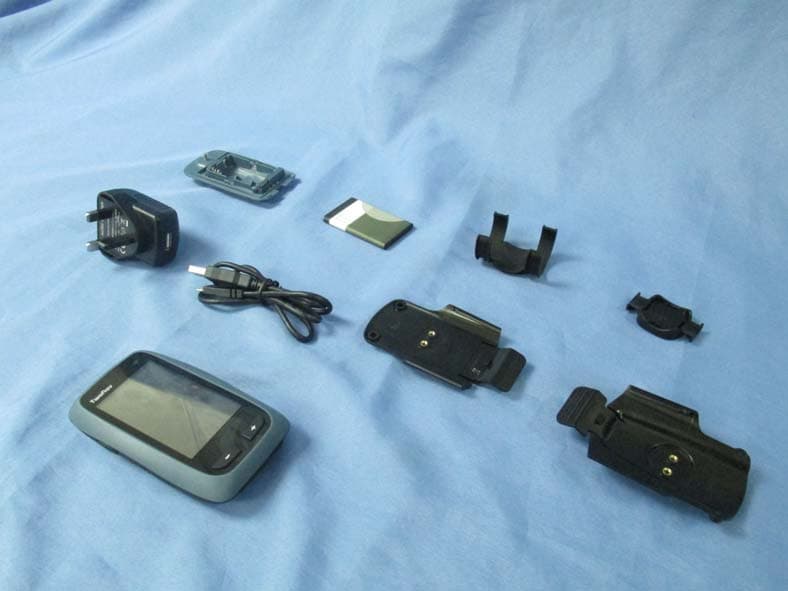
Click to zoom
Application Details
- Equipment Class
- DXX - Part 15 Low Power Communication Device Transmitter
- Date of Grant
- Mar 03, 2015
- Application Purpose
- Original Equipment
- Date of Application
- Mar 02, 2015
- Equipment Note
- Anima+
- Frequency Range
- 2457.00000000 - 2457.00000000
- Company
- CompeGPS Team SL
- Country
- Spain
Documents & Files
Document Text
Text extracted from the exhibit documents filed with the FCC. Open a document above to read the original.
Users Manual
1 Portada 2 ENGLISH Thank you for purchasing a TwoNav GPS device. In addition to this quick guide, you can find a complete user’s manual at: www.TwoNav.com TwoNav dedicates all its experience and effort to enable you get the best out of your outdoor activities such as hiking, cycling, geocaching... All new developments are based on suggestions and feedback from users like you. If you would like to share your ideas and proposals with TwoNav, feel free to do it at: http://compegps.uservoice.com If you have any questions or problems regarding the use of our products, please contact the on-line technical support department of TwoNav at: http://www.myTwoNav.com The device ON / OFF key: • Short press: Block / Unblock standby mode (turn off the screen and keys block) • Large press: Device on + Shutdown / Block menu PAGE key: • Short press: Files page • Large press: Main menu ‘+’/‘-’ keys: Adjust zoom level of the map Note: You can customize key functions in ‘Main menu > Settings > System > Keys’. Mounting Device cradle Accessories ANT+™ (only compatible devices) Once the sensors are mounted on your bike, follow these steps to start paring information: 1. Open ‘Data page’ (‘Page’ key) and search for ‘Effort’ data fields (heart rate, cadence). 2. Make a long press on the field that you want to activate (heart rate sensor, cadence sensor or speed sensor). 3. Select ‘Enable FC / Cad / VeS’. TwoNav starts looking for the sensor signal, if it is available, it will be displayed. Files is also stored for each recorded track point. Note: Add other data fields such as sensor speed by PA G E ZOOM +ZOOM - ON / OFF 21 3 Click! 3 The device ON / OFF key: • Short press: Block / Unblock standby mode (turn off the screen and keys block) • Large press: Device on + Shutdown / Block menu PAGE key: • Short press: Files page • Large press: Main menu ‘+’/‘-’ keys: Adjust zoom level of the map Note: You can customize key functions in ‘Main menu > Settings > System > Keys’. Mounting Device cradle Accessories ANT+™ (only compatible devices) Once the sensors are mounted on your bike, follow these steps to start paring information: 1. Open ‘Data page’ (‘Page’ key) and search for ‘Effort’ data fields (heart rate, cadence). 2. Make a long press on the field that you want to activate (heart rate sensor, cadence sensor or speed sensor). 3. Select ‘Enable FC / Cad / VeS’. TwoNav starts looking for the sensor signal, if it is available, it will be displayed. Files is also stored for each recorded track point. Note: Add other data fields such as sensor speed by pressing ‘Change field’ on any existing field. Recharge and autonomy You can recharge the battery of the GPS device by connecting the device to the USB charger included in the product box. Battery life can be increased by reducing the level of screen backlight or by turning the screen off when not in use (short press on ‘ON / OFF’ key). TwoNav features several power modes that automatically adjust options such as off-screen, brightness or refresh of GPS position. Configure these options in ‘Main menu > Settings’. Batteries and other accessories can be bought from: www.TwoNav.com Care Never submerge the device in water, not even when all lids are sealed. Avoid vibration or harsh movements while USB port is connected. Vibrations may deform the USB port whose repair is excluded from the warranty. Start / Shutdown / Block In order to turn the device on, press ‘ON / OFF’ key for a few seconds. TwoNav will automatically search for satellites. When a strong enough signal is available, the status icon 21 3 Click! 4 will change to ‘Connected’, and your position will be marked on the map. Note: GPS positioning requires good sky visibility and may take several minutes after turning on the GPS unit. In order to switch the device off, press ‘ON / OFF’ key and select ‘Shutdown’. If you select ‘Block’, the screen will be turned off and the keys will not respond. By doing this you will be able to carry the device in a pocket avoiding involuntary actions on the device. In order to unblock the device, press the ‘ON / OFF’ key again. You can also directly block device by making short press on ‘ON / OFF’ key. To unblock the device, do a short press again. Note: You can force the device to switch off by pressing ‘ON / OFF’ key for 10 seconds. It is recommended not to force the shutdown of the device unless it is necessary. Main pages TwoNav is based on 3 parts: Main menu: Using the buttons on the bottom side of the main menu you can access to map page and data pages. Data pages: Using the buttons on the bottom side of any data page you can switch between other data pages. Press to return to ‘Main menu’. Map page: Map page features 3 modes (‘Data’ mode, ‘Tool’ mode and ‘Pin’ mode). Read more about each mode in the following chapter. 5 Main pages TwoNav is based on 3 parts: Main menu: Using the buttons on the bottom side of the main menu you can access to map page and data pages. Data pages: Using the buttons on the bottom side of any data page you can switch between other data pages. Press to return to ‘Main menu’. Map page: Map page features 3 modes (‘Data’ mode, ‘Tool’ mode and ‘Pin’ mode). Read more about each mode in the following chapter. Note: Many of the application pages (map, fields, track’s list, properties...) have specific configuration tools. For example, choose the display mode for maps, the way to order for waypoint lists or apply a name filter to a list of tracks. Press the button ‘Page tools’ to show these tools. Map page Explore the map Drag the map using the touch screen to explore the surroundings. Use ‘+’ and ‘-’ keys to adjust the zoom level. Press the ‘Re-center’ button when you wish return to your current position. 6 ‘Data’ mode Page map shows the relevant information about your current navigation (status bar, data bar containing distances, times...). ‘Tool’ mode Do a short press on any part of the map to access the ‘Tool’ mode. Press any part of the map again to hide t…
Text truncated - open the document above for the full version.
External Photos
Report No:1480253R-RFUSP15V00 Page: 62 of 72 Attachement EUT Photograph (1) EUT Photo (Gray Cover) (2) EUT Photo Report No:1480253R-RFUSP15V00 Page: 63 of 72 (3) EUT Photo (White Cover) (4) EUT Photo
ID Label/Location Info
CompeGPS Team SL Carrer d’en Draper, 13, 08350 Arenys de Mar, Barcelona, Spain FCC ID.: OR5-ANB1401 FCC ID AND DoC Label The FCC ID and DoC Label will be placed on the equipment as shown in the photograph below. TwoNav Anima+ Model No.: ANB1401 FCC ID : OR5-ANB1401 This device complies with Part 15 of the FCC Rules. Operation is subject to the following two conditions: (1) this device may not cause harmful interference and (2) this device must accept any interference received, including interference that may cause undesired operation. S/N: Made in Taiwan Trade name: Model number.: ANB1401
Internal Photos
Report No:1480253R-RFUSP15V00 Page: 64 of 72 (5) EUT Photo (Adapter: KSAS0060500100VUU) (6) EUT Photo Report No:1480253R-RFUSP15V00 Page: 65 of 72 (7) EUT Photo (8) EUT Photo Report No:1480253R-RFUSP15V00 Page: 66 of 72 (9) EUT Photo (10) EUT Photo Report No:1480253R-RFUSP15V00 Page: 67 of 72 (11) EUT Photo (12) EUT Photo Report No:1480253R-RFUSP15V00 Page: 68 of 72 (13) EUT Photo (14) EUT Photo Report No:1480253R-RFUSP15V00 Page: 69 of 72 (15) EUT Photo (16) EUT Photo (MB) Report No:1480253R-RFUSP15V00 Page: 70 of 72 (17) EUT Photo ((ANT+) ANT) (18) EUT Photo (GPS ANT) Report No:1480253R-RFUSP15V00 Page: 71 of 72 (19) EUT Photo (20) EUT Photo (Battery) Report No:1480253R-RFUSP15V00 Page: 72 of 72 (21) EUT Photo (Battery)
Test Report
Report No:14B0253R-RFUSP15V00 Page: 1 of 40 FCC Test Report Product Name:TwoNav Anima+ Model No. :ANB1401 FCC ID. :OR5-ANB1401 Applicant : CompeGPS Team SL Address : Carrer d’en Draper, 13, 08350 Arenys de Mar, Barcelona, Spain Date of Receipt: 2014/11/10 Issued Date : 2014/12/19 Report No. :14B0253R-RFUSP15V00 Report Version :V1.0 The test results relate only to the samples tested. The test report shall not be reproduced except in full without the written approval of QuieTek Corporation. Report No:14B0253R-RFUSP15V00 Page: 2 of 40 Test Report Certification Issued Date : 2014/12/19 Report No. : 14B0253R-RFUSP15V00 Product Name : TwoNav Anima+ Applicant : CompeGPS Team SL Address : Carrer d’en Draper, 13, 08350 Arenys de Mar, Barcelona, Spain Manufacturer : Holux Technology, Inc. Model No. : ANB1401 Trade Name : FCC ID. : OR5-ANB1401 EUT Voltage : Mode 1: DC 3V (Power by Battery) Mode 2: DC 3.7V (Power by Battery) Mode 3: DC 5V (Power by Notebook PC) Mode 4: AC100-240V, 50-60Hz Applicable Standard : FCC CFR Title 47 Part 15 Subpart C Section 15.249: 2013 Test Result : Complied The test results relate only to the samples tested. The test report shall not be reproduced except in full without the written approval of QuieTek Corporation. Documented By : ( Demi Chang / Engineering Adm. Specialist ) Reviewed By : ( Ken Huang / Assistant Engineer ) Approved By : ( Roy Wang / Director ) Report No:14B0253R-RFUSP15V00 Page: 3 of 40 Laboratory Information We, QuieTek Corporation, are an independent RF consultancy that was established the whole facility in our laboratories. The test facility has been accredited/accepted (audited or listed) by the following related bodies in compliance with ISO 17025 specified testing scopes: The related certificate for our laboratories about the test site and management system can be downloaded from QuieTek Corporation’s Web Site:http://www.quietek.com/tw/ctg/cts/accreditations.htm The address and introduction of QuieTek Corporation’s laboratories can be founded in our Web site : http://www.quietek.com/ If you have any comments, Please don’t hesitate to contact us. Our contact information is as below: HsinChu Testing Laboratory: No.75-2, 3rd Lin, Wangye Keng, Yonghxing Tsuen, Qionglin Shiang, Hsinchu County 307, Taiwan, R.O.C. TEL:+886-3-592-8858 / FAX:+886-3-592-8859 E-Mail : [email protected] LinKou Testing Laboratory: No.5-22, Ruishukeng, Linkou Dist., New Taipei City 24451, Taiwan, R.O.C. TEL : 886-2-8601-3788 / FAX : 886-2-8601-3789 E-Mail : [email protected] Taiwan R.O.C. : TAF, Accreditation Number: 3024 USA : FCC, Registration Number: 365520 Canada : IC, Submission No: 150981 Report No:14B0253R-RFUSP15V00 Page: 4 of 40 TABLE OF CONTENTS Description Page 1. General Information........................................................................................................ 5 1.1. EUT Description ............................................................................................................. 5 1.2. Test Mode .......................................................................................................................6 1.3. Tested System Details .................................................................................................... 7 1.4. Configuration of tested System ...................................................................................... 8 1.5. EUT Exercise Software ................................................................................................ 11 1.6. Test Facility...................................................................................................................12 2. Conducted Emission .................................................................................................... 13 2.1. Test Equipment............................................................................................................. 13 2.2. Test Setup .................................................................................................................... 13 2.3. Limits ............................................................................................................................ 14 2.4. Test Procedure ............................................................................................................. 14 2.5. Test Specification.......................................................................................................... 14 2.6. Uncertainty ................................................................................................................... 14 2.7. Test Result....................................................................................................................15 2.8. Test Photo .................................................................................................................... 19 3. Fundamental Power ..................................................................................................... 21 3.1. Test Equipment............................................................................................................. 21 3.2. Test Setup .................................................................................................................... 21 3.3. Limits ............................................................................................................................ 22 3.4. Test Procedure ............................................................................................................. 22 3.5. Test Specification.......................................................................................................... 23 3.6. Uncertainty ................................................................................................................... 23 3.7. Test Result....................................................................................................................24 4. Radiated Emission ..................................................…
Text truncated - open the document above for the full version.
Test Setup Photos
Report No:1480253R-RFUSP15V00 Page: 19 of 40 2.8. Test Photo Test Mode : Mode 3: Transmit_Power by Notebook PC Description: Front View of Conducted Emission Test Setup Test Mode : Mode 3: Transmit_Power by Notebook PC Description: Back View of Conducted Emission Test Setup Report No:1480253R-RFUSP15V00 Page: 20 of 40 Test Mode : Mode 4: Transmit_Power by Adapter Description: Front View of Conducted Emission Test Setup Test Mode : Mode 4: Transmit_Power by Adapter Description: Back View of Conducted Emission Test Setup Report No:1480253R-RFUSP15V00 Page: 51 of 72 4.8. Test Photo Test Mode : Mode 1: Transmit_Power by 3V Battery Description: Front View of Radiated Emission Test Setup Test Mode : Mode 1: Transmit_Power by 3V Battery Description: Back View of Radiated Emission Test Setup Report No:1480253R-RFUSP15V00 Page: 52 of 72 Test Mode : Mode 2: Transmit_Power by 3.7V Battery Description: Front View of Radiated Emission Test Setup Test Mode : Mode 2: Transmit_Power by 3.7V Battery Description: Back View of Radiated Emission Test Setup Report No:1480253R-RFUSP15V00 Page: 53 of 72 Test Mode : Mode 3: Transmit_Power by Notebook PC Description: Front View of Radiated Emission Test Setup Test Mode : Mode 3: Transmit_Power by Notebook PC Description: Back View of Radiated Emission Test Setup Report No:1480253R-RFUSP15V00 Page: 54 of 72 Test Mode : Mode 3: Transmit_Power by Notebook PC Description: Front View of Radiated Emission Test Setup (Horn) Test Mode : Mode 3: Transmit_Power by Notebook PC Description: Back View of Radiated Emission Test Setup (Horn) Report No:1480253R-RFUSP15V00 Page: 55 of 72 Test Mode : Mode 4: Transmit_Power by Adapter Description: Front View of Radiated Emission Test Setup Test Mode : Mode 4: Transmit_Power by Adapter Description: Back View of Radiated Emission Test Setup
Contact Information
Applicant
Ivan Twose
Technical Contact
Non-Technical Contact
QuieTek CorporationSabrina Tsai
[email protected]886-3-592-8858
Test Firm
DEKRA TESTING AND CERTIFICATION CO., LTD.Warren Lin
Technical Specifications
| # | Rule Parts | Frequency Range | Power Output |
|---|---|---|---|
| 1 | 15C | 2.46 GHz - 2.46 GHz | - |
Other Applications from CompeGPS Team SL
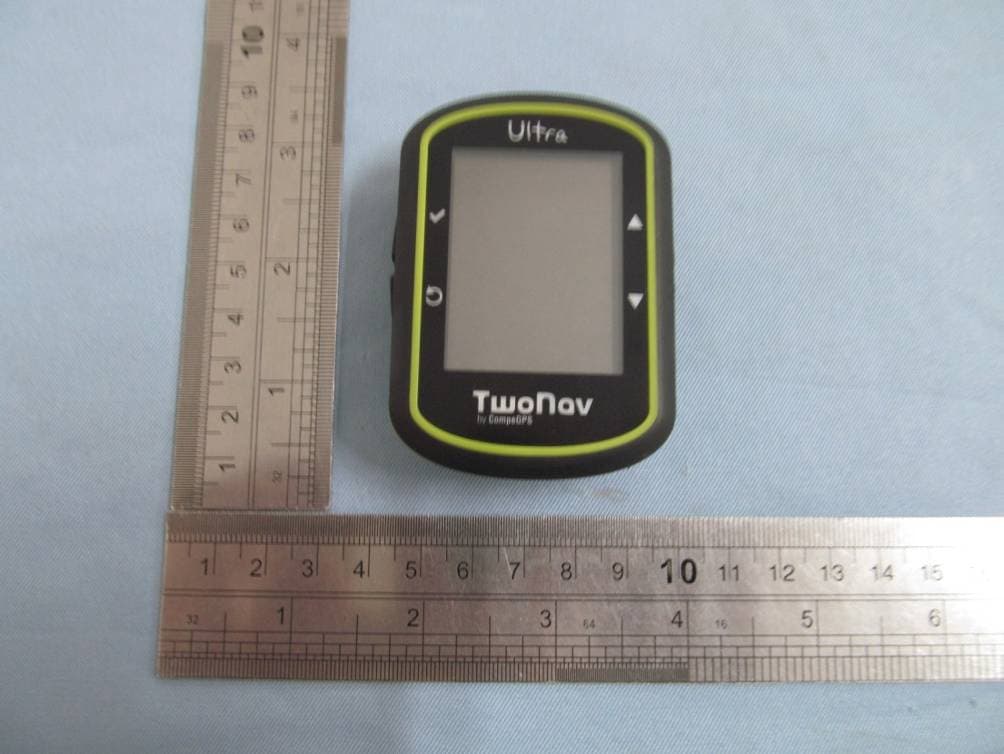
OR5TWONAV
Sep 10, 2012Dual Navigation System TwoNav
Equipment Class
DSS - Part 15 Spread Spectrum Transmitter