OR5TWONAVDual Navigation System TwoNav
CompeGPS Team SL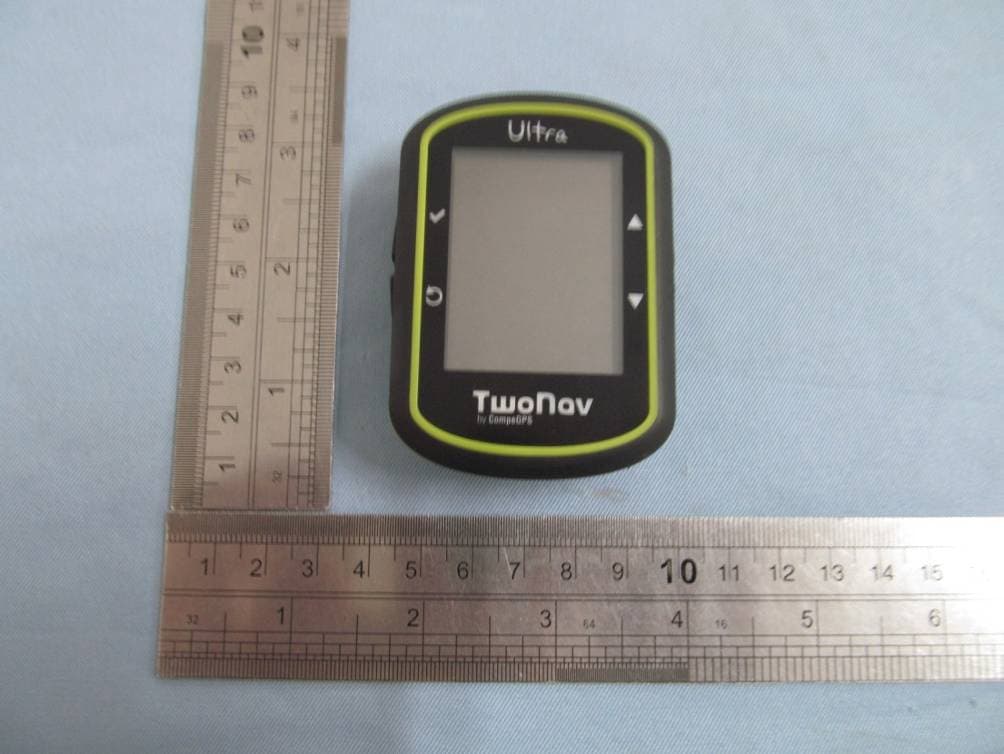
Click to zoom
Application Details
- Equipment Class
- DSS - Part 15 Spread Spectrum Transmitter
- Date of Grant
- Sep 10, 2012
- Application Purpose
- Original Equipment
- Date of Application
- Sep 10, 2012
- Equipment Note
- Dual Navigation System TwoNav
- Frequency Range
- 2402.00000000 - 2480.00000000
- Company
- CompeGPS Team SL
- Country
- Spain
Documents & Files
Document Text
Text extracted from the exhibit documents filed with the FCC. Open a document above to read the original.
Users Manual
http://www.CompeGPS.com http://Support.CompeGPS.com 1 TwoNav Ultra 2.6 User’s Manual 1 Introduction......................................................................................................6 2 Maintenance......................................................................................................7 2.1 Battery Recharge.................................................................................................7 2.2 Precautions...........................................................................................................7 2.3 Autonomy.............................................................................................................8 2.4 Connection to PC (storage unit)........................................................................8 2.5 Using the electronic compass...........................................................................8 2.6 Updating the software.........................................................................................8 3 General description.........................................................................................9 3.1 The device.............................................................................................................9 3.2 Navigation window............................................................................................ 10 3.2.1 ‘Tool bar’............................................................................................................................13 3.2.2 ‘Data bar’...........................................................................................................................14 3.2.3 ‘InfoCurrent’ and ‘InfoNext’.............................................................................................14 3.3 Menu.................................................................................................................... 16 3.3.1 On-road/Off-road..............................................................................................................17 3.3.2 Navigate...........................................................................................................................17 3.3.3 Data Lists..........................................................................................................................17 3.3.3.1 Name filter.....................................................................................................................19 3.3.4 Discover.............................................................................................................................19 3.3.5 Status.................................................................................................................................20 3.3.6 Settings..............................................................................................................................21 3.4 Contextual menus.............................................................................................. 21 3.5 Shifting over lists............................................................................................... 22 3.6 Using MicroSD slot............................................................................................ 23 3.7 Activate sensors................................................................................................ 23 4 Settings............................................................................................................24 4.1 On-road/Off-road Selector................................................................................ 24 4.2 2D/3D/3D+........................................................................................................... 25 4.3 Data fields........................................................................................................... 26 4.3.1 Selection of the data fields.............................................................................................28 4.3.2 Special Functions.............................................................................................................28 http://www.CompeGPS.com http://Support.CompeGPS.com 2 4.4 Record the track................................................................................................ 29 4.5 Favourites........................................................................................................... 30 4.6 Display................................................................................................................. 31 4.6.1 Available commands Default/Advanced.......................................................................31 4.6.2 Automaps..........................................................................................................................32 4.6.3 Orientate map...................................................................................................................32 4.6.4 2D/3D.................................................................................................................................33 4.6.5 Auto zoom.........................................................................................................................34 4.6.6 Night view..........................................................................................................................34 4.6.7 Re-centring.......................................................................................................................34 4.6.8 Rotate screen...................................................................................................................35 4.6.9 Themes..............................................................................................................................35 4.6.10 Labels................................................................................................................................35 4.6.11 Hint...........................................................…
Text truncated - open the document above for the full version.
Users Manual
http://www.CompeGPS.com http://Support.CompeGPS.com 51 4.9.3 Autonomy In this section you will find utilities that will help you maximize the autonomy of the system: • ‘Shutdown screen’: determine a time after which the screen will automatically turn off *. Select ‘never’ to activate this function. * Note: The option ‘Turn screen off after’ won’t work if the device is connected to an external power source and ‘car’ has been selected as vehicle. • ‘Shutdown backlight’: Just backlight will be turned off, so screen will still be on. Shutting down screen saves more energy than shutting down only backlight. • ‘Disconnect GPS at stops’: it will detect a stop in your itinerary and will disconnect the GPS. A message will then appear asking if you wish to activate the GPS again. It is important to say yes to this message when setting out again. • Protection against accidental unplugging: To prevent the device from discharging if it is disconnected accidentally from the power source (engine turned off, automatic turning off of the PC, etc.), TwoNav detects the unplugging and an alert message appears. If you don’t answer the message, after half an hour, the system will go off. • Don't shutdown if plugged: Shutdown screen time is not applied, leaving the GPS with the screen on during all the trip. • GPS connection interval can be set for: o Continuous GPS connection o Intermitent GPS connection 4.9.4 Language You may modify the language of the texts and voices of the system from this section. Note: The conversion of the voices may take more than one minute. 4.9.5 Calibrate screen The option ‘Calibrate screen’ lets you correct all the little maladjustments that the touch screen may have, that is to say, that you press on one spot and the reactions does not appear on this concrete spot, but a little misplaced. When calibrating the screen, the following instructions message will be displayed: “Press and briefly hold stylus on the center of the screen and repeat as the target moves around the screen. Press Esc to cancel” http://www.CompeGPS.com http://Support.CompeGPS.com 52 Click briefly with the stylus on the centre of the cross and repeat as the objective moves across the screen. Once the new screen calibration is done, the following message will be displayed: “New calibration settings have been measured. Press Enter key to accept the new setting. Press the Esc key to keep the old settings” Press on the screen to end calibration. 4.9.6 Barometer calibration The errors on the setting of the pressure may cause wrong readings of the altitude. By default, the barometer will be calibrated automatically by means of the altitude data supplied by the GPS using an algorithm that will optimize its function. If you wish, you may calibrate the barometric altimeter manually from ‘Main Menu > Settings > Off-road > Barometer Calibration’ introducing the present altitude with the keypad that will be displayed when pressing this option. o Manually o Current GPS altitude o Current *.CDEM map altitude In order for this manual calibration not to be altered by the automatic calibration process, you must set TwoNav to take the altitude by only taking the barometer reading. 4.9.7 Compass calibration Calibration is a necessary procedure for the directions supplied by the electronic compass to be correct. It is an instrument very sensitive to weather and magnetic fields changes, so it has to be re- calibrated each time it is going to be used in a new area. Calibration must be carried out in the open air and far from sources of alterations of the magnetic fields, such as cars, buildings or electric lines. For more safety, it is recommended to calibrate the compass before each outing. Once inside the calibration utility, all you have to do is rotate the device in the 3 axes until compass is calibrated. 4.9.8 Calibration tools Some system gadgets need to be calibrated to work correctly: • Touch screen: try to calibrate touch screen if you experience inaccuracy when pressing on it. • Compass: Digital compass is very sensitive to environment conditions. Calibrate compass at the beginning of every trip. • Barometer: o Manually http://www.CompeGPS.com http://Support.CompeGPS.com 53 o Current GPS altitude o Current *.CDEM map altitude All calibration tools can be found at ‘menu > settings > system’. Just press on the option and follow on-screen instructions. 4.9.9 Folders In order for your data (maps, waypoints routes and tracks) to be considered by TwoNav when creating lists in the ‘data’ section, they have to be inside the folder you have created for this purpose. You may define one or more folders for maps (then, the maps of all folders will be included in this map list) and a folder for data (waypoints, routes and tracks). The folder for maps by default is ‘TwoNavData/maps’. The folder by default for the rest of data (waypoints, routes and tracks) is ‘TwoNavData/Data’. If there are any other folders inside the one you have selected, they will also be shown in the data list. For example, if we create a folder called ‘Pyrenees routes’ inside ‘TwoNavData/Data’, and ‘TwoNavData/Data’ is set as the only routes, waypoints and tracks folder, we will have the following representation in the routes list: You can configure which folders will be considered. Just go to ‘menu > settings > system > folders’ (advanced mode may be enabled) and change the Maps or Data folders. http://www.CompeGPS.com http://Support.CompeGPS.com 54 You can add more than one folder. Then data list will show the data from the different folders in a single list. 4.9.10 Units You may determine which type of measurement unit to use in TwoNav: • Distances: in kilometres, miles, nautical miles, metres or feet. • Altitudes in: metres or feet. • Speed in: kilometres/hour, miles/hour, nautical miles or minutes/kilometre. • Short distances in: kilometres/hour, miles, nautical miles, metres or feet. • Acceleration in: metres/second 2 , gravity or kilometres/hour/second. • Ve…
Text truncated - open the document above for the full version.
Cover Letter(s)
Aug Fed Aut FCC Re: Pur s requ 1: B 2: C 3: O 4: P Th e rele app Th e all a app Sin c Co m Con g.29, 2012 deral Comm thorization C ID: OR5 : Confiden suant to Se uests confid Block Diagra Circuit Diagra Operational D Parts List e above mat ased to the licant and p e Applicant u accompanyi lication. cerely, mpeGPS T ntact: Ivan 2 munication and Evalu TWONAV ntiality Re ctions 0.457 ential treatm m am Description terials conta e public. The rovide unjus understands ng docume n Team SL Twose n Commiss uation Divis quest 7 and 0.459 ment of infor ain trade se e public dis stified benef that pursua ntation will sion sion 9 of the Com rmation appl ecrets and p sclosure of t fits to its com nt to Rules 0 not be mad mmission’s R ied this app proprietary these matte mpetitors. 0.457, disclo e before th Rules, the a lication as o information ers might be osure of this e date of th applicant he outlined belo not custom e harmful to s Application he Grant for ereby ow: marily o the n and r this
Cover Letter(s)
Sep Fed Aut FCC Re: We this 1: E 2: In 3: Te 4: U Th e rele app An Sin c Co m Con p.19, 2012 deral Comm thorization C ID: OR5 : Confiden CompeGPS application External Pho nternal Phot Test setup Ph User Manual e above mat ased to the licant and p d we reque s cerely, mpeGPS T ntact: Ivan 2 munication and Evalu TWONAV ntiality Re S Team SL as outlined otos os hotos terials conta e public. The rovide unjus sts that thes Team SL Twose n Commiss uation Divis quest hereby requ below: ain trade se e public dis stified benef se materials sion sion uests confid ecrets and p sclosure of t fits to its com could be co dential treatm proprietary these matte mpetitors. onfidentiality ment of info information ers might be y for half a ye ormation app not custom e harmful to ear! plied marily o the
Cover Letter(s)
CompeGPS Team SL Carrer d’en Draper,1308350Arenys de Mar Barcelona-Spain Sep.19, 2012 Federal Communication Commission Authorization and Evaluation Division Re.: Representation Letters FCC ID: OR5TWONAV Model Number: TwoNav Ultra To Whom It May Concern: We CompeGPS Team SL hereby declare that the materials which we requested to confidential is published on the FCC website since the date of the Grant for this application. Due to our product is still in production phase, and the public disclosure of these matters might be harmful to the our company and provide unjustified benefits to its competitors. So we need these materials could be confidentiality due to our market factors. Sincerely, CompeGPS Team SL Contact: Ivan Twose
External Photos
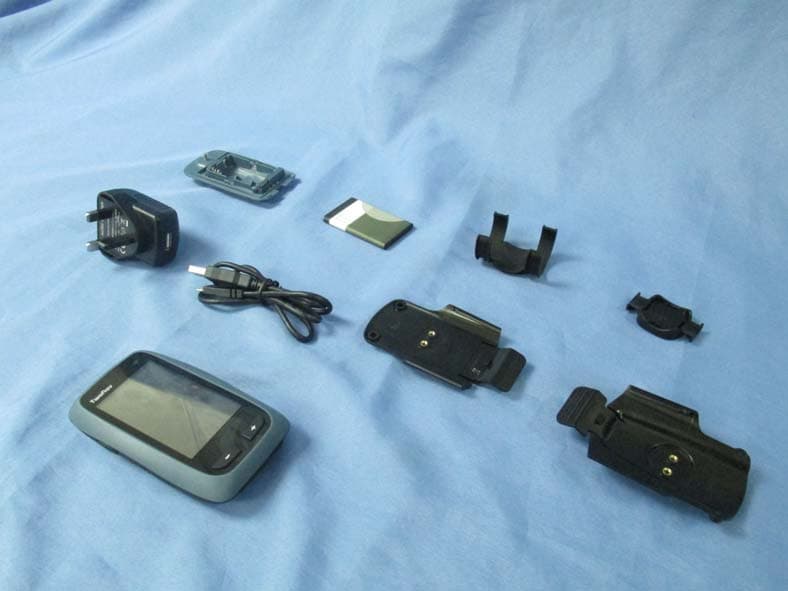
PHOTOGRAPHS OF THE EUT TOTAL VIEW OF EUT TOP VIEW OF EUT BOTTOM VIEW OF EUT FRONT VIEW OF EUT BACK VIEW OF EUT LEFT VIEW OF EUT RIGHT VIEW OF EUT
ID Label/Location Info
FCC Label Location TwoNav Ultra FCC ID: OR5TWONAV Model Name:TwoNav Ultra Brand Name:TwoNav
Internal Photos
OPEN VIEW OF EUT-1 OPEN VIEW OF EUT-2 INTERNAL VIEW OF ET-1 INTERNAL VIEW OF EUT-2 INTERNAL VIEW OF EUT-3 INTERNAL VIEW OF EUT-4 INTERNAL VIEW OF EUT-5 Bluetooth Antenna
Test Report
Radio Test Report Report No.: AGC21S120601F2A FCC ID : OR5TWONAV PRODUCT DESIGNATION : TwoNav Ultra BRAND NAME : TwoNav MODEL NAME : TwoNav Ultra CLIENT : CompeGPS Team SL DATE OF ISSUE : Aug. 22, 2012 STANDARD(S) : FCC Part 15 Rules Attestation of Global Compliance Co., Ltd. CAUTION: This report shall not be reproduced except in full without the written permission of the test laboratory and shall not be quoted out of context. Report No.: AGC21S120601F2A Page 1 of 44 VERIFICATION OF COMPLIANCE Applicant CompeGPS Team SL Carrer d’en Draper,1308350Arenys de Mar Barcelona-Spain Manufacturer Shenzhen Unistrong Science&Technology Co.,Ltd. 17/F,Global Digital Bldg,Hi-tech Park,Nanshan,Shenzhen,China Product Designation TwoNav Ultra Brand Name TwoNav Model Name TwoNav Ultra Report Number AGC21S120601F2A Date of Test Aug.17,2012 to Aug.21 , 2012 WE HEREBY CERTIFY THAT: The above equipment was tested by Attestation of Global Compliance Co., Ltd. The test data, data evaluation, test procedures, and equipment configurations shown in this report were made in accordance with the procedures given in ANSI C 63.4:2003. The sample tested as described in this report is in compliance with the FCC Rules Part 15 requirements. Tested By: Bart Xie Aug. 22, 2012 Reviewed By: Forrest Lei Aug. 22, 2012 Approved By: Solger Zhang Aug. 22, 2012 Report No.: AGC21S120601F2A Page 2 of 44 TABLE OF CONTENTS 1 GENERAL INFORMATION ..................................................................................................................................................... 4 1.1 PRODUCT DESCRIPTION ........................................................................................................................................ 4 1.2 TABLE OF CARRIER FREQUENCYS .................................................................................................................... 4 1.3 RECEIVER INPUT BANDWIDTH ............................................................................................................................. 5 1.4 EXAMPLE OF A HOPPING SEQUENCY IN DATA MODE .................................................................................. 6 1.5 EQUALLY AVERAGE USE OF FREQUENCIES AND BEHAVIOUR ................................................................. 6 1.6 RELATED SUBMITTAL(S) / GRANT (S) ................................................................................................................ 6 1.7 TEST METHODOLOGY ............................................................................................................................................. 6 1.8 TEST FACILITY ........................................................................................................................................................... 7 1.9 SPECIAL ACCESSORIES ......................................................................................................................................... 7 1.10 EQUIPMENT MODIFICATIONS ................................................................................................................................ 7 2 SYSTEM TEST CONFIGURATION ....................................................................................................................................... 8 2.1 CONFIGURATION OF EUT SYSTEM ..................................................................................................................... 8 2.2 EQUIPMENT USED IN EUT SYSTEM .................................................................................................................... 8 3 SUMMARY OF TEST RESULTS ........................................................................................................................................... 9 4. DESCRIPTION OF TEST MODES ..................................................................................................................................... 10 5 PEAK OUTPUT POWER ....................................................................................................................................................... 11 5.1 MEASUREMENT PROCEDURE .................................................................................................................................. 11 5.2 TEST SET-UP (BLOCK DIAGRAM OF CONFIGURATION) ................................................................................... 11 5.3 MEASUREMENT EQUIPMENT USED ........................................................................................................................ 12 5.4 LIMITS AND MEASUREMENT RESULT .................................................................................................................... 12 6 20 DB BANDWIDTH ............................................................................................................................................................. 13 6.1 MEASUREMENT PROCEDURE .................................................................................................................................. 13 6.2 TEST SET-UP (BLOCK DIAGRAM OF CONFIGURATION) ................................................................................... 13 6.3 MEASUREMENT EQUIPMENT USED ........................................................................................................................ 13 6.4 LIMITS AND MEASUREMENT RESULTS .................................................................................................................. 13 7. CONDUCTED SPURIOUS EMISSION .............................................................................................................................. 15 7.1 MEASUREMENT PROCEDURE .................................................................................................................................. 15 7.2 TEST SET-UP (BLOCK DIAGRAM OF CONFIGURATION) ................................................................................... 15 7.3 MEASUREMENT EQUIPMENT USED .................................…
Text truncated - open the document above for the full version.
Test Setup Photos
PHOTOGRAPHS OF TEST SETUP CONDUCTED EMISSION TEST SETUP RADIATED EMISSION TEST SETUP
Contact Information
Applicant
Ivan Twose
Test Firm
Attestation of Global Compliance Shenzhen Co. Ltd.Forrest Lei
Technical Specifications
| # | Rule Parts | Frequency Range | Power Output |
|---|---|---|---|
| 1 | 15C | 2.40 GHz - 2.48 GHz | 2.30 mW |
Other Applications from CompeGPS Team SL
OR5-ANB1401
Mar 03, 2015Anima+
Equipment Class
DXX - Part 15 Low Power Communication Device Transmitter