PBCNHD-355Network Storage
Sarotech Co., Ltd.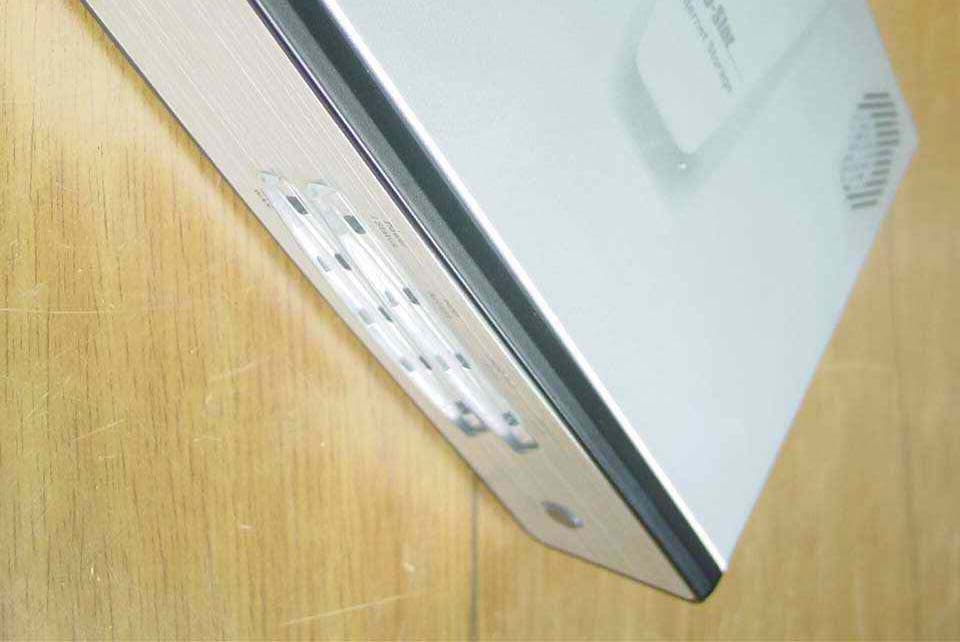
Click to zoom
Application Details
- Equipment Class
- JBP - Part 15 Class B Computing Device Peripheral
- Date of Grant
- Sep 15, 2005
- Application Purpose
- Original Equipment
- Date of Application
- Sep 15, 2005
- Equipment Note
- Network Storage
- Company
- Sarotech Co., Ltd.
- Country
- South Korea
Documents & Files
Document Text
Text extracted from the exhibit documents filed with the FCC. Open a document above to read the original.
Users Manual
3 Chapter I. Using the User Mode In this chapter, we will explain how to use various functions of U-Stor for users in general. Espec ially, how to use the function of file server, web server, mail server, back-up server in d etail. Using the U-Stor as a file server, the files or folders can be uploarded and downloarded. In addition, each user can set his/her folders to be shared. Methods for using the U-Stor as a file server are one of using the U-stor file manager, the special FTP program of U-Stor, using a web browser such as Internet Explorer, using the Window Explorer, or using a common FTP program such as Al FTP. Using the U-Stor as a web server, each user can make its own home page. Using the U-Stor as a mail server, the user can get his/her own mail account by just setting the Outlook Express. Using the Backup utility of the U-Stor, the all data could be safely managed. The back- up function of the U-Stor can be available only in the OS of Windows series. In order to use the U-Stor file manager and backup utility, the U-Stor Windows Application. U-Sto r should be installed. From sections 1 to 4, the method for using it in the Windows OS is explained. 1. Using as a file server 1.1. Using the U-Stor file manager The U-Stor file manager is the special FTP client program of the U-Stor. This program has a sharing function as well as the FTP function. In order to use this program, the U-Stor Windows Application in the rendered CD should be installed. 1.1.1. Installing the U-Stor Windows Application The U-Stor Windows Application can be used in the operating systems such as Windows 98SE/NT/2000/XP. The installing sequence will be shown as follows. ★ Caution: When the U-Stor program is already installed or when it is upgrading, the con ventional U-Stor program should be uninstalled in advance. Further, the back-up process may be in the tray icon. Therefore, before performing the install, the back-up process should be terminated using file manager. 4 ① Run U-StorSetup.exe the Installation program of the U-Stor Windows Application in the CD-ROM supplied with U-Stor system or downloaded from the web site of U-Stor (http://www.u-stor.net ). Then, ‘select a language’ screen will be shown. Select a language to be installed and click the button. ② Press the [OK] button to continue the installation. ③ On the “Choose component” screen, choose the component which you want and then click the [Next] button. 5 ④ Choose the folder in which this program will be installed and then click the [Install] buttom. ⑤ The installing progress status bar will be shown. 6 ⑥ Now, the installation of the U-Stor Windows Application is completed. With being checked the check box of “Run the U-Stor Windows Application 1.0” click the [Finish] button to run the U-Stor file manager program. 7 ⑦ The Installation status is shown as follows. 8 9 1.1.2. Function of U-Stor file manager U-Stor file manager helps the user to access to the U-Stor using his/her account tomansge the files and set them in share. The U-Stor file manager makes the user to perform the up /downloading file, creating new folder, renaming the file and folder name, deleting the file a nd folder and so on, in the user’s private folder or the shared foler of which authority is gra nted to the user. Further, the user can send the link information of the selected files to the mail, accecc the selected files at the other web site using their link inforation. The sharing s etting function is to set certain folder to be accessible by other users on the network. Selec ting the users, it is possible to grant an authority of reading or writing to them. ★ Caution: To use this function, the manager should create the user account using the web browser. 1.1.3. Connection / Disconnection A. Connect to the U-Stor ① Run the U-Stor file manager. To do so, click the file manager icon on the Desktop, select Start -> Program -> U-Stor Application -> U-Stor File Manager. When the U-Stor program is run or the login is not accomplished, click the Login ( )at the tool bar, then “Login” dialog box will be shown. The U-Stor file manager program can not be run in duplicate. If this program is run twice, the running program is appeared on the screen. ② The “Login” dialog box will be shown. At ‘Host’, enter the host name of the U-Stor to connect or the IP address. The default value of ‘Port Number’ is 21. If the port number 21 is not used, please enter a relevant port number. Enter user’s ID and password of the U-Stor system. If the ‘Save the Password’ is checked, then the password will not be required at next Login. 10 ③ After clicking the [Login] button and connecting to the U-Stor successfully, the following main screen will be shown. This screen comprises of six parts. The names and functions of each part are explained as follows. * Tool bar(①): It includes all menus for U-Stor file management to access quickly to each function. 11 * Remote tree window (②): It shows the folder of the U-Stor system (remote system) in tree structure. It is possible to access to any remote folder you want. * Remote file list(③): This part shows the files and folders in the remote folder now worked therein. Selecting the file and folder in the list, download, creating a new folder, renaming the folder, deleting, sending files to mail, remarking the file link or setting the sharing can be performed. The detailed descriptions of each function are shown in bellows. * Local tree window (④): This part shows the files and folders in the user’s computer (local computer) in tree structure. It is possible to access to any local folder you want. * Local file list (⑤): This part shows the files and folders of the local folder in which the user is working. Selecting the files and folders in the local file list, uploading, creating new folder, renaming, deleting and showing information can be performed. The detailed descriptions of each function are shown in bellows. * File transferring status window (⑥): Th…
Text truncated - open the document above for the full version.
Users Manual
42 E. Rename ( ) This function is for changing the name (rename) of the file or folder you choose. ① After accessing to the U-Stor, move to the folder in which you want to rename file or folder. In order to move to wanted folder in the U-Stor, select “..” at the file/folder list of current folder to move to the upper folder. Otherwise, select folder icon or folder name to move to the sub folder you want to go. ② Click the check box next to the folder or file you want to remane in the file/folder list of the current folder to mark the V using the mouse. ③ On the web folder screen of the user, enter the new name at the ‘New folder/Name’. ④ Select [Rename] button of the function button. ⑤ If the renaming is completed successfully, the changed name will be shown in the current folder. If a file having the same name exists already, an error message of “Same filename or foldername exist” will be shown. If you select multiple of files or folders, an error message of “Select one file or folder” will be shown. If the target of renaming is a public folder in the current folder, then a message of “The sharing folder is canceled. Continue?” will be shown. If the user selects the [OK] button, then the rename function will be performed. If he selects [Cancel] button, the rename function will not be performed. When the renaming target is a folder and it has a sub folder as a share folder, then the message of “There are share folders under the selected folder” and the rename function is not performed. 43 F. Delete ( ) ① After accessing to the U-Stor, move to the folder having the file/folder list you want to delete. In order to move to wanted folder in the U-Stor, select “..” at the file/folder list of current folder to move to the parent folder. Otherwise, select folder icon or folder name to move to the sub folder you want to go. ② Click the check box next to the folder or file which you want to delete in the file/folder list of the current folder to mark the V using the mouse. ③ Press the [Delete] button. ④ When the deleting targets do not have any shared folder in the current folder, a message to confirm the deleting file or folder will be appeared. If the deleting targets have shared folders in the current folder, then a message of “Shared folders exist in the current folder. Do you continue to delete the selected files and folders?” will be appeared. 44 ⑤ If you press the [OK] button, the selected files and folders will be deleted. To cancel the deleting, press the [Cancel] button. ⑥ If there are shared folders under the deleting folders in the folder/file list to delete, then a message of “There are share folders under the selected folders.” will be appeared. The deleting the current folders having the shared folders are canceled, and other files/folders are deleted. If the user has only the read authority to the current folder, then a message “Permission Denied.” Will be shown and all file/folder deletings are canceled. G. Copy ( ) ① After accessing to the U-Stor, move to the folder having the file/folder list to copy. In order to move to wanted folder in the U-Stor, select “..” at the file/folder list of current folder then you will move to the upper folder. Otherwise, select folder icon or folder name to move to the sub folder you want to go. 45 ② Click the check box next to the folder or file to be copied in the file/folder list of the current folder to mark the V using the mouse. ③ Select the [Find] button next to the ‘Copy/Move folder’. ④ The following dialog box for selecting the folder to Copy/Move will be shown. ⑤ Select target folder to copy using the mouse so to move to the folder. ⑥ Click the [OK] button. ⑦ The selected target folder will be shown next to the ‘Copy/Move folder’. ⑧ Select the [Copy] button. ⑨ If the user has only reading authority about the folder to be copied, an error message will be shown and all file/folder copy will be canceled. 46 H. Move ① After accessing to the U-Stor, move to the folder having the file/folder list you want to move. In order to move to wanted folder in the U-Stor, select “..” at the file/folder list of current folder then you will move to the upper folder. Otherwise, select folder icon or folder name to move to the sub folder you want to go. ② Click the check box next to the folder or file to be moved in the file/folder list of the current folder to mark the V using the mouse. ③ Select the [Find] button next to the ‘Copy/Move folder’. ④ The dialog box for selecting the folder to Copy/Move will be shown. ⑤ Select the target folder to move using the mouse. ⑥ Click the [OK] button. ⑦ The selected target folder will be shown in the ‘Copy/Move folder’. ⑧ Select the [Move] button. ⑨ If there are shared folders under the moving folder/file list, then a message of “Error: You can not move a share folder. At first, delete share function.” will be appeared. If there are shared folcers under the moving folder in the folder/file list to be moved, then a message of “The shared folder does not move." And the current folder having the share folders does not move, while others are moved. If the user has not the write authority to the current folder and moving folder, then an error message is shown and all file/folder movings are canceled. 47 I. Refresh Basically, the U-Stor refreshes the contents of the current folder in every 5 minute automa tically. ① Press the “Refresh” button to refresh the content of the current folder in manual. J. Mail When a file is sent by attached in a mail, it takes long time to send about 1MB or more file further, it is hard to send the 10MB or more file. The U-Stor suggests the function for sending the file link information in the remote folder of the U-Stor by attatching to the mail. The user just enters the text related to the file in the mail and attaches the file link of the remote folder of the U-Stor to the mail so that it takes very short time to send the mail. The mail receiver can download the files from the U-Stor by jus…
Text truncated - open the document above for the full version.
Block Diagram
NHD-355 BLOCK DIAGRAM ANT USB 24 MHz Flash Memory AM29LV320 Main Processor 88E6318 PATA/SATA Controller M5283 Wireless Module Module (802.11b/g/a) DC/DC onverter Logic Power Supply 5VDC/12VDC DRAM HY57281620HCT CY2305 BUFFER 25 MHz HDD USB Host Controller VT6212L WAN LAN LAN LAN LAN 33 MHz 25 MHz USB
Cover Letter(s)
SAROTECH CO., LTD. Sarotech Bldg., 320-15, Sungnae-Dong, Gangdong-Gu, Seoul, 134-851, Korea Tel: +82-2-480-5140, Fax: +82-2-475-4503 Power of Attorney Date: September 01, 2005 Compliance Certification Services Certification Division 561F Monterey Road Morgan Hill, CA 95037 To whom it may concern: We, the undersigned, hereby authorize ONETECH Corp., to act on our behalf in all manners relating to application for equipment authorization, including signing of all documents relating to these matters. Any and all acts carried out by ONETECH Corp on our behalf shall have the same effect as acts of our own. We, the undersigned, hereby certify that we are not subject to a denial of federal benefits, that includes FCC benefits, pursuant to Section 5301 of the Anti-Drug Abuse Act of 1988, 21 U.S.C. 853(a). In authorizing ONETECH Corp., as our agent, we still recognize that we are responsible to: a) comply with the relevant provisions of the certification program; b) make all necessary arrangements for the conduct of the evaluation, including provision for examining documentation and access to all areas, records (including internal audit reports) and personnel for the purposes of evaluation (e.g. testing, inspection, assessment, surveillance, reassessment) and resolution of complaints; c) make claims regarding certification only in respect of the scope for which certification has been granted; d) do not use our product certification in such a manner as to bring the Certification Division into disrepute and not make any statement regarding our product certification which the Certification Division may consider misleading or unauthorized; e) upon suspension or cancellation of certification, discontinue use of all advertising matter that contains any reference thereto and return any certification documents as required by the Certification Division; f) use certification only to indicate the products are certified as being in conformity with specified standards; g) endeavor to ensure that no certificate or report nor any part thereof is used in a misleading manner; h) ensure that any reference to our product certification in communication media such as documents, brochures or advertising, complies with the requirements of the Certification Division; i) keep a record of all complaints made known to the us relating to the product’s compliance with requirements of the relevant standard and to make these records available to the Certification Division when requested; j) take appropriate action with respect to such complaints and any deficiencies found in products or services that affect compliance with the requirements for certification; k) document the actions taken. This authorization is valid until further written notice from the applicant. Sincerely Yours, _________________________ Mr. Yong-Woo, Lee / Manager SAROTECH CO., LTD. Tel: +82-2-480-5140 Fax: +82-2-475-4503 E-Mail: [email protected]
External Photos
FCC ID. : PBCNHD-355 Report No. : E059R-024 It should not be reproduced except in full, without the written approval of ONETECH. FCC-003 (Rev.0) HEAD OFFICE : #505 SK APT. Factory 223-28, Sangdaewon 1 Dong, Jungwon-Gu, Seongnam-City, Kyunggi-Do, 462-705, Korea (TEL: +82-31-746-8500, FAX: +82-31-746-8700) EMC Testing Dept : 426-1 Daessangryung-Ri, Chowol-Eup, Kwangju-City, Kyunggi-Do, 464-860, Korea. (TEL: +82-31-765-8289, FAX: +82-31-766-2904) ONETECH Testing & Evaluation Lab. FCC ID. : PBCNHD-355 Report No. : E059R-024 It should not be reproduced except in full, without the written approval of ONETECH. FCC-003 (Rev.0) HEAD OFFICE : #505 SK APT. Factory 223-28, Sangdaewon 1 Dong, Jungwon-Gu, Seongnam-City, Kyunggi-Do, 462-705, Korea (TEL: +82-31-746-8500, FAX: +82-31-746-8700) EMC Testing Dept : 426-1 Daessangryung-Ri, Chowol-Eup, Kwangju-City, Kyunggi-Do, 464-860, Korea. (TEL: +82-31-765-8289, FAX: +82-31-766-2904) ONETECH Testing & Evaluation Lab. FCC ID. : PBCNHD-355 Report No. : E059R-024 It should not be reproduced except in full, without the written approval of ONETECH. FCC-003 (Rev.0) HEAD OFFICE : #505 SK APT. Factory 223-28, Sangdaewon 1 Dong, Jungwon-Gu, Seongnam-City, Kyunggi-Do, 462-705, Korea (TEL: +82-31-746-8500, FAX: +82-31-746-8700) EMC Testing Dept : 426-1 Daessangryung-Ri, Chowol-Eup, Kwangju-City, Kyunggi-Do, 464-860, Korea. (TEL: +82-31-765-8289, FAX: +82-31-766-2904) ONETECH Testing & Evaluation Lab.
ID Label/Location Info
FCC ID. : PBCNHD-355 Report No. : E059R-024 It should not be reproduced except in full, without the written approval of ONETECH. FCC-003 (Rev.0) HEAD OFFICE : #505 SK APT. Factory 223-28, Sangdaewon 1 Dong, Jungwon-Gu, Seongnam-City, Kyunggi-Do, 462-705, Korea (TEL: +82-31-746-8500, FAX: +82-31-746-8700) EMC Testing Dept : 426-1 Daessangryung-Ri, Chowol-Eup, Kwangju-City, Kyunggi-Do, 464-860, Korea. (TEL: +82-31-765-8289, FAX: +82-31-766-2904) ONETECH Testing & Evaluation Lab. IDENTIFICATION LABEL: PROPOSED FCC ID LABEL The FCC ID shall be permanently affixed to the rear side of the equipment This device complies with Part 15 of the FCC Rules. Operation is subject to the following two conditions: (1) this device may not cause harmful interference, and (2) this device must accept any interference received, including interference that may cause undesired operations. Made in Korea FCC ID : PBCNHD-355 FCC ID
Internal Photos
FCC ID. : PBCNHD-355 Report No. : E059R-024 It should not be reproduced except in full, without the written approval of ONETECH. FCC-003 (Rev.0) HEAD OFFICE : #505 SK APT. Factory 223-28, Sangdaewon 1 Dong, Jungwon-Gu, Seongnam-City, Kyunggi-Do, 462-705, Korea (TEL: +82-31-746-8500, FAX: +82-31-746-8700) EMC Testing Dept : 426-1 Daessangryung-Ri, Chowol-Eup, Kwangju-City, Kyunggi-Do, 464-860, Korea. (TEL: +82-31-765-8289, FAX: +82-31-766-2904) ONETECH Testing & Evaluation Lab. FCC ID. : PBCNHD-355 Report No. : E059R-024 It should not be reproduced except in full, without the written approval of ONETECH. FCC-003 (Rev.0) HEAD OFFICE : #505 SK APT. Factory 223-28, Sangdaewon 1 Dong, Jungwon-Gu, Seongnam-City, Kyunggi-Do, 462-705, Korea (TEL: +82-31-746-8500, FAX: +82-31-746-8700) EMC Testing Dept : 426-1 Daessangryung-Ri, Chowol-Eup, Kwangju-City, Kyunggi-Do, 464-860, Korea. (TEL: +82-31-765-8289, FAX: +82-31-766-2904) ONETECH Testing & Evaluation Lab. FCC ID. : PBCNHD-355 Report No. : E059R-024 It should not be reproduced except in full, without the written approval of ONETECH. FCC-003 (Rev.0) HEAD OFFICE : #505 SK APT. Factory 223-28, Sangdaewon 1 Dong, Jungwon-Gu, Seongnam-City, Kyunggi-Do, 462-705, Korea (TEL: +82-31-746-8500, FAX: +82-31-746-8700) EMC Testing Dept : 426-1 Daessangryung-Ri, Chowol-Eup, Kwangju-City, Kyunggi-Do, 464-860, Korea. (TEL: +82-31-765-8289, FAX: +82-31-766-2904) ONETECH Testing & Evaluation Lab. FCC ID. : PBCNHD-355 Report No. : E059R-024 It should not be reproduced except in full, without the written approval of ONETECH. FCC-003 (Rev.0) HEAD OFFICE : #505 SK APT. Factory 223-28, Sangdaewon 1 Dong, Jungwon-Gu, Seongnam-City, Kyunggi-Do, 462-705, Korea (TEL: +82-31-746-8500, FAX: +82-31-746-8700) EMC Testing Dept : 426-1 Daessangryung-Ri, Chowol-Eup, Kwangju-City, Kyunggi-Do, 464-860, Korea. (TEL: +82-31-765-8289, FAX: +82-31-766-2904) ONETECH Testing & Evaluation Lab. FCC ID. : PBCNHD-355 Report No. : E059R-024 It should not be reproduced except in full, without the written approval of ONETECH. FCC-003 (Rev.0) HEAD OFFICE : #505 SK APT. Factory 223-28, Sangdaewon 1 Dong, Jungwon-Gu, Seongnam-City, Kyunggi-Do, 462-705, Korea (TEL: +82-31-746-8500, FAX: +82-31-746-8700) EMC Testing Dept : 426-1 Daessangryung-Ri, Chowol-Eup, Kwangju-City, Kyunggi-Do, 464-860, Korea. (TEL: +82-31-765-8289, FAX: +82-31-766-2904) ONETECH Testing & Evaluation Lab. FCC ID. : PBCNHD-355 Report No. : E059R-024 It should not be reproduced except in full, without the written approval of ONETECH. FCC-003 (Rev.0) HEAD OFFICE : #505 SK APT. Factory 223-28, Sangdaewon 1 Dong, Jungwon-Gu, Seongnam-City, Kyunggi-Do, 462-705, Korea (TEL: +82-31-746-8500, FAX: +82-31-746-8700) EMC Testing Dept : 426-1 Daessangryung-Ri, Chowol-Eup, Kwangju-City, Kyunggi-Do, 464-860, Korea. (TEL: +82-31-765-8289, FAX: +82-31-766-2904) ONETECH Testing & Evaluation Lab. FCC ID. : PBCNHD-355 Report No. : E059R-024 It should not be reproduced except in full, without the written approval of ONETECH. FCC-003 (Rev.0) HEAD OFFICE : #505 SK APT. Factory 223-28, Sangdaewon 1 Dong, Jungwon-Gu, Seongnam-City, Kyunggi-Do, 462-705, Korea (TEL: +82-31-746-8500, FAX: +82-31-746-8700) EMC Testing Dept : 426-1 Daessangryung-Ri, Chowol-Eup, Kwangju-City, Kyunggi-Do, 464-860, Korea. (TEL: +82-31-765-8289, FAX: +82-31-766-2904) ONETECH Testing & Evaluation Lab. FCC ID. : PBCNHD-355 Report No. : E059R-024 It should not be reproduced except in full, without the written approval of ONETECH. FCC-003 (Rev.0) HEAD OFFICE : #505 SK APT. Factory 223-28, Sangdaewon 1 Dong, Jungwon-Gu, Seongnam-City, Kyunggi-Do, 462-705, Korea (TEL: +82-31-746-8500, FAX: +82-31-746-8700) EMC Testing Dept : 426-1 Daessangryung-Ri, Chowol-Eup, Kwangju-City, Kyunggi-Do, 464-860, Korea. (TEL: +82-31-765-8289, FAX: +82-31-766-2904) ONETECH Testing & Evaluation Lab.
Test Report
Page 1 of 12 FCC ID. : PBCNHD-355 Report No. : E059R-024 It should not be reproduced except in full, without the written approval of ONETECH. FCC-003 (Rev.0) HEAD OFFICE : #505 SK APT. Factory 223-28, Sangdaewon 1 Dong, Jungwon-Gu, Seongnam-City, Kyunggi-Do, 462-705, Korea (TEL: +82-31-746-8500, FAX: +82-31-746-8700) EMC Testing Dept : 426-1 Daessangryung-Ri, Chowol-Eup, Kwangju-City, Kyunggi-Do, 464-860, Korea. (TEL: +82-31-765-8289, FAX: +82-31-766-2904) ONETECH Testing & Evaluation Lab. ELECTROMAGNETIC EMISSION C OMPLIANCE REPORT FOR FCC CLASS B CERTIFICATION Test Report No. : E059R-024 Applicant : SAROTECH CO., LTD. Address : Sarotech Bldg. 320-15, Sungnae-Dong, Gangdong-Gu, Seoul, 134-851, Korea Manufacturer : SAROTECH CO., LTD. Address : Hanlim Venture Town #204, 689-6, Gumjeong-Dong, Gunpo-City, Kyungki-Do, Korea Type of Equipment : Network Storage (Peripheral Device for Class B Computing Device) FCC ID : PBCNHD-355 Model Name : NHD-355 Serial number : N/A Total page of Report : 12 pages (including this page) Date of Incoming : July 14, 2005 Date of Issuing : September 09, 2005 SUMMARY The equipment complies with the requirements of FCC CFR 47 PART 15 SUBPART B, Class B. This test report contains only the results of a single test of the sample supplied for the examination. It is not a general valid assessment of the features of the respective products of the mass-production. Prepared by: Reviewed by: Young-Min, Choi / Project Engineer Y. K. Kwon / Director EMC Div. EMC Div. ONETECH Corp. ONETECH Corp Page 2 of 12 FCC ID. : PBCNHD-355 Report No. : E059R-024 It should not be reproduced except in full, without the written approval of ONETECH. FCC-003 (Rev.0) HEAD OFFICE : #505 SK APT. Factory 223-28, Sangdaewon 1 Dong, Jungwon-Gu, Seongnam-City, Kyunggi-Do, 462-705, Korea (TEL: +82-31-746-8500, FAX: +82-31-746-8700) EMC Testing Dept : 426-1 Daessangryung-Ri, Chowol-Eup, Kwangju-City, Kyunggi-Do, 464-860, Korea. (TEL: +82-31-765-8289, FAX: +82-31-766-2904) ONETECH Testing & Evaluation Lab. CONTENTS Page 1. VERIFICATION OF COMPLIANCE .............................................................................................................................3 2. GENERAL INFORMATION............................................................................................................................................4 2.1 PRODUCT DESCRIPTION.................................................................................................................................................4 2.2 MODEL DIFFERENCES....................................................................................................................................................4 2.3 RELATED SUBMITTAL(S) / GRANT(S)............................................................................................................................4 2.4 TEST SYSTEM DETAILS..................................................................................................................................................4 2.5 TEST METHODOLOGY....................................................................................................................................................4 2.6 TEST FACILITY...............................................................................................................................................................4 3. SYSTEM TEST CONFIGURATION...............................................................................................................................5 3.1 JUSTIFICATION...............................................................................................................................................................5 3.2 EUT EXERCISE SOFTWARE............................................................................................................................................5 3.3 CABLE DESCRIPTION.....................................................................................................................................................5 3.4 NOISE SUPPRESSION PARTS ON CABLE.........................................................................................................................6 3.5 EQUIPMENT MODIFICATIONS........................................................................................................................................6 3.6 CONFIGURATION OF TEST SYSTEM...............................................................................................................................6 4. PRELIMINARY TEST ......................................................................................................................................................8 4.1 AC POWER LINE CONDUCTED EMISSION TEST............................................................................................................8 4.2 RADIATED EMISSION TEST............................................................................................................................................8 5. FINAL RESULT OF MEASURMENT ............................................................................................................................9 5.1 CONDUCTED EMISSION TEST.........................................................................................................................................9 5.2 RADIATED EMISSION TEST..........................................................................................................................................11 6. FIELD STRENGTH CALCULATION ..........................................................................................................................13 7. LIST OF TEST EQUIPMENT........................................................................................................................................14 Page 3 of 12 FCC ID. : PBCNHD-355 Report No. : E059R-024 It should not be reproduced except in full, without the written approval of ONETECH. FCC-003 (Rev.0) …
Text truncated - open the document above for the full version.
Test Setup Photos
FCC ID. : PBCNHD-355 Report No. : E059R-024 It should not be reproduced except in full, without the written approval of ONETECH. FCC-003 (Rev.0) HEAD OFFICE : #505 SK APT. Factory 223-28, Sangdaewon 1 Dong, Jungwon-Gu, Seongnam-City, Kyunggi-Do, 462-705, Korea (TEL: +82-31-746-8500, FAX: +82-31-746-8700) EMC Testing Dept : 426-1 Daessangryung-Ri, Chowol-Eup, Kwangju-City, Kyunggi-Do, 464-860, Korea. (TEL: +82-31-765-8289, FAX: +82-31-766-2904) ONETECH Testing & Evaluation Lab. Conducted Emission Test FCC ID. : PBCNHD-355 Report No. : E059R-024 It should not be reproduced except in full, without the written approval of ONETECH. FCC-003 (Rev.0) HEAD OFFICE : #505 SK APT. Factory 223-28, Sangdaewon 1 Dong, Jungwon-Gu, Seongnam-City, Kyunggi-Do, 462-705, Korea (TEL: +82-31-746-8500, FAX: +82-31-746-8700) EMC Testing Dept : 426-1 Daessangryung-Ri, Chowol-Eup, Kwangju-City, Kyunggi-Do, 464-860, Korea. (TEL: +82-31-765-8289, FAX: +82-31-766-2904) ONETECH Testing & Evaluation Lab. Radiated Emission Test
Contact Information
Applicant
Chung-Young So(Manager)
Test Firm
ONETECH Corp.Gea-Won Lee
Technical Specifications
| # | Rule Parts | Frequency Range | Power Output |
|---|---|---|---|
| 1 | 15B | - | - |
Other Applications from Sarotech Co., Ltd.
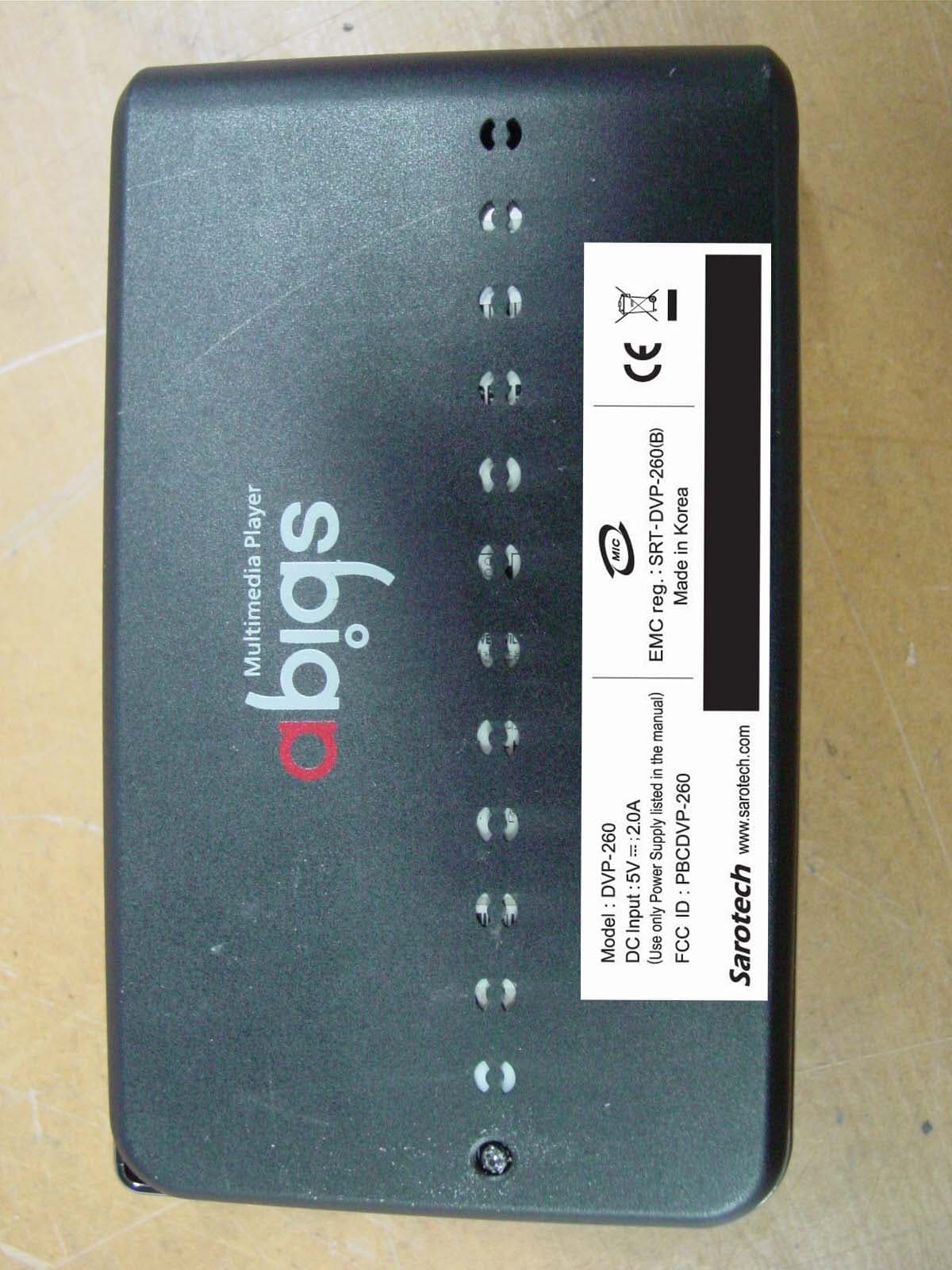
PBCDVP-260
Mar 18, 2007Multi Media Player
Equipment Class
JBP - Part 15 Class B Computing Device Peripheral
PBCDVP-570
Nov 19, 2006Multi Media Player
Equipment Class
JBP - Part 15 Class B Computing Device Peripheral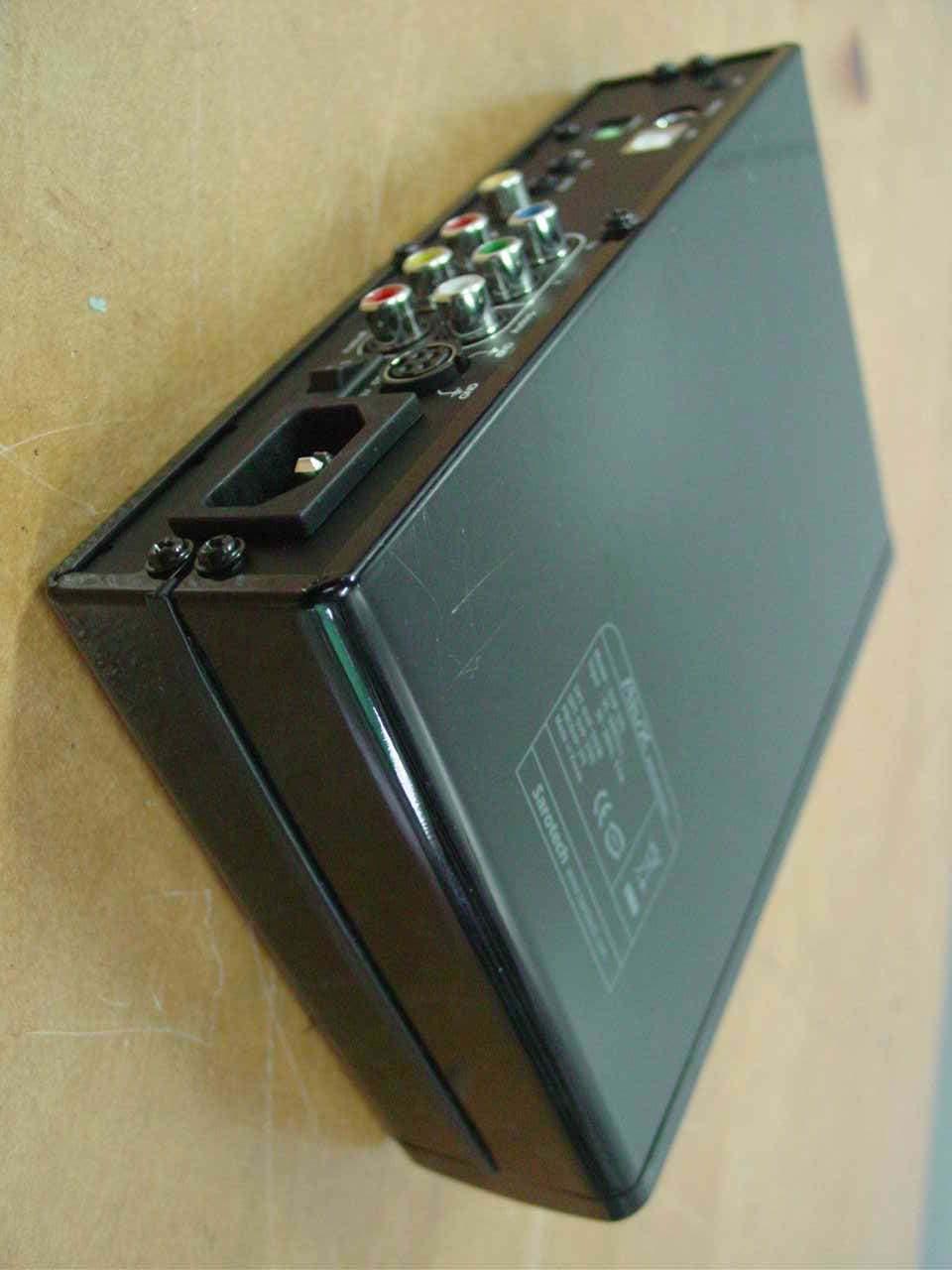
PBCDVP-370
Mar 28, 2006Multimedia Player
Equipment Class
DXX - Part 15 Low Power Communication Device Transmitter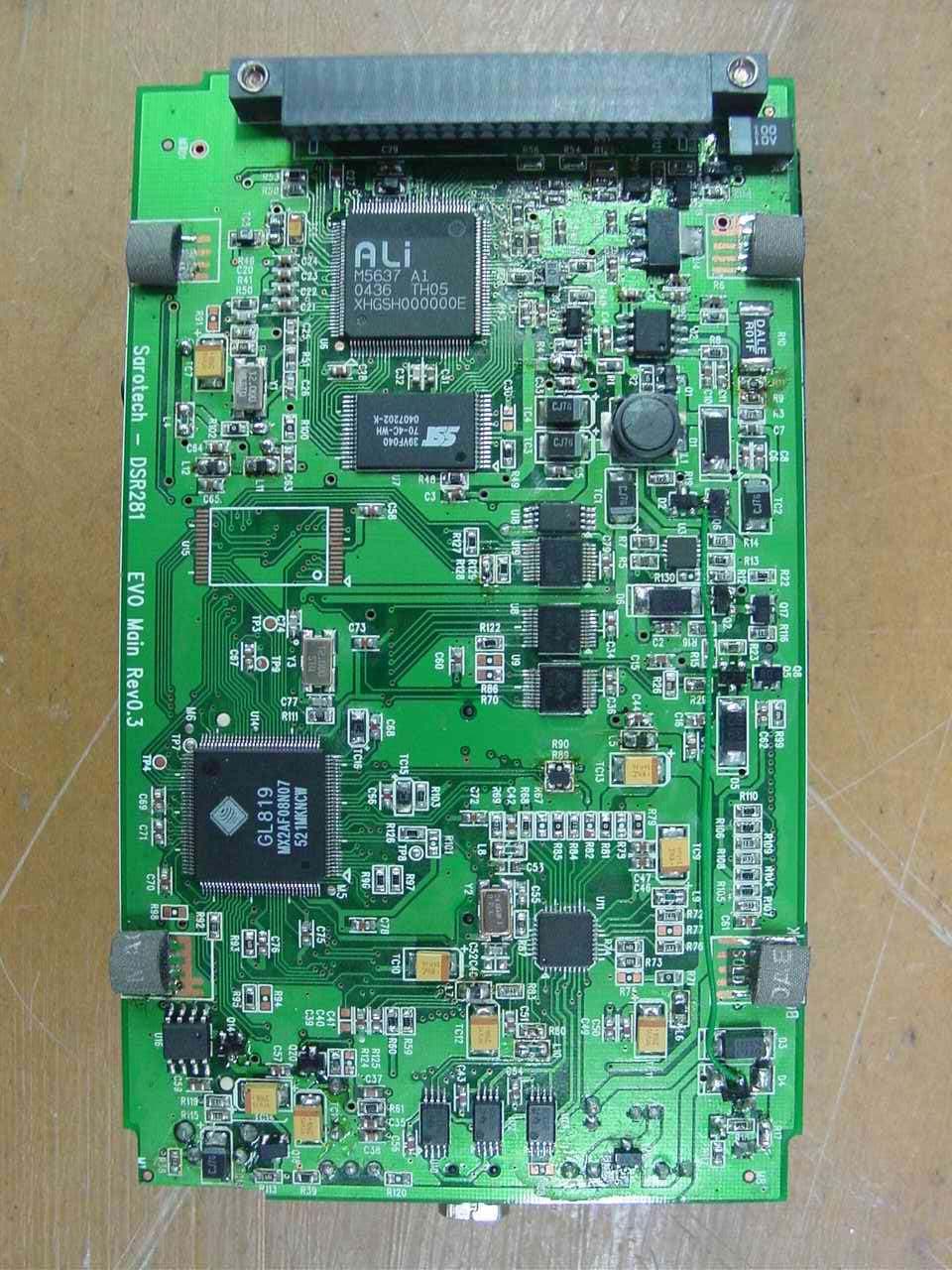
PBCDSR281
Jan 18, 2006Photo Storage
Equipment Class
JBP - Part 15 Class B Computing Device Peripheral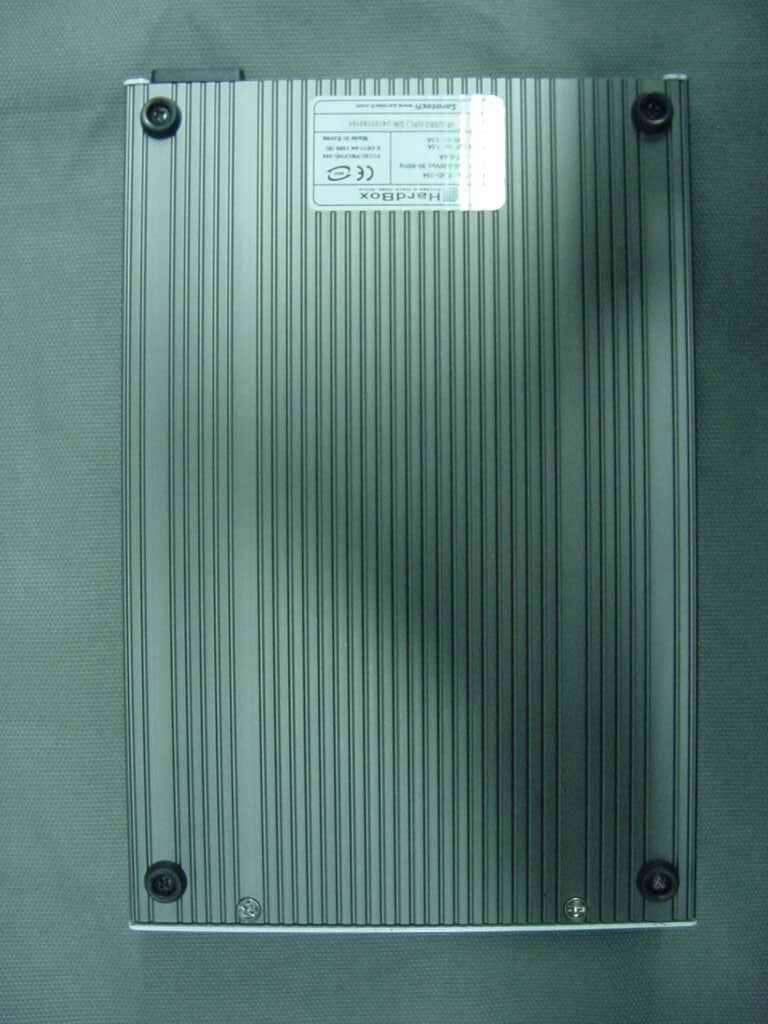
PBCNDS-354
Aug 31, 2005External Storage
Equipment Class
JBP - Part 15 Class B Computing Device Peripheral