PVV-B70Tablet PC
Eken (HK) Electronics Co., Ltd.
Click to zoom
Application Details
- Equipment Class
- JBC - Part 15 Class B Computing Device/Personal Computer
- Date of Grant
- Sep 23, 2012
- Application Purpose
- Original Equipment
- Date of Application
- Sep 23, 2012
- Equipment Note
- Tablet PC
- Country
- China
Documents & Files
Document Text
Text extracted from the exhibit documents filed with the FCC. Open a document above to read the original.
Users Manual
1 User’s Guide Model No.: B70 FCC ID: PVV‐B70 Get Started Get around After you enter into the systems, at the bottom of the screen, you'll find three Navigation buttons. They're always available. No matter what you're doing with your tablet, you can always get back to the main Home screen or return to previous screens: Icon Name Description Back Open the previous screen you were working in, even if it was in a different app. Once you back up to the Home screen, you can’t go back any further in your history. Home Open Home. If you’re viewing a left or right Home screen, opens the central home screen. Recent Apps Opens a list of thumbnail images of apps you’ve worked with recently. Top open an app, touch it. To remove a thumbnail from the list, swipe it left or right. 2 After a short time without getting used, these buttons may shrink to dots or fade away, depending on the current app. To bring them back, touch their location. The All Apps icon in the right upper corner is permanent. Touch it to see all your apps and widgets. The middle of your Home screen can hold app and widget icons, plus folders. To open an app, folder, or widget, touch its icon. To see additional Home screens, swipe your finger quickly left or right. Touch & type Use your fingers to manipulate icons, buttons, menus, the onscreen keyboard, and other items on the touchscreen. You can also change the screen's orientation. To select or activate something, touch it. To type something, such as a name, password, or search terms, just touch where you want to type. A keyboard pops up that lets you type into the field. Other common gestures include: Touch & hold: Touch & hold an item on the screen by touching it and not lifting your finger until an action occurs. Drag: Touch & hold an item for a moment and then, without lifting your finger, move your finger on the screen until you reach the target position. For example, you can drag to reposition shortcuts on the Home screen. Swipe or slide: Quickly move your finger across the surface of 3 the screen, without pausing when you first touch (so you don't drag something instead). For example, you can slide a Home screen left or right to view the other Home screens. Pinch: In some apps, you can zoom in and out by placing two fingers on the screen at once and pinching them together (to zoom out) or spreading them apart (to zoom in). Rotate the screen: On most screens, the orientation of the screen rotates with your device as you turn it. You can change this Display setting. Related settings Settings > Device > Sound Settings > Device > Display Change the wallpaper Wallpapers are images from Super‐HD Player (pictures you shot with Camera, synced from Picasa, and so on), still images included with the system, and live images (such as an animation or a map that centers on your location). They take the place of the default background for your Home screens. 1. Touch & hold anywhere on a Home screen that's not occupied. A list of options appears. 2. Touch a wallpaper source: Super‐HD Player. Choose from pictures that you've taken with Camera to your device. Live Wallpapers. Choose from a scrolling list of animated wallpapers. Wallpapers. Choose from thumbnails of default images, or touch a thumbnail for a larger version. 3. To set a wallpaper, touch “set wallpaper” under the Gallery 4 images or Set wallpaper. Related settings Settings > Device > Display > Wallpaper Arrange & work with apps To see all your apps, touch the All Apps icon on any Home screen. The main All Apps screen opens. This is where you can see all your apps. You can move app icons to any of your Home screens. From All Apps, you can Move between screens: Swipe left or right. Launch an app: Touch its icon. Place an app icon on a Home screen: Touch & hold the app icon, slide your finger, and lift your finger to drop the icon in place. Place an app icon in the Favorites tray: Touch, hold, & slide to move one of the Favorites icons out of the tray. Then use the same technique to move another one into the same position. Explore your widgets: Touch the Widgets tab at the top of any All Apps screen. To remove an app icon from the Home screen, touch and hold it, slide your finger toward the top of the screen, and drop the app over the Remove icon . Note The All Apps icon in the Favorites tray is permanent. You can't move it. Use folders You can combine several app icons in a folder. Drop one app icon 5 over another on a Home screen, and the two icons will be combined. From any Home screen, you can Open a folder: Touch it. The folder opens: Rename a folder: Touch its name. Move icons around your Home screens: Touch, hold, and slide. Add widgets Widgets are like windows into your apps. They're available from an All Apps tab for you to move onto your Home screens. To see your widgets: 1. Touch the All Apps icon on your Home screen. 2. Touch Widgets at the top of the screen. From the main Widgets screen, you can Move between screens: Swipe left or right. Drag a widget to a Home screen: Touch and hold the widget's icon, slide your finger where you want to place it, and lift your finger. You may be asked to make further choices before the widget activates. If there isn't room where you dropped it, the widget won't get added to the Home screen. Manage your Calendar The Calendar app lets you view and edit your schedule. To view your Calendar, touch on a Home or App screen. To change the Calendar view, touch the date at the top and choose 6 Day, Week, Month, or Agenda. Swipe to scroll vertically or horizontally. In the Day or Week views, spread your fingers apart or pinch them together to zoom in or out. From any of these views, you can Read or edit event details. Touch an event to view its details. Manage events and calendars. Touch icons across the top or Menu to search or create events, return to today, or adjust settings. Use your Camera The Camera app is a combination camera and camcorder. You can…
Text truncated - open the document above for the full version.
Cover Letter(s)
Eken (HK) Electronics Co., Ltd. September 7, 2012 To: SIEMIC, INC. 775 Montague Expressway Milpitas , CA 95035 USA Dear Sir/Madam, Re: Project and Product Certification Representative Authorization Letter We , Eken (HK) Electronics Co., Ltd. hereby authorize SIEMIC, INC. to act as a Certification Body for certifying for the following project(s): Product Description: Ta b l e t P C Model name: B70 FCC ID: PVV-B70 We affirm that between SIEMIC and Eken (HK) Electronics Co., Ltd. , any difference in understanding, including test plan, measurement methods, applicable standards and relevant procedures and processes have been resolved prior to commencement of testing activities. Sincerely, Client’s signature: Client’s name / title: Lin Zhou / Sales Contact information / address: Building 2F-2B, HuaFeng Science Park, GongHe Road, XiXiang, Baoan District, ShenZhen, China
Cover Letter(s)
SCS-F19: Confidentiality Request Letter Page 1 of 1 Rev 2.0 Eken (HK) Electronics Co., Ltd. September 7, 2012 To: Federal Communications Commission Authorization and Evaluation Division 7435 Oakland Mills Road Columbia, MD Confidentiality Request regarding application for certification of FCC ID: PVV-B70 We hereby request confidential treatment of information accompanying this application as outlined below: - Block Diagram - Operational Description - Schematic The above materials contain trade secrets and proprietary information not customarily released to the public. The public disclosure of these materials may be harmful to the applicant and provide unjustified benefits to its competitors. The applicant understands that pursuant to Section 0.457 & 0.459 of the Rules, disclosure of this application and all accompanying documentation will not be made before the date of the Grant for this application. Client’s signature: Client’s name / title: Lin Zhou / Sales Contact information / address: Building 2F-2B, HuaFeng Science Park, GongHe Road, XiXiang, Baoan District, ShenZhen, China
ID Label/Location Info
FCC Certification Label Sample FCC ID: PVV-B70 This device complies with Part 15 of the FCC Rules. Operation is subject to the following two conditions: (1) This device may not cause harmful interference, and (2) This device must accept any interference received, including interference that may cause undesired operation.
ID Label/Location Info
FCC Certification Label Location Sample Label location
Test Report
Page 1 of 37 FCC ID: PVV-B70 ACCURATE TECHNOLOGY CO. LTD Report No. ATE20121872 APPLICATION CERTIFICATION FCC Part 15B On Behalf of Eken (HK) Electronics Co., Ltd. Tablet PC Model No.: B70 FCC ID: PVV-B70 Prepared for : Eken (HK) Electronics Co., Ltd. Address : Building 2F-2B, HuaFeng Science Park, GongHe Road, XiXiang, Baoan District, ShenZhen, China Prepared by : ACCURATE TECHNOLOGY CO. LTD Address : F1, Bldg. A, Changyuan New Material Port, Keyuan Rd. Science & Industry Park, Nanshan, Shenzhen, Guangdong P.R. China Tel: (0755) 26503290 Fax: (0755) 26503396 Report Number : ATE20121872 Date of Test : August 14-September 6, 2012 Date of Report : September 7, 2012 Page 2 of 37 FCC ID: PVV-B70 ACCURATE TECHNOLOGY CO. LTD Report No. ATE20121872 TABLE OF CONTENTS Description Page Test Report Certification 1. GENERAL INFORMATION ..................................................................................................... 4 1.1. Description of Device (EUT).............................................................................................................. 4 1.2. Accessory and Auxiliary Equipment .................................................................................................. 4 1.3. Description of Test Facility ................................................................................................................ 5 1.4. Measurement Uncertainty................................................................................................................... 5 2. MEASURING DEVICE AND TEST EQUIPMENT ................................................................ 6 3. OPERATION OF EUT DURING TESTING ............................................................................ 7 3.1. Operating Mode .................................................................................................................................. 7 3.2. Configuration and peripherals ............................................................................................................ 7 4. TEST PROCEDURES AND RESULTS .................................................................................... 8 5. CONDUCTED EMISSION FOR FCC PART 15 SECTION 15.107(A) ................................. 9 5.1. Block Diagram of Test Setup.............................................................................................................. 9 5.2. The Emission Limit .......................................................................................................................... 10 5.3. Configuration of EUT on Measurement ........................................................................................... 10 5.4. Operating Condition of EUT ............................................................................................................ 10 5.5. Test Procedure .................................................................................................................................. 10 5.6. Power Line Conducted Emission Measurement Results .................................................................. 11 6. RADIATED EMISSION FOR FCC PART 15 SECTION 15.109(A).................................... 20 6.1. Block Diagram of Test Setup............................................................................................................ 20 6.2. The Emission Limit For Section 15.109 (a) ..................................................................................... 21 6.3. EUT Configuration on Measurement ...............................................................................................21 6.4. Operating Condition of EUT ............................................................................................................ 21 6.5. Test Procedure .................................................................................................................................. 22 6.6. The Emission Measurement Result .................................................................................................. 23 Page 3 of 37 FCC ID: PVV-B70 ACCURATE TECHNOLOGY CO. LTD Report No. ATE20121872 Test Report Certification Applicant : Eken (HK) Electronics Co., Ltd. Manufacturer : Eken (HK) Electronics Co., Ltd. EUT Description : Tablet PC (A) MODEL NO.: B70 (B) SERIAL NO.: N/A (C) POWER SUPPLY: DC 3.7V (Li-polymer battery) & AC 120V/60Hz (Adapter input) Measurement Procedure Used: FCC Rules and Regulations Part 15 Subpart B ANSI C63.4: 2009 The device described above is tested by ACCURATE TECHNOLOGY CO. LTD to determine the maximum emission levels emanating from the device. The maximum emission levels are compared to the FCC Part 15 Subpart B limits. The measurement results are contained in this test report and ACCURATE TECHNOLOGY CO. LTD is assumed full responsibility for the accuracy and completeness of these measurements. Also, this report shows that the Equipment Under Test (EUT) is to be technically compliant with the FCC requirements. This report applies to above tested sample only. This report shall not be reproduced in part without written approval of ACCURATE TECHNOLOGY CO. LTD. Date of Test : August 14-September 6, 2012 Prepared by : (Kitty Chen, Engineer) Approved & Authorized Signer : (Sean Liu, Manager) Page 4 of 37 FCC ID: PVV-B70 ACCURATE TECHNOLOGY CO. LTD Report No. ATE20121872 1. GENERAL INFORMATION 1.1. Description of Device (EUT) EUT : Tablet PC Model Number : B70 Power Supply : DC 3.7V (Li-polymer battery) & AC 120V/60Hz (Adapter input) Highest operation frequency of the EUT: : 1.2GHz Applicant : Eken (HK) Electronics Co., Ltd. Address : Building 2F-2B, HuaFeng Science Park, GongHe Road, XiXiang, Baoan District, ShenZhen, China Manufacturer : Eken (HK) Electronics Co., Ltd. Address : Building 2F-2B, HuaFeng Science Park, GongHe Road, XiXiang, Baoan District, ShenZhen, China Date of sample received : August 14, 2012 Date of Test : August 14-September 6, 2012 1.2. Accessory and Auxiliary Equipment Notebook PC : …
Text truncated - open the document above for the full version.
Test Setup Photos
Conducted emissions test Running Transfer data HDMI Radiated emissions test 30MHz- 1GHz Running Transfer data HDMI Radiated emissions test > 1GHz Running Transfer data HDMI
Contact Information
Applicant
Lin Zhou(Sales)
Test Firm
Accurate Technology Co., Ltd.Sean Liu
Technical Specifications
| # | Rule Parts | Frequency Range | Power Output |
|---|---|---|---|
| 1 | 15B | - | - |
Other Applications from Eken (HK) Electronics Co., Ltd.

PVVX73
Mar 10, 20147INCH TABLET
Equipment Class
DTS - Digital Transmission System
PVVGT10X
Nov 05, 2013TABLET PC
Equipment Class
DTS - Digital Transmission System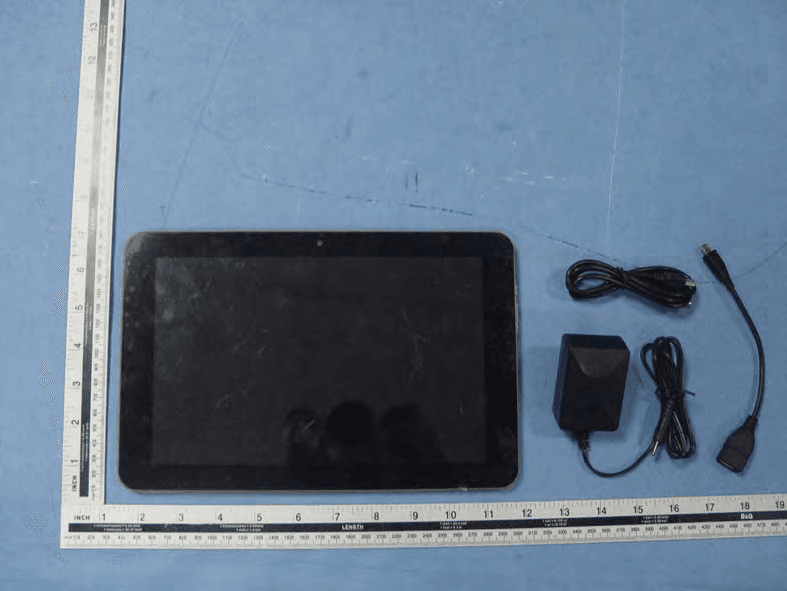
PVVGT10V
Jul 25, 2013TABLET PC
Equipment Class
DTS - Digital Transmission System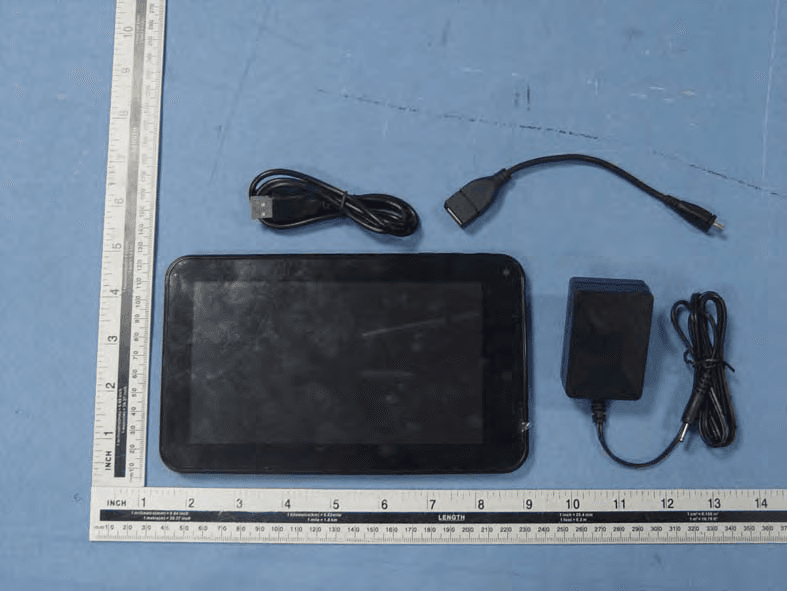
PVVX70
Jul 25, 20137 INCH TABLET
Equipment Class
DTS - Digital Transmission System
PVV-C70
Feb 02, 20137 INCH TABLET
Equipment Class
DTS - Digital Transmission System