PY7A3052071Licensed transmitter
Sony Corporation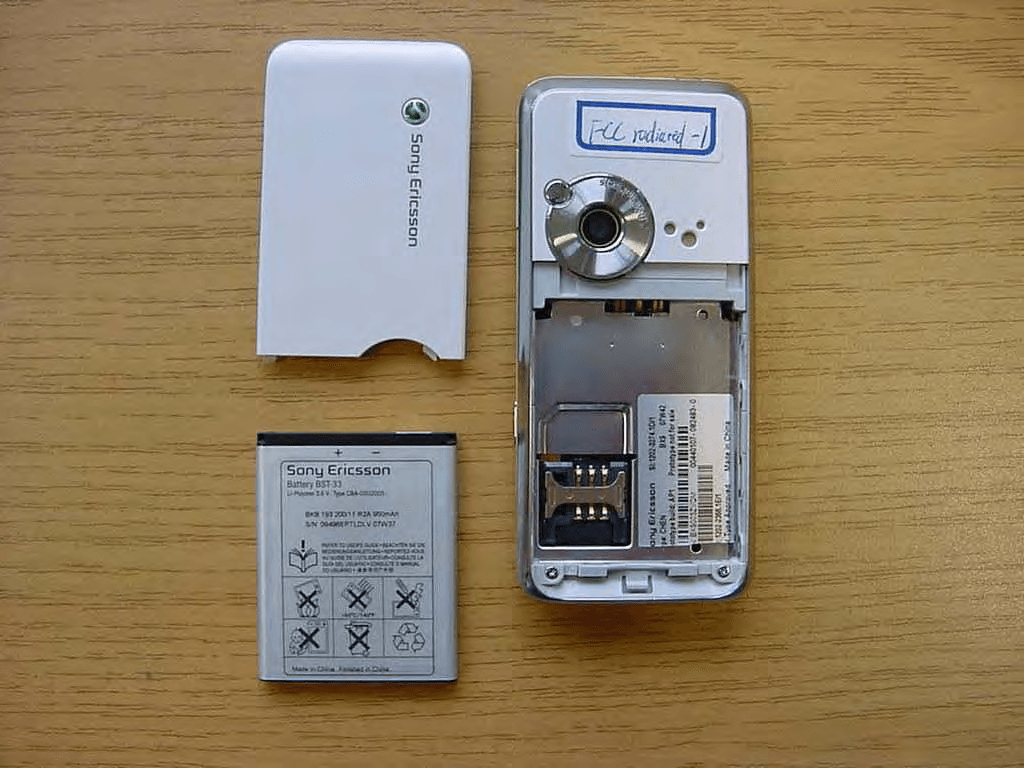
Click to zoom
Application Details
- Equipment Class
- PCE - PCS Licensed Transmitter held to ear
- Date of Grant
- Jan 29, 2008
- Application Purpose
- Original Equipment
- Date of Application
- Jan 29, 2008
- Equipment Note
- Licensed transmitter
- Frequency Range
- 1850.20000000 - 1909.80000000
- Company
- Sony Corporation
- Country
- Japan
Documents & Files
Document Text
Text extracted from the exhibit documents filed with the FCC. Open a document above to read the original.
Users Manual
1Contents Contents Getting started ................... 5 Assembly ........................................ 5 Turning on the phone ..................... 6 Help in your phone ........................ 7 Charging the battery ....................... 7 Phone overview ............................. 8 Menu overview ............................. 10 Navigation .................................... 12 File manager ................................ 13 Phone language ........................... 15 Entering text ................................. 15 Calling ................................ 16 Making and receiving calls ........... 16 Contacts ....................................... 18 Call list .......................................... 22 Speed dial ..................................... 22 Voicemail ...................................... 22 Voice control ................................ 23 Diverting calls ............................... 24 More than one call ........................ 25 My numbers .................................. 26 Accept calls ................................. 26 Restricted dialling ......................... 26 Fixed dialling ................................ 27 Call time and cost ......................... 27 Showing or hiding your phone number ......................................... 28 Messaging......................... 28 Text messages .............................. 29 Picture messages ......................... 29 Message options .......................... 30 Templates ..................................... 31 Voice messages ........................... 31 Email ............................................ 31 My friends ..................................... 33 Imaging ............................. 35 Camera and video recorder ......... 35 Using the camera .......................... 35 Camera icons and settings ........... 36 Camera shortcuts ......................... 36 Transferring pictures ..................... 36 Camera printing ............................ 37 Pictures ......................................... 38 PhotoDJ™ and VideoDJ™ ........... 39 Themes ......................................... 39 2Contents Entertainment ................... 40 Stereo portable handsfree ........... 40 Music player ................................ 40 Video player .................................. 40 Music and video controls ............. 40 Transferring music from a computer ................................... 42 TrackID™ ...................................... 43 Radio ........................................... 43 PlayNow™ .................................... 44 Ringtones and melodies ............... 44 MusicDJ™ .................................... 45 Sound recorder ............................. 45 Games .......................................... 46 Applications .................................. 46 Connectivity....................... 47 Settings ........................................ 47 Phone name .................................. 48 Using the Internet ......................... 48 Web feeds .................................... 50 Bluetooth™ wireless technology ................................... 51 Using the USB cable .................... 52 Synchronizing .............................. 54 Update service ............................. 56 More features.................... 57 Flight mode .................................. 57 Location services .......................... 58 Alarms ........................................... 58 Calendar ....................................... 59 Notes ............................................ 60 Tasks ............................................ 61 Profiles .......................................... 61 Time and date ............................... 62 Locks ............................................ 62 Troubleshooting................ 64 Common questions ...................... 64 Error messages ............................. 67 Important information....... 68 Guidelines for Safe and Efficient Use .................................. 70 End User Licence Agreement ....... 75 Limited Warranty .......................... 75 FCC Statement ............................. 78 Declaration of Conformity for K660i ....................................... 78 Index ................................. 79 3 Sony Ericsson K660i UMTS 2100 GSM 850/900/1800/1900 This User guide is published by Sony Ericsson Mobile Communications AB or its local affiliated company, without any warranty. Improvements and changes to this User guide necessitated by typographical errors, inaccuracies of current information, or improvements to programs and/or equipment, may be made by Sony Ericsson Mobile Communications AB at any time and without notice. Such changes will, however, be incorporated into new editions of this User guide. All rights reserved. ©Sony Ericsson Mobile Communications AB, 2007 Publication number: 1203-7558.1 Please note: Some of the services in this User guide are not supported by all networks. This also applies to the GSM International Emergency Number 112. Please contact your network operator or service provider if you are in doubt whether you can use a particular service or not. Please read the Guidelines for safe and efficient use and the Limited warranty chapters before you use your mobile phone. Your mobile phone has the capability to download, store and forward additional content, e.g. ringtones. The use of such content may be restricted or prohibited by rights of third parties, including but not limited to restriction under applicable copyright laws. You, and not Sony Ericsson, are entirely responsible for additional content that you download to or forward from your mobile phone. Prior to your use of any additional content, please verify that your intended use is properly licensed or is otherwise authorized. Sony Ericsson does not guarantee the accuracy, integrity or quality of any additional content or any other third party content. Under no circumstances will Sony Ericsson be l…
Text truncated - open the document above for the full version.
Users Manual
9Getting started 16 17 14 15 14Volume, digital zoom keys 15Main camera 16Camera key 17Connector for charger, handsfree and USB cable 10Getting started Menu overview PlayNow™*Internet*Entertainment Online services* Games TrackID™ Location services VideoDJ™ PhotoDJ™ MusicDJ™ Remote control Record sound Demo tour CameraMessagingMedia Write new Inbox Email Web feeds Drafts Outbox Sent messages Saved messages My friends* Call voicemail Templates Manage messages Settings AlarmsContactsRadio Myself New contact 11Getting started Calls**Organizer AllAnsweredDialledMissed File manager** Applications Video call Calendar Tasks Notes Synchronization Timer Stopwatch Calculator Code memo Settings** General Profiles Time & date Language Update service Voice control New events Shortcuts Flight mode Security Setup wizard Accessibility* Phone status Master reset Sounds & alerts Ring volume Ringtone Silent mode Increasing ring Vibrating alert Message alert Key sound Display Wallpaper Themes Startup screen Screen saver Clock size Brightness Edit line names* Calls Speed dial Smart search Divert calls Switch to line 2* Manage calls Time & cost* Show/hide my no. Handsfree Connectivity Bluetooth USB Phone name Network sharing Synchronization Device management Mobile networks Internet settings Streaming settings Message settings* Accessories * Some menus are operator-, network- and subscription-dependent. ** You can use the navigation key to scroll between tabs in submenus. For more information, see Navigation on page 12. 12Getting started Navigation The main menus are shown as icons. Some submenus include tabs. To navigate the phone menus 1From standby select Menu. 2Use the navigation key to move through the menus. To select actions on the screen •Select an action shown at the bottom of the screen by pressing the left or right selection key, or the centre navigation key. To view options for an item •Select Options to, for example, edit. To scroll between the tabs •Scroll to a tab by pressing the navigation key left or right. To return to standby •Press . To end a function •Press . To navigate your media 1From standby select Menu > Media. 2Press the navigation key right to select an item. 3To go back, press the navigation left. To delete items •Press to delete items such as numbers, letters, pictures and sounds. Shortcuts You can use keypad shortcuts to go directly to a menu. Menu numbering starts from the top left icon and moves across and then down row by row. Centre navigation key 13Getting started To go directly to a main menu •From standby select Menu and press – , , or . To use navigation key shortcuts •From standby press , , or to go directly to a function. To edit a navigation key shortcut 1From standby select Menu > Settings > the General tab > Shortcuts. 2Scroll to an option and select Edit. 3Scroll to a menu option and select Shortc. Activity menu The activity menu gives you quick access to certain functions. To open the activity menu •Press . Activity menu tabs •New events – missed calls and new messages. •Running apps – applications that are running in the background. •My shortcuts – add your favourite functions to access them quickly. •Internet – quick access to the Internet. File manager You can use the file manager to handle files saved in the phone memory or on a memory card. Memory card Your phone supports Memory Stick Micro™ (M2™) memory card adding more storage space to your phone. It can also be used as a portable memory card with other compatible devices. To insert a memory card •Open the cover and insert the memory card with the gold-coloured contacts facing up. You may have to purchase a memory card separately. 14Getting started To remove a memory card •Open the cover and press the edge of the memory card to release and remove it. To view memory card options 1From standby select Menu > Organizer > File manager > the On memory card tab. 2Select Options. Handling files You can move and copy files between your phone, a computer and a memory card. Files are saved on the memory card first and then in the phone memory. Unrecognized files are saved in the Other folder. You can create subfolders to move or copy files to. You can select more than one or all the files in a folder at the same time for all folders except Games and Applications. If the memory is full, delete some content to create space. File manager tabs The file manager is divided into three tabs, and icons indicate where the files are saved. •All files – all content in the phone memory and on a memory card •In phone – all content in the phone memory •On memory card – all content on a memory card To view information about files 1From standby select Menu > Organizer > File manager. 2Find a file and select Options > Information. To move a file in the file manager 1From standby select Menu > Organizer > File manager. 2Find a file and select Options > Manage file > Move. 3Select an option. 15Getting started To select more than one file in a folder 1From standby select Menu > Organizer > File manager. 2Scroll to a folder and select Open. 3Select Options > Mark > Mark several. 4For each file you want to mark, scroll to the file and select Mark. To delete a file from the file manager 1From standby select Menu > Organizer > File manager. 2Find the file and press . Phone language You can select a language to use in your phone. To change the phone language 1From standby select Menu > Settings > the General tab > Language > Phone language. 2Select an option. Entering text You can use multitap text input or T9™ Text Input to enter text. The T9 Text Input method uses a built-in dictionary. To change text input method •When you enter text, press and hold down . To shift between capitals and lower-case letters •When you enter text, press . To enter numbers •When you enter text, press and hold down – . To enter full stops and commas •When you enter text, press . To enter text using T9™ Text Input 1From standby select, for example, Menu > Messaging >…
Text truncated - open the document above for the full version.
Users Manual
26Calling 3Enter the number to call and press . 4Select Options > Join calls to add the new participant. 5Repeat this task to add more participants. To release a participant 1Select Options > Release party. 2Select the participant to release. To have a private conversation 1During the call, select Options > Talk to and select the participant to talk to. 2To resume the conference call, select Options > Join calls. My numbers You can view, add and edit your own phone numbers. To check your phone numbers 1From standby select Menu > Contacts. 2Scroll to New contact and select Options > Special numbers > My numbers. 3Select an option. Accept calls You can choose to receive calls from certain phone numbers only. To add numbers to the accepted callers list 1From standby select Menu > Settings > the Calls tab > Manage calls > Accept calls > Only from list. 2Scroll to New and select Add. 3Select a contact or Groups. To accept all calls •From standby select Menu > Settings > the Calls tab > Manage calls > Accept calls > All callers. Restricted dialling You can restrict outgoing and incoming calls. A password from your service provider is required. See Groups on page 21. If you divert incoming calls, you cannot use some restrict calls options. 27Calling Restrict calls options Standard options are: •All outgoing – all outgoing calls •Outgoing intl – all outgoing international calls •Outgoing intl roam. – all outgoing international calls except to your home country •All incoming – all incoming calls •Inc. when roaming – all incoming calls when you are abroad To restrict calls 1From standby select Menu > Settings > the Calls tab > Manage calls > Restrict calls. 2Select an option. 3Select Activate. 4Enter your password and select OK. Fixed dialling Fixed dialling allows calls to be made only to certain numbers saved on the SIM card. The fixed numbers are protected by your PIN2. Partial numbers can be saved. For example, saving 0123456 allows calls to be made to all numbers starting with 0123456. To use fixed dialling 1From standby select Menu > Contacts. 2Scroll to New contact and select Options > Special numbers > Fixed dialling > Activate. 3Enter your PIN2 and select OK. 4Select OK again to confirm. To save a fixed number 1From standby select Menu > Contacts. 2Scroll to New contact and select Options > Special numbers > Fixed dialling > Fixed numbers > New number. 3Enter the information and select Save. Call time and cost During a call, the duration of the call is shown. You can check the duration of your last call, outgoing calls and the total time of your calls. To check the call time •From standby select Menu > Settings > the Calls tab > Time & cost > Call timers. When fixed dialling is used, you cannot view or manage any phone numbers saved on the SIM card, but you can still call the international emergency number, 112. 28Messaging Showing or hiding your phone number You can decide to show or hide your phone number when you make a call. To hide your phone number 1From standby select Menu > Settings > the Calls tab > Show/hide my no. 2Select Hide number. Messaging Receiving and saving messages You are notified when you receive a message. Messages are automatically saved in the phone memory. When the phone memory is full, you can delete messages or save them on a memory card or on the SIM card. To save a message on a memory card •From standby select Menu > Messaging > Settings > General > Save to > Memory card. To save a message on the SIM card 1From standby select Menu > Messaging and select a folder. 2Scroll to a message and select Options > Save message. To view a message from the inbox 1From standby select Menu > Messaging > Inbox. 2Scroll to the message and select View. To delete a message 1From standby select Menu > Messaging and select a folder. 2Scroll to the message and press . 29Messaging Text messages Text messages can contain simple pictures, sound effects, animations, and melodies. Before you use messaging You must have a service centre number. The number is supplied by your service provider and is usually saved on the SIM card. If the number to your service centre is not saved on your SIM card, you must enter the number yourself. To enter a service centre number 1From standby select Menu > Messaging > Settings > Text message and scroll to Service centre. The number is shown if it is saved on the SIM card. 2If there is no number shown, select Edit. 3Scroll to New ServiceCentre and select Add. 4Enter the number, including the international “+” sign and country code. 5Select Save. To write and send a text message 1From standby select Menu > Messaging > Write new > Text message. 2Write the message and select Cont. > Contacts look-up. 3Select a recipient and select Send. To copy and paste text in a text message 1When you write the message, select Options > Copy & paste. 2Select Copy all or Mark & copy. Scroll to and mark text in the message. 3Select Options > Copy & paste > Paste. To add an item to a text message 1When you write the message, select Options > Add item. 2Select an option and then an item. To call a number in a text message •When you view the message, scroll to the phone number and press . To turn long messages on 1 From standby select Menu > Messaging > Settings > Text message. 2Select Max. msg length > Max. available. Picture messages Picture messages can contain text, pictures, slides, sound recordings, video clips, signatures and attachments. You can send picture messages to a mobile phone or an email address. If you send a text message to a group, you will be charged for each member. See Groups on page 21. 30Messaging Before you use picture messaging You must set an MMS profile and the address of your message server. If no MMS profile or message server exists, you can receive all the settings automatically from your network operator or at www.sonyericsson.com/support. To select an MMS profile 1From standby select Menu > Messaging > Settings > Picture message > MMS profil…
Text truncated - open the document above for the full version.
External Photos
CETECOM ICT Services GmbH Annex to Test report no.: 2-4576-40-03/07 2007-12-29 Page 17 of 23 7 Photographs of t he E UT Photo No.: 01 Photo No.: 02 CETECOM ICT Services GmbH Annex to Test report no.: 2-4576-40-03/07 2007-12-29 Page 18 of 23 Photo No.: 03 Photo No.: 04 CETECOM ICT Services GmbH Annex to Test report no.: 2-4576-40-03/07 2007-12-29 Page 19 of 23 Photo No.: 05 Photo No.: 06 CETECOM ICT Services GmbH Annex to Test report no.: 2-4576-40-03/07 2007-12-29 Page 20 of 23 Photo No.: 07 Photo No.: 08
ID Label/Location Info
Company Internal MARKING DRAWING 1 (3) Prepared (also subject responsible if other) No. SEM/BGLDB, Patrik Jonsson 1206-3381 Uen Approved Checked Date Rev Reference SEM/BGLDB (Patrik Jonsson) 2007-11-26 1 3 Approved according to 000 21–LXE 107 42/1 Mobile Phone label content, Made in... 1 General information Core Unit label part no 1001-2238 Bar code • Standard: according to Ericsson corporate standard 102 01–109 Uen • Print quality: C, according to ANSI X3.182-1990 as stated in Ericsson corporate standard 102 01– 1003 Uen • Quiet zone: No bar codes are allowed to be closer to a label edge than 2 mm! Text If applicable, or nothing else specified, Zebra printer Scaleable Smooth Font CG Triumvirate Bold Condensed is imposed. When needed, the text is adjusted to fit the label. Coordinates “(x/y)” under each line number specifies the bottom / left alignment for text, graphics and bar codes, x is measured vertically, and y horizontally from the upper left corner of the label (landscape format), both in mm. When needed, the alignment is adjusted to fit the label. MLCI= Main Label Content Information-document. 2 Printing information Content Format Line 1a (2,0/1,0) Sony Ericsson stylized name. Graphics, height 1,5 mm. According to 1200-1925. Line 1b (2,0/14) Model Name “K660i” Text, height 1,2 mm. Line 2a (4,0/1,0) “TYPE: AAD-3052071-BV” Text, height 1,2 mm. Line 2b (4,0/16,0) HW & SW identification field, if applicable; “FG” Text, height 1,2 mm. According to Type-testing report in BOM pos 1C. Line 2c (4,0/18,5) Location code of where the phone is flashed, if applicable, “XXX” Text, height 1,2 mm. Line 3a (5,5/1,0) “FCC ID: PY7 A3052071” Text, height 1,2 mm. Line 3b (5,5/15,5) Production week (flash), “yy’W’ww” (yy = year, ww = week) Text, height 1,2 mm. Line 3c (5,5/21,5) CE approval symbol Graphics, height 5 mm. According to 1202-5482. Line 3d (15,5/28,5) The notified body number “0682” Text, height 1,2 mm. Line 4a (7,5/1,0) “IC: 4170B- A3052071” Text, height 1,2 mm. Line 4b (7,5/14,0) Product number without revision of the Sales Item in which the phone is packed, if applicable. “SI XXXX-XXXX” Text, height 1,2 mm. Line 4c (7,5/25,0) Repair week, if applicable. “Ry’W’ww” (y = year, ww = week) Text, height 1,2 mm. Company Internal MARKING DRAWING 2 (3) Prepared (also subject responsible if other) No. SEM/BGLDB, Patrik Jonsson 1206-3381 Uen Approved Checked Date Rev Reference SEM/BGLDB (Patrik Jonsson) 2007-11-26 1 3 Content Format Line 5 (9,5/1.0) Line 6a in bar code. As desired by supplier (e.g. only actual number). Bar code, height 2,0 mm. As desired by supplier (e.g. Code 128 symbology). Line 6a (11,0/1,0) Supplier’s identification for trace-ability of the telephone, as desired by supplier (e.g. “S/N: nnn....” for serial number). Text, height 1,2 mm. Defined by supplier. Line 6b (11,0/14,0) Actual electronic serial number (IMEI) of the Mobile Phone, “00000000-000000-0” Text, height 1,2 mm. In the format TAC-SNR-CD. TAC and SNR derived from pos 500 in BOM. CD = check digit according to the Luhn formula (ISO/IEC 7812), GSM 02.16. Line 7 (13,3/1,0) Line 6b in bar code (only actual number, without data identifier). Bar code, height 2,0 mm. Code 128 symbology, code C subset. If uneven number of digits, code B subset shall be used for the last digit. Line 8 (15,0/1,0) Marking of origin: “Xxx”= actual country of production of the included telephone, in English. Text, height 1,2 mm. 3 Layout The conceptual picture (for Zebra 90XiII printer, or equivalent) should not be considered as specifications, but as an additional help for setting up the label. 3.1 Conceptual picture double underlined = major changes since last revision. Company Internal MARKING DRAWING 3 (3) Prepared (also subject responsible if other) No. SEM/BGLDB, Patrik Jonsson 1206-3381 Uen Approved Checked Date Rev Reference SEM/BGLDB (Patrik Jonsson) 2007-11-26 1 3 3.2 Label placement To find the label follow these steps: 1. Remove the cover on the rear side of the product. 2. Remove the battery. 3. The label is located behind the battery. Rear side of the phone Place for battery Label placement
Internal Photos
CETECOM ICT Services GmbH Annex to Test report no.: 2-4576-40-03/07 2007-12-29 Page 21 of 23 Photo No.: 09 Photo No.: 10 CETECOM ICT Services GmbH Annex to Test report no.: 2-4576-40-03/07 2007-12-29 Page 22 of 23 Photo No.: 11 Photo No.: 12 CETECOM ICT Services GmbH Annex to Test report no.: 2-4576-40-03/07 2007-12-29 Page 23 of 23 Photo No.: 13
RF Exposure Info
Company Internal REPORT 1 (14) Prepared (also subject responsible if other) No. BA/SEM/BGLINS Robert Carr BGLI07:625. Approved Checked Date Rev Reference LD/SEMC/BGLI/NC Peter Lindeborg PL 211107 A File Report issued by Accredited SAR Laboratory For PY7A3052071 (K660) Date of test: 13, 14, 15 November 2007 Laboratory: Sony Ericsson SAR Test Laboratory Sony Ericsson Mobile Communications AB Maplewood, Chineham Business Park Basingstoke, RG24 8YB, England Testing Engineer: Robert Carr [email protected] +44 1256 77 48 95 Testing Approval Peter Lindeborg [email protected] +46462126180 Statement of Compliance Sony Ericsson Mobile Communications AB declares under its sole responsibility that the product Sony Ericsson Type : AAD-3052071-BV; FCC ID : PY7A3052071; IC:4170B-A3052071 To which this declaration relates, is in conformity with the appropriate RF exposure standards recommendations and guidelines. It also declares that the product was tested in accordance with the appropriate measurement standards, guidelines and recommended practices. Any deviations from these standards, guidelines and recommended practices are noted below: (None) This laboratory is accredited to ISO/IEC 17025 (SWEDAC accreditation no. 1847). Laboratories are accredited by the Swedish Board for Accreditation and Conformity Assessment (SWEDAC) under the terms of Swedish legislation. The accredited laboratory activities meet the requirements in SS-EN ISO/IEC 17025 (2005). This report may not be reproduced other than in full, except with the prior written approval of the issuing laboratory. The results and statements contained herein relate only to the items tested. The names of individuals involved may be mentioned only in connection with the statements or results from this report. Sony Ericsson encourages all feedback, both positive and negative, on this report. © Sony Ericsson Mobile Communication AB, 2007 Company Internal REPORT 2 (14) Prepared (also subject responsible if other) No. BA/SEM/BGLINS Robert Carr BGLI07:625. Approved Checked Date Rev Reference LD/SEMC/BGLI/NC Peter Lindeborg PL 211107 A File Table of contents 1 INTRODUCTION ............................................................................................................................................................. 3 2 DEVICE UNDER TEST ................................................................................................................................................... 3 2.1 ANTENNA DESCRIPTION.............................................................................................................................................. 3 2.2 DEVICE DESCRIPTION................................................................................................................................................... 3 3 TEST EQUIPMENT.......................................................................................................................................................... 4 3.1 DOSIMETRIC SYSTEM................................................................................................................................................... 4 3.2 ADDITIONAL EQUIPMENT............................................................................................................................................. 4 4 ELECTRICAL PARAMETERS ON THE TISSUE SIMULATING LIQUID ............................................................ 5 5 SYSTEM ACCURACY VERIFICATION ...................................................................................................................... 5 6 SAR MEASUREMENT UNCERTAINTY ...................................................................................................................... 6 7 TEST RESULTS ................................................................................................................................................................ 7 8 REFERENCES .................................................................................................................................................................. 9 9 APPENDIX....................................................................................................................................................................... 10 9.1 PHOTOGRAPHS OF THE DEVICE UNDER TEST............................................................................................................... 10 9.2 DEVICE POSITION ON SAM TWIN PHANTOM.............................................................................................................. 11 9.3 PHOTOGRAPHS OF TSL FLUID DEPTHS...................................................................................................................... 12 9.4 ATTACHMENTS.......................................................................................................................................................... 14 Company Internal REPORT 3 (14) Prepared (also subject responsible if other) No. BA/SEM/BGLINS Robert Carr BGLI07:625. Approved Checked Date Rev Reference LD/SEMC/BGLI/NC Peter Lindeborg PL 211107 A File 1 Introduction In this test report, compliance of the Sony Ericsson PY7A3052071 (K660) portable telephone with RF safety guidelines is demonstrated. The applicable RF safety guidelines and the SAR measurement specifications used for the test are described in the SAR Measurement Specifications of Wireless Handsets [1]. 2 Device Under Test 2.1 Antenna Description Type Built in Location Top Rear of phone Max length 20mm Max width 40mm Dimensions Max height 7mm Configuration PIFA 2.2 Device description Device model PY7A3052071 Market name K660 Serial numbers (EUT #) BX9003ZVGW (#9532) Mode GSM 850 GSM 1900 Crest factor 8.3 8.3 Multiple access scheme TDMA TDMA Ch. 128 Ch. 190 Ch. 251 Ch. 512 Ch. 661 Ch. 810 Maximum output power setting [dBm] 32.7 32.7 32.8 30.6 30.7 30.6 Factory tolerance in power setting ±0.5 dB ±0.5 dB Maximum peak output p…
Text truncated - open the document above for the full version.
Test Report
CETECOM ICT Services GmbH Untertürkheimer Straße 6-10 . D-66117 Saarbrücken Phone: +49 (0) 681-598-0 Fax:-9075 RSC-Laboratory 2008-01-28 Page 1 of 76 Accredited testing-laboratory DAR registration number: DAT-P-176/94-D1 Federal Motor Transport Authority (KBA) DAR registration number: KBA-P 00070-97 Recognized by the Federal Communications Commission Anechoic chamber registration no.: 90462 (FCC) Anechoic chamber registration no.: 3463A-1 (IC) Certification ID: DE 0001 Accreditation ID: DE 0002 Accredited Bluetooth ® Test Facility (BQTF) The Bluetooth word mark and logos are owned by the Bluetooth SIG, Inc. and any use of such marks by Cetecom ICT is under license Test report no. : 2-4576-40-02/07 Type identification : AAD-3052071-BV Applicant : Sony Ericsson Mobile Communications AB FCC ID : PY7A3052071 IC Certification No : 4170B-A3052071 Test standards : 47 CFR Part 22 47 CFR Part 24 RSS - 132 Issue 2 RSS - 133 Issue 3 CETECOM ICT Services GmbH Test report no.: 2-4576-40-02/07 2008-01-28 Page 2 of 76 Ta…
Text truncated - open the document above for the full version.
Contact Information
Applicant
Kazuyuki Hori(Senior EMC/RF Compliance Manager)
Technical Contact
Sony Ericsson Mobile Communications ABPeter Lindeborg
[email protected]+46 46 21 26 180
Nya Vattentornet · Lund · Sweden
Technical Specifications
| # | Rule Parts | Frequency Range | Power Output | Emission | Tolerance |
|---|---|---|---|---|---|
| 4 | 24E | 1.85 GHz - 1.91 GHz | 1.047 W | 300KG7W | 0.0399 ppm |
Other Applications from Sony Corporation
PY7-75158T
Jul 16, 2026GSM/WCDMA/LTE Phone with BT, DTS/UNII a/b/g/n/ac/ax, NFC and GNSS
Equipment Class
NII - Unlicensed National Information Infrastructure TXPY7-52715J
Jul 16, 2026GSM/WCDMA/LTE Phone with BT, DTS/UNII a/b/g/n/ac/ax, NFC and GNSS
Equipment Class
DXX - Part 15 Low Power Communication Device TransmitterPY7-84526Y
Jul 16, 2026GSM/WCDMA/LTE Phone with BT, DTS/UNII a/b/g/n/ac/ax, NFC and GNSS
Equipment Class
PCE - PCS Licensed Transmitter held to earPY7-30515Z
Apr 13, 2026GSM/WCDMA/LTE/NR Phone with BT, DTS/UNII a/b/g/n/ac/ax/be, NFC, GNSS and WPT
Equipment Class
DXX - Part 15 Low Power Communication Device TransmitterPY7-73716J
Apr 11, 2024GSM/WCDMA/LTE Phone with BT, DTS/UNII a/b/g/n/ac, NFC and GNSS
Equipment Class
PCE - PCS Licensed Transmitter held to ear