Text extracted from the exhibit documents filed with the FCC. Open a document above to read the original.
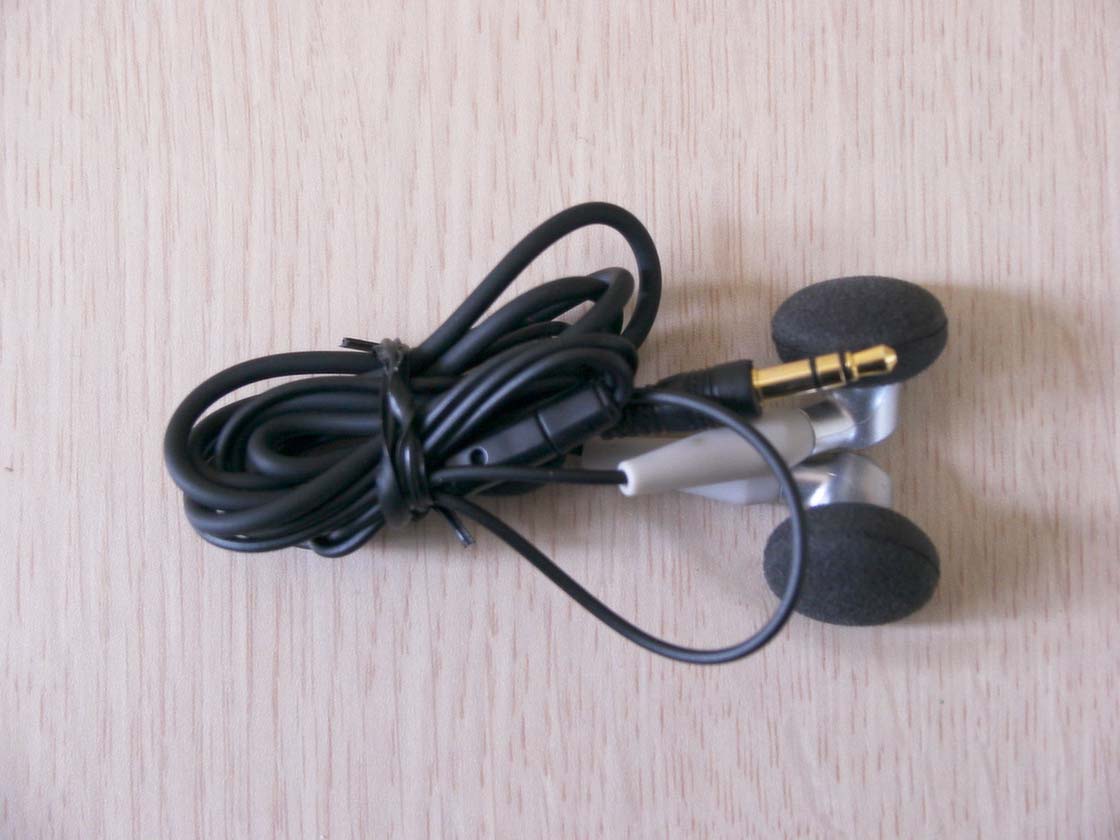
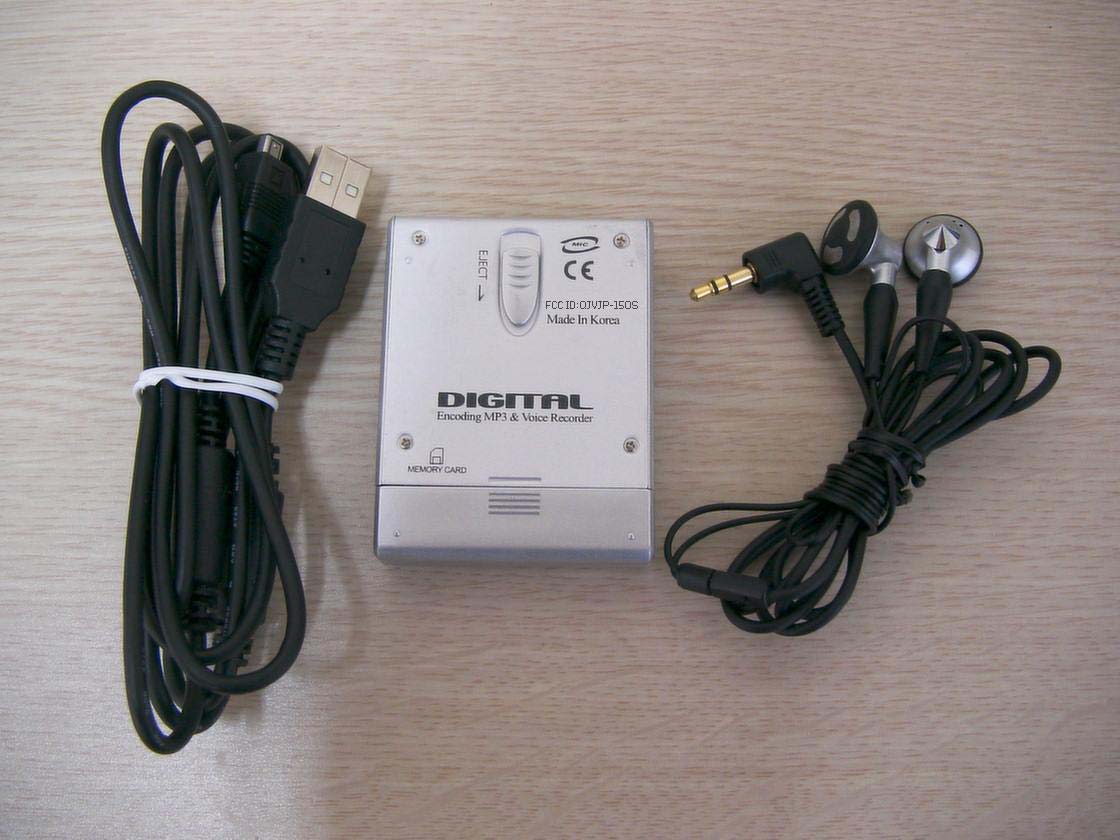
User Manual JP-150S Arthur Technology Co. Ltd. ■ Cautions Read the following carefully with regard to care of your iBOX Player: 1. Avoid shocks or impacts. The iBOX player can withstand light shocks from walking or exercise, but dropping it from a high altitude or inflicting a strong impact with a heavy object may damage the player. 2. Prevent water from getting inside the unit. If water gets inside the unit, the internal parts may be damaged, causing player problems. Wipe water off the surface of the unit with a dry cloth promptly, and contact the service center. 3. When storing the player. Keep the player in a place free of moisture, strong magnetism, or heat and remove the battery. 4. Don’t change or modify any part or component of product. It doesn’t be guaranteed the normal operation or the warranty. ■ Note This equipment has been tested and found to comply with the limits for a Class B digital device, pursuant to Part 15 of the FCC Rules. These limits are designed to provide reasonable protection against harmful interference in a residential installation. This equipment generates, uses and can radiate radio frequency energy and, if not installed and used in accordance with the instructions, may cause harmful interference to radio communications. However there is no guarantee that interference will not occur in a particular installation. If this equipment does cause harmful interfer- ence to radio or television reception, which can be determined by turning the equipment off and on, the user is encouraged to try to correct the interference by one or more of the following measures ; - Reorient or relocate the receiving antenna - Increase the separation between the equipment and receiver - Connect the equipment into an outlet on a circuit different from that to which the receiver is connected. - Consult the dealer or an experienced radio/TV technician for help. This device complies with Part 15 of the FCC Rules. Operation is subject to the following two conditions : (1) this device may not cause harmful interference, and (2) this device must accept any interference received, including interference that may cause undesired operation. < CONTENTS > - Basic - IBox - View of iBox Play Hardware - Checking the Contents - Installing iBOX Software - Installing iBOX USB Drive - Connecting iBOX to Your Computer - Using iBOX Desk - Turning On(Off) iBOX - Listening to iBOX Music - Selecting iBOX Music Files - Playing from the Middle of an iBOX File - Locking iBOX Keys - Adjusting iBOX Volume Advanced - - Description of Mode Functions - Recording iBOX Music in Real Time - Recording iBOX Voice - Exchanging Music with iBOX - Downloading Music from Another MP3 Player - Using iBOX Repeat Function - Using iBOX EQ Mode - - Deleting All iBOX Files - Deleting iBOX Music/Voice Files One by One - Adding an SMC (Smart Media Card) - Adjusting the LCD Display Backlight - Troubleshooting - Specifications - Warranty Arthurtech Co. All rights reserved. Prior consent must be obtained for using the manual, photographs, software, and other related documents of this product. Any violation may cause legal action to ensue. Content of the user manual is subject to change without notice. ■ Digital Encoding iBOX 1. Music Recording An all purpose entertainer that can record your favorite music in real time using the CD sync function 2. Voice Recording Learning aid for recording interviews, lectures, business talks, etc. using the added VAD function 3. Encoding MP3 Player iBOX for selecting desired bits (BA-16~192) for music/voice and saving as MP3 files Digital Audio Encoding device of the next generation that allows you to listen to analog music/voice from CD, MD, radio, Internet, and TV using the synchro and VAD functions in real time and to record the source by converting into MP3 files. ■ View of iBOX Play Hardware Function Buttons No. Description 1 Microphone 2 LCD Display 3 Earphone 4 Menu/Volume 5 Power/Play/Pause/Next/Previous 6 Music, Voice Record/Stop 7 Audio Input 8 Data In/Out (USB) 9 Hold Switch 10 Carrying Strap ■ iBOX LCD Menu and Functions 1 2 3 4 5 6 7 8 9 10 LCD Display No. Description 1 Battery Level 2 Repeat/All/Random 3 Volume Level 4 Voice Recording Icon 5 Radio Recording Icon 6 Music/Voice Playback Icon 7 Recording 8 Equalizer 9 Time Indicator 10 Hold ■ Checking the iBOX Contents iBOX Earphones Manual AAA Battery USB Cable Audio Cable CD Carrying Strap After purchasing the iBOX player, check if all of the above items are included in the iBOX package. Contact the vendor for any missing item. ■ Installing iBOX Software MUSIC REC ALL JAZZCLASSIC POPROCK VOL 12 3 5 4 6 7 8 9 FM 10 y You must install the iBOX software to store iBOX files. The software CD contains the programs for controlling file transfer between the iBOX and the PC and for converting CD music into iBOX files by playing the iBOX files back from the PC. The CD also includes the iBOX User Manual. 1. Connect iBOX to the PC using the USB cable, and install the software to move the digital files as follows: 2. Insert the CD in the CD-ROM drive of the PC. The installation program starts automatically. Click “Install” to start installation. 3. The setup file is executed automatically. Click “Next” at the instruction of the program. (Note) If the setup file is not executed automatically, locate and run the setup.exe file from the directory. 4. Select the directory to install iBOX Explorer and click “Next.” “C:\Program Files\Arthur Tech\IBoxExp JP-150 5. Select the Program Folder and click “Next.” 6. 6. On the following screen, click “Finish” to complete the installation 7. To run the program after the installation, click the Start – Program – iBOX icon. ■ Installing iBOX USB Drive Run the iBOX program, turn on the power of the iBOX Player, and connect the USB cable to the USB port. The program need the drive files, you can find T33820 file on iBOX installation program. ■ Connecting iBOX to Your Computer For downloading MP3 files from the PC, first …
Text truncated - open the document above for the full version.
MCU MCU USB GDS30C6001 USB GDS30C6001 Flash Memory 32MB DSP PROM 1Mbit SRAM 8*32KB SRAM 8*32KB SRAM 8*32KB Flash Memory 32MB ADC DAC UDA 1341TS ALL VOL JAZZCLASSICPOPROCK MHz VOICEMUSIC REC FM LCD Driver BU9729K Sample data Sample data Decoded audio data Decoded audio data AUDIO MIC FM Encoded DataData for Decoding Encoded DataData for Decoding Control FM Control FM Control DAC PC Program UploadDownload DC/DC Converter MAX1705 POWER 1*AA 3V 3V q
IST Co., Ltd. EMC LABORATORY External Photos of JP-150S IST Co., Ltd. EMC LABORATORY External Photos of JP-150S
FCC ID:QJVJP-150S
IST Co., Ltd. EMC LABORATORY External Photos of JP-150S
IST Co., Ltd. EMC LABORATORY Test Photos of JP-150S
| # | Rule Parts | Frequency Range | Power Output |
|---|---|---|---|
| 1 | 15B | - | - |

MP3 Player
Equipment Class
JBP - Part 15 Class B Computing Device Peripheral