QPJTW-2512MEMP3 PLAYER
Telewin Inc.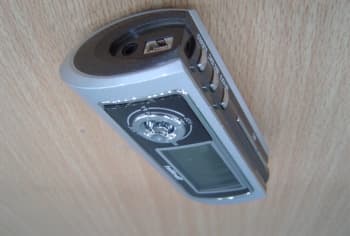
Click to zoom
Application Details
- Equipment Class
- JBP - Part 15 Class B Computing Device Peripheral
- Date of Grant
- Oct 15, 2003
- Application Purpose
- Original Equipment
- Date of Application
- Oct 15, 2003
- Equipment Note
- MP3 PLAYER
- Company
- Telewin Inc.
- Country
- South Korea
Documents & Files
Document Text
Text extracted from the exhibit documents filed with the FCC. Open a document above to read the original.
Users Manual
12 CONTENTSCONTENTS Preparations Features3 Location of Controls4 LCD Description5 Accessories6 Connection to PC Installing Software7 Windows ME/2000/XP Windows 98 Connecting to PC with USB cable 8 Using the portable storage (Downloading / Uploading/)9 Managing Files Creating New Folder10 Renaming a Folder/File11 Deleting Folders/Files11 Formatting 12 Firmware Upgrade12 Disconnecting the player13 Manual Installation of USB Driver14 Basic UsageAdditional Usage Listening to Music(Power On)15 Stopping Music(Power Off)16 Hold Function17 Searching for Music/Encoding Files18 Setting up Volume/Fast Forwarding/Rewinding20 Operating the FM Radio Listening to FM Radio21 Preset of a frequency 22 Listening to the stored frequency24 FM Encoding 26 Music Encoding28 Voice Encoding31 Loop Function33 Setting up Speed/EQ/Repeat Mode34 Setting up Menu37 Sub Menu(Setup)38 Setup Table39 Setting Up Sub Menu40 REC42 Erase 45 Format46 Timer47 Memory Check48 LCD49 Language50 Additional Information Battery Installation51 Troubleshooting52 Safety Precautions53 Specification54 FCC Certification55 Guarantee56 4 LOCATION OF CONTROLS 3 FEATURES Multi-format Support of MP3, WMA, ASF Music Files 512MB/256MB/128MB/64MB/32MB Internal Flash Memory Long Playback Time of up to 24 Hours Multi-language Support Upgradable Firmware Direct Encoding of Music without Connecting to a PC Monitoring and Adjusting the Audio Level while Encoding Encoding at Various Bit Rates FM Tuner Automatic Search/Storage of FM Frequencies Converting FM Radio Broadcasts to MP3 Files in Real Time 4 - Line Wide LCD Display Repeat Function Voice Recording of up to 144 Hours(512 MB) VOS Recording Storage Device of Any Data File Tag Display of Title and File Name, etc. EL Backlight LCD Contrast AGC Function (For automatic adjustment of the recording level and for normal recording of sound at a long distance) Easy Navigation with Graphic User Interface Effective 5 Equalizing Patterns (Live, Pop, Rock, Classic, U-Bass) Timer for Sleep Time and Recording TimePlay Mode Auto Sync Function (One Sync and All Sync) Speed Control Function for Language Study EARPHONE JACK USB CONNECTION PORT ENC PORT NECK STRAP HOOK MICROPHONE FM /HOLD REC/ ENC A-B STEREO (PLAY/STOP) VOLUME(+) VOLUME (-) FF( ) LCD DISPLAY NAVI/MENU PREPA R ATIONS REW( ) 6 ACCESSORIES 5 LCD DESCRIPTION MNM MNM Without Me Without Me EQ clas RD 006 00:16 Equalizer Mode Play Mode Repeat Mode Remaining Battery Track Number Volume Title (Track & Artist) Playtime LCD DescriptionAccessories EARPHONE USB CABLEAUDIO LINE CABLENECK STRAPUSB ADAPTOR USERS' GUIDE ONE BATTERY 1.5V/AA INSTALLATION CD PREPA R ATIONS 8 CONNECTING TO PC WITH USB CABLE 7 INSTALLING SOFTWARE Installing Software Windows ME/2000/XP Windows ME/2000 and XP can recognize the USB driver without installing the provided CD program. Accordingly, you may connect to PC without installing any software. Windows 98 1. Insert the installation CD into CD-ROM drive. 2. Click the CD-ROM driver in the Windows Explorer. 3. Select "setup.exe" file and double click to execute. 4. Click the "Next" to install the USB driver. CLICK "NEXT" TO CONTINUE Mass Connect EQ clas RD 1. Plug one end of the USB cable into the USB connection port on the PC. 2. Turn on the player and connect the opposite end of the USB cable to the USB connection port on the right side of the player. 3. Mass Connectwill appear on the display. *Note: The player must be connected at stop mode otherwise the player may malfunction. Connecting to PC with USB cable Mass Connect will appear on the display. CONNECT I ON TO PC 10 MANAGING FILES 9 USING THE PORTABLE STORAGE Downloading/Uploading files 1. After connecting to PC, open Windows Explorer on PC and a removable disk icon will appear. 2. Select the files to download or upload and copy-and-paste or drag-and-drop them between the portable storage and PC. Creating New Folder 1. Select a Removable Disk in the Windows Explorer. 2. On the file menu or pop-up menu, click [New]-[Folder] You can create up to 256 folders in the player. CONNECT I ON TO PC 12 MANAGING FILES / FIRMWARE UPGRADE Formatting You can initialize the memory of the player by formatting. - Select the removable disk in the Windows Explorer. - On the file menu or pop-up menu, click [Format]. Firmware Upgrade Refer to our website www.telewininc.com for the procedure of Firmware Upgrade. 11 MANAGING FILES Renaming a Folder/File 1. Select a folder or a file you want to rename in the Windows Explorer. 2. On the file menu or pop-up menu, click [Rename]. 3. Type the new name, and press Enter. Deleting Folders/Files 1. Select folders or files you want to delete in the Windows Explorer. 2. On the file menu or pop-up menu, click [Delete]. CONNECT I ON TO PC 14 MANUAL INSTALLATION OF USB DRIVER Manual Installation of USB Driver 1.In Device Manager, check if there is an exclamation point or question mark in front of a device and double-click the device. -Windows 98/ME : Control Panel System Device Manager -Windows 2000/XP : Control Panel System Hardware Device Manager 2. After Selecting the driver, click on [Update Driver]. 3. Afterwards, click on [Next] to finish. Double click 13 DISCONNECTING THE PLAYER Disconnecting the player Double-Click the green arrow in the taskbar on the bottom right of the window. Note : In Windows98, the green arrow doesn’t appear on PC and you may disconnect after transferring files. CONNECT I ON TO PC Click Click Click Click 16 STOPPING MUSIC (POWER OFF) 15 LISTENING TO MUSIC (POWER ON) Listening to Music (Power On) 1. Power on : When you press the STEREO (/) button for about 2 seconds, the LCD is displayed and the player is ready to start operation. 2. Playing Music : At power-on mode, press the STEREO ( /) button again and the music is played. 3. Pausing Music : While playing, press the FM/HOLD button to pause the music. Press FM/HOLD button again to restart. Press to Power on MNM MNM Without Me Without Me EQ clas RD 006 00:16 MNM MNM Without Me Without Me EQ …
Text truncated - open the document above for the full version.
Block Diagram
Single chip En/Decoder MCU TCC731 FM Module Flash Memory Flash Memory ADC DAC WM 8731TS Sample data Decoded audio data AUDIO MIC FM Encoded DataData for Decoding Control FM Control DAC FM Audio Signal For Encoding FM Audio Signal For Hearing PC Program Upload Download DC/DC Converter MAX1705 POWER 1*AA 3V LCD Driver ALL VOL JAZZ CLASSICPOPROCK VOICEMUSIC REC FM
Contact Information
Applicant
Julie Sung(Assistant Manager)
Test Firm
Thru Lab & EngineeringK. Kang
Technical Specifications
| # | Rule Parts | Frequency Range | Power Output |
|---|---|---|---|
| 1 | 15B | - | - |
Other Applications from Telewin Inc.
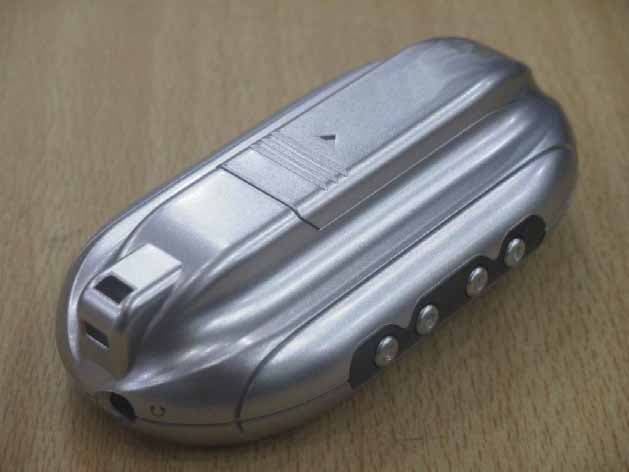
QPJTMP-701G
Nov 02, 2004MP3 Player
Equipment Class
JBP - Part 15 Class B Computing Device Peripheral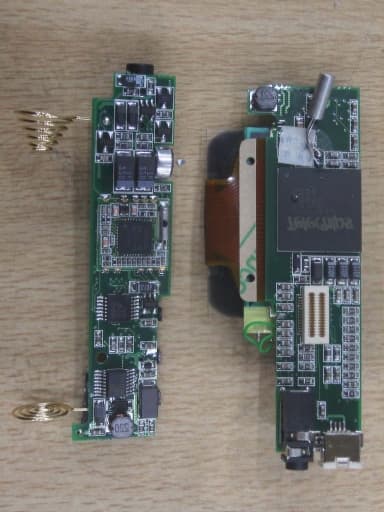
QPJTW-6512
Dec 21, 2003MP3 PLAYER
Equipment Class
JBP - Part 15 Class B Computing Device Peripheral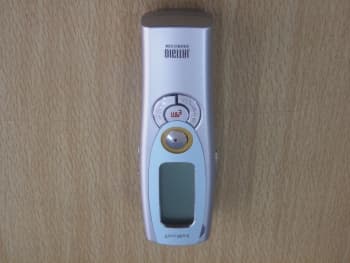
QPJTDR-2128M
Jan 19, 2003Digital Voice Recorder
Equipment Class
JBP - Part 15 Class B Computing Device Peripheral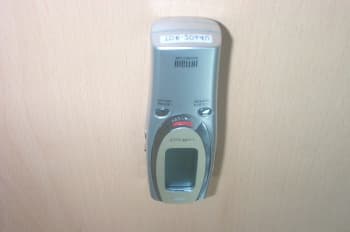
QPJTDR-2064U
Oct 30, 2002Digital Voice Recorder
Equipment Class
JBP - Part 15 Class B Computing Device Peripheral