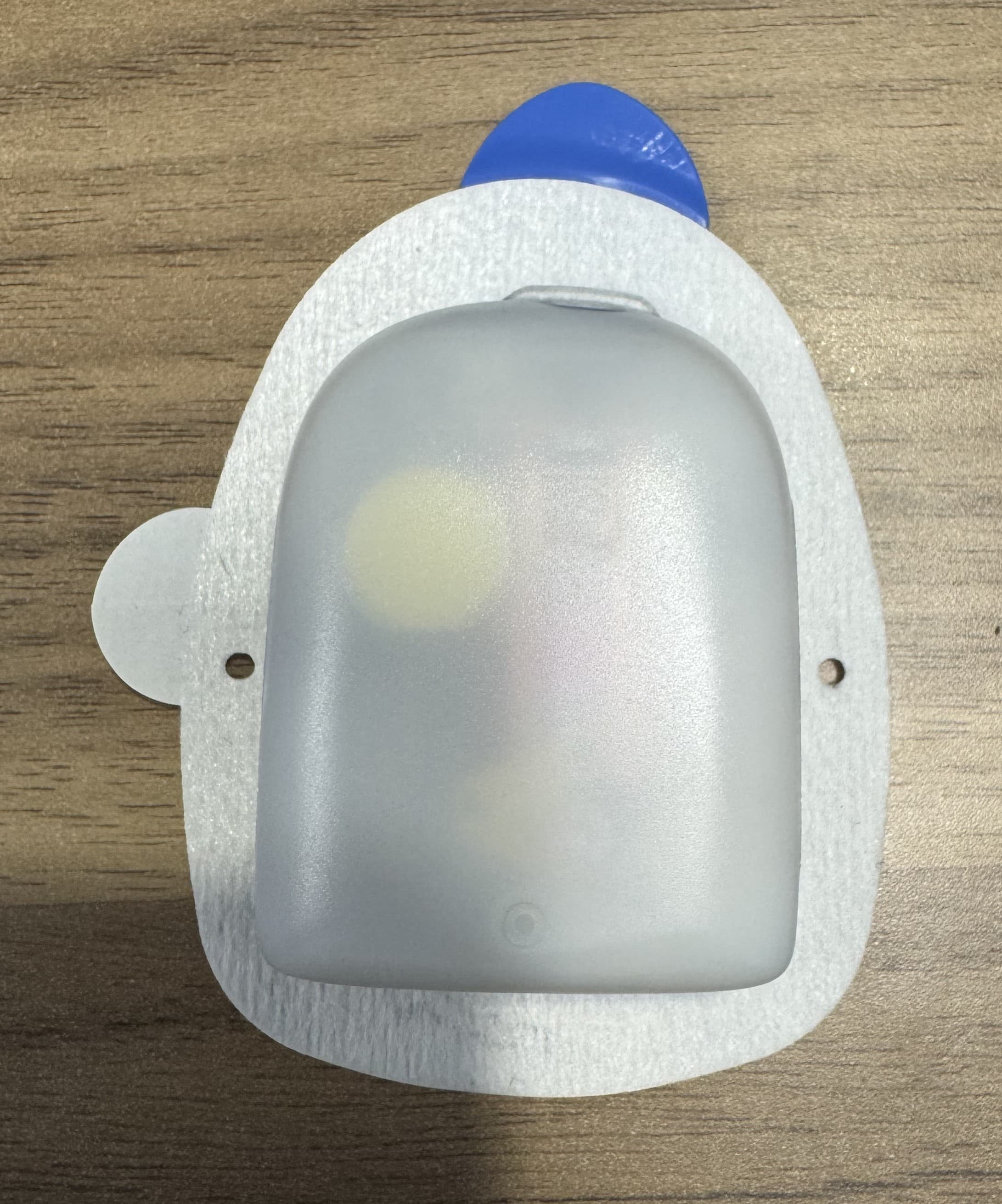
RBV-029Omnipod 5
Insulet Corporation
Click to zoom
Application Details
- Equipment Class
- DTS - Digital Transmission System
- Date of Grant
- Feb 09, 2021
- Application Purpose
- Original Equipment
- Date of Application
- Feb 09, 2021
- Equipment Note
- Omnipod 5
- Frequency Range
- 2402.00000000 - 2480.00000000
- Company
- Insulet Corporation
- Country
- United States
Documents & Files
Document Text
Text extracted from the exhibit documents filed with the FCC. Open a document above to read the original.
Users Manual
© 2020 Insulet Corporation. Omnipod and the Omnipod logo are trademarks or registered trademarks of Insulet Corporation in the United States of America and other various jurisdictions. All rights reserved. All other trademarks are the property of their respective owners. The use of third party trademarks does not constitute an endorsement or imply a relationship or other affiliation. Assembled in USA. Reference #: XXX-XXXX-XXXX-XX-XXXX XXXXXX-ENG-AW Rev. 007 08/20 Omnipod ® 5 Automated Insulin Delivery System User Guide User Guide Pod shown without the necessary adhesive. Insulet Corporation 100 Nagog Park Acton, MA 01720 1-800-591-3455 | 1-978-600-7850 omnipod.com FCC ID: #TBD Controller FCC ID: #TBD Pod Omnipod ® 5 Automated Insulin Delivery System # TBD Effective Date: 22DEC2020, PCO-000267 i Omnipod® 5 Automated Insulin Delivery System User Guide Contacts and Important Information Customer Care 1-800-591-3455 — 24 hours/7 days 1-978-600-7850 when calling from outside the United States of America Customer Care Fax: 877-467-8538 We b s i t e: omnipod.com Address: Insulet Corporation 100 Nagog Park, Acton MA 01720 Emergency Services: Dial 911 (USA only; not available in all communities) Controller Model PDM-USA-H001-MG Serial Number ________________ Controller FCC ID: 2ADINN5004L Pod FCC ID: RBV-029 Omnipod® 5 Automated Insulin Delivery System Start Date _____________ Healthcare ProviderOmnipod® Trainer NameName AddressAddress PhonePhone EmailEmail Health InsurancePharmacy NameName AddressAddress PhonePhone Policy NumberEmail Effective Date: 22DEC2020, PCO-000267 ii © 2021 Insulet Corporation. Insulet, Omnipod, the Omnipod logo, are trademarks or registered trademarks of Insulet Corporation. All rights reserved. The Bluetooth® word mark and logos are registered trademarks owned by the Bluetooth SIG, Inc. and any use of such marks by Insulet Corporation is under license. All other trademarks are the property of their respective owners. The use of third party trademarks does not constitute an endorsement or imply a relationship or other affiliation. Patent information at www.insulet.com/patents. PT-000369-AW REV 003 12/20 Effective Date: 22DEC2020, PCO-000267 iii Contents Section 1: Before You Begin 1 Chapter 1: Introduction . . . . . . . . . . . . . . . . . . . . . . . . . . . . . . . . . . . . . . . . . . . . . . . . . .3 1.1. Welcome to your Omnipod® 5 System ..............................4 1.2. About this User Guide ................................................6 1.3. Indications for Use ....................................................6 1.4. General Warnings and Safety Information ...........................8 Chapter 2: System Terminology and Navigation . . . . . . . . . . . . . . . . . . . . . . . .13 2.1. Terminology ........................................................14 2.2. Using the Touchscreen and Entering Information .................16 Chapter 3: Omnipod 5 System Overview . . . . . . . . . . . . . . . . . . . . . . . . . . . . . . . .21 3.1. Omnipod 5 App and Dexcom Communication ...................22 3.2. Omnipod 5 App ....................................................23 3.3. Status Bar ...........................................................24 3.4. Controller Lock Screen and Security ...............................25 3.5. Home Screen .......................................................27 3.6. Home Screen Main Menu ..........................................35 3.7. Notifications and Messages ........................................36 3.8. Manual and Automated Mode Overview .........................38 Section 2: Starting Omnipod 5 41 Chapter 4: Setting Up Your Omnipod 5 Application . . . . . . . . . . . . . . . . . . . . .43 4.1. Setting Up Your Account ...........................................44 4.2. Choosing a Controller or Smartphone .............................44 4.3. Preparing for Your Training .........................................46 4.4. General Settings ....................................................47 4.5. Basal Settings .......................................................50 4.6. Bolus Settings ......................................................53 4.7. Your App Setup is Complete .......................................58 Chapter 5: Activating and Changing Your Pod . . . . . . . . . . . . . . . . . . . . . . . . . .59 5.1. Beginning the Pod Activation Process .............................60 5.2. Setting up a new Pod ..............................................62 5.3. Filling the Syringe with Insulin .....................................63 5.4. Filling, Activating, Applying, and Starting the Pod .................64 5.5. Checking Your Infusion Site ........................................70 5.6. Deactivating an Active Pod ........................................71 5.7. More Information about Pod Use ..................................72 Section 3: Manual Mode 75 Chapter 6: Basal Programs . . . . . . . . . . . . . . . . . . . . . . . . . . . . . . . . . . . . . . . . . . . . . .77 Effective Date: 22DEC2020, PCO-000267 iv Contents 6.1. Reviewing All Basal Programs ......................................78 6.2. Creating New Basal Programs ......................................78 6.3. Editing or Renaming a Basal Program .............................79 6.4. Deleting a Basal Program ..........................................80 6.5. Switching to a Different Basal Program ............................80 Chapter 7: Temporary Basal Rates and Presets . . . . . . . . . . . . . . . . . . . . . . . . . .81 7.1. About Temporary Basal Rates ......................................82 7.2. Starting a Temp Basal ...............................................83 7.3. Canceling a Temp Basal or Temp Basal Preset .....................85 7.4. Creating a New Temp Basal Preset .................................85 7.5. Editing or Renaming a Temp Basal Preset. . . . . . . . . . . . . . . . . . . . . . . . . . 86 7.6. Deleting a Temp Basal Preset ........................…
Text truncated - open the document above for the full version.
Users Manual
42 is page intentionally le blank. Effective Date: 22DEC2020, PCO-000267 43 Chapter 4: Setting Up Your Omnipod 5 Application Starting Your OmniPod 5 Contents 4.1. Setting Up Your Account ...........................................44 4.2. Choosing a Controller or Smartphone .............................44 Using the Omnipod 5 application on your controller . . . . . . . . . . . . . . . . . . . .44 Using the Omnipod 5 application on your smartphone . . . . . . . . . . . . . . . . .45 Recommended smartphone settings . . . . . . . . . . . . . . . . . . . . . . . . . . . . . . . . . . . .45 4.3. Preparing for Your Training ........................................46 Charge the battery . . . . . . . . . . . . . . . . . . . . . . . . . . . . . . . . . . . . . . . . . . . . . . . . . . . . . . . .46 Items needed for your training . . . . . . . . . . . . . . . . . . . . . . . . . . . . . . . . . . . . . . . . . . . .46 4.4. General Settings ...................................................47 Turning on and signing in to your controller . . . . . . . . . . . . . . . . . . . . . . . . . . . . .47 Setting up your controller . . . . . . . . . . . . . . . . . . . . . . . . . . . . . . . . . . . . . . . . . . . . . . . . .48 Personalize your controller . . . . . . . . . . . . . . . . . . . . . . . . . . . . . . . . . . . . . . . . . . . . . . . .48 Setting the PIN on your controller . . . . . . . . . . . . . . . . . . . . . . . . . . . . . . . . . . . . . . . .48 Setting your Omnipod 5 app security (on your smartphone) . . . . . . . . . . . .49 Enabling notifications and sound on your Omnipod 5 app . . . . . . . . . . . . . .49 4.5. Basal Settings ......................................................50 Set Maximum Basal Rate . . . . . . . . . . . . . . . . . . . . . . . . . . . . . . . . . . . . . . . . . . . . . . . . . .50 Create a Basal Program . . . . . . . . . . . . . . . . . . . . . . . . . . . . . . . . . . . . . . . . . . . . . . . . . . . .50 Name and tag the Basal Program . . . . . . . . . . . . . . . . . . . . . . . . . . . . . . . . . . . . . . . . .50 Define the segments . . . . . . . . . . . . . . . . . . . . . . . . . . . . . . . . . . . . . . . . . . . . . . . . . . . . .51 Review the Basal Program . . . . . . . . . . . . . . . . . . . . . . . . . . . . . . . . . . . . . . . . . . . . . . . .51 Temporary basal configuration . . . . . . . . . . . . . . . . . . . . . . . . . . . . . . . . . . . . . . . . . . .53 4.6. Bolus Settings ......................................................53 Target BG and Correct Above values . . . . . . . . . . . . . . . . . . . . . . . . . . . . . . . . . . . . . .53 Define the segments . . . . . . . . . . . . . . . . . . . . . . . . . . . . . . . . . . . . . . . . . . . . . . . . . . . . . .54 Insulin to Carb (IC) Ratio . . . . . . . . . . . . . . . . . . . . . . . . . . . . . . . . . . . . . . . . . . . . . . . . . . .55 Define the segments . . . . . . . . . . . . . . . . . . . . . . . . . . . . . . . . . . . . . . . . . . . . . . . . . . . . . .55 Correction Factor . . . . . . . . . . . . . . . . . . . . . . . . . . . . . . . . . . . . . . . . . . . . . . . . . . . . . . . . . .56 Define the segments . . . . . . . . . . . . . . . . . . . . . . . . . . . . . . . . . . . . . . . . . . . . . . . . . . . . . .56 Duration of Insulin Action . . . . . . . . . . . . . . . . . . . . . . . . . . . . . . . . . . . . . . . . . . . . . . . . .57 Maximum Bolus . . . . . . . . . . . . . . . . . . . . . . . . . . . . . . . . . . . . . . . . . . . . . . . . . . . . . . . . . . .57 Extended Bolus . . . . . . . . . . . . . . . . . . . . . . . . . . . . . . . . . . . . . . . . . . . . . . . . . . . . . . . . . . . .57 4.7. Your App Setup is Complete. . . . . . . . . . . . . . . . . . . . . . . . . . . . . . . . . . . . . . . .58 Effective Date: 22DEC2020, PCO-000267 44 4Setting Up Your OmnipodTh5 Application 4.1. Setting Up Your Account The Omnipod 5 System requires you to sign in with an Omnipod ID. If you already have an Omnipod ID, use the same username and password to sign into your controller. If you need to create an Omnipod ID: 1. Navigate to https:// www.omnipod.com/setup. 2. Follow the on-screen instructions to set up your account. 4.2. Choosing a Controller or Smartphone Before setting up your Omnipod 5 System, decide whether you want to use the Insulet-provided controller or your personal smartphone for the Omnipod 5 app. You can find a list of compatible smartphones at omnipod.com/compatibility. Settings and history are stored on the device (Omnipod 5 controller or smartphone) that you choose. If you decide later to use a different device, you will need to start setup again on the new device. If you are wearing a Pod and need to switch devices, you will need to deactivate your Pod and activate a new one. Using the Omnipod 5 application on your controller If you select the Insulet-provided controller with the Omnipod 5 app, your initial shipment contains the items you need to begin using the Omnipod 5 System. The Insulet-provided Omnipod 5 Intro Kit contains: • Omnipod 5 controller and Pods • USB cable and charger • User Guide and Quick Start Guide After you unpack the shipment, use the "Contents" label on the side of the box to make sure you have everything. The Dexcom G6 CGM System and supplies must be obtained from Dexcom or an authorized distributor. Refer to the Dexcom G6 User Guide for instructions for use. Starting Your OmniPod 5 Effective Date: 22DEC2020, PCO-000267 45 Setting Up Your OmnipodTh5 Application4 Using the Omnipod 5 application on your smartphone If you use your smartphone, you will need to download the Omnipod 5 app from the Google Play Store. Caution: Do not attempt to use the Omnipod 5 app on a phone modified to allow unrestricted access to its file system. You will be prevented from using the Omnipod 5 app. Caution: If you install other apps on the same phone as your Omnipod 5 app, take care that the other apps do not contain malware. I…
Text truncated - open the document above for the full version.
Users Manual
142 15About Automated Mode Automated insulin delivery Automated insulin delivery changes as your CGM value and trend change. The table below describes how CGM trend affects your automated insulin delivery in Automated Mode: Automated insulin delivery depends on your baseline adaptive basal rate. This rate is based on your past insulin usage and adapts with each Pod change. The System works to keep CGM values at your specified Target BG (110-150 mg/dL). Your automated insulin deliveries increase when you are predicted to be above your Target BG. Your automated insulin deliveries decrease or pause if you are predicted to be below your target BG. The System always pauses insulin delivery when CGM values are under 60 mg/dL. The main information that informs Automated Mode insulin delivery is your past insulin history or average total daily insulin, together with your Target BG. If you are very insulin sensitive, the system knows to give you less insulin than if you have higher insulin needs. While you are using Automated Mode, the main adjustable setting affecting automated insulin delivery is Target BG. Bolus Calculator settings can also be adjusted including Insulin to Carbohydrate ratio, Correction Factor, Correct Above, Reverse Correction and Duration of Insulin Action. These all affect the bolus amounts you deliver during both Manual Mode and Automated Mode. It is important to understand that changing your Basal Programs, Max Basal, Correction Factor or Duration of Insulin Action setting will not make a difference for automated insulin delivery during Automated Mode. Automated Mode Effective Date: 22DEC2020, PCO-000267 143 About Automated Mode15 15.2. About the Dexcom G6 in Automated Mode While in Automated Mode, the Omnipod 5 System relies on your CGM values to deliver the correct automated insulin delivery. CGM values and trends are also used by the Bolus Calculator. It is important that your Dexcom G6 is functioning properly. To ensure CGM accuracy, be aware of your CGM values. If you are experiencing symptoms that do not align with your CGM values, use a separate BG meter to test. Refer to your compatible CGM User Guide for details on inaccurate CGM values. If you are receiving inaccurate CGM values, you may decide to switch to Manual Mode until you are confident that CGM values are accurate. 15.3. Bolus Settings and Importance of a Bolus In Automated Mode, the Omnipod 5 System will automatically deliver insulin every 5 minutes. However, you will still need to deliver a Bolus dose for meals. For information on how to deliver a bolus, see "Chapter 8: Delivering a Bolus with the Bolus Calculator" on page 89. When delivering a bolus, it is recommended to: • Use your CGM value in the Bolus Calculator. This will ensure that your CGM trend is included in the calculations and necessary adjustments are made to account for the trend. • Review the Bolus Calculator calculations for accuracy. If the calculations show an amount you are not expecting, cancel the bolus and begin again. • Always look for the progress bar to confirm that delivery has begun before exiting the Omnipod 5 app. Note: If you leave the Omnipod 5 app for an extended period of time while making changes to your insulin delivery programs, you may lose the information you have entered. 15.4. Pod Adaptivity In Manual Mode, your basal rate is determined by your Basal Program. In Automated Mode, your automated insulin delivery is recalculated as new information is received. The insulin that is delivered is calculated using your recent insulin delivery history and your current CGM value and trend. A Pod can use your insulin delivery history in its calculations only if it has data from a previous Pod with at least 48 hours of continuous use. When history is not Automated Mode Effective Date: 22DEC2020, PCO-000267 144 15About Automated Mode available, for example, when using your first Pod or your first Pod after a pump break of more than a few weeks, the Pod uses your Basal Program as a base for calculations. All of your insulin delivery history is stored in your Omnipod 5 app and is available to your new Pod when you change your Pod. If you reset or replace the Omnipod 5 app, your adaptive basal rate will be based on your Basal Program until 48 hours of data from your new Pod is passed to the next Pod at Pod change. 15.5. About Automated Mode: Limited Warning: If you notice that your CGM value does not match your symptoms, check your blood glucose using a BG meter and consider treatment and/or CGM sensor calibration if necessary. Follow the guidance of your healthcare provider for proper blood glucose monitoring to avoid hyperglycemia or hypoglycemia. At times, your Pod and CGM may lose connection while you are in Automated Mode. There are several reasons this could happen, including the Pod and CGM not being within line of sight on your body, temporary loss of communication due to environmental interference, sensor warm-up, or required calibration. When this occurs, the Omnipod 5 algorithm can no longer fully adjust your automated insulin delivery because the Pod is not receiving updated glucose values from the CGM. After 20 minutes of the Pod not receiving CGM values, the Omnipod 5 app will display ‘Limited’ on the Home screen. The System also enters Limited state after receiving the Automated Delivery Restriction Advisory alarm. For more information on Automated Delivery Restriction, see page 200. Once 1 hour has passed without CGM values, the Missing CGM Values advisory alarm will be presented. You can switch to Manual Mode at any time to receive your scheduled Basal Program, to start a temp basal, or to manually pause insulin. When the System enters Limited state, the Omnipod 5 algorithm will never give more than your Basal Program that would be active during Manual Mode. After an hour of missed CGM values, you will receive a steady rate of insulin that will not vary until CGM connection is restored. You may also choose to swi…
Text truncated - open the document above for the full version.
Users Manual
242 22Taking Care of Your Controller and Pod The Omnipod 5 Automated Insulin Delivery System has no user-serviceable parts. If you require assistance operating or maintaining the Omnipod 5 System, call Customer Care. Warning: Store all Omnipod 5 System products and supplies, including unopened Pods, in a cool, dry place. Products or supplies that have been exposed to extreme temperatures may not function properly. 22.1. Pod and Insulin Storage and Care This section describes proper care of your Pod. Pod and insulin storage Extreme heat or cold can damage Pods and cause them to malfunction. It is especially important to store your insulin in a well-controlled environment. Inspect insulin before using it; never use insulin that looks cloudy or discolored. Insulin that is cloudy or discolored may be old, contaminated, or inactive. Check the insulin manufacturer’s instructions for use and the insulin's expiration date. Pods and the environment Avoid extreme temperatures The Pod’s operating temperature is between 73°F and 98.6°F (between 23°C and 37°C). Under normal circumstances, your body temperature keeps the Pod well within this range. Caution: Never use a blow dryer or hot air to dry the Pod. Extreme heat can damage the electronics. Warning: Do NOT expose a Pod to direct sunlight for long periods of time. Remove your Pod prior to using hot tubs, whirlpools, or saunas. These conditions could expose the Pod to extreme temperatures and may also affect the insulin inside the Pod. If you remove your Pod to avoid exposing it to extreme temperatures, remember to check your blood glucose levels frequently. Check with your healthcare provider for guidelines if you will not use a Pod for extended periods. Additional Information Effective Date: 22DEC2020, PCO-000267 243 Taking Care of Your Controller and Pod22 Water and your Pod The Pod is waterproof up to a depth of 25 feet (7.6 meters) for up to 60 minutes (IP28). After swimming or similar exposure to water, rinse off the Pod with clean water and gently dry it with a towel. Warning: Do NOT expose your Pod to water at depths greater than 25 feet (7.6 meters) or for longer than 60 minutes. Cleaning your Pod Pods are waterproof. If you need to clean a Pod, gently wash it with a clean, damp cloth, or you can use mild soap and water. However, do not use strong detergents or solvents, as they can damage the Pod’s casing or irritate the infusion site. Caution: Hold the Pod securely and take care while cleaning it, so the cannula does not kink and the Pod does not detach from your skin. 22.2. Controller Storage and Care When you are not using your controller, store it in a convenient, nearby location that is cool and dry. Caution: Always keep your controller safe and within your control to ensure others cannot make changes to your insulin therapy. Do not share your controller screen lock security with anyone. Long term storage of your controller If you are not going to use your controller for an extended period of time, allow your battery to reach approximately 50% to 60% charge. Then press and hold the Power button to turn the controller OFF. Caution: Do not turn your controller off for more than six months at a time. Your controller and the environment Avoid extreme temperatures Extreme operating temperatures can affect the controller battery and interfere with Omnipod 5 System operation. Avoid using the controller in temperatures below 32°F (0°C) or above 131°F (55°C). Caution: Do not store or leave the controller where it may be exposed to extreme temperatures, such as inside a car. Extreme heat or cold can cause the controller to malfunction. Additional Information Effective Date: 22DEC2020, PCO-000267 244 22Taking Care of Your Controller and Pod Water and your controller The controller is not waterproof. Do not place it in water or leave it near water where it can accidentally fall in. If it gets wet: 1. Dry the outside of the controller with a clean, lint-free cloth. Caution: Never use a blow dryer or hot air to dry the controller. Extreme heat can damage the electronics. 2. After the controller has thoroughly air-dried, turn ON the controller to see if it is working. 3. If the controller is not working, call Customer Care. Caution: The controller is not waterproof. Do NOT place it in or near water. Electrical interference The controller is designed to withstand normal radio interference and electromagnetic fields, including airport security and cellular phones. However, as with all wireless communication technology, certain operating conditions can interrupt communication. For example, electric appliances such as microwave ovens and electric machinery located in manufacturing environments may cause interference. In most cases, interruptions are easy to resolve by moving to a new location (for more information, see "21.10. "Try Again" - Pod Communication Issues" on page 234). USB cable Caution: Only connect a USB cable to your controller when charging the battery. Never connect a USB cable to the controller for any other reason. Note: You can use the controller while it is charging. Caution: When you connect a USB cable to the controller, only use a cable that is less than or equal to 4 feet (1.2 meters) in length. Cleaning your controller Always keep your controller USB port free of debris and liquids. Dirt, dust, and liquids can impair the functionality of your controller or damage it. Caution: Do not use solvents to clean your controller. Do not immerse your controller in water. Additional Information Effective Date: 22DEC2020, PCO-000267 245 Taking Care of Your Controller and Pod22 To clean your controller: 1. Press the Power button briefly to put your controller to sleep. 2. Wipe the outer surface of the controller with a damp, lint-free cloth. If necessary, use a solution of a mild detergent mixed in warm water. 3. Dry the outer surface with a dry, lint-free cloth. Caution: While cleaning, do NOT allow debris or liquid to get into the USB po…
Text truncated - open the document above for the full version.
ID Label/Location Info
Insulet Corporation | 100 Nagog Park | Acton, MA 01720 USA 1.800.591.3455 | 1.978.600.7850 | www.myomnipod.com Assembled in China | FCC ID: RBV-029 | PT-000439-AW Rev 002 12/20 (1x) (1x) (1x) 22 (41 o F) 5 o C (104 o F) 40 o C 85% 20% 1060 hPa 700 hPa POD-BLE-H1-520 2797 yyyy-mm-ddyyyy-mm-dd ED1C01011831 File name: Tray Lid, POD Horizon, DEV Part Number: PT-000439-AW Part Revision: 002 File date: 01/04/2021 Note: Die lines and hidden layers do not print. Color Key: Die line, UDI or Variable Data - Non-printable information CMYK
ID Label/Location Info
1.3 .3 .06 .12 1 2 35 64 NOTE: DIMENSIONS ARE IN INCHES UNLESS OTHERWISE STATED. NOTE: DIMENSIONS IN PARENTHESIS ARE FOR REFERENCE ONLY. ITEM NO.FONT FONT HEIGHT (mm) Tolerance (mm) 1ARIAL NARROW BOLD2.40 ± 0.1 2ARIAL NARROW BOLD2.05 3ARIAL NARROW1.60 4ARIAL NARROW1.30 5ARIAL NARROW1.60 6ARIAL NARROW1.10
ID Label/Location Info
Insulet Corporation | 100 Nagog Park | Acton, MA 01720 USA 1.800.591.3455 | 1.978.600.7850 | Omnipod.com Assembled in China | FCC ID: RBV-029 | PT-000439-AW Rev 003 01/21 (1x) (1x) (1x) 22 (41 o F) 5 o C (104 o F) 40 o C 85% 20% 1060 hPa 700 hPa POD-BLE-H1-520 yyyy-mm-ddyyyy-mm-dd ED1C01011831 (01)10385083000114(10)PD1C01011831(11)210128(17)220828 File name: Tray Lid, POD Horizon Part Number: PT-000439-AW Part Revision: 003 File date: 01/28/2021 Note: Die lines and hidden layers do not print. Color Key: Die line, UDI or Variable Data - Non-printable information CMYK
ID Label/Location Info
2021-02-01 PD1C1011831 PT-000440-AW Rev 003 01/21 2022-08-01 POD-BLE-H1-529 PT-000438 Insulet Corporation | 100 Nagog Park Acton, MA 01720 USA1.800.591.3455/1.978.600.7850 | Omnipod.com (10X) (10X)(10X) FCC ID: RBV-029 Assembled in China U100 INSULIN (01)10385083000138(10)PD1C1011831(11)210201(17)220801
ID Label/Location Info
2021-02-01 PD1C01011831 PT-000585-AW Rev 001 01/21 2022-08-01 POD-BLE-H1-525 PT-000536 Insulet Corporation | 100 Nagog Park Acton, MA 01720 USA1.800.591.3455/1.978.600.7850 | Omnipod.com (5X) (5X)(5X) FCC ID: RBV-029 Assembled in China U100 INSULIN (01)10385083000121(10)PD1C01011831(11)210201(17)220801
RF Exposure Info
Laboratory Location: 4840 Winchester Boulevard Suite 5 Frederick, Maryland 21703 Business Office Address: 9055 Comprint Court Suite 310 Gaithersburg, Maryland 20877 (301) 216-1500 [email protected] December 4, 2020 Insulet Corporation Digital Transmission System FCC ID: RBV-029 RF Exposure. Unit is categorically excluded from RF Exposure and does not require SAR test. From KDB 447498 DO1 General RF Exposure Guidance v06 In 4.3.1 a) is states: a) For 100 MHz to 6 GHz and test separation distances ≤ 50 mm, the 1-g and 10-g SAR test exclusion thresholds are determined by the following: [(max. power of channel, including tune-up tolerance, mW) / (min. test separation distance, mm)] · [√f(GHz)] ≤ 3.0 for 1-g SAR, and ≤ 7.5 for 10-g extremity SAR, The power listed in the test report is 1.9 mW so per KDB 447498)4.3.1a) it must be rounded to the nearest mW so 2.0 mW will be used for the calculation. [2.0 mW/5mm] x [√2.48(GHz)] = 0.4 x 1.57 = 0.628 As this is less than 3 the unit complies with the 1-g SAR exclusion. Steven D. Koster President Washington Laboratories
Test Report
FCC & ISED CANADA CERTIFICATION TEST REPORT for the INSULET CORPORATION FCC ID: RBV-029 IC ID: 8446A-029 WLL REPORT# 16743-01 REV 2 Prepared for: Insulet Corporation 600 Technology Park Drive, Suite 200 Billerica, MA 01821 Prepared By: Washington Laboratories, Ltd. 4840 Winchester Boulevard Frederick, Maryland 21703 Testing Certificate AT-1448 Certificates and reports shall not be reproduced except in full, without the written permission of Washington Laboratories, Ltd Insulet Corporation Omnipod 5 Pod FCC & ISED Canada Certification Test Report WLL Report 16743-01 Rev 2 Page-2 of 68 FCC & ISED Canada Certification Test Report for the Insulet Corporation Omnipod 5 Pod FCC ID: RBV-029 ISED ID: 8446A-029 November 6, 2020 WLL Report# 16743-01 Rev 2 Prepared by: ___________________________ Ryan Mascaro RF Test Engineer Reviewed by: ____________________________ Steven Koster President Insulet Corporation Omnipod 5 Pod FCC & ISED Canada Certification Test Report WLL Report 16743-01 Rev 2 Page-3 of 68 Abstract This report has been prepared on behalf of Insulet Corporation to support the attached Application for Equipment Authorization. The test report and application are submitted for a Digital Transmission System (DTS) Transmitter under Part 15.247 of the FCC Rules and Regulations and Spectrum Management and Telecommunications Policy and under RSS-247 of Innovation, Science and Economic Development Canada (ISED). This Certification Test Report documents the test configuration and test results for the Insulet Corporation Omnipod 5 Pod. The information provided on this report is only applicable to device herein documented. Testing was performed on an Open Area Test Site (OATS) of Washington Laboratories, Ltd, 4840 Winchester Boulevard, Frederick MD 21703. Site description and site attenuation data have been placed on file with the FCC's Sampling and Measurements Branch at the FCC laboratory in Columbia, MD. The ISED Canada number is 3035A for Washington Laboratories, Ltd. Washington Laboratories, Ltd. has been accepted by the FCC and approved by ANAB under Certificate AT-1448 as an independent FCC test laboratory. The Insulet Corporation Omnipod 5 Pod complies with the limits for a Digital Transmission System (DTS) Transmitter device under FCC Part 15.247 and Innovation, Science and Economic Development Canada (ISED) RSS-247. Revision History Description of Change Date Rev 0 Initial Release November 6, 2020 Rev 1 Edit Table Data, per Client Request November 29, 2020 Rev 2 Removal of TM Logo, per Client Request December 8, 2020 Insulet Corporation Omnipod 5 Pod FCC & ISED Canada Certification Test Report WLL Report 16743-01 Rev 2 Page-4 of 68 Table of Contents 1 Introduction ..................................................................................................................................... 7 1.1 Compliance Statement .......................................…
Text truncated - open the document above for the full version.
Contact Information
Applicant
Chuck Vadala(Sr Director, Systems Engineering)
Test Firm
Washington Laboratories, Ltd.Steve Koster
Technical Specifications
| # | Rule Parts | Frequency Range | Power Output |
|---|---|---|---|
| 1 | 15C | 2.40 GHz - 2.48 GHz | 1.90 mW |
Other Applications from Insulet Corporation
RBV-029E
Jul 24, 2026Omnipod 5 Pod, Omnipod 6 Pod
Equipment Class
DTS - Digital Transmission System
RBV-SAW
Apr 15, 2020OmniPod Dash
Equipment Class
DTS - Digital Transmission System
RBV-019
Aug 23, 2011OmniPod PDM
Equipment Class
DSR - Part 15 Remote Control/Security Device Transceiver
RBV-017
Aug 23, 2011OmniPod
Equipment Class
DSR - Part 15 Remote Control/Security Device Transceiver
RBV-003
Jul 04, 2005PDM
Equipment Class
DXT - Part 15 Low Power Transceiver, Rx Verified