RQ2PI070H04CAMID
XiangDe Electronics Technology (ShenZhen) CO., LTD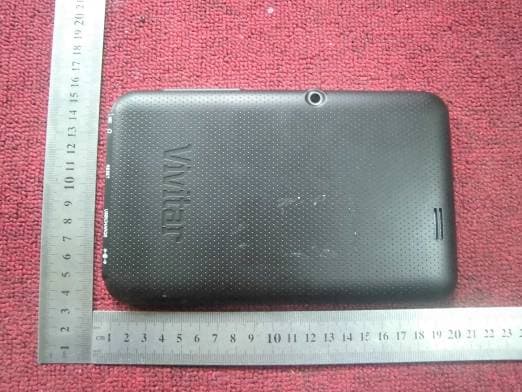
Click to zoom
Application Details
- Equipment Class
- DTS - Digital Transmission System
- Date of Grant
- Jun 05, 2013
- Application Purpose
- Original Equipment
- Date of Application
- Jun 05, 2013
- Equipment Note
- MID
- Frequency Range
- 2412.00000000 - 2462.00000000
- Country
- China
Documents & Files
Document Text
Text extracted from the exhibit documents filed with the FCC. Open a document above to read the original.
Users Manual
MID PI070H04CA This guide provide basic information for initial users on how to operate the tablet. Working temperature:-5 ~ 40 °C A Quick Look at your Tablet PC Function description Volume(+), volume (-): adjust the volume. Power button: press the power button for 5 seconds to power on/off the tablet; short press the power button to lock or unlock HDMI jack: HDMI output interface. USB slot: connect to the PC and data transmission. Micro SD card slot: external micro SD card. Host jack: connect the external equipment, such as mouse, U disk and OTG cable. DC interface: connect with the power source to charge the tablet. TF card slot: external TF card. Basic operation Power on/off In power off status, press the power button for 5 seconds, after the boot up image then the device will enter main interface. In power on status, press the power button for 5 seconds, then ”Would you like to shut down” message will pop up on the screen, click “OK” to power off . Connect the PC and transfer file In power on status, use the USB cable to connect the device and PC, then click the “Turn on the USB Storage”, then the device will act as a removable disk, it can upload and download file or data, click “Turn off USB storage” to quit the connection status. Charging A “Low battery” message will flash on the screen when the battery power is insufficient. Please use the provided charger to connect the power source and the tablet. It can only charge in off status. The whole charging time needs about 5 hours. Reset function When the PC tablet is at fault, use the pen pincushion to insert into the reset hole on the back of the tablet, and the tablet will force to shutdown. Factory reset Settings---factory data reset---erase Nand storage---reset tablet---erase everything. Note : select “Erase Nand Storage” will clear all the data, like pictures ,music and movie. If you don’t select “Erase Nand Storage” it will only delete part of the date and the APK downloaded data, can’t clear the pictures ,music and movies in Nand Main interface introduction Power on the device, after unlock the device it will enter the main interface Screen lock: drag the screen lock icon to the unlock direction. After it will enter the main interface as below (note: the device has many kinds of unlock methods, it can set in setting menu.) main screen detailed operating instructions: screen switch: this device supplied with many main interface, you can drag the screen left or right to see the screen. Create shortcuts: Click the icon you want to create shortcuts on the main interface for 3 seconds, the icon will become large, then you can drag the icon on the main interface. Remove shortcuts: Click the icon you want to delete for 3 seconds, and then click the remove appear on the middle top of the screen to delete the shortcuts. Touch function description as below: back button: In different applications, you can click the back key back to the previous interface. Note: the icon on the right side of the screen is of the same function. home button: No matter which interface you are on the screen, you can go back to the main interface through touch the home key. Note: the icon on the right side of the screen is of the same function. history memory key: you can browse the history memory ,and click it you can enter the application soft ware. In different applications, click the menu button ,then the submenu will pop up, it has many other settings and operation. Note: the icon on the right side of the screen is of the same function. status bar: display time , Network signal strength, battery level. Click the icon on the top right on the screen to enter the applications, as follow: Click the application icon to enter the relative application Slide left or right to on the screen to enter the widgets ,you can also click the widgets to enter it. Important settings WIFI setting as follow: first open the WIFI, The system will automatically scan the Internet available. Second: select the internet you want to connect, insert the password, then click connect to enter WIFI. (Note: If the Internet don’t need password, you can directly connect the WIFI) Language & input setup: Users can download the common input software in the third party website, and install it through applications. The newly installed input software should only select to be use. Setup the default input method: settings---language&input---default ---select input method---configure input methods. Location services: it can determine the location through WIFI Note: users should download the relative map software ,after install the map software(like google map) then it can use WIFI to determine the location(it should also select the “Google’s location service). My pad multi choose and open icon: after click this icon, you can select multiple files at once, after select ,you can copy ,cut ,paste, rename the file. Double click the icon ,you can play the music and video files the device supported. Applications installation In application interface, click the icon, the system can automatically scan all the third party software stored on the device. Click the relative icon can install or uninstall the APK software. In the APK software list, it will indicated whether the software is installed or not. Click the software you want to installed ,pop up the dialogue as below: Click install to install the software,click the “cancel” to revert back to the previous catalogue. (Note: To install the non-market apps, please select the “Unknown sources” in security menu.) Click “OK” to uninstall the software, click “cancel” to revert back to the previous catalogue. Connect to PC Use the USB cable to connect the device with the PC, the LCD screen will pop up the USB connection window, click “Turn on USB storage” to connect to PC. Note : please select the “OTG auto” in USB mode before connect to PC. In the load mode, you can copy ,delete the file on the device or file on the memory card. In the debug mode, you can use…
Text truncated - open the document above for the full version.
Cover Letter(s)
XiangDe Electronics Technology (ShenZhen) CO., LTD Blg C16 Fuyuan Industrial Area, Zhoushi Road, Xixiang Street, Baoan District, ShenZhen,China Date:May 7,2013 We, XiangDe Electronics Technology (ShenZhen) CO., LTD. declared that this EUT (FCC ID: RQ2PI070H04CA) doesn’t have Ad Hoc Mode function on "non-US/Canada frequencies". In addition , the frequency selection feature is disabled by firmware for devices marketed to the US/Canada. For DTS part of this device,only channels 1~11 will be used in North America. Country code selection is disabled. The output power setting of EUT is set in the factory and followed the max level in below.there is no tune up procedure except factory default setting. 802.11b 8.7±1 dBm 802.11g 8.7±1 dBm 802.11n HT-20 8.7±1 dBm Should you have any questions or comments regarding this matter, please have my best attention. Sincerely yours, Contact person:Xiaobo Liu Company: XiangDe Electronics Technology (ShenZhen) CO., LTD TEL:(86) 755 81453023 FAX:(86) 755 27579919 E-Mail:[email protected]
External Photos
Appearance photograph of EUT Appearance photograph of EUT Appearance photograph of EUT Appearance photograph of EUT Appearance photograph of EUT Appearance photograph of EUT
Internal Photos
Page 1 Internal photograph of EUT Internal photograph of EUT Report No.: 1304001352wifi Issued: April 22, 2013 Revised: None FCC ID: RQ2PI070H04CA TRF No.: FCC PART 15C-15.247/A0 Page 2 of 4 . PCB photograph of EUT PCB photograph of EUT Report No.: 1304001352wifi Issued: April 22, 2013 Revised: None FCC ID: RQ2PI070H04CA TRF No.: FCC PART 15C-15.247/A0 Page 3 of 4 . Wifi module photograph of EUT Wifi module photograph of EUT Report No.: 1304001352wifi Issued: April 22, 2013 Revised: None FCC ID: RQ2PI070H04CA TRF No.: FCC PART 15C-15.247/A0 Page 4 of 4 . ANT photograph of EUT
Operational Description
This device is a MID. This device including LCD-display、capacitive touch screen、 WIFI、 Gsensor、 Camera、USB transferbasic functions. This device uses the CPU as the control center and add Nand flash、DDR、 WIFI、Camera、Gsensor Capacitive touch screen controller IC、TF card slot and hardware module setup of the entire hardware system. PI070H04CA contains Nand Flash and DDR Controller, so it can achieve the Minimum system hardware connection control. PI070H04CA connected with WIFI module by SD IO port. PI070H04CA connected with Gsensor and Camera module by IC port. LCD is shared PI070H04CA output display data interface, The LCD as switching control menu is in the UI interface. PI070H04CA used the iMAPx820 of Android 4.1 to build software platform. The PI070H04CA of Android 4.1 includes the underlying Linux system, so all the Hardware drivers are achieve control by Linux system and transfer the information to the application layer. The application layer can get the hardware information through the framework’s API port and the driver code of Linux. 5V powered by DC adaptor or 3.7V powered by Lion Battery USB It is provide a OTG USB port, MID can communication to the computer though USB port, and USB device can communication to the MID also. It support USB 2.0 Wifi chip: RTL8188EUS oscillating frequency:40MHz Antenna Type: Internal Antenna Modulation mode : CCK, DQPSK, DBPSK for DSSS BPSK, QPSK, 16QAM and 64QAM for OFDM Data rate : 11b: 1/2/5.5/11Mbps 11g: 6/9/12/24/36/48/54Mbps 11n HT-20: 6.5 to 72.2 Mbps Operating Frequency: 802.11b/g/n-HT20: 2412MHz - 2462MHz Number of Channels: 802.11b/g/n-HT20: 11 channels
RF Exposure Info
FCC RF Exposure EUT Description: MID Model No.: PI070H04CA FCC ID: RQ2PI070H04CA 1. Applicable Standard According to §1.1307(b)(5), systems operating under the provisions of this section shall be operated in a manner that ensure that the public is not exposed to radio frequency energy level in excess of the Commission’s guideline. This is a Portable device. KDB 447498 D01 General RF Exposure Guidance v05 was used as the guidance. According to §1.1310 and §2.1093 RF exposure is calculated. 2. RF Exposure Calculation Result: 802.11b/g/n: Frequency: 2412-2462 MHz Modulation: CCK, DQPSK, DBPSK for DSSS BPSK, QPSK, 16QAM and 64QAM for OFDM Max Peak power: 802.11b Mode: 9.52dBm 802.11g Mode: 9.48 dBm 802.11n HT20 Mode:9.19 dBm According to the requirement of KDB 447498 D01 General RF Exposure Guidance v05 Appendix A SAR Test Exclusion Thresholds for 100 MHz – 6 GHz and ≤ 50 mm. The maximum measured output power is 9.52dBm (8.95mW) and the maximum power specification in the Tune Up information is 9.7dBm (9.33mW). Both of them are lower than 10mW of SAR exemption threshold as mentioned in KDB447498 V05, therefore the SAR evaluation is not required for this submission. The SAR measurement is not necessary .
Test Report
Page 1 FCC ID TEST REPORT for MID MODEL: PI070H04CA Trade Mark: N/A FCC ID: RQ2PI070H04CA Test Report Number: 1304001352wifi Issued Date: April 22, 2013 Issued for XiangDe Electronics Technology (ShenZhen) CO., LTD Blg C16 Fuyuan Industrial Area, Zhoushi Road, Xixiang Street, Baoan District, ShenZhen,China Issued By: SHENZHEN TIMEWAY TECHNOLOGY CONSULTING CO., LTD. 5/F,Block 4, Anhua Industrial Zone., No.8 Tairan Rd. Chegongmiao, Futian District Shenzhen, China TEL: +86-755-83448688 FAX: +86-755-83442996 Report No.: 1304001352wifi Issued: April 22, 2013 Revised: None FCC ID: RQ2PI070H04CA TRF No.: FCC PART 15C-15.247/A0 Page 2 of 66 . TABLE OF CONTENTS 1 TEST CERTIFICATION....................................................................................................................... 3 2 TEST RESULT SUMMARY ............................................................................................................ 4 3 EUT DESCRIPTION............................................................................................................................ 5 4 SETUP OF EQUIPMENT UNDER TEST AND TEST EQUIPMENTS USED................................. 6 4.1. DESCRIPTION OF SUPPORT UNITS ................................................................................................. 7 4.2. Description of Test Configuration.......................................................................................................... 7 4.3. CONFIGURATION OF SYSTEM UNDER TEST .................................................................................. 8 4.4. Justification .......................................................................................................................................... 8 5 FACILITIES AND ACCREDITATIONS .......................................................................................... 9 5.1. FACILITIES ........................................................................................................................................... 9 5.2. MEASUREMENT UNCERTAINTY...................................................................................................... 10 §15.203 - ANTENNA REQUIREMENT ................................................................................................ 11 Standard Applicable ................................................................................................................................... 11 Antenna Connector Construction ............................................................................................................... 11 §15.207 - CONDUCTED EMISSIONS ................................................................................................. 12 Applicable Standard ................................................................................................................................... 12 Test Procedure ........................................................................................................................................... 12 Environmental Conditions .......................................................................................................................... 12 Plot(s) of Test Data .................................................................................................................................... 12 §15.209, §15.205, §15.247(D) - SPURIOUS EMISSIONS ................................................................... 15 Test Equipment .......................................................................................................................................... 15 Test Procedure ........................................................................................................................................... 15 Environmental Conditions .......................................................................................................................... 15 Radiated Test Setup................................................................................................................................... 15 Radiated Emission Limit............................................................................................................................. 16 §15.247(A) (2) – 6DB BANDWIDTH TESTING ................................................................................... 31 Test Equipment .......................................................................................................................................... 31 Test Procedure ........................................................................................................................................... 31 Environmental Conditions .......................................................................................................................... 31 Applicable Standard ................................................................................................................................... 31 Test Result: Pass. ...................................................................................................................................... 32 §15.247(B) (3) - MAXIMUM PEAK OUTPUT POWER ........................................................................ 38 Test Equipment .......................................................................................................................................... 38 Test Procedure ........................................................................................................................................... 38 Environmental Conditions .......................................................................................................................... 38 Applicable Standard ................................................................................................................................... 38 Test Result .................................................................................................................…
Text truncated - open the document above for the full version.
Test Setup Photos
CONDUCTED EMISSION Photos Radiated Measurement Photos
Contact Information
Applicant
Xiaobo Liu
Test Firm
Shenzhen Timeway Testing LaboratoriesJack Chung
Technical Specifications
| # | Rule Parts | Frequency Range | Power Output |
|---|---|---|---|
| 1 | 15C | 2.41 GHz - 2.46 GHz | 8.96 mW |
Other Applications from XiangDe Electronics Technology (ShenZhen) CO., LTD
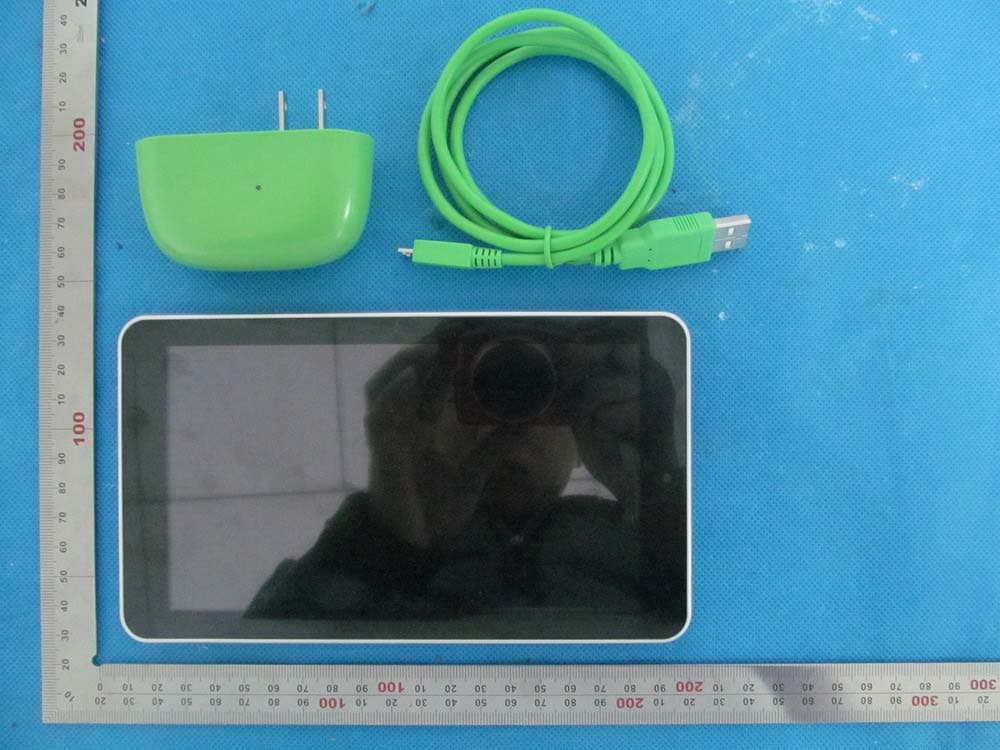
RQ2PI070H04CB
May 05, 2014Tablet PC
Equipment Class
DSS - Part 15 Spread Spectrum Transmitter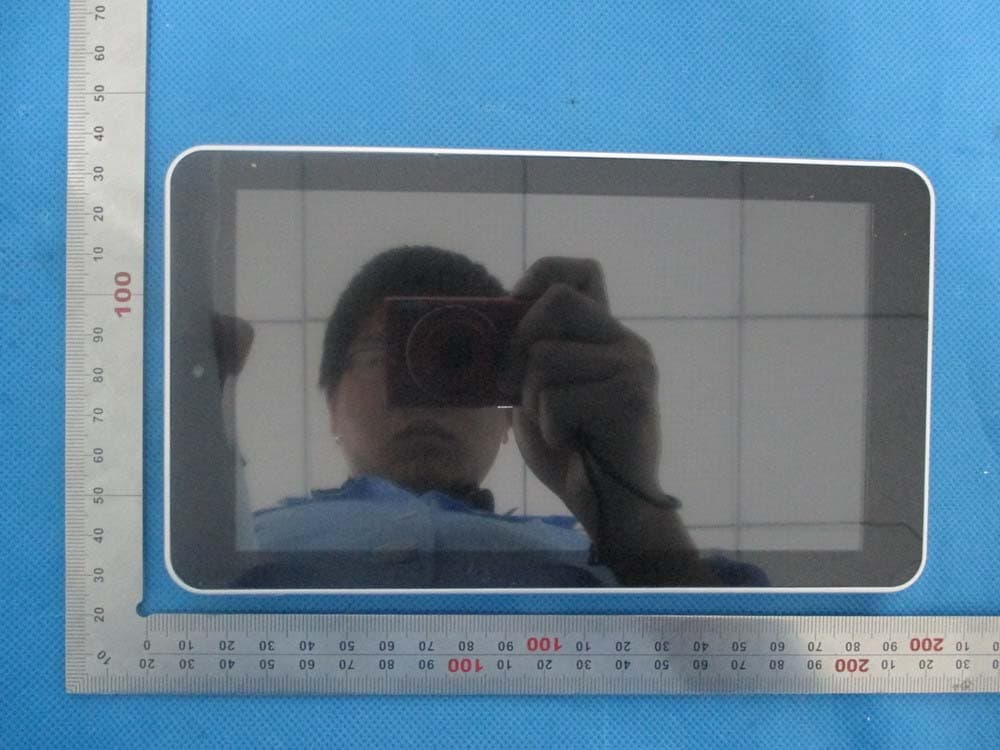
RQ2PA070H08XB1
Apr 30, 2014Tablet PC
Equipment Class
DTS - Digital Transmission System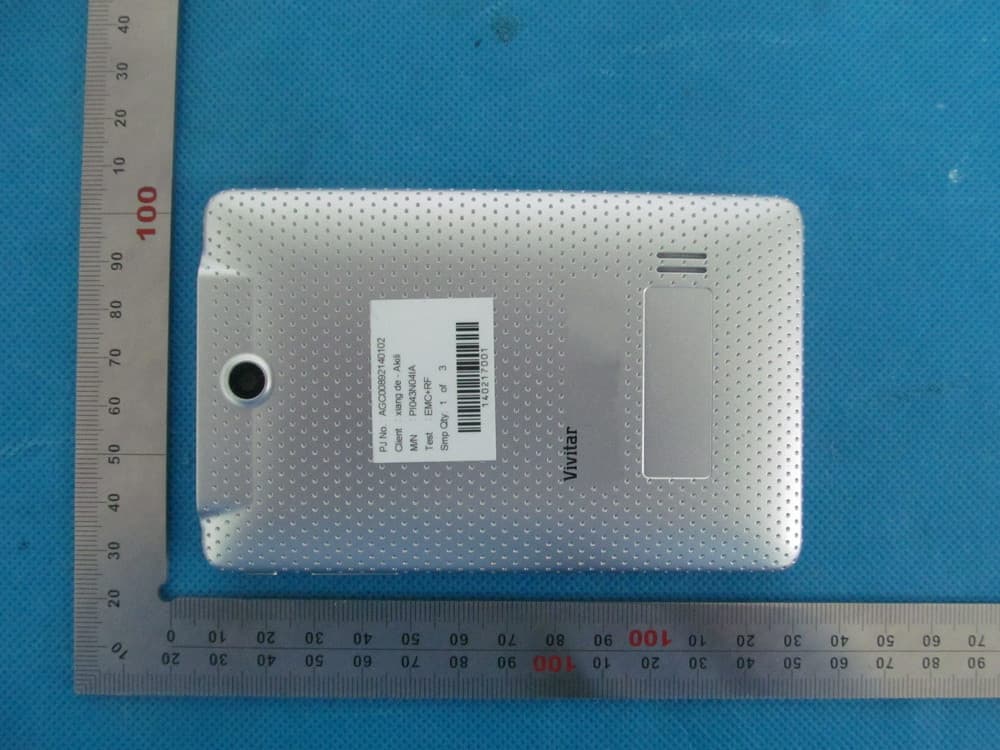
RQ2PI043N04IA
Apr 30, 2014Tablet PC
Equipment Class
DTS - Digital Transmission System