SK6XI-N300802.11abgn 2x2 Module
Cambium Networks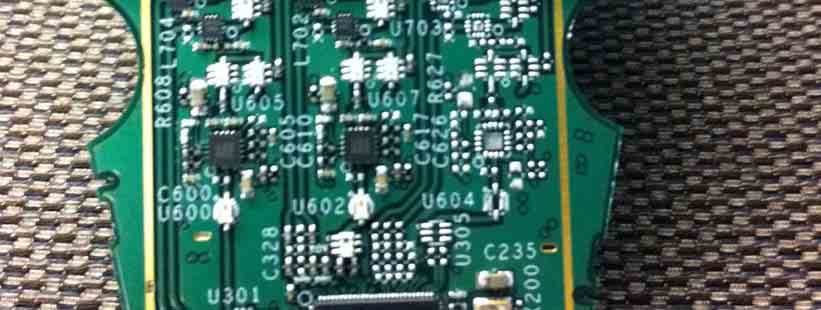
Click to zoom
Application Details
- Equipment Class
- DTS - Digital Transmission System
- Date of Grant
- Sep 28, 2011
- Application Purpose
- Original Equipment
- Date of Application
- Aug 24, 2011
- Equipment Note
- 802.11abgn 2x2 Module
- Frequency Range
- 5745.00000000 - 5825.00000000
- Company
- Cambium Networks
- Country
- United States
Documents & Files
Document Text
Text extracted from the exhibit documents filed with the FCC. Open a document above to read the original.
Users Manual
August 9, 2011 Release 6.0 All rights reserved. This document may not be reproduced or disclosed in whole or in part by any means without the written consent of Xirrus, Inc. Part Number: 800-0022-001 (Revision A) Wi-Fi Array XR Series ™ Trademarks is a registered trademark of Xirrus, Inc. All other trademarks and brand names are marks of their respective holders. Please see Legal Notices, Warnings, Compliance Statements, and Warranty and License Agreements in “Appendix F: Notices” on page 437. Xirrus, Inc. 2101 Corporate Center Drive Thousand Oaks, CA 91320 USA Tel:1.805.262.1600 1.800.947.7871 Toll Free in the US Fax:1.866.462.3980 www.xirrus.com Wi-Fi Array i Table of Contents List of Figures...................................................................................... xi Introduction ......................................................................................... 1 The Xirrus Family of Products ............................................................................... 1 Nomenclature .................................................................................................... 3 About this User’s Guide .......................................................................................... 4 Organization ...................................................................................................... 4 Notes and Cautions .......................................................................................... 6 Screen Images .................................................................................................... 6 Your User’s Guide as a PDF Document ........................................................ 6 Hyperlinks ......................................................................................................... 6 Why Choose the Xirrus Wi-Fi Array? ................................................................... 6 Wi-Fi Array Product Overview ............................................................................. 7 Enterprise Class Security ................................................................................. 8 Deployment Flexibility .................................................................................... 9 Power over Gigabit Ethernet (PoGE) .................................................... 10 Enterprise Class Management ...................................................................... 10 Key Features and Benefits ..................................................................................... 12 High Capacity and High Performance ........................................................ 12 Extended Coverage ......................................................................................... 12 Non-Overlapping Channels .......................................................................... 13 SDMA Optimization ...................................................................................... 13 Fast Roaming ................................................................................................... 13 Easy Deployment ............................................................................................ 13 Secure Wireless Access .................................................................................. 13 Applications Enablement .............................................................................. 14 Advanced Feature Sets .......................................................................................... 14 Xirrus Advanced RF Performance Manager (RPM) .................................. 14 Xirrus Advanced RF Security Manager (RSM) .......................................... 15 Xirrus Advanced RF Analysis Manager (RAM) ......................................... 16 Installing the Wi-Fi Array ................................................................. 19 Installation Prerequisites ...................................................................................... 19 Wi-Fi Array ii Optional Network Components ................................................................... 21 Client Requirements ....................................................................................... 21 Planning Your Installation .................................................................................... 22 General Deployment Considerations .......................................................... 22 Coverage and Capacity Planning ................................................................. 24 Placement .................................................................................................. 24 RF Patterns ................................................................................................ 25 Capacity and Cell Sizes ........................................................................... 27 Fine Tuning Cell Sizes ............................................................................. 28 Roaming Considerations ........................................................................ 29 Allocating Channels ................................................................................ 29 Deployment Examples ............................................................................ 32 IEEE 802.11n Deployment Considerations ................................................. 34 MIMO (Multiple-In Multiple-Out) ........................................................ 35 Multiple Data Streams — Spatial Multiplexing ................................... 37 Channel Bonding ..................................................................................... 38 Improved MAC Throughput ................................................................. 39 Short Guard Interval ............................................................................... 39 Obtaining Higher Data Rates ................................................................. 40 802.11n Capacity .....................................................…
Text truncated - open the document above for the full version.
Users Manual
Wi-Fi Array Viewing Status on the Wi-Fi Array131 WDS Statistics The main WDS Statistics window provides statistical data for all WDS client and host links. To access data about a specific WDS client or host link, simply click on the desired link in the left frame to access the appropriate window. You may also choose to view a sum of the statistics for all client links, all host links, or all links (both client and host links). Figure 81. WDS Statistics See Also SSID Management WDS Wi-Fi Array 132Viewing Status on the Wi-Fi Array Filter Statistics The Filter Statistics window provides statistical data for all configured filters. The name, state (enabled — on or off), and type (allow or deny) of each filter is shown. For enabled filters, this window shows the number of packets and bytes that met the filter criteria. Click on a column header to sort the rows based on that column. Click on a filter name to edit the filter settings. Figure 82. Filter Statistics See Also Filters Station Statistics This status-only window provides an overview of statistical data for all stations. Stations are listed by MAC address, and Receive and Transmit statistics are summarized for each. For detailed statistics for a specific station, click the desired MAC address in the Station column and see “Per-Station Statistics” on page 133. Figure 83. Station Statistics Note that you can clear the data for an individual station (see Per-Station Statistics), but you cannot clear the data for all stations using this window. Wi-Fi Array Viewing Status on the Wi-Fi Array133 Yo u c a n Refresh the data (update the window with the latest information) at any time by clicking on the appropriate button. You can also click in the Auto Refresh check box to instruct the Array to refresh this window automatically. See Also Per-Station Statistics Per-Station Statistics This window provides detailed statistics for the selected station. This window is accessed from the Station Statistics window — click the MAC address of the desired entry in the Station column to display its Per-Station Statistics window. Receive and Transmit statistics are listed by Rate — this is the data rate in Mbps. For a summary of statistics for all stations, see “Station Statistics” on page 132. Yo u c a n Refresh the data (update the window with the latest information) or Clear the data (reset all content to zero and begin counting again) at any time by clicking on the appropriate button. You can also click in the Auto Refresh check box to instruct the Array to refresh this window automatically. Figure 84. Individual Station Statistics Page See Also Station Statistics Wi-Fi Array 134Viewing Status on the Wi-Fi Array System Log Window This is a status only window that allows you to review the system log, where system alerts and messages are displayed. Although there are no configuration options available in this window, you do have the usual choice of deciding how the event messages are sorted by clicking in the column header for the desired field (Time Stamp, Priority, or Message). Time Stamp — sorts the list based on the time the event occurred. Priority — sorts the list based on the priority assigned to the message. Message — sorts the list based on the message category The displayed messages may be filtered by using the Filter Priority option, which allows control of the minimum priority level displayed. For example, you may choose (under Services >System Log) to log messages at or above Debug level but use Filter Priority to display only those at Information level and above. Figure 85. System Log (Alert Level Highlighted) Use the Highlight Priority field if you wish to highlight messages at the selected priority level. Click on the Refresh button to refresh the message list, or click on the Clear All button at the upper left to delete all messages. You can also click in the Auto Refresh check box to instruct the Array to refresh this window automatically. Note that there is a shortcut way to view system log messages. If you click Log Messages near the bottom of the left hand frame, WMI displays counts of log messages at different severity levels. Click a count to display just those messages in the System Log window. See Figure 38 on page 79 for more information. Wi-Fi Array Viewing Status on the Wi-Fi Array135 IDS Event Log Window This status only window displays the Intrusion Detection System (IDS) Event log, listing any detected attacks on your network. For descriptions of the types of attacks detected, as well as the settings to fine-tune IDS on the Array, please see “Intrusion Detection” on page 270. The displayed messages may be filtered by using the Filter Event setting, which allows you to select just one type of intrusion to display. For example, you may choose to display only beacon flood attacks. Figure 86. IDS Event Log Use the Highlight Event field if you wish to highlight all events of one particular type in the list. Click on the Refresh button to refresh the message list, or click the Auto Refresh check box to instruct the Array to refresh this window automatically. Although there are no configuration options available in this window, you do have the usual choice of deciding how the event messages are sorted by clicking in the column header for the desired field. Time Stamp — the time that the event occurred. IAP — the affected radio. Channel — the affected channel. Event — the type of attack, as described in Intrusion Detection. SSID — the SSID that was attacked. MAC Address — the MAC address of the attacker. Period — the length of the window used to determine whether the count of this type of event exceeded the threshold. Wi-Fi Array 136Viewing Status on the Wi-Fi Array Current — the count of this type of event for the current period. Average — the average count per period of this type of event. Maximum — the maximum count per period of this type of event. Wi-Fi Array Configuring the Wi-Fi Array137 Configuring the Wi-Fi Arr…
Text truncated - open the document above for the full version.
Users Manual
August 9, 2011 Release 6.0 All rights reserved. This document may not be reproduced or disclosed in whole or in part by any means without the written consent of Xirrus, Inc. Part Number: 800-0022-001 (Revision A) Wi-Fi Array XR Series ™ Trademarks is a registered trademark of Xirrus, Inc. All other trademarks and brand names are marks of their respective holders. Please see Legal Notices, Warnings, Compliance Statements, and Warranty and License Agreements in “Appendix F: Notices” on page 437. Xirrus, Inc. 2101 Corporate Center Drive Thousand Oaks, CA 91320 USA Tel:1.805.262.1600 1.800.947.7871 Toll Free in the US Fax:1.866.462.3980 www.xirrus.com Wi-Fi Array i Table of Contents List of Figures...................................................................................... xi Introduction ......................................................................................... 1 The Xirrus Family of Products ............................................................................... 1 Nomenclature .................................................................................................... 3 About this User’s Guide .......................................................................................... 4 Organization ...................................................................................................... 4 Notes and Cautions .......................................................................................... 6 Screen Images .................................................................................................... 6 Your User’s Guide as a PDF Document ........................................................ 6 Hyperlinks ......................................................................................................... 6 Why Choose the Xirrus Wi-Fi Array? ................................................................... 6 Wi-Fi Array Product Overview ............................................................................. 7 Enterprise Class Security ................................................................................. 8 Deployment Flexibility .................................................................................... 9 Power over Gigabit Ethernet (PoGE) .................................................... 10 Enterprise Class Management ...................................................................... 10 Key Features and Benefits ..................................................................................... 12 High Capacity and High Performance ........................................................ 12 Extended Coverage ......................................................................................... 12 Non-Overlapping Channels .......................................................................... 13 SDMA Optimization ...................................................................................... 13 Fast Roaming ................................................................................................... 13 Easy Deployment ............................................................................................ 13 Secure Wireless Access .................................................................................. 13 Applications Enablement .............................................................................. 14 Advanced Feature Sets .......................................................................................... 14 Xirrus Advanced RF Performance Manager (RPM) .................................. 14 Xirrus Advanced RF Security Manager (RSM) .......................................... 15 Xirrus Advanced RF Analysis Manager (RAM) ......................................... 16 Installing the Wi-Fi Array ................................................................. 19 Installation Prerequisites ...................................................................................... 19 Wi-Fi Array ii Optional Network Components ................................................................... 21 Client Requirements ....................................................................................... 21 Planning Your Installation .................................................................................... 22 General Deployment Considerations .......................................................... 22 Coverage and Capacity Planning ................................................................. 24 Placement .................................................................................................. 24 RF Patterns ................................................................................................ 25 Capacity and Cell Sizes ........................................................................... 27 Fine Tuning Cell Sizes ............................................................................. 28 Roaming Considerations ........................................................................ 29 Allocating Channels ................................................................................ 29 Deployment Examples ............................................................................ 32 IEEE 802.11n Deployment Considerations ................................................. 34 MIMO (Multiple-In Multiple-Out) ........................................................ 35 Multiple Data Streams — Spatial Multiplexing ................................... 37 Channel Bonding ..................................................................................... 38 Improved MAC Throughput ................................................................. 39 Short Guard Interval ............................................................................... 39 Obtaining Higher Data Rates ................................................................. 40 802.11n Capacity .....................................................…
Text truncated - open the document above for the full version.
Users Manual
Wi-Fi Array Viewing Status on the Wi-Fi Array131 WDS Statistics The main WDS Statistics window provides statistical data for all WDS client and host links. To access data about a specific WDS client or host link, simply click on the desired link in the left frame to access the appropriate window. You may also choose to view a sum of the statistics for all client links, all host links, or all links (both client and host links). Figure 81. WDS Statistics See Also SSID Management WDS Wi-Fi Array 132Viewing Status on the Wi-Fi Array Filter Statistics The Filter Statistics window provides statistical data for all configured filters. The name, state (enabled — on or off), and type (allow or deny) of each filter is shown. For enabled filters, this window shows the number of packets and bytes that met the filter criteria. Click on a column header to sort the rows based on that column. Click on a filter name to edit the filter settings. Figure 82. Filter Statistics See Also Filters Station Statistics This status-only window provides an overview of statistical data for all stations. Stations are listed by MAC address, and Receive and Transmit statistics are summarized for each. For detailed statistics for a specific station, click the desired MAC address in the Station column and see “Per-Station Statistics” on page 133. Figure 83. Station Statistics Note that you can clear the data for an individual station (see Per-Station Statistics), but you cannot clear the data for all stations using this window. Wi-Fi Array Viewing Status on the Wi-Fi Array133 Yo u c a n Refresh the data (update the window with the latest information) at any time by clicking on the appropriate button. You can also click in the Auto Refresh check box to instruct the Array to refresh this window automatically. See Also Per-Station Statistics Per-Station Statistics This window provides detailed statistics for the selected station. This window is accessed from the Station Statistics window — click the MAC address of the desired entry in the Station column to display its Per-Station Statistics window. Receive and Transmit statistics are listed by Rate — this is the data rate in Mbps. For a summary of statistics for all stations, see “Station Statistics” on page 132. Yo u c a n Refresh the data (update the window with the latest information) or Clear the data (reset all content to zero and begin counting again) at any time by clicking on the appropriate button. You can also click in the Auto Refresh check box to instruct the Array to refresh this window automatically. Figure 84. Individual Station Statistics Page See Also Station Statistics Wi-Fi Array 134Viewing Status on the Wi-Fi Array System Log Window This is a status only window that allows you to review the system log, where system alerts and messages are displayed. Although there are no configuration options available in this window, you do have the usual choice of deciding how the event messages are sorted by clicking in the column header for the desired field (Time Stamp, Priority, or Message). Time Stamp — sorts the list based on the time the event occurred. Priority — sorts the list based on the priority assigned to the message. Message — sorts the list based on the message category The displayed messages may be filtered by using the Filter Priority option, which allows control of the minimum priority level displayed. For example, you may choose (under Services >System Log) to log messages at or above Debug level but use Filter Priority to display only those at Information level and above. Figure 85. System Log (Alert Level Highlighted) Use the Highlight Priority field if you wish to highlight messages at the selected priority level. Click on the Refresh button to refresh the message list, or click on the Clear All button at the upper left to delete all messages. You can also click in the Auto Refresh check box to instruct the Array to refresh this window automatically. Note that there is a shortcut way to view system log messages. If you click Log Messages near the bottom of the left hand frame, WMI displays counts of log messages at different severity levels. Click a count to display just those messages in the System Log window. See Figure 38 on page 79 for more information. Wi-Fi Array Viewing Status on the Wi-Fi Array135 IDS Event Log Window This status only window displays the Intrusion Detection System (IDS) Event log, listing any detected attacks on your network. For descriptions of the types of attacks detected, as well as the settings to fine-tune IDS on the Array, please see “Intrusion Detection” on page 270. The displayed messages may be filtered by using the Filter Event setting, which allows you to select just one type of intrusion to display. For example, you may choose to display only beacon flood attacks. Figure 86. IDS Event Log Use the Highlight Event field if you wish to highlight all events of one particular type in the list. Click on the Refresh button to refresh the message list, or click the Auto Refresh check box to instruct the Array to refresh this window automatically. Although there are no configuration options available in this window, you do have the usual choice of deciding how the event messages are sorted by clicking in the column header for the desired field. Time Stamp — the time that the event occurred. IAP — the affected radio. Channel — the affected channel. Event — the type of attack, as described in Intrusion Detection. SSID — the SSID that was attacked. MAC Address — the MAC address of the attacker. Period — the length of the window used to determine whether the count of this type of event exceeded the threshold. Wi-Fi Array 136Viewing Status on the Wi-Fi Array Current — the count of this type of event for the current period. Average — the average count per period of this type of event. Maximum — the maximum count per period of this type of event. Wi-Fi Array Configuring the Wi-Fi Array137 Configuring the Wi-Fi Arr…
Text truncated - open the document above for the full version.
Attestation Statements
Page 1 of 6 2101 Corporate Center Drive 805.262.1660 Thousand O aks, CA 91320 866.262.1661 Fax www.xirrus.com August 24, 2011 Xirrus Arrays Co-location Power Reduction Gentlemen: The Xirrus family of wireless LAN arrays has multipl e 802.11abgn radios co-located in a single device. In order to not exceed the FCC power limits for any particular frequency band, the Xi rrus Array software will reduce power per radio in any ban d when multiple radio are operating simultaneously and the aggregate output power would exceed FCC limits for that band. The table s below show each band where multiple radios would exceed the allowe d limits and the power setting that will be used to ensur e that the maximum level are not exceeded for the XI-N300 2x2 module. Page 2 of 6 2101 Corporate Center Drive 805.262.1660 Thousand O aks, CA 91320 866.262.1661 Fax www.xirrus.com 5725-5850MHz 5745 5755 5765 5785 5795 5805 5825 19.8 20.6 20.6 20.2 20.2 Average powers 802.11a (17.0) (17.0) (17.0) (17.0) (17.0) 17.8 18.6 18.6 18.3 18.3 Average powers 802.11n20 (17.0) (17.0) (17.0) (17.0) (17.0) 26.7 26.9 These are peak powers, average power is < 20dBm. 802.11n40 (17.0) (17.0) Total Power in Band Total EIRP Max Power per transceiver (MIMO) Power Setting (0.5dB increments) Number of radios operating in the band 40MHz 20MHz 40MHz 20MHz Pout (dBm) EIRP (dBm) mW Allocation of channels 1 26.9 20.6 17.0 17.0 26.9 33.9 2455 1 x 40 MHz 2 26.0 20.6 16.0 17.0 29.0 36.0 3981 2 x 40 MHz 3 24.2 20.6 14.0 17.0 29.0 36.0 3981 1 x 40MHz and 2 x 20MHz 4 20.6 17.0 26.6 33.6 2302 4 x 20MHz 5 20.6 17.0 27.6 34.6 2877 5 x 20 MHz Host system firmware will reduce output power per ra dio to ensure that the total eirp and/or total outp ut power do not exceed the limits of 30dBm and 36dBm respectively. Page 3 of 6 2101 Corporate Center Drive 805.262.1660 Thousand O aks, CA 91320 866.262.1661 Fax www.xirrus.com 5150-5250 MHz 5180 5190 5200 5220 5230 5240 14.4 14.5 14.5 15.5 SISO Legacy Mode 802.11a S (16.5) (16.5) (16.5) (16.5) 15.1 15.6 15.6 15.0 MIMO Legacy Mode 802.11a M (13.5) (14.0) (14.0) (13.0) 14.7 15.4 15.4 15.5 802.11n20 (13.5) (14.0) (14.0) (13.5) 7.1 15.4 802.11n40 (6.0) (14.0) Max Power (MIMO) Max Power (SISO) Total Power in Band Number of radios operating in the band dBm Setting a, HT dBm Setting Pout (dBm) EIRP (dBm) Total EIRP (mW) 1 15.6 14.0 15.5 16.5 15.6 22.6 182 2 13.0 11.0 14.0 15.0 17.0 23.0 200 3 11.2 9.5 12.2 13.0 17.0 23.0 200 MIMO givese highest eirp 4 10.0 8.0 11.0 12.0 17.0 23.0 200 MIMO givese highest eirp Host system firmware will reduce output power per ra dio to ensure that the total eirp and/or total outp ut power do not exceed the limits of 17dBm and 23dBm respectively Page 4 of 6 2101 Corporate Center Drive 805.262.1660 Thousand O aks, CA 91320 866.262.1661 Fax www.xirrus.com 5250-5350 MHz 5260 5270 5280 5300 5310 5320 19.1 19.1 19.1 12.2 802.11a S (20.0) (20.0) (20.0) (14.0) 19.5 19.5 19.0 16.7 802.11a M (17.0) (17.0) (17.0) (15.0) 19.3 19.3 18.9 15.1 802.11n20 (17.0) (17.0) (17.0) (13.5) 18.7 9.3 802.11n40 (17.0) (8.5) Max Power per transceiver (MIMO) Max Power per transceiver (SISO) Total Power in Band Number of radios operating in the band dBm Setting a, n dBm Setting Pout (dBm) EIRP (dBm) Total EIRP (mW) 1 19.5 17.0 19.1 20.0 19.5 26.5 447 SISO Legacy Mode 2 19.5 17.0 19.1 20.0 22.5 29.5 893 MIMO Legacy Mode 3 18.2 15.5 19.1 20.0 23.9 30.0 1000 4 17.0 14.5 18.0 18.5 22.5 30.0 1000 Host system firmware will reduce output power per ra dio to ensure that the total eirp and/or total outp ut power do not exceed the limits of 23dBm and 30dBm respectively Page 5 of 6 2101 Corporate Center Drive 805.262.1660 Thousand O aks, CA 91320 866.262.1661 Fax www.xirrus.com 5470-725 MHz 5500 5510 5520 5540 5550 5560 5580 5660 5670 5680 5700 15.9 15.9 15.9 15.9 15.8 15.8 15.4 15.4 SISO 802.11a S (17.0) (17.0) (17.0) (17.0) (17.0) (17.0) (17.0) (17.0) 19.7 19.7 19.7 19.7 19.7 19.1 18.4 18.4 MIMO 802.11a M (17.0) (17.0) (17.0) (17.0) (17.0) (17.0) (17.0) (17.0) 18.4 17.8 17.8 17.8 17.8 17.8 18.0 18.0 802.11n20 (16.5) (17.0) (17.0) (17.0) (17.0) (17.0) (17.0) (16.5) 12.3 16.6 16.2 802.11n40 (11.0) (15.0) (15.0) Max Power per transceiver (MIMO) Max Power per transceiver (SISO) Total Power in Band Number of radios operating in the band dBm Setting a,n20,n40 dBm Setting Pout (dBm) EIRP (dBm) Total EIRP (mW) 1 19.7 17.0 15.9 17.0 19.7 26.7 468 2 19.7 17.0 15.9 17.0 22.7 29.7 935 3 18.2 15.5 15.9 17.0 23.0 30.0 1000 4 17.0 14.0 15.9 17.0 23.0 30.0 1000 5 16.0 13.0 15.9 17.0 23.0 30.0 1000 6 15.2 12.5 15.9 17.0 23.7 30.0 1000 7 14.5 11.5 15.5 16.5 24.0 30.0 1000 8 14.0 11.0 15.0 16.0 24.0 30.0 1000 Host system firmware will reduce output power per ra dio to ensure that the total eirp and/or total outp ut power do not exceed the limits of 17dBm and 23dBm respectively
Attestation Statements
Page 1 of 2 2101 Corporate Center Drive 805.262.1660 Thousand Oaks, CA 91320 866.262.1661 Fax www.xirrus.com August 19, 2011 Xirrus Arrays Using XI-N300 and XI-N450 Modules – Attestation. Gentlemen: The FCC has established certain requirements for U-NII devices as detailed in KDB 443999 and for both DTS and U-NII devices in KDB 594280. The Xirrus host systems are currently only being designed for indoor use, and we understand that when outdoor options are made available we will need to file a C2PC to update grant notes to allow use of the modules in specific outdoor hosts. The current applications are limited to an indoor host system. The requirements applicable to indoor devices in KDB 443999, related to DFS, are: • Devices will not transmit on channels which overlap the 5600 – 5650 MHz band. • Devices must meet all of the other requirements specified in Section 15.407, and it is prohibited to include configuration controls (e.g. country code settings or other options to modify DFS functions) to change the frequency of operations to any frequency other than those specified on the grant of certification for US operation. • All applications for equipment authorization mus…
Text truncated - open the document above for the full version.
Contact Information
Applicant
Steven M Payne(Principal Staff Engineer - RF)
Technical Contact
Elliott Labs/NTSMark Briggs
[email protected]510 578 3500
41039 Boyce Road · Fremont, California · United States
Test Firm
Element Materials Technology Fremont NewarkDavid Bare
Technical Specifications
| # | Rule Parts | Frequency Range | Power Output |
|---|---|---|---|
| 2 | 15C | 5.75 GHz - 5.83 GHz | 486.00 mW |
Other Applications from Cambium Networks

SK6-XH2120
Sep 23, 2015Hardened Wireless Access Point
Equipment Class
DTS - Digital Transmission System
SK6-X2120
Sep 08, 2015Wireless Access Point
Equipment Class
DTS - Digital Transmission System
SK6-XDR130
Jun 02, 2015Wireless Access Point Radio module
Equipment Class
NII - Unlicensed National Information Infrastructure TX
SK6-XR320
Nov 24, 2014Wireless Access Point
Equipment Class
NII - Unlicensed National Information Infrastructure TX
SK6-XI-AC867
Jun 08, 2014Wireless Access Point
Equipment Class
NII - Unlicensed National Information Infrastructure TX