TF5-BX88-CLASS-1bluetooth dongle
Shenzhen Baoxin Tech Co., Ltd.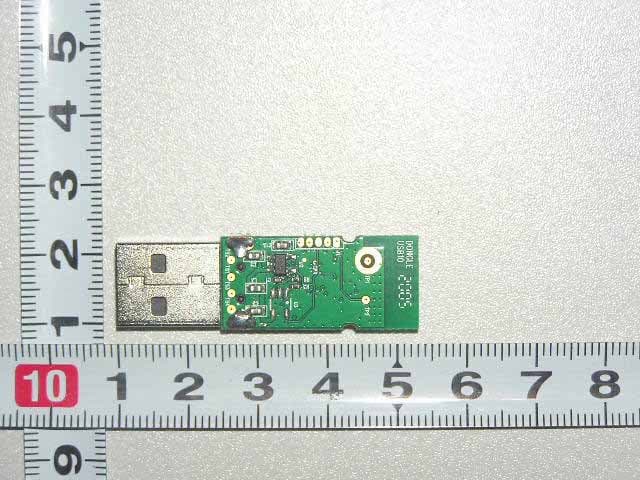
Click to zoom
Application Details
- Equipment Class
- DSS - Part 15 Spread Spectrum Transmitter
- Date of Grant
- Jul 17, 2005
- Application Purpose
- Original Equipment
- Date of Application
- Jul 17, 2005
- Equipment Note
- bluetooth dongle
- Frequency Range
- 2402.00000000 - 2480.00000000
- Country
- China
Documents & Files
Document Text
Text extracted from the exhibit documents filed with the FCC. Open a document above to read the original.
Users Manual
Bluetooth USB Dongle Quick Start Guide NOTE : Read this Quick Start Guide before installing the Bluetooth USB Dongle. For complete safety precautions and configuration details, please read the Bluetooth USB Dongle User’s Guide. PACKAGE CONTENTS Item Location Bluetooth USB Dongle In box Bluetooth USB Dongle Quick Start Guide In box Bluetooth USB Dongle CD-ROM In box Bluetooth Application Software On CD Bluetooth USD Dongle User’s Guide On CD If any item is missing, please contact your product provider. PORDUCT INTRODUCTION The Bluetooth USB Dongle allows a computer with a USD port to communicate with other Bluetooth-enabled devices. When used with the Bluetooth application software, it can perform wireless network applications such as information exchange, file transfer, network access, dial-up networking, headset, audio gateway, printer application, and so on. SYSTEM REQUIERMENTS - Processor: Intel Celeron/Pentium/ Pentium; AMD Duron/ Athlon - Operating System: Microsoft Windows 98SE/ ME/ 2000/ XP - System memory: 32MB at least - Hard Drive Space: 11.5MB 1. Installation Put driver into CD-ROM, and system will run the software automatically. System prompt to select language Click “next” “yes” “next” System install software. 2. Start BlueSoleilTM After installing BlueSoleil TM there are two ways to start the program 1A BlueSoleil TM shortcut icon on the Windows desktop. 2An IVT BlueSoleil TM program group entry in the Windows’ Start / Programs menu. Double-click the BlueSoleil TM shortcut icon on the desktop or click the BlueSoleil TM menu item on the Start/ Programs/ IVT BlueSoleil TM menu to start the BlueSoleil TM software. The BlueSoleil TM icon will be displayed at the bottom right corner of the Windows desktop 2.1 Exit BlueSoleilTM To exit BlueSoleil TM , right-click the BlueSoleil TM icon at the bottom right corner of the Windows task bars and selects Exit on the pop-up menu. Note: Selecting the Close button at the top right corner of the BlueSoleil TM window only hides the BlueSoleil TM window. 2.2 BlueSoleilTM Main Window The BlueSoleil TM Main Window displays all surrounding Bluetooth devices. From the BlueSoleil TM Main Window users can search for surrounding Bluetooth devices and can execute connect/ disconnect functions. The main elements in the BlueSoleil TM Main Window are: My Device Icon Remote Bluetooth Device Icons Bluetooth Service Icons 2.3 My Device Icon This icon represents the client computer. It is called the ‘My Device Icon’ or ‘centre ball’ in this document. Functions: Hover the mouse over the My Device Icon to display the client Bluetooth device name and address. Double-click to start/stop searching for surrounding Bluetooth devices. Drag scrollbar on the right of main window to find other Bluetooth devices if there are more than seven devices. Right-click to display the pop-up menu with related operations. The following colors are used to indicate the status of the Bluetooth service: White (Idle) This is the normal status. Pink (Available) The Bluetooth service is available for the selected device. Yellow (Selected) The service icon has been selected by the user. Green (Connected) The service is connected. Functions: Hover the mouse over the icon to display the service name. Single-click to select the service. Double-click to connect. Click to display the pop-up menu with related operations. 2.4 Start/Stop a Bluetooth Service Select a service icon in service window, and double-click to start/stop a service or select right pop-up menu to send command. 2.5 View the Property of a Service 1. Right-click to display the pop-up menu with related operations in service window. 2. What you need to so before build a connection 3. Inquiring Bluetooth Devices in the vicinity 4. Pairing your desktop or laptop with the associated device 2.6 Pairing your desktop or laptop with a Bluetooth Device Double click the remote Bluetooth device you want to connect and you will be asked to enter the Bluetooth Passkey. Please type the Bluetooth Passkey in the Passkey field. Meanwhile, there will be a Bluetooth Passkey dialog box prompted on the remote laptop or desktop equipped with the Bluetooth device to ask you to enter passkey. The Bluetooth passkey should be the same between paired devices. If the pairing process succeeds, there will be a red check on the paired Bluetooth device icon. 2.7 Services Supported Bluetooth Serial Port—establishes a Bluetooth wireless connection between two devices. The connection may be used by applications as though a physical serial cable connected the devices. Dial-up Networking—allows a Bluetooth client to use a modem that is physically attached to the Bluetooth server. Fax—allows a Bluetooth client to wirelessly send a fax using a device that is physically attached the Bluetooth server. File Transfer –establishes a Bluetooth wireless connection that allows your computer to perform file system operations on another Bluetooth-enabled device-browse, drag/drop, open, print, cut/copy, paste, delete, rename, etc. Headset—allows a Bluetooth client to use a Bluetooth headset as the audio input and output device for this client. Information Exchange—establishes a Bluetooth wireless connection between two devices so that they can exchange personal information manager data such as business cards, calendar items, email messages, and notes. Information Synchronization – establishes a Bluetooth wireless connection between two devices and uses the connection to synchronize Personal Information Manager Data between the two devices. Network Access – establishes a Bluetooth wireless connection between the client and a server that is physically connected to the Local Area Network. If the client has permission (user name and password for the LAN), the wireless connection can be used as if the client were hardwired to the LAN. Audio Gateway – allows a remote Bluetooth device to use this computer’s microphone and speakers as the remote device’s audio input and output devic…
Text truncated - open the document above for the full version.
ID Label/Location Info
FCC ID Label Sample for FCCID: TF5-BX88-CLASS-1 FCCID: TF5-BX88-CLASS-1
Test Report
FCC PART 15 C EMI MEASUREMENT AND TEST REPORT For SHENZHEN BAOXIN TECH CO.,LTD. 3/F Guangtong Industry BLG, Futian District, Shenzhen city, China FCC ID: TF5-BX88-CLASS-1 July 17, 2005 This Report Concerns: Original Report Equipment Type: Bluetooth Dongle Test Engineer: Jimmy Li Report No.: SE05F-090E Test Date: June 28-July 13, 2005 Reviewed By: Adum Liu Prepared By: S&E Product Technology Service Co., Ltd. Room407,Block A Shennan Garden,Hi-Tech Industrial Park, Shenzhen 518057, P.R. China . Tel: 86-755-26636573, 26630631 Fax: 86-755-26630557 Note: This test report is limited to the above client company and the product model only. It may not be duplicated without prior written consent of S&E Product Technology Service Co., Ltd. SHENZHEN BAOXIN TECH CO.,LTD. FCC ID: TF5-BX88-CLASS-1 TABLE OF CONTENTS 1. GENERAL INFORMATION....................................................................................................................................4 1.1 PRODUCT DESCRIPTION FOR EQUIPMENT UNDER TEST (EUT).........................................................................4 1.2 OBJECTIVE............................................................................................................................................................5 1.3 TEST METHODOLOGY...........................................................................................................................................5 1.4 TEST FACILITY......................................................................................................................................................5 2. SYSTEM TEST CONFIGURATION......................................................................................................................6 2.1 DESCRIPTION OF TEST CONFIGURATION.............................................................................................................6 2.2 EQUIPMENT MODIFICATIONS................................................................................................................................6 2.3 DESCRIPTION OF TEST AUXILIARY EQUIPMENTS.................................................................................................6 2.4 CONFIGURATION OF TEST SETUP........................................................................................................................6 2.5 BLOCK DIAGRAM OF TEST SETUP........................................................................................................................7 2.6 LIST OF MEASURING EQUIPMENTS USED............................................................................................................8 3. SUMMARY OF TEST RESULTS...........................................................................................................................9 4. ANTENNA REQUIREMENT.................................................................................................................................10 4.1 STANDARD APPLICABLE.....................................................................................................................................10 4.2 ANTENNA CONNECTED CONSTRUCTION............................................................................................................10 5. TEST OF CONDUCTED EMISSION...................................................................................................................11 5.1 MEASUREMENT UNCERTAINTY...........................................................................................................................11 5.2 APPLICABLE STANDARD.....................................................................................................................................11 5.3 EUT SETUP........................................................................................................................................................11 5.4 INSTRUMENT SETTING........................................................................................................................................12 5.5 TEST EQUIPMENT LIST AND DETAILS.................................................................................................................12 5.6 TEST PROCEDURE..............................................................................................................................................12 5.7 TEST DATA.........................................................................................................................................................12 6. TEST OF HOPPING CHANNEL BANDWIDTH................................................................................................15 6.1 MEASUREMENT UNCERTAINTY...........................................................................................................................15 6.2 APPLICABLE STANDARD.....................................................................................................................................15 6.3 EUT SETUP........................................................................................................................................................15 6.4 INSTRUMENT SETTING........................................................................................................................................15 6.5 TEST EQUIPMENT LIST AND DETAILS.................................................................................................................15 6.6 TEST PROCEDURE..............................................................................................................................................15 6.7 TEST DATA.........................................................................................................................................................16 7. TEST OF HOPPING CHANNEL SEPARATION...............................................................................................19 7.1 MEASUREMENT UNCERTAINTY....................................................…
Text truncated - open the document above for the full version.
Test Setup Photos
Conducted Emission Test Radiated Emission Test
Contact Information
Applicant
LIU XIAO CHUN(Manager)
Test Firm
Shenzhen Huatongwei International Insp. Co., LtdMoffy Yu
Technical Specifications
| # | Rule Parts | Frequency Range | Power Output |
|---|---|---|---|
| 1 | 15C | 2.40 GHz - 2.48 GHz | 1.00 µW |
Other Applications from Shenzhen Baoxin Tech Co., Ltd.
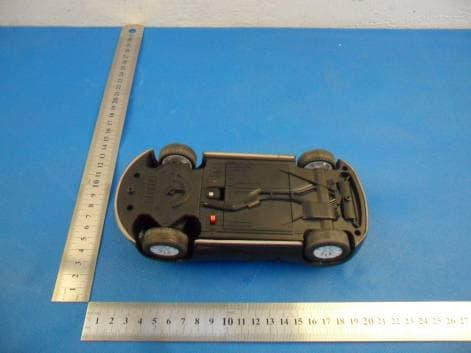
TF5-MINICAR
Aug 26, 2012Mini Car
Equipment Class
DSS - Part 15 Spread Spectrum Transmitter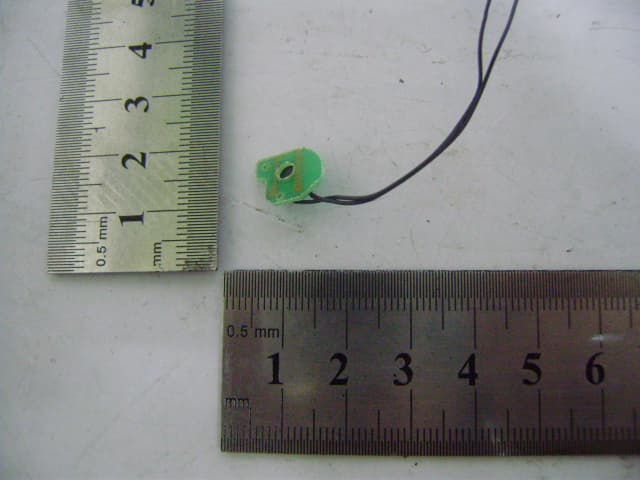
TF5KEYBOARD
May 24, 2010BLUETOOTH KEYBOARD
Equipment Class
DSS - Part 15 Spread Spectrum Transmitter