TL9PREMIER16Satellite Reveiver
Cool Sky Co. Ltd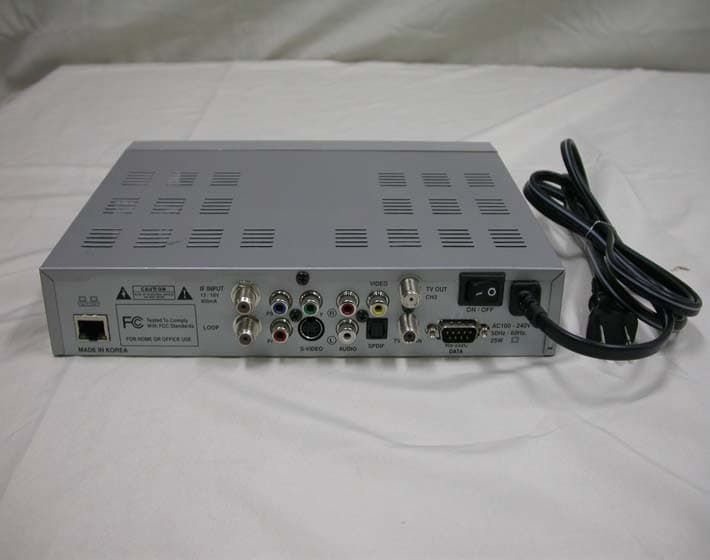
Click to zoom
Application Details
- Equipment Class
- HID - Part 15 TV Interface Device
- Date of Grant
- May 05, 2006
- Application Purpose
- Original Equipment
- Date of Application
- May 03, 2006
- Equipment Note
- Satellite Reveiver
- Frequency Range
- 61.25000000 - 67.25000000
- Company
- Cool Sky Co. Ltd
- Country
- South Korea
Documents & Files
Document Text
Text extracted from the exhibit documents filed with the FCC. Open a document above to read the original.
Users Manual
Depending on certain TP or satellite, the Network Search function may not work. 10. To use the Multi Search function, connect the DiSEqC switch or set the DiSEqC 1.2 of Installation. You can search all the channels from the satellites which you select. Select the satellites by FAV button, and press Multi Search. 11. In case of searching a certain satellite which can not be searched by TP Search, add channels by PID. Select Add Channel and input proper Channel name and input the values of Video PID, Audio PID and PCR PID. Then, press OK button from the Add item. [ Network Search ] Network search function is enable to search new TPs and all channels in all TPs. *Network Search : TP Configuration --> Search Channels(Network Search) --> Network Search(Search TP) 13 S e t t i n g s a n d O p e r a t i o n s Note 4.2 Viewing TV(or Radio) 1. Press the Power button. 2. Press the TV(or Radio) button. 3. If you want to see all TV channel list, click the MENU button and then select the TV Channels(or Radio Channels). TV Channels(or Radio Channels) window will appear. Click the , you will see current Satellite name box. Select any satellite in the satellite name box, only the TV list of selected satellite will be displayed. Viewing Favorite Channel 1. Press FAV key. 2. Select a CH . To move to next or previous page, press PAGE UP/DOWN buttons on Favorite TV(or Radio) List. 14 V i e w i n g T V VOL Edit TV Channels / Edit Radio Channels From these menus you can creat and edit channel list. Press OK button from Edit TV Channels and similar screen will be shown as below. Edit Satellite LIst. You can select your own satellites by creating favorite satellite list. To change the name of satellites, press “INFO” button on RCU. Arrange channel To change the channel orders from TV List, press OK button from your desired channel. Then you should move to desired number by pressing CH , after then press OK button. Its orders will be changed. Delete channel To delete a certain channel from current TV List, press CLEAR button on the channel to be deleted. To confirm the deletion, press CLEAR button once more. To cancel the deletion procedure, press FAV button. 15 S e t t i n g s a n d O p e r a t i o n s
Users Manual
Creat favorite channel You can creat favorite channel list, containing the channel which you want to watch frequently. Press FAV button channel you want, and then selected channel will be moved toFavorite List box. To delete the disired channel from the Favorite List, press CLEAR button. Help function You can see the functions of each button in Edit TV List. Select the HELP button. Sort If you want to sort channels in order, select the SORT button in Edit channels. You can select the order you want. Lock Channels From here you can lock channels in any of the lists in order to prevent your children from watching. If you have the password already and want to lock a certain channel, press F.BK button at the desired channel. Everytime you watch the channel, the unit will ask you to input password. 16 H e l p F u n c t i o n Edit Channel Name 1. Press INFO button on Edit TV or Edit Radio list. Cursor will be moved by using VOL , CH . 2. Press OK button on desired alphabet. To delete pre-selected alphabet, press CLEAR button. 3. To change character set(upper, lower, number), press INFO button. By using MENU button, it will be automatically stored and moved to previous menu. Parental Control If you use this funciton you have to enter the password everytime you start this satellite receiver. 1. Select Parental Control on the installation. 2. To secure program setting and installation, select Change Password. 3. Input 4 digits New Password. And input password Confirm New once more. After all the password function is set, the unit will ask you to input password to get into the menus of Installation and System Settings. Input correct password which was already stored. If the password is forgotten, contact your service provider. 17 S e t t i n g s a n d O p e r a t i o n s 4.3 Other functions Audio Selection If broadcasting channel is supporting multi language, different language can be selected from Audio Selection. 1. To select different language on current channel, select Audio Selection on the Main Menu. 2. Press OK button on your favorite language. According to different audio data on each channel, up to 4 different audio language types can be selected. TV Guide Press GUIDE button of RCU for channel information. This function works in digital mode only. Teletext function Pressing the TEXT button will open a Teletext page. Select teletext pages with the numeric buttons on the RCU. From Teletext Screen CLEAR Overlay background screen and teletext mode according to the following 18 O t h e r f u n c t i o n s order(transparency - Teletext only - Opacity) INFO Hold of current Teletext page PAGE UP/DOWN Move previous and next page in one CH UP/DOWN Move previous and next page in one FAV/TV/RADIO/F.BK/LANG/AUDIO 100/200/300/400/500/600 page level 0 ~ 9 Select Teletext page EXIT Exit teletext mode Clock Function - From the Front Pannel Menu button The clock shows 12:00 o’clock on the front panel when the power is off. If user press MAIN button, the 12:00 o’clock is on and off continually and then user can set up the time using the VOL, CH, OK buttons. If user press MENU button again, the setting is finished and the time works regularly. Channel button This CH allows user to set up the time. Volume button This VOL allows user to set up the minute. OK button This OK button allows user to finish the setup of time. If user press OK button after setting up time, the on and off is gone on the front panel and the time works regularly. [ Screen Division Function ] You can check other channels (still picture mode) while you are watching a specific alive channel with this function. 1. In the full screen mode, press "OSD” key in the Remote Control then you will get 4 divided pictures. 19 S e t t i n g s a n d O p e r a t i o n s 2. By pressing "VOL " key, you can select a frame one by one. Selected frame will provide you a live picture. 3. By pressing ”CH “ key, you can change the channel in the selected frame. 4. Press “Exit” key, then the function goes to the full screen mode. 5. If you press “OSD” key one more time in the No.1 stage above, you will have 13 divided pictures and operations are same as above. 20 O t h e r s f u n c t i o n s 4.4 System Settings Please make sure to press OK button always, after the changing items of System Settings. • Language Setting Select the language which you desire to display on the screen for your system. Press OK button to get in more options. Audio language Only if a current channel contains 2 or more audio language information, set the Audio Language as English or other favorite language. Then press OK button for its confirmation. Menu Language For menu language selection, select desired language from Menu Language of system Settings. Subtitle Mode Subtitle is a printed version of the dialogue, narration, and/or sound effects of a TV program. Subtitle will appear at either the top or bottom of the screen during Subtitle Language 21 S e t t i n g s a n d O p e r a t i o n s Please select the primary and secondary languages in your area. TV Standard Except for a few, most countires are using PAL system for TV signal, accordingly set TV Standard as PAL. To be more flexible for NTSC or PAL signal from different satellites, select MULTI for automatic signal conversion. Then press OK button for its confirmation. Time Adjustment To set the receiver time for EPG(Electronic Program Guide), set the time according to GMT(Greenwich Mean Time) by using CH . If EPG in England is needed to set, adjust as 00:00. In the case of Beijing, adjust as 08:00. Time Settings Use clock, sleep, on/off Timer function by choosing time settings menu. 1. Press CH buttons or number buttons to set the local time. 2. Set the time STB turns on with on Timer setting menu. 3. Select a channel you wish to see in running the on Timer function. 4. Set the time STB turns off with off Timer setting menu. 22 S y s t e m S e t t i n g s TV Aspect Ratio Select 4:3 for normal TV or 16:9 for wide TV. Then press OK b…
Text truncated - open the document above for the full version.
Cover Letter(s)
COOL SKY CO.LTD ShinSung Bldg., A-511 #1588-1, Seocho-dong, Seocho-Gu, Seoul,Korea TEL : +82-2-6203-0812 FAX : 82-2-6203-0813 Federal Communications Commission Authorization and Evaluation Division FCC ID : TL9PREMIER16 Confidentiality Request Pursuant to Sections 0.457 and 0.459 of the Commission’s Rules, the Applicant hereby requests confidential treatment of information accompanying this Application as outlined below: Schematics Block Diagram The above materials contain trade secrets and proprietary information not customarily released to the public. The public disclosure of these matters might be harmful to the Applicant and provide unjustified benefits to its competitors. The Applicant understands that pursuant to Rule 0.457, disclosure of this Application and all accompanying documentation will not be made before the data of the Grant for this application. Sincerely, Wan-Su, An / Manager Engineer COOL SKY CO.LTD TEL : +82-2-6203-0812 FAX : +82-2-6203-0813
Cover Letter(s)
FCC ID : TL9PREMIER16 POWER OF ATTORNEY To whom it may concern: We the undersigned COOL SKY CO.LTD hereby authorize ESTECH Co., Ltd.(EST) of Korea to act on our behalf in all matters relating to all processes required in the FCC Part 15C approval and any communication needed with the national authority. Any and all acts carried out by EST on our behalf shall have the same effects as acts of our own. If you have any questions regarding the authorization, please don’t hesitate to contact us. Sincerely yours, Sign: Wan- Su ,An / Manager Engineer Tel:82-2-6203-0812 Fax: 82-2-6203-0813
External Photos
1. FRONT 2. REAR
ID Label/Location Info
COOL SKY CO. LTD Digial Satellite Receiver MODEL : Neosat Premier16 FCC ID : TL9PREMIER16 This device complies with part 15 or rhe FCC Rules. Operation is subject to the dollowing two conditions : (1) This device may not cause harmful interference, and (2) this device must accept ant interference received, including interference that may cause undesired
Internal Photos
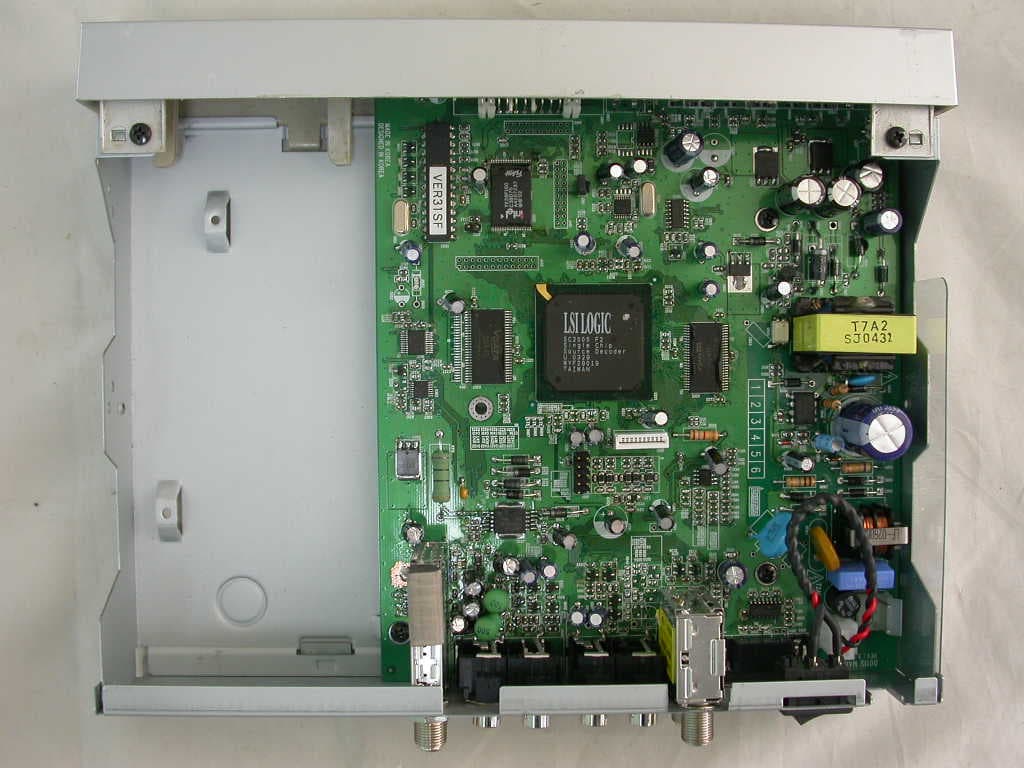
INTERNAL PHOTO 1. MAIN 1.1 Front 1.2 Rear 2.Network Interface 2.1 Front 2.2 Rear 3. Tuner 3.1 Front 3.2 Rear
Operational Description
FCC ID TL9PREMIER16 -Operational description-
Contact Information
Applicant
An Wan-Su(Senior Engineer)
Test Firm
ESTECH Co., Ltd.Yang Jinmo
Technical Specifications
| # | Rule Parts | Frequency Range | Power Output |
|---|---|---|---|
| 3 | 15B | 61.25 MHz - 67.25 MHz | - |
Other Applications from Cool Sky Co. Ltd
TL9NEOSATLITE
Nov 14, 2005Digital Satellite Receiver
Equipment Class
HID - Part 15 TV Interface Device