TYM-9641GSIP Deskphone
AVAYA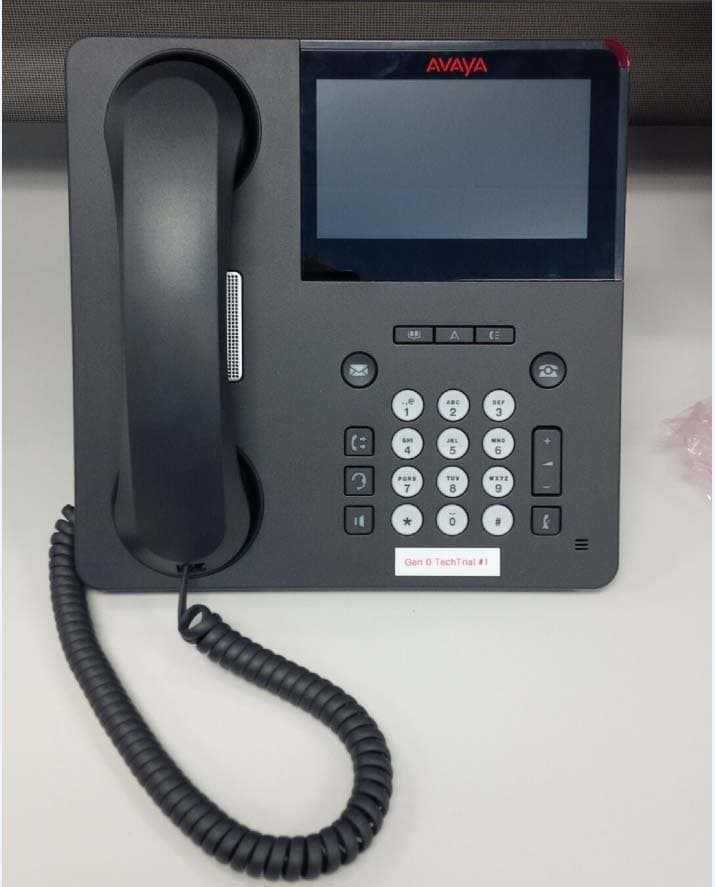
Click to zoom
Application Details
- Equipment Class
- DSS - Part 15 Spread Spectrum Transmitter
- Date of Grant
- Feb 26, 2015
- Application Purpose
- Original Equipment
- Date of Application
- Feb 25, 2015
- Equipment Note
- IP Deskphone
- Frequency Range
- 2402.00000000 - 2480.00000000
- Company
- AVAYA
- Country
- Canada
Documents & Files
Document Text
Text extracted from the exhibit documents filed with the FCC. Open a document above to read the original.
Users Manual
Avaya 9621G/9641G/9641GS IP Deskphones H.323 Quick Reference Release 6.6 November 2014 Menu options The following image shows the menu options that are available to you to view the current settings and configure the required parameters on the Avaya 9621G, 9641G, and 9641GS IP deskphones. Settings My Pictures Weather World Clock Favorites Help Browser Options & Settings Bluetooth Setup Network Information VPN Settings Logout Light Off Touch Screen Cleaning About Avaya IP Deskphone Call Settings Application Settings Screen & Sound Options Advanced Options Home Page Automatic Gain Control Headset Equalization Brightness Contrast Personalized Ringing Button Clicks Error Tones Phone Screen Width History Log Bridged Calls Personalized Button Labels Restore Default Labels Go to Phone Screen On Calling Go To Phone Screen On Ringing Go To Phone Screen On Answer Display Call Timer Redial Visual Alerting Audio Path Pair Contacts To Calls Note: Bluetooth setup option is available on the Avaya 9641G and 9641GS IP deskphones. Your deskphone might not display some options on your deskphone if your administrator has not configured the options for your extension. Answering and making a call Answering a call Answer an incoming call in one of the following ways: • If you are not on another call, lift the handset, touch the ringing call appearance line, tap Answer softkey to answer the call using the speakerphone, or press Headset to answer using the headset. • If you are on another call, you might need to put the active call on hold first before answering the new call. If the phone does automatically display the incoming call, you can tap Ans Hold softkey or incoming call appearance to automatically put the first call on hold when you answer the new call. Also, you can tap Ans Drop softkey to automatically drop the first call when you answer the new call. • If you have paired a Bluetooth headset for use with the 9641G or 9641GS deskphone, press the Answer button on the Bluetooth headset to answer an incoming call . • To automatically display the Phone screen when you receive an incoming call, set the Phone Screen on Ringing option to Yes. Making a call 1. Lift the handset, or press Speaker or Headset (if applicable) or touch an idle call appearance line. 2. Dial the number you want to call. If you have a favorite icon on the Home screen for the person you want to call, tap that icon to initiate dialing. Putting a call on hold 1. If you are not active on the line you want to put on hold, tap that line. 2. Tap Hold. Note: The phone might display a hold timer when you put a call on hold. 3. Tap Resume or the call appearance of the held call to retrieve the call. Transferring a call 1. Keep the call you want to transfer active and tap Transfer from the Phone screen. 2. Dial the number to which you want to transfer the call. 3. Tap Complete to transfer the call. Activating call forwarding 1. Press Forward to gain access to the main Forwarding screen. 2. Tap Call Forward. 3. Enter the destination number to which you want to forward your calls. 4. Tap Enter. After you enter the forwarding number, you hear a confirmation tone. Using the conference feature Setting up a conference call 1. Select any idle call appearance and dial the first conference participant. 2. From the Phone screen, tap Conference. 3. Dial the telephone number, or call the person from the contacts list, or call the person from the History list. 4. When the person answers, tap Join to add the person to the existing call. 5. To add another party to the conference call, tap Add. 6. Repeat Steps 3 and 4 to add another person to the conference call. 7. To see a list of the conference participants, tap the Details icon on the Conference Call line and then either: • Tap a participant name and tap Silence to mute the person. • Tap a participant name and tap Drop to drop this person from the conference call. • Tap Refresh to refresh the conference details. • Tap Back to exit the conference details screen and return to the Phone screen. Contacts Searching for a contact 1. Press Contacts. 2. With the phone on hook, use the dialpad to start typing the name you want to search. Keep in mind how your Contact list is set up. If you set up your contacts as Last Name, First Name start typing the letters of the last name. If you have set up your Contacts using a different scheme, type the most likely letter(s) that would match the contact you want to find. 3. When you see the contact you can: • Tap the phone number of the contact to dial, or • Tap the Details button next to the contact's phone number to select a different phone number or see detail information about this contact. Calling a person from the contacts list 1. Press Contacts. 2. Find the contact that you want to call by typing the name of the person as listed. DRAFT—November 13, 2014—4:11 AM (UTC)Avaya - Proprietary. Use pursuant to the terms of your signed agreement or Avaya policy.1 For example, if you added John Smith to your contacts List as “Smith, John”, start typing the last name rather than his first name. Each time you press the dialpad, the list display shifts to match your input. You can also scroll up or down to locate the contact. 3. To call the primary number for the contact, touch the line on which the contact name appears. 4. To call a non-primary number, touch the Details button to move to the detail information fields for the contact, then touch the desired number. Adding a new contact 1. Press Contacts. 2. Tap New. 3. Enter the name using the on-screen keyboard or the dial pad. 4. Tap the check mark to move to the number entry screen. 5. Enter the number. The first number entered is the primary number of a contact. The Contacts list always displays the primary number first. The contact number can include a-z, A-Z, 0-9, and the following special symbols: comma (,), space, dash (-), dot (.), + , * , #, $, &, !, ~, ?, +, =, |. A comma (,) inserts a pause during dialing. 6. Tap the chec…
Text truncated - open the document above for the full version.
Users Manual
Using Avaya 9621G/9641G/9641GS IP Deskphones H.323 Release 6.6 November 2014 Avaya - Proprietary. Use pursuant to the terms of your signed agreement or Avaya policy. DRAFT—November 13, 2014—5:00 AM (UTC) © 2014 Avaya Inc.1 All Rights Reserved.2 Notice3 While reasonable efforts have been made to ensure that the4 information in this document is complete and accurate at the time of5 printing, Avaya assumes no liability for any errors. Avaya reserves6 the right to make changes and corrections to the information in this7 document without the obligation to notify any person or organization8 of such changes.9 Note10 Using a cell, mobile, or GSM phone, or a two-way radio in close11 proximity to an Avaya IP telephone might cause interference.12 Documentation disclaimer13 “Documentation” means information published by Avaya in varying14 mediums which may include product information, operating15 instructions and performance specifications that Avaya may generally16 make available to users of its products and Hosted Services.17 Documentation does not include marketing materials. Avaya shall not18 be responsible for any modifications, additions, or deletions to the19 original published version of documentation unless such20 modifications, additions, or deletions were performed by Avaya. End21 User agrees to indemnify and hold harmless Avaya, Avaya's agents,22 servants and employees against all claims, lawsuits, demands and23 judgments arising out of, or in connection with, subsequent24 modifications, additions or deletions to this documentation, to the25 extent made by End User.26 Link disclaimer27 Avaya is not responsible for the contents or reliability of any linked28 websites referenced within this site or documentation provided by29 Avaya. Avaya is not responsible for the accuracy of any information,30 statement or content provided on these sites and does not31 necessarily endorse the products, services, or information described32 or offered within them. Avaya does not guarantee that these links will33 work all the time and has no control over the availability of the linked34 pages.35 Warranty36 Avaya provides a limited warranty on Avaya hardware and software.37 Refer to your sales agreement to establish the terms of the limited38 warranty. In addition, Avaya’s standard warranty language, as well as39 information regarding support for this product while under warranty is40 available to Avaya customers and other parties through the Avaya41 Support website: http://support.avaya.com or such successor site as42 designated by Avaya. Please note that if you acquired the product(s)43 from an authorized Avaya Channel Partner outside of the United44 States and Canada, the warranty is provided to you by said Avaya45 Channel Partner and not by Avaya.46 Licenses47 THE SOFTWARE LICENSE TERMS AVAILABLE ON THE AVAYA48 WEBSITE, HTTP://SUPPORT.AVAYA.COM/LICENSEINFO OR49 SUCH SUCCESSOR SITE AS DESIGNATED BY AVAYA, ARE50 APPLICABLE TO ANYONE WHO DOWNLOADS, USES AND/OR51 INSTALLS AVAYA SOFTWARE, PURCHASED FROM AVAYA INC.,52 ANY AVAYA AFFILIATE, OR AN AVAYA CHANNEL PARTNER (AS53 APPLICABLE) UNDER A COMMERCIAL AGREEMENT WITH54 AVAYA OR AN AVAYA CHANNEL PARTNER. UNLESS55 OTHERWISE AGREED TO BY AVAYA IN WRITING, AVAYA DOES56 NOT EXTEND THIS LICENSE IF THE SOFTWARE WAS57 OBTAINED FROM ANYONE OTHER THAN AVAYA, AN AVAYA58 AFFILIATE OR AN AVAYA CHANNEL PARTNER; AVAYA59 RESERVES THE RIGHT TO TAKE LEGAL ACTION AGAINST YOU60 AND ANYONE ELSE USING OR SELLING THE SOFTWARE61 WITHOUT A LICENSE. BY INSTALLING, DOWNLOADING OR62 USING THE SOFTWARE, OR AUTHORIZING OTHERS TO DO SO,63 YOU, ON BEHALF OF YOURSELF AND THE ENTITY FOR WHOM64 YOU ARE INSTALLING, DOWNLOADING OR USING THE65 SOFTWARE (HEREINAFTER REFERRED TO66 INTERCHANGEABLY AS “YOU” AND “END USER”), AGREE TO67 THESE TERMS AND CONDITIONS AND CREATE A BINDING68 CONTRACT BETWEEN YOU AND AVAYA INC. OR THE69 APPLICABLE AVAYA AFFILIATE (“AVAYA”).70 Avaya grants you a license within the scope of the license types 71 described below, with the exception of Heritage Nortel Software, for72 which the scope of the license is detailed below. Where the order73 documentation does not expressly identify a license type, the74 applicable license will be a Designated System License. The75 applicable number of licenses and units of capacity for which the76 license is granted will be one (1), unless a different number of77 licenses or units of capacity is specified in the documentation or other78 materials available to you. “Software” means Avaya’s computer79 programs in object code, provided by Avaya or an Avaya Channel80 Partner, whether as stand-alone products, pre-installed , or remotely81 accessed on hardware products, and any upgrades, updates, bug82 fixes, or modified versions thereto. “Designated Processor” means a83 single stand-alone computing device. “Server” means a Designated84 Processor that hosts a software application to be accessed by85 multiple users. “Instance” means a single copy of the Software86 executing at a particular time: (i) on one physical machine; or (ii) on87 one deployed software virtual machine (“VM”) or similar deployment.88 License types89 Designated System(s) License (DS). End User may install and use90 each copy or an Instance of the Software only on a number of91 Designated Processors up to the number indicated in the order.92 Avaya may require the Designated Processor(s) to be identified in93 the order by type, serial number, feature key, Instance, location or94 other specific designation, or to be provided by End User to Avaya95 through electronic means established by Avaya specifically for this96 purpose.97 Shrinkwrap License (SR). You may install and use the Software in98 accordance with the terms and conditions of the applicable license99 agreements, such as “shrinkwrap” or “clickthrough” license100 accompanying or applicable to the Software (“Shrinkwrap License”).101 Copyright102 Except where expressly stated otherwise, no use should be made of103 materia…
Text truncated - open the document above for the full version.
External Photos
Figure 1: 9641GS Perspective view with Dimensions 230mm x 230mm x 35mm Figure 2: 9641GS Front View Dimensions 230mm x 230mm x 35mm Figure 3: 9641GS Left Side View Figure 4: 9641GS Right Side View Figure 5: 9641GS Rear View Figure 6: 9641GS Top View Figure 7: 9641GS Bottom View
ID Label/Location Info
IC: 3794C-9641GS FCC ID:TYM-9641GS This Class B digital apparatus complies with Canadian ICES-003. Cet appareil numérique de la classe B est conforme à la norme NMB-003 du Canada. Complies with IDA Standards DA102045 AM-700510525.ai L. Derechailo 3/30/07 9641GS Draft Regulatory Label 11/17/14 J. Sutton 1 ECO: C12950 J. Sutton NOTES: 1. MATERIAL: POLYCARBONATE (PC) T=0.127MM + 0.05MM ADHESIVE 2. TEXTURE: MATTE 3. FINISH: PRINT ON BACK SURFACE, ADHESIVE ON BACK SURFACE 4. COLOUR: LETTERS & ICONS: PANTONE COOL GRAY 2C BACKGROUND: BLACK KEYLINE AND DIMENSIONS ARE FOR REFERENCE ONLY AND DO NOT PRINT TELEPHONE/TELÉFONO: IP/DIGITAL/产品名称: IP专用电话机 MODEL/MODELO/型号: 9641GS MADE IN/HECHO EN CHINA/中国制造
Internal Photos
Figure 8: 9641GS Primary side of Motherboard Figure 9: 9641GS Secondary side of motherboard (right). Primary side of keyboard (left) Figure 10: 9641GS Secondary side of keyboard Figure 11: 9641GS Close‐up of the Bluetooth radio section
Operational Description
Avaya 9641GS IP Deskphone Pr ovides sophisticated capabilities for e cient, high-speed call management and enriched communications Competitivel y priced and high performing, the Avaya 9641GS IP Deskphone has a color graphical display, lar ge capacitive touchscreen, high de nition audio quality, Gigabit Ethernet, a secondar y Ethernet port, and support for up to three 12- or 24-button Expansion Modules. Part of the 9600 Series IP Deskphone family, the 9641GS leverages your enterprise IP Network to deliver sophisti cated voice communications from headquarters to remote locations and users . In tegrated with the Avaya Aura ® and Avaya IP O ce™ Platforms, the evolutionary approach of the 9641GS optimizes communications through a exible architecture that leverages existing investments and accommodates changing business needs. Key Features and Bene ts • Improved touch technology; Capacit ive touch for fast, light, and accurate response • Delivers high de nit ion audio that will delight any employee, particularly those who spend a lot of time on the phone and/or frequently have multi- party conference calls • Facilitates access to information through an easy-to-read, high resolution color display • Speeds completion of common tasks with intuit ive prompt s on the touchscreen and easy one-touch access from the “home” screen to other applications • Supports enhanced productivit y by improving call contr ol and management through a graphical display that anticipates user intentions and makes contextual menus, prompts and instr uctions easy to read • Supports reduced energy consumption and costs through Power-over-Ethernet Class 2 design with “sleep mode” Avaya Collaboration Exper ience Avaya Collaboration Experience on the Avaya 9641GS Deskphone (SIP version only) takes advantage of the large, color display to deliver touchscreen calling and easy access to a select group of features that are crit ical to collaboration, including: • Microsoft Exchange Integration: Download up to 250 contacts from Outlook into the phone’s directory. Have calendar reminders appear on the screen of the phone. • Consolidated Phonebook/Call-IM History: Store up to six phone numbers for up to 250 contacts and see a history of recent calls and IMs for each one. • Avaya Aura ® Conferencing: Use the touchscreen interface to set up a call, add/drop participants, hold a sidebar conference, make another call, send an IM—all while the conference call is in progress. avaya.com | 1 Avaya 9641GS IP Deskphone is a multi-l ine premium deskphone ideally suited for users who rel y on intelligent communications and productivity enhancing capabili ties. © 2014 Avaya Inc. All Rights Reserved. Avaya and the Avaya logo are trademarks of Avaya Inc. and are registered in the United States and other countries. All other trademarks identified by ®, TM, or SM are registered marks, trademarks, and service marks, respectively, of Avaya Inc. 12/14 • UC4562-05 About Avaya Avaya is a leading, global provider of customer and team engagement solutions and services available in a variety of flexible on-premise and cloud deployment options. Avaya’s fabric- based networking solutions help simplify and accelerate the deployment of business critical applications and services. For more information, please visit www.avaya.com. 2 | avaya.com • Presence: Combine with Avaya Aura ® Presence Services to see the presence status of your contacts and to advertise your own status. Contact Center Model Software for the 9641GS designed for contact centers takes advantage of the touchscreen to simplify access to a range of features for enhancing agent productivity, such as handling greetings, monitoring calls in the queue, updating status and quickly completing many other day-to-day tasks. An optional contact center faceplate (eliminating the handset) and/or dual headset adapter make it a valuable addition to any contact center. Specifications Hardware: • Color display 5” diagonal 4.4 inches x 2.5 inches (110.9mm x 62.8mm) • Configurable line appearance/ feature key buttons • Capacitive touchscreen for high accuracy and light touch • 4 position adjustable tilt display • Permanently-labeled feature buttons: speaker, mute, headset, contacts, home, history, message, phone, forwarding, volume (separate volume levels in handset, speaker, ringer, and headset) • Red LEDs for speaker, mute, headset, message and history • 24 administrative buttons with 5 lines displayed (configuration dependent) • Wideband speakerphone • 0-5 Softkeys • Ergonomic hearing aid compatible handset supporting TTD acoustic coupler • Message waiting indicator • 360-degree visual alert for incoming calls and voicemail • Rich, classic, alternate ringtones • Reversible wedge stand for desktop or wall-mount use and dual-position flip stand • Headset jack with EHS, supported by compatible headset vendors • Integrated Bluetooth headset support (H.323 only) • Ethernet (10/100/1000) line interface • Secondary Ethernet (10/100/1000) line interface • IEEE PoE 802.3af class 2 device Software: • SIP protocol support on Avaya Aura Platform • H.323 protocol support • Standards-based codec support: G.711, G.726, G.729A/B G.722 (G.726 is not available in SIP) • Supports the following languages: Arabic, Brazilian Portuguese, Simplified Chinese, Dutch, English, Canadian French, Parisian French, German, Hebrew, Italian, Japanese (Kanji, Hiragana and Katakana), Korean, Latin American Spanish, Castilian Spanish, and Russian Requirements and Platform Support • Avaya Aura ® Communication Manager 6.x or greater (H.323) • Avaya Aura ® Communication Manager 6.x with Avaya Aura ® Session Manager 6.x • IP Office 8.1 or greater (H.323) • Local or centralized electrical power through a 802.3af switch, or local power supply • HTTP file server Learn More To learn more about the 9641GS IP Deskphone and 9600 Series IP Deskphones contact your Avaya Account Manager, Avaya Authorized Partner or visit avaya.com for white papers, case studi…
Text truncated - open the document above for the full version.
RF Exposure Info
ONE WORLD OUR APPROVAL Nemko Canada Inc., 303 River Road, Ottawa, Ontario, Canada K1V 1H2 Tel: +1 (613) 737 9680, Fax: +1 (613) 737 9691, Email : [email protected] app 1, May 2013 www.nemko.com RSS-102, Issue 4 1. Annex C, Declaration of RF exposure compliance for exemption from routine evaluation limits Company number: 3794C Model number: 9641GS Manufacturer: Avaya Inc. 2.5.1 SAR evaluation: SAR evaluation is required if the separation distance between the user and the radiating element of the device is less than or equal to 20 cm, except when the device operates as follows: ☐ from 3 kHz up to 1 GHz inclusively, and with output power (i.e. the higher of the conducted or equivalent isotropically radiated power (e.i.r.p.) source-based, time-averaged output power) that is less than or equal to 200 mW for general public use and 1000 mW for controlled use; ☐ above 1 GHz and up to 2.2 GHz inclusively, and with output power (i.e. the higher of the conducted or radiated (e.i.r.p.) source-based, time-averaged output power) that is less than or equal to 100 mW for general public use and 500 mW for controlled use; ☐ above 2.2 GHz and up to 3 GHz inclusively, and with output power (i.e. the higher of the conducted or radiated (e.i.r.p.) source-based, time-averaged output power) that is less than or equal to 20 mW for general public use and 100 mW for controlled use; ☐ above 3 GHz and up to 6 GHz inclusively, and with output power (i.e. the higher of the conducted or radiated (e.i.r.p.) source-based, time-averaged output power) that is less than or equal to 10 mW for general public use and 50 mW for controlled use. 2.5.2 RF exposure evaluation: RF exposure evaluation is required if the separation distance between the user and the device's radiating element is greater than 20 cm, except when the device operates as follows: ☐ below 1.5 GHz and the maximum e.i.r.p. of the device is equal to or less than 2.5 W; ☒ at or above 1.5 GHz and the maximum e.i.r.p. of the device is equal to or less than 5 W. Measured peak field strength is 100.8 dBμV/m @ 3 m. E.i.r.p.[W] = 5.57 dBm = 3.6 mW < 200 mW (SAR and RF exposure evaluations are not applicable) E = field strength [V/m] and R = distance [m] 2. Attestation ATTESTATION: I attest that the testing was performed or supervised by me; that the test measurements were made in accordance with the above-mentioned departmental standard(s), and that the radio equipment identified in this application has been subject to all applicable test conditions specified in the departmental standards and all of the requirements of the standards have been met. Signature: Date: January 21, 2015 Name: Andrey Adelberg, Senior Wireless/EMC Specialist Test report cover sheet
Test Report
DC-01(E) Issue 5 Compan y Type of se □ Single □ New Fa □ Multiple □ Previous □ Reasses □ Other Registratio (IC: Decla Model Num Descriptio IP Phone Applicable □ Part I □ Part II □ Part III □ Part IV ATTESTA accordance terminal eq departmen Signature: Date: Jan 0 Name and Note: Thi s 5 August 2014 Name: Avaya rvice: mily e Listing s sment on Number aring Party Co mber(s): 9641 on of Equipme e CS-03 Specif ATION: I attest e with the abov quipment ident tal standards an 07 2015 d Title (Please s form must be A a Inc. ompany Numb 1GS ent (if this is a fications or St t that the testing ve-mentioned d tified in this ap nd that all of th print or type) completed and Annex B – ber / Unique P component de tandards: g was performe departmental st plication has b he requirement ): Miguel De A d provided with Test Repor Manufa Network Handset with CS-03 Exempted Interface (HAC / ROLR) Equipme Product Numb RingerE Not App evice, indicate □ Part V □ Part VI □ Part VII □ Part VIII ed or supervise tandard(s) with been subject to ts of the standa Araujo; Title: h the submissio rt Cover Sh acturer: Avaya k Interface Cod ent Category N ber): 3794C‐9641GS EquivalenceN plicable as an ethe host equi ed by me; that hin the recogniz all applicable t ards have been AQTL Lab P on. heet a Inc. de: Number(s): 20 Number: n IP Phone ipment used fo the test measur zed scope of ac test conditions met. Prime. Page 1 or test): rements were m ccreditation, an s specified in th of 1 made in nd that the he
Test Report
www.nemko.com Nemko Canada Inc., a testing laboratory, is accredited by the Standards Council of Canada. The tests included in this report are within the scope of this accreditation FCC 15.247 and RSS-210 A8.docx; Date: May 2013 SCC Accredited LAB LAB Accrédité CCN TM ONE WORLDOURAPPROVAL Test report 274939-2TRFWL Date of issue: February 10, 2015 Applicant: Avaya Inc. Product: 9600 Series IP Deskphone Model: 9641GS FCC ID: IC Registration number: TYM-9641GS 3794C-9641GS Specifications: FCC 47 CFR Part 15 Subpart C, §15.247 Operation in the 902–928 MHz, 2400–2483.5 MHz, 5725–5850 MHz RSS-210, Issue 8, December 2010, Annex 8 Frequency Hopping and Digital Modulation Systems Operating in the 902–928 MHz, 2400–2483.5 MHz, and 5725–5850 MHz Bands Report reference ID: 274939-2TRFWL Page 2 of 37 Test location Company name: Nemko Canada Inc. Address: 303 River Road City: Ottawa Province: Ontario Postal code: K1V 1H2 Country: Canada Telephone: +1 613 737 9680 Facsimile: +1 613 737 9691 Toll free: +1 800 563 6336 Website: www.nemko.com Site number: FCC: 176392; IC: 2040A-4 (3 m semi anechoic chamber) Tested by: Andrey Adelberg, Senior Wireless/EMC Specialist Reviewed by: Kevin Rose, Wireless/EMC Specialist Date: February 10, 2015 Signature: Limits of responsibility Note that the results contained in this report relate only to the items tested and were obtained in the period between the date of initial receipt of samples and the date of issue of the report. This test report has been completed in accordance with the requirements of ISO/IEC 17025. All results contain in this report are within Nemko Canada’s ISO/IEC 17025 accreditation. Copyright notification Nemko Canada Inc. authorizes the applicant to reproduce this report provided it is reproduced in its entirety and for use by the company’s employees only. Any use which a third party makes of this report, or any reliance on or decisions to be made based on it, are the responsibility of such third parties. Nemko Canada Inc. accepts no responsibility for damages, if any, suffered by any third party as a result of decisions made or actions based on this report. © Nemko Canada Inc. Report reference ID: 274939-2TRFWL Page 3 of 37 Table of contents Table of contents .......................................................................................................................................................................................................... 3 Section 1. Report summary ................................................................................................................................................................................. 4 1.1 Applicant and manufacturer .................................................................................................................................................................................... 4 1.2 Test specifications .................................................................................................................................................................................................... 4 1.3 Test methods ............................................................................................................................................................................................................ 4 1.4 Statement of compliance ......................................................................................................................................................................................... 4 1.5 Exclusions ................................................................................................................................................................................................................. 4 1.6 Test report revision history ...................................................................................................................................................................................... 4 Section 2. Summary of test results ....................................................................................................................................................................... 5 2.1 FCC Part 15 Subpart C, general requirements test results ........................................................................................................................................ 5 2.2 FCC Part 15 Subpart C, intentional radiators test results.......................................................................................................................................... 5 2.3 IC RSS-GEN, Issue 3, test results ............................................................................................................................................................................... 5 2.4 IC RSS-210, Issue 8, test results ................................................................................................................................................................................ 6 Section 3. Equipment under test (EUT) details ..................................................................................................................................................... 7 3.1 Sample information .................................................................................................................................................................................................. 7 3.2 EUT information ....................................................................................................................................................................................................... 7 3.3 Technical information .............................................................................................................................................................................................. 7 3.4 Product description and theory of operation ............................................................................…
Text truncated - open the document above for the full version.
Test Report
NVLAP CODE 200098-0 PROPRIETARY AQTL-2014-121 Document no.: AQTL-2014-121 Document Title: 9641GS Gen1_Build1_H323 6.5_ HAC_ROLR Evaluation Standards: FCC Part 68 Industry Canada CS-03, Part V Tested By: Avaya Audio Quality Test Lab 250 Sidney St. Belleville, ON K8P 3Z3 Total Number of Pages: 17 Date: 2 December 2014 Issue: 1.0 Authorized by: Prepared by: Miguel Dearaujo, NVLAP Authorized Signatory Phil Ruttan, Originator Avaya Avaya PROPRIETARY INFORMATION The information contained in this document is the property of Avaya. Except as specifically authori…
Text truncated - open the document above for the full version.
Contact Information
Applicant
Gwendolyn Faino(Avaya Regulatory Manager)
Non-Technical Contact
Nemko USADebbie Wilson
Test Firm
Nemko Canada Inc. (Ottawa)Charles Neal
Technical Specifications
| # | Rule Parts | Frequency Range | Power Output |
|---|---|---|---|
| 1 | 15C | 2.40 GHz - 2.48 GHz | 12.80 mW |
Other Applications from AVAYA
TYM-C170
Sep 08, 2024Avaya Room System
Equipment Class
NII - Unlicensed National Information Infrastructure TX
TYM-C130
Sep 04, 2024Avaya Room System
Equipment Class
DTS - Digital Transmission System
TYM-C190
Sep 04, 2024Avaya Room System
Equipment Class
DSS - Part 15 Spread Spectrum Transmitter
TYM-K155V3
Nov 03, 2020IP Phone
Equipment Class
DXX - Part 15 Low Power Communication Device Transmitter
TYM-J189
Aug 20, 2020IP Phone
Equipment Class
DXX - Part 15 Low Power Communication Device Transmitter