UK7-WDS112MetaWatch - Digital
Fossil Group, Inc.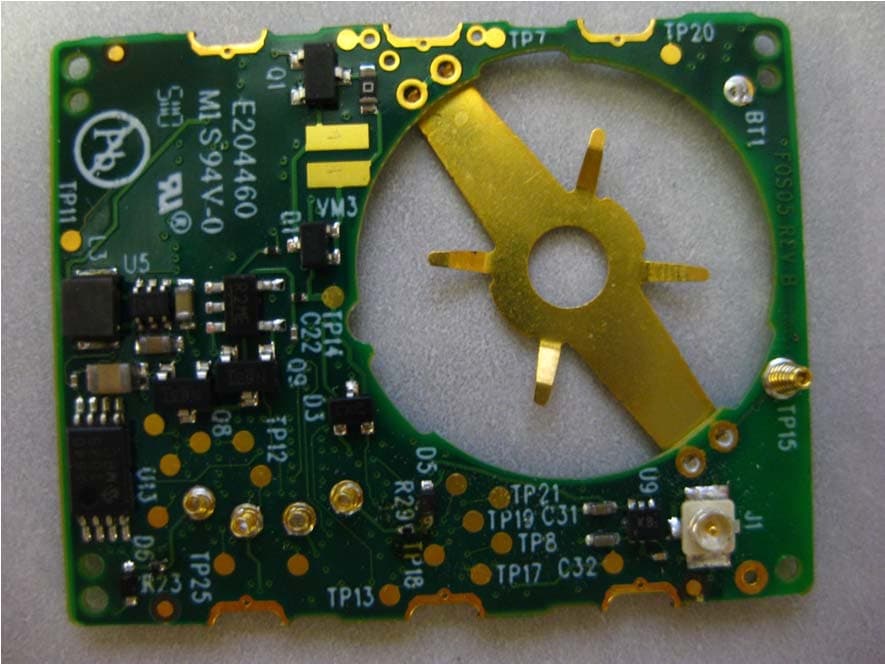
Click to zoom
Application Details
- Equipment Class
- DSS - Part 15 Spread Spectrum Transmitter
- Date of Grant
- Aug 23, 2011
- Application Purpose
- Original Equipment
- Date of Application
- Aug 22, 2011
- Equipment Note
- MetaWatch - Digital
- Frequency Range
- 2402.00000000 - 2479.00000000
- Company
- Fossil Group, Inc.
- Country
- United States
Documents & Files
Document Text
Text extracted from the exhibit documents filed with the FCC. Open a document above to read the original.
Users Manual
Bluetooth Watch User Manual Draft Watch Firmware v0.7.15 Android APK v0.1.9b Getting Started Starting the Watches Charge your watch. Attaching the clip may cause the watch to reset. This is only for Beta units. It is due to the Reset pin used for 2-wire JTAG (embedded debugging) being turned ON by default. Resetting the watch causes pairing information to be deleted. This (pairing information) will be stored in Flash memory in the next revision of software. If you reset while paired, be prepared for a new pairing request. If you are using a large grey charge clip that has an 18 pin ribbon connector on the back, you should attach your clip to the watch BEFORE applying power via the micro USB socket. If you are using the small black clip with only a micro USB socket, then you should be able to attach to the watch however you like. It may be possible to short the power against the steel case back; there are protections in place to limit any damage, but you may notice the clip getting hot if this occurs. Try to verify that everything is seated correctly and that the watch is charging. Digital Watch There are 6 buttons on the digital watch. When booted the digital watch has these functions (mostly for demonstration and debug). The watch boots in a “radio mode”. MetaWatch.org User Manual Draft APK v0.1.9b Watch v0.7.15 Analog Watch There are 3 buttons on the Analog watch. When booted the analog watch has no UI functions. MetaWatch.org User Manual Draft APK v0.1.9b Watch v0.7.15 This is a temporary situation. There will be a default analog watch UI similar to the digital watch UI. Starting the Android APK (Meta Watch app) Enable 3rd party app installation from Unknown Sources; this check box is found in Settings- >Applications on Nexus S OS 2.3. The APK file can be installed by installing from a GMAIL account or by loading on the SD card via USB and then browsing for the file using a file manager application. We use Astro File Manager. Once installed, you should be able to open the app (named “MetaWatch”, press the Android Menu button and go to “Settings”. 1.Under the ‘Notifications’ title, you can check or uncheck the items you want pushed to the watch. Some are experimental, such as Gmail and Alarm which do not have official APIs from Google to get reliable information. 2.Under the ‘Device’ title; use Select Watch to discover and select your watch. Be sure your phone has Bluetooth turned on. You should see your watch’s MAC address displayed on the phone. Alternatively, you can use the MAC button to manually enter your MAC address. Skip this for now. 3.Under the ‘Other’ title. Here there are two experimental check boxes for the digital watch only, one labeled “Music Controls” which turns the buttons on the the 9 o’clock- side of the watch (D, E, and F Idle buttons) into a music control cluster. The other is labeled “Last Notification Replay” which turns button B into a signal to the phone to replay the last notification you received again (does not replay transient notifications like calls or alarms). Select the “font size” and “weather location” that works best for you. The weather location is a free form field, you should be able to put a city, or zipcode. It requires an HTTP data connection. The “Packet Wait” setting is for debugging and should be set to 0 (zero). “Invert LCD” changes the LCD from White on Mirror to Mirror on White. Play around with it to see what you like best, but implementation is incomplete and may require you to start and stop the Meta Watch APK service. Keep ‘Skip SDP Lookup’ unchecked. It is for debugging. ‘Test SMS loop interval’ is for debugging. Press ‘Back’ to go back a screen. Pairing and Connecting Here is the procedure: MetaWatch.org User Manual Draft APK v0.1.9b Watch v0.7.15 1) Make sure the watch is charged and the radio is ON. (For analog, you may need to reset the watch to ensure the radio is on) -- Right now, the watch will stay ON with no connection for 10 minutes. After that, it will turn OFF and you will need to start it again. 2) In the App, hit Menu->Settings->Select Watch 3) Select your watch from the menu. The name of the watch should include “Fossil” and “Analog” or “Digital”. You should make sure the MAC address matches if there is more than one watch around. 4) Once the watch is selected, press ‘back’ 5) Press Menu->Start 6) The Application will start searching for the watch and connect to it. If you paired using the Android pairing menu, then it should simply connect. If you have not paired yet, then you will get a pairing request. Sometimes the pairing request pops up, or sometimes it goes in your notification system bar at the top of the screen. You may need to pull this down and press the ‘pairing request’ notification to get the dialog. When connected the logo for the MetaWatch serivice displays a tiny watch in the system bar. The MetaWatch App will remember the MAC address of the watch you selected permanently. you do not need to select watch again unless you change watches or you delete the information. Disconnections If you wander too far away, if you turn off the radio, reset, stop or exit the android service, etc, the connection will drop. When the watch loses the connection, it immediately goes to the radio screen and tell’s you “paired”. It will stay this way for 10 minutes and then turn off the radio (future builds will put the watch on standby as long you leave it alone). If the watch’s radio is ON (or paired), it will reconnect automatically when the phone is back or the service on the phone starts again. When the phone loses the connection, the phone will start displaying a pop-up error for a java error and a Service Discovery Failed error alternating. This is normal, just a little annoying. You can stop the errors by open the app and doing Menu-Stop. remember to start it again when you want to connect to a watch. How to Reset Software Reset Digital Watch: Software reset: Press and hold button C for 10 seconds. The watch should …
Text truncated - open the document above for the full version.
Internal Photos
INTERNAL PHOTOS Company Name Fossil Partners, L.P. Model # WDS112 FCC ID # UK7‐WDS112 IC # 6708A‐WDS112 Page 1 of 5 INTERNAL PHOTOS Company Name Fossil Partners, L.P. Model # WDS112 FCC ID # UK7‐WDS112 IC # 6708A‐WDS112 Page 2 of 5 INTERNAL PHOTOS Company Name Fossil Partners, L.P. Model # WDS112 FCC ID # UK7‐WDS112 IC # 6708A‐WDS112 Page 3 of 5 INTERNAL PHOTOS Company Name Fossil Partners, L.P. Model # WDS112 FCC ID # UK7‐WDS112 IC # 6708A‐WDS112 Page 4 of 5 INTERNAL PHOTOS Company Name Fossil Partners, L.P. Model # WDS112 FCC ID # UK7‐WDS112 IC # 6708A‐WDS112 Page 5 of 5
RF Exposure Info
LS Research, LLC website: www.lsr.com W66 N220 Commerce Court Phone: 262-375-4400 Cedarburg, WI 53012 Exemption from Routine Evaluation Exhibit Customer Name: Fossil Partners, L.P. IC Number: 6708A-WDS112 LS Research, LLC website: www.lsr.com W66 N220 Commerce Court Phone: 262-375-4400 Cedarburg, WI 53012 RSS 102 Section 2.5 states that all transmitters that meet the output power requirements as stated in section 2.5.1 and 2.5.2 of RSS 102 are exempt from routine SAR and RF exposure evaluation. Output Power Evaluation. Evaluation Frequency = __2479MHz_______ Device Operation separation distance: Please Select one Maximum Effective Isotropic Radiated Power (dBm) = 4.2 dBm + 0.5dBi = 4.7dBm_ Maximum Effective Isotropic Radiated Power (mW) = log -1 (EIRP(dBm)/10) = _2.95 mW_ Section 2.5.1 general public use limit at for devices operating less than or equal to 20cm: Frequency Limit 3kHz to 1GHz 200mW 1GHz-2.2GHz 100mW 2.2GHz-3GHz 20mW 3GHz-6GHz 10mW Section 2.5.2 general public use limit at for devices operating more than 20cm: Frequency Limit < 1.5GHz 2.5W >1.5 5W Conclusion: Since the maximum effective radiated power (ERP) is less than the applicable section limit, the Product is exempt from SAR/RF Evaluation
Test Report
W66 N220 Commerce Court ● Cedarburg, WI 53012 ● USA Phone: 262.375.4400 ● Fax: 262.375.4248 www.lsr.com TEST REPORT #: 311048 LSR Job #: C-1146 Compliance Testing of: Meta Watch Test Date(s): June 2 nd – July 20 th , 2011 Prepared For: Fossil Attn: Dave Rosales 2280 N. Greenville Ave. Richardson, TX 75082 In accordance with: Federal Communications Commission (FCC) Part 15, Subpart C, Section 15.247 Industry Canada (IC) RSS 210 Annex 8 Frequency Hopping Spread Spectrum (FHSS) This Test Report is issued under the Authority of: Signature: Date: Test Report Reviewed by: Peter Feilen, EMC Engineer Signature: Date: 7/25/11 Tested by: Shane Rismeyer, EMC Engineer Signature: Date: 7/25/11 This Test Report may not be reproduced, except in full, without written approval of LS Research, LLC. LS Research, LLC Page 2 of 50 Prepared For: Fossil Model Number: WDS112 Report #: 311048 EUT: Meta Watch Serial Number: N/A LSR Job #: C-1146 TABLE OF CONTENTS EXHIBIT 1. INTRODUCTION ............................................................................................................. 4 1.1 - Scope .................................................................................................................................. 4 1.2 – Normative References ....................................................................................................... 4 1.3 - LS Research, LLC in Review .............................................................................................. 5 EXHIBIT 2. PERFORMANCE ASSESSMENT ................................................................................... 6 2.1 - Client Information ................................................................................................................ 6 2.2 - Equipment Under Test (EUT) Information .......................................................................... 6 2.3 - Associated Antenna Description ......................................................................................... 6 2.4 - EUT’S Technical Specifications .......................................................................................... 7 2.5 - Product Description ............................................................................................................. 8 EXHIBIT 3. EUT OPERATING CONDITIONS & CONFIGURATIONS DURING TESTS ................... 9 3.1 - Climate Test Conditions ...................................................................................................... 9 3.2 - Applicability & Summary Of EMC Emission Test Results ................................................... 9 3.3 - Modifications Incorporated in the EUT for Compliance Purposes ...................................... 9 3.4 - Deviations & Exclusions from Test Specifications .............................................................. 9 EXHIBIT 4. DECLARATION OF CONFORMITY .............................................................................. 10 EXHIBIT 5. RADIATED EMISSIONS TEST ...................................................................................... 11 5.1 - Test Setup ......................................................................................................................... 11 5.2 - Test Procedure ................................................................................................................. 11 5.3 - Test Equipment Utilized .................................................................................................... 11 5.4 - Test Results ...................................................................................................................... 11 5.5 - Calculation of Radiated Emissions Limits ......................................................................... 12 5.6 - Radiated Emissions Test Data Chart ................................................................................ 13 5.7 - Screen Captures - Radiated Emissions Test .................................................................... 15 5.8 - Receive Mode Testing ...................................................................................................... 19 5.9 - Screen Captures - Radiated Emissions Testing – Receive Mode .................................... 20 EXHIBIT 7. OCCUPIED BANDWIDTH ............................................................................................. 24 7.1 - Limits ................................................................................................................................. 24 7.2 - Method of Measurements ................................................................................................. 24 7.3 - Test Data .......................................................................................................................... 24 7.4 - Screen Captures - Occupied Bandwidth .......................................................................... 25 EXHIBIT 8. BAND EDGE MEASUREMENTS .................................................................................. 27 LS Research, LLC Page 3 of 50 Prepared For: Fossil Model Number: WDS112 Report #: 311048 EUT: Meta Watch Serial Number: N/A LSR Job #: C-1146 8.1 - Method of Measurements ................................................................................................. 27 EXHIBIT 9. POWER OUTPUT (CONDUCTED) ............................................................................... 29 9.1 - Method of Measurements ................................................................................................. 29 9.2 - Test Data .......................................................................................................................... 29 9.3 - Screen Captures – Power Output (Conducted) ................................................................ 30 EXHIBIT 10. CONDUCTED SPURIOUS EMISSIONS: 15.247(d) ................................................... 32 10.1 - Limits ..................................................................…
Text truncated - open the document above for the full version.
Test Setup Photos
TEST SETUP PHOTOS Company Name Fossil Partners, L.P. Model # WDS111 FCC ID # UK7‐WDS111 IC # 6708A‐WDS111 Page 1 of 1
Contact Information
Applicant
Nikki Gill(Senior Director, Supplier Compliance)
Technical Contact
Fossil Partners, L.P.David Rosales
[email protected]972-629-2605
2280 North Greenville Avenue · Richardson, Texas · United States
Test Firm
LS Research, LLCRyan Urness
Technical Specifications
| # | Rule Parts | Frequency Range | Power Output |
|---|---|---|---|
| 1 | 15C | 2.40 GHz - 2.48 GHz | 2.95 mW |
Other Applications from Fossil Group, Inc.
UK7-C1N
Dec 21, 2020Smart Watch
Equipment Class
DTS - Digital Transmission System
UK7-WDS111
Aug 23, 2011MetaWatch - Analog
Equipment Class
DSS - Part 15 Spread Spectrum Transmitter