VIXSPKA22All-in-One Karaoke System
Voxx Accessories Corp.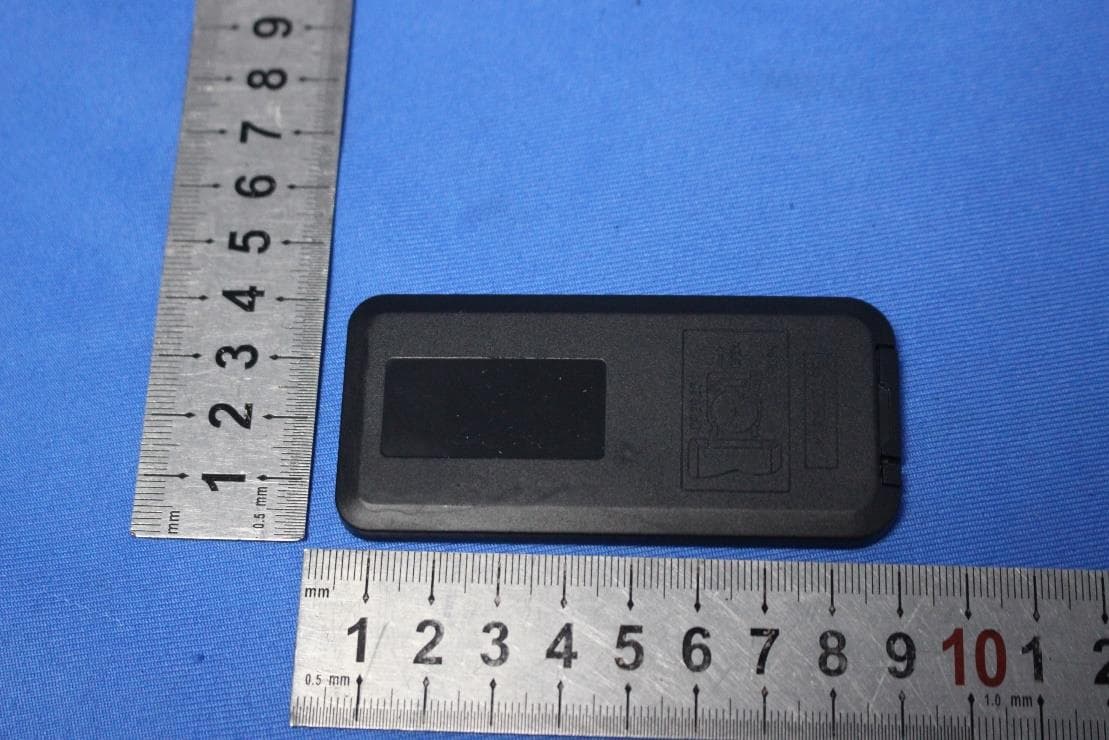
Click to zoom
Application Details
- Equipment Class
- DSS - Part 15 Spread Spectrum Transmitter
- Date of Grant
- Jun 19, 2022
- Application Purpose
- Original Equipment
- Date of Application
- Jun 19, 2022
- Equipment Note
- All-in-One Karaoke System
- Frequency Range
- 2402.00000000 - 2480.00000000
- Company
- Voxx Accessories Corp.
- Country
- United States
Documents & Files
Document Text
Text extracted from the exhibit documents filed with the FCC. Open a document above to read the original.
Users Manual
QUICK START GUIDE Instructions en français .......................................7 Instrucciones en español ....................................13 TEMPO AL L -IN-ONE KARAOKE SYSTEM SPKA22 QSG 01 2 Step 2: Charge the Speaker Step 1: Unpack Make sure the following items came in this package: • Singsation Tempo All-In-One Karaoke System • Microphone with Cable • Charging Cable • Remote Control • Carry Strap Plug one end of the charging cable into the DC5V jack on the top of the speaker. Plug the other end into a USB charging adapter (not included). The indicator light next to the DC5V jack turns red while the speaker is charging. To p Step 3: Plug In the Mic Plug the microphone cable into the MIC jack on the top of the speaker. To p Step 4: Remove the Remote Battery Tab Pull the battery tab out of the bottom of the remote. The battery will start powering the remote so you can use it. 3 Step 5: Turn On the Speaker Step 6: Pair With the Speaker Bluetooth Bluetooth Singsation SPKA22 Devices Move the ON-OFF switch on the top of the speaker into the ON position. The speaker announces “Pairing,” and the volume dial illuminates blue. Note: When the speaker’s ON-OFF switch is in the ON position, you can use the remote’s button to turn the speaker on and off. Make sure your phone’s Bluetooth is turned on. Select Singsation SPKA22 from the available devices to pair to the speaker. The speaker announces “Device connected” when it’s finished pairing and connecting to your Bluetooth device. Note: The process of enabling Bluetooth and connecting varies from device to device. See your device’s owners manual for more information and specific instructions. To p If you’ve previously paired your phone or other Bluetooth device with the Singsation Tempo, it will automatically attempt to reconnect to that device when you switch it on. If you want to pair to a new device, turn off Bluetooth on the device that’s already paired to the speaker. The speaker announces “Pairing.” Bluetooth Wireless Connection Tips • Make sure the Bluetooth capability of your device is turned on. • Make sure there’s nothing plugged into the Singsation Tempo’s AUX jack when you’re trying to use Bluetooth. • The Bluetooth wireless connection works up to a range of roughly 33 feet (10 meters). This range may vary, however, based on other factors, such as room layout, wall material, obstacles, your device’s Bluetooth performance, etc. If you’re having problems connecting to the speaker, move closer to it. • If your device asks you for a password to connect, use “0000”. 4 To adjust the music volume: Use the volume controls on your phone. To adjust the volume of music AND voice: Turn the VOL dial on the top of the speaker or the V O L– and VOL+ buttons on the remote. To play/pause the music: Press the button on the top of the speaker or on the remote. To skip to the next/previous track: Press the or button on the top of the speaker or on the remote. Step 8: Turn On the Mic and Sing Along! ON OFF DYNAMIC Move the microphone’s ON/OFF switch to the ON position and start singing! Step 7: Start Playing Music Turn your phone’s volume up to 75%. Then start playing music on your phone. To p Microphone Using Two Singsation Tempo Speakers Together (TWS Mode) If you have two Singsation Tempo speakers, you can set them up to play together in True Wireless Stereo. To set up True Wireless Stereo: 1. Make sure both speakers are on. 2. Give a quick double press to the button on one of the Singsation Tempos. The speaker plays a sound to indicate it’s ready for TWS pairing. 3 Press and hold the button on the same speaker until you hear the speaker play a second sound. The speakers are now in TWS mode. To return to single-speaker mode: Turn one of the speakers off (or press and hold the button on that speaker). Speakers return to TWS mode when they’re turned on again. 5 Using the Light Show The Singsation Tempo has a light show that turns on when the speaker is on by default. To turn off/on the speaker’s light show: Press and hold the button on the top of the speaker. Using Other Audio Sources In addition to Bluetooth audio, the Singsation Tempo has four other audio sources you can use: FM radio, USB memory, SD card, and an auxiliary input. To use FM radio: Press the button on the top of the speaker. The first time you use the FM radio, press the button on the top of the speaker to scan available stations (this takes a few minutes to complete). Then use the or buttons to go to different radio stations. To p To use a USB memory stick or SD card: Plug the memory stick or SD card into the USB or TF CARD slots on the top of the speaker. If there are MP3 music files in the top directory of the memory stick or SD card, the speaker will automatically start playing them. Note: The speaker offers additional functions for music playback from an SD card or USB memory stick. Press the EQ button on the remote to go through the different EQ settings (the name of each is shown on the display). Press the RPT button to repeat a track. These functions work for the USB memory stick or SD card only. To use an auxiliary audio source: Plug your auxiliary audio source into the AUX input on the top of the speaker using a 3.5mm audio cable (not included). The speaker automatically switches to the auxiliary input. To return to Bluetooth audio: Press the button on the top of the speaker until the display says “BLUE.” To p 6 Tour of the Singsation Tempo Remote Control turns the speaker on and off if the speaker’s ON-OFF switch is in the ON position. Mode switches between the speaker’s audio sources: FM radio, USB memory, SD card, and AUX. mutes the audio. , , and play/pause, skip back, and skip forward for audio on the current input (except for AUX). EQ switches through the EQ presets for the SD card and USB inputs. The name of each preset is shown on the speaker’s display. V O L– and VOL+ adjust the volume of the speaker. Number keys select a song directly on the SD and USB inputs. RPT…
Text truncated - open the document above for the full version.
Users Manual
Important Information for Singsation SPKA22 RISK OF ELECTRIC SHOCK. DO NOT OPEN. CAUTION Caution: To reduce the risk of electric shock, do not remove cover (or back). No user serviceable parts inside. Refer servicing to qualified service personnel. Important Safety Instructions 1. Read these instructions. 2. Keep these instructions. 3. Heed all warnings. 4. Follow all instructions. 5. Clean only with dry cloth. 6. Do not block any ventilation openings. Install in accordance with the manufacturer’s instructions. 7. Do not install near any heat sources such as radiators, heat registers, stoves, or other apparatus (including amplifiers) that produce heat. 8. Protect the power cord from being walked on or pinched particularly at plugs, convenience receptacles, and the point where they exit from the apparatus. 9. Unplug this apparatus during lightning storms or when unused for long periods of time. 10. Refer all servicing to qualified service personnel. Servicing is required when the apparatus has been damaged in any way, such as power-supply cord or plug is damaged, liquid has been spilled or objects have fallen into the apparatus, the apparatus has been exposed to rain or moisture, does not operate normally, or has been dropped. Care and Maintenance • Always use a soft cloth to clean the speaker and transmitter. Never use any product containing alcohol or other solvents as they may damage the surface. • Use caution when plugging the power transformers in an AC outlet to avoid the risk of electric shock. • If the speaker are used outside on a deck or patio, make sure you take them indoors in the event of a rainstorm to prevent possible damage. • Do not operate or store the system in extreme temperatures (below 32ºF/0ºC and above 122ºF/50ºC). Ecology Your product must be disposed of properly according to local laws and regulations. Because this product contains a rechargeable battery, the product must be disposed of separately from the household waste. For PLUGGABLE EQUIPMENT, the socket-outlet shall be installed near the equipment and shall be easily accessible. The power unit for this device should be plugged in so that it stays vertical or lies flat. The apparatus shall not be exposed to dripping or splashing or placed near objects filled with liquids. This product contains a non-removeable Lithium Ion rechargeable battery. FCC Statement This device complies with Part 15 of the FCC Rules. Operation is subject to the following two conditions: 1) This device may not cause harmful interference, and 2) This device must accept any interference received, including interference that may cause undesired operation. Note: This equipment has been tested and found to comply with the limits for a Class B digital device, pursuant to part 15 of the FCC Rules. These limits are designed to provide reasonable protection against harmful interference in a residential installation. This equipment generates, uses, and can radiate radio frequency energy and, if not installed and used in accordance with the instructions, may cause harmful interference to radio communication. However, there is no guarantee that interference will not occur in a particular installation. If this equipment does cause harmful interference to radio or television reception, which can be determined by turning the equipment off and on, the user is encouraged to try to correct the interference by one or more of the following measures: • Reorient or relocate the receiving antenna. • Increase the separation between the equipment and receiver. • Connect the equipment into an outlet on a circuit different from that to which the receiver is connected. • Consult the dealer or an experienced radio/TV technician for help. Caution: Changes or modifications not expressly approved by VOXX Accessories Corporation could void the user’s authority to operate the equipment. RF Exposure Warning This equipment complies with FCC radiation exposure limits set forth for an uncontrolled environment. This transmitter must not be co-located or operating in conjunction with any other antenna or transmitter. Industry Canada Regulatory Information This device contains licence-exempt transmitter(s)/receiver(s) that comply with Innovation, Science and Economic Development Canada’s licence-exempt RSS(s) Operation is subject to the following two conditions: 1. This device may not cause interference. 2. This device must accept any interference, including interference that may cause undesired operation of the device. IC Radiation Exposure Statement: This equipment complies with IC radiation exposure limits set forth for an uncontrolled environment. This equipment complies with Canada radiation exposure limits set forth for uncontrolled environments. The transmitter must not be co-located or operating in conjunction with any other antenna or transmitter. Industry Canada Regulatory Information: CAN ICES-3 (B)/NMB-3 (B) Avis d’Industrie Canada: CAN ICES-3 (B)/NMB-3 (B) The Bluetooth® word mark and logos are registered trademarks owned by Bluetooth SIG, Inc. and any use of such marks by VOXX Accessories Corporation is under license. Other trademarks and trade names are those of their respective owners. Product Information Keep your sales receipt to obtain warranty parts and service and for proof of purchase. Attach it here and record the serial and model numbers in case you need them. These numbers are located on the product. Model No.: ________________________________________________________________________________________________ Purchase Date: ____________________________________________________________________________________________ Dealer/Address/Phone: ____________________________________________________________________________________ Information importante pour Singsation SPKA22 RISQUE DE CHOC ÉLECTRIQUE. NE PAS OUVRIR. ATTENTION Attention : afin de réduire les risques de choc électrique, ne pas enlever le couvercle (ou l’arrière). Aucune pièce réparable par l’utilisa…
Text truncated - open the document above for the full version.
Users Manual
QUICK START GUIDE Instructions en français .......................................7 Instrucciones en español ....................................13 TEMPO AL L -IN-ONE KARAOKE SYSTEM ARIA AL L -IN-ONE KARAOKE SYSTEM SPKA23 QSG 01 2 Step 2: Charge the Speaker Step 1: Unpack Make sure the following items came in this package: • Singsation Aria All-In-One Karaoke System • Microphone with Cable • Charging Cable • Remote Control • Carry Strap Plug one end of the charging cable into the DC5V jack on the top of the speaker. Plug the other end into a USB charging adapter (not included). To p Step 3: Plug In the Mic Plug the microphone cable into the MIC jack on the top of the speaker. To p Step 4: Remove the Remote Battery Tab Pull the battery tab out of the bottom of the remote. The battery will start powering the remote so you can use it. 3 Step 5: Turn On the Speaker Step 6: Pair With the Speaker Bluetooth Bluetooth Singsation SPKA23 Devices Move the ON-OFF switch on the top of the speaker into the ON position. The speaker announces “Pairing.” Note: When the speaker’s ON-OFF switch is in the ON position, you can use the remote’s button to turn the speaker on and off. Make sure your phone’s Bluetooth is turned on. Select Singsation SPKA23 from the available devices to pair to the speaker. The speaker announces “Device connected” when it’s finished pairing and connecting to your Bluetooth device. Note: The process of enabling Bluetooth and connecting varies from device to device. See your device’s owners manual for more information and specific instructions. If you’ve previously paired your phone or other Bluetooth device with the Singsation Aria, it will automatically attempt to reconnect to that device when you switch it on. If you want to pair to a new device, turn off Bluetooth on the device that’s already paired to the speaker. The speaker announces “Pairing.” Bluetooth Wireless Connection Tips • Make sure the Bluetooth capability of your device is turned on. • Make sure there’s nothing plugged into the Singsation Aria’s AUX jack when you’re trying to use Bluetooth. • The Bluetooth wireless connection works up to a range of roughly 33 feet (10 meters). This range may vary, however, based on other factors, such as room layout, wall material, obstacles, your device’s Bluetooth performance, etc. If you’re having problems connecting to the speaker, move closer to it. • If your device asks you for a password to connect, use “0000”. To p 4 To adjust the music volume: Use the volume controls on your phone. To adjust the volume of music AND voice: Turn the VOL dial on the top of the speaker or the V O L– and VOL+ buttons on the remote. To play/pause the music: Press the button on the top of the speaker or on the remote. To skip to the next/previous track: Press the or button on the top of the speaker or on the remote. Step 8: Turn On the Mic and Sing Along! ON OFF DYNAMIC Move the microphone’s ON/OFF switch to the ON position and start singing! Step 7: Start Playing Music Turn your phone’s volume up to 75%. Then start playing music on your phone. To p Microphone Using Two Singsation Aria Speakers Together (TWS Mode) If you have two Singsation Aria speakers, you can set them up to play together in True Wireless Stereo. To set up True Wireless Stereo: 1. Make sure both speakers are on. 2. Give a quick double press to the button on one of the Singsation Arias. The speaker plays a sound to indicate it’s ready for TWS pairing. 3 Press and hold the button on the same speaker until you hear the speaker play a second sound. The speakers are now in TWS mode. To return to single-speaker mode: Turn one of the speakers off (or press and hold the button on that speaker). Speakers return to TWS mode when they’re turned on again. 5 Using the Light Show The Singsation Aria has a light show that turns on when the speaker is on by default. To turn off/on the speaker’s light show: Press and hold the button on the top of the speaker. Using Other Audio Sources In addition to Bluetooth audio, the Singsation Aria has four other audio sources you can use: FM radio, USB memory, SD card, and an auxiliary input. To use FM radio: Press the button on the top of the speaker. The first time you use the FM radio, press the button on the top of the speaker to scan available stations (this takes a few minutes to complete). Then use the or buttons to go to different radio stations. To p To use a USB memory stick or SD card: Plug the memory stick or SD card into the USB or TF slots on the top of the speaker. If there are MP3 music files in the top directory of the memory stick or SD card, the speaker will automatically start playing them. Note: The speaker offers additional functions for music playback from an SD card or USB memory stick. Press the EQ button on the remote to go through the different EQ settings (the name of each is shown on the display). Press the RPT button to repeat a track. These functions work for the USB memory stick or SD card only. To use an auxiliary audio source: Plug your auxiliary audio source into the AUX input on the top of the speaker using a 3.5mm audio cable (not included). The speaker automatically switches to the auxiliary input. To return to Bluetooth audio: Press the button on the top of the speaker until the display says “BLUE.” To p 6 Tour of the Singsation Aria Remote Control turns the speaker on and off if the speaker’s ON-OFF switch is in the ON position. Mode switches between the speaker’s audio sources: FM radio, USB memory, SD card, and AUX. mutes the audio. , , and play/pause, skip back, and skip forward for audio on the current input (except for AUX). EQ switches through the EQ presets for the SD card and USB inputs. The name of each preset is shown on the speaker’s display. V O L– and VOL+ adjust the volume of the speaker. Number keys select a song directly on the SD and USB inputs. RPT repeats the current song on the SD and USB inputs. U/SD has no function for this speaker. Speaker Top…
Text truncated - open the document above for the full version.
Users Manual
Important Information for Singsation SPKA23 RISK OF ELECTRIC SHOCK. DO NOT OPEN. CAUTION Caution: To reduce the risk of electric shock, do not remove cover (or back). No user serviceable parts inside. Refer servicing to qualified service personnel. Important Safety Instructions 1. Read these instructions. 2. Keep these instructions. 3. Heed all warnings. 4. Follow all instructions. 5. Clean only with dry cloth. 6. Do not block any ventilation openings. Install in accordance with the manufacturer’s instructions. 7. Do not install near any heat sources such as radiators, heat registers, stoves, or other apparatus (including amplifiers) that produce heat. 8. Protect the power cord from being walked on or pinched particularly at plugs, convenience receptacles, and the point where they exit from the apparatus. 9. Unplug this apparatus during lightning storms or when unused for long periods of time. 10. Refer all servicing to qualified service personnel. Servicing is required when the apparatus has been damaged in any way, such as power-supply cord or plug is damaged, liquid has been spilled or objects have fallen into the apparatus, the apparatus has been exposed to rain or moisture, does not operate normally, or has been dropped. Care and Maintenance • Always use a soft cloth to clean the speaker and transmitter. Never use any product containing alcohol or other solvents as they may damage the surface. • Use caution when plugging the power transformers in an AC outlet to avoid the risk of electric shock. • If the speaker are used outside on a deck or patio, make sure you take them indoors in the event of a rainstorm to prevent possible damage. • Do not operate or store the system in extreme temperatures (below 32ºF/0ºC and above 122ºF/50ºC). Ecology Your product must be disposed of properly according to local laws and regulations. Because this product contains a rechargeable battery, the product must be disposed of separately from the household waste. For PLUGGABLE EQUIPMENT, the socket-outlet shall be installed near the equipment and shall be easily accessible. The power unit for this device should be plugged in so that it stays vertical or lies flat. The apparatus shall not be exposed to dripping or splashing or placed near objects filled with liquids. This product contains a non-removeable Lithium Ion rechargeable battery. FCC Statement This device complies with Part 15 of the FCC Rules. Operation is subject to the following two conditions: 1) This device may not cause harmful interference, and 2) This device must accept any interference received, including interference that may cause undesired operation. Note: This equipment has been tested and found to comply with the limits for a Class B digital device, pursuant to part 15 of the FCC Rules. These limits are designed to provide reasonable protection against harmful interference in a residential installation. This equipment generates, uses, and can radiate radio frequency energy and, if not installed and used in accordance with the instructions, may cause harmful interference to radio communication. However, there is no guarantee that interference will not occur in a particular installation. If this equipment does cause harmful interference to radio or television reception, which can be determined by turning the equipment off and on, the user is encouraged to try to correct the interference by one or more of the following measures: • Reorient or relocate the receiving antenna. • Increase the separation between the equipment and receiver. • Connect the equipment into an outlet on a circuit different from that to which the receiver is connected. • Consult the dealer or an experienced radio/TV technician for help. Caution: Changes or modifications not expressly approved by VOXX Accessories Corporation could void the user’s authority to operate the equipment. RF Exposure Warning This equipment complies with FCC radiation exposure limits set forth for an uncontrolled environment. This transmitter must not be co-located or operating in conjunction with any other antenna or transmitter. Industry Canada Regulatory Information This device contains licence-exempt transmitter(s)/receiver(s) that comply with Innovation, Science and Economic Development Canada’s licence-exempt RSS(s) Operation is subject to the following two conditions: 1. This device may not cause interference. 2. This device must accept any interference, including interference that may cause undesired operation of the device. IC Radiation Exposure Statement: This equipment complies with IC radiation exposure limits set forth for an uncontrolled environment. This equipment complies with Canada radiation exposure limits set forth for uncontrolled environments. The transmitter must not be co-located or operating in conjunction with any other antenna or transmitter. Industry Canada Regulatory Information: CAN ICES-3 (B)/NMB-3 (B) Avis d’Industrie Canada: CAN ICES-3 (B)/NMB-3 (B) The Bluetooth® word mark and logos are registered trademarks owned by Bluetooth SIG, Inc. and any use of such marks by VOXX Accessories Corporation is under license. Other trademarks and trade names are those of their respective owners. Product Information Keep your sales receipt to obtain warranty parts and service and for proof of purchase. Attach it here and record the serial and model numbers in case you need them. These numbers are located on the product. Model No.: ________________________________________________________________________________________________ Purchase Date: ____________________________________________________________________________________________ Dealer/Address/Phone: ____________________________________________________________________________________ Information importante pour Singsation SPKA23 RISQUE DE CHOC ÉLECTRIQUE. NE PAS OUVRIR. ATTENTION Attention : afin de réduire les risques de choc électrique, ne pas enlever le couvercle (ou l’arrière). Aucune pièce réparable par l’utilisa…
Text truncated - open the document above for the full version.
Users Manual
QUICK START GUIDE Instructions en français .......................................7 Instrucciones en español ....................................13 TEMPO AL L -IN-ONE KARAOKE SYSTEM SPKA26 QSG 00 TOUR 2 To p Step 2: Charge the Speaker Step 1: Unpack Make sure the following items came in this package: • Singsation Tour All-In-One Karaoke System • Microphone with Cable • Charging Cable • Remote Control To p Step 3: Plug In the Mic Step 4: Remove the Remote Battery Tab Pull the battery tab out of the bottom of the remote. The battery will start powering the remote so you can use it. Plug one end of the charging cable into the DC5V jack on the top of the speaker. Plug the other end into a USB charging adapter (not included). Plug the microphone cable into the MIC jack on the top of the speaker. 3 Step 5: Turn On the Speaker Step 6: Pair With the Speaker Bluetooth Bluetooth Singsation SPKA26 Devices Move the ON-OFF switch on the top of the speaker into the ON position. The speaker announces “Pairing.” Note: When the speaker’s ON-OFF switch is in the ON position, you can use the remote’s button to turn the speaker on and off. Make sure your phone’s Bluetooth is turned on. Select Singsation SPKA26 from the available devices to pair to the speaker. The speaker announces “Device connected” when it’s finished pairing and connecting to your Bluetooth device. Note: The process of enabling Bluetooth and connecting varies from device to device. See your device’s owners manual for more information and specific instructions. To p If you’ve previously paired your phone or other Bluetooth device with the Singsation Tour, it will automatically attempt to reconnect to that device when you switch it on. If you want to pair to a new device, turn off Bluetooth on the device that’s already paired to the speaker. The speaker announces “Pairing.” Bluetooth Wireless Connection Tips • Make sure the Bluetooth capability of your device is turned on. • Make sure there’s nothing plugged into the Singsation Tour’s AUX jack when you’re trying to use Bluetooth. • The Bluetooth wireless connection works up to a range of roughly 33 feet (10 meters). This range may vary, however, based on other factors, such as room layout, wall material, obstacles, your device’s Bluetooth performance, etc. If you’re having problems connecting to the speaker, move closer to it. • If your device asks you for a password to connect, use “0000”. 4 ON OFF DYNAMIC Step 7: Start Playing Music Turn your phone’s volume up to 75%. Then start playing music on your phone. To p Microphone To adjust the music volume: Use the volume controls on your phone. To adjust the volume of music AND voice: Turn the VOL dial on the top of the speaker or the V O L– and VOL+ buttons on the remote. To play/pause the music: Press the button on the top of the speaker or on the remote. To skip to the next/previous track: Press the or button on the top of the speaker or on the remote. Step 8: Turn On the Mic and Sing Along! Move the microphone’s ON/OFF switch to the ON position and start singing! Using Two Singsation Tour Speakers Together (TWS Mode) If you have two Singsation Tour speakers, you can set them up to play together in True Wireless Stereo. To set up True Wireless Stereo: 1. Make sure both speakers are on. 2. Give a quick double press to the button on one of the Singsation Tours. The speaker plays a sound to indicate it’s ready for TWS pairing. 3 Press and hold the button on the same speaker until you hear the speaker play a second sound. The speakers are now in TWS mode. To return to single-speaker mode: Turn one of the speakers off (or press and hold the button on that speaker). Speakers return to TWS mode when they’re turned on again. 5 To p To p Using the Light Show The Singsation Tour has several light show modes that turn on by default when the speaker is on. To cycle through the speaker’s light show modes: Press the button on the top of the speaker. The final press turns the light show off. Note: The light show does not support FM radio mode. Using Other Audio Sources In addition to Bluetooth audio, the Singsation Tour has four other audio sources you can use: FM radio, USB memory, SD card, and an auxiliary input. To use FM radio: Press and hold the button on the top of the speaker. The first time you use the FM radio, press the button on the top of the speaker to scan available stations (this takes a few minutes to complete). Then use the or buttons to go to different radio stations. To use a USB memory stick or SD card: Plug the memory stick or SD card into the USB or TF slots on the top of the speaker. If there are MP3 music files in the top directory of the memory stick or SD card, the speaker will automatically start playing them. Note: The speaker offers additional functions for music playback from an SD card or USB memory stick. Press the EQ button on the remote to go through the different EQ settings (the name of each is shown on the display). Press the RPT button to repeat a track. These functions work for the USB memory stick or SD card only. To use an auxiliary audio source: Plug your auxiliary audio source into the AUX input on the top of the speaker using a 3.5mm audio cable (not included). The speaker automatically switches to the auxiliary input. To return to Bluetooth audio: Press and hold the button repeatedly until the display says “BT.” 6 Tour of the Singsation Tour Remote Control turns the speaker on and off if the speaker’s ON-OFF switch is in the ON position. Mode cycles through the speaker’s light show modes. Press and hold repeatedly to cycle through the speaker’s audio inputs. mutes the audio. , , and play/pause, skip back, and skip forward for audio on the current input (except for AUX). EQ switches through the EQ presets for the SD card and USB inputs. The name of each preset is shown on the speaker’s display. V O L– and VOL+ adjust the volume of the speaker. Number keys select a song directly on the SD and USB inputs. RPT repea…
Text truncated - open the document above for the full version.
Contact Information
Applicant
Paul Tinaphong(Senior V.P.)
Technical Contact
Compliance Certification Services (Kunshan) IncKidd Yang
[email protected]+8675525326619
Fuyong Lab Xinlong Techno Park Fengtang Road · Shenzhen · China
Non-Technical Contact
Compliance Certification Services (Kunshan) IncKidd Yang
[email protected]+8675525326619
Test Firm
Compliance Certification Services (Kunshan) IncLina Ye
[email protected]8613798526121
Technical Specifications
| # | Rule Parts | Frequency Range | Power Output |
|---|---|---|---|
| 1 | 15C | 2.40 GHz - 2.48 GHz | 1.30 mW |
Other Applications from Voxx Accessories Corp.

VIXARHTVHS
Jul 22, 2024Wireless TV Headset
Equipment Class
DTS - Digital Transmission System
VIXRSH082
Mar 31, 2024OTC Hearing Aids
Equipment Class
DSS - Part 15 Spread Spectrum Transmitter
VIXRSH082RC
Mar 31, 2024Keychain Remote
Equipment Class
DTS - Digital Transmission System
VIXSPKAW740M2
Jul 17, 2023Center Stage Freestyle All-in-One Karaoke System
Equipment Class
DSS - Part 15 Spread Spectrum Transmitter
VIXSPKAW740M
Jul 15, 2023Wireless Microphone
Equipment Class
DSS - Part 15 Spread Spectrum Transmitter