VVU73122Mobile Companion
Celio Technology Corp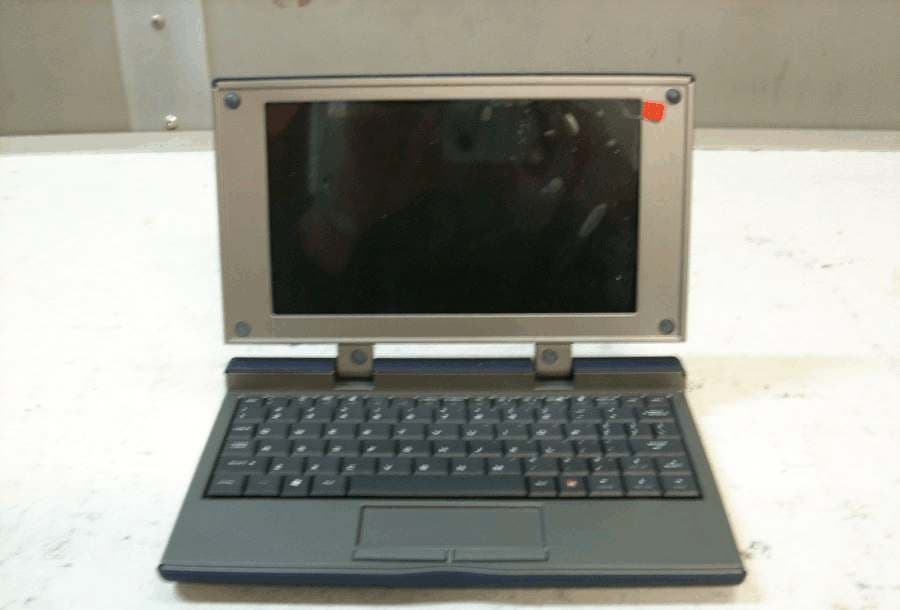
Click to zoom
Application Details
- Equipment Class
- DSS - Part 15 Spread Spectrum Transmitter
- Date of Grant
- Apr 02, 2008
- Application Purpose
- Original Equipment
- Date of Application
- Mar 31, 2008
- Equipment Note
- Mobile Companion
- Frequency Range
- 2401.30000000 - 2480.70000000
- Company
- Celio Technology Corp
- Country
- United States
Documents & Files
Document Text
Text extracted from the exhibit documents filed with the FCC. Open a document above to read the original.
Users Manual
User Guide 1 Table of Contents Welcome to Your REDFLY 2 Getting Started 2 Connecting to the REDFLY for the First Time 6 Improved Productivity with the REDFLY 7 Navigating the REDFLY 7 Keyboard Shortcuts 7 Using Alt-Tab 11 Using the Touch Pad 11 Working with the Display 13 Using an external Monitor or Projector 14 Playing Video 15 Using Bluetooth 15 Using External Devices 22 Power-Saving Options 23 Uninstalling REDFLY Software 27 Troubleshooting 28 Cleaning the REDFLY 30 Customer Service 30 Warranty 30 Specifications 31 Using the REDFLY Safely 31 End User License Agreement 32 Regulatory Compliance 34 Welcome to Your REDFLY Meet the REDFLY—the essential Windows Mobile Smartphone Companion. The REDFLY will greatly enhance your productivity with its larger screen and keyboard, as well as its connectivity options. Like a great assistant, the REDFLY simplifies and accelerates getting your work done. The most important tip to keep in mind about your REDFLY is that it uses all your smartphone capabilities. This means that moving up to the REDFLY provides strong peace of mind since you don’t have to worry about: • Constantly synchronizing data yet again with your phone to another device • Learning yet another set of applications, procedures, and operating system • Protecting yet another device from viruses, malware and other threats • Losing company or personal data on yet another device While the REDFLY may appear similar to a sub-notebook computer, it actually simplifies your workday by completely leveraging your familiar Windows Mobile applications and interface with the easier to use REDFLY keyboard and larger screen. Getting Started You will need to install REDFLY software to your Windows Mobile phone to use the REDFLY. You can choose to install: • Over-the-Air directly to your smartphone • From your PC with an Internet connection • From your PC with the REDFLY Installation CD First, open the REDFLY and remove the protective plastic film from the display. For best results, plug in your REDFLY to the AC adapter and allow at least 3 hours to fully charge the battery.” For best results, plug in your REDFLY to the AC adapter and allow at least 3 hours to fully charge the battery. OVER-ThE-AIR SMARTPhONE INSTALLATION Note: Cell phone data rates will apply to this download. 1. Power on your smartphone. 2. Activate your phone’s Internet connection (whether WiFi or over the cellphone network). 3. Use your smartphone browser to go to: http://www.celiocorp.com/install. 4. Select the Over The Air Installation link and follow the on screen directions. 5. Choose “Yes” to download the file to your smartphone. 2 6. Once the file has been downloaded, follow the on screen instructions on your smartphone to complete the installation After installing the REDFLY software, the setup program will ask you to reset your phone: Choose YES to complete the installation. INSTALLING FROM YOUR COMPUTER You can install the REDFLY software to your phone using your PC and the Internet. To do this you will need: A. An active Internet connection. B. Your smartphone’s USB connecting cable. (If you do not have this cable, contact your phone retailer for a replacement.) C. Microsoft ActiveSync (or Windows Mobile Device Center for Microsoft Vista) installed on your PC. To do the install: 1. Power on your smartphone. 2. Run ActiveSync (or Device Center). If you have not connected your phone to your PC via ActiveSync before, please refer to your phones manual for instructions. 3. Plug your phone into your PC using the USB connecting cable. ActiveSync (or Device Center) will say “Connected”. (If not, refer to your Microsoft documentation.) 4. Use your PC browser to go to: http://www.celiocorp.com/support/downloads/drivers/installation.htm 5. If you are downloading the REDFLY from the web site, select the Install From Your Computer link and follow the on screen directions. 6. From the Installing From Your Computer section, click on the model and/or number of your smartphone. 7. Choose Run or Save from the dialog box to complete the installation. If you choose Save, you will need to remember where you save it so you can run the installation later. 3 4 Note: The Install program also archives a copy of the REDFLY Setup program in this directory should you need it again. 8. The Install program asks you to confirm the installation: Choose “Next” to continue. 9. On your PC, the setup program will confirm the install: Choose OK and proceed to your smartphone to complete the install. 10. On some phones, Windows Mobile will ask you for permission to run the REDFLY setup program: Choose “Yes” to continue. 11. The setup program will confirm the install: Select OK to close this screen and run the REDFLY setup software. 12. Select Install Drivers from the installation screen: After installing the REDFLY software, the setup program will automatically reset your phone. 5 PC/CD-ROM INSTALLATION You can install the REDFLY software to your phone using your PC and the included Install CD-ROM. To do this you will need: A. The REDFLY Install CD-ROM. B. Your smartphone’s USB connecting cable. (If you do not have this cable, see your phone retailer for a replacement.) C. Microsoft ActiveSync (or Windows Mobile Device Center for Microsoft Vista) installed on your PC. To do the install: 1. Power on your smartphone. 2. Run ActiveSync (or Device Center) on your PC. 3. Plug your phone into your PC using the USB connecting cable. ActiveSync (or Device Center) will say your phone is connected. (If not, refer to your Microsoft documentation.) 4. Insert the REDFLY Install CD into your PC’s drive. The Install program will automatically launch. 5. Click on the link for your type of phone from the MSI Installations link list. 6. Click “Run” to begin the installation process. Connecting to the REDFLY for the First Time Once you have the REDFLY software on your smartphone, you are ready to connect to the REDFLY companion. 1. Power on your phone. 2. Press and hold the RE…
Text truncated - open the document above for the full version.
Users Manual
Quick Start Guide Welcome to REDFLY—the Essential Windows Mobile Smartphone Companion You are minutes away from enjoying the liberating power of the REDFLY’s larger keyboard, wide screen, and enhanced environment for your Windows Mobile smartphone! Your REDFLY is an external display with touchpad and keyboard that easily connects to your Windows Mobile phone. The REDFLY uses the phone’s operating system, so there’s no need to learn a new one, install or maintain new applications, or synchronize data. Everything works just like it does on your phone, only easier. WelcomeMeet Your REDFLY Mobile Companion Touchpad for navigation with standard left- and right- mouse buttons Power Connector Two powered USB 2.0 ports External VGA Connector forfor On/Off switch Power On LED Charging LED (Amber-Charging, Green-Fully Charged) ProjectorsExternal Drives Keyboards and other USB devices Displays Mice CUSTOMER SUPPORT Please check out our support page at www.celiocorp.com/support for answers to your REDFLY questions and help options. © Copyright 2007 Celio Corp. Celio, REDFLY, the REDFLY logo, and other indicia are all trademarks or registered trademarks of Celio Corp. All rights reserved. Patent Pending. www.celiocorp.com The Bluetooth® word mark and logo are registered trademarks owned by the Bluetooth SIG, Inc. REDFLY SPECIFICATIONS Display800x480 VGA Port800x460 maximum resolution USB Ports2x2.0 powered (500mA maximum) Bluetooth Compatible with Bluetooth 1.0 and 2.0. 30 feet (10 meters) maximum range, 1Mbps maximum throughput Weight1 lb. 14oz. (856 grams) Battery 9VDC 2.5A LiPo Avg. 3 hours to fully charge the internal battery OS Support Windows Mobile 5 (Pocket PC and Smartphone editions Windows Mobile 6 (Professional and Standard editions) Operating Temperature32-130 degrees F (0 to 55 degrees C) Charger9VDC 2.5A LiPo-compatible STEP 1: Install the REDFLY Software To setup your REDFLY for the fi rst time, you will need: a. Your Windows Mobile smartphone with an active Internet connection b. OR, as an alternative: a PC and the included REDFLY Installation CD, or an active Internet connection and Microsoft ActiveSync (or “Windows Mobile Device Center for Microsoft Vista” on Vista systems) installed. c. Your phone’s USB connecting cable (Contact your local retailer for a replacement if you do not have this cable.) d. Your REDFLY. Remove the protective plastic fi lm from your REDFLY display. Plug in the included AC charging adapter into the REDFLY and then into an available outlet. (For best performance, allow the REDFLY to charge for at least 3 hours before using.) SMARTPHONE SETUP Use your smartphone browser to go to: www.redfl y.com/install Click on the appropriate button: Windows Mobile 5 Pocket PC Windows Mobile 6 Pocket PC Windows Mobile 5 Smartphone Windows Mobile 6 Smartphone to run or download the setup software for your particular phone. Follow the on-screen directions to complete the installation. Note: If you do not know which version of Windows Mobile you have, choose Start/Settings/System/About and your phone will display this information. After installing the REDFLY Software, the setup program will automatically reset your phone. STEP 1: Install the REDFLY Software (continued) PC SETUP If you do not have a web connection on your phone, you can also set up the REDFLY using your PC, the enclosed Install CD, or an internet connection, and Microsoft ActiveSync (on Vista this is called the “Windows Mobile Device Center for Microsoft Vista”). 1. Go to www.redfl y.com/install and select the appropriate setup program for your particular phone and download it to your PC. 2. Alternately, insert the REDFLY Installation CD into your PC drive and select the appropriate version of the REDFLY setup software from the menu. This will copy the setup program to your desktop. 3. Launch Microsoft ActiveSync (or Device Center) on your PC. 4. Plug your smartphone USB cable into your phone and into your PC. ActiveSync will automatically fi nd your phone and say “Connected”. 5. Choose ActiveSync’s Explore to open your smartphone’s File Explorer. 6. Drag and drop the REDFLY setup program onto your smartphone. 7. Use your phone’s File Explorer to go to the folder where you placed the setup program then click on it. 8. Follow the onscreen instructions to complete the install. Note: On some phones, Windows Mobile will ask you for permission to run the REDFLY setup program. If so, click OK to continue. After installing the REDFLY Software, the setup program will automatically reset your phone. 1. Easily move between multiple active applications using the Alt-Tab keys 2. Browse the web using multiple tabbed pages 3. Quickly enter numeric data using the embedded keypad. 4. Really see the web on your browser with the larger screen 5. Rapidly touch type answers to e-mails. 6. Instantly add an external keyboard or mouse to your phone. 7. Quickly share presentations with the built-in VGA port. 8. Expand your memory options using standard external fl ash drives. 9. Stay productive with Mobile Offi ce apps on the larger screen and keyboard. 10. Enjoy the lightweight companion with desktop features and phone portability. STEP 2: Connecting the REDFLYTop Ten REDFLY Benefi ts 1. Power on your phone. 2. Press and hold the REDFLY’s On/Off switch for one or two seconds to power on the REDFLY. 3. Attach your USB connecting cable to your phone and the REDFLY. Your phone will automatically detect the connection to the REDFLY and switch your phone display and keyboard functions to the REDFLY. STEP 3: Setting up Bluetooth Now that you’ve setup your phone to work with the REDFLY over USB, you now have the option of activating the REDFLY’s Bluetooth feature. SETTING UP BLUETOOTH FOR THE FIRST TIME “PAIRING” 1. Have your REDFLY connected to your smartphone using the USB cable. 2. Turn on your phone’s Bluetooth connection (your phone’s manual will explain how.) 3. Select REDFLY Settings from your Start/Settings/System screen. 4. Selec…
Text truncated - open the document above for the full version.
Cover Letter(s)
2.45 GHz AntennaP/N 2450AT45A100 Detail Specification: 07/07/06 Page 1 of 3 General Specifications Part Number2450AT45A100Input Power3W max. Frequency Range2400 - 2500 MhzImpedance50 Ω Peak Gain3.0 dBi typ. (XZ-V)Operating Temperature-40 to +85°C Average Gain1.0 dBi typ. (XZ-V)Reel Quanity1,000 Return Loss9.5 dB min. Mechanical Dimensions Terminal Configuration Inmm No. Function L±± 1 Feeding Point W±± 2 NC T a±± Mounting Considerations Mount these devices with brown mark facing up. Units: mm * Line width should be designed to provide 50Ω impedance matching characteristics. Johanson Technology, Inc. reserves the right to make design changes without notice. All sales are subject to Johanson Technology, Inc. terms and conditions. www.johansontechnology.com 931 Via Alondra • Camarillo, CA 93012 • TEL 805.389.1166 FAX 805.389.1821 2003 Johanson Technology, Inc. All Rights Reserved 9.500.20 0.012 0.0471.20+.004/-.008+0.1/-0.2 "High Frequency Ceramic Solutions" 0.0080.079 0.30 2.000.20 0.0200.50 0.3740.008 1 * 1.8 7.5 10.5 1.0 * 1.8 7.5 10.5 1.0 3.9nH 1.5pF a) Without Matching Circuit (moderate bandwidth) 2 L W a T b) With Matching Circuit* (wide bandwidth) *Matching circuit and component values will depend on PCB layout 2.45 GHz AntennaP/N 2450AT45A100 Detail Specification: 07/07/06 Page 2 of 3 Typical Electrical Characteristics (T=25 o C) Test Board Return Loss a) Without Matching Circuita) With Matching Circuit Johanson Technology, Inc. reserves the right to make design changes without notice. All sales are subject to Johanson Technology, Inc. terms and conditions. www.johansontechnology.com 931 Via Alondra • Camarillo, CA 93012 • TEL 805.389.1166 FAX 805.389.1821 2003 Johanson Technology, Inc. All Rights Reserved "High Frequency Ceramic Solutions" ) ) ) ) ) ) ) ) ) Antenna No Ground Ground 20mm 19mm 40mm12 mm 50Ω Feed Line 2.45 GHz AntennaP/N 2450AT45A100 Detail Specification: 07/07/06 Page 3 of 3 Typical Radiation Patterns Johanson Technology, Inc. reserves the right to make design changes without notice. All sales are subject to Johanson Technology, Inc. terms and conditions. www.johansontechnology.com 931 Via Alondra • Camarillo, CA 93012 • TEL 805.389.1166 FAX 805.389.1821 2003 Johanson Technology, Inc. All Rights Reserved "High Frequency Ceramic Solutions" ) ) ) ) ) ) ) ) ) XY-V/XY-H 180° 270° 0° 90° X Z Y XY-cut scanning direction XY cut @2.45GHz Vertical Horizontal XZ-V/XZ-H YZ-V/YZ-H 180° 270° 0° 90° X Z Y XZ-cut scanning direction 180° 270° 0° 90° X Z Y YZ-cut scanning direction XZ cut @2.45GHz Vertical Horizontal YZ cut @2.45GHz Vertical Horizontal
External Photos
Page 107 of 112 Photo 4ExternalFront of Unit - Closed Page 108 of 112 Photo 5ExternalFront of Unit - Opened Page 109 of 112 Photo 6ExternalBack of Unit - Opened Page 110 of 112 Photo 7ExternalBottom of Unit - Label Location
ID Label/Location Info
Page 5 of 112 2.1033 (b) (2)FCC Identifier FCC ID: VVU73122 Figure 1 - Label and location
Internal Photos
Page 104 of 112 Photo 1InternalTop of PCB Page 105 of 112 Photo 2InternalBottom of PCB Page 106 of 112 Photo 3InternalClose up of Bluetooth Radio Section
RF Exposure Info
Page 111 of 112 RF Exposure Requirements 15.247 (b)(5) RF Exposure – MPE Calculations (2400-2483.5 MHz Band) Transmitter Power: 1.05 mW Antenna Gain:3 dB Cable loss:0 dB Frequency range:2400 - 2483.5 MHz Assumptions 1. A single ¼ wavelength radiating antenna is assumed. 2. Closest exposure distance is assumed to be 2 cm Calculations The following results shall be assumed to be accurate for the far-field only. These predictions will over-estimate power density in the near–field. Based on the use of a ¼ wavelength radiator, a distance of 2 cm is considered to be in the far-field for all cases. S = PG/4*PI*R 2 P is 1.05 mW G is 3 dB (Antenna gain – loss) or 10or 2.0 (3/10) R is 5 cm S = 0.041700 mW/cm 2 For Occupational/Controlled Exposure From 1,500 to 100,000 MHz, power density limit is 5 mW/cm for 6 minutes 2 For General Population/Uncontrolled Exposure From 1,500 to 100,000 MHz, power density limit is 1 mW/cm for 30 minutes 2 Conclusion:Meets MPE limits
Test Report
Application for Certification For a RF Transmitter Celio Technology Corporation 265 E 100 South, Suite 280 Salt Lake City, UT 84111 Smart Phone Companion M/N: REDFLY C8 FCC ID: VVU73122 REPORT # UT86043B-002 This report was prepared in accordance with the requirements of the FCC Rules and Regulations Part 2, Subpart J, 2.1033, Part 15.247, and other applicable sections of the rules as indicated herein. Prepared By: DNB Engineering, Inc. 1100 E Chalk Creek Road Coalville, UT 84017 26 Feb 2008 Page 2 of 121 TABLE OF CONTENTS Paragraph numbers in this report follow the application section numbers found in the FEDERAL COMMUNICATIONS COMMISSION Rules and Regulations, Part 2, Subpart J for Certification of electronic equipment. TABLE OF CONTENTS...............................................................................................................2 1.0ADMINISTRATIVE DATA..............................................................................................3 1.1Certifications and Qualifications...........................................................................3 1.2Measurement Repeatability Information................................................................3 2.1033 (b) (1)Application for Certification..................................................................................4 2.1033 (b) (2)FCC Identifier........................................................................................................5 2.1033 (b) (3)Installation and Operating Instructions..................................................................6 2.1033 (b) (4)Brief Description of Circuit Function....................................................................7 2.1033 (b) (5)Block Diagram.......................................................................................................8 2.1033 (b) (6)Report of Measurements .......................................................................................9 15.207Conducted Emissions (General Provisions) ............................................10 15.209Radiated Emissions (General Provisions) ...............................................18 15.247 (a,1)Channel Separation..................................................................................35 15.247 (b,2)Maximum Peak Output Power (Conducted)............................................60 15.247 (d) Conducted Band Edge Measurements and Out of Band Emissions........70 15.247(d): Power spectral density(PSD)...................................................................93 RF Exposure Requirements ......................................................................................................111 End of Report.............................................................................................................................112 Page 3 of 121 1.0ADMINISTRATIVE DATA 1.1Certifications and Qualifications I certify that DNB Engineering, Inc conducted the tests performed in order to obtain the technical data presented in this application. Also, based on the results of the enclosed data, I have concluded that the equipment tested meets or exceeds the requirements of the Rules and Regulations governing this application. 1.2Measurement Repeatability Information The test data presented in this report has been acquired using the guidelines set forth in FCC Part 2.1031 through 2.1057, Part 15. The test results presented in this document are valid only for the equipment identified herein under the test conditions described. Repeatability of these test results will only be achieved with identical measurement conditions. These conditions include: The same test distance, EUT Height, Measurement Site Characteristics, and the same EUT System Components. The system must have the same Interconnecting Cables arranged in identical placement to that in the test set-up, with the system and/or EUT functioning in the identical mode of operation (i.e. software and so on) as on the date of the test. Any deviation from the test conditions and the environment on the date of the test may result in measurement repeatability difficulties. All changes made to the EUT during the course of testing as identified in this test report must be incorporated into the EUT or identical models to ensure compliance with the FCC regulations. C. L. Payne III (Para. 1.1) Facility Manager Coalville Facility. DNB Engineering, Inc. Tel. (435) 336-4433 FAX (435) 336-4436 Page 4 of 121 2.1033 (b) (1)Application for Certification Name of Applicant:Celio Technology Corporation 265 E 100 South, Suite 280 Salt Lake City, UT 84111 FRN Number:0017194887 Applicant is:XCelio Technology Corporation Vendor Licensee Prospective Licensee Other Name of ManufacturerSanmina - SCI Systems De Mexico SA DE CV Carretera Guadalajara-Chapala, Km 15.5 No 29, Tlajomlco de Zuniga C.P. Jalisco, Jalisco 45640, Mexico Description:Smart Phone Companion Part Number:REDFLY C8 Anticipated Production Quantity: Multiple Units Frequency Band:2401.3 - 2480.7 MHz Rated Power:1.1mW Type of Signal:FHSS Hopping Channels:79 Max Data Rate:1Mbps / 2Mbps / 3Mbps (Depending on attached phone link) Page 5 of 121 2.1033 (b) (2)FCC Identifier FCC ID: VVU73122 Figure 1 - Label and location Page 6 of 121 2.1033 (b) (3)Installation and Operating Instructions Supplied separately. Page 7 of 121 2.1033 (b) (4)Brief Description of Circuit Function Celio Corporation’s new smart phone companion, is designed to give smart phones a larger screen and keyboard for surfing the Web, viewing and editing Office document, etc. The Redfly doesn’t have its own processor or operating system; it syncs over USB or Bluetooth 2.0 with your smart phone and extends Windows Mobile to an 8-inch display. Business users will like the built-in VGA port for putting on presentations with PowerPoint Mobile and plug in USB drive to access files on the go. Page 8 of 121 2.1033 (b) (5)Block Diagram Supplied separately for confidentiality. Page 9 of 121 2.1033 (b) (6)Report of Measu…
Text truncated - open the document above for the full version.
Test Report
Page 61 of 121 1100 E Chalk Creek Road Coalville, UT 84017 (435) 336-4433 FAX (435) 336-4436 Peak Output Power (Cond) DNB Job Number:86043Date:14 Jan 2008Conformance Standard FCC Part 15 Customer:Celio Technology Corporation Model Number:REDFLY C8 Description:Smart Phone CompanionClause 15.247(b,1) 1Mbps data rate (Basic data rate) - Low Channel Environmental Conditions Ambient TemperatureRelative HumidityBarometric Pressure 21 °C25 %101.2 kPa EUT performed within the requirements of the applicable standard [X] Yes [ ] NoLes Payne Freq MHz Meas Peak Pwr (dBm) Limit (dBm) Delta (dBm) Meas Peak Pwr (mW) Limit (mW) Delta (mW) Pass/Fail 2402- 2.9020.97-23.870.513125-124.487Pass Page 62 of 121 1100 E Chalk Creek Road Coalville, UT 84017 (435) 336-4433 FAX (435) 336-4436 Peak Output Power (Cond) DNB Job Number:86043Date:14 Jan 2008Conformance Standard FCC Part 15 Customer:Celio Technology Corporation Model Number:REDFLY C8 Description:Smart Phone CompanionClause 15.247(b,1) 1Mbps data rate (Basic data rate) - Mid Channel Environmental Conditions Ambient TemperatureRelative HumidityBarometric Pressure 21 °C25 %101.2 kPa EUT performed within the requirements of the applicable standard [X] Yes [ ] NoLes Payne Freq MHz Meas Peak Pwr (dBm) Limit (dBm) Delta (dBm) Meas Peak Pwr (mW) Limit (mW) Delta (mW) Pass/Fail 24490.2020.97-20.771.047125-123.952Pass Page 63 of 121 1100 E Chalk Creek Road Coalville, UT 84017 (435) 336-4433 FAX (435) 336-4436 Peak Output Power (Cond) DNB Job Number:86043Date:14 Jan 2008Conformance Standard FCC Part 15 Customer:Celio Technology Corporation Model Number:REDFLY C8 Description:Smart Phone CompanionClause 15.247(b,1) 1Mbps data rate (Basic data rate) - High Channel Environmental Conditions Ambient TemperatureRelative HumidityBarometric Pressure 21 °C25 %101.2 kPa EUT performed within the requirements of the applicable standard [X] Yes [ ] NoLes Payne Freq MHz Meas Peak Pwr (dBm) Limit (dBm) Delta (dBm) Meas Peak Pwr (mW) Limit (mW) Delta (mW) Pass/Fail 24800.1020.97-20.871.023125-123.977Pass Page 64 of 121 1100 E Chalk Creek Road Coalville, UT 84017 (435) 336-4433 FAX (435) 336-4436 Peak Output Power (Cond) DNB Job Number:86043Date:14 Jan 2008Conformance Standard FCC Part 15 Customer:Celio Technology Corporation Model Number:REDFLY C8 Description:Smart Phone CompanionClause 15.247(b,1) 2Mbps data rate - Low Channel Environmental Conditions Ambient TemperatureRelative HumidityBarometric Pressure 21 °C25 %101.2 kPa EUT performed within the requirements of the applicable standard [X] Yes [ ] NoLes Payne Freq MHz Meas Peak Pwr (dBm) Limit (dBm) Delta (dBm) Meas Peak Pwr (mW) Limit (mW) Delta (mW) Pass/Fail 2402-2.2020.97-23.170.603125-124.397Pass Page 65 of 121 1100 E Chalk Creek Road Coalville, UT 84017 (435) 336-4433 FAX (435) 336-4436 Peak Output Power (Cond) DNB Job Number:86043Date:14 Jan 2008Conformance Standard FCC Part 15 Customer:Celio Technology Corporation Model Number:REDFLY C8 Description:Smart Phone CompanionClause 15.247(b,1) 2Mbps data rate - Mid Channel Environmental Conditions Ambient TemperatureRelative HumidityBarometric Pressure 21 °C25 %101.2 kPa EUT performed within the requirements of the applicable standard [X] Yes [ ] NoLes Payne Freq MHz Meas Peak Pwr (dBm) Limit (dBm) Delta (dBm) Meas Peak Pwr (mW) Limit (mW) Delta (mW) Pass/Fail 2449-2.3020.97-23.270.589125-124.411Pass Page 66 of 121 1100 E Chalk Creek Road Coalville, UT 84017 (435) 336-4433 FAX (435) 336-4436 Peak Output Power (Cond) DNB Job Number:86043Date:14 Jan 2008Conformance Standard FCC Part 15 Customer:Celio Technology Corporation Model Number:REDFLY C8 Description:Smart Phone CompanionClause 15.247(b,1) 2Mbps data rate - High Channel Environmental Conditions Ambient TemperatureRelative HumidityBarometric Pressure 21 °C25 %101.2 kPa EUT performed within the requirements of the applicable standard [X] Yes [ ] NoLes Payne Freq MHz Meas Peak Pwr (dBm) Limit (dBm) Delta (dBm) Meas Peak Pwr (mW) Limit (mW) Delta (mW) Pass/Fail 2480-2.3020.97-23.970.589125-124.411Pass Page 67 of 121 1100 E Chalk Creek Road Coalville, UT 84017 (435) 336-4433 FAX (435) 336-4436 Peak Output Power (Cond) DNB Job Number:86043Date:14 Jan 2008Conformance Standard FCC Part 15 Customer:Celio Technology Corporation Model Number:REDFLY C8 Description:Smart Phone CompanionClause 15.247(b,1) 3Mbps data rate - Low Channel Environmental Conditions Ambient TemperatureRelative HumidityBarometric Pressure 21 °C25 %101.2 kPa EUT performed within the requirements of the applicable standard [X] Yes [ ] NoLes Payne Freq MHz Meas Peak Pwr (dBm) Limit (dBm) Delta (dBm) Meas Peak Pwr (mW) Limit (mW) Delta (mW) Pass/Fail 2402-2.4020.97-23.370.575125-124.425Pass Page 68 of 121 1100 E Chalk Creek Road Coalville, UT 84017 (435) 336-4433 FAX (435) 336-4436 Peak Output Power (Cond) DNB Job Number:86043Date:14 Jan 2008Conformance Standard FCC Part 15 Customer:Celio Technology Corporation Model Number:REDFLY C8 Description:Smart Phone CompanionClause 15.247(b,1) 3Mbps data rate - Mid Channel Environmental Conditions Ambient TemperatureRelative HumidityBarometric Pressure 21 °C25 %101.2 kPa EUT performed within the requirements of the applicable standard [X] Yes [ ] NoLes Payne Freq MHz Meas Peak Pwr (dBm) Limit (dBm) Delta (dBm) Meas Peak Pwr (mW) Limit (mW) Delta (mW) Pass/Fail 2449-2.5020.97-23.470.562125-124.438Pass Page 69 of 121 1100 E Chalk Creek Road Coalville, UT 84017 (435) 336-4433 FAX (435) 336-4436 Peak Output Power (Cond) DNB Job Number:86043Date:14 Jan 2008Conformance Standard FCC Part 15 Customer:Celio Technology Corporation Model Number:REDFLY C8 Description:Smart Phone CompanionClause 15.247(b,1) 3Mbps data rate - High Channel Environmental Conditions Ambient TemperatureRelative HumidityBarometric Pressure 21 °C25 %101.2 kPa EUT performed within the requirements of the applicable standard [X] Yes [ ] NoLes Payne Freq MHz Meas Peak Pwr (dBm) Limit (dBm) Delta (dBm) Meas Peak Pwr (mW) Limit (mW) Delta (mW) Pass/Fail 2480-2.40…
Text truncated - open the document above for the full version.
Test Setup Photos
Page 11 of 112 1100 E Chalk Creek Road Coalville, UT 84017 (435) 336-4433 FAX (435) 336-4436 Conducted Emissions DNB Job Number:86043Date:9 Feb 2008Specification [X] 15.207 Customer:Celio Technology Corporation Model Number:REDFLY C8 Description:RF Transmitter Set Up Page 20 of 112 1100 E Chalk Creek Road Coalville, UT 84017 (435) 336-4433 FAX (435) 336-4436 Radiated Emissions (Spurious) DNB Job Number:86043Date:8 Feb 2008Specification [X] 15.209 Customer:Celio Technology Corporation Model Number:REDFLY C8 Description:Smart Phone Companion Test Set Up - X-Axis (Horizontal/Vertical - Bicon /Log Periodic) Page 21 of 112 1100 E Chalk Creek Road Coalville, UT 84017 (435) 336-4433 FAX (435) 336-4436 Radiated Emissions (Spurious) DNB Job Number:86043Date:8 Feb 2008Specification [X] 15.209 Customer:Celio Technology Corporation Model Number:REDFLY C8 Description:Smart Phone Companion Test Set Up - Y-Axis (Horizontal/Vertical - Bicon /Log Periodic) Page 22 of 112 1100 E Chalk Creek Road Coalville, UT 84017 (435) 336-4433 FAX (435) 336-4436 Radiated Emissions (Spurious) DNB Job Number:86043Date:8 Feb 2008Specification [X] 15.209 Customer:Celio Technology Corporation Model Number:REDFLY C8 Description:Smart Phone Companion Test Set Up - Z-Axis (Horizontal/Vertical - Bicon /Log Periodic) Page 23 of 112 1100 E Chalk Creek Road Coalville, UT 84017 (435) 336-4433 FAX (435) 336-4436 Radiated Emissions (Spurious) DNB Job Number:86043Date:8 Feb 2008Specification [X] 15.209 Customer:Celio Technology Corporation Model Number:REDFLY C8 Description:Smart Phone Companion Test Set Up - DRG Horn - Horizontal Page 24 of 112 1100 E Chalk Creek Road Coalville, UT 84017 (435) 336-4433 FAX (435) 336-4436 Radiated Emissions (Spurious) DNB Job Number:86043Date:8 Feb 2008Specification [X] 15.209 Customer:Celio Technology Corporation Model Number:REDFLY C8 Description:Smart Phone Companion Test Set Up - DRG Horn - Vertical Page 36 of 112 1100 E Chalk Creek Road Coa…
Text truncated - open the document above for the full version.
Contact Information
Applicant
Colin Cook(CTO)
Technical Contact
DNB Engineering Inc.Les Payne
[email protected]435 336 4433
1100 E Chalk Creek Road · Coalville · United States
Non-Technical Contact
DNB Engineering Inc.Les Payne
[email protected]435 336 4433
Test Firm
DNB Engineering, Inc.Clay Allred
Technical Specifications
| # | Rule Parts | Frequency Range | Power Output |
|---|---|---|---|
| 1 | 15C | 2.40 GHz - 2.48 GHz | 1.10 mW |
Other Applications from Celio Technology Corp
VVU75010
Oct 12, 2010Celio REDFLY Mobile Dock
Equipment Class
DSS - Part 15 Spread Spectrum Transmitter
VVU73125
Feb 18, 2010Smartphone Companion w/ Bluetooth Transmitter
Equipment Class
DSS - Part 15 Spread Spectrum Transmitter