WJHNH11HUB310
Centrica Hive Limited
Click to zoom
Application Details
- Equipment Class
- DTS - Digital Transmission System
- Date of Grant
- Jul 28, 2011
- Application Purpose
- Original Equipment
- Date of Application
- Jul 28, 2011
- Equipment Note
- HUB310
- Frequency Range
- 2405.00000000 - 2475.00000000
- Company
- Centrica Hive Limited
- Country
- United Kingdom
Documents & Files
Document Text
Text extracted from the exhibit documents filed with the FCC. Open a document above to read the original.
Users Manual
Install Guide Al ertMe Thermostat Control Start Saving Money. Stop Wasting Energy. What’s in the box Your Al ertMe Thermostat Control system comes with the foll owing accessories: In Home Thermostat (CT30) Installed in your home, the Thermostat allows you to manually adjust the temperature and switch between Heat, Cool and Off modes. Al er tMe Hub Your AlertMe Hub talks wirelessly to your In Home Thermostat and connects securely to the Internet, putting your Thermostat online. Keyfobs x 2 Your Keyfobs attach to your keyring to tell your system when you are in or out of the house, enabl ing it to adjust your system accordingly. Keyfobs x2 In Home Thermostat AlertMe Hub The installation guide The following steps will guide you through the installation of your AlertMe system, as well as set up of your Home Heating and AC schedule. Before you start Before you start You will need access to your broadband router, computer and 2 spare power sockets. DO NOT insert batteries or plug in thermostat/accessories until instructed to do so by this guide or the onscreen instructions DO NOT mount thermostat in its final location until instructed to do so by this guide or the onscreen instructions. Your hub ID Please make a note of your six-character hub ID that can be found on the back of your hub, next to the power and Ethernet ports. You’ll need this when you login to your account: Hub ID Log-in Online a. Start up your PC or Laptop and open your internet browser. b. Go to http://smartclimatecontrol.com c. Login using your username and password provided. 3 1 2 3 Terms and Conditions Once you have read the Safety Notices and Terms & Conditions by clicking on the orange text in the middle of the screen, please tick the box and click “Continue”. 4 Register your kit The Hub ID can be found on the back of the hub, below the power and ethernet sockets. The three letters need to be entered in the first box, and the three numbers in the second. When you have done this click “Submit”. 5 Connecting your hub You now need to connect your hub to your broadband router and to the mains power, as shown. Once you have done this click “Continue”. 6 Choose your PIN You need to choose a 4 digit PIN (for example 1234) to allow you to control the system remotely. Please enter your chosen number in both boxes, and then click “Save”. 7 45 67 Preparing your hub The hub will now securely link to our servers; this may take a minute or two, however once this has occurred the screen will advance. 8 Power up your devices The hub is now connected; you now need to power up your other devices. For installation it is best to have these devices placed within two metres of the AlertMe hub, they can be moved away later. When you have done this click “Submit”. 9 Please note! The Keyfob LEDs will light up solid green, before starting to flash. When the CT-30 starts for the first time it will enter a search mode automatically and this can be confirmed by seeing the radio waves blink from the radio mask icon on the Thermostat. Finding your devices The devices should now begin to appear on the screen. You should see one icon for each device added. Please note! When the Keyfob LED stops flashing it means the device has been found by the hub. When the Thermostat has been found you will see the word “LINK” displayed on the CT-30 display panel. These deviceswill then appear on your screen. Once all your devices have appeared click “Continue”. 10 89 10 8 9 Finding your devices The system will now configure whilst your devices are in the process of being securely linked to the AlertMe servers. Once this completes the process will advance to the next step. 11 8 Install complete! The install process is now complete. Click “Close” when you are ready to name and place the accessories. 12 Home schedule set up Once you have installed your AlertMe kit, you will be prompted to set up your Home heating schedule. 8 Home schedule settings Select your time zone and the temperature unit you would like your system to use. Select ‘continue’ when done, or choose to ‘skip’ this section and use the shown settings as default. You can edit these later on. 13 1112 13 8 9 Modify your movements You will now be prompted to set the times according to your daily movements, both on weekdays and the weekend. Select ‘continue’ when done, or choose to ‘skip’ this section and use the shown settings as default. You can edit these later on. 14 8 Set the temperature You will now be prompted to set the temperatures you would like in your home, according to your daily movements. This applies for the Heating System in Winter as well as the AC system in Summer. Select ‘finish’ when done to complete your Home Schedule setup 15 8 9 Set up your personal details Once these settings have been completed – select ‘Account’ on your AlertMe homepage to confirm all your personal and system details are correct. The ZIP code entered will be used for gathering data on your ‘Weather’ widget, so be sure to set this correctly. These can be amended at any time, remember to select ‘Save’ to keep any changes you have made. Now head to your AlertMe home page - the installation is now complete! 16 8 1415 16 Why will my hub will not authorise? Please confirm that your hub is connected via mans power and Ethernet cable to a working broadband router. If you are sure this is the case and the hub will still not authorise, please contact Customer Support The hub is not picking up my keyfobs Ensure that the keyfobs are double flashing. If this is not the case please remove the battery for 1 minute before reinserting (check that this has been inserted the correct way round). When the keyfob is double flashing and place it around 3 feet from the hub. Check that the hub is in search mode and is flashing white. My keyfob was double flashing but is no longer. If the keyfob was double flashing but is no longer, repeat the steps above. The hub is not picking up my Thermostat When the Thermostat is on search mode you will …
Text truncated - open the document above for the full version.
Users Manual
User Guide Al ertMe Thermostat Control Start Saving Money. Stop Wasting Energy. Home Ther mostat Control made easier and smarter Welcome to the latest innovation in home climate control from AlertMe. You can now enjoy increased comfort and convenience through: t Automation - your system only heats and cool s your home when you need it to. t Adjust the temperature in your home to suit you and your family. t Control via the Internet or your iPhone in the home and away from it. Did you know over half of your energy usage is used heating and cool ing your home? AlertMe Home Climate Control allows you to automate and manage your system more intell igently and efficiently saving you energy and money. Al ertMe automates your home cl imate system and hel ps you create personal ized heating and cooling schedules. It even turns your system on and off when people come and go, reducing waste and increasing comfort. You can access your system from anywhere in the world through the simple user interface; online or from your iPhone. You can view the current weather conditions, as well as the current inside and outside temperatures and manually adjust your system before you’ve even stepped through the door. This guide will expl ain how to use and get the most out of your Al ertMe system, so simply turn the page to start saving money and energy. What’s in the box Your Al ertMe Thermostat Control system comes with the foll owing accessories: In Home Thermostat (CT30) Installed in your home, the Thermostat allows you to manually adjust the temperature and switch between Heat, Cool and Off modes. Al er tMe Hub Your AlertMe Hub talks wirelessly to your In Home Thermostat and connects securely to the Internet, putting your Thermostat online. Keyfobs x 2 Your Keyfobs attach to your keyring to tell your system when you are in or out of the house, enabl ing it to adjust your system accordingly. Keyfobs x2 In Home Thermostat AlertMe Hub Devices menu: where you can check the status of your devices (battery and connectivity). Account page: hol ds your contact and location information. Your Onl ine Ther mostat ex pl ained Log out of your onl ine account. System will automatically log out after 20 minutes of no activity. Home page: returns you to your dashboard from any page. Local weather forecast based on your zipcode. Click here to enter the detail ed weather widget. Navigate to the detailed weather widget from anywhere in the website. Navigate to the detailed Ther mostat widget from anywhere in the website. Navigate to the detailed temperature widget from anywhere in the website. Current house temperature - inside and outside. Click here to enter detail ed Temperature widget. Quick The rmostat control . Change mode and adjust temperature. Click here to enter detail ed Ther mostat widget. Your Onl ine Ther mostat ex pl ained (continued) Al er tMe Onl ine Dashboard The Al ertMe onl ine dashboard is the heart of your cl imate control system, putting your home thermostat onl ine. It all ows you to set your personal ized heating and cooling schedules, adjust temperatures in real time, view up to date weather reports and review temperatures in your home over a chosen period - all from one screen. Your H om e pa ge Your home page displays your weather, thermostat and temperature widgets. They all displ ay summar y information, with the thermostat widget allowing quick adjustments to your system. You can access further information and functionality by clicking on a widget. Your Ther mostat Widget The Thermostat widget gives you control of the heating and cool ing in your home. From here you can quickly and simply set your system to work how you want it to and putting you in control . You can configure your keyfobs so the heating and cooling changes automatically as you come and go through the day; adjust the automatic time schedules to best suit you lifestyle or simply turn the temperature up and down. Temperature mode sel ector Thermostat mode sel ector Current house temperature Temperature sl ider : as set by program or manually adjust Cl ick and drag here to adjust your schedul e’s time frames. Cl ick on a temperature to adjust. Schedule type. Simple (as shown) or advanced which all ows you to set dail y schedul es). Always press submit to save any changes you make to your schedules. Your Weather Widget The weather widget displays up to date weather information for your area, based on the zip- code. You can choose to view the forecast for the next 24 hours or the next 7 days. Drop down menu to choose between local weather for next 24 hours or next 7 days. Local weather for the next 6 hours. Navigate between widgets. Cur rent l ocal weather. Your Temperature Widget The Temperature widget all ows you to review temperatures in your home over a sel ected time period: yesterday, l ast week, l ast month... Why woul d you want to do that? Because by reviewing this information you can see how the temperature of your home is affected by the Al ertMe Cl imate Control system. You may surprise yourself that by streamlining and automating your system you can sti ll maintain comfortable and steady temperatures in your home whil e saving money and energy. Current internal temperature. Cur rent exter nal temperature. Historical internal temperature graph Graph period selector: yesterday, last week, last month, xxxxxx Quick Start Guide Your Al ertMe Hub and In Home Thermostat (CT30 ) have al ready been installed so you are almost ready to go. To start using your AlertMe Cl imate Control system, foll ow these simpl e steps. Accessing your Online Thermostat To access your Online Thermostat dashboard go to {XXX}.alertme.com and sign in using the username and password that have been given to you. Tip!Bookmark this page so you can easily access your system again in the future Setting up your Online Thermostat and enabling Automatic Control a. Cl ick on the Thermostat widget on your dashboard to enter the detail ed screen b. Switch to Heati…
Text truncated - open the document above for the full version.
Cover Letter(s)
August 1, 2011 Supersede Request\Explanation To: FCC OET Please be advised that the test report exhibit was superseded. The original report indicated an incorrect FCC ID (WJH-NH11). The new report has the correct FCC ID (WJHNH11). The error was observed during the certification review and the wrong version of report uploaded to the FCC site prior to issuing the grant. If you require further information please do not hesitate to contact me. Regards, Mark Mark Briggs Staff Engineer Elliott TCB
Test Report
|---------- ( Cambridge Ltd. ) ----------| Testing EMCEMC Consultancy EMC Training or : 01223 241140 (accounts) 23, Headington Drive, Cambridge. CB1 9HE Tel : 01954 251974 (test site) Fax : 01954 251907 email: [email protected] web : www.dbtechnology.co.uk REPORT ON ELECTROMAGNETIC COMPATIBILITY TESTS Performed at: TWENTY PENCE TEST SITE Twenty Pence Road, Cottenham, Cambridge U.K. CB24 8PS on AlertMe.com Ltd nano Hub dated 17th September 2009 Document History DBDShyphen removed from FCC IDall26/07/113 DBDSAdded equipment calibration data1018/07/112 Initial release17/09/091 Approved by Revised by Description of modifications Affected page(s) DateIssue Based on report template: v090319 1 of 80 Page: Test Report T3258 Test No: FCC ID: WJHNH11 R2675 3 Report No: Issue No: This report shall not be reproduced except in full, without the written approval of: dB Technology (Cambridge) Ltd. Equipment Under Test (EUT):nano Hub Test Commissioned by:AlertMe.com Ltd Compass House 80 Newmarket Road Cambridge CB5 8DZ Representative:Bruce Benson Test Started:10th September 2009 Test Completed:16th September 2009 Test Engineer:Dave Smith Date of Report:17th September 2009 Written by:Dave SmithChecked by:Derek Barlow Signature:Signature: Date:17th September 2009Date:17th September 2009 dB Technology can only report on the specific unit(s) tested at its site. The responsibility for extrapolating this data to a product line lies solely with the manufacturer. Test Standards Applied CFR 47 : 2008Code of Federal Regulations: Pt 15 Subpart C - Radio Frequency Devices - Intentional Radiators In particular, the rules of part 15.247 were applied. 2 of 80 Page: Test Report T3258 Test No: FCC ID: WJHNH11 R2675 3 Report No: Issue No: This report shall not be reproduced except in full, without the written approval of: dB Technology (Cambridge) Ltd. Test Results Summary FCC Part Parameter 15.207Conducted EmissionsPASS 15.209Radiated EmissionsPASS (for frequencies in the Restricted Bands list of 15.205 only - all other parts of 15.209 are not applicable - 15.247 takes precedence.) 15.247(a)(2)Minumum 6dB bandwidthPASS (must be >500kHz) 15.247(b)(3)Peak power PASS (must be <1W) 15.247(b)(4)Antenna gain Manufacturer data states a gain of 1dBi. (must be <6dBi)Only integral antenna. 15.247(b)(5)Exposure to RFSee separate declaration based on calculation. 15.247(d)Conducted Antenna Spurious PASS (Must be at least 20dB below carrier in - 100kHz bw) 15.247(e)Spectral DensityPASS (must not exceed 8dBm in any 3kHz band) 3 of 80 Page: Test Report T3258 Test No: FCC ID: WJHNH11 R2675 3 Report No: Issue No: This report shall not be reproduced except in full, without the written approval of: dB Technology (Cambridge) Ltd. Contents 51 PLOT 31 Antenna Conducted Spurious - Ch 25 - 500kHz to 30MHz . . . . . . . . . . . . . . . . . . . . . . . . . . . . .. 50 PLOT 30 Antenna Conducted Spurious - Ch 25 - 9kHz to 500kHz . . . . . . . . . . . . . . . . . . . . . . . . . . . . . . . . 49 PLOT 29 Antenna Conducted Spurious - Ch 18 - 15GHz to 25GHz . . . . . . . . . . . . . . . . . . . . . . . . . . . . . . 48 PLOT 28 Antenna Conducted Spurious - Ch 18 - 5GHz to 15GHz . . . . . . . . . . . . . . . . . . . . . . . . . . . . . . . 47 PLOT 27 Antenna Conducted Spurious - Ch 18 - 2.3GHz to 2.583GHz . . . . . . . . . . . . . . . . . . . . . . . . . . . 46 PLOT 26 Antenna Conducted Spurious - Ch 18 - 1GHz to 5GHz . . . . . . . . . . . . . . . . . . . . . . . . . . . . . . . . 45 PLOT 25 Antenna Conducted Spurious - Ch 18 - 30MHz to 1GHz . . . . . . . . . . . . . . . . . . . . . . . . . . . . . . . 44 PLOT 24 Antenna Conducted Spurious - Ch 18 - 500kHz to 30MHz . . . . . . . . . . . . . . . . . . . . . . . . . . . . . . 43 PLOT 23 Antenna Conducted Spurious - Ch 18 - 9kHz to 500kHz . . . . . . . . . . . . . . . . . . . . . . . . . . . . . . . . 42 PLOT 22 Antenna Conducted Spurious - Ch 11 - 15GHz to 25GHz . . . . . . . . . . . . . . . . . . . . . . . . . . . . . . 41 PLOT 21 Antenna Conducted Spurious - Ch 11 - 5GHz to 15GHz . . . . . . . . . . . . . . . . . . . . . . . . . . . . . . . 40 PLOT 20 Antenna Conducted Spurious - Ch 11 - 2.3GHz to 2.583GHz . . . . . . . . . . . . . . . . . . . . . . . . . . . 39 PLOT 19 Antenna Conducted Spurious - Ch 11 - 1GHz to 5GHz . . . . . . . . . . . . . . . . . . . . . . . . . . . . . . . . 38 PLOT 18 Antenna Conducted Spurious - Ch 11 - 30MHz to 1GHz . . . . . . . . . . . . . . . . . . . . . . . . . . . . . . . 37 PLOT 17 Antenna Conducted Spurious - Ch 11 - 500kHz to 30MHz . . . . . . . . . . . . . . . . . . . . . . . . . . . . . . 36 PLOT 16 Antenna Conducted Spurious - Ch 11 - 9kHz to 500kHz . . . . . . . . . . . . . . . . . . . . . . . . . . . . . . . . 35 PLOT 15 Spectral Density - Channel 25 . . . . . . . . . . . . . . . . . . . . . . . . . . . . . . . . . . . . . . . . . . . . . . . . . . .. 34 PLOT 14 Spectral Density - Channel 18 . . . . . . . . . . . . . . . . . . . . . . . . . . . . . . . . . . . . . . . . . . . . . . . . . . .. 33 PLOT 13 Spectral Density - Channel 11 . . . . . . . . . . . . . . . . . . . . . . . . . . . . . . . . . . . . . . . . . . . . . . . . . . .. 32 PLOT 12 6dB Bandwidth - Channel 25 . . . . . . . . . . . . . . . . . . . . . . . . . . . . . . . . . . . . . . . . . . . . . . . . . . .. . 31 PLOT 11 6dB Bandwidth - Channel 18 . . . . . . . . . . . . . . . . . . . . . . . . . . . . . . . . . . . . . . . . . . . . . . . . . . .. . 30 PLOT 10 6dB Bandwidth - Channel 11 . . . . . . . . . . . . . . . . . . . . . . . . . . . . . . . . . . . . . . . . . . . . . . . . . . .. . 29 PLOT 9 Peak Power - Channel 25 . . . . . . . . . . . . . . . . . . . . . . . . . . . . . . . . . . . . . . . . . . . . . . . . . . .. . . . . . 28 PLOT 8 Peak Power - Channel 18 . . . . . . . . . . . . . . . . . . . . . . . . . . . . . . . . . . . . . . . . . . . . . . . . . . .. . . . . . 27 PLOT 7 Peak Power - Channel 11 . . . . . . . . . . . . . . . . . . . . . . . . . . . . . . . . . . . . . . . . . .…
Text truncated - open the document above for the full version.
Test Setup Photos
Photograph 1 Conducted Emissions - Front Photograph 2 Conducted Emissions - Back 1 of 2 Page: Test Report T3258 Test No: FCC ID: R2675 1 Report No: Issue No: This report shall not be reproduced except in full, without the written approval of: dB Technology (Cambridge) Ltd. Photograph 3 Radiated Emissions - Front Photograph 4 Radiated Emissions - Back 2 of 2 Page: Test Report T3258 Test No: FCC ID: R2675 1 Report No: Issue No: This report shall not be reproduced except in full, without the written approval of: dB Technology (Cambridge) Ltd.
Contact Information
Applicant
Darrell Harris(Mr)
Technical Contact
Elliott Labs/NTSDavid Guidotti
[email protected]510 578 3500
41039 Boyce Road · Fremont · United States
Test Firm
DB TechnologyDave Smith
Technical Specifications
| # | Rule Parts | Frequency Range | Power Output |
|---|---|---|---|
| 1 | 15C | 2.40 GHz - 2.48 GHz | 800.00 µW |
Other Applications from Centrica Hive Limited

WJHSP11
Jun 06, 2012Wireless Smartplug
Equipment Class
DTS - Digital Transmission System
WJHMH11
Jun 03, 2012Mini Hub V2
Equipment Class
DXT - Part 15 Low Power Transceiver, Rx Verified
WJHRP11
Jun 03, 2012Wireless Repeater
Equipment Class
DTS - Digital Transmission System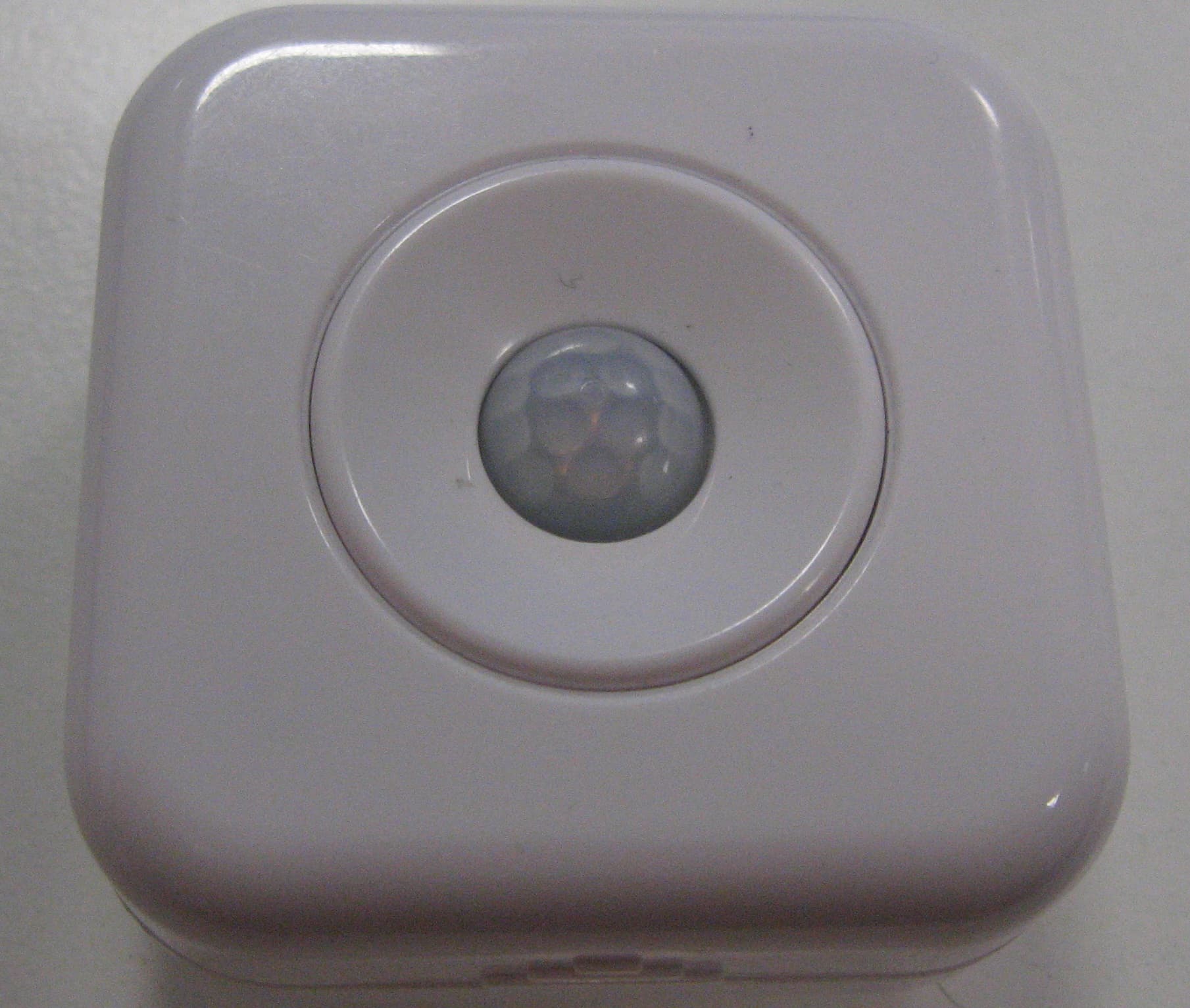
WJHMD12
May 30, 2012Wireless Motion Detector
Equipment Class
DTS - Digital Transmission System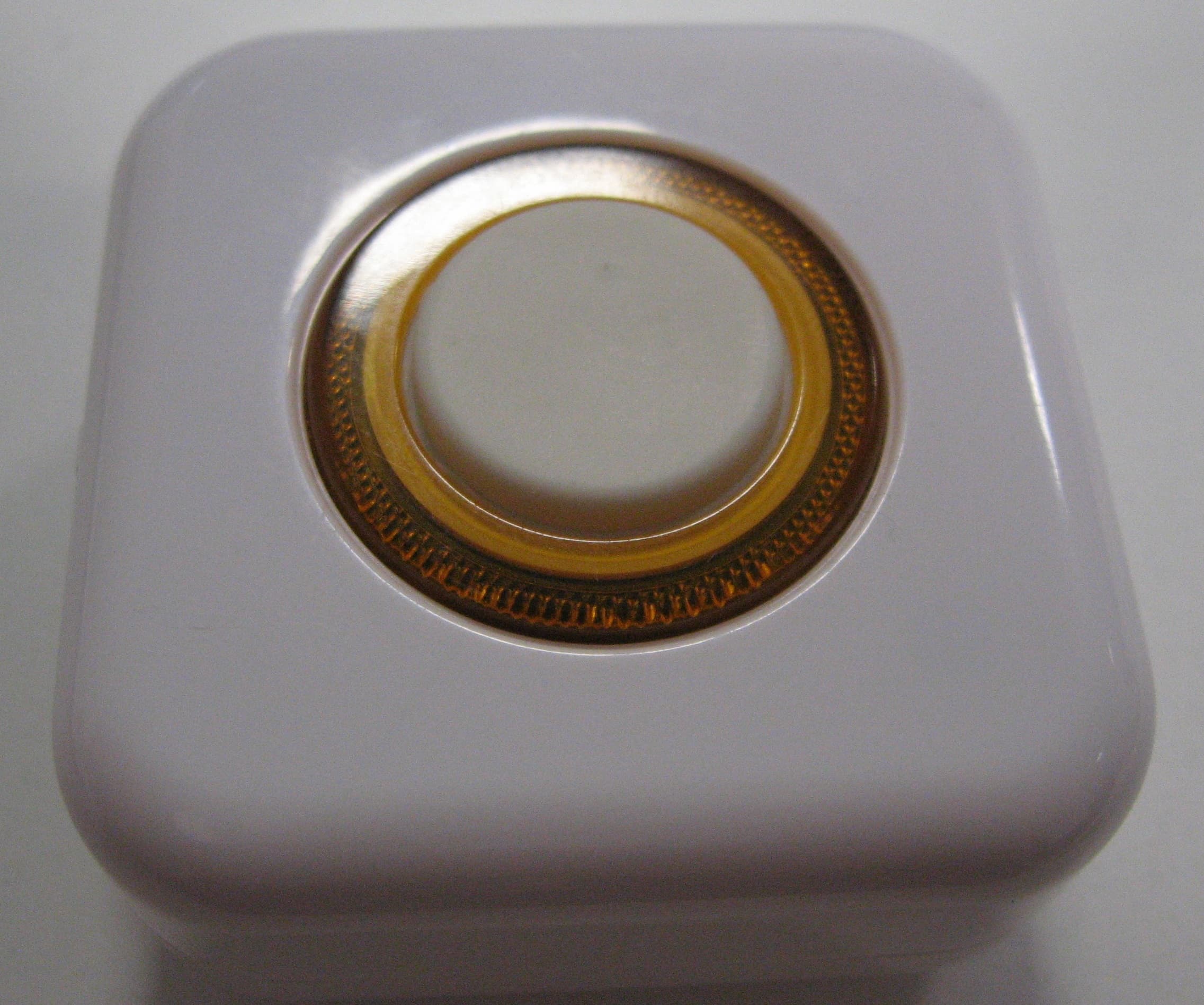
WJHB12
May 29, 2012Wireless Button
Equipment Class
DTS - Digital Transmission System