WXC-SZ901PWBNotebook
FOXCONN INTERNATIONAL INC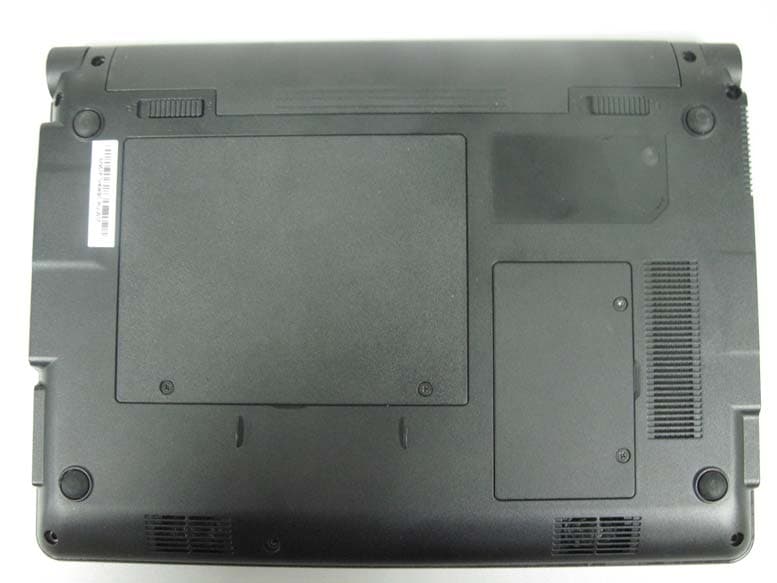
Click to zoom
Application Details
- Equipment Class
- DSS - Part 15 Spread Spectrum Transmitter
- Date of Grant
- Dec 21, 2009
- Application Purpose
- Original Equipment
- Date of Application
- Dec 17, 2009
- Equipment Note
- Notebook
- Frequency Range
- 2402.00000000 - 2480.00000000
- Company
- FOXCONN INTERNATIONAL INC
- Country
- Taiwan
Documents & Files
Document Text
Text extracted from the exhibit documents filed with the FCC. Open a document above to read the original.
Users Manual
Notebook User’s Manual SZ901P Trademark: All trademarks are the property of their respective owners. Version: User’s Manual V1.0 for Netbook. P/N: 3A2221200-000-G Symbol description: Caution : refers to important information that can help you to use Netbook better, and tells you how to avoid problems. Warning : indicating a potential risk of hardware damage or physical injury may exist. WEEE: The use of this symbol indicates that this product may not be treated as household waste. By ensuring this product is disposed of correctly, you will help prevent potential negative consequences for the environment and human health, which could other- wise be caused by inappropriate waste handling of this product. For more detailed information about recycling of this product, please contact your local city office, your household waste disposal service or the shop where you purchased this product. C A U T I O N ! © All rights reserved. All trade names are registered trademarks of respective manufacturers listed. All images are for reference only, please refer to the physical Netbook for specific features. W A R N I N G ! The following safety precautions will increase the life of the netbook. Please follow all precautions and instructions. Except as described in the manual, refer all servicing to qualified personal. ■ Do not place on uneven or unstable work surfaces. Seek servicing if the casing has been damaged. ■ Do not expose to dirty or dusty environment. And Do not operate during a gas leak. ■ Do not leave the netbook on your lap or any part of the body to prevent discomfort or injury from heat exposure. ■ Do not press or touch the display screen. Do not place together with small items that may scratch or enter the netbook. ■ The netbook should only be used in environment with ambient temperature between 0 o C(32 o F) and 40 o C(104 o F). ■ Do not place or drop objects on top. ■ Do not expose to or use near liquids、rains、moisture or strong magnetic or electrical fields. ■ Do not carry or cover a netbook that is powered on with any materials that will reduce air circulation such as a carrying bag. ■ Do not throw the netbook in municipal waste. Check local regulations for disposal of electronic products. ■ Wipe the netbook using a clean cellulose sponge or chamois cloth damp - ened with a solution of nonabrasive detergent and a few drops of warm water and remove any extra moisture with a dry cloth. C A U T I O N ! Please carefully read the following information about battery : ■ Risk of explosion if battery is replaced by an incorrect type. Dispose of used batteries according to the instructions. ■ Use only the power cord and batteries indicated in this manual. Do not dispose of batteries in a fire. They may explode. Check with local codes for possible special disposal instructions. C A U T I O N ! TAble of CoNTeNTs Chapter 1 Introduction to Your Netbook External Appearance ................................................................................2 Setting Up Your Computer........................................................................6 Using the Touchpad ................................................................................ 10 Chapter 2 Using Your Netbook Overview ................................................................................................12 Using Web Camera ................................................................................12 Special Function Keys ............................................................................13 MMC/SD/MS Dummy Card ....................................................................13 Using WWAN .........................................................................................14 Using Wireless LAN ...............................................................................16 Chapter 3 Install Windows XP in Netbook Install a new Windows XP system ..........................................................18 Install drivers in new Windows XP ......................................................... 20 Appendix Recovery of Linux system ......................................................................21 The Netbook is a compact and easy to use portable computer. It is equipped with an intuitive graphical interface and full wireless connectivity so you can use the Netbook and access the Internet at any time and in any place. This chapter includes the following information: ■ External Appearance ■ Setting Up Your Computer ■ Using the Touchpad 1 2 1-1 external Appearance The Netbook is a compact and easy to use portable computer. It is equipped with an intuitive graphical interface and full wireless connectivity so you can use the Netbook and access the Internet at any time and in any place. Provided below is an introduction to each product function. 1. Top View Your Netbook keyboard may vary depending on the country/region of purchase. C A U T I O N ! 1 2 3 4 5 6 7 8 9 1 3 2. Rear View No. PurposeDescription 1CCD CameraRecords videos or take photos 2Color LCD DisplayNetbook's screen 3Power ButtonButton for turning the computer's power on/off 4KeyboardInput device used for controlling the Netbook's various functions 5TouchpadWorks the same way as a mouse and is used for controlling the computer cursor 6Right Touchpad ButtonWorks the same way as the right mouse button 7Left Touchpad ButtonWorks the same way as the left mouse button 8Computer Status LightFrom left to right: Power icon Num Lock icon Caps Lock icon Wireless Network icon 9MicrophoneNetbook's built-in microphone No.PurposeDescription 1BatteryReplaceable battery that serves as Netbook's power supply 1 1 4 3. bottom View When the computer is running or charging, heat is produced inside the Netbook and transferred to the back of the chassis by the heat dissipation system for cooling. The transformer may also produce a lot of heat during normal use as well. The Netbook and its transformer should therefore not be placed in the lap or on any other …
Text truncated - open the document above for the full version.
Users Manual
1 7 2 3 1 2 3 Do not remove the battery while the Netbook is still running. This may damage the data on the hard disk. C A U T I O N ! Removing the battery Step 1: Shut down the Netbook. Disconnect all cables and devices. Step 2: Turn the Netbook over and unlock the battery by pushing the Battery Lock outwards. Step 3: Push the Battery Latch outwards and hold it in place with your finger. Now use the other hand to pull the battery out. 1 8 2. Connecting the Power supply Step 1: Insert the round end of the power supply transformer into the charging port on the left side of the Netbook. Step 2: Insert the other end of the power supply transformer into a power socket. The power connector for the power socket may vary depending on the local national standards. The appropriate connector will be bundled with your Netbook. Please always use the adapter when connecting the power supply. The connector shown here may not match the type included in the box and is provided for reference purposes only. C A U T I O N ! 3. startup Step 1: Open the screen of your Netbook. 1 9 Step 2: Turn on the machine by pressing the Power Button. Power Button 4. emergency shutdown When the Netbook cannot be shut down through normal means, please press and hold the Power Button until the Netbook powers off. 1 10 1-3 Using the Touchpad 1. Introduction to the Touchpad The touchpad is like a computer mouse. It senses the pressure from the user's finger and generates a voltage that is used to control the cursor's movements and issue commands. The touchpad senses finger movements. Simply move one finger across the touchpad to control the movement of the cursor on screen. Below the touchpad is two buttons. The left button is like the left mouse button and is used for selecting options or launching programs on screen. The right button works the same way as the right mouse button. 2. single Tap/ single Click To select a window function or press a button icon, move your finger across the touchpad to move the cursor to the window or button to select. Now tap the touchpad with your finger to perform the action. This action is equivalent to pressing the left mouse button. You can also press the left touchpad button for the same effect. 3. Double Tap/ Double Click To open a file or document, move your finger across the touchpad to move the cursor to the file you wish to open. Now quickly tap the touchpad twice with your finger to perform the action. This action is equivalent to pressing the left mouse button twice. You can also press the left touchpad button twice for the same effect. 4. Drag Move your finger across the touchpad to move the cursor to the object you wish to drag. Now hold down the left touchpad button with one hand and move the cursor to the desired location. Release the button and complete the drag operation. You can also double tap the object you wish to drag and keep the finger on the touchpad after the second tap to perform the drag operation with one hand. Touchpad Left ButtonRight Button This chapter introduces the following information for you: ■ Overview ■ Using Web Camera ■ Special Function Keys ■ MMC/SD/MS Dummy Card ■ Using WWAN ■ Using Wireless LAN 2 12 2-1 overview After turning on the Netbook, when you log in Netbook's pre-loaded FoxOS system, the following screen will appear: 2-2 Using web camera Click "Play"->"Webcam" to open the web camera, you can take photo and record through the camera. About detailed information please refer to help page. Click "Setting" to open the page to optimize the system. Click "Help" to open the page, please refer to the content of the page about detailed description of the system. From left to right is in turn: a. Show Desktop icon b. Bluetooth icon(optional) c. iBus Input Method icon d. Network Connection status icon e. Power icon f. Volume icon g. Exit icon h. Time icon The four parts provide various applications to meet the needs of your work, life and entertainment, detailed refer to help page. You can click these icons to go to the corresponding utilities. 2 13 2-3 special function Keys The following defines some special function keys on the netbook. Function KeysDescription Fn + F1WWAN on or off Fn + F2Wireless LAN on or off Fn + F3Touchpad on or off Fn + F4Switches to the external display Fn + F5Audio on or off Fn + F9To terminate some applications Fn + F10Toggles the "Print Screen" key to initiate screen capture utility to capture, save or print the contents of desktop Fn + F11F12 / Enters into the dialog box of "Save As" in Windows Office applications Fn + Page UpPresses to move the cursor to the beginning of the line Fn + Page DownPresses to move the cursor to the end of the line Fn + Ins"Number Lock" on or off Fn + Del"Scroll Lock" on or off Fn + EscIn S3 mode Fn + (up arrow)Increases the display brightness Fn + (down arrow)Decreases the display brightness Fn + (left arrow)Decreases the system volume Fn + (right arrow)Increases the system volume 2-4 MMC/sD/Ms Dummy Card There is a dummy card in our Netbook, the figure is as shown below. The main function of the card is to prevent dust into the computer. When you use the MMC/SD/MS card slot, press down the dummy card with your finger and take the popping card out. 2 14 2-5 Using WWAN (optional) Let me take EM770 module as an example to simply introduce how to connect WWAN in Windows XP, the steps are as below. Please refer to the file "utps_content_concept_00001. html" for details about the WWAN, its path is as below: In system path -> Program Files -> Mobile Partner -> usermanual -> en-us -> usermanual ->utps_content_concept_00001.html 1. Double click "Mobile Partner" on desktop to open the figure as shown below: 2. Click "Tools" - > "Options", and select "Profile Management" in popping window, the figure is shown as below: 3. Click "New" and input the name in "Profile Name" column, like Chinamobile, then click "Save" and "Ok". 2 15 4. Click "Connect" to start the connection. 5. You can access the internet wh…
Text truncated - open the document above for the full version.
External Photos
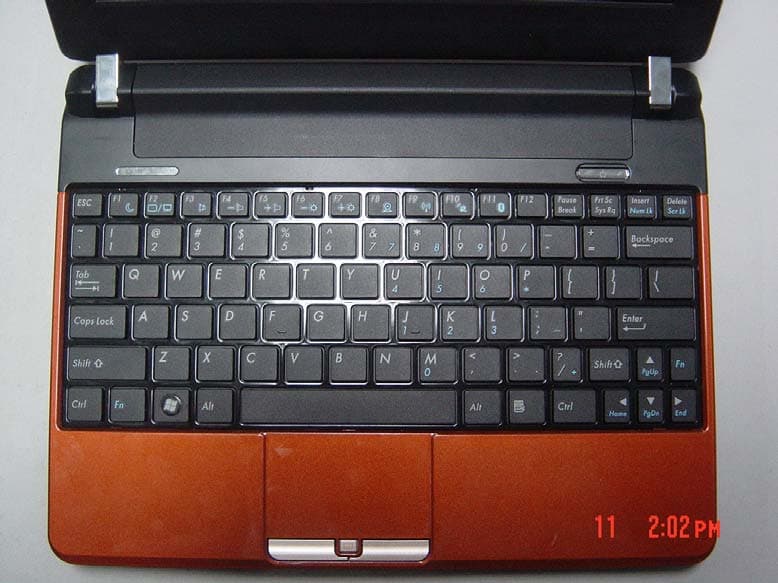
Notebook (M/N: SZ901P) EUT Photograph-External Photographs (1) EUT Photo (2) EUT Photo (3) EUT Photo (4) EUT Photo
Internal Photos
Notebook (M/N: SZ901P) EUT Photograph-Internal Photographs (1) EUT Photo (2) EUT Photo (3) EUT Photo (4) EUT Photo (5) EUT Photo (6) EUT Photo (7) EUT Photo (8) EUT Photo (9) EUT Photo (10) EUT Photo (11) EUT Photo (12) EUT Photo (13) EUT Photo (14) EUT Photo (15) EUT Photo (16) EUT Photo (17) EUT Photo (18) EUT Photo
Test Report
FCC Part15 Subpart C Test Report Product Name: Notebook Model No. : SZ901P FCC ID : WXC-SZ901PWB Applicant : FOXCONN INTERNATIONAL INC Address : 2 TZU YU ST TU-CHENG, TAIPEI HSIEN 236 TAIWAN Date of Receipt : Nov. 26, 2009 Test Date : Nov. 26, 2009 ~ Dec. 05, 2009 Issued Date : Dec. 08, 2009 Report No. : 09BS145R-RF-US-P06V01 Report Version : V1.0 The test results relate only to the samples tested. The test results shown in the test report are traceable to the national/international standard through the calibration of the equipment and evaluated measurement uncertainty herein. This report must not be used to claim product endorsement by CNLA, NVLAP or any agency of the Government. The test report shall not be reproduced except in full without the written approval of QuieTek Corporation. Report No:09BS145R-RF-US-P06V01 Test Report Certification Issued Date : Dec. 08, 2009 Report No. : 09BS145R-RF-US-P06V01 Product Name : Notebook Applicant : FOXCONN INTERNATIONAL INC Address : 2 TZU YU ST TU-CHENG, TAIPEI HSIEN 236 TAIWAN Manufacturer : FOXCONN INTERNATIONAL INC Address : 2 TZU YU ST TU-CHENG, TAIPEI HSIEN 236 TAIWAN Model No. : SZ901P FCC ID : WXC-SZ901PWB EUT Voltage : 19Vdc Trade Name : Foxconn Applicable Standard : FCC CFR Title 47 Part 15 Subpart C / ANSI C63.4: 2003 Test Result : Complied Performed Location : SuZhou EMC laboratory No.99 Hongye Rd., Suzhou Industrial Park Loufeng Hi-Tech Development Zone., SuZhou, China TEL: +86-512-6251-5088 / FAX: +86-512-6251-5098 FCC Registration Number: 800392 Documented By : ( Alice Ni ) Reviewed By : ( Marlin Chen ) Approved By : ( Gene Chang ) Page: 2 of 83 Report No:09BS145R-RF-US-P06V01 Page: 3 of 83 Laboratory Information We , QuieTek Corporation, are an independent EMC and safety consultancy that was established the whole facility in our laboratories. The test facility has been accredited by the following accreditation Bodies in compliance with ISO 17025, EN 45001 and Guide 25: Taiwan R.O.C. :BSMI, DGT, CNLA Germany :TUV Rheinland Norway :Nemko, DNV USA :FCC, NVLAP Japan :VCCI The related certificate for our laboratories about the test site and management system can be downloaded from QuieTek Corporation’s Web Site : http://tw.quietek.com/modules/myalbum/ The address and introduction of QuieTek Corporation’s laboratories can be founded in our Web site : http://www.quietek.com/ If you have any comments, Please don’t hesitate to contact us. Our contact information is as below: HsinChu Testing Laboratory : No.75-2, 3rd Lin, Wangye Keng, Yonghxing Tsuen, Qionglin Shiang, Hsinchu County 307, Taiwan, R.O.C. TEL:+886-3-592-8858 / FAX:+886-3-592-8859 E-Mail : [email protected] LinKou Testing Laboratory : No. 5, Ruei-Shu Valley, Ruei-Ping Tsuen, Lin-Kou Shiang, Taipei, Taiwan, R.O.C. TEL : +886-2-8601-3788 / FAX : 886-2-8601-3789 E-Mail : [email protected] Suzhou Testing Laboratory : No.99 Hongye Rd., Suzhou Industrial Park Loufeng Hi-Tech Development Zone., SuZhou, China TEL : +86-512-6251-5088 / FAX : 86-512-6251-5098 E-Mail : [email protected] Report No:09BS145R-RF-US-P06V01 Page: 4 of 83 TABLE OF CONTENTS Description Page 1. General Information.......................................................................................................7 1.1. EUT Description.........................................................................................................7 1.2. Mode of Operation.....................................................................................................9 1.3. Tested System Details..............................................................................................10 1.4. Configuration of Tested System............................................................................... 11 1.5. EUT Exercise Software............................................................................................12 2. Technical Test..............................................................................................................13 2.1. Summary of Test Result...........................................................................................13 2.2. Test Environment.....................................................................................................13 3. Conducted Emission....................................................................................................14 3.1. Test Equipment........................................................................................................14 3.2. Test Setup................................................................................................................14 3.3. Limit..........................................................................................................................15 3.4. Test Procedure.........................................................................................................15 3.5. Uncertainty...............................................................................................................15 3.6. Test Result...............................................................................................................16 4. Radiated Emission.......................................................................................................22 4.1. Test Equipment........................................................................................................22 4.2. Test Setup................................................................................................................23 4.3. Limit..........................................................................................................................24 4.4. Test Procedure.........................................................................................................24 4.5. Uncertainty...............................................................................................................24 4.6. Test Result..............................................................…
Text truncated - open the document above for the full version.
Test Setup Photos
Notebook (M/N: SZ901P) Test Mode: Transmitting Description: Front View of Conducted Emission Test Setup Test Mode: Transmitting Description: Back View of Conducted Emission Test Setup Test Mode : Transmitting Description : Front View of Radiated Emission Test Setup for Below 1GHz Test Mode : Transmitting Description : Back View of Radiated Emission Test Setup for Below 1GHz Test Mode : Transmitting Description : Front View of Radiated Emission Test Setup for 1~18GHz Test Mode : Transmitting Description : Back View of Radiated Emission Test Setup for 1~18GHz Test Mode : Transmitting Description : Front View of Radiated Emission Test Setup for Above 18GHz Test Mode : Transmitting Description : Back View of Radiated Emission Test Setup for Above 18GHz Report No:09C046R-HPUSP10V01 Page: 1 of 4 SAR Test Setup Photographs EUT Bottom Note: The positions used in the measurements were according to IEEE 1528-2003. Touch, 0cm
Contact Information
Applicant
WARREN LUO(Project Manager)
Technical Contact
QuieTek Technology (Suzhou) Co.,Ltd.Dream Cao
[email protected]86-0512-6251-5088
No.99 Hongye RD.Suzhou Industrial Park · Suzhou · China
Test Firm
DEKRA Testing and Certification (Suzhou) Co., Ltd.Jerry Pan
Technical Specifications
| # | Rule Parts | Frequency Range | Power Output |
|---|---|---|---|
| 1 | 15C | 2.40 GHz - 2.48 GHz | 1.00 mW |
Other Applications from FOXCONN INTERNATIONAL INC
WXC-NOTEBOOKNS
Jan 10, 2010Notebook
Equipment Class
DSS - Part 15 Spread Spectrum Transmitter
WXC-Q189082Q
Dec 09, 2008Notebook
Equipment Class
DTS - Digital Transmission System