XRAFB301Wireless Activity Tracker
Google LLC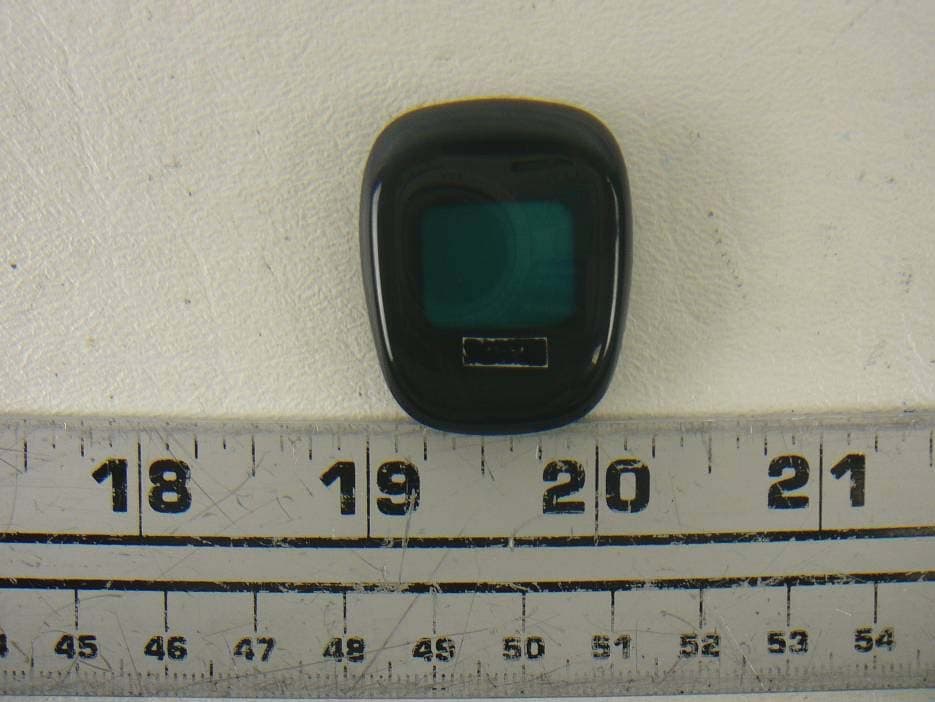
Click to zoom
Application Details
- Equipment Class
- DTS - Digital Transmission System
- Date of Grant
- Nov 04, 2012
- Application Purpose
- Original Equipment
- Date of Application
- Nov 04, 2012
- Equipment Note
- Wireless Activity Tracker
- Frequency Range
- 2402.00000000 - 2480.00000000
- Company
- Google LLC
- Country
- United States
Documents & Files
Document Text
Text extracted from the exhibit documents filed with the FCC. Open a document above to read the original.
Users Manual
Product Manual Fitbit Zip Product Manual 1 2 3 6 9 9 9 11 10 10 10 10 10 11 11 11 12 12 Contents Getting Started What's Included Setting up your Fitbit Zip Installing the Fitbit Connect software Pairing your Fitbit Zip to a mobile device Using your Fitbit Zip Wearing your Fitbit Zip tracker Battery Display When Your Zip Goes to Sleep Using the Fitbit Connect Application Open Main Menu Sync Now Set Up Device Device Update Troubleshooting General Zip Information Environmental Conditions PC/Mac requirements Browsers supported Statements Federal Communications Commission (FCC) and Industry Canada (IC) Statement Help Getting Started What's Included Your Fitbit Zip Wireless Activity Tracker will contain: • Fitbit Zip Wireless Activity Tracker • wireless USB dongle • battery door tool • 3V coin battery, CR2025 • belt clip • Fitbit Zip Quick Start Guide 1 Setting Up Your Fitbit Zip 1. Remove your Zip from its packaging. 2. Use the provided battery door tool to unlock the battery door. Insert the tool into the slot on the back of the unit, and turn the door counterclockwise. 3. Once the door has been removed, insert the provided battery into the back of the unit, with the “+” sign facing up. The battery will rest in the center of the compartment. 4. Once the battery is in place, align the arrow on the battery door with the ‘un- lock’ icon on your Zip to put the battery door in place. Use the battery door tool to ‘lock’ the battery door by turning it clockwise until the arrow on the door lines up with the ‘lock’ icon. 2 5. Once the display comes on, you will be ready to proceed with setup. The firmware version of your Zip will appear on the display, followed by the Fitbit Smiley. The series of smiley faces are used to represent your activity level. The display will remain on for 30 minutes after inserting the battery. 6. Take the USB dongle from the box and plug it into a USB port on your computer. 7. You are now ready to install Fitbit Connect. Installing the Fitbit Connect software 1. Go to www.fitbit.com/start/zip 2. Select the pink “Download” link to download Fitbit Connect. 3. Open the Fitbit Connect file and follow onscreen instructions. 4. The first time you open Fitbit Connect, you will have the option to create a new account if you are new to Fitbit or login to your account if you are an existing user. If you already have a Fitbit.com account and you want to use the Zip with your existing account, proceed with Zip setup using that email address. *There can only be one Tracker per Fitbit.com account. If you already have an Ultra or Zip associated with Fitbit.com, linking a new device to it will unlink the previous device. To monitor your Zip and your Ultra simultaneously, create a new Fitbit.com account with a new email address. 3 6. You will be prompted to tell us a few details about yourself.This information helps to personalize your experience with your Zip and makes your calorie burn and distance data more accurate. Before clicking “Next,” ensure that your Zip is within 5 inches of the USB dongle plugged into your computer. If another Zip is nearby, move it further away. 7. After you click “Next” the Fitbit software will search for your Zip. 8. When your Zip has been discovered, you will be prompted to enter the 4 digit pairing number displayed on your Zip's screen. 4 • The pairing number will display with the radio icon and begin with a 0. It may take up to 30 seconds for this number to appear. • If the number does not display, click “I don’t see a number.” You will then be prompted to: • Make sure the battery is inserted and your Zip screen is on. • Move nearby Trackers away from the dongle. • Make sure that your Zip is removed from the clip case. 9. After you enter the number displayed on the screen of your Zip, it will be linked to your Fitbit account. 10. Once your Zip has been linked with your Fitbit.com account, you will see an “All Set” screen, which will allow you to click through to Fitbit.com, where you can access all of the information synced from your Zip to your account. 5 Pairing your Fitbit Zip to a mobile device The Fitbit Zip will sync with compatible Bluetooth Smart devices. Currently, the iPhone 4S, iPhone 5, iPod Touch, iPad Mini and 3rd generation iPad will sync to the Fitbit One. Devices that do not have Bluetooth 4.0/Bluetooth Smart compatibility won’t sync directly with the Fitbit Zip. 1. Download the latest Fitbit app for your device. If you already have the Fitbit app, you may need to update it at this time. Check the App Store to see if there is a Fitbit app update available. 2. Open the Fitbit app. If you already have a Fitbit account and would like to sync your Fitbit Zip with that account, tap the “Log in” button. Please note that only one tracker can be paired to your account at a time. If you have multiple trackers, you’ll need to have multiple Fitbit accounts. If you are new to Fitbit (or have an existing Fitbit device that you would like to continue to use with a different email address), you can sign up for a new account by tapping the “Get started” button. 3. If you are new to Fitbit, you will be asked for your personal information on the following screen. 4. If you don’t already have an account, on the next screen you’ll be asked for the email address and password you’d like to use with Fitbit. 5. Be sure that the battery has been inserted in your Zip. Make sure that your Zip is awake by giving it a tap. 6. Move your tracker close to your mobile device, then tap “Set up Now”. If you see a “Link Now” button instead, you already have a tracker associated with the email you entered at login. Tap “Link Now” to sync the tracker to your Fitbit account. 7. Select “Zip”. 8. After selecting “Zip”, tap “Start” on the next screen. Your mobile device will begin to search for your tracker. 9. When the “We found a Fitbit Zip” screen appears, tap “Next”. 10. When your tracker has been discovered, you will be asked to enter the number on your tracker’s display int…
Text truncated - open the document above for the full version.
Cover Letter(s)
FCC Authorization 2012/06/20 FEDERAL COMMUNICATIONS COMMISSIONS Authorization and Evaluation Division 7435 Oakland Mills Road Columbia, MD 21046 Subject: Agent Authorization To whom it may concern: We Fitbit , the undersigned, Hereby authorizes Bay Area Compliance Laboratory Corporation to act on its behalf in all matters relating to application for Equipment authorization, including the signing of all documents relating to these matters. All acts carried out by Bay Area Compliance Laboratory Corporation on our behalf shall have the same effect as our own action. We, the undersigned, hereby certify that we are not subject to a denial of federal benefits, that includes FCC benefits, pursuant to Section 5301 of the Anti-Drug Abuse Act of 1988, 21 U.S.C. 853(a). This authorization is valid until further written notice from the applicant. Sincerely Yours, Client’s signature Client’s name/ title John S Fulton Contact information/address 150 Spear Street, San Francisco, Ca. 94105
Cover Letter(s)
FCC Confidential Authorization 2012/06/20 FEDERAL COMMUNICATIONS COMMISSIONS Authorization and Evaluation Division 7435 Oakland Mills Road Columbia, MD 21046 Subject: Confidentiality Request regarding application for certification of FCC ID: XRAFB301 In accordance with Sections 0.457 and 0.459 of the Commission’s Rules, fitbit Inc hereby requests long-term confidential treatment of information accompanying this application as outlined below: Block Diagram Schematics Operation Description As well as short-term confidential treatment of information accompanying this application as outlined below: Internal Photos User’s Manual External Photos Test Set-up Photos The above materials contain proprietary and confidential information not customarily released to the public. The public disclosure of these materials provides unjustified benefits to its competitors in the market. Sincerely, Client’s signature Client’s name/ title John S Fulton Contact information/address 105 Spear Street, San Francisco, Ca, 94105
External Photos
Fitbit, Inc. FCC ID: XRAFB301, IC: 8542A-FB301 Report Number: R12061113-247 Page 40 of 42 FCC Part 15C & IC RSS-210 Test Report ٛ 15 Exhibit C - EUT Photographs 15.1 EUT- Front View 15.2 EUT- Back View Fitbit, Inc. FCC ID: XRAFB301, IC: 8542A-FB301 Report Number: R12061113-247 Page 41 of 42 FCC Part 15C & IC RSS-210 Test Report ٛ 15.3 EUT - Side View 1 15.4 EUT - Side View 2
ID Label/Location Info
FCC ID: XRAFB301 IC: 8542A-FB301 CAN ICES-3(B)/NMB-3(B) 2A MODEL# FB301 FCC ID: XRAFB301 IC: 8542A-FB301 CAN ICES-3(B)/NMB-3(B) MODEL# FB301
Internal Photos
Fitbit, Inc. FCC ID: XRAFB301, IC: 8542A-FB301 Report Number: R12061113-247 Page 42 of 42 FCC Part 15C & IC RSS-210 Test Report ٛ 15.5 EUT - Top PCB View 15.6 EUT – Bottom PCB View ---END OF REPORT ---
Test Report
Note: This test report is prepared for the customer shown above and for the device described herein. It may not be duplicated or used in part without prior written consent from Bay Area Compliance Laboratories Corp. This report must not be used by the customer to claim product certification, approval, or endorsement by A2LA* or any agency of the Federal Government. * This report may contain data that are not covered by the A2LA accreditation and are marked with an asterisk “*” (Rev.3) FCC PART 15, SUBPART C IC RSS-210 ISSUE 8, DEC 2010 TEST AND MEASUREMENT REPORT For Fitbit, Inc. 625 Market Street, Suite 1400, San Francisco, CA 94105, USA FCC ID: XRAFB301 IC: 8542A-FB301 Report Type: Original Report Product Type: Bluetooth LE Tracker Prepared by: Lionel Lara Report Number: R12061113-247 Report Date: 2012-11-05 Reviewed By: Victor Zhang RF/EMC Lead Bay Area Compliance Laboratories Corp. 1274 Anvilwood Avenue, Sunnyvale, CA 94089, USA Tel: (408) 732-9162 Fax: (408) 732 9164 Fitbit, Inc. FCC ID: XRAFB301, IC: 8542A-FB301 Report Number: R12061113-247 Page 2 of 42 FCC Part 15C & IC RSS-210 Test Report ٛ TABLE OF CONTENTS 1 GENERAL INFORMATION ..............................................................................................................................5 1.1 PRODUCT DESCRIPTION FOR EQUIPMENT UNDER TEST (EUT) ........................................................................5 1.2 MECHANICAL DESCRIPTION OF EUT ..............................................................................................................5 1.3 OBJECTIVE......................................................................................................................................................5 1.4 RELATED SUBMITTAL(S)/GRANT(S)................................................................................................................5 1.5 TEST METHODOLOGY.....................................................................................................................................5 1.6 MEASUREMENT UNCERTAINTY.......................................................................................................................5 1.7 TEST FACILITY................................................................................................................................................6 2 SYSTEM TEST CONFIGURATION .................................................................................................................7 2.1 JUSTIFICATION................................................................................................................................................7 2.2 EUT EXERCISE SOFTWARE.............................................................................................................................7 2.3 SPECIAL ACCESSORIES....................................................................................................................................7 2.4 EQUIPMENT MODIFICATIONS..........................................................................................................................7 2.5 LOCAL SUPPORT EQUIPMENT..........................................................................................................................7 2.6 POWER SUPPLY AND LINE FILTERS.................................................................................................................7 2.7 INTERFACE PORTS AND CABLING....................................................................................................................7 2.8 INTERNAL PARTS LIST AND DETAILS..............................................................................................................8 3 SUMMARY OF TEST RESULTS ......................................................................................................................9 4 FCC §15.203 & IC RSS-GEN §7.1.2 – ANTENNA REQUIREMENTS ........................................................10 4.1 APPLICABLE STANDARD...............................................................................................................................10 4.2 RESULT.........................................................................................................................................................10 5 FCC §15.205, §15.209, §15.247(D) & IC RSS-210 §2.2, §A8.5 – SPURIOUS RADIATED EMISSIONS...11 5.1 APPLICABLE STANDARD...............................................................................................................................11 5.2 TEST SETUP..................................................................................................................................................12 5.3 TEST PROCEDURE.........................................................................................................................................12 5.4 CORRECTED AMPLITUDE & MARGIN CALCULATION....................................................................................13 5.5 TEST EQUIPMENT LIST AND DETAILS............................................................................................................13 5.6 TEST ENVIRONMENTAL CONDITIONS............................................................................................................13 5.7 SUMMARY OF TEST RESULTS........................................................................................................................14 5.8 RADIATED EMISSIONS TEST RESULT DATA..................................................................................................15 6 FCC §15.247(A)(2) & IC RSS-210 §A8.2 – 6 DB & 99% EMISSION BANDWIDTH .................................18 6.1 APPLICABLE STANDARD...............................................................................................................................18 6.2 TEST PROCEDURE.........................................................................................................................................18 6.3 TEST EQUIPMENT LIST…
Text truncated - open the document above for the full version.
Test Setup Photos
Fitbit, Inc. FCC ID: XRAFB301, IC: 8542A-FB301 Report Number: R12061113-247 Page 38 of 42 FCC Part 15C & IC RSS-210 Test Report ٛ 14 Exhibit B - Test Setup Photographs 14.1 Radiated Emission below 1 GHz Front View 14.2 Radiated Emission below 1 GHz Rear View Fitbit, Inc. FCC ID: XRAFB301, IC: 8542A-FB301 Report Number: R12061113-247 Page 39 of 42 FCC Part 15C & IC RSS-210 Test Report ٛ 14.3 Radiated Emission below 1 GHz Front View 14.4 Radiated Emission above 1 GHz Rear View
Contact Information
Applicant
John McNulty
Test Firm
Bay Area Compliance Laboratories Corp.Lisa Tang
Technical Specifications
| # | Rule Parts | Frequency Range | Power Output |
|---|---|---|---|
| 1 | 15C | 2.40 GHz - 2.48 GHz | 1.00 mW |
Other Applications from Google LLC
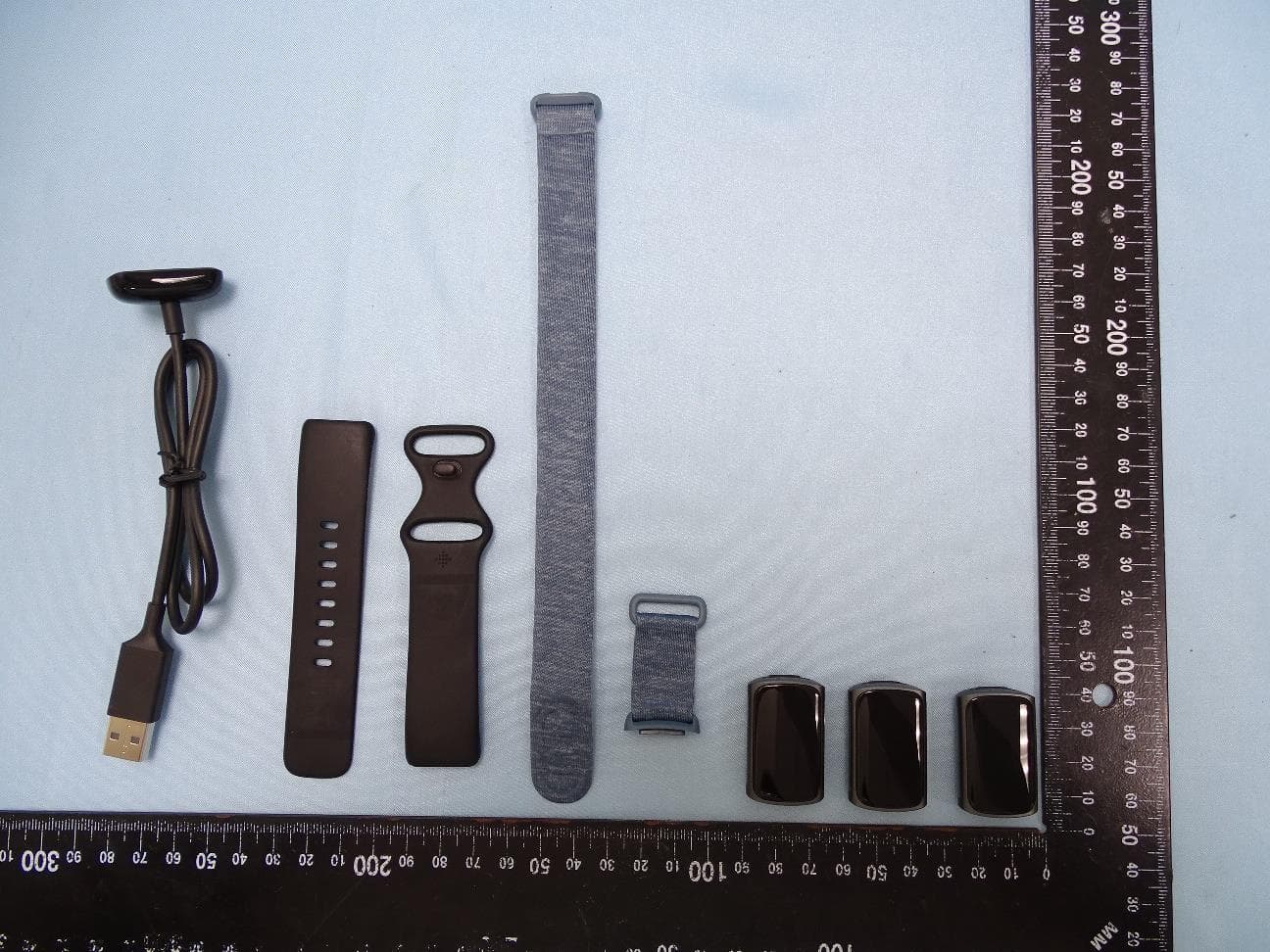
XRAFB421
Aug 24, 2021Wireless Activity Tracker
Equipment Class
DXX - Part 15 Low Power Communication Device Transmitter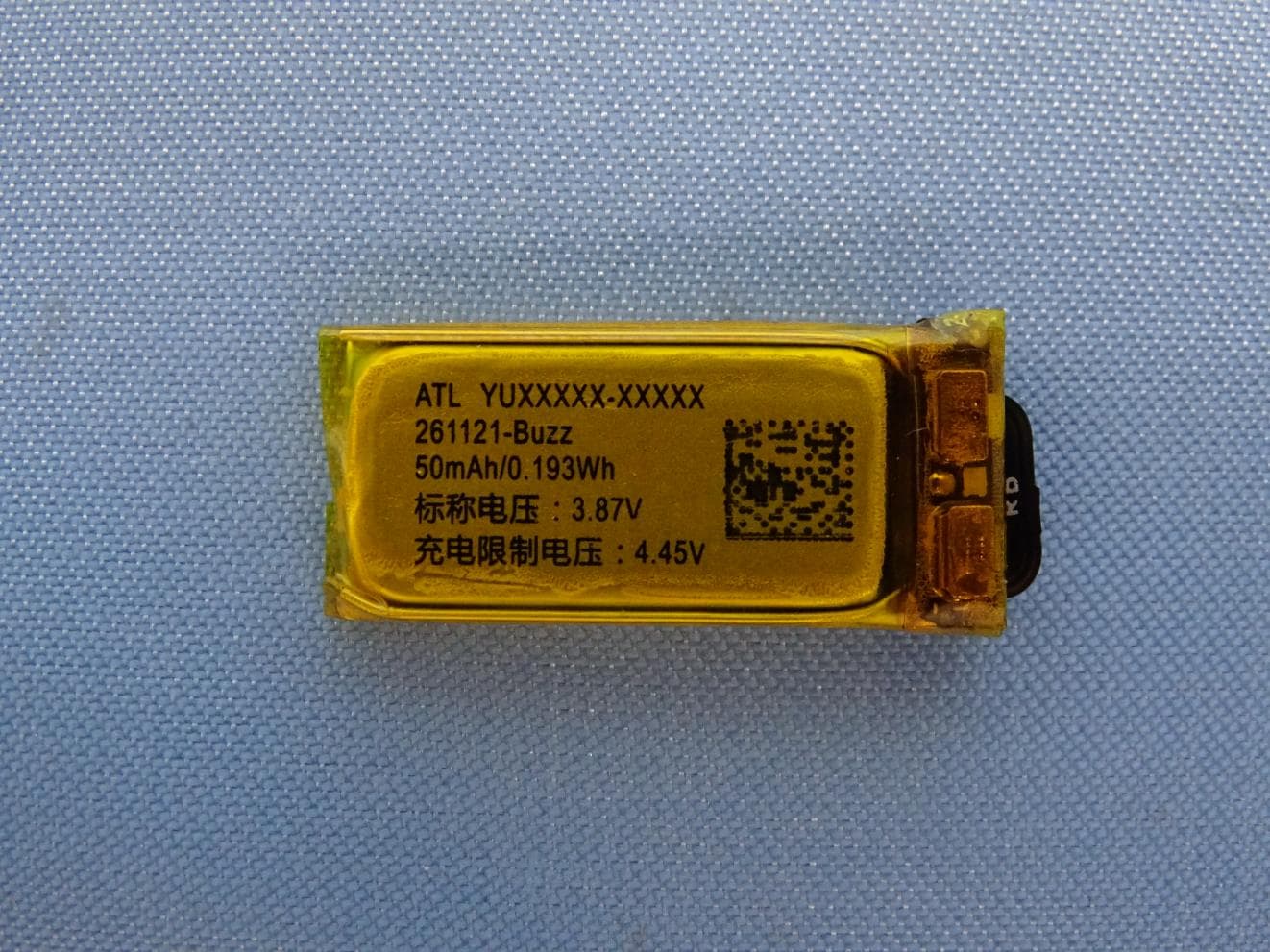
XRAFB422
Apr 20, 2021Wireless Activity Tracker
Equipment Class
DTS - Digital Transmission System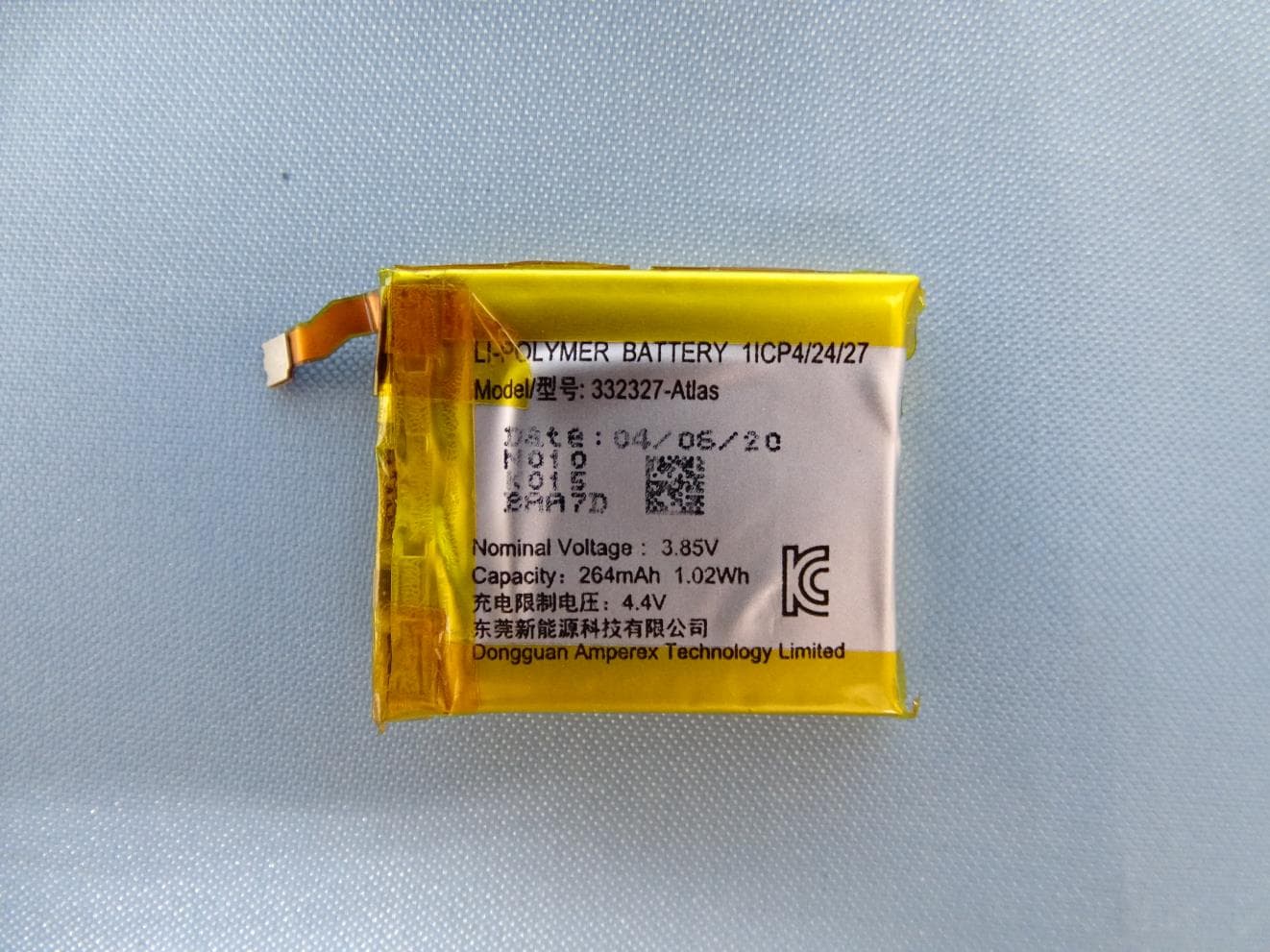
XRAFB512
Aug 24, 2020Smartwatch
Equipment Class
DSS - Part 15 Spread Spectrum Transmitter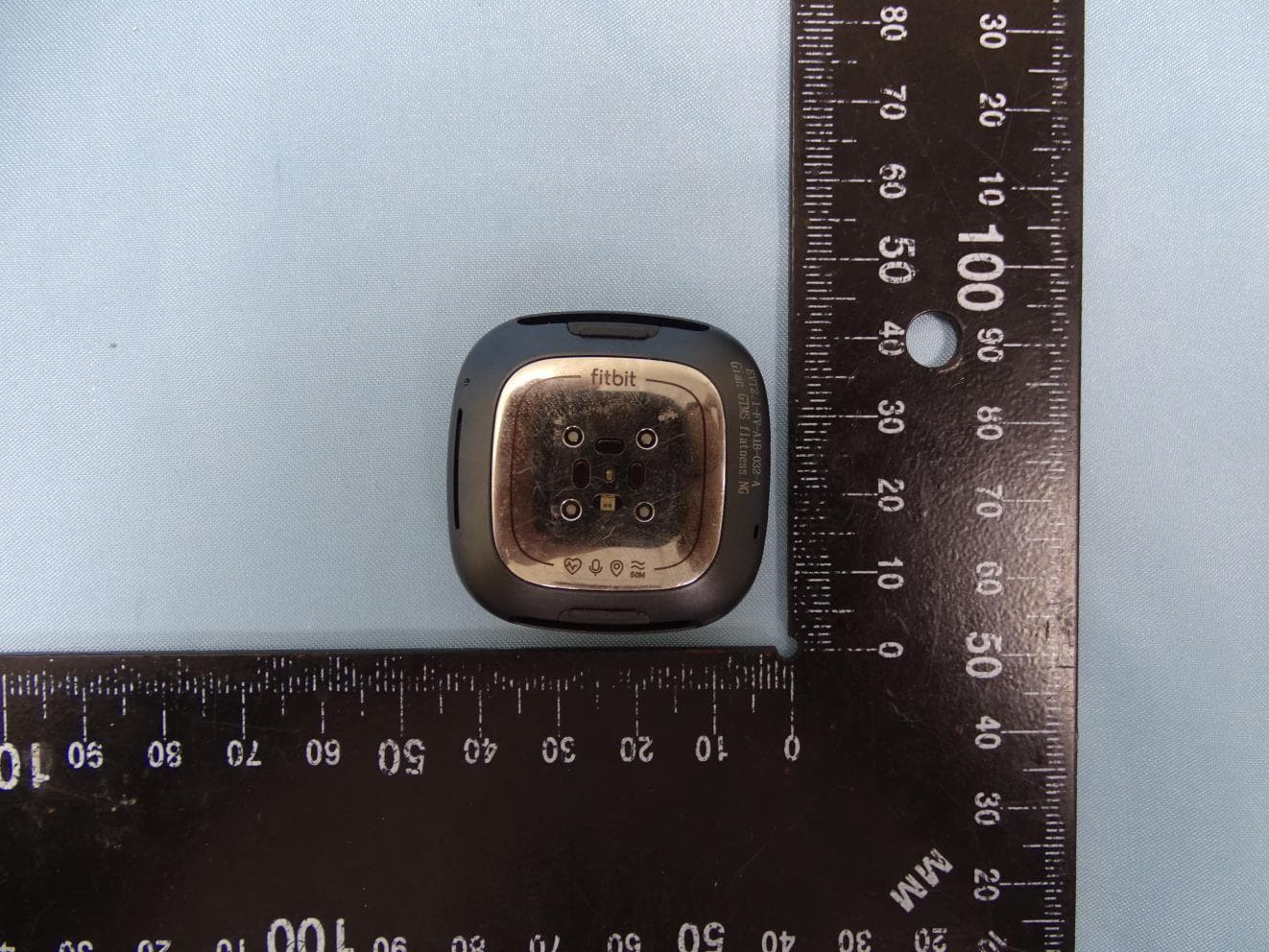
XRAFB511
Aug 24, 2020Smartwatch
Equipment Class
DSS - Part 15 Spread Spectrum Transmitter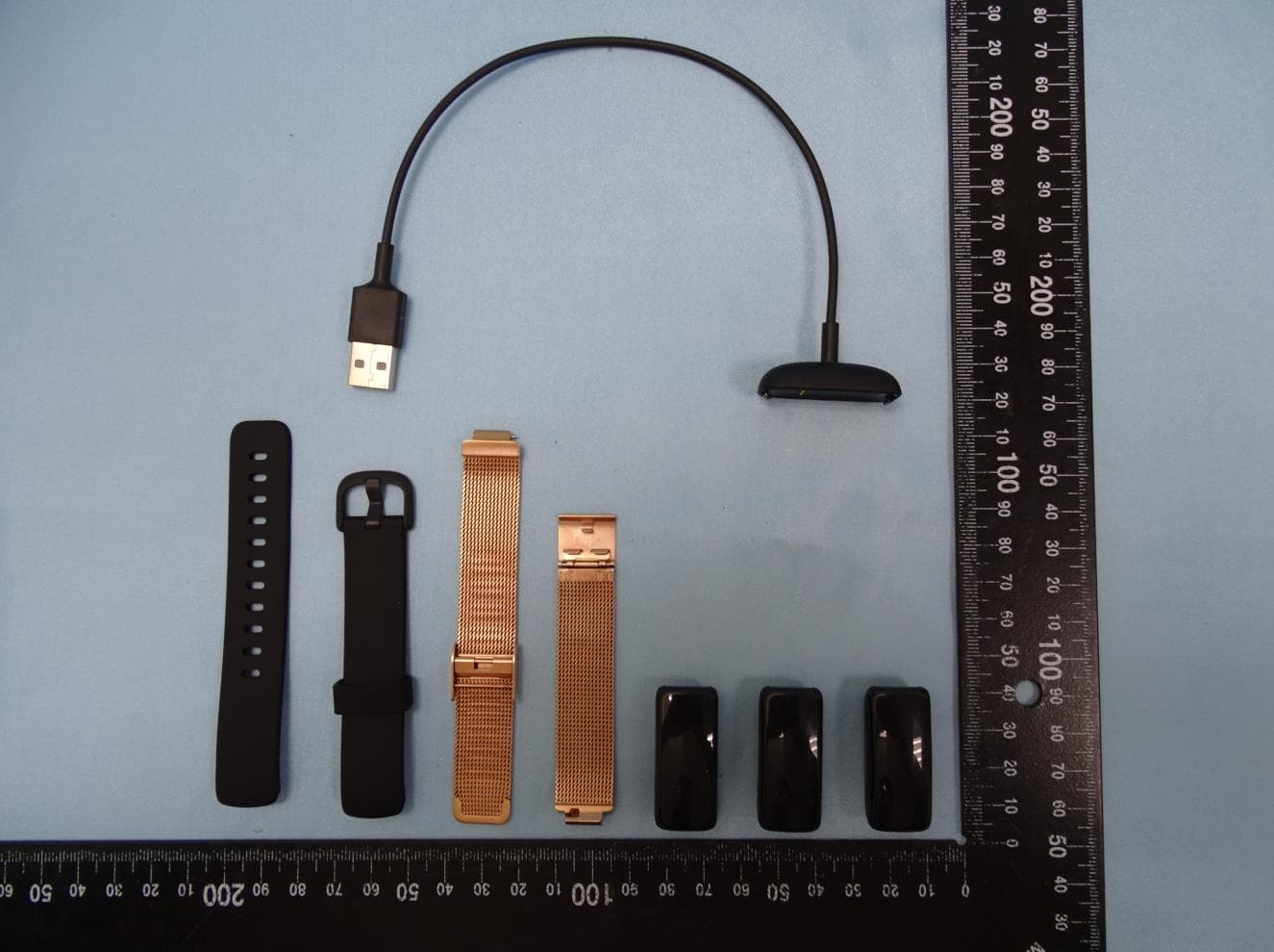
XRAFB418
Aug 24, 2020wireless activity tracker
Equipment Class
DTS - Digital Transmission System