YE7-SC880Video Gateway System (Camera)
Pandachip Limited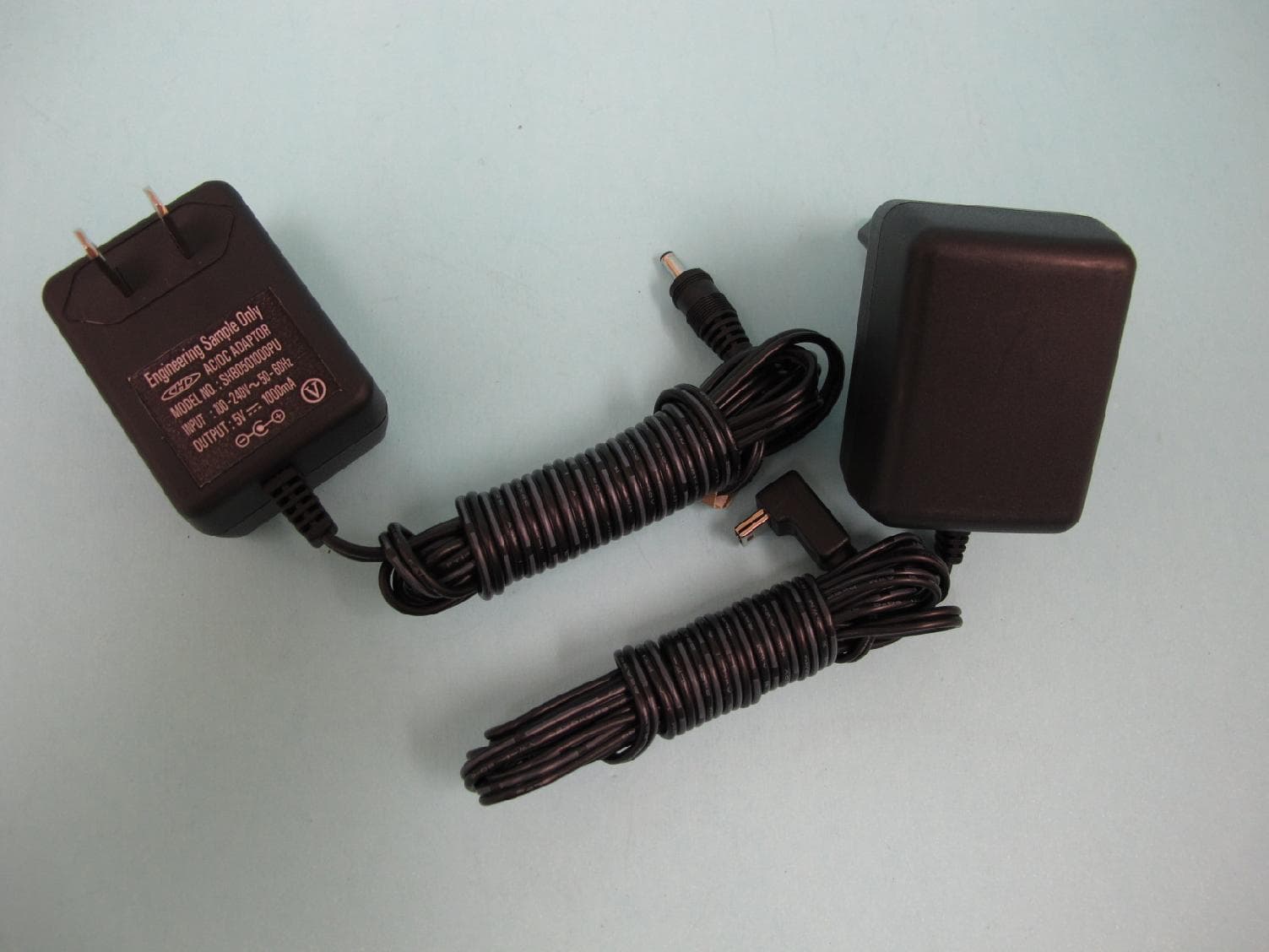
Click to zoom
Application Details
- Equipment Class
- DSS - Part 15 Spread Spectrum Transmitter
- Date of Grant
- Apr 12, 2011
- Application Purpose
- Original Equipment
- Date of Application
- Apr 12, 2011
- Equipment Note
- Video Gateway System (Camera)
- Frequency Range
- 2413.00000000 - 2469.00000000
- Company
- Pandachip Limited
- Country
- Hong Kong
Documents & Files
Document Text
Text extracted from the exhibit documents filed with the FCC. Open a document above to read the original.
Users Manual
Add-on Came r a WVS1000 User manual WVS1000 Camera Power AdapterCamera Before you install the camera, carefully plan where and how it will be positioned, and where you will route the cable that connects the camera to the power adaptor. Avoid installing in a location which requires the wireless signal to pass through cement, concrete and metal structures. This will reduce the transmission range. TIP 1. Plug the AC power connector from the power adapter into the AC adapter port on the camera. 2. Connect the power adapter to a power outlet. 3. The charging LED glows red to indicate the camera is charging. Charging the Camera NOTE: • Only use the included power adapter to charge the camera(s). • Charge the camera for 8 hours to fully charge. • USB jack is only for power supply use. No data is transferred. It is recommended to charge your camera before initial use. Charging LED A d d - o n C a me r a WVS1000 Skypegateway Camera User manual Add-on Came r a WVS1000 User manual WVS1000 Camera 1. Hardware Setup Procedure 1.1 WVS1000 If the device is setup properly, all the LED's in the front panel will light up; and the two LED's at the RJ45 socket will flash. WVS1000 will get an IP address from the connected network and will connect to Skype automatically (if default account is set for the device) . 1.2 Wireless Cameras Connect the camera with the USB power adapter and switch it on. Power lineInternet lineAntenna Add-on Came r a WVS1000 User manual 2. Software Setup Procedure 2.1 Install the PC application for the WVS1000 (support Windows XP, Vista, 7) 2.1.1 Insert the install disk and double-click the setup.exe. Follow all the instruction in the installation procedure. Normally, just press “Next” for default installation. If Skype application is not installed on computer, it will download the latest Skype and install it. Add-on Came r a WVS1000 User manual 2. Software Setup Procedure The following shows completion of installation. Add-on Came r a WVS1000 CameraWVS1000 User manual 2. Software Setup Procedure 2.2 Skype 2.2.1 Create a default skype account for WVS1000 (assume “WVS1000username” as the skype name for this guide) 2.2.2 Login with “WVS1000username” Run local Skype application, logout any existing account if it is online. Click to create account WVS1000username **************** Add-on Came r a WVS1000 User manual User manual 2.2.3 Add a contact to the default skype account. you can add your personal Skype account into the contact list The added users will be able to connect to the WVS1000 for video stream! After adding user contact, sign out default WVS1000 Skype account and signin your personal Skype account to accept invitation 2. Software Setup Procedure Add-on Came r a WVS1000 User manual 2. Software Setup Procedure 2.3 OVIZEE WVS1000. 2.3.1 In network connection, find the Upnp device named “Ovizee”. (if you cannot find the device, that means your Upnp service is not running on Windows, please go to Appendix A. Check if Upnp is running before proceeding) In Windows XP In Windows 7 In Windows Vista Double-click the icons to go into configuration website. Ovizee Ovizee Ovizee Ovizee Double-click the “WVS1000” icon to pop up an internal webpage. A d d - o n C a m e r a WVS1000 User manual 2. Software Setup Procedure 2.3 OVIZEE WVS1000 (web configuration) 2.3.2 During the initial setup, select an appropriate time zone and click Next. 2.3.3 If you have an existing Skype account for WVS1000, (following the steps in section 2.2.1), enter the corresponding information here, then click Next. If you do not have any existing Skype account, click on the 'Don't have a Skype Name?' link to create a new one. Double-click the icons to go into configuration website. WV0 A d d - o n C a m e r a WVS1000 User manual 2. Software Setup Procedure 2.3 OVIZEE WVS1000 2.3.5 When a valid Skype account was assigned to WVS1000, you may now check and adjust its online status. 2.3.4 Fill in all the information to create a new Skype account for WVS1000. WVS1000 ****** ****** CameraSkypegateway 3. General Operations 3.1 Connect to WVS1000 a. Start Skype in your PC/notebook; b. If your WVS1000 is powered up and connected to the Internet properly, you should be able to your WVS1000 online with its assigned skype name; c. As making a normal skype voice/video call, click your WVS1000 on the left to select it and click the Call button or the Video Call button to make a skype call to WVS1000 as below; d. Your WVS1000 should automatically answer your skype call and a life video will then stream to your Skype client from the Camera 1, which is the default camera to be selected automatically in each skype call-in); e. You will get a welcome message “Welcome to Ovizee Live!” from your WVS1000; f. Also, you will get another message “Cam1 is selected!!!” from your WVS1000 to inform you that the Camera 1 is selected; Add-on Came r a WVS1000 Quickstart Guide Add-on Came r a WVS1000 User manual Add-on Came r a Skypegateway CameraSkypegateway Quickstart Guide j. Double-click the PandaVideo icon to maximize it as shown below: Click “Allow access” to grant the access right to PandaVideo and it then minimizes in the system tray as below: i. Whenever your PC/notebook is powered up, PandaVideo will automatically start; h. PandaVideo tries to interface to Skype and the following screen will show below: Right now, you are ready to use WVS1000. Add-on Came r a WVS1000 User manual CameraSkypegateway 3. General Operations 3.1.1 Status of button when a Skype Call is made to WVS1000 Add-on Came r a WVS1000 User manual Dial out a skype call to the user’s WVS1000 through Skype App. Cam 1 is active (current live video is streaming from camera1) Cams 2, 3, & 4 are inactive Online status: GREEN is online; otherwise, it is offline CameraWVS1000 Add-on Came r a WVS1000 User manual 3. General Operations 3.2 How to Add/Delete WVS1000 Accounts Click the button in the RED circle. List out the user’s existing skype contacts and their online statues The …
Text truncated - open the document above for the full version.
External Photos
Page 1 of 3 TÜV SÜD Hong Kong Ltd. 3/F, West Wing, Phase 2, 10 Science Park West Avenue, Shatin, Hong Kong. Appendix B Date: 2011-03-09 Test report no.: 60.870.10.016.01F Model no.: SC880 Photos of EUT – External EUT Photos Page 2 of 3 TÜV SÜD Hong Kong Ltd. 3/F, West Wing, Phase 2, 10 Science Park West Avenue, Shatin, Hong Kong. Test report no.: 60.870.10.016.01F Model no.: SC880 Page 3 of 3 TÜV SÜD Hong Kong Ltd. 3/F, West Wing, Phase 2, 10 Science Park West Avenue, Shatin, Hong Kong. Test report no.: 60.870.10.016.01F Model no.: SC880 Ancillary - AC/DC adaptor
ID Label/Location Info
SC880 Unit Label S P 00 000001G 9 5 1) White background black letters 2) Materi al : l abel paper w i th pl asti c l am i nati on on top Baby unit rating label 3) scale: 1:1, size: 23x18mm WVS1010 INPUT : DC5V 1000mA MADE IN CHINA Rechargeable Batteries Only Use Only Power Supplies listed in the user instructions. FCC ID : YE7-SC880 IC : 8575A-SC880 This device complies with part 15 FCC rules. Operation is subject to the following two conditions: (1) this device may not cause harmful interference (2) this device must accept any interference received including interference that may cause undesired operations. WVS1010 INPUT : DC5V 1000mA MADE IN CHINA Rechargeable Batteries Only Use Only Power Supplies listed in the user instructions. FCC ID : YE7-SC880 IC : 8575A-SC880 This device complies with part 15 FCC rules. Operation is subject to the following two conditions: (1) this device may not cause harmful interference (2) this device must accept any interference received including interference that may cause undesired operations.
Internal Photos
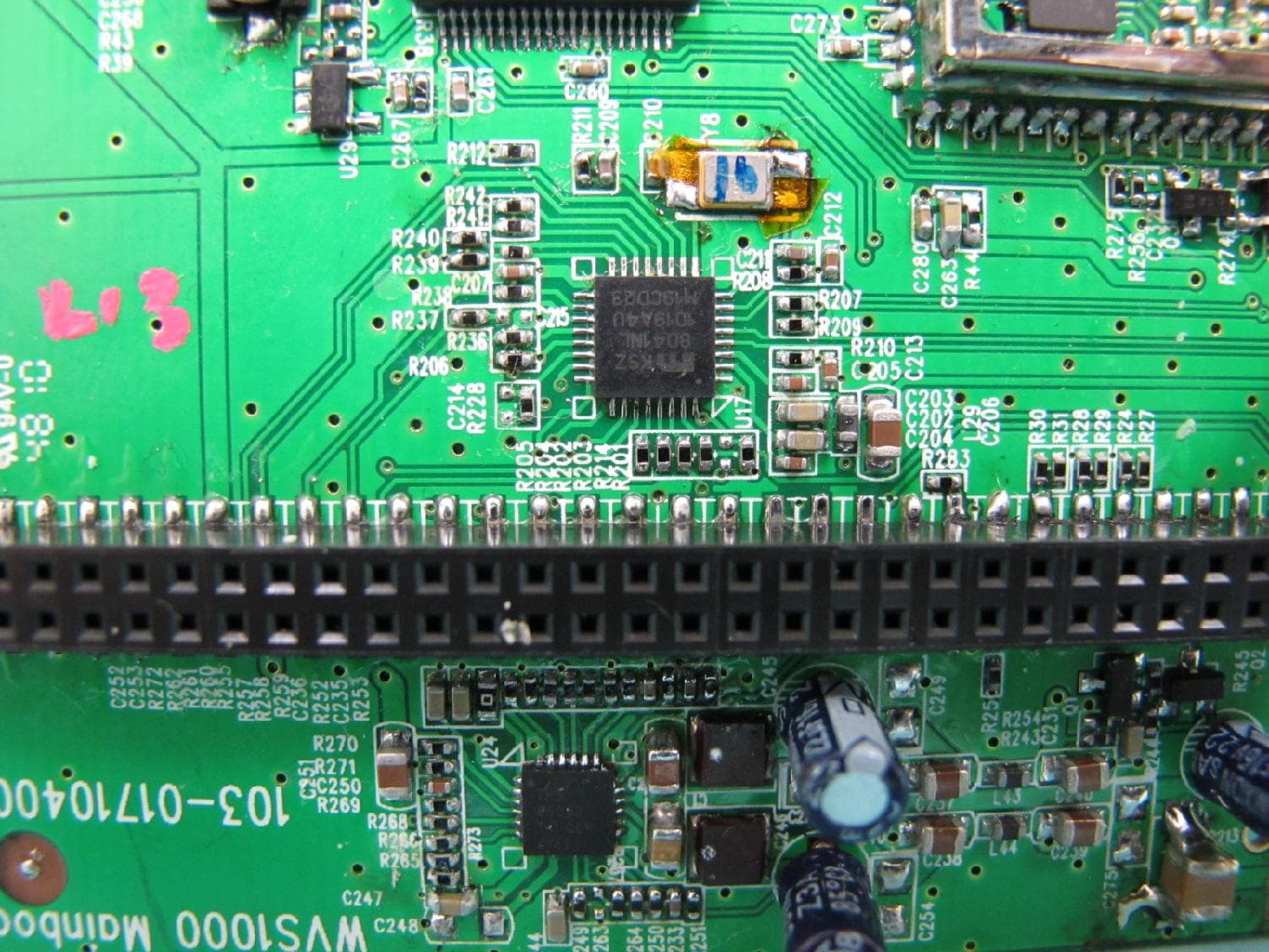
Page 1 of 5 TÜV SÜD Hong Kong Ltd. 3/F, West Wing, Phase 2, 10 Science Park West Avenue, Shatin, Hong Kong. Appendix C Date: 2011-03-09 Test report no.: 60.870.10.016.01F Model no.: SC880 Photos of EUT – Internal EUT Photos Page 2 of 5 TÜV SÜD Hong Kong Ltd. 3/F, West Wing, Phase 2, 10 Science Park West Avenue, Shatin, Hong Kong. Test report no.: 60.870.10.016.01F Model no.: SC880 Page 3 of 5 TÜV SÜD Hong Kong Ltd. 3/F, West Wing, Phase 2, 10 Science Park West Avenue, Shatin, Hong Kong. Test report no.: 60.870.10.016.01F Model no.: SC880 Page 4 of 5 TÜV SÜD Hong Kong Ltd. 3/F, West Wing, Phase 2, 10 Science Park West Avenue, Shatin, Hong Kong. Test report no.: 60.870.10.016.01F Model no.: SC880 Page 5 of 5 TÜV SÜD Hong Kong Ltd. 3/F, West Wing, Phase 2, 10 Science Park West Avenue, Shatin, Hong Kong. Test report no.: 60.870.10.016.01F Model no.: SC880
Test Report
TEST REPORT Date: 2011-03-09 Report No.: 60.870.10.016.01F Page 1 of 32 TUV SUD Hong Kong Ltd. 3/F, West Wing, Phase 2, 10 Science Park West Avenue, Shatin, Hong Kong Applicant: PandachipLtd. Unit 211, 2/F., IC Development Centre, No.6 Science Park West Avenue, Hong Kong Science Park, Shatin, N.T. Hong Kong Description of Samples:Model name: Skype Video Gateway System (Camera) Brand name: OVIZee Model no.:SC880 FCCID:YE7-SC880 Date Samples Received:2010-12-09 Date Tested:2010-12-09 to 2011-02-28 Investigation Requested:FCC Part 15 Subpart C, Section 15.247 Conclusions:The submitted product COMPLIED with the requirements of Federal Communications Commission [FCC] Rules and Regulations Part 15. The tests were performed in accordance with the standards described above and on Section 2.2 in this Test Report. Remarks:---- Checked by:Approved by:- Prudence PoonJeff Pong Technical ManagerDuty Manager Wireless & Telecom DepartmentWireless & Telecom Department Report No.: 60.870.10.016.01F Page 2 of 32 TÜV SÜD Hong Kong Ltd. 3/F, West Wing, Phase 2, 10 Science Park West Avenue, Shatin, Hong Kong CONTENT: Cover Page 1 of 32 Content Page 2-3 of 32 1.0General Details 1.1Test Laboratory Page 4 of 32 1.2Applicant Details Page 4 of 32 1.3Equipment Under Test [EUT] Page 5 of 32 1.4 Related Submittal(s) Grants Page 5 of 32 2.0Technical Details 2.1Investigations Requested Page 6 of 32 2.2Test Standards and Results Summary Page 6 of 32 3.0Test Methodology 3.1Radiated Emission Page 7 of 32 3.2Field Strength Calculation Page 7 of 32 3.3Conducted Emission Page 7 of 32 4.0Test Results 4.1 Number of Frequency Hopping Page 8 of 32 4.2 20dB Bandwidth Measurement Page 9-12 of 32 4.3 Hopping Channel Carrier Frequency Separation Page 13 of 32 4.4 Average Time of Occupancy Page 14-16 of 32 4.5 Pseudorandom Hopping Algorithm Page 17 of 32 4.6 Band Edge Measurement Page 18-19 of 32 4.7 Maximum Output Power Page 20-21 of 32 4.8 Out ofBand Emissionsand Emissions in Restricted Bands Page 22-28 of 32 4.9 Conducted Emission on AC Mains Page 29-30 of 32 Report No.: 60.870.10.016.01F Page 3 of 32 TÜV SÜD Hong Kong Ltd. 3/F, West Wing, Phase 2, 10 Science Park West Avenue, Shatin, Hong Kong 5.0RF Exposure Compliance Requirement Page 31 of 32 6.0List of Measurement Equipments Page 32 of 32 Appendix A Photos of Test Setup Appendix B External EUT Photos Appendix C Internal EUT Photos Report No.: 60.870.10.016.01F Page 4 of 32 TÜV SÜD Hong Kong Ltd. 3/F, West Wing, Phase 2, 10 Science Park West Avenue, Shatin, Hong Kong 1.0General Details 1.1Test Laboratory Hong Kong Standards and Testing Centre Registration Number:607756 Tested by: Joey Leung 1.2Applicant Details Applicant PandachipLtd. Unit 211, 2/F., IC Development Centre, No.6 Science Park West Avenue, Hong Kong Science Park, Shatin, N.T. Hong Kong Manufacturer PandachipLtd. Unit 211, 2/F., IC Development Centre, No.6 Science Park West Avenue, Hong Kong Science Park, Shatin, N.T. Hong Kong Report No.: 60.870.10.016.01F Page 5 of 32 TÜV SÜD Hong Kong Ltd. 3/F, West Wing, Phase 2, 10 Science Park West Avenue, Shatin, Hong Kong 1.3Equipment Under Test [EUT] Description of EUT Product Description:Skype Video Gateway System(Camera) ModelNo.:SC880 Brand Name: OVIZee FCCID:YE7-SC880 Rating:-DC5.0V,500mApowered by AC/DC power adaptor or DC 3.7V,”Li-ion rechargeable battery. Operated Frequency:2410 - 2469 MHz No. of Operated Channel:58 Accessories and Auxiliary Equipments:- AC/DC power adaptor. Antenna Type:Integral Manufacture of Antenna:PandachipLtd. Antenna Gain:0dBi Antenna Model:N/A GeneralOperation of EUT The Equipment Under Test (EUT) is a Camera of the Skype Video Gateway System operated at 2.4GHz. The Camera has two set build-in transceivers for communication with the Gateway and each transceiver has own unique channel frequency list. FHSS Operation Principle: This module is controlled by microchip to generate Pseudorandom Frequency Hopping Sequence, this module support 58 hopping channels. Refer to section 4.5 of this report to have more detail of Pseudorandom Hopping Algorithm. 1.4Related Submittal(s) Grants This is a signal application subjected to Certificate Authorization. Report No.: 60.870.10.016.01F Page 6 of 32 TÜV SÜD Hong Kong Ltd. 3/F, West Wing, Phase 2, 10 Science Park West Avenue, Shatin, Hong Kong 2.0Technical Details 2.1Investigations Requested Perform ElectroMagnetic Interference measurement in accordance with FCC 47CFR [Codes of Federal Regulations] Part 15: 2009 and ANSI C63.4: 2003 for FCC Verification 2.2Test Standards and Results Summary Tables Test ConditionTest RequirementTest Result PassN/A Number of Frequency Hopping Section 15.247 ( a1 ) 20dB Bandwidth Measurement Section 15.247 ( a1 ) Hopping Channel Carrier Frequency Separation Section 15.247 ( a1 ) Average Time of Occupancy Section 15.247 ( a1 ) Pseudorandom Hopping Algorithm Section 15.247 ( a1 ) Band Edge Measurement Section 15.247 Maximum Output PowerSection 15.247 ( b1 ) Out of Band EmissionSection 15.247 ( d ) Radiated Emission in Restricted Band Section 15.247 ( d ) Conducted Emission on AC Mains Section 15.207 RF ExposureSection 15.247 ( i ) Antenna RequirementSection 15.203 See note 1 Note 1 :The EUT uses a permanently attached antenna, which in accordance to Section 15.203, is considered sufficient to comply with the provisions of this section. Remark: N/A - Not Applicable Report No.: 60.870.10.016.01F Page 7 of 32 TÜV SÜD Hong Kong Ltd. 3/F, West Wing, Phase 2, 10 Science Park West Avenue, Shatin, Hong Kong 3.0Test Methodology 3.1Radiated Emission The sample was placed 0.8m above the ground plane on a standard emission test site *. Measurements in both horizontal and vertical polarities were performed. During the test, each emission was maximized by: having the EUT continuously working, investigated all operating modes, rotated about all 3 axis (X, Y & Z) and considered typical configuration to obtain worst position, manipulating interconnecting cables, rotating turntable, varying anten…
Text truncated - open the document above for the full version.
Test Setup Photos
Page 1 of 1 TÜV SÜD Hong Kong Ltd. 3/F, West Wing, Phase 2, 10 Science Park West Avenue, Shatin, Hong Kong. Appendix A Date: 2011-03-09 Test report no.: 60.870.10.016.01F Model no.: SC880 Photos of Test Setup – Radiated Emission Photos of Test Setup – Conducted Emission
Contact Information
Applicant
Wong Wing Kiong
Test Firm
Hong Kong Standards and Testing CenterWison Wong
Technical Specifications
| # | Rule Parts | Frequency Range | Power Output |
|---|---|---|---|
| 2 | 15C | 2.41 GHz - 2.47 GHz | 36.00 mW |
Other Applications from Pandachip Limited
YE7-WVS1000
Apr 12, 2011Video Gateway System
Equipment Class
DSS - Part 15 Spread Spectrum Transmitter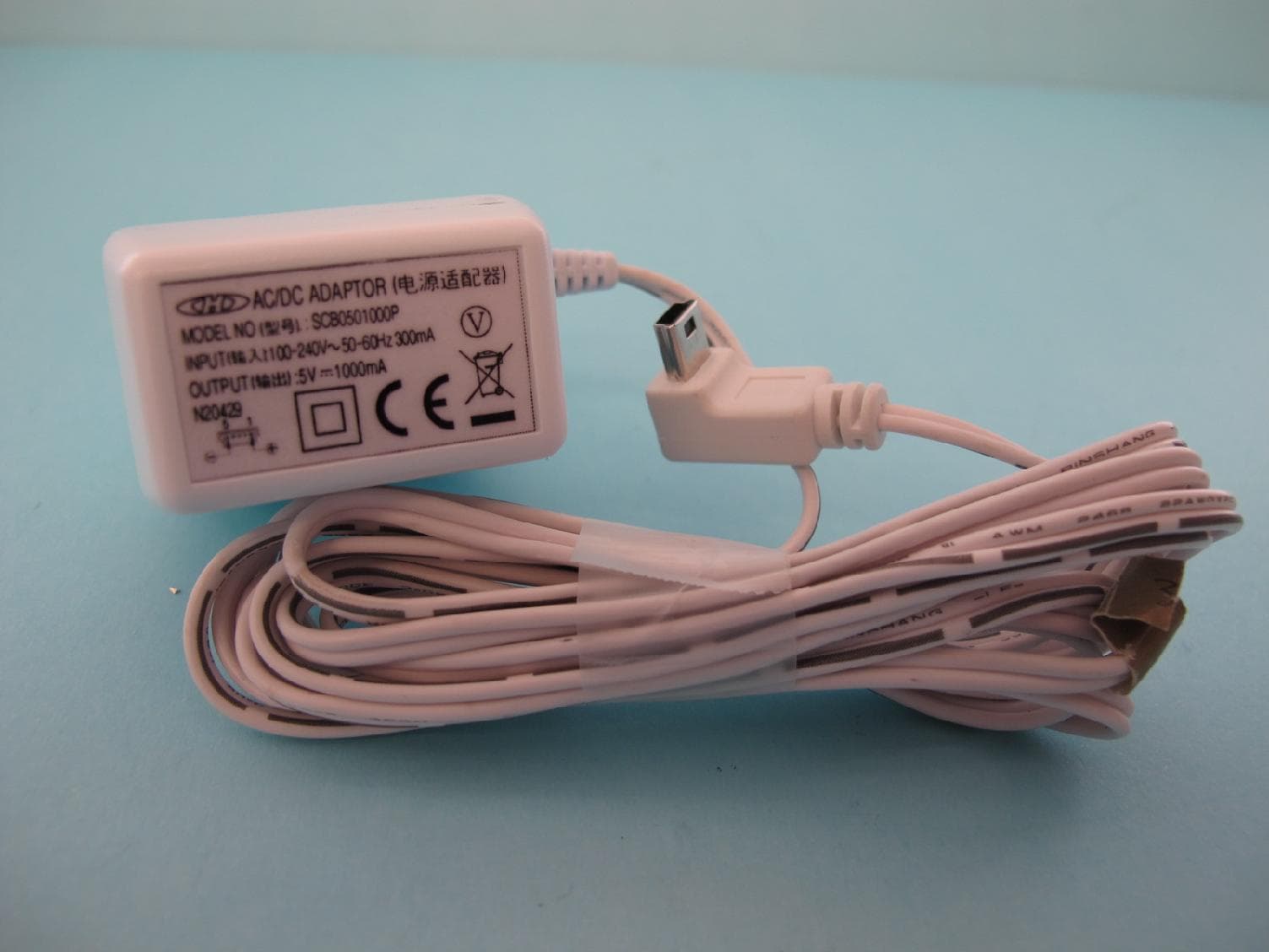
YE7-OV2411NR
Dec 29, 2010Digital Home Monitor System (Monitor)
Equipment Class
DSS - Part 15 Spread Spectrum Transmitter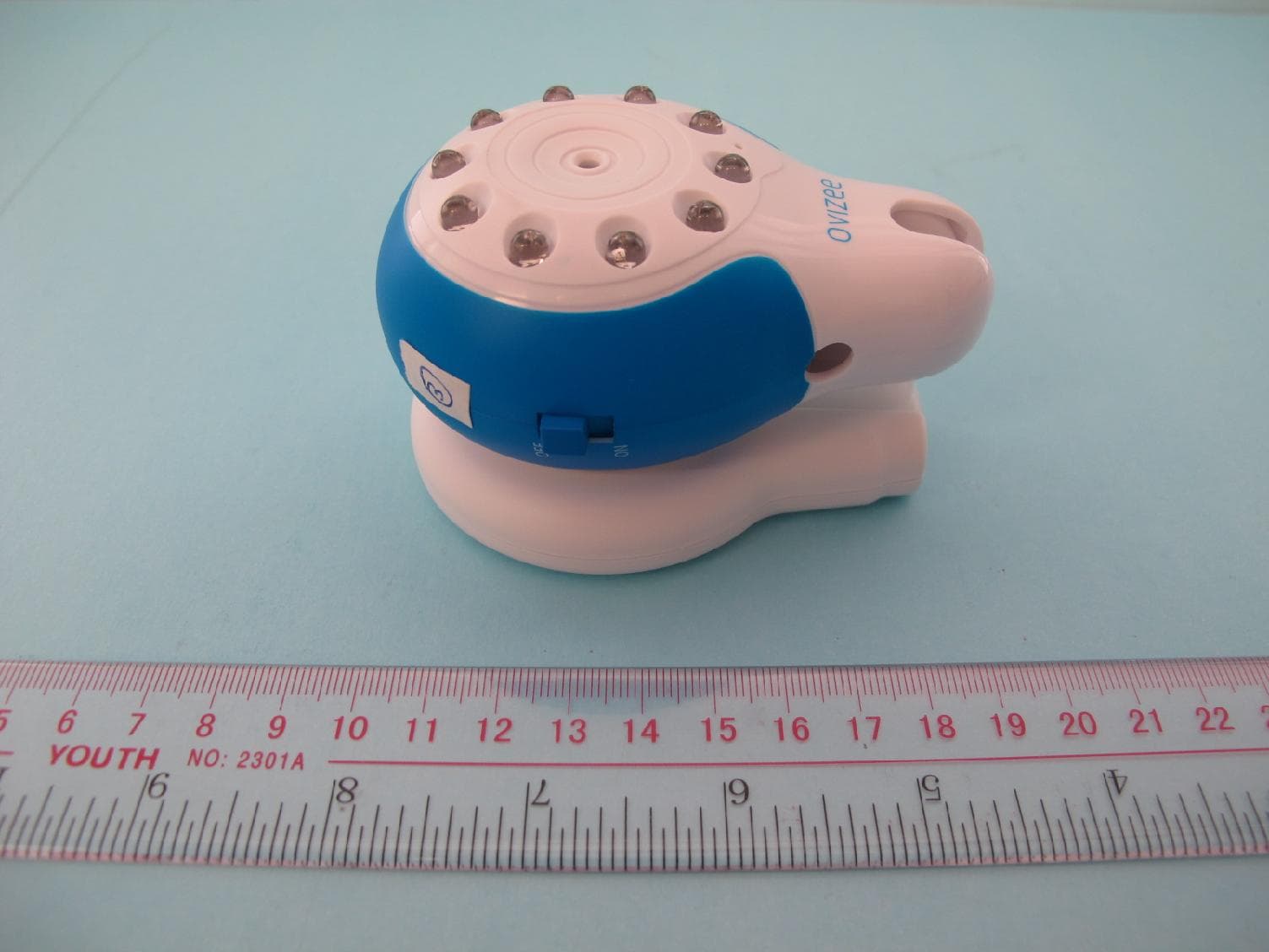
YE7-OV2411NT
Dec 29, 2010Digital Home Monitor System (Camera)
Equipment Class
DSS - Part 15 Spread Spectrum Transmitter