ZCASMT220Tablet with Bluetooth, WLAN
SAMSUNG Electronics Co., Ltd.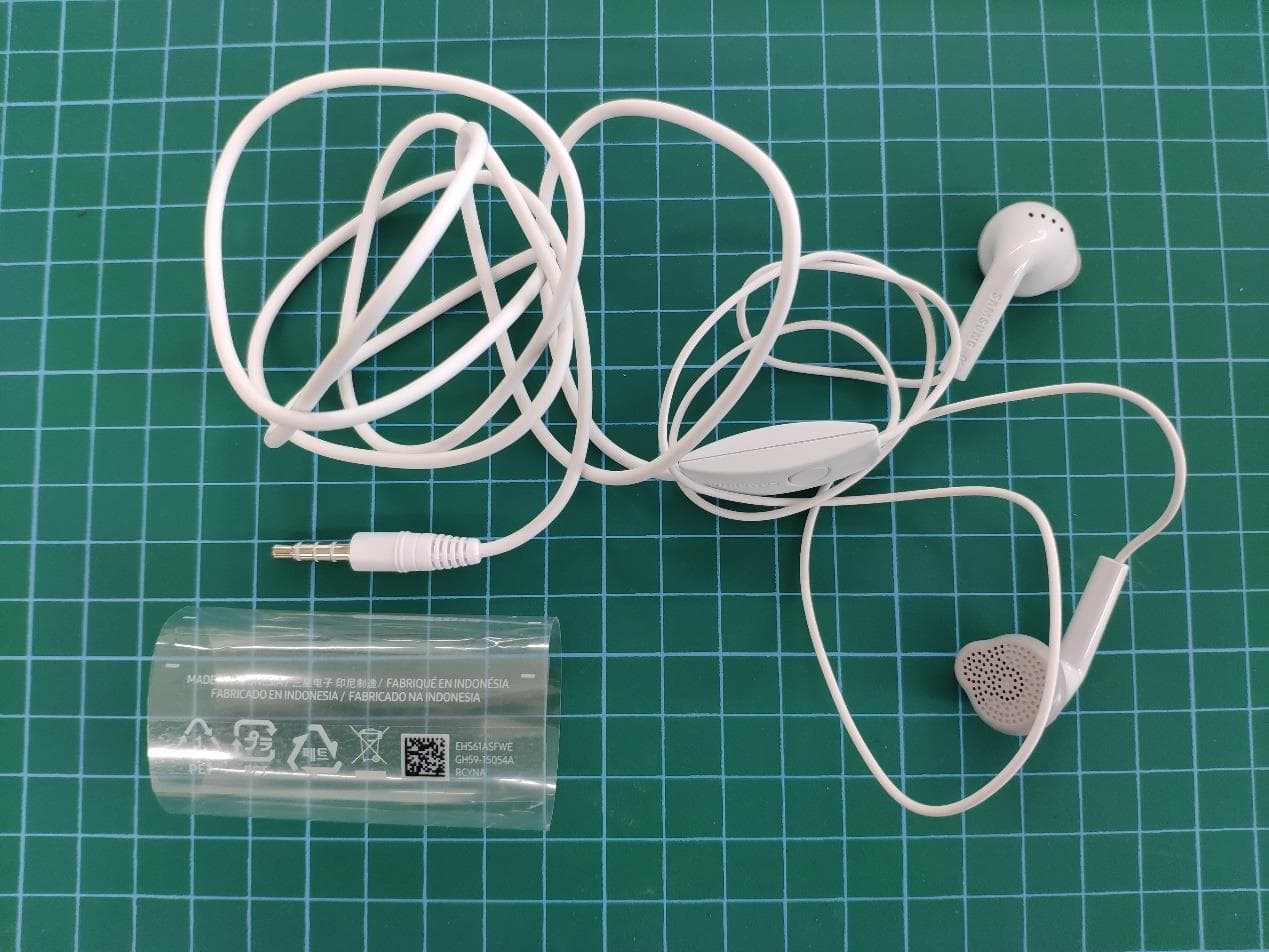
Click to zoom
Application Details
- Equipment Class
- NII - Unlicensed National Information Infrastructure TX
- Date of Grant
- Mar 11, 2021
- Application Purpose
- Original Equipment
- Date of Application
- Mar 10, 2021
- Equipment Note
- Tablet with Bluetooth, WLAN
- Frequency Range
- 5745.00000000 - 5825.00000000
- Country
- United States
Documents & Files
Document Text
Text extracted from the exhibit documents filed with the FCC. Open a document above to read the original.
Users Manual
www.samsung.com USER MANUAL English. 08/2020. Rev.1.0 SM-T220 SM-T225 SM-T225N SM-T227 2 Table of Contents Basics 4 Read me first 6 Device overheating situations and solutions 9 Device layout and functions 13 Battery 15 SIM or USIM card (nano-SIM card) (SM-T220, SM-T225, SM-T225N, SM-T227) 17 Memory card (microSD card) 20 Turning the device on and off 21 Initial setup 21 Samsung account 23 Transferring data from your previous device (Smart Switch) 25 Understanding the screen 35 Notification panel 37 Entering text Apps and features 40 Installing or uninstalling apps 42 Phone 46 Contacts 50 Messages 53 Internet 55 Camera 67 Gallery 72 Multi window 74 Samsung Members 74 Samsung Galaxy 75 Samsung Notes 76 Calendar 77 Reminder 79 Samsung Flow 81 Voice Recorder 82 My Files 82 Clock 84 Calculator 84 Game Launcher 85 Samsung Kids 87 Sharing content 89 Google apps Table of Contents 3 113 Google 114 Advanced features 115 Motions and gestures 115 Digital Wellbeing and parental controls 115 Digital Wellbeing 117 Device care 117 Optimising your device 117 Battery 119 Storage 119 Memory 119 Security 119 Apps 120 General management 121 Accessibility 121 Software update 122 User manual 122 About tablet Appendix 123 Troubleshooting 129 Removing the battery Settings 91 Introduction 91 Connections 92 Wi-Fi 94 Bluetooth 95 Data saver (SM-T220, SM-T225, SM-T225N, SM-T227) 96 Mobile data only apps (SM-T220, SM-T225, SM-T225N, SM-T227) 96 Mobile Hotspot and Tethering (SM-T220, SM-T225, SM-T225N, SM-T227) 98 More connection settings 99 Sound 100 Dolby Atmos (surround sound) 100 Separate app sound 100 Notifications 101 App icon badges 101 Display 102 Dark mode settings 103 Font size and style 103 Screensaver 104 Wallpaper 104 Lock screen 105 Smart Lock 105 Biometrics and security 106 Face recognition 108 Privacy 109 Location 109 Accounts and backup 110 Users 112 Samsung Cloud 4 Basics Read me first Please read this manual before using the device to ensure safe and proper use. • Descriptions are based on the device’s default settings. • Some content may differ from your device depending on the region, service provider, model specifications, or device’s software. • Content (high quality content) that requires high CPU and RAM usage will affect the overall performance of the device. Apps related to the content may not work properly depending on the device’s specifications and the environment that it is used in. • Samsung is not liable for performance issues caused by apps supplied by providers other than Samsung. • Samsung is not liable for performance issues or incompatibilities caused by edited registry settings or modified operating system software. Attempting to customise the operating system may cause the device or apps to work improperly. • Software, sound sources, wallpapers, images, and other media provided with this device are licensed for limited use. Extracting and using these materials for commercial or other purposes is an infringement of copyright laws. Users are entirely responsible for illegal use of media. • You may incur additional charges for data services, such as messaging, uploading and downloading, auto-syncing, or using location services depending on your data plan. For large data transfers, it is recommended to use the Wi-Fi feature. (SM-T220, SM-T225, SM-T225N, SM-T227) • Default apps that come with the device are subject to updates and may no longer be supported without prior notice. If you have questions about an app provided with the device, contact a Samsung Service Centre. For user-installed apps, contact service providers. • Modifying the device’s operating system or installing softwares from unofficial sources may result in device malfunctions and data corruption or loss. These actions are violations of your Samsung licence agreement and will void your warranty. Basics 5 • Depending on the region or service provider, a screen protector is attached for protection during production and distribution. Damage to the attached screen protector is not covered by the warranty. • You can see the touchscreen clearly even in strong outdoor sunlight by automatically adjusting the contrast range based on the surrounding environment. Due to the nature of the product, displaying fixed graphics for extended periods may result in afterimages (screen burn-in) or ghosting. – It is recommended not to use fixed graphics on part or all of the touchscreen for extended periods and turn off the touchscreen when not using the device. – You can set the touchscreen to turn off automatically when you are not using it. Launch the Settings app, tap Display ĺ Screen timeout, and then select the length of time you want the device to wait before turning off the touchscreen. – To set the touchscreen to automatically adjust its brightness based on the surrounding environment, launch the Settings app, tap Display, and then tap the Adaptive brightness switch to activate it. • Depending on the region or model, some devices are required to receive approval from the Federal Communications Commission (FCC). If your device is approved by the FCC, you can view the FCC ID of the device. To view the FCC ID, launch the Settings app and tap About tablet ĺ Status. If your device does not have an FCC ID, it means that the device has not been authorised for sale in the U.S. or its territories and may only be brought to the U.S. for the owner’s personal use. • Depending on the region, you can view the regulatory information on the device. To view the information, launch the Settings app and tap About tablet ĺ Regulatory information . Instructional icons Warning: situations that could cause injury to yourself or others Caution: situations that could cause damage to your device or other equipment Notice: notes, usage tips, or additional information Basics 6 Device overheating situations and solutions When the device heats up while charging the battery While charging, the device and the charger may become hot. During wireless charging or…
Text truncated - open the document above for the full version.
Users Manual
Apps and features 54 To view the toolbars, drag your finger downwards slightly on the screen. Bookmark the current webpage. Open the homepage. Close the tab. Move between pages. Access additional options. Open the browser's tab manager. Refresh the current webpage. Open a new tab. View your bookmarks. Using secret mode In secret mode, you can separately manage open tabs, bookmarks, and saved pages. You can lock secret mode using a password and your biometric data. Activating secret mode Tap ĺ Turn on Secret mode. If you are using this feature for the first time, set whether to use a password for secret mode. In secret mode, the device will change the colour of the toolbars. In secret mode, you cannot use some features, such as screen capture. Changing security settings You can change your password or the lock method. Tap ĺ Settings ĺ Privacy and security ĺ Secret mode settings ĺ Change password. To use your registered biometric data as a lock method along with the password, tap an option switch under Biometrics to activate it. Apps and features 55 Deactivating secret mode Tap ĺ Turn off Secret mode. Camera Introduction Take photos and record videos using various modes and settings. Camera etiquette • Do not take photos or record videos of other people without their permission. • Do not take photos or record videos where legally prohibited. • Do not take photos or record videos in places where you may violate other people’s privacy. Launching Camera Use the following methods to launch Camera: • Launch the Camera app. • Press the Side key twice quickly. • On the locked screen, drag outside the circle. • Some methods may not be available depending on the region or service provider. • Some camera features are not available when you launch the Camera app from the locked screen or when the screen is turned off while the screen lock method is set. • If photos you take appear blurry, clean the camera lens and try again. Apps and features 56 Taking photos 1 Tap the image on the preview screen where the camera should focus. • Spread two fingers apart on the screen to zoom in, and pinch to zoom out. Alternatively, drag the lens selection icon. Zooming features are available only when using the rear camera. • To adjust the brightness of photos, tap the screen. When the adjustment bar appears, drag the adjustment bar towards or . 2 Tap to take a photo. Camera settings Take a photo. Preview thumbnail Shooting modes Select a camera. Switch between the front and rear cameras. Options for current shooting mode Scene optimiser button Current mode • The preview screen may vary depending on the shooting mode and which camera is being used. • The camera automatically shuts off when unused. • Make sure that the lens is not damaged or contaminated. Otherwise, the device may not work properly in some modes that require high resolutions. • Your device’s camera features a wide-angle lens. Minor distortion may occur in wide-angle photos or videos and does not indicate device performance problems. Apps and features 57 Options for current shooting mode On the preview screen, use the following options. Options for current shooting mode The available options may vary depending on the shooting mode. • : Activate or deactivate the flash. • : Select the length of the delay before the camera automatically takes a photo. • : Select an aspect ratio for photos. • : Select a frame rate. • : Select an aspect ratio for videos. • : Apply a filter effect or beauty effects. • : Select a metering method. This determines how light values are calculated. Centre-weighted uses the light in the centre portion of the shot to calculate the exposure of the shot. Spot uses the light in a concentrated centre area of the shot to calculate the exposure of the shot. Matrix averages the entire scene. • : In FOOD mode, focus on a subject inside the circular frame and blur the image outside the frame. • : In FOOD mode, adjust the colour tone. Apps and features 58 Changing shooting modes To change the shooting mode, drag the shooting modes list to the left or right, or swipe to the left or right on the preview screen. Select a shooting mode you want. Shooting modes list Selecting a camera for shooting On the preview screen, select the camera you want and take a photo or record a video. This feature is only available in some shooting modes. • (Wide-angle): The wide-angle camera lets you take basic photos or record normal videos. • (Telephoto): The telephoto camera (optical zoom) lets you take photos or record videos by enlarging the subject. Telephoto Wide-angle Apps and features 59 Photo mode (Intelligent camera) The camera adjusts the shooting options automatically depending on the surroundings to capture photos easily. The intelligent camera feature automatically recognises the subject and optimises the colour and any effects. On the shooting modes list, tap PHOTO and tap to take a photo. Scene optimiser The camera adjusts the colour settings and applies the optimised effect automatically by recognising the subject. On the shooting modes list, tap PHOTO. When the camera recognises the subject, the scene optimiser button will change and the optimised colour and effect will be applied. • If this feature is not activated, tap on the preview screen and tap the Scene optimiser switch to activate it. • If you do not want to use this feature, tap the scene optimiser button on the preview screen. Apps and features 60 Taking selfies You can take self-portraits with the front camera. 1 On the shooting modes list, tap PHOTO. 2 On the preview screen, swipe upwards or downwards, or tap to switch to the front camera for self-portraits. 3 Face the front camera lens. To take self-portraits with a wide-angle shot of the landscape or people, tap . 4 Tap to take a photo. Applying filter and beauty effects You can select a filter effect and modify facial features, such as your skin tone or face shape, before taking a photo. 1 On the preview screen, tap . 2 Select a …
Text truncated - open the document above for the full version.
Users Manual
Settings 97 Using the mobile hotspot Use your device as a mobile hotspot to share your device’s mobile data connection with other devices. 1 On the Settings screen, tap Connections ĺ Mobile Hotspot and Tethering ĺ Mobile Hotspot . 2 Tap the switch to activate it. The icon appears on the status bar. Other devices can find your device in the Wi-Fi networks list. To set a password for the mobile hotspot, tap ĺ Configure Mobile Hotspot and select the level of security. Then, enter a password and tap Save. 3 On the other device’s screen, search for and select your device from the Wi-Fi networks list. To connect without entering the password, tap and scan the QR code with the other device. If the mobile hotspot is not found, on your device, tap ĺ Configure Mobile Hotspot and deselect Hide my device. 4 On the connected device, use the device’s mobile data connection to access the Internet. Auto Hotspot You can share your device’s mobile data connection with other devices signed in to your Samsung account without entering a password. Tap the Auto Hotspot switch to activate it. Settings 98 More connection settings Customise settings to control other connection features. On the Settings screen, tap Connections ĺ More connection settings. • Nearby device scanning: Set the device to scan for nearby devices to connect to. • Printing: Configure settings for printer plug-ins installed on the device. You can search for available printers or add one manually to print files. Refer to Printing for more information. • VPN: Set up virtual private networks (VPNs) on your device to connect to a school or company’s private network. • Private DNS: Set the device to use the security enhanced private DNS. • Ethernet: When you connect an Ethernet adaptor, you can use a wired network and configure network settings. Printing Configure settings for printer plug-ins installed on the device. You can connect the device to a printer via Wi-Fi or Wi-Fi Direct, and print images or documents. Some printers may not be compatible with the device. Adding printer plug-ins Add printer plug-ins for printers you want to connect the device to. 1 On the Settings screen, tap Connections ĺ More connection settings ĺ Printing ĺ Download plugin. 2 Search for a printer plug-in in Play Store. 3 Select a printer plug-in and install it. 4 Select the installed printer plug-in. The device will automatically search for printers that are connected to the same Wi-Fi network as your device. Settings 99 5 Select a printer to add. To add printers manually, tap ĺ Add printer. Printing content While viewing content, such as images or documents, access the options list, tap Print ĺ ĺ All printers..., and then select a printer. Printing methods may vary depending on the content type. Sound Options Change settings for various sounds on the device. On the Settings screen, tap Sound. • Sound mode: Set the device to use sound mode or silent mode. • Temporary mute: Set the device to use silent mode for a certain period. • Ringtone: Change the call ringtone. • Notification sound: Change the notification sound. • Volume: Adjust the device’s volume level. • System sound: Set the device to sound for actions, such as controlling the touchscreen. • Sound quality and effects: Set the device’s sound quality and effects. Refer to Dolby Atmos (surround sound) for more information. • Separate app sound: Set the device to play media sound from a specific app separately on the other audio device. Refer to Separate app sound for more information. Settings 100 Dolby Atmos (surround sound) Select a surround sound mode optimised for various types of audio, such as movies, music, and voice. With Dolby Atmos, you can experience moving audio sounds that flow all around you. On the Settings screen, tap Sound ĺ Sound quality and effects ĺ Dolby Atmos, tap the switch to activate it, and then select a mode. Separate app sound Set the device to play media sound from a specific app on the connected Bluetooth speaker or headset separate from the sound of other apps. For example, you can listen to the Navigation app through your device’s speaker while listening to playback from the Music app through the vehicle’s Bluetooth speaker. 1 On the Settings screen, tap Sound ĺ Separate app sound and tap the switch to activate it. 2 Select an app to play media sounds separately and tap the Back button. 3 Select a device for playing the selected app’s media sound. Notifications Options Change the notification settings. On the Settings screen, tap Notifications. • Suggest actions and replies: Set the device to suggest actions and replies for notifications. • Swipe left or right for snooze: Set the device to show the notification snooze icon when you swipe a notification to the left or right on the notification panel. • App icon badges: Change the settings for app icon badges. Refer to App icon badges for more information. Settings 101 • Status bar: Set how to display notification icons and whether to show the remaining battery percentage on the status bar. • Do not disturb: Set the device to mute all sounds except for allowed exceptions. • Recently sent: View the apps that received recent notifications and change the notification settings. To customise notification settings for more apps, tap See all ĺ ĺ All and select an app from the apps list. App icon badges You can set the device to display a number or dot badge on apps that have notifications. You can also set it to display no badges. 1 On the Settings screen, tap Notifications ĺ App icon badges and tap the switch to activate it. 2 Select an option under Badge style. Display Options Change the display and the Home screen settings. On the Settings screen, tap Display. • Light / Dark: Activate or deactivate dark mode. • Dark mode settings: Reduce eye strain by applying the dark theme when using the device at night or in a dark place. Refer to Dark mode settings for more information. • Brightness: Adjust the brightness of the display. • Adaptiv…
Text truncated - open the document above for the full version.
Users Manual
The charger should remain close to the electric socket and easily accessible while charging. Printed in Korea ev.. English. 0/20 Package contents • Device • USB cable • Ejection pin •USB power adaptor • Quick start guide The items supplied with the device and their images may vary by region. To turn on the device, press and hold the Side key for a few seconds. Accessing more information QUICK START GUIDE If your device is frozen and unresponsive, press and hold the Side key and the Volume Down key simultaneously for more than 7 seconds to restart it. • It is recommended not to use fixed graphics on part or all of the touchscreen for extended periods. Doing so may result in afterimages (screen burn-in) or ghosting. To prevent possible hearing damage when using a headset, do not lis ten to sound at high volume for long periods. The use of WLAN band is restrict ed to indoor use only. This restriction will be applied in all countries below. ATBEBGCHCYCZDEDKEEESEL FIFRHRHUIEISITLILTLULV MTNLNOPLPTROSESISKTRUK Depending on the region, you can view the regulatory information on the device. To view the information, launch the Settings app. • If any part of the device, such as the glass or acrylic body, is broken, smokes, or emits a burning odor, stop using the device immediately. Use the device again only after it has been repaired at a Samsung Service Centre. • Do not turn on or use the device when the battery compartment is exposed. • Do not disassemble or reuse the battery. • Do not allow children or animals to chew or suck the device. • The device can be used in locations with an ambient temperature of 0 °C to 35 °C. You can store the device at an ambient temperature of -20 °C to 50 °C. Using or storing the device outside of the recommended temperature ranges may damage the device or reduce the batte ry’s lifespan. • Do not use your device in a hot environment or near fire. • Comply with all safety warnings and regulations regarding mobile device usage while operating a vehicle. Correct disposal This marking on the product, accessories or literature indicates that the product and its electronic accessories (e.g. charger, headset, USB cable) should not be disposed of with other household waste. This marking on the battery, manual or packaging indicates that the batteries in this product should not be disposed of with other household waste. PO BOX 12987, DUBLIN, IE Safety information Read all safety information before using the device to ensure safe and proper use. You can view more safety information in the safety information menu of the Settings app. Warning Your device contains magnets, which may affect medical devices, such as pacemakers or implantable cardioverter defibrillators. If you are using any of these medical devices, keep your device a safe distance from them and consult with your physician before you use the device Follow the warnings below to prevent incidents, such as fires or explosions, injuries, or damage to the device • Do not expose the device to physical impact or damage. • Use only Samsung-approved batteries, chargers, and cables specifically designed for your device. • Prevent the multipurpose jack and battery terminals from coming into contact with foreign materials such as metal, liqui ds, or dust. Some content may differ from your device depending on the region, service provider, or software version, and is subject to change without prior notice. Copyright © 202 Samsung Electronics Co., Ltd. FCC Notice The device may cause TV or radio interference if used in close proximity to receiving equipment. The FCC can require you to stop using the mobile device if such interference cannot be eliminated . Information about the RF exposure from FCC In August 1996, the Federal Communications Commission (FCC) of the United States, with its action in Report and Order FCC 96-326, adopted an updated safety standard for human exposure to radio frequency (RF) electromagnetic energy emitted by FCC regulated transmitters. Those guidelines are consistent with the safety standard previously set by both international and U.S. standards. The design of this phone complies with FCC guidelines and these international standards. Body effects For body operation, this device has been tested and meets FCC RF exposure guidelines when used with any accessory that contains no metal and which provides a minimum separation distance of 0 body of the user. Use of other accessories may not ensure compliance with FCC RF exposure guidelines. Use of other accessories may not ensure compliance with FCC RF exposure guidelines. Class B Compliance under article 15 of the FCC This device complies with Part 15 of the FCC Rules. Operation is subject to the condition that this device does not cause harmful interference. Operation is subject to the following two conditions: (1) this device may not cause harmful interference, and (2) this device must accept any interference received, including interference that may cause undesired operation. Caution The user is cautioned that changes or modifications not expressly approved by the party responsible for compliance could void the user's authority to operate the equipment. FCC Notice The device may cause TV or radio interference if used in close proximity to receiving equipment. The FCC can require you to stop using the mobile device if such interference cannot be eliminated . Information about the RF exposure from FCC In August 1996, the Federal Communications Commission (FCC) of the United States, with its action in Report and Order FCC 96-326, adopted an updated safety standard for human exposure to radio frequency (RF) electromagnetic energy emitted by FCC regulated transmitters. Those guidelines are consistent with the safety standard previously set by both international and U.S. standards. The design of this phone complies with FCC guidelines and these international standards. Body effects For body operation, this device has been tested and meets FCC RF exposure gu…
Text truncated - open the document above for the full version.
Cover Letter(s)
Samsung Electronics Co., Ltd. 19 Chapin Rd.,Building D Pine Brook, NJ 07058 Tel: +1-201-937-4203 Authority to Act as Agent Date: __0303,2021_____ American Certification Body, Inc. 6731 Whittier Avenue Suite C110 McLean, VA 22101 To Whom It May Concern: __ ____(CTTL,Telecommunication Technology Labs,CAICT)______ is authorized to act on our behalf, until otherwise notified, for applications to American Certification Body, Inc. (ACB). We certify that we are not subject to denial of federal benefits, that includes FCC benefits, pursuant to Section 5301 of the Anti-Drug Abuse Act of 1988, 21 U.S.C. 862. Further, no party, as defined in 47 CFR 1.2002 (b) , to the application is subject to denial of federal benefits, that includes FCC benefits. Thank you, Agency Agreement Expiration Date: _____12 months_____ By: ____________ _____Jenni Chun_________ (Signature 1 ) (Print name) Title: ______Gene ral Manager________ On behalf of: __Samsung Electronics Co., Ltd. ___ (Compan y Name) Telephone: ___973-808-6375____ 022818 – 11 1 - Must be signed by applicant contact given for applicant on the FCC site, or by the authorized agent if an appropriate authorized agent letter has been provided. Letters should be placed on appropriate letterhead. Samsung Electronics Co., Ltd. 19 Chapin Rd.,Building D Pine Brook, NJ 07058 Tel: +1-201-937-4203 Request for Confidentiality Date: _0303,2021__ Subject: Confidentiality Request for: ____ZCASMT220____ Pursuant to FCC 47 CFR 0.457(d) and 0.459 and IC RSP-100, Section 9.4, the applicant requests that a part of the subject FCC application be held confidential. Type of Confidentiality Requested Exhibit ☐Short Term☒Permanent Block Diagrams ☒Short Term External Photos ☒Short Term☐Permanent * 2 Internal Photos ☐Short Term☒Permanent Operation Description/Theory of Operation ☐Short Term☒Permanent Parts List & Placement/BOM ☐Short Term☒Permanent Tune-Up Procedure ☐Short Term☒Permanent Schematics ☒Short Term Test Setup Photos ☒Short Term☐Permanent * 3 User’s Manual _____SAMSUNG Electronics______ has spent substantial effort in developing this product and it is one of the first of its kind in industry. Having the subject information easily available to "competition" would negate the advantage they have achieved by developing this product. Not protecting the details of the design will result in financial hardship. Permanent Confidentiality: The applicant requests the exhibits listed above as permanently confidential be permanently withheld from public review due to materials that contain trade secrets and proprietary information not customarily released to the public. Short-Term Confidentiality: The applicant requests the exhibits selected above as short term confidential be withheld from public view for a period of __180___ days from the date of the Grant of Equipment Authorization and prior to marketing. This is to avoid premature release of sensitive information prior to marketing or release of the product to the public. Applicant is also aware that they are responsible to notify ACB in the event information regarding the product or the product is made available to the public before the requested period has expired. ACB will then release the The asterisked items (*) require further information to be provided to ACB before permanent confidentiality will be extended to these exhibits. Please refer to FCC KDB 726920 and the specific Document link for D01 found at: https://apps.fcc.gov/oetcf/kdb/forms/FTSSearchResultPage.cfm?switch=P&id=41731 and review section II, 3) regarding specific information that must accompany these requests. documents listed above for public disclosure pursuant to FCC Public Notice DA 04-1705. NOTE for Industry Canada Applications: regarding specific information that must accompany these requests. 022818 – 11 Samsung Electronics Co., Ltd. 19 Chapin Rd.,Building D Pine Brook, NJ 07058 Tel: +1-201-937-4203 IC currently only distinguishes Permanent Confidentiality exhibits as shown above. Short Term confidentiality is not considered applicable to IC applications. Sincerely, By: ______ /General Manager______ ___Jenni Chun____ (Signature/Title 3 ) (Print name) 3 - Must be signed by applicant contact given for applicant on the FCC site, or by the authorized agent if an appropriate authorized agent letter has been provided. Letters should be placed on appropriate letterhead. 022818 – 11
Cover Letter(s)
Date: Mar. 3, 21 To: Federal Communications Commission Authorization and Evaluation Division 7435 Oakland Mills Road Columbia, MD 21046 Subject: Request permission to use Wi-Fi/BT/USB partial test results from model SM-T225 in our applications for model SM-T220 FCC ID: ZCASMT220 To whom it may concern: We request permission to use Wi-Fi/BT/USB test results from model SM-T225 (FCC ID: ZCASMT225) in our applications for model SM-T220 (FCC ID: ZCASMT220). The detail information of changes are as below. Band changes: Below bands have been removed: 2G : 850/ 900/ 1800/ 1900 3G : B1/ B2/ B4/ B5/ B8 LTE FDD : B1/ B2/ B3/ B4/ B5/ B7/ B8/ B12/ B17/ B20/ B28/ B66 LTE TDD : B38/ B40 SM-T225: 2G : 850/ 900/ 1800/ 1900 3G : B1/ B2/ B4/ B5/ B8 LTE FDD : B1/ B2/ B3/ B4/ B5/ B7/ B8/ B12/ B17/ B20/ B28/ B66 LTE TDD : B38/ B40 SM-T220: N/A PCB Layout changes: No Material have a difference, pls refer bom list. For the above, we performed the test which is as below for the required bands of all. The rest test results all come from the initial model SM-T225. The detail information of Retest: Retest or not 1、SAR Full test 2、part 15C BT/BLE/WIFI (2.4g/ 5g/5.8G) Spot check the power. Radiated TCs full test 3、part 15B Full test 4、Part 22/24/27 N/A. N/A 5、HAC、T-coil N/A 6、DFS Full Retest Sincerely yours, Yin Feng
External Photos
Sample01 Sample02 Sample03 Sample04 Sample05 Sample06 Micro SD tray: HS01: ALMUS(EHS61ASFWE) HS02: Crysn(EHS61ASFWE) Data Cable1:Samsung Electronics Co., Ltd. (EP-DT725BWE) CH01: R.F. Tech (EP-TA50JWE) CH02: HAEM (EP-TA50JWE) CH03: DongYang (EP-TA200) CH04: HAEM (EP-TA200) CH…
Text truncated - open the document above for the full version.
Contact Information
Applicant
Jenni Chun(Senior Engineer)
Technical Contact
CTTL, Telecommunication Technology Labs, CAICTYin Feng
[email protected]86-10-62304633
No. 52, Huayuan Bei Road, Haidian District, · China
Test Firm
Telecommunication Technology Labs, CAICTYaqin Shen
Technical Specifications
| # | Rule Parts | Frequency Range | Power Output |
|---|---|---|---|
| 4 | 15E | 5.75 GHz - 5.83 GHz | 28.60 mW |
Other Applications from SAMSUNG Electronics Co., Ltd.
ZCASMR391
Aug 04, 2026Wearable Device
Equipment Class
JBP - Part 15 Class B Computing Device PeripheralZCASMA085M
Jul 10, 2026Multi-band GSM/WCDMA/LTE Mobile Phone with Bluetooth, WLAN
Equipment Class
JBP - Part 15 Class B Computing Device PeripheralZCASMA076M
Nov 26, 2025Multi-band GSM/WCDMA/LTE/5GNR Mobile Phone with Bluetooth,WLAN
Equipment Class
JBP - Part 15 Class B Computing Device PeripheralZCASMA065M
Jul 03, 2024Multi-band GSM/WCDMA/LTE Mobile Phone with Bluetooth,WLAN
Equipment Class
CXX - Communications Rcvr for use w/ licensed Tx and CBsZCASMA065F
Jun 30, 2024Multi-band GSM/WCDMA/LTE Phone with Bluetooth,WLAN
Equipment Class
DSS - Part 15 Spread Spectrum Transmitter