ZGW05Wireless Sensor Tags
Cao Gadgets, LLC
Click to zoom
Application Details
- Equipment Class
- DSC - Part 15 Security/Remote Control Transmitter
- Date of Grant
- Aug 29, 2013
- Application Purpose
- Original Equipment
- Date of Application
- Aug 29, 2013
- Equipment Note
- Wireless Sensor Tags
- Frequency Range
- 433.18600000 - 433.18600000
- Company
- Cao Gadgets, LLC
- Country
- United States
Documents & Files
Document Text
Text extracted from the exhibit documents filed with the FCC. Open a document above to read the original.
Users Manual
Web/Android App User Manual For Android devices, install our Android app from Google Play by searching "MyTagList". For web access on PC/Mac, go to http://www.mytaglist.com/eth/. Use the 12 digit serial numbers on your Ethernet Tag Manager to create a login. Keep the serial number in a safe place. In the login screen, click "Create an Account" button. Fill in the serial number (case insensitive), login email (used to recover password), and choose a password. Click "Create" button to create an account. Uncheck "Allow creating more accounts..." unless you plan to create multiple logins to access the same Tag Manager. iOS App User Manual Install our iPhone/iPad app from AppStore by searching "Wireless Tag List". Use the 12 digit serial numbers on your Ethernet Tag Manager to create a login. Keep the serial number in a safe place. In the login screen, tap "Create a login to access Tag Manager" button. Fill in the serial number (case insensitive), login email (used to recover password), and choose a password. Tap "Create" button in the upper right corner to create an account. Uncheck "Allow creating more accounts..." unless you plan to create multiple logins to access the same Tag Manager. Follow this step to associate each new Tags with the Tag Manager. In the tag list screen, tap "+" button at the lower right corner. An unassociated tag periodically broadcasts information about itself when powered on. Click "Scan" button to receive this information. When an unassociated tag is found, its information is displayed. Assign a name and comment (optional) to the tag, then tap "Associate". You can edit tag names, comments and assign pictures to each Wireless Sensor Tag. Assign Picture Edit Name Tap the picture icon in each Tag's screen to bring up the camera, or delete the picture if you already have one for the tag. Take the picture and use finger to move or scale. The picture is now assign to the tag, and will be automatically visible on other devices accessing the same tag list in a few seconds. In the tag list screen, tap on the tag you want to edit to open the tag screen. Tap at the right end of "Edit name:" row to edit the tag name, and tap "Done". The new name is now assigned to the tag, and is automatically propagated to all other devices accessing the same tag list. Motion sensor, temperature monitoring, and out-of-range notification are turned off until they are needed to conserve battery. Follow the steps below to turn them on/off as needed. Motion Sensor Temperature Monitoring Tap the tag of interest on the list screen to open the details screen, and tap the keypad icon at the bottom. Instead of arming/disarming motion sensor for each tag individually, you can also tap the keypad icon in the tag list screen to arm/diarm all motion sensor tags. When motion sensor is armed, the tag on the list will have a black background. Out-of-Range Notification Open the temperature sensor options for each tag individually by tapping the gear icon at the bottom. The temperature sensor often needs calibration to remove an offset. In the "Calibrate Temperature at Tag" section, set the correct current temperature, and tap the "Calibrate" button. Turn on "Monitor Temperature", choose notification settings you want, and tap "Save". The tag will notify you when the temperature exceeds upper or lower limits, or returned to normal range. Tap the refresh icon at the bottom of tag list screen, and choose any of the "Update every ..." options. Longer interval results in longer battery life but longer the out-of-range notification delay, and vice versa. Tap the gear icon at the bottom right corner to open "Out of Range Options" for specific tag or all tags on list. Set the notification methods you want and tap "Save". Tune the sensitivity and responsiveness of the motion sensor to suit your application. In motion detection mode, choose to remember moved state indefinitely or reset to armed state after a while. In door/gate mode, choose the threshold angle (23 degree is recommended for automatic garage doors, 2~5 degree for regular doors), or choose to get notified only when door is opened for too long. Choose to get notified by emails, tweets, speech, or whether to make tag beep upon motion. Set the schedule to automatically arm or disarm the motion sensor at certain time of the day, and days of the week. Sensitivity/Responsiveness Notification Settings Tap the gear icon at the bottom of tag list to open the Options screen for all motion sensor tags on the list, or on the details screen for each tag to open the Options screen for that individual tag. You can choose sensitivity (50% is recommended to eliminate false alarms in most environment), and responsiveness ("Slow" is 12x the delay and battery life of "Fast") that best suit your application. When door/gate mode is enabled, you can choose the threshold angle, when tag orientation changes more than this, the door is deemed open, when tag orientation returns within this threshold, it is deemed closed. Arm/Disarm Scheduling When not in door/gate mode, after movement is detected, by default the system remembers the tag has been moved indefinitely. Instead you can choose to have the tag automatically reset to armed state after a while. When in door/gate mode, you can choose to be notified only when it is been open for longer than a certain time period. You can choose to be notified by email, have the system post a tweet on your Twitter account, beep or speak on your phones, or make the tag beep. Each tag has two sets of auto-arming/disarming schedule, each for specified days of the week (mutually exclusive). Specify time of day to disarm (for example, in the morning), and arm (for example, after dark), for each of the checked days of the week. Every wireless sensor tag has a beep function to help you find missing tags. Attach the tag to key chains, put inside your wallet, or strap to TV remote controls, and never waste time looking for these items again. In the ta…
Text truncated - open the document above for the full version.
External Photos
Cao Gadgets LLC FCC ID: ZGW05 Report Number: R1307112-231 Page 22 of 25 FCC Part 15.231 Test Report 9 Exhibit C – EUT Photographs 9.1 EUT – Front View 9.2 EUT – Rear View
ID Label/Location Info
TWO PLACE DECIMAL PROHIBITED. 5 2 SHEET 1 OF 1 3 DO NOT SCALE DRAWING 4 zgw05_label UNLESS OTHERWISE SPECIFIED: SCALE: 1:1 WEIGHT: REV DWG. NO. A SIZE TITLE: NAME DATE COMMENTS:Q.A. THREE PLACE DECIMAL DRAWN MFG APPR. PROPRIETARY AND CONFIDENTIAL NEXT ASSY USED ON ENG APPR. APPLICATION TOLERANCING PER: CHECKED BEND FINISH MATERIAL INTERPRET GEOMETRIC DIMENSIONS ARE IN INCHESTOLERANCES:FRACTIONALANGULAR: MACH THE INFORMATION CONTAINED IN THISDRAWING IS THE SOLE PROPERTY OF<INSERT COMPANY NAME HERE>. ANY REPRODUCTION IN PART OR AS A WHOLEWITHOUT THE WRITTEN PERMISSION OF<INSERT COMPANY NAME HERE> IS 1
Internal Photos
Cao Gadgets LLC FCC ID: ZGW05 Report Number: R1307112-231 Page 23 of 25 FCC Part 15.231 Test Report 9.3 EUT – Cover off View 1 9.4 EUT – Cover off View 2 Cao Gadgets LLC FCC ID: ZGW05 Report Number: R1307112-231 Page 24 of 25 FCC Part 15.231 Test Report 9.5 Supporting Equipment – Tag Manager – View 1
Test Report
Note: This test report is prepared for the customer shown above and for the device described herein. It may not be duplicated or used in part without prior written consent from Bay Area Compliance Laboratories Corp. This report must not be used by the customer to claim product certification, approval, or endorsement by A2LA* or any agency of the Federal Government. * This report may contain data that are not covered by the A2LA accreditation and are marked with an asterisk “*” (Rev.3) FCC PART 15.231 TEST AND MEASUREMENT REPORT For Cao Gadgets LLC 2 Welbury, Aliso Viejo, CA 92656, USA FCC ID: ZGW05 Report Type: Original Report Product Type: Wireless Sensor Tag Prepared By: Lionel Lara Report Number: R1307112-231 Report Date: 2013-08-29 Reviewed By: Victor Zhang EMC/RF Lead Bay Area Compliance Laboratories Corp. 1274 Anvilwood Avenue, Sunnyvale, CA 94089, USA Tel: (408) 732-9162 Fax: (408) 732-9164 Cao Gadgets LLC FCC ID: ZGW05 Report Number: R1307112-231 Page 2 of 25 FCC Part 15.231 Test Report TABLE OF CONTENTS 1 GENERAL INFORMATION ..................................................................................................................................... 5 1.1 PRODUCT DESCRIPTION FOR EQUIPMENT UNDER TEST (EUT) ................................................................................ 5 1.2 MECHANICAL DESCRIPTION OF EUT ...................................................................................................................... 5 1.3 OBJECTIVE .............................................................................................................................................................. 5 1.4 RELATED SUBMITTAL(S)/GRANT(S) ........................................................................................................................ 5 1.5 TEST METHODOLOGY ............................................................................................................................................. 5 1.6 MEASUREMENT UNCERTAINTY ............................................................................................................................... 5 1.7 TEST FACILITY ........................................................................................................................................................ 6 2 SYSTEM TEST CONFIGURATION ........................................................................................................................ 7 2.1 JUSTIFICATION ........................................................................................................................................................ 7 2.2 EUT EXERCISE SOFTWARE ..................................................................................................................................... 7 2.3 EQUIPMENT MODIFICATIONS .................................................................................................................................. 7 2.4 LOCAL SUPPORT EQUIPMENT.................................................................................................................................. 7 2.5 EUT INTERNAL CONFIGURATION DETAILS ............................................................................................................. 7 2.6 INTERFACE PORTS AND CABLING ........................................................................................................................... 7 2.7 POWER SUPPLY LIST AND DETAILS......................................................................................................................... 7 3 SUMMARY OF TEST RESULTS ............................................................................................................................. 8 4 FCC §15.231 (A) – DEACTIVATION TIME ............................................................................................................ 9 4.1 APPLICABLE STANDARD ......................................................................................................................................... 9 4.2 MEASUREMENT PROCEDURE .................................................................................................................................. 9 4.3 TEST EQUIPMENT LIST AND DETAILS ..................................................................................................................... 9 4.4 TEST ENVIRONMENTAL CONDITIONS ...................................................................................................................... 9 4.5 TEST RESULTS ........................................................................................................................................................ 9 5 FCC §15.205, §15.209 & §15.231 (B) – RADIATED EMISSIONS ......................................................................... 11 5.1 APPLICABLE STANDARD ....................................................................................................................................... 11 5.2 TEST SETUP .......................................................................................................................................................... 12 5.3 TEST SETUP BLOCK DIAGRAM .............................................................................................................................. 13 5.4 TEST PROCEDURE ................................................................................................................................................. 13 5.5 CORRECTED AMPLITUDE & MARGIN CALCULATION ............................................................................................ 13 5.6 TEST EQUIPMENT LIST AND DETAILS ................................................................................................................... 14 5.7 TEST ENVIRONMENTAL CONDITIONS .................................................................................................................... 14 5.8 SUMMARY OF TEST RESULTS ...................................…
Text truncated - open the document above for the full version.
Test Setup Photos
Cao Gadgets LLC FCC ID: ZGW05 Report Number: R1307112-231 Page 20 of 25 FCC Part 15.231 Test Report 8 Exhibit B – Test Setup Photographs 8.1 Radiated Emissions – Front View 8.2 Radiated Emissions (Below 1 GHz) – Rear View Cao Gadgets LLC FCC ID: ZGW05 Report Number: R1307112-231 Page 21 of 25 FCC Part 15.231 Test Report 8.3 Radiated Emissions (Above 1 GHz) – Rear View
Contact Information
Applicant
Zhiheng Cao
Test Firm
Bay Area Compliance Laboratories Corp.Lisa Tang
Technical Specifications
| # | Rule Parts | Frequency Range | Power Output |
|---|---|---|---|
| 1 | 15.231 | 433.186 MHz - 433.186 MHz | - |
Other Applications from Cao Gadgets, LLC
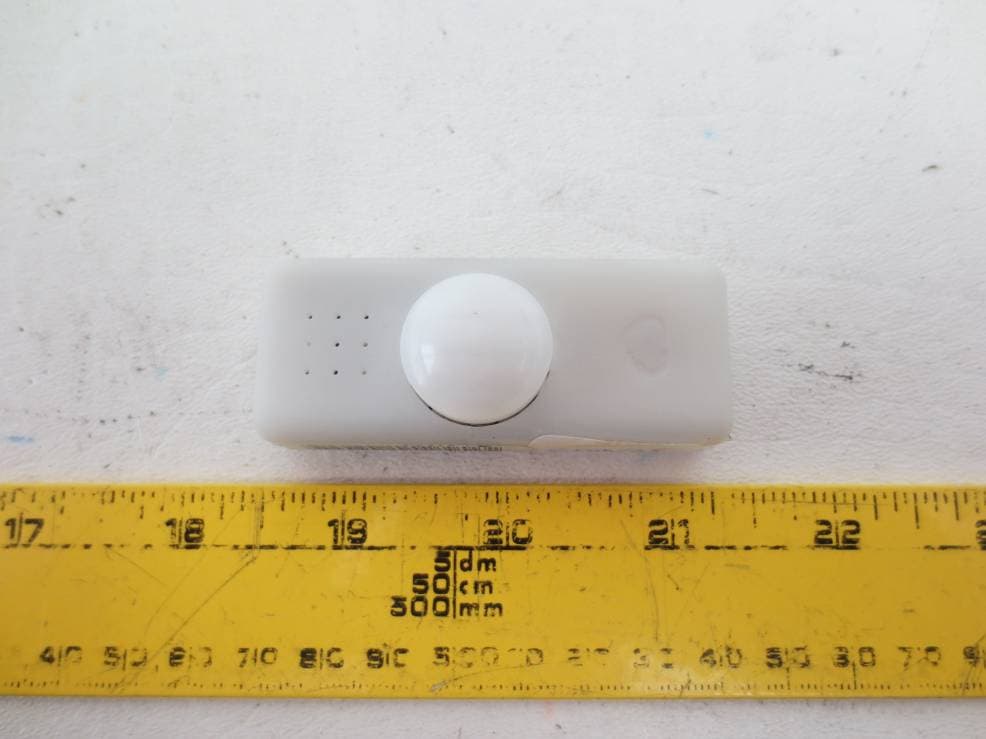
ZGW08
Feb 02, 2014Infra-Red KumoSensor
Equipment Class
DSC - Part 15 Security/Remote Control Transmitter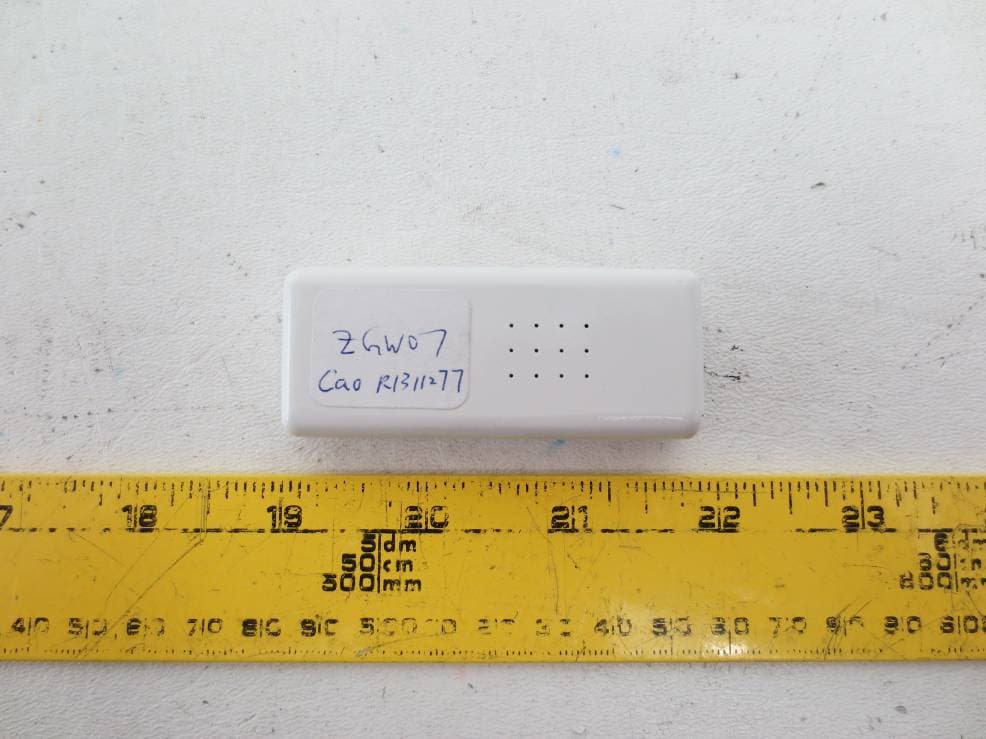
ZGW07
Feb 02, 2014Door/Window KumoSensor
Equipment Class
DSC - Part 15 Security/Remote Control Transmitter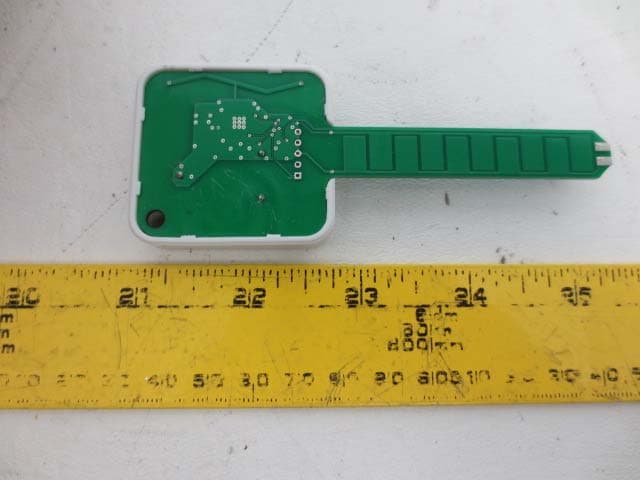
ZGW06
Feb 02, 2014Wireless Water/Soil Moisture Sensor
Equipment Class
DSC - Part 15 Security/Remote Control Transmitter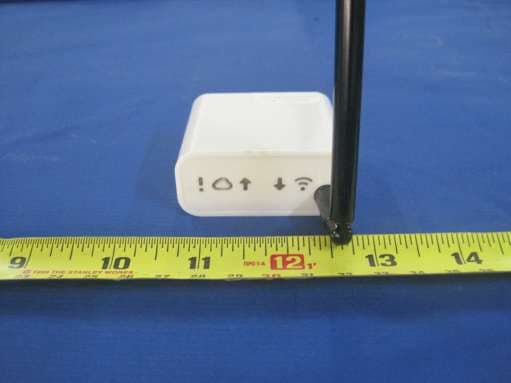
ZGW03
Aug 06, 2012Wireless Tag Manager
Equipment Class
DSR - Part 15 Remote Control/Security Device Transceiver
ZGW02
Aug 04, 2011Wireless Tag
Equipment Class
DSC - Part 15 Security/Remote Control Transmitter