2AA7D-ZEWH3Smart Watch
KRONOZ
Click to zoom
Application Details
- Equipment Class
- DTS - Digital Transmission System
- Date of Grant
- Dec 13, 2015
- Application Purpose
- Original Equipment
- Date of Application
- Dec 13, 2015
- Equipment Note
- Smart Watch
- Frequency Range
- 2402.00000000 - 2480.00000000
- Company
- KRONOZ
- Country
- Switzerland
Documents & Files
Document Text
Text extracted from the exhibit documents filed with the FCC. Open a document above to read the original.
Users Manual
ENGLISH CHARGING PAIRING DISPLAYS CALLS NOTIFICATIONS ACTIVITY SLEEP GOALS REMINDERS VOICE CONTROL MUSIC ANTI-LOST ALERT 06 07 11 12 13 14 15 16 17 18 19 19 4 LEFT button RIGHT button OVERVIEW i To get the most accurate data we recommend wearing ZeWatch 3 on your non- dominant hand and not too loose i 5 LEFT button PRESS + HOLD activate pairing mode PRESS 1 x reject incoming call PRESS 1 x end current call PRESS 1 x volume - PRESS 2 x redial last number RIGHT button PRESS + HOLD turn ON / OFF PRESS 1 x light up the screen PRESS 1 x answer incoming call PRESS 1 x volume + PRESS 1 x home screen / exit PRESS 2 x activate voice control i To reset ZeWatch 3 to its original settings, press and hold the RIGHT and LEFT buttons simultaneously. NAVIGATE THE TOUCHSCREEN DOUBLE TAP light up the screen SWIPE UP OR DOWN navigate through the activity and sleep screens 6 1. CHARGING Charge ZeWatch 3 for two hours before your first use. 1. Gently push the clasp of your ZeWatch 3 2. Plug the USB end into the USB port of a computer Tip: To easily connect ZeWatch 3 to a power source, we recommend using the USB extension cable provided 3. A battery indicator will fill to indicate charging is in progress 4. Once ZeWatch 3 is charged, the battery indicator will be full i A full charge takes 1h30. When the battery level gets low, a low battery indicator will appear 2. 1. 7 2. PAIRING The first time you use ZeWatch 3 , a SET UP message will prompt you to set up your ZeWatch 3 using a mobile device or a computer. GET ZeWatch 3 APP [iOS & Android users] Search for ZeWatch 3 App on the App store or Google Play Store. [Windows Phone users] Search for ZeWatch 3 App on the Windows Phone Store. 8 Step 1 : Pairing through the application (Bluetooth Low Energy - BLE) 1. Enable Bluetooth on your mobile device 2. Open ZeWatch App on your mobile device. Sign up if you are a new member or Log in with your existing account. After entering your personal information, select your ZeWatch model and tap Set up 3.Make sure ZeWatch 3 is nearby and select ZeWatch 3 BLE in the list of devices 4. You will receive a pairing request on your mobile device. Press Pair to accept it 5. Then, a pairing request will appear on your ZeWatch 3 display. Press ZeWatch 3 LEFT button to accept the pairing 6.When ZeWatch 3 is successfully paired, you will be notified on ZeWatch 3 and on your mobile device’s screen This operation will allow you to synchronize time, date, activity and sleep data, reminders and notifications. i You can also set up your ZeWatch 3 using our Mac or PC software available on MyKronoz website: http://www.mykronoz.com/support/ System requirements : Windows 7,8,XP – MAC OSX 10.8 and above i 9 Step 2 : Manual Pairing (Bluetooth Classic) 1. From ZeWatch 3 homescreen page, hold and press the LEFT button until a phone icon appears 2. Go to your mobile device’s Bluetooth settings and select ZeWatch 3 in the list of devices 3. A phone icon will be displayed on ZeWatch 3 and a beep will sound to confirm successful pairing This operation will allow you to make and receive calls with ZeWatch 3 i If pairing fails repeat the same steps. Pairing is a one-time process. If you want to pair your ZeWatch 3 with another account, you first need to unpair from the current one. On ZeWatch App, go to Settings > Set up ZeWatch 3 > Unpair. Tap Set up ZeWatch 3 to pair a new device 10 i ZeWatch 3 will automatically sync the time and date of your paired mobile device (iOS7 + / select Android 4.3 + / select Windows Phone 8.1 + only). You can set your preferred time and date format manually in the Settings tab of ZeWatch 3 App. Make sure you keep the device charged to avoid the time being reset 3. DISPLAYS Home screen PairingIncoming call Upgrading Syncing Failed pairingMissed Call Disconnected Redial Memory full Voice control offVoice control on 11 EmailSocial MediaCalendar Event Goal achieved Low power Steps Distance Calories Sleep mode Sleep Day mode SMS 12 4. CALLS After a successful Bluetooth pairing with your phone, Bluetooth call feature is on. ANSWER AN INCOMING CALL Press 1 X the RIGHT button DECLINE AN INCOMING CALL Press 1 X the LEFT button MUTE AN INCOMING CALL DOUBLE TAP the screen END CURRENT CALL Press 1 X the LEFT button REDIAL LAST NUMBER CALLED Press 2 X the LEFT button ANSWER A NEW INCOMING CALL AND PUT ON HOLD ON THE ORIGINAL CALL Press 1 X the RIGHT button HANG UP THE ORIGINAL CALL AND ANSWER A NEW INCOMING CALL Press + hold the RIGHT button REJECT AN INCOMING CALL WHILE A CALL IS IN PROGRESS Press 1 X the LEFT button ADJUST THE VOLUME DURING A CALL DOUBLE TAP to access volume control Press the LEFT button to decrease - Press the RIGHT button to increase + 13 5. NOTIFICATIONS ZeWatch 3 shows notifications of incoming and missed calls, SMS, email, social media activity, calendar events and anti-lost alert*. Open ZeWatch 3 App, tap Settings > Notifications to select the notifications you want to receive onto your ZeWatch 3 . If you wish to disable certain notifications, swipe the selection button to the left. Press ZeWatch 3 button to dismiss the notification. If not dismissed, the notification will reappear next time you wake up the screen. Setting up notifications for iOS users i *Windows Phones may not support those features, please contact [email protected] for more information Setting up notifications for iOS users Go to “Settings” of your iOS device Tap “Notifications” Select which type of notifications you wish to receive on ZeWatch 3 Enable ”Show in Notification Center” to receive the notification on ZeWatch 3 14 i ZeWatch 3 show daily data. The activity tracker resets at midnight. To upload your latest activity data do not forget to tap the sync icon in the upper right hand corner of ZeWatch app 6. ACTIVITY ZeWatch 3 tracks the number of steps taken, distance travelled and calories burned throughout the day. You can view your daily activity in-real-time on ZeWatch 3 display by swiping down the touchscreen. You can also view …
Text truncated - open the document above for the full version.
Cover Letter(s)
Kr onozLLC. 2015.11.23 FederalCommunicationsCommission AuthorizationandEvaluationDivision FCCID:2AA7D-ZEWH3 ConfidentialityRequest PursuanttoSections0.457and0.459oftheCommission’sRules,theapplicant herebyrequestsconfidentialtreatmentofinformationappliedthisapplication asoutlinedbelow: 1. BlockDiagram 2. CircuitDiagram 3. OperationalDescription 4. BOM The abovematerialscontaintradesecretsandproprietaryinformationnotcustomarily released to the public. The public disclosure of these matters might be harmful to the applicantandprovideunjustifiedbenefitstoitscompetitors. TheApplicant understands that pursuant to Rule 0.457, disclosure of thisApplication andallaccompanyingdocumentationwillnotbemadebeforethedateoftheGrantfor thisapplication Sincerely, Na me/Title:BORISBRAULT/Manager Applicant:KronozLLC. Address:ROUTEDEVALAVRAN96,Switzerland TEL:+33687829180 FAX:N/A EMAIL:[email protected]
External Photos
1 of 5 External Photos Model Number: ZeWatch 3 FCC ID: 2AA7D-ZEWH3 2 of 5 EUT Photo 1 ) EUT Photo 2 ) 3 of 5 EUT Photo 3 ) EUT Photo 4 ) 4 of 5 EUT Photo 5 ) EUT Photo 6 ) 5 of 5 EUT Photo 7 )
ID Label/Location Info
28.7mm 47mm 44.8mm PANTONE1797C PANTONE432CPANTONE431C
Internal Photos
1 of 5 Internal Photos Model Number: ZeWatch 3 FCC ID: 2AA7D-ZEWH3 2 of 5 EUT Photo 1 ) EUT Photo 2 ) 3 of 5 EUT Photo 3 ) EUT Photo 4 ) 4 of 5 EUT Photo 5 ) EUT Photo 6 ) BLE Antenna BT3.0 Antenna 5 of 5 EUT Photo 7 ) EUT Photo 8 )
Test Report
A Test Lab Techno Corp. Report Number:1509FR23 Page 1 of 46 FCC 47 CFR PART 15 SUBPART C Product Type : Smart Watch Applicant : Kronoz LLC Address : Avenue Louis Casai 18 1209 Geneva Switzerland Trade Name : MyKronoz Model Number : ZeWatch 3 Test Specification : FCC 47 CFR PART 15 SUBPART C: Oct., 2013 ANSI C63.10:2013 Receive Date : 14 Sep, 2015 Test Period : 15 Sep, 2015 to 31 Sep, 2015 Issue Date : 21 Oct, 2015 Issue by A Test Lab Techno Corp. No. 140-1, Changan Street, Bade City, Taoyuan County 334, Taiwan R.O.C. Tel:+886-3-2710188 / Fax:+886-3-2710190 Taiwan Accreditation Foundation accreditation number: 1330 Note: This report shall not be reproduced except in full, without the written approval of A Test Lab Techno Corp. This document may be altered or revised by A Test Lab Techno Corp. personnel only, and shall be noted in the revision section of the document. The client should not use it to claim product endorsement by TAF, or any government agencies. The test results in the report only apply to the tested sample. A Test Lab Techno Corp. Report Number:1509FR23 Page 2 of 46 Revision History Rev. Issue Date Revisions Revised By 00 21 Oct, 2015 Initial Issue A Test Lab Techno Corp. Report Number:1509FR23 Page 3 of 46 C e r t i f i c a t i o n o f C o m p l i a n c e Issued Date: 2015/10/21 Product Type : Smart Watch Applicant : Kronoz LLC Address : Avenue Louis Casai 18 1209 Geneva Switzerland Trade Name : MyKronoz Model Number : ZeWatch 3 FCC ID : 2AA7D-ZEWH3 EUT Rated Voltage : DC 3.7V Test Voltage : DC 3.7V Applicable Standard : FCC 47 CFR PART 15 SUBPART C: Oct., 2013 ANSI C63.10:2013 Test Result : Complied Test Laboratory : Site 1: A Test Lab Techno Corp. No. 140-1, Changan Street, Bade City, Taoyuan County 334, Taiwan R.O.C. Tel:+886-3-2710188 / Fax:+886-3-2710190 Taiwan Accreditation Foundation accreditation number: 1330 http://www.atl-lab.com.tw/e-index.htm The above equipment was tested by A Test Lab Techno Corp. The test data, data evaluation, test procedures, and equipment configurations shown in this report were made in accordance with the procedures given in ANSI C63.10: 2013 and the energy emitted by the sample tested as described in this report is in compliance with the requirements of FCC Rules Part 15.207, 15.209, 15.247 .The test results of this report relate only to the tested sample identified in this report. Approved By : Reviewed By : (Manager) (Murphy Wang) (Testing Engineer) (Fly Lu) A Test Lab Techno Corp. Report Number:1509FR23 Page 4 of 46 TABLE OF CONTENTS 1 General Information ......................................................................................................... 6 2 Test Summary ................................................................................................................... 6 3 Measurement Uncertainty ................................................................................................ 7 4 EUT Description................................................................................................................ 7 4.1. Customized Configurations....................................................................................................... 7 5 Test Methodology ............................................................................................................. 8 5.1. Mode of Operation .................................................................................................................... 8 5.2. EUT Exercise Software ............................................................................................................. 8 5.3. Configuration of Test System Details ....................................................................................... 9 5.4. Test Site Environment ............................................................................................................. 10 6 Conducted Emission Measurement .............................................................................. 11 6.1. Limit ......................................................................................................................................... 11 6.2. Test Instruments ....................................................................................................................... 11 6.3. Test Setup ................................................................................................................................. 11 6.4. Test Procedure ......................................................................................................................... 12 6.5. Test Result ............................................................................................................................... 13 7 Radiated Emission Measurement ................................................................................. 15 7.1. Limit ........................................................................................................................................ 15 7.2. Test Instruments ...................................................................................................................... 15 7.3. Setup........................................................................................................................................ 16 7.4. Test Procedure ......................................................................................................................... 17 7.5. Test Result ............................................................................................................................... 19 8 Maximum Conducted Output Power Measurement ..................................................... 24 8.1. Limit ........................................................................................................................................ 24 8.2. Test Setup ................................................................................................................................ 24 8.3. Test Instrum…
Text truncated - open the document above for the full version.
Test Setup Photos
ATestLabTechnoCorp. SetupPhotograph ConductedEmission ATestLabTechnoCorp. SetupPhotograph RadiatedEmissions Below1GHz ATestLabTechnoCorp. Above1GHz
Contact Information
Applicant
BORIS BRAULT
Test Firm
Eurofins E&E Wireless Taiwan Co., LtdFly LU
Technical Specifications
| # | Rule Parts | Frequency Range | Power Output |
|---|---|---|---|
| 1 | 15C | 2.40 GHz - 2.48 GHz | 2.70 mW |
Other Applications from KRONOZ

2AA7D-MSCL
Feb 08, 2021MyScale
Equipment Class
DTS - Digital Transmission System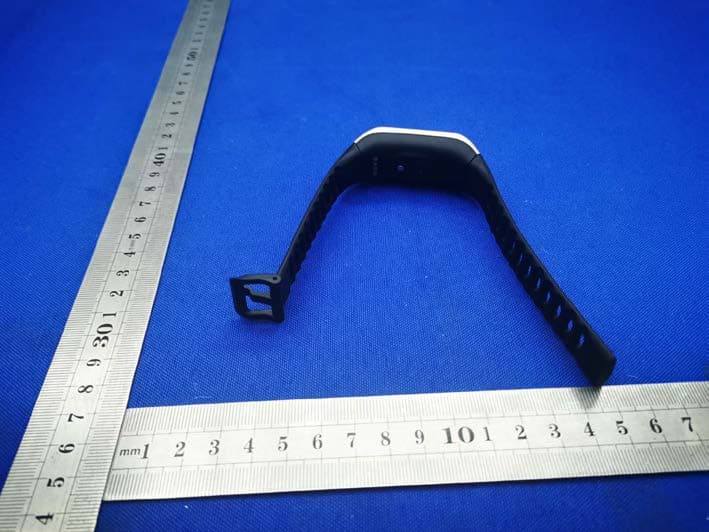
2AA7D-ZNEOPL
Nov 15, 2020Smart Watch
Equipment Class
DTS - Digital Transmission System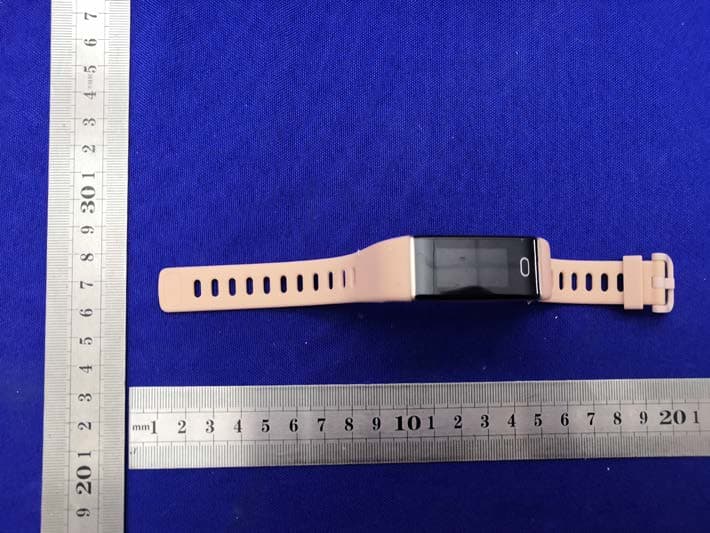
2AA7D-ZTRCPL
Nov 09, 2020Smart Watch
Equipment Class
DTS - Digital Transmission System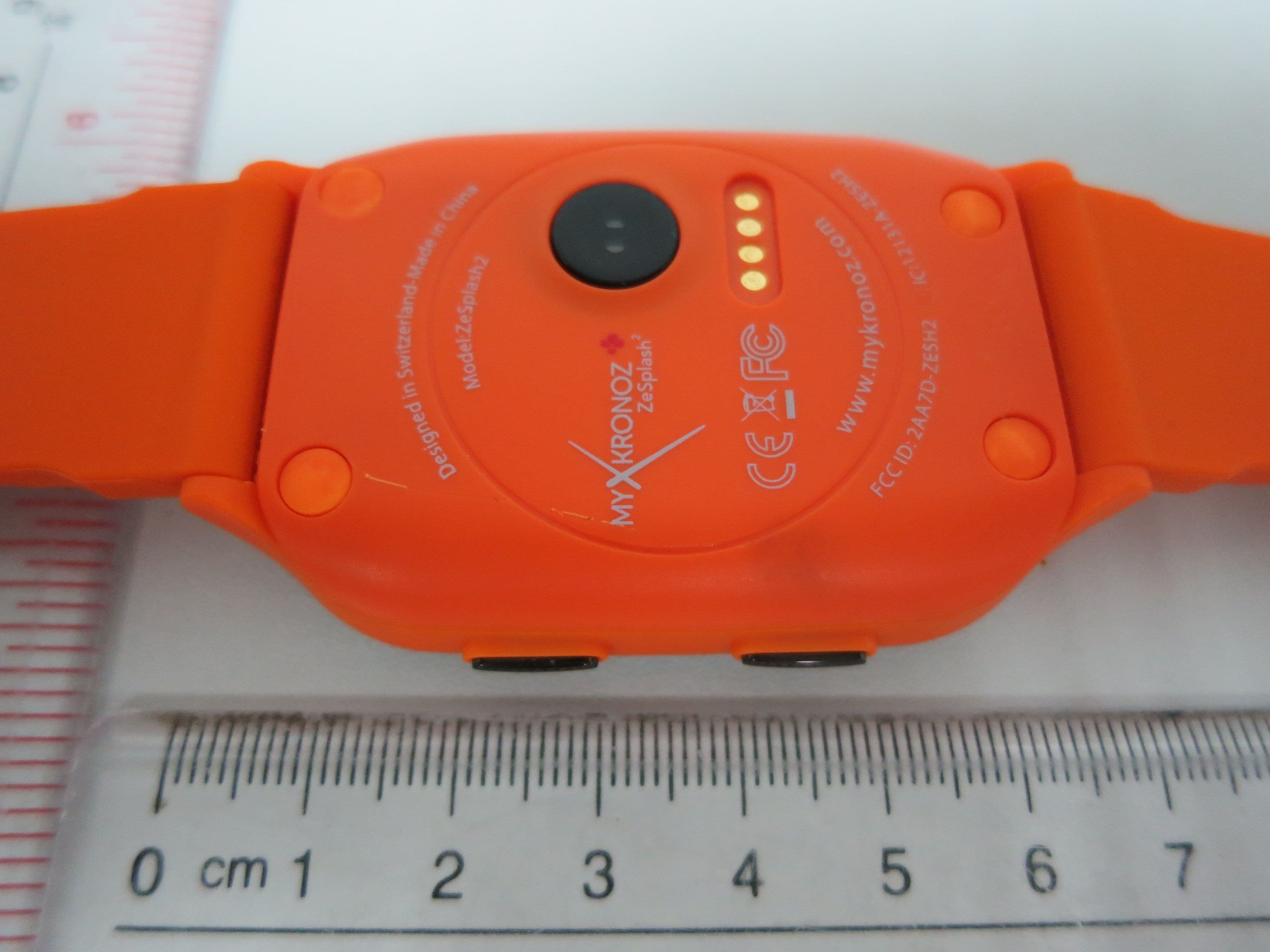
2AA7D-ZESH2
Dec 23, 2015Smart Watch
Equipment Class
DSS - Part 15 Spread Spectrum Transmitter
2AA7D-ZEFT2P
Dec 10, 2015Smart Watch
Equipment Class
DTS - Digital Transmission System