2AXJ4A6V4AC1200 MU-MIMO Wi-Fi Router
TP-Link Corporation Limited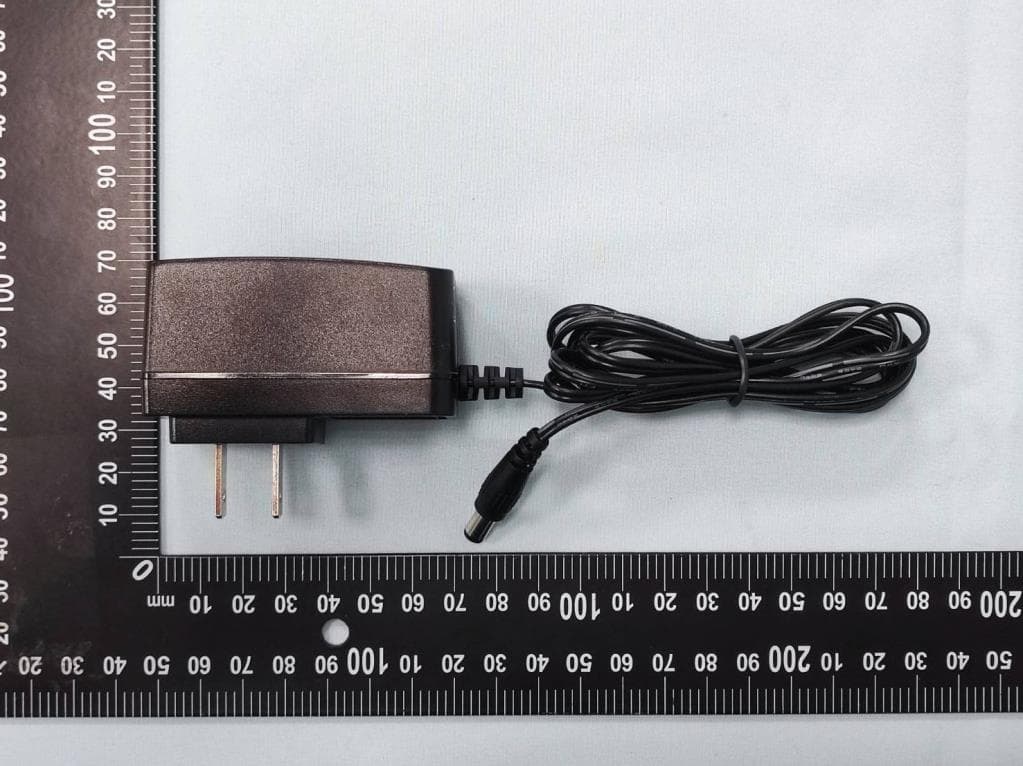
Click to zoom
Application Details
- Equipment Class
- NII - Unlicensed National Information Infrastructure TX
- Date of Grant
- Jul 10, 2022
- Application Purpose
- Original Equipment
- Date of Application
- Jul 07, 2022
- Equipment Note
- AC1200 MU-MIMO Wi-Fi Router
- Frequency Range
- 5745.00000000 - 5825.00000000
- Company
- TP-Link Corporation Limited
- Country
- Hong Kong
Documents & Files
Document Text
Text extracted from the exhibit documents filed with the FCC. Open a document above to read the original.
Users Manual
© 2022 TP-Link 1910013208 REV4.0.0 User Guide MU-MIMO Wi-Fi Router Archer C6 / Archer A6 Contents About This Guide 1 Chapter 1 Get to Know About Your Router 3 1. 1. Product Overview. . . . . . . . . . . . . . . . . . . . . . . . . . . . . . . . . . . . . . . . . . . . . . . . . . . . . . . . . . . . 4 1. 2. Appearance . . . . . . . . . . . . . . . . . . . . . . . . . . . . . . . . . . . . . . . . . . . . . . . . . . . . . . . . . . . . . . . . . 4 1. 2. 1. The Front Panel . . . . . . . . . . . . . . . . . . . . . . . . . . . . . . . . . . . . . . . . . . . . . . . . . . . . . . . 4 1. 2. 2. The Back Panel. . . . . . . . . . . . . . . . . . . . . . . . . . . . . . . . . . . . . . . . . . . . . . . . . . . . . . . . 5 Chapter 2 Connect the Hardware 7 2. 1. Position Your Router . . . . . . . . . . . . . . . . . . . . . . . . . . . . . . . . . . . . . . . . . . . . . . . . . . . . . . . . . 8 2. 2. Connect Your Router. . . . . . . . . . . . . . . . . . . . . . . . . . . . . . . . . . . . . . . . . . . . . . . . . . . . . . . . . 8 Chapter 3 Log In to Your Router 11 Chapter 4 Set Up Internet Connection 13 4. 1. Use Quick Setup Wizard . . . . . . . . . . . . . . . . . . . . . . . . . . . . . . . . . . . . . . . . . . . . . . . . . . . .14 4. 2. Quick Setup Via TP-Link Tether App. . . . . . . . . . . . . . . . . . . . . . . . . . . . . . . . . . . . . . . . .15 4. 3. Manually Set Up Your Internet Connection . . . . . . . . . . . . . . . . . . . . . . . . . . . . . . . . . .15 4. 4. Set Up the Router as an Access Point . . . . . . . . . . . . . . . . . . . . . . . . . . . . . . . . . . . . . . .18 4. 5. Set Up an IPv6 Internet Connection. . . . . . . . . . . . . . . . . . . . . . . . . . . . . . . . . . . . . . . . .18 Chapter 5 TP-Link Cloud Service 21 5. 1. Register a TP-Link ID. . . . . . . . . . . . . . . . . . . . . . . . . . . . . . . . . . . . . . . . . . . . . . . . . . . . . . . .22 5. 2. Change Your TP-Link ID Information. . . . . . . . . . . . . . . . . . . . . . . . . . . . . . . . . . . . . . . . .22 5. 3. Manage the User TP-Link IDs . . . . . . . . . . . . . . . . . . . . . . . . . . . . . . . . . . . . . . . . . . . . . . .23 5. 3. 1. Add TP-Link ID to Manage the Router. . . . . . . . . . . . . . . . . . . . . . . . . . . . . . . . .24 5. 3. 2. Remove TP-Link ID(s) from Managing the Router. . . . . . . . . . . . . . . . . . . . . .24 5. 4. Manage the Router via the TP-Link Tether App . . . . . . . . . . . . . . . . . . . . . . . . . . . . . .25 Chapter 6 OneMesh with Seamless Roaming 26 6. 1. Set Up a OneMesh Network. . . . . . . . . . . . . . . . . . . . . . . . . . . . . . . . . . . . . . . . . . . . . . . . .27 6. 2. Manage Devices in the OneMesh Network . . . . . . . . . . . . . . . . . . . . . . . . . . . . . . . . . .29 Chapter 7 Guest Network 31 7. 1. Create a Network for Guests . . . . . . . . . . . . . . . . . . . . . . . . . . . . . . . . . . . . . . . . . . . . . . .32 7. 2. Customize Guest Network Options. . . . . . . . . . . . . . . . . . . . . . . . . . . . . . . . . . . . . . . . . .33 Chapter 8 Parental Controls 34 8. 1. Setting Up Access Restrictions . . . . . . . . . . . . . . . . . . . . . . . . . . . . . . . . . . . . . . . . . . . . .35 Chapter 9 QoS 38 Chapter 10 Network Security 40 10. 1. Protect the Network from Cyber Attacks . . . . . . . . . . . . . . . . . . . . . . . . . . . . . . . . . . . .41 10. 2. Access Control . . . . . . . . . . . . . . . . . . . . . . . . . . . . . . . . . . . . . . . . . . . . . . . . . . . . . . . . . . . . .41 10. 3. IP & MAC Binding . . . . . . . . . . . . . . . . . . . . . . . . . . . . . . . . . . . . . . . . . . . . . . . . . . . . . . . . . . .43 10. 4. ALG (Application Layer Gateway). . . . . . . . . . . . . . . . . . . . . . . . . . . . . . . . . . . . . . . . . . . .45 Chapter 11 NAT Forwarding 46 11. 1. Share Local Resources on the Internet by Port Forwarding . . . . . . . . . . . . . . . . . .47 11. 2. Open Ports Dynamically by Port Triggering. . . . . . . . . . . . . . . . . . . . . . . . . . . . . . . . . .49 11. 3. Make Xbox Online Games Run Smoothly by UPnP . . . . . . . . . . . . . . . . . . . . . . . . . . .50 11. 4. Make Applications Free from Port Restriction by DMZ . . . . . . . . . . . . . . . . . . . . . . .51 Chapter 12 Customize Your Network Settings 53 12. 1. Change the LAN Settings . . . . . . . . . . . . . . . . . . . . . . . . . . . . . . . . . . . . . . . . . . . . . . . . . . .54 12. 2. Configure to Support IPTV Service. . . . . . . . . . . . . . . . . . . . . . . . . . . . . . . . . . . . . . . . . .54 12. 3. Specify DHCP Server Settings. . . . . . . . . . . . . . . . . . . . . . . . . . . . . . . . . . . . . . . . . . . . . .55 12. 4. Set Up a Dynamic DNS Service Account . . . . . . . . . . . . . . . . . . . . . . . . . . . . . . . . . . . .56 12. 5. Create Static Routes. . . . . . . . . . . . . . . . . . . . . . . . . . . . . . . . . . . . . . . . . . . . . . . . . . . . . . . .58 12. 6. Specify Wireless Settings. . . . . . . . . . . . . . . . . . . . . . . . . . . . . . . . . . . . . . . . . . . . . . . . . . .60 12. 7. Schedule Your Wireless Function . . . . . . . . . . . . . . . . . . . . . . . . . . . . . . . . . . . . . . . . . . .62 12. 8. Use WPS for Wireless Connection . . . . . . . . . . . . . . . . . . . . . . . . . . . . . . . . . . . . . . . . . .62 12. 8. 1. Connect via the Client’s PIN. . . . . . . . . . . . . . . . . . . . . . . . . . . . . . . . . . . . . . . . .63 12. 8. 2. Connect via the Router’s PIN. . . . . . . . . . . . . . . . . . . . . . . . . . . . . . . . . . . . . . . .63 12. 8. 3. Push the WPS Button . . . . . . . . . . . . . . . . . . . . . . . . . . . . . . . . . . . . . . . . . . . . . . .63 12. 9. Advanced Wireless Settings . . . . . . . . . . . . . . . . . . . . . . . . . . . . . . . . . . . . . . . . . . . . . . . .64 Chapter 13 Manage the Router 66 13. 1. Upgrade the Firmware . . . . . . . . . . . . . . . . . . . . . . . . . . . . . . . . . . . . . . . . . . .…
Text truncated - open the document above for the full version.
Users Manual
54 Chapter 12 Customize Your Network Settings 12 1 Change the LAN Settings The router is preset with a default LAN IP 192.168.0.1, which you can use to log in to its web management page. The LAN IP address together with the Subnet Mask also defines the subnet that the connected devices are on. If the IP address conflicts with another device on your local network or your network requires a specific IP subnet, you can change it. 1. Visit http://tplinkwifi.net, and log in with your TP-Link ID or the password you set for the router. 2. Go to Advanced > Network > LAN. 3. Type in a new IP Address appropriate to your needs. And leave the Subnet Mask as the default settings. 4. Click S AV E. Note: If you have set the Port Forwarding, DMZ or DHCP address reservation, and the new LAN IP address is not in the same subnet with the old one, then you should reconfigure these features. 12 2 Configure to Support IPTV Service I want to: Configure IPTV setup to enable Internet/IPTV/Phone service provided by my internet service provider (ISP). How can I do that? 1 Visit http://tplinkwifi.net, and log in with your TP-Link ID or the password you set for the router. 2 Go to Advanced > Network > IPTV/VLAN. 3 Configure IPTV/VLAN settings: 1 ) Tick Enable IPTV/VLAN. 2 ) Select the appropriate Mode according to your ISP. • Select Bridge if your ISP is not listed and no other parameters are required. 55 Chapter 12 Customize Your Network Settings • Select Custom if your ISP is not listed but provides necessary parameters. 3 ) After you have selected a mode, the necessary parameters, including the LAN port for IPTV connection, are predetermined. If not, select the LAN type to determine which port is used to support IPTV service. 4 ) Click S AV E. 5 ) Connect the set-top box to the corresponding LAN port which is predetermined or you have specified in Step 3. Done! Your IPTV setup is done now! You may need to configure your set-top box before enjoying your TV. 12 3 Specify DHCP Server Settings By default, the DHCP (Dynamic Host Configuration Protocol) Server is enabled and the router acts as a DHCP server; it dynamically assigns TCP/IP parameters to client devices from the IP Address Pool. You can change the settings of the DHCP Server if necessary, and you can reserve LAN IP addresses for specified client devices. 1. Visit http://tplinkwifi.net, and log in with your TP-Link ID or the password you set for the router. 2. Go to Advanced > Network > DHCP Server. • To specify the IP address that the router assigns: 56 Chapter 12 Customize Your Network Settings 1. Tick the Enable checkbox. 2. Enter the starting and ending IP addresses in the IP Address Pool. 3. Enter other parameters if the ISP offers. The Default Gateway is automatically filled in and is the same as the LAN IP address of the router. 4. Click S AV E. • To reserve an IP address for a specified client device: 1. Click Add in the Address Reservation section. 2. Click VIEW CONNECTED DEVICES and select the you device you want to reserve an IP for. Then the MAC Address will be automatically filled in. Or enter the MAC address of the client device manually. 3. Enter the IP address to reserve for the client device. 4. Click S AV E. 12 4 Set Up a Dynamic DNS Service Account Most ISPs assign a dynamic IP address to the router and you can use this IP address to access your router remotely. However, the IP address can change from time to time and you don’t know when it changes. In this case, you might apply the DDNS (Dynamic 57 Chapter 12 Customize Your Network Settings Domain Name Server) feature on the router to allow you and your friends to access your router and local servers (FTP, HTTP, etc.) using a domain name without checking and remembering the IP address. Note: DDNS does not work if the ISP assigns a private WAN IP address (such as 192.168.1.x) to the router. 1. Visit http://tplinkwifi.net, and log in with your TP-Link ID or the password you set for the router. 2. Go to Advanced > Network > Dynamic DNS. 3. Select the DDNS Service Provider: TP-Link, NO-IP or DynDNS. It is recommended to select TP-Link so that you can enjoy TP-Link’s superior DDNS service. Otherwise, please select NO-IP or DynDNS. If you don’t have a DDNS account, you have to register first by clicking Register Now. Note: To enjoy TP-Link’s DDNS service, you have to log in with a TP-Link ID. If you have not logged in with one, click log in. 4. Click Register in the Domain Name List if you have selected TP-Link, and enter the Domain Name as needed. If you have selected NO-IP or DynDNS, enter the username, password and domain name of your account. 58 Chapter 12 Customize Your Network Settings 5. Click LOGIN AND SAVE. Tips: If you want to use a new DDNS account, please click Logout first, and then log in with a new account. 12 5 Create Static Routes Static routing is a form of routing that is configured manually by a network administrator or a user by adding entries into a routing table. The manually-configured routing information guides the router in forwarding data packets to the specific destination. I want to: Visit multiple networks and servers at the same time. Company’s server PC Router BRouter A Switch LAN: 192.168.0.1 192.168.0.100 LAN: 192.168.0.2 WAN: 172.30.30.100 172.30.30.1 For example, in a small office, my PC can surf the internet through Router A, but I also want to visit my company’s network. Now I have a switch and Router B. I connect the devices as shown in the following figure so that the physical connection between my PC and my company’s server is established. To surf the internet and visit my company’s 59 Chapter 12 Customize Your Network Settings network at the same time, I need to configure the static routing. How can I do that? 1 Change the routers’ LAN IP addresses to two different IP addresses on the same subnet. Disable Router B’s DHCP function. 2 Visit http://tplinkwifi.net, and log in with your TP-Link ID or the password you set for Router A. 3 Go to Advanced > Net…
Text truncated - open the document above for the full version.
Cover Letter(s)
Confidentiality Request Letter Federal Communications Commission Authorization and Evaluation Division FCC ID: 2AXJ4A6V4 Confidentiality Request Pursuant to Sections 0.457 and 0.459 of the Commission’s Rules, we hereby request confidential treatment of information accompanying this application as outlined below: 1. Block Diagram 2. Schematics 3. Operational Description The above materials contain trade secrets and proprietary information not customarily released to the public. The public disclosure of these matters might be harmful to the applicant and provide unjustified benefits to its competitors. The applicant understands that pursuant to Rule 0.457, disclosure of this application and all accompanying documentation will not be made before the date of the Grant for this application. Sincerely, _________________ Name: Abby Liang Position: Regulatory Compliance Manager Date: 2022-06-30
Cover Letter(s)
Declaration of Authorization We Name: TP-Link Corporation Limited Address: Room 901, 9/F., New East Ocean Centre, 9 Science Museum Road, Tsim Sha Tsui, Kowloon, Hongkong Declare that: Name Representative of agent: Marlin Chen Agent Company name: MRT Technology (Suzhou) Co., Ltd Address: D8 Building, Youxin Industrial Park, No.2 Tian'edang Rd., Wuzhong Economic Development Zone City: Suzhou Country: China is authorized to apply for Certification of the following product(s): Product: AC1200 MU-MIMO Wi-Fi Router FCC ID: 2AXJ4A6V4 Model: Archer A6, Archer C6 Brand: tp-link Sincerely, _________________ Name: Abby Liang Position: Regulatory Compliance Manager Date: 2022-06-30
Cover Letter(s)
Declaration of Conformity We Name: TP-Link Corporation Limited Address: Room 901, 9/F., New East Ocean Centre, 9 Science Museum Road, Tsim Sha Tsui, Kowloon, Hongkong Declare that: Product: AC1200 MU-MIMO Wi-Fi Router FCC ID: 2AXJ4A6V4 Model: Archer A6, Archer C6 Brand: tp-link Product which bears the above FCC ID is also compliant with the FCC requirements for sDOC. And the sDOC procedure shall be carried out prior to marketing the device in the US. Sincerely, _________________ Name: Abby Liang Position: Regulatory Compliance Manager Date: 2022-06-30
Cover Letter(s)
Declaration letter For our business issue and marketing requirement, we would like to list different model number as following: Model No.: Archer A6, Archer C6 Model Difference: Hardware design and PCB layout are the same between the two models, only the model for our marketing strategy is different. _____________________ Name: Abby Liang Position: Regulatory Compliance Manager Date: 2022-06-30
Cover Letter(s)
Non-SDR (Software Defined Radio) Cover Letter Date: 2022-06-30 Refer to KDB 442812 D01 SDR apps Guide v02r03. The following six questions can be used for determining if a radio can elect to be, or must be an SDR. 1. Can the RF parameters of the device be altered through software? Yes - go to 2. No, not an SDR No 2. Can third parties not permitted by the Commission through specific filings modify, configure, or load different software, or make configuration settings to operate the device or host hardware radio frequency parameters (frequency range, modulation type, maximum output power or other radio parameters) in any other way than granted (or expected to be granted)? Yes, must be an SDR. No - go to 3. 3. Is the device capable of operating in any other in any other way than granted, or will be, granted? Yes, - go to 4. No - go to 5. 4. Is this a Part 15 client Device as defined in Section 15.202 (as opposed to a master device)? Yes, qualifies as a part 15 client devices - go to 5. No, must be an SDR. 5. Does the manufacturer elect SDR? Yes, elects to be an SDR. No, Not an SDR Conclusion: According to the above questions reply, we can confirm this device (FCC ID: 2AXJ4A6V4 & IC: 26583-A6V4) must be a Non-SDR device. __________________ Name: Abby Liang Position: Regulatory Compliance Manager Date: 2022-06-30
External Photos
Report No.: 2205TW0102-U1~U3 Product: AC1200 MU-MIMO Wi- Fi Router Brand Name: tp-link Model Number: Archer A6 1 of 7 External Photograph (1) EUT Photo (2) EUT Photo Report No.: 2205TW0102-U1~U3 2 of 7 (3) EUT Photo (4) EUT Photo Report No.: 2205TW0102-U1~U3 3 of 7 (5) EUT Photo (6) EUT Photo Report No.: 2205TW0102-U1~U3 4 of 7 (7) EUT Photo (8) Adapter Report No.: 2205TW0102-U1~U3 5 of 7 (9) Adapter (10) Adapter Report No.: 2205TW0102-U1~U3 6 of 7 (11) Adapter (12) Adapter Report No.: 2205TW0102-U1~U3 7 of 7 (13) Adapter (14) Adapter
ID Label/Location Info
Label Label Location
Internal Photos
Report No.: 2205TW0102-U1~U3 Product: AC1200 MU-MIMO Wi- Fi Router Brand Name: tp-link Model Number: Archer A6 1 of 5 Internal Photograph (1) EUT Photo (2) EUT Photo Report No.: 2205TW0102-U1~U3 2 of 5 (3) EUT Photo (4) EUT Photo Report No.: 2205TW0102-U1~U3 3 of 5 (5) EUT Photo (6) EUT Photo Report No.: 2205TW0102-U1~U3 4 of 5 (7) EUT Photo (8) EUT Photo Report No.: 2205TW0102-U1~U3 5 of 5 (9) EUT Photo (10) EUT Photo
RF Exposure Info
MRT Technology (Taiwan) Co., Ltd Report No.: 2205TW0102-U3 Phone: +886-3-3288388 Report Version V1.0 Web: www.mrt-cert.com Issue Date: 2022-06-30 FCC ID: 2AXJ4A6V4 Page Number: 1 of 10 RF Exposure Evaluation Declaration FCC ID : 2AXJ4A6V4 Applicant : TP-Link Corporation Limited Application Type : Certification Product : AC1200 MU-MIMO Wi-Fi Router Model No. : Archer A6, Archer C6 Brand Name : tp-link FCC Classification : Digital Transmission System (DTS) Unlicensed National Information Infrastructure (NII) Received Date : May 3, 2022 Test Date : May 30, 2022 Tested By : ( Owen Tsai ) Reviewed By : ( Paddy Chen ) Approved By : ( Chenz Ker) The test results relate only to the samples tested. The test results shown in the test report are traceable to the national/international standards through the calibration of the equipment and evaluated measurement uncertainty herein. The test report shall not be reproduced except in full without the written approval of MRT Technology (Taiwan) Co., Ltd. Report No.: 2205TW0102-U3 FCC ID: 2AXJ4A6V4 Page Number: 2 of 10 Revision History Report No. Version Description Issue Date Note 2205TW0102-U3 1.0 Original Report 2022-06-30 Valid Report No.: 2205TW0102-U3 FCC ID: 2AXJ4A6V4 Page Number: 3 of 10 CONTENTS Description Page 1. INTRODUCTION .................................................................................................................... 5 1.1. Scope .......................................................................................................................... 5 1.2. MRT Test Location ....................................................................................................... 5 2. PRODUCT INFORMATION .................................................................................................... 6 2.1. Feature of Equipment under Test ................................................................................. 6 2.2. Description of Available Antennas ................................................................................ 6 3. RF Exposure Evaluation ...................................................................................................... 7 3.1. Limits ........................................................................................................................... 7 3.2. Test Result of RF Exposure Evaluation ........................................................................ 8 Appendix A : External Photograph ............................................................................................ 9 Appendix B : Internal Photograph ............................................................................................10 Report No.: 2205TW0102-U3 FCC ID: 2AXJ4A6V4 Page Number: 4 of 10 General Information Applicant TP-Link Corporation Limited Applicant Address Room 901, 9/F., New East Ocean Centre, 9 Science Museum Road, Tsim Sha Tsui, Kowloon, Hongkong Manufacturer TP-Link Corporation Limited Manufacturer Address Room 901, 9/F., New East Ocean Centre, 9 Science Museum Road, Tsim Sha Tsui, Kowloon, Hongkong Test Site MRT Technology (Taiwan) Co., Ltd Test Site Address No. 38, Fuxing Second Rd., Guishan Dist., Taoyuan City 333, Taiwan (R.O.C) MRT FCC Registration No. 291082 Test Device Serial No. N/A Production Pre-Production Engineering Test Facility / Accreditations 1. MRT facility is a FCC registered (Reg. No. 291082) test facility with the site description report on file and is designated by the FCC as an Accredited Test Firm. 2. MRT facility is an IC registered (MRT Reg. No. 21723) test laboratory with the site description on file at Industry Canada. 3. MRT Lab is accredited to ISO 17025 by the Taiwan Accreditation Foundation (TAF Cert. No. 3261) in EMC, Telecommunications and Radio testing for FCC (Designation Number: TW3261), Industry Taiwan, EU and TELEC Rules. Report No.: 2205TW0102-U3 FCC ID: 2AXJ4A6V4 Page Number: 5 of 10 1. INTRODUCTION 1.1. Scope Measurement and determination of electromagnetic emissions (EMC) of radio frequency devices including intentional and/or unintentional radiators for compliance with the technical rules and regulations of the Federal Communications Commission and the Innovation, Science and Economic Development Canada and Certification and Engineering Bureau. 1.2. MRT Test Location The map below shows the location of the MRT LABORATORY, its proximity to the Taoyuan City. These measurement tests were conducted at the MRT Technology (Taiwan) Co., Ltd. Facility located at No.38, Fuxing 2nd Rd., Guishan Dist., Taoyuan City 33377, Taiwan (R.O.C). Report No.: 2205TW0102-U3 FCC ID: 2AXJ4A6V4 Page Number: 6 of 10 2. PRODUCT INFORMATION 2.1. Feature of Equipment under Test 2.2. Description of Available Antennas Antenna Type Frequency Band (MHz) T X Paths Max Antenna Gain (dBi) Beamforming Directional Gain (dBi) CDD Directional Gain (dBi) For Power For PSD Dipole Antenna 2412 ~ 2462 2 2.00 5.01 2.00 5.01 5150 ~ 5250 2 3.00 6.01 3.00 6.01 5725 ~ 5850 2 3.00 6.01 3.00 6.01 Note: 1. The EUT supports Cyclic Delay Diversity (CDD) mode, and CDD signals are correlated. If all antennas have the same gain, G ANT , Directional gain = G ANT + Array Gain, where Array Gain is as follows. • For power spectral density (PSD) measurements on all devices, Array Gain = 10 log (N ANT / N SS ) dB; • For power measurements on IEEE 802.11 devices, Array Gain = 0 dB for N ANT ≤ 4; 2. The EUT also supports Beam Forming mode, and the Beam Forming support 802.11n/ac, not include 802.11a/b/g. BF Directional gain = G ANT + 10 log (N ANT ). 3. All messages of antenna were declared by manufacturer. Product Name: AC1200 MU-MIMO Wi-Fi Router Model No.: Archer A6, Archer C6 Brand Name: tp-link Wi-Fi Specification: 802.11a/b/g/n/ac Adapter Brand: tp-link Model No: T120100-2B1 Input: 100 - 240V ~ 50/60Hz 0.3A. Output: DC 12.0V⎓1A Remark: Hardware design and PCB layout are the same between the two models, only the model for our marketing strategy is different. Report No.: 2205TW0102…
Text truncated - open the document above for the full version.
Test Report
MRT Technology (Taiwan) Co., Ltd Report No.: 2205TW0102-U2 Phone: +886-3-3288388 Report Version: 1.0 Web: www.mrt-cert.com Issue Date: 2022-06-30 FCC ID: 2AXJ4A6V4 Page Number: 1 of 133 FCC ID : 2AXJ4A6V4 Applicant : TP-Link Corporation Limited Application Type : Certification Product : AC1200 MU-MIMO Wi-Fi Router Model No. : Archer A6, Archer C6 Brand Name : tp-link FCC Classification : Unlicensed National Information Infrastructure (NII) FCC Rule Part(s) : Part15 Subpart E (Section 15.407) Received Date : May 3, 2022 Test Date : May 6, 2022 ~ May 26, 2022 MEASUREMENT REPORT Tested By : ( Owen Tsai ) Reviewed By : ( Paddy Chen ) Approved By : ( Chenz Ker) The test results relate only to the samples tested. This equipment has been shown to be capable of compliance with the applicable technical standards as indicated in the measurement report and was tested in accordance with the measurement procedures specified in KDB 789033 D02v02r01. Test results reported herein relate only to the item(s) tested. The test report shall not be reproduced except in full without the written approval of MRT Technology (Taiwan) Co., Ltd. Report No.: 2205TW0102-U2 FCC ID: 2AXJ4A6V4 Page Number: 2 of 133 Revision History Report No. Version Description Issue Date Note 2205TW0102-U2 1.0 Original Report 2022-06-30 Valid Report No.: 2205TW0102-U2 FCC ID: 2AXJ4A6V4 Page Number: 3 of 133 CONTENTS Description Page General Information ....................................................................................................................... 6 1. INTRODUCTION ..................................................................................................................... 7 1.1. Scope ........................................................................................................................... 7 1.2. MRT Test Location ....................................................................................................... 7 2. PRODUCT INFORMATION ..................................................................................................... 8 2.1. Equipment Description .................................................................................................. 8 2.2. Product Specification Subjective to this Report ............................................................. 8 2.3. Working Frequencies for this report .............................................................................. 9 2.4. Description of Available Antennas ............................................................................... 10 2.5. Test Mode ................................................................................................................... 11 2.6. Configuration of Test System ...................................................................................... 12 2.7. Test System Details .................................................................................................... 13 2.8. Description of Test Software ....................................................................................... 13 2.9. Applied Standards ...................................................................................................... 13 2.10. Duty Cycle .................................................................................................................. 14 2.11. Test Configuration ...................................................................................................... 15 2.12. EMI Suppression Device(s)/Modifications ................................................................... 15 2.13. Labeling Requirements ............................................................................................... 15 3. DESCRIPTION OF TEST ...................................................................................................... 16 3.1. Evaluation Procedure ................................................................................................. 16 3.2. AC Line Conducted Emissions ................................................................................... 16 3.3. Radiated Emissions .................................................................................................... 17 4. ANTENNA REQUIREMENTS ................................................................................................ 18 5. TEST EQUIPMENT CALIBRATION DATE ............................................................................ 19 6. MEASUREMENT UNCERTAINTY ......................................................................................... 20 7. TEST RESULT ...................................................................................................................... 21 7.1. Summary .................................................................................................................... 21 7.2. 26dB Bandwidth Measurement ................................................................................... 22 7.2.1. Test Limit .................................................................................................................... 22 7.2.2. Test Procedure used ................................................................................................... 22 7.2.3. Test Setting ................................................................................................................. 22 7.2.4. Test Setup .................................................................................................................. 23 7.2.5. Test Result .................................................................................................................. 24 Report No.: 2205TW0102-U2 FCC ID: 2AXJ4A6V4 Page Number: 4 of 133 7.3. 6dB Bandwidth Measurement ..................................................................................... 28 7.3.1. Test Limit .................................................................................................................... 28 7.3.2. Test Procedure used …
Text truncated - open the document above for the full version.
Test Report
Report No.: 2205TW0102-U2 FCC ID: 2AXJ4A6V4 Page Number: 66 of 133 EUT AC1200 MU-MIMO Wi-Fi Router Date of Test 2022-05-24 Factor DRH18-E Temp. / Humidity 20C /60% Polarity Vertical Site / Test Engineer AC2 / Ares Test Mode 802.11ac-20MHz_TX_Band1_CH 36_ANT 0+1 Test Voltage AC 120V/60Hz No Frequency (MHz) Reading (dBuV) C.F (dB/m) Measurement (dBuV/m) Margin (dB) Limit (dBuV/m) Height (cm) Angle (deg) Remark (QP/PK/AV) 1 10360.000 53.96 4.62 58.58 -9.62 68.20 100 120 Peak 2 * 15530.000 62.21 5.91 68.12 -5.88 74.00 100 200 Peak 3 * 15530.000 46.63 5.91 52.54 -1.46 54.00 100 200 Average Note: 1. " *", means this data is the worst emission level. 2. C.F (Correction Factor) = Antenna Factor (dB)+ Cable Loss (dB) – Preamplifier(dB). 3. Measurement (dBuV/m) = Reading(dBuV) + C.F (Correction Factor). 4. No1 is not in restricted band, the limit is 68.2dBuV/m. 5. The emission levels of other frequencies are very lower than the limit and not show in test report. Report No.: 2205TW0102-U2 FCC ID: 2AXJ4A6V4 Page Number: 67 of 133 EUT AC1200 MU-MIMO Wi-Fi Router Date of Test 2022-05-24 Factor DRH18-E Temp. / Humidity 20C /60% Polarity Horizontal Site /…
Text truncated - open the document above for the full version.
Contact Information
Applicant
Sarah Wang
Technical Contact
MRT Technology (Suzhou) Co., LtdRobin Wu
[email protected]86-512-66308358
D8 Building, Youxin Industrial Park, · Suzhou · China
Non-Technical Contact
MRT Technology (Suzhou) Co., LtdRobin Wu
[email protected]86-512-66308358
Test Firm
MRT Technology (Taiwan) Co.,LtdChenz Ker
Technical Specifications
| # | Rule Parts | Frequency Range | Power Output |
|---|---|---|---|
| 2 | 15E | 5.75 GHz - 5.83 GHz | 226.50 mW |
Other Applications from TP-Link Corporation Limited
2AXJ4TXE50UH
Jan 28, 2024AXE3000 Wi-Fi 6E High Gain Wireless USB Adapter
Equipment Class
NII - Unlicensed National Information Infrastructure TX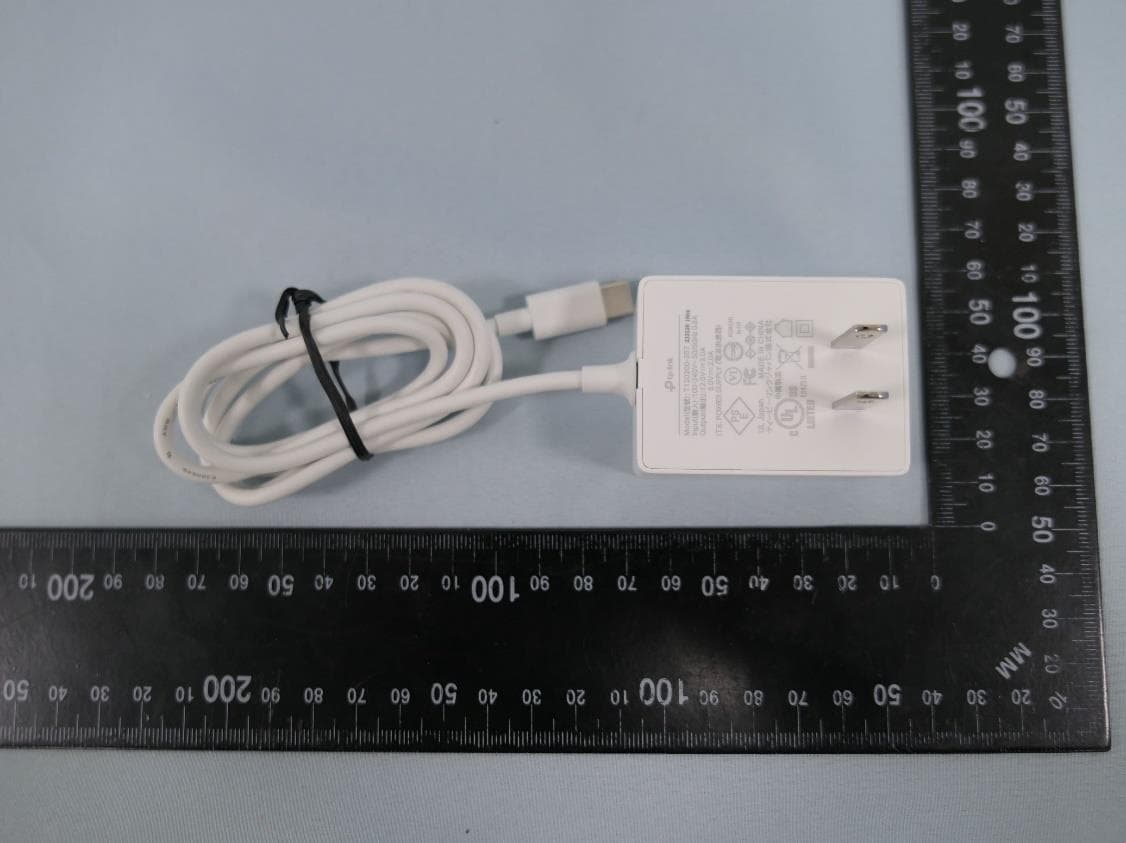
2AXJ4AIRE5
Jan 15, 2024AX3000 Wi-Fi 6 Air Range Extender
Equipment Class
DTS - Digital Transmission System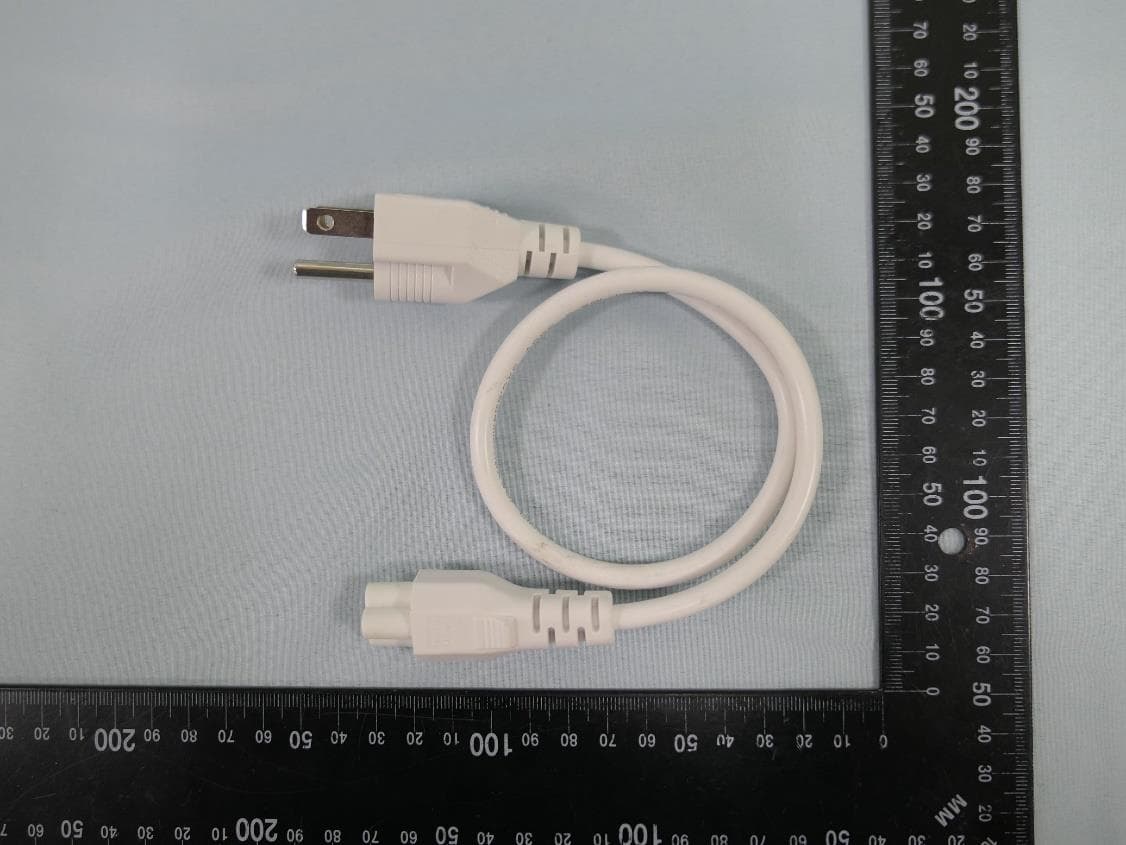
2AXJ4EAP115BRG
Jan 11, 20245GHz 300Mbps Long-range Indoor/Outdoor Access Point
Equipment Class
NII - Unlicensed National Information Infrastructure TX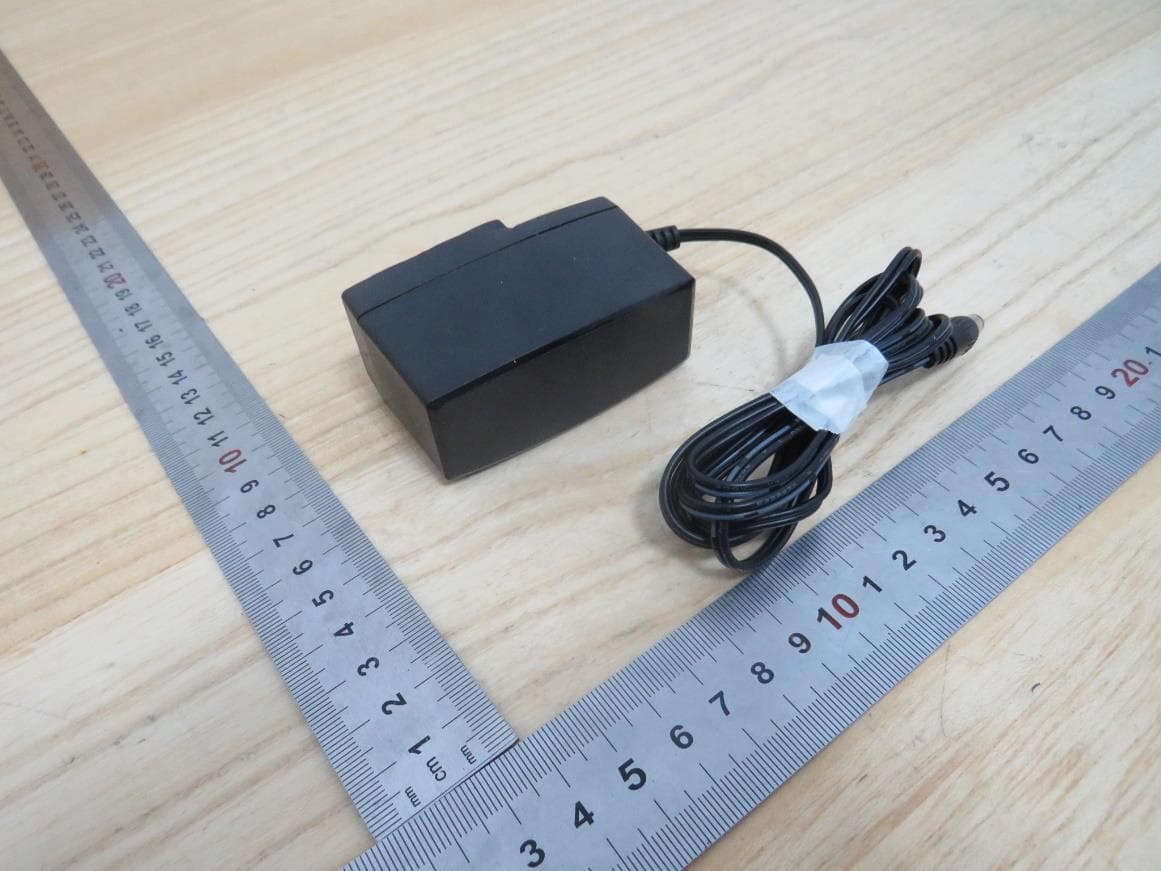
2AXJ4HX510V2
Jan 10, 2024AX3000 Whole Home Mesh Wi-Fi AP
Equipment Class
NII - Unlicensed National Information Infrastructure TX
2AXJ4EAP215BRG
Dec 11, 20235GHz 867Mbps Long-range Indoor/Outdoor Access Point
Equipment Class
NII - Unlicensed National Information Infrastructure TX