2AXJ4E4RV2AC1200 Whole Home Mesh Wi-Fi System
TP-Link Corporation Limited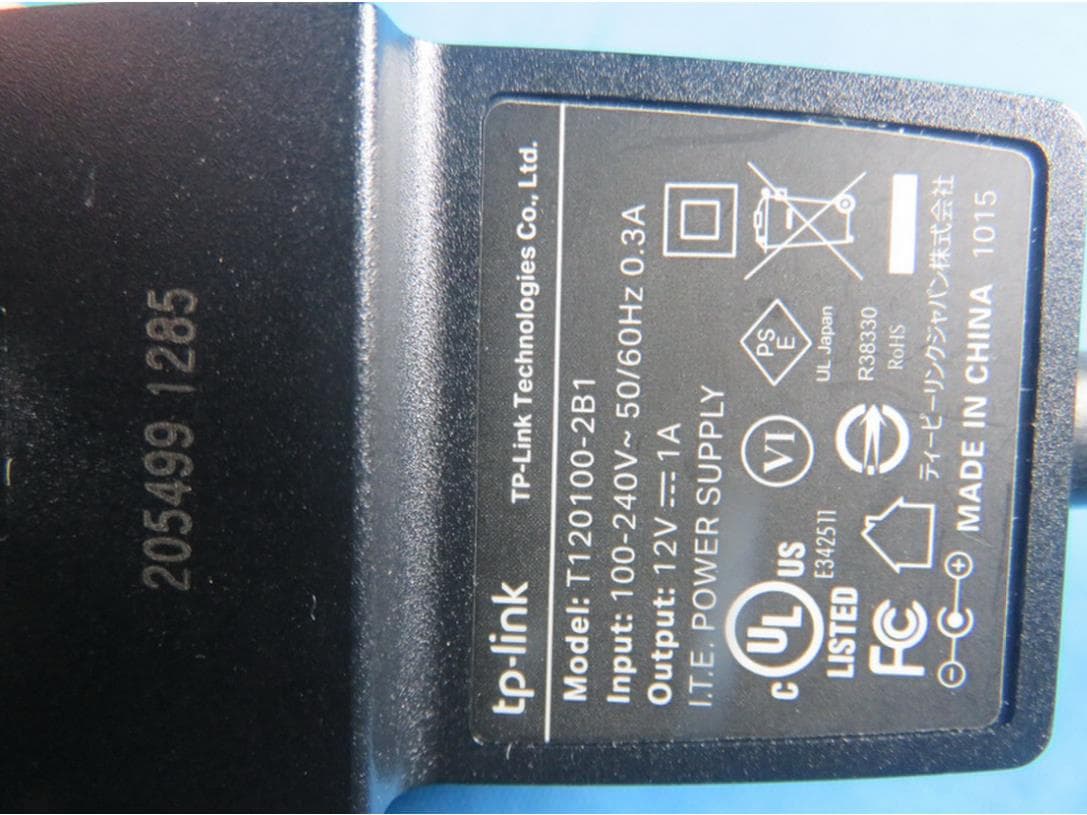
Click to zoom
Application Details
- Equipment Class
- DTS - Digital Transmission System
- Date of Grant
- Feb 17, 2021
- Application Purpose
- Original Equipment
- Date of Application
- Feb 09, 2021
- Equipment Note
- AC1200 Whole Home Mesh Wi-Fi System
- Frequency Range
- 2412.00000000 - 2462.00000000
- Company
- TP-Link Corporation Limited
- Country
- Hong Kong
Documents & Files
Document Text
Text extracted from the exhibit documents filed with the FCC. Open a document above to read the original.
Users Manual
Whole Home Mesh Wi-Fi 6 System Seamless Roaming | Parental Controls | Easy Setup User Guide AC1200 Whole Home Mesh Wi-Fi System Deco E4 1910012953 REV2.0.0 Contents About This Guide ····················································1 Appearance ·······························································2 Set Up Your Deco ···················································3 Add More Decos ·····················································6 Dashboard ··································································7 Check Deco Status ···············································8 Manage Connected Devices ···························9 Set Main Deco ························································10 Create New Networks ········································11 Remove/Reboot Deco ·······································13 Wi-Fi Settings··························································14 Blacklist ······································································15 Online Update ························································16 Advanced Features ·············································17 WPS ··············································································22 Parental Controls ··················································23 QoS···············································································24 Monthly Report ······················································25 Managers ··································································26 FAQ ···············································································27 Authentication ························································28 1 About This Guide This guide provides a brief introduction to Deco Whole Home Mesh Wi-Fi System and the Deco app, as well as regulatory information. Features available in Deco may vary by model and software version. Deco availability may also vary by region or ISP. All images, steps, and descriptions in this guide are only examples and may not reflect your actual Deco experience. Conventions In this guide, the following conventions are used: Convention Description DecoStands for Deco Whole Home Mesh Wi-Fi System/Unit. Underline Hyperlinks are in teal and underlined. You can click to redirect to a website or a specific section. Teal Key information appears in teal, including management page text such as menus, items, buttons and so on. Note: Ignoring this type of note might result in a malfunction or damage to the device. Tips: Indicates important information that helps you make better use of your device. More Info • Specific product information can be found on the product page at https://www.tp-link.com. • A Technical Community is provided for you to discuss our products at https://community.tp-link.com. • Our Technical Support contact information can be found at the Help center of the Deco app and the Contact Technical Support page at https://www.tp-link.com/support/. Speed/Coverage/Device Quantity Disclaimer Maximum wireless transmission rates are the physical rates derived from IEEE Standard 802.11 specifications. Range, coverage, and maximum quantity of connected devices are based on test results under normal usage conditions. Actual wireless data throughput. wireless coverage, and quantity of connected devices are not guaranteed and will vary as a result of 1) environmental factors, including building materials, physical objects, and obstacles, 2) network conditions, including local interference, volume and density of traffic, product location, network complexity, and network overhead, and 3) client limitations, including rated performance, location, connection quality, and client condition. MU-MIMO Disclaimer Use of MU-MIMO requires clients to also support MU-MIMO. Seamless Roaming Disclaimer Clients need to support 802.11k/v/r and may require additional set up. Performance may vary depending on the client device. 2 Appearance Each Deco has an LED that changes color according to its status, two RJ-45 Ethernet ports, a power slot, and a Reset button. See the explanation below: Tip: The product label can be found at the bottom of the product. Yellow pulse: Deco is resetting. Yellow solid: Deco is starting up. Blue pulse: Deco is ready for setup. Blue solid: Deco is setting up. White pulse: White solid: Deco is register ed and all is well. Red pulse: Deco is disconnected from main Deco. Red solid: Deco has an issue. Ethernet Ports: For connecting Deco to your modem, the Ethernet outlet or other internet devices. Reset Button: Press for 1 second and release to reset Deco to factory default settings. The light turning pulsing yellow indicates a successful reset. Power Slot: For connecting Deco to the power socket via the provided power adapter . 3 Set Up Your Deco The intuitive Deco app guides you through an easy setup process that gets each unit up and running and all your devices connected and online. Follow the steps below to set up your Deco Whole Home Mesh Wi-Fi System. 1. Download and install the Deco app Scan the QR code below or go to Google Play or the Apple App Store to download the Deco app. Install the app on your Android or iOS smartphone or tablet. or 2. Log in or sign up with TP-Link ID Open the app. Use your TP-Link ID to log in. If you don’t have a TP-Link ID, sign up first. Note: If you forgot your login password, tap Forgot password?. The Deco app will guide you through the rest. 3. Connect Deco to your modem Power off your modem. Connect your Deco to the modem and power them both on. If you don't have a modem, connect the Ethernet outlet directly to your Deco. 4 4. Select a location Select a location for this Deco. If its location is not listed, you can create a new one by choosing Custom. 5. Set up internet connection Select the internet connection type and enter the information. If you are not sure, contact your internet service provider. 6. Create your Wi-Fi network Set a network name and a password.…
Text truncated - open the document above for the full version.
Users Manual
6 Add More Decos After creating a Deco network, you can add more Deco units into the network to expand the Wi-Fi coverage, and manage them conveniently on your Deco app. In Overview, tap After the setup, you can find the added Decos by tapping Select the Deco model you want to add, and follow app instructions to complete the setup 7 Dashboard After you successfully set up your Deco network, you will see the dashboard of the Deco app. Here you can get an overview of the network status, check your connected devices and configure advanced features. Tap to get an overview of the network status Tap for more features 8 Check Deco Status In Overview, you can check the working status of all the Decos, check the Deco details, change or customize the location, and more. Tap to check all Decos' status Tap the Deco unit to change or customize the location Tap a Deco unit to check the details 9 Manage Connected Devices In Overview, you can check the working status of all the connected devices, view the device details, and change the device settings. Tap a client on the Devices list to check the details Tap Belongs to to add a unique profile for the device and manage its online activities Tap to manage the device settings 10 Set Main Deco After setup, you can replace the main Deco with any satellite Deco when needed. Follow the steps below. In Overview, tap Choose any satellite Deco and follow app instructions to complete the settings Tap > Set Main Deco 11 Create New Networks On the Deco app, you can create different Deco networks bound to your TP-Link ID, and manage them conveniently from the Deco app with one account. You can also help family or friends by managing their network on your Deco app. Two methods are provided as below to create a new network: Method 1. Create a new network from the Overview page Tap > Create New Network Then follow the app instructions to complete the setup 12 Create New Networks On the Deco app, you can create different Deco networks bound to your TP-Link ID, and manage them conveniently from the Deco app with one account. You can also help family or friends by managing their network on your Deco app. Two methods are provided as below to create a new network: Method 2. Create a new network from the Menu page Tap to open the MenuTap > CREATE NEW NETWORK Follow app instructions to complete the setup 13 Remove/Reboot Deco You can remove or reboot your Deco easily on the Deco app. Follow the steps below. Tap to check all Decos' statusTap to remove or reboot the Deco Note: If the LED light of Deco does not turn pulsing blue after tapping Remove, refer to Appearance to press the Reset button to reset it. Tap a Deco unit to enter the details 14 Wi-Fi Settings You can change the network name and password of your main network, create a separate network for guests to guarantee the security and privacy of your main network, and shake your device to share the network details easily with family and friends. Manage main network (e.g. change your main network Wi-Fi name and password) Tap > Wi-FiEnable guest network (e.g. change your guest network Wi-Fi name and password) Shake to share your network 15 Blacklist Compile a blacklist to avoid devices added on the blacklist to access to your network, ensuring the safety of your personal information shared in the network. Tap > BlacklistAdd clients to blacklist Add other devices to blacklistManage blacklist 16 Online Update Deco is dedicated to improving product features and providing a better customer experience. An up-to-date firmware provides better and more stable network performance. Always update your Deco to the latest firmware version when prompted in the Deco app. Tap > Update Deco Follow app instructions to update your Deco to the latest version Tip: If the firmware update fails, please reboot the main Deco, move the Satellite Deco closer to the main Deco, then try to update again. 17 Advanced Features Additional features are available under the Advanced menu. You can modify WAN settings (IPv4 & IPv6), add IPv6 firewall rules, modify LAN IP, set up DHCP server, enable VLAN/IPTV/MAC Clone mode, reserve the same IP address for a specific device, set up port forwarding rules to make your local computers accessible to other devices over the internet, enable TP-Link DDNS, SIP ALG, fast roaming and beamforming, control Deco's LED, change the working mode, and configure the notification settings. Tap > Advanced View IPv4 details or change the internet connection type Enable IPv6 to set up an IPv6 internet connection Add IPv6 firewall rules to allow specific devices to access the specified services 18 Modify LAN IP to avoid IP address confict Change DHCP server settingsEnable IPTV/VLAN mode to support IPTV services Enable MAC Clone if Deco fails to connect to the internet Tip: For more about MAC Clone, refer to https://www.tp-link.com/support/faq/2925/ 19 Reserve IP addresses for specific devices to recognize and manage the device more easily Set up port forwarding rules to enable devices in your network accessible over the internet with safety Register a TP-Link DDNS domain name to access your router and local servers using a domain name Enable SIP ALG to communicate with SIP (Session Initiation Protocol) servers via NAT) 20 Enable UPNP to enable devices on your local network to dynamically open ports for applications such as multiplayer gaming seamles Enable Fast Roaming to allow your wireless devices to switch connection to different Decos seamlessly Enable Beamforming to concentrate Wi-Fi signal towards connected devices for stronger connections Toggle off LED to turn off the light on Deco. Configure the Night Mode to turn off the LED light at bedtime only 21 Set connection alerts to receive notifications once the clients connect to or disconnect from Deco Set notifications to receive alerts in the notification bar Change the operating mode Note: When the Deco works in Access Point mode, advanced features such as IPv4, Address Reser…
Text truncated - open the document above for the full version.
Cover Letter(s)
TP-Link Corporation Limited Authority to Act as Agent Date: _2021-01-28_____ American Certification Body, Inc. 6731 Whittier Avenue Suite C110 McLean, VA 22101 To Whom It May Concern: _____BTL Inc/Rose Liu______ is authorized to act on our behalf, until otherwise notified, for applications to American Certification Body, Inc. (ACB). We certify that we are not subject to denial of federal benefits, that includes FCC benefits, pursuant to Section 5301 of the Anti-Drug Abuse Act of 1988, 21 U.S.C. 862. Further, no party, as defined in 47 CFR 1.2002 (b), to the application is subject to denial of federal benefits, that includes FCC benefits. Thank you, Agency Agreement Expiration Date: _____2022-01-28_____ By: ____________ _______ Abby Liang_________________ (Signature 1 ) (Print name) Title: Regulatory Compliance Manager On behalf of: TP-Link Corporation Limited (Company Name) Telephone: _00852-37585503_ 1 - Must be signed by applicant contact given for applicant on the FCC site, or by the authorized agent if an appropriate authorized agent letter has been provided. Letters should be placed on appropriate letterhead.
Cover Letter(s)
TP-Link Corporation Limited Request for Confidentiality Date: 2021-01-28 Subject: Confidentiality Request for: 2AXJ4E4RV2 Pursuant to FCC 47 CRF 0.457(d) and 0.459 and IC RSP-100, Section 12.4, the applicant requests that a part of the subject FCC application be held confidential. Type of Confidentiality Requested Exhibit Short Term Permanent Block Diagrams Short Term External Photos Short Term Permanent* 1 Internal Photos Short Term Permanent Operation Description/Theory of Operation Short Term Permanent Parts List & Placement/BOM Short Term Permanent Tune-Up Procedure Short Term Permanent Schematics Short Term Test Setup Photos Short Term Permanent* 3 User’s Manual TP-Link Corporation Limited____ has spent substantial effort in developing this product and it is one of the first of its kind in industry. Having the subject information easily available to "competition" would negate the advantage they have achieved by developing this product. Not protecting the details of the design will result in financial hardship. Permanent Confidentiality: The applicant requests the exhibits listed above as permanently confidential be permanently withheld from public review due to materials that contain trade secrets and proprietary information not customarily released to the public. Short-Term Confidentiality: The applicant requests the exhibits selected above as short term confidential be withheld from public view for a period of ___(specify number of days not to exceed 180) 2 ___ days from the date of the Grant of Equipment Authorization and prior to marketing. This is to avoid premature release of sensitive information prior to marketing or release of the product to the public. Applicant is also aware that they are responsible to notify ACB in the event information regarding the product or the product is made available to the public. ACB will then release the documents listed above for public disclosure pursuant to FCC Public Notice DA 04-1705. NOTE for Industry Canada Applications: IC currently only distinguishes Permanent Confidentiality exhibits as shown above. Short Term confidentiality is not considered applicable to IC applications. Sincerely, By: Regulatory Compliance Manager ____Abby Liang__________ (Signature/Title 3 ) (Print name) 1 - The asterisked items (*) require further information to be provided to ACB before permanent confidentiality will be extended to these exhibits. Please refer to FCC KDB 726920 and the specific Document link for D01 found at: https://apps.fcc.gov/oetcf/kdb/forms/FTSSearchResultPage.cfm?switch=P&id=41731 and review section II, 3) regarding specific information that must accompany these requests. 2 - Please refer to http://acbcert.com/documents/misc-docs/Memo-Short-Term-Vs-Standard-Confidentiality.pdf for complete details. 3 - Must be signed by applicant contact given for applicant on the FCC site, or by the authorized agent if an appropriate
External Photos
Project No.: 2012C041 Page 2 of 10 Project No.: 2012C041 Page 3 of 10 Project No.: 2012C041 Page 4 of 10 Project No.: 2012C041 Page 5 of 10
ID Label/Location Info
文字转曲(来料效果图) C B A 12 C 345678 B E D D A 9 料号: 12345 E 6789 Deco E4R(EU) 2.0_产品规格标贴 A1 100#珠光合成纸+雾膜 小卷-188 Deco E4R(EU) 2.0 陈映徽 2020-10-23 白色 Pantone Cool Gray 10C 白色 白色 备注: 1)S/N码由工厂用 23*6(7210500124) 空白标贴打印,贴于产品规格标贴指定位置; 2)MAC地址 、SSID由工厂直接打印于产品规格标贴指定位置。 MAC:条码由“XXXXXXXXXXXX”生成,文本格式写成“XX-XX-XX-XX-XX-XX”;具体内容以软件生成为准 SSID:“Deco_”为固定内容,XXXX为MAC地址后四位(大写),具体内容以软件生成为准 3)图示条码均为示意,具体请以生产实际为准。 IC: 26583-E4RV2 FCC ID: 2AXJ4E4RV2 HVIN: Deco E4RV2 Suite 901, New East Ocean Centre, Tsim Sha Tsui, Hong Kong TP-Link Corporation Limited AC1200 Whole Home Mesh Wi-Fi System MADE IN CHINAPower: 12V 1A Model: Deco E4R Model: Deco E4R(EU) Ver:2.0 S/N: XXXXXXXXXXXXX MAC: XX-XX-XX-XX-XX-XX SSID: Deco_XXXX label location
Internal Photos
Project No.: 2012C041 Page 6 of 10 Project No.: 2012C041 Page 7 of 10 Project No.: 2012C041 Page 8 of 10 Project No.: 2012C041 Page 9 of 10 Project No.: 2012C041 Page 10 of 10
RF Exposure Info
Report No.: BTL-ISEDR-3-2012C041 Page 1 of 2 Annex C – Declaration of RF Exposure Compliance for Exemption from Routine Evaluation Limits COMPANY NUMBER: 26583 MODEL NUMBER: AC1200 Whole Home Mesh Wi-Fi System MANUFACTURER: TP-Link Corporation Limited IC CERTIFICATION NUMBER: 26583-E4RV2 HVIN: Deco E4RV2 2.5.2 Exemption from Routine Evaluation Limits – RF Exposure Evaluation RF exposure evaluation is required if the separation distance between the user and/or bystander and the device’s radiating element is greater than 20 cm, except when the device operates as follows: below 20 MHz and the source-based, time-averaged maximum e.i.r.p. of the device is equal to or less than 1 W (adjusted for tune-up tolerance); at or above 20 MHz and below 48 MHz and the source-based, time-averaged maximum e.i.r.p. of the device is equal to or less than 4.49/ƒ 0.5 W (adjusted for tune-up tolerance), where ƒ is in MHz; at or above 48 MHz and below 300 MHz and the source-based, time-averaged maximum e.i.r.p. of the device is equal to or less than 0.6 W (adjusted for tune-up tolerance); at or above 300 MHz and below 6 GHz and the source-based, time-averaged maximum e.i.r.p. of the device is equal to or less than 1.31 x 10 -2 ƒ 0.6834 W (adjusted for tune-up tolerance), where ƒ is in MHz; at or above 6 GHz and the source-based, time-averaged maximum e.i.r.p. of the device is equal to or less than 5 W (adjusted for tune-up tolerance). e.i.r.p. calculation: For 2.4G: Limit=1.31 x 10 -2 ƒ 0.6834 =2.70 W f=2437MHz e.i.r.p. = 28.12 dBm =0.6486 W < 2.70 W For 5GHz UNII-1 Non Beamforming: Limit=1.31 x 10 -2 ƒ 0.6834 =4.54 W f=5210MHz e.i.r.p. = 22.66 dBm =0.1845 W < 4.54 W For 5GHz UNII-3 Non Beamforming: Limit=1.31 x 10 -2 ƒ 0.6834 =4.86 W f=5745MHz e.i.r.p. = 27.20 dBm =0.5248 W < 4.86 W For 5GHz UNII-1 Beamforming: Limit=1.31 x 10 -2 ƒ 0.6834 =4.54 W f=5210MHz e.i.r.p. = 22.97 dBm =0.1982 W < 4.54 W Report No.: BTL-ISEDR-3-2012C041 Page 2 of 2 For 5GHz UNII-3 Beamforming: Limit=1.31 x 10 -2 ƒ 0.6834 =4.86 W f=5745MHz e.i.r.p. = 26.44 dBm =0.4406 W < 4.86 W For the max. simultaneous transmission MPE: e.i.r.p. = e.i.r.p. (2.4G Max.) + e.i.r.p. (5G Max.) = 0.6486 W+0.5248 W =1.1734 W < 2.70 W ATTESTATION: I attest that the radio communication apparatus meets the exemption from the routine evaluation limits in Section 2.5 of this standard; that the Technical Brief was prepared and the information contained therein is correct; that the device evaluation was performed or supervised by me; that applicable measurement methods and evaluation methodologies have been followed; and that the device meets the SAR and/or RF field strength limits of RSS-102(Issue 5, 2015). Signature: DATE: 2021-02-03 NAME: Rose Liu TITLE: Supervisor COMPANY: BTL Inc. End of Test Report
RF Exposure Info
Report No.: BTL-FCCP-3-2012C041 Page 1 of 5 FCC RF EXPOSURE REPORT FCC ID: 2AXJ4A54 Project No. : 2012C041 Equipment : AC1200 Whole Home Mesh Wi-Fi System Brand Name : tp-link Test Model : Deco E4R Series Model : N/A Applicant : TP-Link Corporation Limited Address : Room 901, 9/F. , New East Ocean Centre, 9 Science Museum Road, Tsim Sha Tsui, Kowloon, Hong Kong Manufacturer : TP-Link Corporation Limited Address : Room 901, 9/F. , New East Ocean Centre, 9 Science Museum Road, Tsim Sha Tsui, Kowloon, Hong Kong Date of Receipt : Dec. 08, 2020 Date of Test : Dec. 18, 2020 ~ Jan. 18, 2021 Issued Date : Feb. 03, 2021 Report Version : R00 Test Sample : Engineering Sample No.: DG2020120822 Standard(s) : FCC Guidelines for Human Exposure IEEE C95.1 & FCC Part 2.1091 FCC Title 47 Part 2.1091, OET Bulletin 65 Supplement C The above equipment has been tested and found compliance with the requirement of the relative standards by BTL Inc. Prepared by : Peggy Zhu Approved by : Ethan Ma Add: No.3, Jinshagang 1st Road, Shixia, Dalang Town,Dongguan, Guangdong, China. Tel: +86-769-8318-3000 Web: www.newbtl.com Report No.: BTL-FCCP-3-2012C041 Page 2 of 5 REPORT ISSUED HISTORY Report Version Description Issued Date R00 Original Issue Feb. 03, 2021 Report No.: BTL-FCCP-3-2012C041 Page 3 of 5 1. TEST FACILITY The test facilities used to collect the test data in this report is at the location of No.3,Jinshagang 1st Road, Shixia, Dalang Town, Dongguan, Guangdong, China. BTL's Test Firm Registration Number for FCC: 357015 BTL's Designation Number for FCC: CN1240 2. MPE CALCULATION METHOD Calculation Method of RF Safety Distance: where: S = power density P = power input to the antenna G = power gain of the antenna in the direction of interest relative to an isotropic radiator R = distance to the center of radiation of the antenna Table for Filed Antenna: For 2.4GHz: Ant. Brand Model Name Antenna Type Connector Gain (dBi) 1 TP-LINK N/A Monopole N/A 1.5 2 TP-LINK N/A Monopole N/A 1.5 Note: 1) This EUT supports CDD, and all antennas have the same gain, Directional gain = G ANT +Array Gain. For power measurements, Array Gain = 0 dB (N ANT ≤ 4), so the Directional gain=1.5. For power spectral density measurements, N ANT = 2, N SS = 1.5. So Directional gain = G ANT + Array Gain = G ANT +10log (N ANT / N SS ) dB =1.5+10log(2/1.5)dBi=4.51 2) The antenna gain is provided by the manufacturer. Table for Antenna Configuration: Operating Mode TX Mode 2TX IEEE 802.11b V (Ant. 1 + Ant. 2) IEEE 802.11g V (Ant. 1 + Ant. 2) IEEE 802.11n(20 MHz) V (Ant. 1 + Ant. 2) IEEE 802.11n(40 MHz) V (Ant. 1 + Ant. 2) Report No.: BTL-FCCP-3-2012C041 Page 4 of 5 For 5GHz: Ant. Brand P/N Antenna Type Connector Gain (dBi) 1 TP-LINK N/A Monopole N/A 1 2 TP-LINK N/A Monopole N/A 1 Note: 1) This EUT supports CDD, and all antennas have the same gain, Directional gain = G ANT +Array Gain. For power measurements, Array Gain = 0 dB (N ANT ≤ 4), so the Directional gain=1.00. For power spectral density measurements, N ANT = 2, N SS = 1. So Directional gain = G ANT + Array Gain = G ANT +10log (N ANT / N SS ) dB =1.00+10log(2/1)dBi=4.01 2) Beamforming Gain: 3.00 dB, the Directional gain=3.00+1.00=4.00. 3) The antenna gain and beamforming gain are provided by the manufacturer. Table for Antenna Configuration: For Non Beamforming: Operating Mode TX Mode 2TX IEEE 802.11a V (Ant. 1 + Ant. 2) IEEE 802.11n (HT20) V (Ant. 1 + Ant. 2) IEEE 802.11n (HT40) V (Ant. 1 + Ant. 2) IEEE 802.11ac (VHT20) V (Ant. 1 + Ant. 2) IEEE 802.11ac (VHT40) V (Ant. 1 + Ant. 2) IEEE 802.11ac (VHT80) V (Ant. 1 + Ant. 2) For Beamforming: Operating Mode TX Mode 2TX IEEE 802.11n (HT20) V (Ant. 1 + Ant. 2) IEEE 802.11n (HT40) V (Ant. 1 + Ant. 2) IEEE 802.11ac (VHT20) V (Ant. 1 + Ant. 2) IEEE 802.11ac (VHT40) V (Ant. 1 + Ant. 2) IEEE 802.11ac (VHT80) V (Ant. 1 + Ant. 2) Report No.: BTL-FCCP-3-2012C041 Page 5 of 5 3. TEST RESULTS For 2.4GHz: Directional Gain (dBi) Directional Gain (numeric) Max. Average Output Power (dBm) Max. Average Output Power (mW) Power Density (S) (mW/cm 2 ) Limit of Power Density (S) (mW/cm 2 ) Test Result 4.51 2.8249 23.80 239.8833 0.13488 1 Complies For 5GHz UNII-1 Non Beamforming: Directional Gain (dBi) Directional Gain (numeric) Max. Output Power (dBm) Max. Output Power (mW) Power Density (S) (mW/cm 2 ) Limit of Power Density (S) (mW/cm 2 ) Test Result 4.01 2.5177 23.42 219.7860 0.11014 1 Complies For 5GHz UNII-3 Non Beamforming: Directional Gain (dBi) Directional Gain (numeric) Max. Output Power (dBm) Max. Output Power (mW) Power Density (S) (mW/cm 2 ) Limit of Power Density (S) (mW/cm 2 ) Test Result 4.01 2.5177 23.19 208.4491 0.10446 1 Complies For 5GHz UNII-1 Beamforming: Directional Gain (dBi) Directional Gain (numeric) Max. Output Power (dBm) Max. Output Power (mW) Power Density (S) (mW/cm 2 ) Limit of Power Density (S) (mW/cm 2 ) Test Result 4.00 2.5119 22.83 191.8669 0.09593 1 Complies For 5GHz UNII-3 Beamforming: Directional Gain (dBi) Directional Gain (numeric) Max. Output Power (dBm) Max. Output Power (mW) Power Density (S) (mW/cm 2 ) Limit of Power Density (S) (mW/cm 2 ) Test Result 4.00 2.5119 22.44 175.3881 0.08769 1 Complies For the max simultaneous transmission MPE: Power Density (S) (mW/cm 2 ) Power Density (S) (mW/cm 2 ) Total Limit of Power Density (S) (mW/cm 2 ) Test Result 2.4GHz 5GHz 0.13488 0.11014 0.24502 1 Complies Note: The calculated distance is 20 cm. End of Test Report
Test Report
Report No.: BTL-FCCP-1-2012C041 Page 1 of 148 FCC Radio Test Report FCC ID: 2AXJ4E4RV2 This report concerns: Original Grant Project No. : 2012C041 Equipment : AC1200 Whole Home Mesh Wi-Fi System Brand Name : tp-link Test Model : Deco E4R Series Model : N/A Applicant : TP-Link Corporation Limited Address : Room 901, 9/F. , New East Ocean Centre, 9 Science Museum Road, Tsim Sha Tsui, Kowloon, Hong Kong Manufacturer : TP-Link Corporation Limited Address : Room 901, 9/F. , New East Ocean Centre, 9 Science Museum Road, Tsim Sha Tsui, Kowloon, Hong Kong Date of Receipt : Dec. 08, 2020 Date of Test : Dec. 18, 2020 ~ Jan. 18, 2021 Issued Date : Feb. 03, 2021 Report Version : R00 Test Sample : Engineering Sample No.:DG2020120822 for conducted, DG2020120826 for radiated. Standard(s) : FCC Part15, Subpart C (15.247) ANSI C63.10-2013 FCC KDB 558074 D01 15.247 Meas Guidance v05r02 The above equipment has been tested and found compliance with the requirement of the relative standards by BTL Inc. Prepared by : Peggy Zhu Approved by : Ethan Ma Add: No.3, Jinshagang 1st Road, Shixia, Dalang Town,Dongguan, Guangdong, China. Tel: +86-769-8318-3000 Web: www.newbtl.com Report No.: BTL-FCCP-1-2012C041 Page 2 of 148 Declaration BTL represents to the client that testing is done in accordance with standard procedures as applicable and that test instruments used has been calibrated with standards traceable to international standard(s) and/or national standard(s). BTL's reports apply only to the specific samples tested under conditions. It is manufacture‟s responsibility to ensure that additional production units of this model are manufactured with the identical electrical and mechanical components. BTL shall have no liability for any declarations, inferences or generalizations drawn by the client or others from BTL issued reports. The report must not be used by the client to claim product certification, approval, or endorsement by NVLAP, NIST, A2LA, or any agency of the U.S. Government. This report is the confidential property of the client. As a mutual protection to the clients, the public and ourselves, the test report shall not be reproduced, except in full, without our written approval. BTL‟s laboratory quality assurance procedures are in compliance with the ISO/IEC 17025 requirements, and accredited by the conformity assessment authorities listed in this test report. BTL is not responsible for the sampling stage, so the results only apply to the sample as received. The information, data and test plan are provided by manufacturer which may affect the validity of results, so it is manufacturer‟s responsibility to ensure that the apparatus meets the essential requirements of applied standards and in all the possible configurations as representative of its intended use. Limitation For the use of the authority's logo is limited unless the Test Standard(s)/Scope(s)/Item(s) mentioned in this test report is (are) included in the conformity assessment authorities acceptance respective. Please note that the measurement uncertainty is provided for informational purpose only and are not use in determining the Pass/Fail results. Report No.: BTL-FCCP-1-2012C041 Page 3 of 148 Table of Contents Page REPORT ISSUED HISTORY 6 1 . SUMMARY OF TEST RESULTS 7 1.1 TEST FACILITY 8 1.2 MEASUREMENT UNCERTAINTY 8 1.3 TEST ENVIRONMENT CONDITIONS 9 2 . GENERAL INFORMATION 10 2.1 GENERAL DESCRIPTION OF EUT 10 2.2 DESCRIPTION OF TEST MODES 12 2.3 PARAMETERS OF TEST SOFTWARE 13 2.4 DUTY CYCLE 14 2.5 BLOCK DIAGRAM SHOWING THE CONFIGURATION OF SYSTEM TESTED 15 2.6 SUPPORT UNITS 15 3 . AC POWER LINE CONDUCTED EMISSIONS TEST 16 3.1 LIMIT 16 3.2 TEST PROCEDURE 16 3.3 DEVIATION FROM TEST STANDARD 16 3.4 TEST SETUP 17 3.5 EUT OPERATION CONDITIONS 17 3.6 TEST RESULTS 17 4 . RADIATED EMISSIONS TEST 18 4.1 LIMIT 18 4.2 TEST PROCEDURE 19 4.3 DEVIATION FROM TEST STANDARD 19 4.4 TEST SETUP 20 4.5 EUT OPERATION CONDITIONS 21 4.6 TEST RESULTS - 9 KHZ TO 30 MHZ 21 4.7 TEST RESULTS - 30 MHZ TO 1000 MHZ 21 4.8 TEST RESULTS - ABOVE 1000 MHZ 21 5 . BANDWIDTH TEST 22 5.1 LIMIT 22 5.2 TEST PROCEDURE 22 5.3 DEVIATION FROM STANDARD 22 Report No.: BTL-FCCP-1-2012C041 Page 4 of 148 Table of Contents Page 5.4 TEST SETUP 22 5.5 EUT OPERATION CONDITIONS 22 5.6 TEST RESULTS 22 6 . MAXIMUM AVERAGE OUTPUT POWER TEST 23 6.1 LIMIT 23 6.2 TEST PROCEDURE 23 6.3 DEVIATION FROM STANDARD 23 6.4 TEST SETUP 23 6.5 EUT OPERATION CONDITIONS 23 6.6 TEST RESULTS 23 7 . CONDUCTED SPURIOUS EMISSIONS 24 7.1 LIMIT 24 7.2 TEST PROCEDURE 24 7.3 DEVIATION FROM STANDARD 24 7.4 TEST SETUP 24 7.5 EUT OPERATION CONDITIONS 24 7.6 TEST RESULTS 24 8 . POWER SPECTRAL DENSITY TEST 25 8.1 LIMIT 25 8.2 TEST PROCEDURE 25 8.3 DEVIATION FROM STANDARD 25 8.4…
Text truncated - open the document above for the full version.
Contact Information
Applicant
Sarah Wang
Technical Contact
BTL Inc.Steven Lu
[email protected]+86-769-83183000
No.3 Jinshagang 1st Rd, Shixia, Dalang · Dongguan · China
Non-Technical Contact
BTL.Inc.Rose Liu
[email protected]+86-769-83183000
Test Firm
BTL Inc.Sophia Huang
[email protected]+86-769-83183000
Technical Specifications
| # | Rule Parts | Frequency Range | Power Output |
|---|---|---|---|
| 1 | 15C | 2.41 GHz - 2.46 GHz | 229.60 mW |
Other Applications from TP-Link Corporation Limited
2AXJ4TXE50UH
Jan 28, 2024AXE3000 Wi-Fi 6E High Gain Wireless USB Adapter
Equipment Class
NII - Unlicensed National Information Infrastructure TX
2AXJ4AIRE5
Jan 15, 2024AX3000 Wi-Fi 6 Air Range Extender
Equipment Class
DTS - Digital Transmission System
2AXJ4EAP115BRG
Jan 11, 20245GHz 300Mbps Long-range Indoor/Outdoor Access Point
Equipment Class
NII - Unlicensed National Information Infrastructure TX
2AXJ4HX510V2
Jan 10, 2024AX3000 Whole Home Mesh Wi-Fi AP
Equipment Class
NII - Unlicensed National Information Infrastructure TX
2AXJ4EAP215BRG
Dec 11, 20235GHz 867Mbps Long-range Indoor/Outdoor Access Point
Equipment Class
NII - Unlicensed National Information Infrastructure TX