2AXJ4WA1801AX1800 Gigabit Wi-Fi 6 Access Point
TP-Link Corporation Limited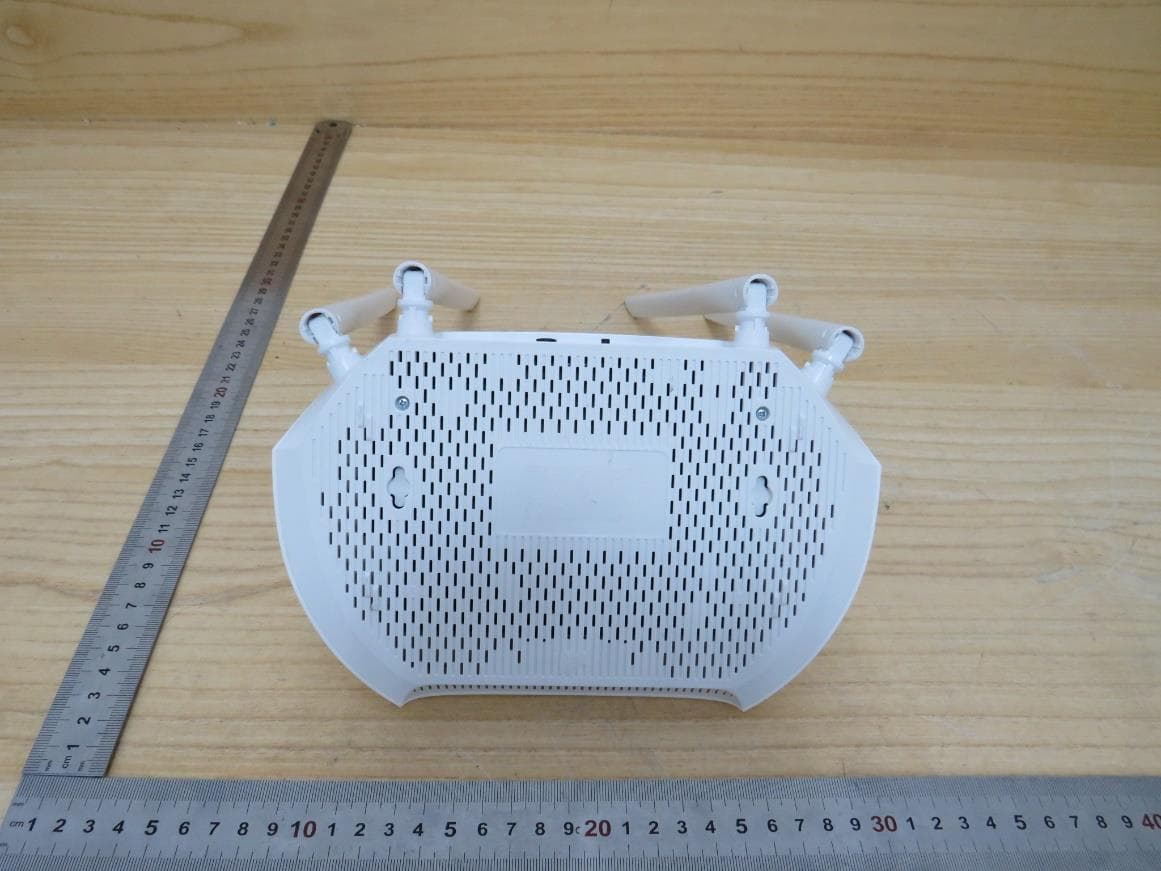
Click to zoom
Application Details
- Equipment Class
- DTS - Digital Transmission System
- Date of Grant
- Jul 18, 2023
- Application Purpose
- Original Equipment
- Date of Application
- Jul 18, 2023
- Equipment Note
- AX1800 Gigabit Wi-Fi 6 Access Point
- Frequency Range
- 2412.00000000 - 2462.00000000
- Company
- TP-Link Corporation Limited
- Country
- Hong Kong
Documents & Files
Document Text
Text extracted from the exhibit documents filed with the FCC. Open a document above to read the original.
Users Manual
© 2023 TP-Link 1910013390 REV1.0.0 User Guide AX1800 Gigabit Wi-Fi 6 Access Point TL-WA1801 Contents About This Guide 1 Chapter 1 Get to Know About Your Access Point 3 1. 1. Product Overview. . . . . . . . . . . . . . . . . . . . . . . . . . . . . . . . . . . . . . . . . . . . . . . . . . . . . . . . . . . . 4 1. 2. Panel Layout. . . . . . . . . . . . . . . . . . . . . . . . . . . . . . . . . . . . . . . . . . . . . . . . . . . . . . . . . . . . . . . . . 4 1. 2. 1. Top View . . . . . . . . . . . . . . . . . . . . . . . . . . . . . . . . . . . . . . . . . . . . . . . . . . . . . . . . . . . . . . 4 1. 2. 2. Back Panel . . . . . . . . . . . . . . . . . . . . . . . . . . . . . . . . . . . . . . . . . . . . . . . . . . . . . . . . . . . . 5 Chapter 2 Set Up Internet Connection 7 2. 1. Position Your Access Point. . . . . . . . . . . . . . . . . . . . . . . . . . . . . . . . . . . . . . . . . . . . . . . . . . . 8 2. 2. Set Up Your Access Point . . . . . . . . . . . . . . . . . . . . . . . . . . . . . . . . . . . . . . . . . . . . . . . . . . . . 9 2. 2. 1. Access Point Mode (Default). . . . . . . . . . . . . . . . . . . . . . . . . . . . . . . . . . . . . . . . . . . 9 2. 2. 2. Range Extender Mode. . . . . . . . . . . . . . . . . . . . . . . . . . . . . . . . . . . . . . . . . . . . . . . .10 2. 2. 3. Client Mode. . . . . . . . . . . . . . . . . . . . . . . . . . . . . . . . . . . . . . . . . . . . . . . . . . . . . . . . . .11 2. 2. 4. Multi-SSID Mode . . . . . . . . . . . . . . . . . . . . . . . . . . . . . . . . . . . . . . . . . . . . . . . . . . . . .12 Chapter 3 TP-Link Cloud Service (for Access Point Mode) 14 3. 1. Register a TP-Link ID. . . . . . . . . . . . . . . . . . . . . . . . . . . . . . . . . . . . . . . . . . . . . . . . . . . . . . . .15 3. 2. Change Your TP-Link ID Information. . . . . . . . . . . . . . . . . . . . . . . . . . . . . . . . . . . . . . . . .15 3. 3. Manage the User TP-Link IDs . . . . . . . . . . . . . . . . . . . . . . . . . . . . . . . . . . . . . . . . . . . . . . .16 3. 3. 1. Add TP-Link ID to Manage the Access Point . . . . . . . . . . . . . . . . . . . . . . . . . .17 3. 3. 2. Remove TP-Link ID(s) from Managing the Access Point . . . . . . . . . . . . . . .17 3. 4. Manage the Access Point via the TP-Link Tether App. . . . . . . . . . . . . . . . . . . . . . . .18 Chapter 4 Wireless Settings 19 4. 1. Specify Wireless Settings. . . . . . . . . . . . . . . . . . . . . . . . . . . . . . . . . . . . . . . . . . . . . . . . . . .20 4. 1. 1. Access Point Mode. . . . . . . . . . . . . . . . . . . . . . . . . . . . . . . . . . . . . . . . . . . . . . . . . . .20 4. 1. 2. Range Extender Mode. . . . . . . . . . . . . . . . . . . . . . . . . . . . . . . . . . . . . . . . . . . . . . . .22 4. 1. 3. Client Mode. . . . . . . . . . . . . . . . . . . . . . . . . . . . . . . . . . . . . . . . . . . . . . . . . . . . . . . . . .24 4. 1. 4. Multi-SSID Mode . . . . . . . . . . . . . . . . . . . . . . . . . . . . . . . . . . . . . . . . . . . . . . . . . . . . .25 4. 2. Use WPS for Wireless Connection (for Access Point/Multi-SSID Mode) . . . . . .27 4. 3. Check Advanced Wireless Settings (for Access Point/Multi-SSID Mode). . . . .29 4. 4. Monitor Wireless Statistics (for Access Point/Multi-SSID Mode) . . . . . . . . . . . . .30 4. 5. Monitor the Traffic Throughput (for Access Point/Multi-SSID Mode) . . . . . . . . .31 Chapter 5 Portal (for Access Point/Multi-SSID Mode) 32 Chapter 6 Access Control 35 Chapter 7 Customize Network Settings 39 7. 1. Change the LAN Settings . . . . . . . . . . . . . . . . . . . . . . . . . . . . . . . . . . . . . . . . . . . . . . . . . . .40 7. 2. Specify DHCP Server Settings. . . . . . . . . . . . . . . . . . . . . . . . . . . . . . . . . . . . . . . . . . . . . .40 Chapter 8 Manage Your Access Point 42 8. 1. Set the System Time and Language. . . . . . . . . . . . . . . . . . . . . . . . . . . . . . . . . . . . . . . . .43 8. 2. Control LEDs . . . . . . . . . . . . . . . . . . . . . . . . . . . . . . . . . . . . . . . . . . . . . . . . . . . . . . . . . . . . . . .45 8. 3. Configure the SNMP Agent . . . . . . . . . . . . . . . . . . . . . . . . . . . . . . . . . . . . . . . . . . . . . . . . .46 8. 4. Configure the Ping Watchdog. . . . . . . . . . . . . . . . . . . . . . . . . . . . . . . . . . . . . . . . . . . . . . .47 8. 5. Update the Firmware. . . . . . . . . . . . . . . . . . . . . . . . . . . . . . . . . . . . . . . . . . . . . . . . . . . . . . . .48 8. 5. 1. Auto Update . . . . . . . . . . . . . . . . . . . . . . . . . . . . . . . . . . . . . . . . . . . . . . . . . . . . . . . . .48 8. 5. 2. Online Update. . . . . . . . . . . . . . . . . . . . . . . . . . . . . . . . . . . . . . . . . . . . . . . . . . . . . . . .49 8. 5. 3. Local Update. . . . . . . . . . . . . . . . . . . . . . . . . . . . . . . . . . . . . . . . . . . . . . . . . . . . . . . . .50 8. 6. Backup and Restore Configuration Settings. . . . . . . . . . . . . . . . . . . . . . . . . . . . . . . . .50 8. 7. Reboot the Access Point. . . . . . . . . . . . . . . . . . . . . . . . . . . . . . . . . . . . . . . . . . . . . . . . . . . .51 8. 8. Change the Login Password . . . . . . . . . . . . . . . . . . . . . . . . . . . . . . . . . . . . . . . . . . . . . . . .52 8. 9. Password Recovery. . . . . . . . . . . . . . . . . . . . . . . . . . . . . . . . . . . . . . . . . . . . . . . . . . . . . . . . .53 8. 10. Local Management . . . . . . . . . . . . . . . . . . . . . . . . . . . . . . . . . . . . . . . . . . . . . . . . . . . . . . . . .53 8. 11. Test the Network Connectivity . . . . . . . . . . . . . . . . . . . . . . . . . . . . . . . . . . . . . . . . . . . . . .55 8. 12. System Log. . . . . . . . . . . . . . . . . . . . . . . . . . . . . . . . . . . . . . . . . . . . . . . . . . . . . . . . . . . . . . . . .56 FAQ 59 1 About This Guide This guide is a complement of Quick Installation Guide. The Quick Installation Guide instructs you on quick internet setup, and this guide pr…
Text truncated - open the document above for the full version.
Users Manual
37 Chapter 6 Access Control 2 ) Click Add to add other devices you want to allow. 3 ) Click Select From Device List, choose devices, then click ADD. Alternatively, click Add Manually, enter the device name and MAC address, then click ADD. 38 Chapter 6 Access Control Done! Now you can block or allow specific client devices to access your network using the Blacklist or Whitelist. Chapter 7 Customize Network Settings This chapter introduces how to customize your network settings. It contains the following sections: • Change the LAN Settings • Specify DHCP Server Settings 40 Chapter 7 Customize Network Settings 7 1 Change the LAN Settings The access point is preset with Dynamic IP, which allows it to dynamically obtain an IP address and gateway from the main router/AP. It is recommended that you keep the default LAN settings to avoid IP conflict with the main router/AP or other devices on your local network. If you want to set a static IP address for the access point, follow the steps below: 1. Visit http://tplinkap.net, and log in with the password you set for the access point. 2. Go to Internet > LAN. 3. Choose Static IP. 4. Set an IP address, which should be in the same subnet as the main router/AP. 5. Leave other parameters as the default settings. 6. Click S AV E. Tip: After setting a static IP address, you can use the new IP address to log into the web management page besides http://tplinkap.net. 7 2 Specify DHCP Server Settings By default, the DHCP (Dynamic Host Configuration Protocol) server works in Auto mode to avoid IP conflict. It will automatically assign IP addresses to clients from its IP address pool only when the DHCP server of the main router/AP is disabled. You can change the DHCP server settings if necessary, and you can reserve LAN IP addresses for specified client devices. Note: If you disable the DHCP server and there is no other DHCP server within your LAN, you have to configure the IP address for each client manually. 1. Visit http://tplinkap.net, and log in with the password you set for the access point. 2. Go to Internet > DHCP Server. 41 Chapter 7 Customize Network Settings • To specify the IP address range that the access point assigns: 1. Turn on DHCP Server. 2. Enter the starting and ending IP addresses of the IP Address Pool. 3. Leave other parameters as the default settings. 4. Click S AV E. • To reserve an IP address for a specified client device: The DHCP server of the access point works when it is turned on, or when it is in Auto mode with the DHCP server of the main router/AP disabled. When it is working, you can view the DHCP clients and reserve IP addresses for them. 1. In the Address Reservation section, click Add. 2. Click VIEW CONNECTED DEVICES and select the device you want to reserve an IP for. The MAC Address will be automatically filled in. You can also enter the MAC address of the client device manually. 3. Enter the IP address to reserve for the client device. 4. Click S AV E. Chapter 8 Manage Your Access Point This chapter will show you how to configure and manage your access point. It contains the following sections: • Set the System Time and Language • Control LEDs • Configure the SNMP Agent • Configure the Ping Watchdog • Update the Firmware • Backup and Restore Configuration Settings • Reboot the Access Point • Change the Login Password • Password Recovery • Local Management • Test the Network Connectivity • System Log 43 Chapter 8Manage Your Access Point 8 1 Set the System Time and Language System time is the time displayed while the access point is running. The system time you configure here will be used for other time-based functions like Reboot Schedule. You can choose the way to obtain the system time as needed. System language is the language displayed when you log into the access point. You can change the system language as needed. 1. Visit http://tplinkap.net, and log in with the password you set for the access point. 2. Go to System > Time & Language. 3. (Optional) Enable 24-Hour Time if you want to display the time in 24-hour format. 4. Set the system time and languange according to your needs. • To set system language: 1 ) Select the language from the dropdown list. 2 ) Click S AV E. • To get the system time from the internet: 1 ) In the Set Time field, select Get from Internet. 2 ) Select your local Time Zone from the drop-down list. 3 ) In the NTP Server I field, enter the IP address or domain name of your desired NTP Server. 44 Chapter 8Manage Your Access Point 4 ) (Optional) In the NTP Server II field, enter the IP address or domain name of the second NTP Server. 5 ) Click S AV E. • To get the system time from the managing device: 1 ) In the Set Time field, select Get from Managing Device. 2 ) Click S AV E. • To manually set the system time: 1 ) In the Set Time field, select Manually. 2 ) Set the current Date (In MM/DD/YYYY format). 3 ) Set the current Time (In HH/MM/SS format). 4 ) Click S AV E. • To set up Daylight Saving Time: 1 ) Enable Daylight Saving Time. 45 Chapter 8Manage Your Access Point 2 ) Select the correct Start date and time when daylight saving time starts at your local time zone. 3 ) Select the correct End date and time when daylight saving time ends at your local time zone. 4 ) Click S AV E. 8 2 Control LEDs The LEDs of access point indicate its activities and status. You can turn off the LEDs when you don’t need them. 1. Visit http://tplinkap.net, and log in with the password you set for the access point. 2. Go to System > LED Control. 3. Turn off the LEDs when you don’t need them. • If you want to turn off LEDs immediately, turn off LED Status. • If you want to turn off LEDs during a specific time period, follow the steps below: 1 ) Enable LED Status and Night Mode. 46 Chapter 8Manage Your Access Point 2 ) Specify the LED Off Time as needed, and the LEDs will be off during the period. 4. Click S AV E. 8 3 Configure the SNMP Agent SNMP (Simple Network Management Protocol) is a popular network monitoring a…
Text truncated - open the document above for the full version.
Attestation Statements
012423-17 rev2 TP-Link Corporation Limited Certification Application Attestation Statements Date: March 1, 2023 American Certification Body, Inc. 313 Park Avenue Suite 300 Falls Church, VA 22046 T o Whom It May Concern: Statement for 47 CFR section 2.911(d)(5)(i) ______ TP-Link Corporation Limited______ certifies that as of the date of the application the equipment for which authorization is sought is not “covered” equipment 1 prohibited from receiving an equipment authorization pursuant to section 2.903 of the FCC rules. If the equipment for which the applicant seeks authorization is produced by any of the entities identified on the current Covered List, including affiliates or subsidiaries of the named companies, the applicant must include an explanation on why the equipment is not “covered” equipment. Additional Explanation: <N/A> Statement for 47 CFR section 2.911(d)(5)(ii) ______ TP-Link Corporation Limited______ (“the applicant”) certifies that, as of the date of the filing of this application, the applicant ☐ - is / ■- is not identified on the Covered List as an entity producing “covered” equipment. Thank you, By: _________________________ Sarah Wang (Signature 2 ) (Print name) Title: __ Regulatory Compliance Manager __ Company: __ TP-Link Corporation Limited_ Telephone: ___ 00852-37585053 ______ 1 - The Commission’s Covered List is published by the Public Safety and Homeland Security Bureau and posted on the Commission’s website. This Covered List, which is periodically updated, identifies particular equipment, produced by particular entities, that constitutes “covered” equipment. https://www.fcc.gov/supplychain/coveredlist . 2 - Letters should be placed on appropriate letterhead.
Attestation Statements
Attestation Letter Federal Communications Commission Authorization and Evaluation Division We Name: TP-Link Corporation Limited Address: Room 901, 9/F., New East Ocean Centre, 9 Science Museum Road, Tsim Sha Tsui, Kowloon, Hongkong Declare that the device does not support channel 12 ~ 13 in 2.4GHz band and any non-US channels in all the operational mode(s) for the following product. Product: AX1800 Gigabit Wi-Fi 6 Access Point FCC ID: 2AXJ4WA1801 Model: TL-WA1801 Brand: tp-link Sincerely, Name: Sarah Wang Position: Regulatory Compliance Manager Date: 2023-6-21
Cover Letter(s)
TP-LinkCorporationLimited 050222-17 AuthoritytoActasAgent Date:April24,2023 AmericanCertificationBody,Inc. 313ParkAvenue Suite300 FallsChurch,VA22046 ToWhomItMayConcern: ULVerificationServices(Guangzhou)Co.,Ltd,SongShanLakeBranch__isauthorizedtoactonour behalf,untilotherwisenotified,forapplicationstoAmericanCertificationBody,Inc.(ACB). Wecertifythatwearenotsubjecttodenialoffederalbenefits,thatincludesFCCbenefits,pursuantto Section5301oftheAnti-DrugAbuseActof1988,21U.S.C.862.Further,noparty,asdefinedin47 CFR1.2002(b),totheapplicationissubjecttodenialoffederalbenefits,thatincludesFCCbenefits. WealsodeclarethattheinformationprovidedtotheFCCistrueandcorrecttothebestofour knowledge(47CFR2.911(d))andwehavebeeninformedofthegranteeresponsibilities(47CFR 2.909)withregardtocertifiedequipment. Thankyou, AgencyAgreementExpirationDate:____4 /24/2024 By:_____________________________________SarahWang_____________ (Signature 1 )(Printname) Title:__________LeadofProductCertificationTeam________________ Onbehalfof:_________TP-LinkCorporationLimited._________________________________ (CompanyName) Telephone:_______________+8675526615494___________________ 1 -MustbesignedbyapplicantcontactgivenforapplicantontheFCCsite,orbytheauthorizedagentifanappropriateauthorizedagent letterhasbeenprovided.Lettersshouldbeplacedonappropriateletterhead.
Cover Letter(s)
TP-Link Corporation Limited. 050222-17 Request for Confidentiality Date: June 29, 2023 Subject: Confidentiality Request for: ___ 2AXJ4WA1801 _____ Pursuant to FCC 47 CFR 0.457(d) and 0.459 and/or IC RSP-100, Section 12.4, the applicant requests that a part of the subject application(s) be held confidential. Type of Confidentiality Requested Exhibit ☐ Short Term ☒ Permanent Block Diagrams ☐ Short Term --------------------------- External Photos ☐ Short Term ☐ Permanent * 1 Internal Photos ☐ Short Term ☒ Permanent Operation Description/Theory of Operation ☐ Short Term ☐ Permanent Parts List & Placement/BOM ☐ Short Term ☐ Permanent Tune-Up Procedure ☐ Short Term ☒ Permanent Schematics ☐ Short Term --------------------------- Test Setup Photos ☐ Short Term ☐ Permanent * 1 User’s Manual TP-Link Corporation Limited.has spent substantial effort in developing this product and it is one of the first of its kind in industry. Having the subject information easily available to "competition" would negate the advantage they have achieved by developing this product. Not protecting the details of the design will result in financial hardship. Permanent Confidentiality: The applicant requests the exhibits listed above as permanently confidential be permanently withheld from public review due to materials that contain trade secrets and proprietary information not customarily released to the public. Short-Term Confidentiality for FCC Applications: The applicant requests the exhibits selected above as short term confidential be withheld from public view for a period of __ (specify number of days not to exceed 180) 2 ___ days from the date of the Grant of Equipment Authorization and prior to marketing. This is to avoid premature release of sensitive information prior to marketing or release of the product to the public. Applicant is also aware that they are responsible to notify ACB in the event information regarding the product or the product is made available to the public before the requested period has expired. ACB will then release the documents listed above for public disclosure pursuant to FCC Public Notice DA 04-1705. Short Term Confidentiality for Industry Canada Applications: Starting May 2022, ISED will recognize short term confidentiality on certain exhibits until the intended date of marketing. The applicant requests the exhibits selected above as short term confidential be withheld from public view until: (specify ISED expiration date / date of marketing) . Sincerely, By: __________________________ __________ Sarah Wang ______________ (Signature/Title 3 ) (Print name) 1 - The asterisked items (*) require further information to be provided to ACB before permanent confidentiality will be extended to these exhibits. Please refer to FCC KDB 726920 and the specific Document link for D01 found at: https://apps.fcc.gov/oetcf/kdb/forms/FTSSearchResultPage.cfm?switch=P&id=41731 and review section II, 3) regarding specific information that must accompany these requests. 2 - Please refer to https://acbcert.com/documents/misc-docs/Memo-Short-Term-Vs-Standard-Confidentiality.pdf for complete details. 3 - Must be signed by applicant contact given for applicant on the FCC site, or by the authorized agent if an appropriate authorized agent letter has been provided. Letters should be placed on appropriate letterhead.
Cover Letter(s)
Declaration of Conformity We Name: TP-Link Corporation Limited Address: Room 901, 9/F., New East Ocean Centre, 9 Science Museum Road, Tsim Sha Tsui, Kowloon, Hongkong Declare that: Product: AX1800 Gigabit Wi-Fi 6 Access Point FCC ID: 2AXJ4WA1801 Model: TL-WA1801 Brand: tp-link Product which bears the above FCC ID is also compliant with the FCC requirements for sDOC. And the sDOC procedure shall be carried out prior to marketing the device in the US. Sincerely, Name: Sarah Wang Position: Regulatory Compliance Manager Date: 2023-6-21
External Photos
External Photographs Page 2 of 6 This report shall not be reproduced except in full, without the written approval of UL Verification Services (Guangzhou) Co., Ltd, Song Shan Lake Branch. View of EUT-1 View of EUT-2 Page 3 of 6 This report shall not be reproduced except in full, without the written approval of UL Verification Services (Guangzhou) Co., Ltd, Song Shan Lake Branch. View of EUT-3 View of EUT-4 Page 4 of 6 This report shall not be reproduced except in full, without the written approval of UL Verification Services (Guangzhou) Co., Ltd, Song Shan Lake Branch. View of EUT-5 View of EUT-6 Page 5 of 6 This report shall not be reproduced except in full, without the written approval of UL Verification Services (Guangzhou) Co., Ltd, Song Shan Lake Branch. View of EUT-7 View of EUT-8 Page 6 of 6 This report shall not be reproduced except in full, without the written approval of UL Verification Services (Guangzhou) Co., Ltd, Song Shan Lake Branch. View of EUT-9
ID Label/Location Info
C B A 12 C 345678 B E D D A 9 料号:7202508704 12345 与上一版的区别 E 6789 颜 色 名 称 版 本 材 质 模 具 机型版本号 logo 底色 文字 其它 结构工程师 硬件工程师 产品工程师 平面负责人 记 录 完成日期 设 计 深圳市联洲国际技术有限公司 TL-WA1801(US)_1.0_产品规格标贴 A1 80g艾利铜版纸+雾膜 小贝壳-225白色壳体 TL-WA1801(US)_1.0 庄剧慈 2023-02-23 PANTONE 877C 白色 PANTONE 877C PANTONE 877C 卷式供货 边距:3mm 跳距:3mm 3mm 3mm 3mm 文字方向 文字方向 60.5*30.2±0.2mm 3.5R供应商来料示意图(文字转曲) 31.16mm 条码由“XXXXXXXXXXXX”生成 文本写成“XX-XX-XX-XX-XX-XX”格式 6.83 mm Model: TL-WA1801 AX1800 Gigabit Wi-Fi 6 Access Point MADE IN CHINA Power: 48V 0.375A Default Access: http://tplinkap.net FCC ID: 2AXJ4WA1801 Wireless Password/PIN:XXXXXXXX SSID:TP-Link_XXXX SSID:TP-Link_XXXX_5G M AC : X X-X X-X X-X X-X X-X X Model:TL-WA1801(US) Ver:1.0 S/N:XXXXXXXXXXXXX JOIN PRESET WI-FI This device complies with part 15 of the FCC Rules. Operation is subject to the following two conditions: (1) This device may not cause harmful interference, and (2) this device must accept any interference received, including interference that may cause undesired operation. TP-Link Corporation Limited Suite 901, New East Ocean Centre, Tsim Sha Tsui, Hong Kong
Internal Photos
Internal Photographs Page 2 of 5 This report shall not be reproduced except in full, without the written approval of UL Verification Services (Guangzhou) Co., Ltd, Song Shan Lake Branch. Internal View of EUT-1 Internal View of EUT-2 ANT1 ANT2 ANT3 ANT4 Page 3 of 5 This report shall not be reproduced except in full, without the written approval of UL Verification Services (Guangzhou) Co., Ltd, Song Shan Lake Branch. Internal View of EUT-3 Internal View of EUT-4 Page 4 of 5 This report shall not be reproduced except in full, without the written approval of UL Verification Services (Guangzhou) Co., Ltd, Song Shan Lake Branch. Internal View of EUT-5 Internal View of EUT-6 Page 5 of 5 This report shall not be reproduced except in full, without the written approval of UL Verification Services (Guangzhou) Co., Ltd, Song Shan Lake Branch. Internal View of EUT-7
RF Exposure Info
The results reported herein have been performed in accordance with the laboratory’s terms of accreditation. This report shall not be reproduced except in full without the written approval of the Laboratory. The results in this report apply to the test sample(s) mentioned above at the time of the testing period only and are not to be used to indicate applicability to other similar products. FCC RF EXPOSURE REPORT For AX1800 Gigabit Wi-Fi 6 Access Point MODEL NUMBER: TL-WA1801 REPORT NUMBER: 4790812814-1-RF-3 ISSUE DATE: July 24, 2023 FCC ID: 2AXJ4WA1801 Prepared for TP-Link Corporation Limited Room 901, 9/F. , New East Ocean Centre, 9 Science Museum Road, Tsim Sha Tsui, Kowloon, Hong Kong Prepared by UL Verification Services (Guangzhou) Co., Ltd, Song Shan Lake Branch Building 10, Innovation Technology Park, No. 1, Li Bin Road, Song Shan Lake Hi- Tech Development Zone Dongguan, 523808, People’s Republic of China Tel: +86 769 22038881 Fax: +86 769 33244054 Website: www.ul.com REPORT NO.: 4790812814-RF-3 Page 2 of 8 UL Verification Services (Guangzhou) Co., Ltd, Song Shan Lake Branch FORM No.: 10-SL-F0112 This report shall not be reproduced except in full, without the written approval of UL Verification Services (Guangzhou) Co., Ltd, Song Shan Lake Branch. Revision History Rev. Issue Date Revisions Revised By V0 May 23, 2023 Initial Issue Fanny Huang V1 July 24, 2023 Updated the EUT Description Fanny Huang REPORT NO.: 4790812814-RF-3 Page 3 of 8 UL Verification Services (Guangzhou) Co., Ltd, Song Shan Lake Branch FORM No.: 10-SL-F0112 This report shall not be reproduced except in full, without the written approval of UL Verification Services (Guangzhou) Co., Ltd, Song Shan Lake Branch. TABLE OF CONTENTS 1. ATTESTATION OF TEST RESULTS ................................................................................. 4 2. TEST METHODOLOGY ..................................................................................................... 5 3. FACILITIES AND ACCREDITATION ................................................................................. 5 4. DESCRIPTION OF EUT ..................................................................................................... 6 5. REQUIREMENT ................................................................................................................. 7 REPORT NO.: 4790812814-RF-3 Page 4 of 8 UL Verification Services (Guangzhou) Co., Ltd, Song Shan Lake Branch FORM No.: 10-SL-F0112 This report shall not be reproduced except in full, without the written approval of UL Verification Services (Guangzhou) Co., Ltd, Song Shan Lake Branch. 1. ATTESTATION OF TEST RESULTS Applicant Information Company Name: TP-Link Corporation Limited Address: Room 901, 9/F. , New East Ocean Centre, 9 Science Museum Road, Tsim Sha Tsui, Kowloon, Hong Kong Manufacturer Information Company Name: TP-Link Corporation Limited Address: Room 901, 9/F. , New East Ocean Centre, 9 Science Museum Road, Tsim Sha Tsui, Kowloon, Hong Kong EUT Information EUT Name: AX1800 Gigabit Wi-Fi 6 Access Point Model: TL-WA1801 Brand: tp-link Sample Received Date: April 12, 2023 Sample Status: Normal Sample ID: 6008492 Date of Tested: April 19, 2023 to May 23, 2023 APPLICABLE STANDARDS STANDARD TEST RESULTS FCC 47CFR§2.1091 PASS KDB-447498 D01 V06 PASS Prepared By: Checked By: Fanny Huang Denny Huang Engineer Project Associate Senior Project Engineer Approved By: Stephen Guo Operations Manager REPORT NO.: 4790812814-RF-3 Page 5 of 8 UL Verification Services (Guangzhou) Co., Ltd, Song Shan Lake Branch FORM No.: 10-SL-F0112 This report shall not be reproduced except in full, without the written approval of UL Verification Services (Guangzhou) Co., Ltd, Song Shan Lake Branch. 2. TEST METHODOLOGY The tests documented in this report were performed in accordance with 47 CFR FCC Part 2 Subpart J, section 2.1091 and KDB 447498 D01 General RF Exposure Guidance v06. 3. FACILITIES AND ACCREDITATION Accreditation Certificate A2LA (Certificate No.: 4102.01) UL Verification Services (Guangzhou) Co., Ltd. Song Shan Lake Branch. has been assessed and proved to be in compliance with A2LA. FCC (FCC Designation No.: CN1187) UL Verification Services (Guangzhou) Co., Ltd. Song Shan Lake Branch. Has been recognized to perform compliance testing on equipment subject to the Commission's Delcaration of Conformity (DoC) and Certification rules ISED (Company No.: 21320) UL Verification Services (Guangzhou) Co., Ltd. Song Shan Lake Branch. has been registered and fully described in a report filed with ISED. The Company Number is 21320 and the test lab Conformity Assessment Body Identifier (CABID) is CN0046. VCCI (Registration No.: G-20019, R-20004, C-20012 and T-20011) UL Verification Services (Guangzhou) Co., Ltd. Song Shan Lake Branch. has been assessed and proved to be in compliance with VCCI, the Membership No. is 3793. Facility Name: Chamber D, the VCCI registration No. is G-20019 and R-20004 Shielding Room B , the VCCI registration No. is C-20012 and T-20011 Note 1: All tests measurement facilities use to collect the measurement data are located at Building 10, Innovation Technology Park, Song Shan Lake Hi tech Development Zone, Dongguan, 523808, China Note 2: The test anechoic chamber in UL Verification Services (Guangzhou) Co., Ltd. Song Shan Lake Branch had been calibrated and compared to the open field sites and the test anechoic chamber is shown to be equivalent to or worst case from the open field site. Note 3: For below 30MHz, lab had performed measurements at test anechoic chamber and comparing to measurements obtained on an open field site. And these measurements below 30MHz had been correlated to measurements performed on an OFS. REPORT NO.: 4790812814-RF-3 Page 6 of 8 UL Verification Services (Guangzhou) Co., Ltd, Song Shan Lake Branch FORM No.: 10-SL-F0112 This report shall not be reproduced except in full, without the written approval of UL Verification Services (Guangzhou) Co., Ltd, Song Shan Lake B…
Text truncated - open the document above for the full version.
Test Report
Product Model: TL-WA1801(US) 1.0 Version: 1.0 Date: Checked By: Index I. Antenna Distribution ........................................................................................ 3 II. Electrical Characteristics ................................................................................ 5 III. Antenna Peak Gain........................................................................................... 5 IV. Antenna Radiation Pattern .............................................................................. 5 Page 3 Version:1.0 Issue Date: I. Antenna Distribution TL-WA1801(US) 1.0 Page 4 Version:1.0 Issue Date: Page 5 Version:1.0 Issue Date: II. Electrical Characteristics Ant1 Frequency 5150~5850MHz Impedance 50Ohm Antenna Type Diople Antenna Gain 3dBi Radiation pattern Omni-Directional Ant2 Frequency 2400~2500MHz Impedance 50Ohm Antenna Type Diople Antenna Gain 2dBi Radiation pattern Omni-Directional Ant3 Frequency 5150~5850MHz Impedance 50Ohm Antenna Type Diople Antenna Gain 3dBi Radiation pattern Omni-Directional Ant4 Frequency Impedance 2400~2500MHz Antenna Type 50Ohm Antenna Gain Diople Radiation pattern 2dBi III. Antenna Peak Gain Ant1 Freq(MHz) 5150 5200 5250 5300 5350 5400 5450 5500 5550 5600 5650 Gain(dBi) 2.05 2.05 1.77 1.82 1.81 2.38 2.02 2.62 2.25 2.46 3.0 Freq(MHz) 5700 5750 5800 5850 Gain(dBi) 2.63 2.66 2.66 2.27 Ant2 Freq(MHz) 2400 2410 2420 2430 2440 2450 2460 2470 2480 2490 2500 Gain(dBi) 1.88 1.98 1.93 1.81 1.76 2.0 1.64 1.58 1.54 1.52 1.5 Ant3 Freq(MHz) 5150 5200 5250 5300 5350 5400 5450 5500 5550 5600 56…
Text truncated - open the document above for the full version.
Contact Information
Applicant
Sarah Wang
Technical Contact
UL Verification Services (Guangzhou) Co., Ltd, Sonvicky Gao
[email protected]+8676933817138
Building 10, Innovation Technology Park, No. 1, · Dongguan · China
Non-Technical Contact
UL Verification Services (Guangzhou) Co., Ltd, Sonvicky Gao
[email protected]+8676933817138
Test Firm
UL Verification Services (Guangzhou) Co., Ltd.Stephen Guo
[email protected]+86 0769 33817120
Technical Specifications
| # | Rule Parts | Frequency Range | Power Output |
|---|---|---|---|
| 1 | 15C | 2.41 GHz - 2.46 GHz | 472.00 mW |
Other Applications from TP-Link Corporation Limited
2AXJ4TXE50UH
Jan 28, 2024AXE3000 Wi-Fi 6E High Gain Wireless USB Adapter
Equipment Class
NII - Unlicensed National Information Infrastructure TX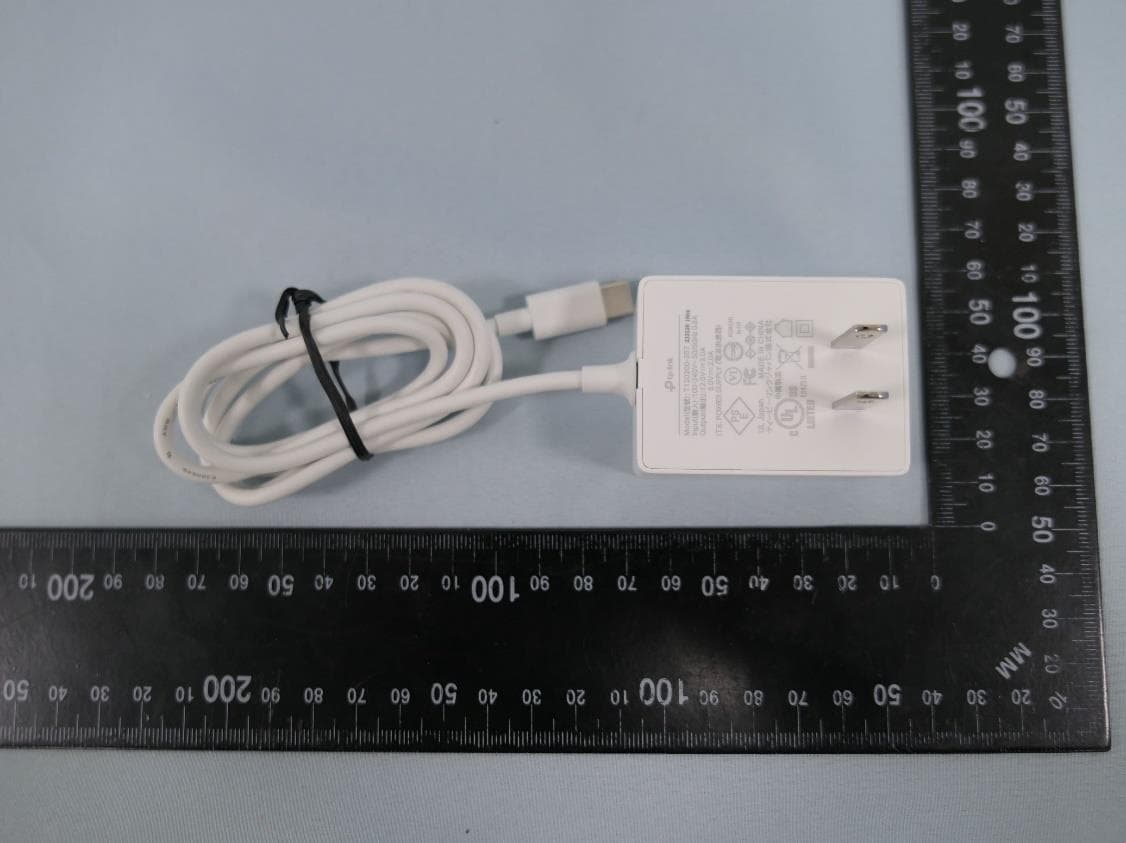
2AXJ4AIRE5
Jan 15, 2024AX3000 Wi-Fi 6 Air Range Extender
Equipment Class
DTS - Digital Transmission System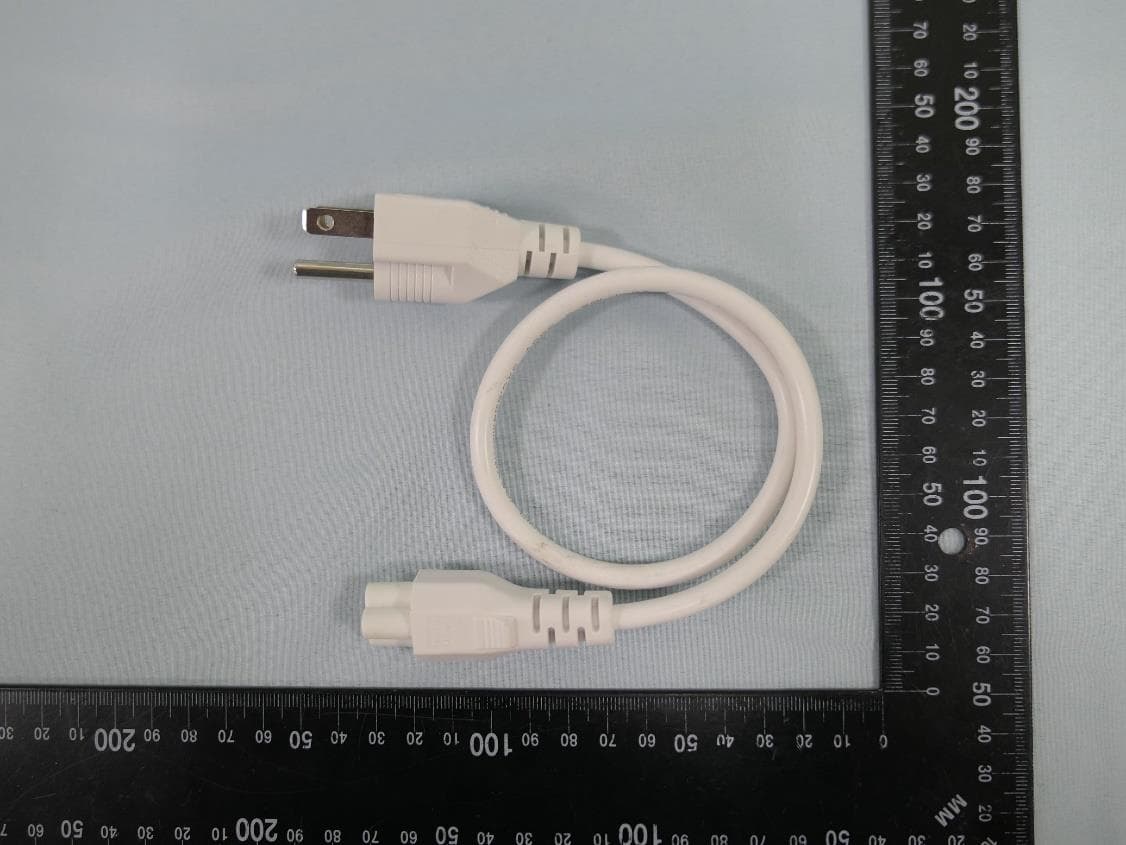
2AXJ4EAP115BRG
Jan 11, 20245GHz 300Mbps Long-range Indoor/Outdoor Access Point
Equipment Class
NII - Unlicensed National Information Infrastructure TX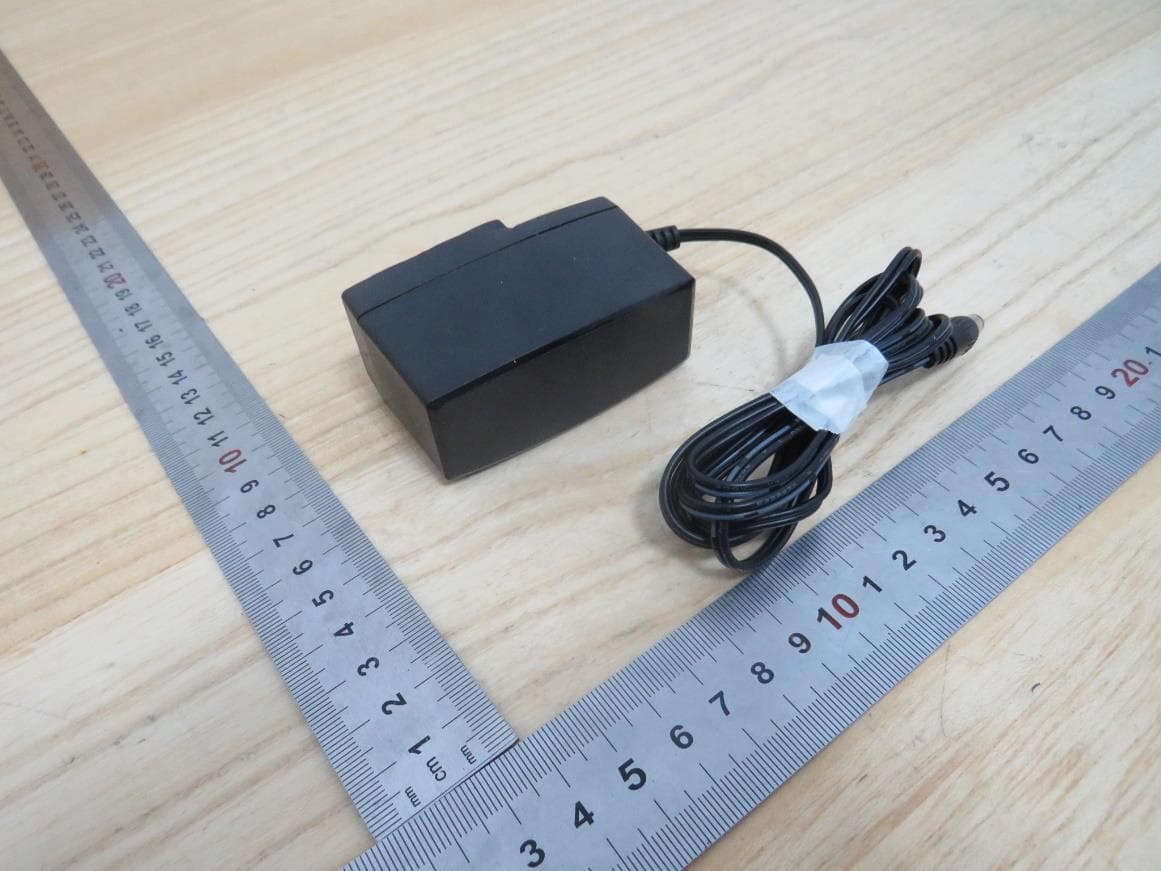
2AXJ4HX510V2
Jan 10, 2024AX3000 Whole Home Mesh Wi-Fi AP
Equipment Class
NII - Unlicensed National Information Infrastructure TX
2AXJ4EAP215BRG
Dec 11, 20235GHz 867Mbps Long-range Indoor/Outdoor Access Point
Equipment Class
NII - Unlicensed National Information Infrastructure TX