A3LSMW700Bluetooth/BLE, DTS/UNII a/b/g/n/ac Tablet
Samsung Electronics Co Ltd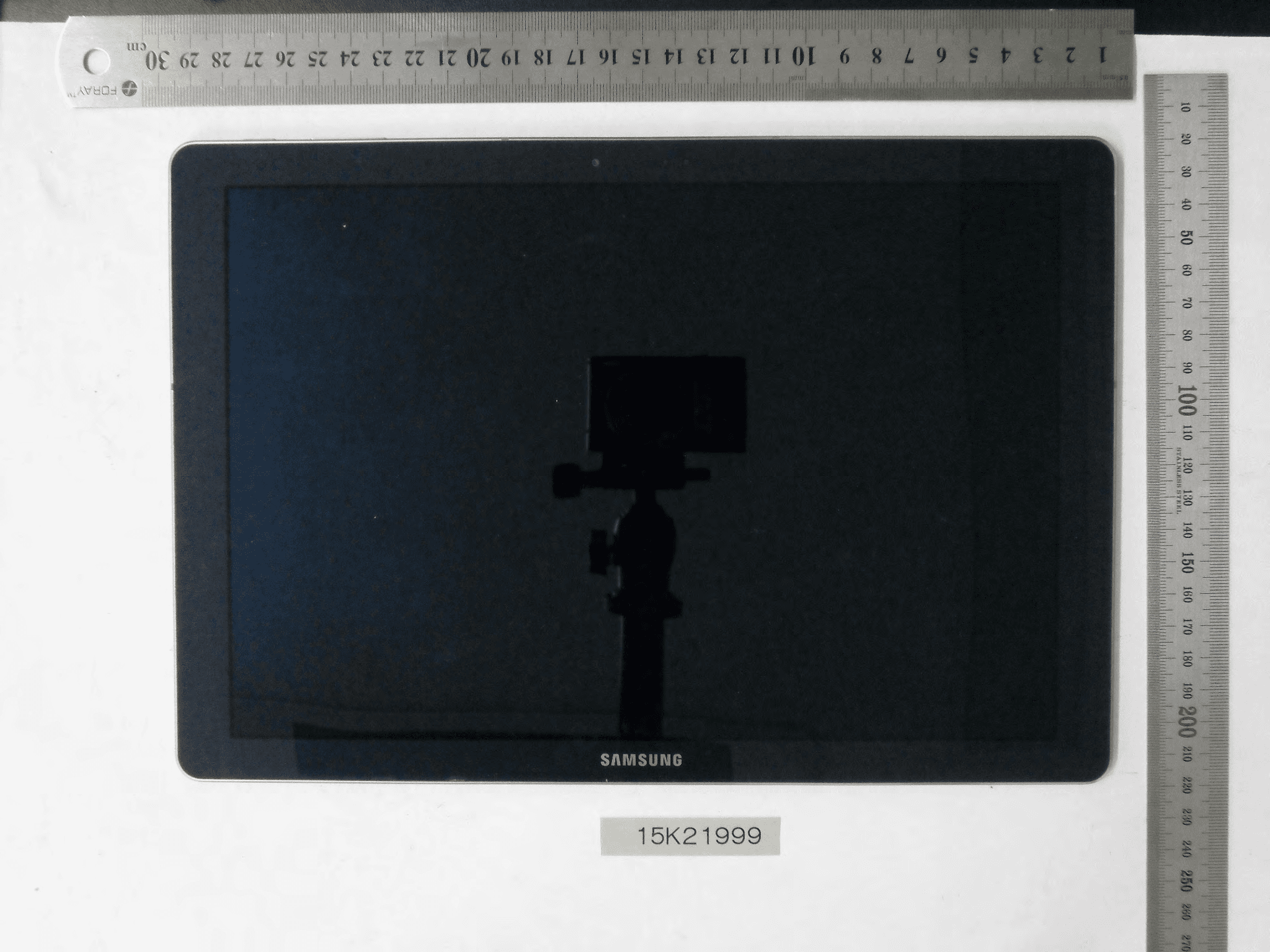
Click to zoom
Application Details
- Equipment Class
- NII - Unlicensed National Information Infrastructure TX
- Date of Grant
- Jan 27, 2016
- Application Purpose
- Original Equipment
- Date of Application
- Jan 27, 2016
- Equipment Note
- Bluetooth/BLE, DTS/UNII a/b/g/n/ac Tablet
- Frequency Range
- 5745.00000000 - 5825.00000000
- Company
- Samsung Electronics Co Ltd
- Country
- United States
Documents & Files
Document Text
Text extracted from the exhibit documents filed with the FCC. Open a document above to read the original.
Users Manual
DRAFT FOR INTERNAL USE ONLY W700 TABLET User Manual Please read this manual before operating your device and keep it for future reference. This document is watermarked because certain important information in the document has not yet been verified. This document has been sent to you as a draft and for informational purposes only. The document should only be used for internal purposes and may not be distributed outside of the company. Distributing the document outside of the company could result in legal exposure to the company if the preliminary, unverified information in the draft turns out to be inaccurate. DRAFT FOR INTERNAL USE ONLY i Legal NoticesWIN_W700_EN_UM_TN_XXX_120815_R0 Warning: This product contains chemicals known to the State of California to cause cancer and reproductive toxicity. For more information, please call 1-800-SAMSUNG (726-7864). Intellectual Property All Intellectual Property, as defined below, owned by or which is otherwise the property of Samsung or its respective suppliers relating to the SAMSUNG mobile device, including but not limited to, accessories, parts, or software relating thereto (the “mobile device”), is proprietary to Samsung and protected under federal laws, state laws, and international treaty provisions. Intellectual Property includes, but is not limited to, inventions (patentable or unpatentable), patents, trade secrets, copyrights, software, computer programs, and related documentation and other works of authorship. You may not infringe or otherwise violate the rights secured by the Intellectual Property. Moreover, you agree that you will not (and will not attempt to) modify, prepare derivative works of, reverse engineer, decompile, disassemble, or otherwise attempt to create source code from the software. No title to or ownership in the Intellectual Property is transferred to you. All applicable rights of the Intellectual Property shall remain with SAMSUNG and its suppliers. Open Source Software Some software components of this product incorporate source code covered under GNU General Public License (GPL), GNU Lesser General Public License (LGPL), OpenSSL License, BSD License and other open source licenses. To obtain the source code covered under the open source licenses, please visit: opensource.samsung.com. Legal Notices Disclaimer of Warranties; Exclusion of Liability EXCEPT AS SET FORTH IN THE EXPRESS WARRANTY CONTAINED ON THE WARRANTY PAGE ENCLOSED WITH THE PRODUCT, THE PURCHASER TAKES THE PRODUCT “AS IS”, AND SAMSUNG MAKES NO EXPRESS OR IMPLIED WARRANTY OF ANY KIND WHATSOEVER WITH RESPECT TO THE PRODUCT, INCLUDING BUT NOT LIMITED TO THE MERCHANTABILITY OF THE PRODUCT OR ITS FITNESS FOR ANY PARTICULAR PURPOSE OR USE; THE DESIGN, CONDITION OR QUALITY OF THE PRODUCT; THE PERFORMANCE OF THE PRODUCT; THE WORKMANSHIP OF THE PRODUCT OR THE COMPONENTS CONTAINED THEREIN; OR COMPLIANCE OF THE PRODUCT WITH THE REQUIREMENTS OF ANY LAW, RULE, SPECIFICATION OR CONTRACT PERTAINING THERETO. NOTHING CONTAINED IN THE INSTRUCTION MANUAL SHALL BE CONSTRUED TO CREATE AN EXPRESS OR IMPLIED WARRANTY OF ANY KIND WHATSOEVER WITH RESPECT TO THE PRODUCT. IN ADDITION, SAMSUNG SHALL NOT BE LIABLE FOR ANY DAMAGES OF ANY KIND RESULTING FROM THE PURCHASE OR USE OF THE PRODUCT OR ARISING FROM THE BREACH OF THE EXPRESS WARRANTY, INCLUDING INCIDENTAL, SPECIAL OR CONSEQUENTIAL DAMAGES, OR LOSS OF ANTICIPATED PROFITS OR BENEFITS. Modification of Software SAMSUNG IS NOT LIABLE FOR PERFORMANCE ISSUES OR INCOMPATIBILITIES CAUSED BY YOUR EDITING OF REGISTRY SETTINGS, OR YOUR MODIFICATION OF OPERATING SYSTEM SOFTWARE. USING CUSTOM OPERATING SYSTEM SOFTWARE MAY CAUSE YOUR DEVICE AND APPLICATIONS TO WORK IMPROPERLY. YOUR CARRIER MAY NOT PERMIT USERS TO DOWNLOAD CERTAIN SOFTWARE, SUCH AS CUSTOM OS. DRAFT FOR INTERNAL USE ONLY ii Legal Notices Samsung Knox ™ Samsung Knox is Samsung’s security platform and is a mark for a Samsung device tested for security with enterprise use in mind. Additional licensing fee may be required. For more information about Knox, please refer to: samsung.com/us/knox. [030115] Samsung Electronics America (SEA), Inc Address: 85 Challenger Road Ridgefield Park, New Jersey 07660 Phone: 1-800-SAMSUNG (726-7864) Internet Address: samsung.com ©2015 Samsung Electronics America, Inc. Samsung and Galaxy Tab are registered trademarks of Samsung Electronics Co., Ltd. Screen images are simulated. Appearances of the device may vary. Do you have questions about your Samsung Mobile Device? For 24 hour information and assistance, we offer a new FAQ/ARS System (Automated Response System) at: samsung.com/us/support. The actual available capacity of the internal memory is less than the specified capacity because the operating system and default applications occupy part of the memory. The available capacity may change when you upgrade the device. Nuance ® , VSuite ™ , T9 ® Text Input, and the Nuance logo are trademarks or registered trademarks of Nuance Communications, Inc., or its affiliates in the United States and/or other countries. The Bluetooth ® word mark, figure mark (stylized “B Design”), and combination mark (Bluetooth word mark and “B Design”) are registered trademarks and are wholly owned by the Bluetooth SIG. microSD ™ and the microSD logo are Trademarks of the SD Card Association. Wi-Fi is a registered trademark of the Wireless Fidelity Alliance, Inc. Microsoft is a registered trademark of the Microsoft Corporation. Legal Information Important legal information can be accessed in writing on the mobile device or at samsung.com. Read this information before using your mobile device. Samsung Limited Warranty - This product is covered under the applicable Samsung Limited Warranty. Full written terms and detailed information about the warranty and obtaining service are available on the device at: Settings > About device > Legal Information > Samsung legal or at samsung.com. The online version of the Health/Safety and Warranty guide for your device can be found at:…
Text truncated - open the document above for the full version.
Users Manual
DRAFT FOR INTERNAL USE ONLY 34 ContactsApplications Share a Name Card When you share a name card, the contact’s information is sent as a vCard file (.vcf). You can share a vCard via Bluetooth or Wi-Fi Direct, attach it to a message, or save it to a storage location. 1. From a Home screen, tap Apps > Contacts. 2. Tap a contact to display it, and then tap MORE > Share name card. 3. Choose a sharing me thod and follow the prompts. Link Contacts When you have contacts from various sources (Gmail, Facebook, and so on), you may have multiple similar entries for a single contact. Contacts lets you link multiple entries into a single contact. 1. From a Home screen, tap Apps > Contacts. 2. Tap the contact to display it, and then tap Link. 3. Tap LINK ANOTHER CONTACT, and then select contact(s) to link to the original contact. 4. Tap LINK. Unlink Contacts 1. From a Home screen, tap Apps > Contacts. 2. Tap the contact to display it, and then tap Link. 3. Tap Remove beside contacts to unlink them from the main contact. Delete Contacts You can delete a single contact, or choose multiple contacts to delete. 1. From a Home screen, tap Apps > Contacts. 2. Ne xt to the Contacts heading, tap MORE > Delete. 3. Tap t he contacts you want to delete, and then tap DELETE. Favorites When you mark contacts as favorites, they are easily accessible from other apps. Favorites display together on the Favorites tab in Contacts. Mark Contacts as Favorites 1. From a Home screen, tap Apps > Contacts. 2. Tap a contact to display it, and then tap Favorite (the star turns bright gold ). Remove Contacts from Favorites 1. From a Home screen, tap Apps > Contacts. 2. Tap a contact to display it, and then tap Favorite (the star loses the gold color ). Groups You can use groups to organize your contacts. Your device comes with preloaded groups, and you can create your own. You might create a group for your family, for coworkers, or a team. Groups make it easy to find contacts, and you can send messages to the members of a group. Create a Group 1. From a Home screen, tap Apps > Contacts. 2. Tap GROUPS, and then tap ADD. 3. Tap fields to enter information about the group: • Tap Create group in to choose where to save the group. You can save it to a specific account, to the device memory, or to all accounts. Tap the entries to select or deselect them. • Tap Group name to enter a name for the new group. • Tap Add member and select contact(s) to add to the new group, and then tap DONE. 4. Tap SAVE. DRAFT FOR INTERNAL USE ONLY 35 ContactsApplications Rename a Group 1. From a Home screen, tap Apps > Contacts. 2. Tap GROUPS, and then tap a group. 3. Tap MORE > Edit group and enter a new name. 4. Tap SAVE. Add Contacts to a Group 1. From a Home screen, tap Apps > Contacts. 2. Tap GROUPS, and then tap a group. 3. Tap ADD, and then tap the contacts you want to add. 4. Tap DONE. Send an Email to a Group You can send an email to members of a group. 1. Fr om a Home screen, tap Apps > Contacts. 2. Tap GROUPS, and then tap a group. 3. Tap MORE > Send email. 4. Tap contacts to select them, or tap the checkbox at the top of the screen to select all, and then tap DONE. You will only see group members that have an email address in their records. 5. Choose an account and follow the prompts. Delete a Group Preset groups, such as Family, cannot be deleted. 1. From a Home screen, tap Apps > Contacts. 2. Tap GROUPS. 3. Tap DELETE. 4. Tap the group category to open. 5. Tap the groups to select them or tap the checkbox at the top of the screen to select all 6. Tap DELETE. 7. Tap Group only to delete just the group, or tap Groups and members to delete both the group and the contacts it contains. Contact Settings These settings allow you to modify settings associated with using the Contacts app. 1. From a Home screen, tap Apps > Contacts. 2. Tap MORE > Settings. 3. Tap an option and follow the onscreen instructions. DRAFT FOR INTERNAL USE ONLY 36 EmailApplications Use the Email app to view and manage all your email accounts in one application. To access Email: ►Fr om a Home screen, tap Apps > Email. Configure Email Accounts You can configure Email for most accounts in just a few steps. 1. From a Home screen, tap Apps > Email. 2. Follow the onscreen instructions to set up your email account. – or – For additional accounts, tap MORE > Settings > Add account. The device communicates with the appropriate server to set up your account and synchronize your email. When complete, your email appears in the Inbox for the account. Note: To configure email account settings at any time, tap MORE > Settings. Tap the email account to manage to display its settings. Manage Multiple Email Accounts You can view email you receive for all accounts on the Combined view screen or you can view email accounts individually. 1. Fr om a Home screen, tap Apps > Email. 2. Tap the drop down menu at the top left of the screen to view the current account mailbox. 3. Tap on the account name to view: • Combined inbox: View all email in a combined inbox. • [Account Name]: View email for only one email account. Delete Email Accounts To delete an Email account: 1. From a Home screen, tap Apps > Email. 2. Tap MORE > Settings. 3. Tap the account you want to remove. 4. Tap REMOVE. Confirm by tapping REMOVE on the prompt. Email Settings These settings allow you to modify settings associated with using the Email app. 1. From a Home screen, tap Apps > Email. 2. Tap MORE > Settings. 3. Tap an op tion and follow the onscreen instructions. Email DRAFT FOR INTERNAL USE ONLY 37 Galaxy AppsApplications Galaxy Apps Samsung Galaxy Apps is a free storefront that provides a quick and easy way to find and download apps that are compatible with your Galaxy device. To access the Samsung Galaxy Apps website: ►Fr om a Home screen, tap Apps > Galaxy Apps. Note: A Samsung account is required to purchase and download apps. DRAFT FOR INTERNAL USE ONLY 38 GalleryApplications View, edit, and manage pictures and videos. …
Text truncated - open the document above for the full version.
Users Manual
DRAFT FOR INTERNAL USE ONLY 54 BluetoothSettings Bluetooth Bluetooth is a short-range communications technology that allows you to connect wirelessly to a number of Bluetooth devices, such as headsets and hands-free car Bluetooth systems, and Bluetooth-enabled computers, printers, and wireless devices. Note: The Bluetooth communication range is approximately 30 feet. Turn Bluetooth On or Off 1. From a Home screen, tap Apps > Settings. 2. Tap Bluetooth, and then tap ON/OFF to turn Bluetooth on or off. Bluetooth Status Indicator When Bluetooth is turned on, displays in the Status bar. Scan for Bluetooth Devices When you want to pair with another Bluetooth device, you can scan for nearby devices that are visible. 1. From a Home screen, tap Apps > Settings. 2. Ta p Bluetooth, and then tap ON/OFF to turn on Bluetooth. 3. When Bluetooth is first turned on, it scans for nearby Bluetooth devices and displays them. • Tap SCAN to manually perform a new scan. Pair Bluetooth Devices The Bluetooth pairing process allows you to establish trusted connections between your device and another Bluetooth device. Pairing between two Bluetooth devices is a one -time process. Once a pairing is created, the devices will continue to recognize their partnership and exchange information without having to re-enter a passcode. 1. From a Home screen, tap Apps > Settings. 2. Tap Bluetooth, and then tap ON/OFF to turn on Bluetooth. 3. Make sure that the target device is discoverable, so that your device can find it. Refer to the instructions that came with the device to find out how to set it to discoverable mode. 4. Tap SCAN. Your device will start to scan for Bluetooth devices within range. 5. When you see the name of the target device displayed in the Bluetooth devices section, tap the name. Your device then automatically tries to pair with the target device. If automatic pairing fails, enter the passcode supplied with the target device. Note: Due to different specifications and features of other Bluetooth-compatible devices, display and operations may be different, and functions such as transfer or exchange may not be possible with all Bluetooth compatible devices. DRAFT FOR INTERNAL USE ONLY 55 BluetoothSettings Delete a Paired Device (Unpairing) When you unpair from a Bluetooth device, the two devices will no longer recognize each other. To connect again, you’d need to pair the devices. 1. Verify your Bluetooth is active. 2. Fr om the Bluetooth settings page, tap Settings next to the previously paired device, and then tap Unpair to delete the paired device. DRAFT FOR INTERNAL USE ONLY 56 Airplane ModeSettings Airplane mode disconnects your device from all networks and turns off connectivity features, such as Wi-Fi and Bluetooth. While in airplane mode, you can use other features, such as playing music, watching videos, and other online applications. 1. From a Home screen, tap Apps > Settings. 2. Tap Airplane mode, and then tap ON/OFF to enable or disable the option. Note: You can also control Airplane mode from the Device options menu. Press and hold the Power key, and then tap Airplane mode. Airplane Mode DRAFT FOR INTERNAL USE ONLY 57 Data UsageSettings Data Usage Monitor your mobile data usage. Note: Your service provider may account for data usage differently. 1. From a Home screen, tap Apps > Settings > Data usage for options: • Data usage cycle: Tap the drop-down menu, and then choose a time period for data usage. Data usage for the period displays on the graph, along with usage by application below. • By application: View data usage by application. 2. Tap MORE for the following option: • Restrict networks: Select Wi-Fi networks that are mobile hotspots. You can restrict apps from using these networks, and you can configure apps to warn you before using these networks for large downloads. DRAFT FOR INTERNAL USE ONLY 58 More Connection SettingsSettings This option displays additional connectivity information. Printing Print images and documents to Samsung printers and other compatible printers (not included). 1. From a Home screen, tap Apps > Settings > More connection settings. 2. Tap Printing. 3. Tap a print service and follow the prompts. Note: Tap Download plug-in to install additional print service drivers. Virtual Private Networks (VPN) Set up and manage your Virtual Private Networks (VPNs). Note: You must set a screen lock PIN or password before setting up a VPN. For more information, see Lock Screen and Security. Add a VPN 1. From a Home screen, tap Apps > Settings > More connection settings. 2. Tap V PN. 3. Tap ADD VPN and follow the prompts to set up your VPN. Connect to a VPN 1. From a Home screen, tap Apps > Settings > More connection settings. 2. Tap VPN. 3. Tap the VPN, enter your log in information, and tap CONNECT. Edit or Delete a VPN 1. From a Home screen, tap Apps > Settings > More connection settings. 2. Tap VPN. 3. Touch and hold the VPN that you want to edit or delete. Ethernet Manage your Ethernet connections. 1. From a Home screen, tap Apps > Settings > More connection settings. 2. Tap Ethernet and follow the prompts to connect to an Ethernet network. More Connection Settings DRAFT FOR INTERNAL USE ONLY 59 Sounds and NotificationsSettings Configure the sounds used to indicate notifications, screen touches, and other activities. Change the Sound Mode You can switch between sound modes, while preserving the individual sound settings you have made. 1. Fr om a Home screen, tap Apps > Settings. 2. Tap Sounds and notifications > Sound mode, and then choose a mode: • Sound: Your device uses the sounds and volume levels you have chosen in Sound settings for notifications and alerts. • Mute: Your device mutes all sounds and notifications. Adjust the Volume Set the system volume level, and set default volume for notifications and other audio. Tip: You can also set System volume from the home screen by pressing the Volume key. 1. Fr om a Home screen, tap Apps > Settings. 2. Tap Sounds and notifi…
Text truncated - open the document above for the full version.
Users Manual
DRAFT FOR INTERNAL USE ONLY 79 Backup and ResetSettings Backup and Reset Back up your data to Google servers. You can also reset your device to its factory defaults. Backup and Restore Samsung Account Enable backup of your information to Samsung servers. 1. From a Home screen, tap Apps > Settings. 2. Tap Backup and reset for options: • Back up my data: Enable back up of application data, Wi-Fi passwords, and other settings to Google servers. • Restore: Enable automatic restoration of settings from Samsung servers. When enabled, backed-up settings are restored when you reinstall an application. Backup and Restore Enable backup of your information to Google servers. 1. From a Home screen, tap Apps > Settings. 2. Tap Backup and reset for options: • Backup account: Select a Google Account to be used as your backup account. • Back up my data: Enable back up of application data, Wi-Fi passwords, and other settings to Google servers. • Automatic restore: Enable automatic restoration of settings from Google servers. When enabled, backed-up settings are restored when you reinstall an application. Factory Data Reset Return your device to its factory defaults. Warning: This action permanently erases ALL data from the device, including Google or other account settings, system and application data and settings, downloaded applications, as well as your music, photos, videos, and other files. 1. From a Home screen, tap Apps > Settings. 2. Tap Backup and reset > Factory data reset. 3. Tap RESET DEVICE and follow the prompts to perform the reset. DRAFT FOR INTERNAL USE ONLY 80 Language and Input SettingsSettings Language and Input Settings Configure your device’s language and input settings. Set Your Default Language 1. From a Home screen, tap Apps > Settings. 2. Tap Language and input > Language. 3. Select a language from the list. Select Your Default Keyboard or Input Method 1. From a Home screen, tap Apps > Settings. 2. Tap Language and input > Default keyboard. 3. Select a keyboard. Note: Additional keyboards can be downloaded from the Google Play store. Samsung Keyboard Settings Configure options for using the Samsung keyboard. 1. Fr om a Home screen, tap Apps > Settings. 2. Tap Language and input. 3. Tap Samsung keyboard for options: • Input languages: Choose which languages are available on the keyboard. To switch between languages, slide the space bar sideways. • Smart typing: Allow Predictive text to suggest words matching your text entries, and, optionally, complete common words automatically. Predictive text can learn your personal writing style from your contacts, messages, Gmail, and social networking sites — impr oving its accuracy of predicting your text entries. Additional settings provide assistance with capitalization, punctuation, and much more. • Key-tap feedback: Adjust the sound and character preview when you tap a key. • Other settings: Adjust the keyboard size and reset settings to their factory defaults. Google Voice Typing Settings Speak rather than type your text entries using Google Voice Typing. Note: Some of these settings do not appear until you are logged in to a Google Account and use Google Search. 1. From a Home screen, tap Apps > Settings. 2. Tap Language and input. 3. Tap Google voice typing for options: • Tablet search: Tap Google Account data to include or exclude from tablet searches. • Voice: Configure options for voice searches. • Accounts & privacy: Configure options for your Google Accounts and privacy. • Notifications: Configure notifications from Google Now. This only appears if Google Now is turned on. DRAFT FOR INTERNAL USE ONLY 81 Language and Input SettingsSettings Voice Input Use Google voice recognition to perform Google searches using spoken commands. To perform a voice search, tap in the Google search bar or widget. Or say “Ok Google” to launch a Google search (if the hotword detection option is enabled). 1. From a Home screen, tap Apps > Settings. 2. Tap Language and input > Voice input for options. 3. Tap Enhanced Google services for full voice interaction or Basic Google recognition for simple voice recognition. 4. Tap Settings next to the selected option to configure its options. Text-To-Speech Options Configure your Text-To-Speech (TTS) options. TTS is used for various accessibility features, such as Voice Assistant. For more information, see Accessibility. 1. Fr om a Home screen, tap Apps > Settings. 2. Tap Language and input > Text-to-speech options for options: • Tap Settings next to an available text -to s peech engine for options. • Speech rate: Set the speed at which the text is spoken. • Default language status: Display the default language in use. Mouse/Trackpad Settings Configure settings for using an optional mouse or trackpad (not included). 1. From a Home screen, tap Apps > Settings. 2. Tap Language and input > Pointer speed. 3. Drag the slider to the right to go faster or to the left to go slower. 4. Tap OK to save your setting. DRAFT FOR INTERNAL USE ONLY 82 BatterySettings View how battery power is used for device activities. 1. From a Home screen, tap Apps > Settings. 2. Tap Battery for options: • Power saving mode: Tap ON/OFF to turn the feature on, and customize options. • Ultra power saving mode: Tap ON/OFF to turn the feature on . • Display battery percentage: Display the battery charge percentage next to the battery icon on the Status bar. • Battery Chart: The battery level displays as a percentage. The amount of time the battery has been used also displays. • Tap REFRESH to update the listing. Apps and OS Usage Battery usage displays in percentages per application. 1. Tap an option to see how they are affecting battery use. 2. Tap REFRESH to update the listing. Note: Other applications may be running that affect battery use. Battery DRAFT FOR INTERNAL USE ONLY 83 StorageSettings Storage View the device memory and usage. Device Memory View and manage the memory used by the device. 1. Fr om a Home screen, tap Apps > Settings. …
Text truncated - open the document above for the full version.
Cover Letter(s)
Date: August 5, 2015 UL Korea, Ltd. Suwon Laboratory 218 Maeyeong-ro, Yeongtong-gu, Suwon-si, Gyeonggi-do, 16675, Korea To whom it may concern: I, the undersigned, hereby authorize UL Korea, Ltd. Suwon Laboratory, to act on our behalf in all manners relating to application for equipment authorization, including signing of all documents relating to these matters. Any and all acts carried out by UL Korea, Ltd. Suwon Laboratory on our behalf shall have the same effect as acts of our own. In authorizing UL Korea as our agent, we still recognize that we are responsible to: a) comply with the relevant provisions of the certification program; b) make all necessary arrangements for the conduct of the evaluation, including provision for examining documentation and access to all areas, records (including internal audit reports) and personnel for the purposes of evaluation (e.g. testing, inspection, assessment, surveillance, reassessment) and resolution of complaints; c) make claims regarding certification only in respect of the scope for which certification has been granted; d) do not use our product certification in such a manner as to bring the Certification Division into disrepute and not make any statement regarding our product certification which the Certification Division may consider misleading or unauthorized; e) upon suspension or cancellation of certification, discontinue use of all advertising matter that contains any reference thereto and return any certification documents as required by the Certification Division; f) use certification only to indicate the products are certified as being in conformity with specified standards; g) endeavor to ensure that no certificate or report nor any part thereof is used in a misleading manner; h) ensure that any reference to our product certification in communication media such as documents, brochures or advertising, complies with the requirements of the Certification Division; i) keep a record of all complaints made known to the us relating to the product’s compliance with requirements of the relevant standard and to make these records available to the Certification Division when requested; j) take appropriate action with respect to such complaints and any deficiencies found in products or services that affect compliance with the requirements for certification; k) document the actions taken. l) the undersigned, hereby certify that we are not subject to a denial of federal benefits, that includes FCC benefits, pursuant to Section 5301 of the Anti-Drug Abuse Act of 1988, 21 U.S.C. 853(a) This authorization is valid until further written notice from the applicant. Sincerely Yours CHANHO, YOUN General Manager Samsung Electronics CO. LTD TEL: +1-973-808-6362 E-mail: [email protected]
Cover Letter(s)
January 6, 2015 Federal Comm unications Commission 7435 Oakland Mills Road Columbia MD 21046 Subject: Request for Confidenti ality FCC ID: A3LSMW700 To Whom It May Concern: Pursuant to the provisions of Sections 0.457 and 0.459 of the Commission’s rules ( 47 CFR §§ 0.457, 0.459), we are requesting the Commission to withhold the following attachments as confidential document from public disclosure indefinitely. Schematics Block Diagram Operational Description Antenna Specification Parts List Tune-Up Procedure Above mentioned document contains detailed system and equipment description are considered as proprietary information in operation of the equipment. The public disclosure of above documents might be harmful to our company and would give competitor an unfair advantage in the market. In additional to above mentioned documents, pursuant to Public Notice DA 04-1705 of the Commission’s policy, in order to comply with the marketing regulations in 47 CFR §2.803 and the importation rules in 47 CFR §2.1204, while ensuring that business sensitive information remains confidential until the actual marketing of newly authorized devices. We are requesting the commission to grant short-term confidentiality request on the following attachments until 180 days External Photos Internal Photos Test Setup Photos User Manual It is our understanding that all measurement test reports, FCC ID label format and correspondence during certification review process cannot be granted as confidential documents and such information will be available for public review once the grant of equipment authorization is issued. Best Regards CHANHO, YOUN General Manager Samsung Electronics CO. LTD TEL: +1-973-808-6362 E-mail: [email protected]
ID Label/Location Info
Label: Location: Top Back of EUT Bottom Tablet : FCC ID is printed on bottom of the device The FCC ID label is located in the back cover. At this time the FCC ID is readily visible to the user. The label is permanently engraved by laser and not easily removed from the device.
RF Exposure Info
TL-637 SAR EVALUATION REPORT FCC 47 CFR § 2.1093 IEEE Std 1528-2013 For Bluetooth & DTS/UNII a/b/g/n/ac Tablet FCC ID: A3LSMW700 Model Name: SM-W700 and SM-W703 Report Number: 15K21999-S1V1 Issue Date: 1/18/2016 Prepared for SAMSUNG ELECTRONICS CO., LTD. 129 SAMSUNG-RO, YEONGTONG-GU, SUWON-SI, GYEONGGI-DO, 443-742, KOREA Prepared by UL Korea, Ltd. Suwon Laboratory 218 Maeyeong-ro, Yeongtong-gu, Suwon-si, Gyeonggi-do, 443-823, Korea TEL: (031) 337-9902 FAX: (031) 213-5433 Report No.: 15K21999-S1V1 Issue Date: 1/18/2016 Page 2 of 34 UL Korea, Ltd. Suwon Laboratory Doc. No.: 1.0 This report shall not be reproduced except in full, without the written approval of UL Korea, Ltd. Revision History Rev. Date Revisions Revised By -- 1/18/2016 Initial Issue Sunghoon Kim Report No.: 15K21999-S1V1 Issue Date: 1/18/2016 Page 3 of 34 UL Korea, Ltd. Suwon Laboratory Doc. No.: 1.0 This report shall not be reproduced except in full, without the written approval of UL Korea, Ltd. Table of Contents 1. Attestation of Test Results ......................................................................................................... 5 2. Test Specification, Methods and Procedures ...................................…
Text truncated - open the document above for the full version.
Contact Information
Applicant
Jenni Chun(General Manager)
Test Firm
UL Korea, Ltd. Suwon LaboratoryCY Choi
[email protected]82313379910
Technical Specifications
| # | Rule Parts | Frequency Range | Power Output |
|---|---|---|---|
| 4 | 15E | 5.75 GHz - 5.83 GHz | 39.26 mW |
Other Applications from Samsung Electronics Co Ltd
A3LSMS741B
Aug 05, 2026Portable Handset
Equipment Class
6VL - 15E 6 GHZ Very Low Power DeviceA3LSMX940
Jul 31, 2026BT,BLE Tablet DTS,UNII a,b,g,n,ac,ax,be and digitizer
Equipment Class
DTS - Digital Transmission SystemA3LSMS741U
Jul 30, 2026Portable Handset
Equipment Class
6CD - 15E 6 GHz Low Power Dual ClientA3LSMX840
Jul 27, 2026BT,BLE Tablet DTS,UNII a,b,g,n,ac,ax and Digitizer
Equipment Class
DSS - Part 15 Spread Spectrum TransmitterA3LSMX848U
Jul 27, 2026WCDMA, LTE, 5G NR Tablet BT,BLE, DTS,UNII a b g n ac ax and Digitizer
Equipment Class
JBP - Part 15 Class B Computing Device Peripheral