BCGA2437Apple iPad
Apple Inc.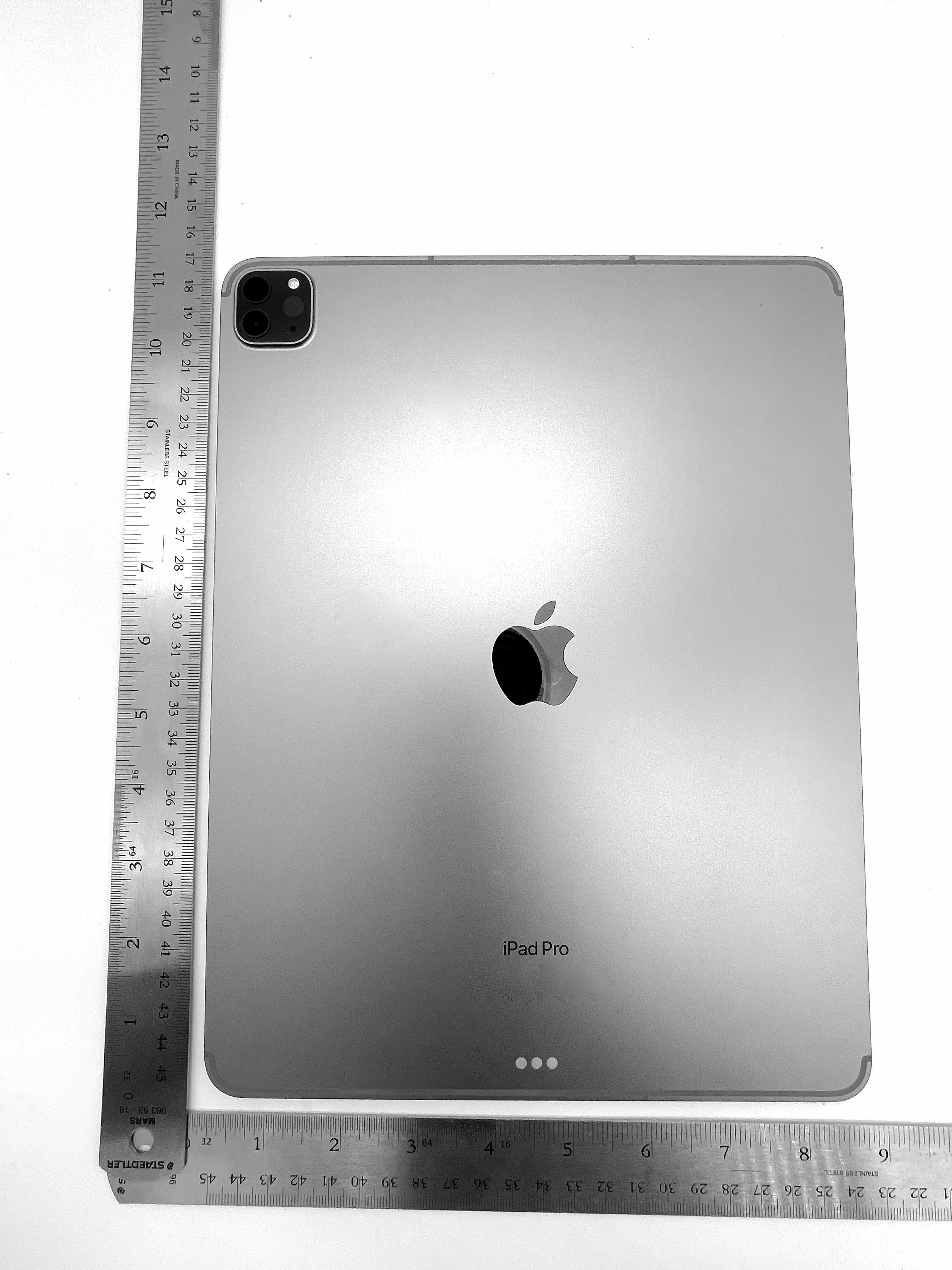
Click to zoom
Application Details
- Equipment Class
- 6CD - 15E 6 GHz Low Power Dual Client
- Date of Grant
- May 09, 2023
- Application Purpose
- Original Equipment
- Date of Application
- Apr 14, 2023
- Equipment Note
- Apple iPad
- Frequency Range
- 5955.00000000 - 7115.00000000
- Company
- Apple Inc.
- Country
- United States
Documents & Files
Document Text
Text extracted from the exhibit documents filed with the FCC. Open a document above to read the original.
Users Manual
9/14/22, 10:30 PMiPad User Guide Page 1 of 913https://apdreview.apple.com/codenames/ipad/npi/sydneyb/en.lproj/static.html#iPadcbf04dd1 Everything you need to know about iPad iPad User Guide Get Started Set up a few basic features before you start using your new iPad. Set up basics 9/14/22, 10:30 PMiPad User Guide Page 2 of 913https://apdreview.apple.com/codenames/ipad/npi/sydneyb/en.lproj/static.html#iPadcbf04dd1 Add a personal touch Your iPad can reflec t your style and preferences. Change the Lock Screen background, add widgets to the Home Screen, adjust text size, and more. Stay connected iPad makes it easy to reach the people important to you. Start conversations in Messages, make FaceTime calls, even watch movies and listen to music together. Multitask with iPad Learn how to open multiple apps at once, switch between the apps you use the most, and work in more than one app at time. Make your iPad your own Keep in touch with friends and family Customize your workspace 9/14/22, 10:30 PMiPad User Guide Page 3 of 913https://apdreview.apple.com/codenames/ipad/npi/sydneyb/en.lproj/static.html#iPadcbf04dd1 To e x p l o r e t h e i P a d U s e r G u i d e , c l i c k Ta b l e o f C o n t e n t s a t t h e t o p o f t h e page, or enter a word or phrase in the search field. You can also from Apple Books (where available). download the guide Welcome Introduction to iPad Your iPad What’s new in iPadOS 16 Set up and get started Basics Personalize your iPad Apps Siri Family Sharing Screen Time Apple Pay Accessories Use iPad with iPhone, iPod touch, Mac, and PC Accessibility Security and privacy Restart, update, reset, and restore Safety, handling, and support Copyright 9/14/22, 10:30 PMiPad User Guide Page 4 of 913https://apdreview.apple.com/codenames/ipad/npi/sydneyb/en.lproj/static.html#iPadcbf04dd1 Set up basics Transfer your apps and info onto your new iPad When you first turn on your iPad and begin the setup process, you can wirelessly transfer many of your apps, settings, and content from your previous iPad directly to your new iPad—just bring the two devices close together, then follow the onscreen instructions. Connect to Wi-Fi and set up cellular service To c o n n e c t yo u r i Pa d t o yo u r h o m e W i - F i n e t wo r k , g o t o S e t t i n g s > Wi-Fi, turn on Wi- Fi, then choose your network. iPad automatically connects to the internet whenever you’re home. If you have a Wi-Fi + Cellular model, you can activate cellular service on your iPad using an eSIM, go to Settings > Cellular Data. Or, install a physical Apple SIM card or nano- SIM provided by your carrier. Sign in with your Apple ID Your Apple ID is the account you use to access Apple ser vices such as Apple Music, FaceTime, iCloud, and iMessage. If you don’t have an Apple ID, you can create one. To s i g n i n w i t h yo u r A p p l e I D, g o t o S e t t i n g s > Sign in to your iPad. To verify that you’re signed in, go to Settings > [your name]; your Apple ID appears below your name. Set up Face ID or Touch ID You can use Face ID (face recognition) or Touch ID (your finger print), to securely unlock your iPad, sign in to many apps, and make purchases. For your security, Face ID and To u c h I D d a t a d o e s n ’ t l e ave yo u r d e v i c e a n d i s n ’ t s ave d a ny w h e re e l s e . Depending on you iPad model, do one of the following: Set up Face ID: Go to Settings > Face ID & Passcode > Set up Face ID, then follow the onscreen instructions. Introduction to iPad 9/14/22, 10:30 PMiPad User Guide Page 5 of 913https://apdreview.apple.com/codenames/ipad/npi/sydneyb/en.lproj/static.html#iPadcbf04dd1 Set up Touch ID: Go to Settings > Touch ID & Passcode > Add a Fingerprint, then follow the onscreen instructions. Turn on Find My iPad You can locate your iPad if it ’s ever lost or stolen. Go to Settings > [your name] > Find My, tap Find My iPad, then turn on Find My iPad. You can see the location of your devices in the Find My app . If you lose your iPad and don’t have access to the Find My app, you can locate your device using Find iPad on iCloud.com. Back up your data with iCloud iCloud helps you keep your important info safe and in sync across your devices. If you replace or lose your iPad, or it’s damaged or stolen, your photos, videos, backups, and more remain secure in iCloud. To t u r n o n o r c h a n g e t h e fe a t u re s yo u wa n t t o u s e w i t h i C l o u d , g o t o S e t t i n g s > [your name] > iCloud. Want to learn more? Check out , ,, , and . Not all features are available for all iPad models. Make your iPad your own Change the Wallpaper on your Lock Screen and Home Screen Set the background of your Home Screen and Lock Screen to display a favorite photo from your photo library. Go to Settings > Wallpaper, then tap Choose a New Wallpaper. Tap an album, then select a photo. Drag the photo to move it around, or pinch to zoom in or out. When you’ve got it looking just right, tap Set, then choose whether you want the photo to appear on your Lock Screen, Home Screen, or both. Add widgets to your Home Screen Widgets help you easily see the information that’s most important to you, like the current weather and upcoming Calendar events. Turn on and set up iPadSet up cellular service on iPad (Wi-Fi + Cellular models) Connect iPad to the internetLocate a device in Find My on iPadUse iCloud on iPad 9/14/22, 10:30 PMiPad User Guide Page 6 of 913https://apdreview.apple.com/codenames/ipad/npi/sydneyb/en.lproj/static.html#iPadcbf04dd1 To a d d a w i d g e t , t o u c h a n d h o l d t h e b a c kg ro u n d o n a ny H o m e S c re e n p a g e u n t i l t h e apps jiggle, then tap . Ta p a w i d g e t , s w i p e r i g h t o r l e f t t o v i e w t h e d i f fe r e n t s i z e s , then tap Add Widget. Set your favorite controls Some iPad controls—like silent mode and timer—are just a swipe away in Control Center. To q u i c k l y o p e n C o n t ro l C e n t e r sw i p e d ow n f ro m t h e t o p - r i g h t e d…
Text truncated - open the document above for the full version.
Users Manual
9/14/22, 10:30 PMiPad User Guide Page 237 of 913https://apdreview.apple.com/codenames/ipad/npi/sydneyb/en.lproj/static.html#iPadcbf04dd1 Create a link to a FaceTime call on iPad In the FaceTime app on iPad, you can create a link to a FaceTime call and send the link to a friend or a group (using Mail or Messages), which they can use to join or start a call. 1. Ta p C r e a t e L i n k n e a r t h e t o p o f t h e s c r e e n . 2. Choose an option for sending the link (Mail, Messages, and so on). In Calendar, you can schedule a remote video meeting by . Note: You can invite anyone to join you in a FaceTime call, even people who don’t have an Apple device. They can join you in one-on-one and Group FaceTime calls from their browser—no login is necessary. (They need the latest version of either Chrome or Edge. Sending video requires H.264 video encoding support.) Make and receive FaceTime calls on iPad With an internet connection and an Apple ID, you can make and receive calls in the FaceTime app . Note: You must before you can make and receive calls. inserting FaceTime as the location of the meeting set up FaceTime On iPad Wi-Fi + Cellular models, you can also make FaceTime calls over a cellular data connection, which may incur additional charges. To turn this feature off, go to Settings > Cellular, then turn off FaceTime. See View or change cellular data settings on iPad (Wi-Fi + Cellular models). 9/14/22, 10:30 PMiPad User Guide Page 238 of 913https://apdreview.apple.com/codenames/ipad/npi/sydneyb/en.lproj/static.html#iPadcbf04dd1 Make a FaceTime call Siri: Say something like: “Make a FaceTime call” or “Call Eliza’s mobile.” . 1. In FaceTime, tap New FaceTime near the top of the screen. 2. Type the name or number you want to call in the entry field at the top, then tap to make a video call or to make a FaceTime audio call (not available in all countries or regions). Alternatively, you can tap to open Contacts and start your call from there; or tap a suggested contact in your call history to quickly make a call. Learn how to use Siri 9/14/22, 10:30 PMiPad User Guide Page 239 of 913https://apdreview.apple.com/codenames/ipad/npi/sydneyb/en.lproj/static.html#iPadcbf04dd1 Tip: To s e e m o re d u r i n g a Fa c eT i m e v i d e o c a l l , ro t a t e i Pa d t o u s e l a n d s c a p e orientation. See . To c a l l m u l t i p l e p e o p l e , s e e . Receive a FaceTime call When a FaceTime call comes in, do any of the following: Ta ke t h e c a l l : Drag the slider or tap Accept. Decline the call: Tap Decline. Set a reminder to call back: Tap Remind Me. Send a text message to the caller: Tap Message. Change or lock the screen orientation Make a Group FaceTime call on iPad 9/14/22, 10:30 PMiPad User Guide Page 240 of 913https://apdreview.apple.com/codenames/ipad/npi/sydneyb/en.lproj/static.html#iPadcbf04dd1 If you’re on another call when a FaceTime call comes in, instead of Accept, you see the End & Accept option, which terminates the previous call and connects you to the incoming call. Tip: You can have Siri , which you can accept or decline using your voice. Start a FaceTime call from a Messages conversation In a Messages conversation, you can start a FaceTime call to the person you’re chatting with. 1. Ta p at the top right of the Messages conversation. 2. Do any of the following: announce incoming calls 9/14/22, 10:30 PMiPad User Guide Page 241 of 913https://apdreview.apple.com/codenames/ipad/npi/sydneyb/en.lproj/static.html#iPadcbf04dd1 Ta p Fa c eT i m e Au d i o . Ta p Fa c eT i m e V i d e o . Leave a message If no one answers your FaceTime call, do one of the following: Ta p Le ave a M e s s a g e . Ta p C a n c e l . Ta p C a l l B a c k . Call again In your call history, tap the name or number of the person (or group) you want to call again. Delete a call from your call history In FaceTime, swipe left over the call in your call history, then tap Delete. Ta k e a L i v e P h o t o i n Fa c eT i m e o n i P a d When you’re on a video call in the FaceTime app , you can take a FaceTime Live Photo to capture a moment of your conversation (not available in all countries or regions). The camera captures what happens just before and after you take the photo, including the audio, so you can see and hear it later just the way it happened. To t a ke a Fa c eT i m e L i ve P h o t o , f i r s t m a ke s u re Fa c eT i m e L i ve P h o t o s i s t u r n e d o n i n Settings > FaceTime, then do one of the following: On a call with one other person: Ta p . On a Group FaceTime call: Ta p t h e t i l e o f t h e p e r s o n yo u w a n t t o p h o t o g r a p h , t a p , then tap . You both receive a notification that the photo was taken, and the Live Photo is saved in your Photos app. 9/14/22, 10:30 PMiPad User Guide Page 242 of 913https://apdreview.apple.com/codenames/ipad/npi/sydneyb/en.lproj/static.html#iPadcbf04dd1 Tu r n o n L i ve C a p t i o n s i n a Fa c eTi m e c a l l o n i Pa d While you’re on a video call in the FaceTime app , you can turn on Live Captions (beta) to see the conversation transcribed on the screen. If you’re having difficulty hearing the conversation, Live Captions can make it easier to follow along. The accuracy of Live Captions (beta) may vary and shouldn’t be relied upon in high-risk situations. Live Captions uses additional battery. Note: Live Captions is currently in beta. 1. During a FaceTime video call, tap the screen to show the FaceTime controls (if they aren’t visible). 2. Ta p at the top of the controls, turn on Live Captions, then tap Done. A Live Captions window appears, showing the automatically transcribed dialogue of the call near the top of the screen and who’s speaking. To s t o p s h ow i n g t h e c o nve r s a t i o n o n t h e s c re e n , t a p t h e s c re e n , t a p at the top of the FaceTime controls, then turn off Live Captions. Use other apps during a FaceTime call on iPad While you’re on a call using the FaceTime app , you can use other apps…
Text truncated - open the document above for the full version.
Users Manual
9/14/22, 10:30 PMiPad User Guide Page 485 of 913https://apdreview.apple.com/codenames/ipad/npi/sydneyb/en.lproj/static.html#iPadcbf04dd1 To o p e n a s t o r y o r i s s u e , d o a ny o f t h e fo l l ow i n g : Ta p a n i s s u e c ove r i n N e w s + o r t h e To d ay fe e d . Ta p t h e S e a r c h f i e l d i n t h e s i d e b a r, e n t e r t h e n a m e o f t h e A p p l e N e w s + c h a n n e l , t a p the channel, then tap the issue. Follow a link to a story or issue that someone shared with you. Access back issues Do any of the following: Ta p N e w s + i n t h e s i d e b a r, t a p M y M a g a z i n e s , t a p below the issue cover (or touch and hold the cover), then tap Browse Back Catalog. In the sidebar, tap a channel you follow, or search for a channel, then tap it. Below Recent Issues, swipe to the issue you want to read, then tap to open it. Tap Issues near the top of the screen to browse all available issues. 9/14/22, 10:30 PMiPad User Guide Page 486 of 913https://apdreview.apple.com/codenames/ipad/npi/sydneyb/en.lproj/static.html#iPadcbf04dd1 Open the issue, where you can do any of the following: View the table of contents: Ta p t h e c ove r t h u m b n a i l a t t h e b o t t o m l e f t o f t h e s c r e e n . Navigate to a story: In an issue in Apple News Format, tap the story link in the table of contents. In a PDF issue, tap the thumbnail of the page you want to view. Page through an issue: Swipe left or tap to go to the next story, or swipe right or tap to go to the previous story. Change the text size: In stories in Apple News Format, tap , then tap the smaller or larger letter to change the text size in the story and all other stories in the channel. In PDF issues, pinch to zoom. 9/14/22, 10:30 PMiPad User Guide Page 487 of 913https://apdreview.apple.com/codenames/ipad/npi/sydneyb/en.lproj/static.html#iPadcbf04dd1 If you sign out in Settings > [your name] > Media & Purchases, you can only access free stories—you must sign back in to access stories and download issues that require an Apple News+ subscription. Download Apple News+ issues on iPad With the News app and an Apple News+ subscription, you can download issues to read later. Note: Apple News and Apple News+ aren’t available in all countries or regions. See the Apple Support article . Download an Apple News+ issue 1. Do any of the following: Ta p To d ay i n t h e s i d e b a r, t h e n s w i p e t o M y M a g a z i n e s . Ta p N e w s + i n t h e s i d e b a r, t h e n t a p M y M a g a z i n e s . Yo u c a n a l s o t a p C a t a l o g n e a r the top of the screen, then tap a stack of magazines. In the sidebar, tap a magazine channel you follow. Ta p t h e S e a r c h f i e l d i n t h e s i d e b a r, e n t e r t h e c h a n n e l n a m e , t h e n t a p t h e c h a n n e l . 2. When you find the issue you want, tap below the issue cover (or touch and hold the cover), then tap Download Issue. To d ow n l o a d m u l t i p l e i s s u e s , t a p M y M a g a z i n e s , t a p , tap Select, tap the issues you want to download, then tap . When you subscribe to Apple News+, the most recent issues of magazines you follow are automatically downloaded when iPad is plugged into power, has sufficient storage space, and is connected to Wi-Fi. If you don’t want to download issues automatically, go to Settings > News, then turn off Download Issues. You can download issues only if you’re an Apple News+ subscriber. Read a downloaded issue 1. Ta p N e w s + i n t h e s i d e b a r. 2. Ta p D ow n l o a d e d n e a r t h e t o p o f t h e s c r e e n , t h e n t a p a n i s s u e . Availability of Apple Media Services 9/14/22, 10:30 PMiPad User Guide Page 488 of 913https://apdreview.apple.com/codenames/ipad/npi/sydneyb/en.lproj/static.html#iPadcbf04dd1 Manually remove an Apple News+ issue Under most conditions, automatically downloaded issues are removed from iPad after 30 days, but you can remove them sooner. Ta p N e w s + i n t h e s i d e b a r, t h e n d o a ny o f t h e fo l l ow i n g : Ta p D ow n l o a d e d , t a p below the issue cover (or touch and hold the cover), tap Remove, then tap Remove Download. The issue is removed from Downloaded, but its cover remains in My Magazines so you can easily access the issue again. Ta p M y M a g a z i n e s n e a r t h e t o p o f t h e s c r e e n , t a p below the issue cover (or touch and hold the cover), tap Remove, then tap Remove from My Magazines. The issue’s cover and content are removed from iPad and from any other devices where you’re signed in with the same Apple ID and News is turned on in iCloud preferences or settings. To re m ove m u l t i p l e i s s u e s , t a p M y M a g a z i n e s o r D ow n l o a d e d , t a p , tap Select, tap the issues you want to remove, then tap . To re m ove a l l d ow n l o a d e d i s s u e s , t a p H i s t o r y, t a p C l e a r, t h e n t a p C l e a r A l l . When storage on iPad is limited, issues may be automatically removed sooner than 30 days. See the Apple Support article . Search for stories in News on iPad The News app keeps track of a wide variety of channels, topics, and stories, which makes it easy to find content that interests you. Search for channels, topics, or stories 1. Ta p t h e S e a r c h f i e l d i n t h e s i d e b a r. 2. Enter any of the following: The name of a channel, such as CNN or Washington Post A topic, such as fashion, business, or politics An event, such as an upcoming meteor shower Read magazines with Apple News+ 9/14/22, 10:30 PMiPad User Guide Page 489 of 913https://apdreview.apple.com/codenames/ipad/npi/sydneyb/en.lproj/static.html#iPadcbf04dd1 In the results list, tap to follow the channel or topic. Save stories in News on iPad In the News app , you can save stories to read later, online or offline. Save a story When reading a story, tap to save it. To re a d a s ave d s t o r y, t a p S ave d S t o r i e s i n t h e s i d e b a r, t h e n t a p t h e s t o r y. To d e l e t…
Text truncated - open the document above for the full version.
Users Manual
9/14/22, 10:30 PMiPad User Guide Page 687 of 913https://apdreview.apple.com/codenames/ipad/npi/sydneyb/en.lproj/static.html#iPadcbf04dd1 Use the Screen Time widget to check your device use at a glance To ke e p t r a c k o f yo u r d e v i c e u s e f ro m t h e H o m e S c re e n , for Screen Time. The widget displays information from your Screen Time summary—the larger the widget you add, the more information it displays. You can quickly check your device use by glancing at the widget. If you through Family Sharing, you can tap the widget to see a list of the people in your family group, Tap the name of a family member whose report you want to view. Use Screen Time on all your devices To s h a re yo u r S c re e n T i m e s e t t i n g s a n d re p o r t s a c ro s s a l l yo u r d e v i c e s , m a ke s u re yo u ’ re signed in with the same Apple ID on each device and Share Across Devices is turned on. 1. Go to Settings > Screen Time. 2. Scroll down, then turn on Share Across Devices. add a widget to your Home Screen set up Screen Time for family members 9/14/22, 10:30 PMiPad User Guide Page 688 of 913https://apdreview.apple.com/codenames/ipad/npi/sydneyb/en.lproj/static.html#iPadcbf04dd1 Set up Screen Time for yourself on iPad With Screen Time, you can manage your app use, schedule time away from your devices, and more. You can change or turn off any of these settings at any time. Schedule time away from the screen In Screen Time, you can block apps and notifications for periods when you want time away from your devices. For example, you might want to schedule downtime during meals or at bedtime. 1. Go to Settings > Screen Time, then turn on Screen Time if you haven’t already. 2. Ta p D ow n t i m e , t h e n t u r n o n D ow n t i m e . 3. Select Every Day or Customize Days, then set the start and end times. Turn on downtime on demand During downtime, only calls, messages, and apps you choose to allow are available. You can receive calls from contacts you’ve selected to , and you can use apps you’ve chosen to . When you turn on downtime on demand, a five-minute reminder is sent before downtime is turned on. It stays on until the end of the day, or until the beginning of your scheduled downtime, if you’ve scheduled it. 1. Go to Settings > Screen Time, then if you haven’t already. 2. Ta p D ow n t i m e , t h e n t a p Tu r n O n D ow n t i m e U n t i l To m o r r ow, o r Tu r n O n D ow n t i m e Until Schedule (if Scheduled is turned on). To t u r n o f f d ow n t i m e o n d e m a n d , t a p Tu r n O f f D ow n t i m e . Note: You can also tur n on downtime on demand for a family member, either direc tly on their device, or through Family Sharing on your device. Set limits for app use You can set a time limit for a categor y of apps (for example, Games or Social Networking) and for individual apps. allow communication with during downtime allow at all times turn on Screen Time 9/14/22, 10:30 PMiPad User Guide Page 689 of 913https://apdreview.apple.com/codenames/ipad/npi/sydneyb/en.lproj/static.html#iPadcbf04dd1 1. Go to Settings > Screen Time, then turn on Screen Time if you haven’t already. 2. Ta p A p p L i m i t s , t h e n t a p Ad d L i m i t . 3. Select one or more app categories. To s e t l i m i t s fo r i n d i v i d u a l a p p s , t a p t h e c a t e g o r y n a m e t o s e e a l l t h e a p p s i n t h a t category, then select the apps you want to limit. If you select multiple categories or apps, the time limit you set applies to all of them. 4. Ta p N ex t , t h e n s e t t h e a m o u n t o f t i m e a l l owe d . To s e t a n a m o u n t o f t i m e fo r e a c h d ay, t a p C u s t o m i ze D ays , t h e n s e t l i m i t s fo r s p e c i f i c days. 5. When you finish setting limits, tap Add. To t e m p o r a r i l y t u r n o f f a l l a p p l i m i t s , t a p A p p L i m i t s o n t h e A p p L i m i t s s c re e n . To temporarily turn off a time limit for a specific category, tap the category, then turn off App Limit. To re m ove a l i m i t fo r a c a t e g o r y, t a p t h e c a t e g o r y, t h e n t a p D e l e t e L i m i t . Set communication limits In Screen Time, you can either allow or block communication—including incoming and outgoing phone calls, FaceTime calls, and messages—from certain contacts in iCloud, either at all times or during certain periods. 1. If you haven’t already turned on Contacts in iCloud, go to Settings > [your name] > iCloud, then turn on Contacts. 2. Go to Settings > Screen Time, then turn on Screen Time if you haven’t already. 3. Ta p C o m m u n i c a t i o n L i m i t s , t a p D u r i n g S c r e e n T i m e , t h e n s e l e c t o n e o f t h e fo l l ow i n g for communication at all times (other than downtime): Contacts Only: To allow communication only with your contacts. Contacts & Groups with at Least One Contact: To allow one-on-one conversations only with people in your contacts and group conversations that include at least one person in your contacts. Everyone: To allow conversations with anyone, including unknown numbers. 4. Ta p B a c k a t t h e t o p l e f t , t h e n t a p D u r i n g D ow n t i m e . 9/14/22, 10:30 PMiPad User Guide Page 690 of 913https://apdreview.apple.com/codenames/ipad/npi/sydneyb/en.lproj/static.html#iPadcbf04dd1 The option you selected for During Screen Time is already set here. You can change this setting to Specific Contacts, then choose one of the following: Choose From My Contacts: To select contacts to allow communication with during Downtime. Add New Contact: To add a person to your contacts and allow communication with that person during downtime. If someone who’s currently blocked by your Communication Limit settings tries to call you or send you a message, their communication won’t go through. If you try to call or send a message to someone who’s currently blocked by your Communication Limit settings, their name or number appears in red in your list of recent calls or messa…
Text truncated - open the document above for the full version.
Attestation Statements
v1.1 Apple Inc. One Apple Park Way Cupertino, CA www.apple.com Date: March 18, 2022 Federal Communications Commission Equipment Authorization Branch 7435 Oakland Mills Rd. Columbia MD 21046d Attn: Equipment Authorization Branch Ref: FCC ID numbers To whom it may concern: I, the undersigned, hereby authorize Element Materials Technology to act on our behalf in all manners relating to application for equipment authorization, including signing of all documents relating to these matters. Any and all acts carried out by Element Materials Technology on our behalf shall have the same effect as acts of our own. I, the undersigned, hereby certify that we are not subject to a denial of federal benefits, that includes FCC benefits, pursuant to Section 5301 of the Anti-Drug Abuse Act of 1988, 21 U.S.C. 853(a). In authorizing Element Materials Technology as our representative, we still recognize that we are responsible to: a) comply with the relevant provisions of the certification program; b) make all necessary arrangements for the conduct of the evaluation, including provision for examining documentation and access to all areas, records (including internal audit reports) and personnel for the purposes of evaluation (e.g. testing, inspection, assessment, surveillance, reassessment) and resolution of complaints; Model(s) FCC ID A2759 BCGA2759 A2435 BCGA2435 A2761, A2762 BCGA2761 A2436 BCGA2436 A2764 BCGA2764 A2437, A2766 BCGA2437 v1.1 Apple Inc. One Apple Park Way Cupertino, CA www.apple.com c) make claims regarding certification only in respect of the scope for which certification has been granted; d) do not use our product certification in such a manner as to bring the Certification Division into disrepute and not make any statement regarding our product certification which the Certification Division may consider misleading or unauthorized; e) upon suspension or cancellation of certification, discontinue use of all advertising matter that contains any reference thereto and return any certification documents as required by the Certification Division; f) use certification only to indicate the products are certified as being in conformity with specified standards; g) endeavor to ensure that no certificate or report nor any part thereof is used in a misleading manner; h) ensure that any reference to our product certification in communication media such as documents, brochures or advertising, complies with the requirements of the Certification Division; i) keep a record of all complaints made known to the us relating to the product’s compliance with requirements of the relevant standard and to make these records available to the when requested; j) take appropriate action with respect to such complaints and any deficiencies found in products or services that affect compliance with the requirements for certification; k) document the actions taken. This authorization is valid until further written notice from the applicant. Sincerely, ____________________ Abhishek Rala Apple Inc. Global Certification Manager [email protected]
Attestation Statements
v1.0 Apple Inc. One Apple Park Way Cupertino, CA www.apple.com Date: April 5, 2023 Federal Communications Commission Equipment Authorization Branch 7435 Oakland Mills Rd. Columbia MD 21046d Attn: OET Department To whom it may concern: We, Apple Inc., attest that these devices under FCC ID: BCGA2759, BCGA2435, BCGA2761, BCGA2436, BCGA2764 and BCGA2437, complies with device protocol requirements and operational restrictions for Dual Client devices (6CD). a) These devices do not support indoor subordinate (6PP) category and the maximum power does not exceed authorized value. b) These devices will only associate and connect with a Low Power Indoor Access Point, Subordinate device, or Standard Access Point and never directly link to another client device. c) These devices will always initiate transmission under the control of a Low Power Indoor AP or subordinate device or standard power AP except for brief communications before joining a network. These quick messages will only occur if the client has detected an Indoor AP, Subordinate, or Standard Access Point operating on a channel. These brief messages will have a time-out mechanism such that if it does not receive a response from an AP, it will not continually repeat the request. d) These devices, when associated and connected with a Low Power Indoor Access Point, Subordinate, or Standard Access Point device, will operate at a power lower as advertised by the Low Power Indoor access point, Subordinate or Standard Access Point: a. Lower than or equal to the power advertised by the Low Power Indoor Access Point or Subordinate device and never above the maximum output power level allowed by the FCC grant for clients associated with indoor clients or subordinates. b. Lower than or 6dB below the power advertised by the Standard Access Point. e) We acknowledge that these devices are subject to and in full compliance with the device restriction listed below. a. Prohibited for control of or communications with unmanned aircraft systems, including drones. v1.0 Apple Inc. One Apple Park Way Cupertino, CA www.apple.com Sincerely, ____________________ Abhishek Rala Apple Inc. Global Certification Manager [email protected]
Attestation Statements
Apple Park, Cupertino, CA 95014 April 27, 2023 Federal Communications Commissions Authorization and Evaluation Division 7435 Oakland Mills Road Columbia, MD 21046 RE: CFR 47 §2.911 (d)(5) Attestation FCC ID: BCGA2759, BCGA2435, BCGA2761,BCGA2436,BCGA2764,BCGA2437 Apple Inc. (“Apple”) certifies that the equipment for which authorization is sought is not “covered” equipment prohibited from receiving an equipment authorization pursuant to section 2.903 of the FCC rules. Apple certifies that, as of the date of the filing of the application, Apple is not identified on the Covered List as an entity producing “covered” equipment and is not an affiliate or subsidiary of an entity identified on the Covered List. Sincerely, Abhishek Rala …
Text truncated - open the document above for the full version.
Contact Information
Applicant
Abhishek Rala(Regulatory Compliance Manager)
Technical Contact
Test Firm
Element Materials Technology San Jose, CARandy Ortanez
Technical Specifications
| # | Rule Parts | Frequency Range | Power Output |
|---|---|---|---|
| 1 | 15E | 5.96 GHz - 7.12 GHz | 54.00 mW |
Other Applications from Apple Inc.
BCGA3577
May 22, 2026Wireless Headphones
Equipment Class
DTS - Digital Transmission SystemBCG-A3454
Mar 16, 2026AirPods Max
Equipment Class
6VL - 15E 6 GHZ Very Low Power DeviceBCGA3404
Mar 03, 2026Laptop computer
Equipment Class
DSS - Part 15 Spread Spectrum TransmitterBCGA3429
Mar 03, 2026Laptop computer
Equipment Class
6VL - 15E 6 GHZ Very Low Power DeviceBCGA3449
Mar 03, 2026Laptop computer
Equipment Class
NII - Unlicensed National Information Infrastructure TX