EMJ202R71Wireless Mouse
Primax Electronics Ltd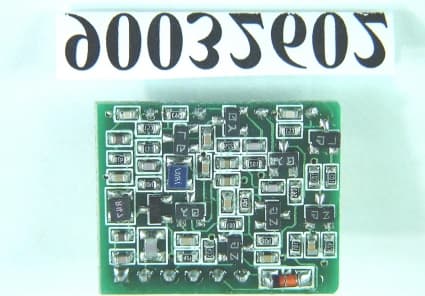
Click to zoom
Application Details
- Equipment Class
- DXX - Part 15 Low Power Communication Device Transmitter
- Date of Grant
- Apr 09, 2001
- Application Purpose
- Original Equipment
- Date of Application
- Apr 09, 2001
- Equipment Note
- Wireless Mouse
- Frequency Range
- 27.19500000 - 27.25500000
- Company
- Primax Electronics Ltd
- Country
- Taiwan
Documents & Files
Document Text
Text extracted from the exhibit documents filed with the FCC. Open a document above to read the original.
Users Manual
- 1 - FCC Statement This device complies with part 15 of FCC Rules. Operation is subject to the following two conditions: (1) this device may not cause harmful interference, and (2) this device must accept any interference received, including interference that may cause undesired operation. This equipment has been tested and found to comply with the limits for a Class B digital device, pursuant to part 15 of the FCC Rules. These limits are designed to provide reasonable protection against harmful interference in a residential installation. This equipment generates, uses and can radiate radio frequency energy and, if not installed and used in accordance with the instructions, may cause harmful interference to radio communications. However, there is no guarantee that interference will not occur in a particular installation. If this equipment does cause harmful interference to radio or television reception, which can be determined by turning the equipment off and on, the user is encouraged to try to correct the interference by one or more of the following measures: • Reorient or relocate the receiving antenna. • Increase the separation between the equipment and the receiver. • Connect the equipment into an outlet on a circuit different from that to which the receiver is connected. Copyright Copyright 1999 Primax Electronics Ltd. All rights reserved. No part of this publication may be reproduced, transmitted, transcribed, stored in a retrieval system, or translated into any language or computer language, in any form or by any means, electronic, mechanical, magnetic, optical, chemical, manual, or otherwise, without the prior written permission of Primax Electronics Ltd. Trademarks Primax is a registered trademark of Primax Electronics Ltd. All other trademarks used in this documentation are the sole property of their respective owners. - 2 - Setting Up Your Mouse Hardware Installation Important: Before connecting your mouse or installing the software, be sure to identify the type of mouse port you are using (USB, PS/2). Refer to the diagrams below if you are having difficulty determining what kind of port your mouse uses. PS/2 Port USB Prot Connecting the PS/2 Mouse Note: Before coneect the mouse to your system, please make sure your computer is off. • Turn off your computer. • Connect the mouse cable to the PS/2 (6-pin) mouse port. • Turn on the computer. Connecting the USB Mouse Note: To use the USB mouse, you need to have Windows 98 / 2000 / ME installed on your computer. • You don’t need to turn off your computer before connect your USB mouse. • Plug the rectangular USB mouse connector into the USB port (normally in the back of the PC). • Insert the software diskette into your disk drive and follow the onscreen instructions to install the device driver. - 3 - Installing Mouse Suite ™ Software To use all of the features of your new mouse, you must install the Mouse Suite ™ software on your computer. Uses the following guide to properly install the Mouse Suite ™ software. For Windows 95, Windows 98, Windows NT 4.0, Windows 2000 and Windows ME: • Start Windows and insert the Mouse Suite ™ installation disk into the disk drive. • Click the Start button and then select Run. • From the Run dialog box, enter <drive>: Setup and click OK. For example, if the disk is in drive A, enter A:\Setup. • Follow the onscreen instructions. - 4 - Using the Wheel Note: This section is for wheel mouse only. Your new mouse may have a wheel that can be used in two ways: • Rotate it to use it as the wheel. • Click it to use it as the wheel button. Important: Universal Scrolling must be enabled in order to use scrolling functions in applications not compatible with Microsoft Office 97. Scrolling The wheel on your mouse can be used to scroll through most applications with a scroll bar. • To scroll with your mouse, simply rotate the wheel on your mouse forward or backward. AutoScrolling AutoScroll allows you to automatically scroll through a document without having to move the mouse or mouse wheel constantly. • To AutoScroll while in a document, click the mouse button designated as AutoScroll. An origin mark ( ) will appear at your pointer position. To start AutoScrolling, move your pointer vertically, horizontally, or diagonally away from the origin mark. AutoScroll speed increases as the pointer is moved away from the origin mark. To stop AutoScrolling, press any mouse button or rotate the wheel. Zooming In some Microsoft Office 97 compatible applications (e.g. Microsoft Word 97), additional zooming functions are available. You can use the zooming function to “zoom in” for a closer look at a page or “zoom out” to see more of a page. • To zoom in, hold the Ctrl key down and rotate the mouse wheel forward. • To zoom out, hold the Ctrl key down and rotate the mouse wheel backward. - 5 - Mouse Suite ™ Features Mouse Suite ™ includes a lot of exciting features or functions that help you to increase your productivity with your new mouse. ! To find your Mouse Control Panel, follow these steps: On computers running Windows 95 / 98, Windows NT4.0 or above, click the Start button. Then click on Control Panel under the Settings menu. Now double-click on the Mouse Icon. Button Functions Accessing the Buttons page allows you to customize the function of each mouse button. The default settings for your mouse buttons are as follows: • Left ButtonPrimary Mouse Button (standard click and drag action) • Middle or Wheel ButtonQuick / Auto Scroll • Right ButtonContext Menu Magnifier With Magnifier designated as a button function, you can magnify the screen area around your pointer with the click of a button. HyperLink With HyperLink designated as a button function, you can open the application or document of your choice with a simple click. HyperGrid HyperGrid incorporates nine common Windows tasks on one easy to use grid so you don’t have to move to various screen areas to perform a task. To use the HyperGrid, press and hold the assi…
Text truncated - open the document above for the full version.
ID Label/Location Info
FCC ID LABEL LOCATION
Internal Photos
Report No.: RF900326022Issued: March 22, 2001 Report No.: RF900326023Issued: March 22, 2001 Report No.: RF900326024Issued: March 22, 2001
Test Report
FCC ID: EMJ202R71 Report No.: RF90032602 1 Issued: March 22, 2001 FCC TEST REPORT REPORT NO.: RF90032602 MODEL NO.: RO07K RECEIVED: March 16, 2001 TESTED: March 19, 2001 APPLICANT: PRIMAX ELECTRONICS LTD. ADDRESS: No.669, Ruey Kuang Road, Neihu, Taipei, Taiwan R.O.C ISSUED BY: Advance Data Technology Corporation LAB LOCATION: 13-1, Lane 19, Wen Shan 3 rd St., Kweishan, Taoyuan Hsien, Taiwan, R.O.C. This test report consists of 19 pages in total. It may be duplicated completely for legal use with the approval of the applicant. It should not be reproduced except in full, without the written approval of our laboratory. The client should not use it to claim product endorsement by NVLAP or any U.S. government agencies. The test results in the report only apply to the tested sample. Accredited Laboratory FCC ID: EMJ202R71 Report No.: RF90032602 2 Issued: March 22, 2001 Table of Contents 1CERTIFICATION ......................................................................................................... 3 2SUMMARY OF TEST RESULTS................................................................................ 4 3GENERAL INFORMATION ....................................................................................... 5 3.1GENERAL DESCRIPTION OF EUT .......................................................................... 5 3.2DESCRIPTION OF TEST MODES ............................................................................. 5 3.3GENERAL DESCRIPTION OF APPLIED STANDARDS......................................... 6 3.4DESCRIPTION OF SUPPORT UNITS ....................................................................... 6 4TEST PROCEDURES AND RESULTS ...................................................................... 7 4.1CONDUCTED EMISSION MEASUREMENT........................................................... 7 4.1.1L IMITS OF C ONDUCTED E MISSION M EASUREMENT ...................................................................................7 4.1.2T EST I NSTRUMENTS ..................................................................................................................................8 4.1.3T EST P ROCEDURE S ...................................................................................................................................9 4.1.4T EST S ETUP .........................................................................................................................................10 4.1.5T EST R ESULTS .........................................................................................................................................11 4.2RADIATED EMISSION MEASUREMENT ............................................................. 12 4.2.1L IMITS OF R ADIATED E MISSION M EASUREMENT .....................................................................................12 4.2.2T EST I NSTRUMENTS ................................................................................................................................13 4.2.3T EST P ROCEDURE S .................................................................................................................................14 4.2.4T EST S ETUP .........................................................................................................................................15 4.2.5T EST R ESULTS .........................................................................................................................................16 5PHOTOGRAPHS OF THE TEST CONFIGURATION............................................. 18 6INFORMATION ON THE TESTING LABORATORIES ......................................... 19 ANNEX PHOTOGRAPHS OF EUT FCC ID: EMJ202R71 Report No.: RF90032602 3 Issued: March 22, 2001 1 CERTIFICATION PRODUCT : Wireless Mouse BRAND NAME : MICRO Innovations MODEL NO : RO07K APPLICANT : PRIMAX ELECTRONICS LTD. STANDARDS : 47 CFR Part 15, Subpart C (Section 15.227) , ANSI C63.4-1992 SITE REGISTERATION NO : 90422 (FCC) IC 3789-5 (Canada IC) We, Advance Data Technology Corporation, hereby certify that one sample (RO07K) of the designation has been tested in our facility on March 19, 2001. The test record, data evaluation and Equipment Under Test (EUT) configurations represented herein are true and accurate accounts of the measurements of the sample's EMC characteristics under the conditions herein specified. FCC ID: EMJ202R71 Report No.: RF90032602 4 Issued: March 22, 2001 2 SUMMARY OF TEST RESULTS The EUT has been tested according to the following specifications: APPLIED STANDARD: 47 CFR Part 15, Subpart C STANDARD PARAGRAPH TEST REQUIREMENTSRESULTREMARK 15.107 AC Power Conducted Emissions Spec.: 48 dBuV N/AN/A 15.227 Transmitter Radiated Emissions Spec.: Table 15.209 PA S S Minimum passing margin is –6.5dBuV At 33.5 MHz NOTE: The receiver portion of the EUT has been tested in ADT. The test result has been verified to comply with FCC Part 15, Subpart B, Class B – Computing Devices (FCC DoC). The engineering test report can be provided upon FCC requests. FCC ID: EMJ202R71 Report No.: RF90032602 5 Issued: March 22, 2001 3 GENERAL INFORMATION 3.1 GENERAL DESCRIPTION OF EUT PRODUCT Wireless Mouse MODEL NO. RO07K POWER SUPPLY 3VDC (1.5V x 2 batteries) DATA CABLE NA I/O PORTS NA MODULATION TYPE FSK FREQUENCY RANGE 27MHz CARRIER FREQUENCY OF EACH CHANNEL 27.195MHz, 27.255MHz BANDWIDTH OF EACH CHANNEL 40kHz NUMBER OF CHANNEL 2 ANTENNA TYPE Loop Antenna ASSOCIATED DEVICES NA DESCRIPTION OF MODELS 3.2 DESCRIPTION OF TEST MODES Two channels are provided in this EUT. ChannelFrequencyChannelFrequency 127.195 MHz7 227.255 MHz8 39 410 511 6 FCC ID: EMJ202R71 Report No.: RF90032602 6 Issued: March 22, 2001 3.3 GENERAL DESCRIPTION OF APPLIED STANDARDS The EUT is a Wireless Mouse, according to the specifications of the manufacturers, it must comply with the requirements of the following standards: FCC CFR 47 Part 15, Subpart C. (15.227) All tests have been performed and recorded as per the above standards. 3.4 DESCRIPTION OF SUP…
Text truncated - open the document above for the full version.
Test Setup Photos
FCC ID: EMJ202R71 Report No.: RF90032602 18 Issued: March 22, 2001 5 PHOTOGRAPHS OF THE TEST CONFIGURATION RADIATED EMISSION TEST
Contact Information
Applicant
Nelson Chou(Manager)
Test Firm
Bureau Veritas CPS (H.K.) Ltd. Taoyuan BranchTommy Wu
Technical Specifications
| # | Rule Parts | Frequency Range | Power Output |
|---|---|---|---|
| 1 | 15C | 27.195 MHz - 27.255 MHz | - |
Other Applications from Primax Electronics Ltd
EMJ-BHS2705
Aug 28, 2026Wireless Headset
Equipment Class
DTS - Digital Transmission SystemEMJMMOBTN5O
Aug 22, 2024wegear MW1 Creator Mouse
Equipment Class
DTS - Digital Transmission SystemEMJDDGRFN5
Aug 22, 2024wegear MW1 2.4G Dongle
Equipment Class
DXX - Part 15 Low Power Communication Device Transmitter
EMJDTPA-P002D
Jan 14, 2024Dongle
Equipment Class
DXX - Part 15 Low Power Communication Device Transmitter
EMJOH1
Oct 29, 2023Level Bridge
Equipment Class
DTS - Digital Transmission System