EMJDAIO-DZero Touch BT Dongle
Primax Electronics Ltd
Click to zoom
Application Details
- Equipment Class
- DSS - Part 15 Spread Spectrum Transmitter
- Date of Grant
- Feb 25, 2010
- Application Purpose
- Original Equipment
- Date of Application
- Feb 25, 2010
- Equipment Note
- Zero Touch BT Dongle
- Frequency Range
- 2402.00000000 - 2480.00000000
- Company
- Primax Electronics Ltd
- Country
- Taiwan
Documents & Files
Document Text
Text extracted from the exhibit documents filed with the FCC. Open a document above to read the original.
Users Manual
Zero Touch BT Dongle User’s Guide Brand : Lenovo Model No : AIO-D Rating: 5V DC 80mA Made in China Introduction Package Contents ∑ USB Bluetooth adapter x 1 ∑ Installation CD x 1 (includes Bluetooth software and User’s Guide) ∑ User’s Guide x 1 PC Requirements ∑ Pentium processor or equivalent ∑ At least one USB port (USB 2.1 , 2.0 or 1.1) ∑ CD-ROM drive ∑ Operating System: Windows ® 2000, Windows ® XP with Service Pack 1 or higher, Windows ® Vista. Installing the Bluetooth Software (Vista) Before installing the Bluetooth software, plug the USB Bluetooth adapter into a USB port of your computer. If not, a warning message will appear and prompt you to plug the USB Bluetooth adapter into a USB port during the installation. The following procedures are based on Windows Vista operating system. 1. Insert the provided Installation CD in the CD ROM drive. 2. The Bluetooth software loads automatically. If not, click the Setup.exe in the CD ROM. 3. The welcome screen appears. Click Next to begin installation. 4. Read the agreement and select I accept the terms in the license agreement. Click Next to continue. 5. The program will be installed in the folder as shown. Click Change to install in a different directory. Click Next to continue. 6. Click Install to start the installation. The installation may take some time to complete. Note: If the “Bluetooth device not found” message appears, plug the USB Bluetooth adapter into a USB port of your computer and click OK. The Found New Hardware Wizard starts installing the components for the USB Bluetooth adapter. 7. The following screen appears to indicate installation is complete. 8. Click Yes to restart your computer and for the new settings to take effect. Using the Bluetooth Software (Vista) After you have completed the driver and software installation and reboot your computer, a Bluetooth icon will appear on your desktop and in the bottom right hand corner of your desktop screen (systray). The Bluetooth icon gives you access to the Bluetooth shortcut menu, and Bluetooth Devices, for configuring your Bluetooth settings. Right click the Bluetooth icon for to display the shortcut menu. ∑ Add a Bluetooth Device: Click to add a new Bluetooth device. ∑ Show Bluetooth Devices: Click to show all detected Bluetooth devices. ∑ Send a File: Click to send a file using Bluetooth File Sharing. ∑ Receive a File: Click to receive a file using Bluetooth File Sharing. ∑ Join a Personal Area Network: Click to join a private Bluetooth network. ∑ Open Bluetooth Settings: Click to open the Bluetooth Devices screen. ∑ Remove Bluetooth Icon: Click to remove the Bluetooth icon from the system tray. Double click the Bluetooth icon for access to Bluetooth Devices. You can manage all your Bluetooth connections and settings from the Bluetooth Devices screen. Use the tabs at the top of the screen to navigate the Bluetooth Devices screen. Click OK to confirm a setting, and close the screen, click Cancel to cancel any changes, and click Apply to confirm a setting without closing the screen. Devices Tab Click the Devices tab to view all detected Bluetooth devices. Click Add to configure a new device, click Properties to view the properties for a selected device, or Remove to remove a device from the list. Options Tab Click the Options tab to set discovery and connection permissions. You can also select to how the Bluetooth icon in the system taskbar from here. Click Restore Defaults to restore all settings to their original defaults. COM Ports Tab Click the COM Ports tab to configure COM (serial) port settings for Bluetooth enabled devices. Click Add to configure assign a COM port to a Bluetooth enabled device, or Remove to remove a device from the list. Hardware Tab Click the Hardware tab to view hardware information on all connected devices. Select a device from the list and click Properties to see detailed information. Share Tab Click the Share tab to configure sharing permissions and settings for sent and received files. You can specify what type of files can be accessed by remote devices, where to store shared files, and to allow Bluetooth devices to use your computers modem to access the Internet or to send faxes. PIM Interface Tab Click the PIM Interface tab to configure settings for received PIM items, such as business cards, calendar items, e-mails, and notes. Select the type of PIM items to accept from the drop-down menus. Audio Tab Click the Audio tab to configure settings for Bluetooth devices to be used for audio playback, audio recording, or telephony. Select a device from the list and click Connect or Remove to remove a device from the list. Dial-up Tab Click the Dial-up tab to configure settings for Bluetooth devices to be used for connecting to the Internet using Bluetooth dial-up. Select a device from the list and click Connect, or Remove to remove a device from the list. Installing the Bluetooth Software (XP) Before installing the Bluetooth software, plug the USB Bluetooth adapter into a USB port of your computer. If not, a warning message will appear and prompt you to plug the USB Bluetooth adapter into a USB port during the installation. The following procedures are based on Windows XP operating system. 1. Insert the provided Installation CD in the CD ROM drive. 2. The Bluetooth software loads automatically. If not, click the Setup.exe in the CD ROM. 3. The welcome screen appears. Click Next to begin installation. 4. Read the agreement and select “ I accept the terms in the license agreement”. Click Next to continue. 5. The program will be installed in the folder as shown. Click Change to install in a different directory. Click Next to continue. 6. Click Install to start the installation. The installation may take some time to complete. Note: If the “Bluetooth device not found” message appears, plug the USB Bluetooth adapter into a USB port of your computer and click OK. The Found New Hardware Wizard starts installing the components for the USB Bluetooth adapte…
Text truncated - open the document above for the full version.
Cover Letter(s)
No. 669, Ruey Kuang Road Neihu Taipei, Taiwan, R.O.C. Tel: 883-2-2798-9008 Fax: 886-2-8798-1565 Date: February 22, 2010 Federal Communications Commission Authorization and Evaluation Division Confidentiality Request FCC ID: EMJDAIO-D Pursuant to Sections 0.457 and 0.459 of the Commission’s Rules, the Applicant hereby requests confidential treatment of information accompanying this Application as outlined below: Schematics Block Diagram The above materials contain trade secrets and proprietary information not customarily released to the public. The public disclosure of these matters might be harmful to the Applicant and provide unjustified benefits to its competitors. The Applicant understands that pursuant to Rule 0.457, disclosure of this Application and all accompanying documentation will not be made before the date of the Grant for this application. Sincerely yours, ------------------------------------------------------------------- C.T. Huang Compliance Dept. / Director Phone: 886-2-2798-9008 ext.1710 Fax: 886-2-8797-1565 Email: [email protected]
Cover Letter(s)
No. 669, Ruey Kuang Road Neihu Taipei, Taiwan, R.O.C. Tel: 883-2-2798-9008 Fax: 886-2-8798-1565 Power of Attorney Date: February 22, 2010 To whom it may concern: We, the undersigned PRIMAX ELECTRONICS LTD. hereby authorize Bureau Veritas Consumer Products Services (H.K.) Ltd., Taoyuan Branch (BV CPS Taoyuan Branch) of Taiwan to act on our behalf in all matters relating to all processes required in the FCC Part 15C approval and any communication needed with the national authority. Any and all acts carried out by BV CPS Taoyuan Branch on our behalf shall have the same effects as acts of our own. If you have any questions regarding the authorization, please don’t hesitate to contact us. Thank you! Sincerely yours, ----------------------------- C.T. Huang Compliance Dept. / Director Phone: 886-2-2798-9008 ext.1710 Fax: 886-2-8797-1565 Email: [email protected]
External Photos
Page 1 CONSTRUCTION PHOTOS OF EUT
ID Label/Location Info
PMX- XXXXXXXXXX Model No.:XXXXXX CMIIT ID:XXXXXXXX IC: XXXXXXXXXXXXXX FCC ID:XXXXXXXXXXXXXX SN:XXXXXXXXXXX PMX- XXXXXXXXXX *12.5mm 80P合成纸,黑底银字 XXXXXXXXXXXX SN: Model No.:AIO-D Rating: 5V 80mA CMIIT ID:XXXXXXXXXX IC: 4251A-DAIOD FCC ID:EMJDAIO-D 4 4 0 0 0 0 1 固定码
ID Label/Location Info
Label Location FCC ID: EMJDAIO-D
Internal Photos
Page 2 Page 3
Operational Description
FCC ID: EMJDAIO-D Report No.: RF990126A04 Operational Description This device is a Zero Touch BT Dongle. The transmitter of the EUT is powered by 5Vdc from host equipment. The antenna is printed antenna. The other instruction, please have a look at the users manual.
RF Exposure Info
Report No: SA990126A04 1 Report Format Version 3.0.1 RF EXPOSURE REPORT REPORT NO.: SA990126A04 MODEL NO.: AIO-D ACCORDING: FCC Guidelines for Human Exposure IEEE C95.1 APPLICANT : PRIMAX ELECTRONICS LTD. ADDRESS : No. 669, Ruey Kuang Road, Neihu, Taipei, Taiwan, R.O.C. ISSUED BY : Bureau Veritas Consumer Products Services (H.K.) Ltd., Taoyuan Branch LAB ADDRESS : No. 47, 14th Ling, Chia Pau Tsuen, Lin Kou Hsiang, Taipei Hsien, 244 Taiwan Report No: SA990126A04 2 Report Format Version 3.0.1 Conclusion No Evaluation Required if power is below this threshold: F(GHz) mW Low 2.402 High 2.480 24.58 Maximum measured transmitter power: Pout (dBm) Pout (mW) Conducted Power -3.2 0.5 EIRP Power -1.2 0.8 *Note: The antenna is Printed antenna with 2dBi gain Threshold for no SAR evaluation is 24.58mW Transmitter power is 0.8mW Conclusion: No SAR evaluation required since Transmitter Pout is below FCC threshold ---END---
Test Report
Report No.: RF990126A04 1 Report Format Version 3.0.1 FCC TEST REPORT REPORT NO.: RF990126A04 MODEL NO.: AIO-D RECEIVED: Jan. 26, 2010 TESTED: Jan. 28 ~ Feb. 3, 2010 ISSUED: Feb. 5, 2010 APPLICANT: PRIMAX ELECTRONICS LTD. ADDRESS: No. 669, Ruey Kuang Road, Neihu, Taipei, Taiwan, R.O.C. ISSUED BY: Bureau Veritas Consumer Products Services (H.K.) Ltd., Taoyuan Branch LAB LOCATION: No. 47, 14th Ling, Chia Pau Tsuen, Lin Kou Hsiang, Taipei Hsien, 244 Taiwan This test report consists of 65 pages in total. It may be duplicated completely for legal use with the approval of the applicant. It should not be reproduced except in full, without the written approval of our laboratory. The client should not use it to claim product endorsement by TAF or any government agencies. The test results in the report only apply to the tested sample. Report No.: RF990126A04 2 Report Format Version 3.0.1 TABLE OF CONTENTS 1. CERTIFICATION.............................................................................................4 2. SUMMARY OF TEST RESULTS.....................................................................5 2.1 MEASUREMENT UNCERTAINTY..................................................................6 3. GENERAL INFORMATION.............................................................................7 3.1 GENERAL DESCRIPTION OF EUT................................................................7 3.2 DESCRIPTION OF TEST MODES..................................................................8 3.2.1 CONFIGURATION OF SYSTEM UNDER TEST.............................................9 3.2.2 TEST MODE APPLICABILITY AND TESTED CHANNEL DETAIL................10 3.2.3 GENERAL DESCRIPTION OF APPLIED STANDARDS...............................12 3.2.4 DESCRIPTION OF SUPPORT UNITS..........................................................12 4. TEST TYPES AND RESULTS.......................................................................13 4.1 CONDUCTED EMISSION MEASUREMENT................................................13 4.1.1 LIMITS OF CONDUCTED EMISSION MEASUREMENT..............................13 4.1.2 TEST INSTRUMENTS..................................................................................14 4.1.3 TEST PROCEDURES...................................................................................14 4.1.4 DEVIATION FROM TEST STANDARD.........................................................15 4.1.5 TEST SETUP................................................................................................15 4.1.6 EUT OPERATING CONDITIONS..................................................................15 4.1.7 TEST RESULTS............................................................................................16 4.2 RADIATED EMISSION MEASUREMENT.....................................................18 4.2.1 LIMITS OF RADIATED EMISSION MEASUREMENT...................................18 4.2.2 TEST INSTRUMENTS..................................................................................19 4.2.3 TEST PROCEDURES...................................................................................20 4.2.4 DEVIATION FROM TEST STANDARD.........................................................20 4.2.5 TEST SETUP................................................................................................21 4.2.6 EUT OPERATING CONDITIONS..................................................................21 4.2.7 TEST RESULTS............................................................................................22 4.3 NUMBER OF HOPPING FREQUENCY USED.............................................31 4.3.1 LIMIT OF HOPPING FREQUENCY USED...................................................31 4.3.2 TEST INSTRUMENTS....................................................................................31 4.3.3 TEST PROCEDURES...................................................................................31 4.3.4 DEVIATION FROM TEST STANDARD.........................................................32 4.3.5 TEST SETUP................................................................................................32 4.3.6 TEST RESULTS............................................................................................32 4.4 DWELL TIME ON EACH CHANNEL.............................................................35 4.4.1 LIMIT OF DWELL TIME USED......................................................................35 4.4.2 TEST INSTRUMENTS..................................................................................35 4.4.3 TEST PROCEDURES...................................................................................35 4.4.4 DEVIATION FROM TEST STANDARD.........................................................35 4.4.5 TEST SETUP................................................................................................36 4.4.6 TEST RESULTS............................................................................................36 4.5 CHANNEL BANDWIDTH...............................................................................44 4.5.1 LIMITS OF CHANNEL BANDWIDTH............................................................44 4.5.2 TEST INSTRUMENTS..................................................................................44 Report No.: RF990126A04 3 Report Format Version 3.0.1 4.5.3 TEST PROCEDURE.....................................................................................44 4.5.4 DEVIATION FROM TEST STANDARD.........................................................45 4.5.5 TEST SETUP................................................................................................45 4.5.6 EUT OPERATING CONDITION....................................................................45 4.5.7 TEST RESULTS............................................................................................46 4.6 HOPPING CHANNEL SEPARATION............................................................48 4.6.1 LIMIT OF HOPPING C…
Text truncated - open the document above for the full version.
Test Setup Photos
1 PHOTOGRAPHS OF THE TEST CONFIGURATION CONDUCTED EMISSION TEST 2 RADIATED EMISSION TEST
Contact Information
Applicant
Nelson Chou(Manager)
Technical Contact
Bureau Veritas CPS (H.K.) Ltd. Taoyuan BranchGary Chang
[email protected]886-3-3183232
No. 19, Hwa Ya 2nd Rd., Kwei Shan Hsiang · Taoyuan Hsien · Taiwan
Non-Technical Contact
Bureau Veritas CPS (H.K.) Ltd. Taoyuan BranchZoe Chang
[email protected]886-3-3183232
Test Firm
Bureau Veritas CPS (H.K.) Ltd. Taoyuan BranchRichard Chen
Technical Specifications
| # | Rule Parts | Frequency Range | Power Output |
|---|---|---|---|
| 1 | 15C | 2.40 GHz - 2.48 GHz | 1.00 mW |
Other Applications from Primax Electronics Ltd
EMJ-BHS2705
Aug 28, 2026Wireless Headset
Equipment Class
DTS - Digital Transmission SystemEMJMMOBTN5O
Aug 22, 2024wegear MW1 Creator Mouse
Equipment Class
DTS - Digital Transmission SystemEMJDDGRFN5
Aug 22, 2024wegear MW1 2.4G Dongle
Equipment Class
DXX - Part 15 Low Power Communication Device Transmitter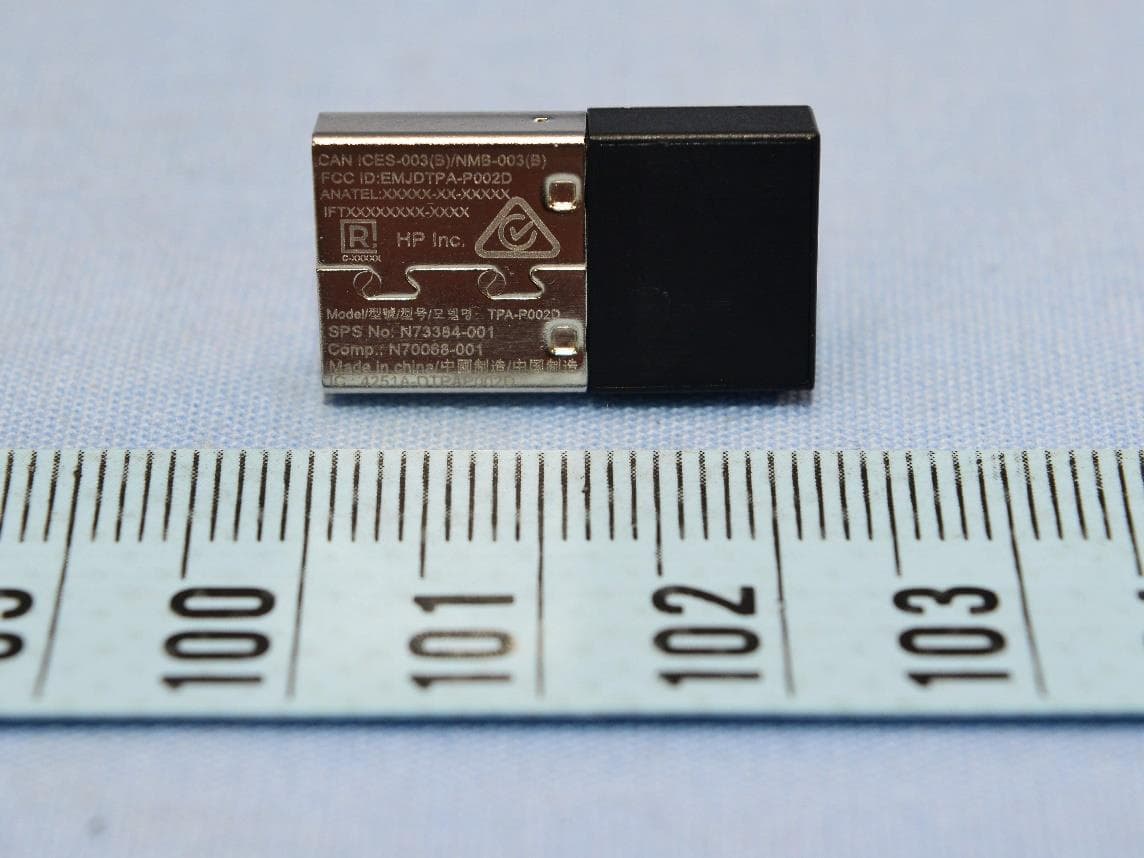
EMJDTPA-P002D
Jan 14, 2024Dongle
Equipment Class
DXX - Part 15 Low Power Communication Device Transmitter
EMJOH1
Oct 29, 2023Level Bridge
Equipment Class
DTS - Digital Transmission System