EMJKKBRF05U00Rocketfish 2.4G Wireless Keyboard
Primax Electronics Ltd
Click to zoom
Application Details
- Equipment Class
- DXX - Part 15 Low Power Communication Device Transmitter
- Date of Grant
- Apr 13, 2010
- Application Purpose
- Original Equipment
- Date of Application
- Apr 13, 2010
- Equipment Note
- Rocketfish 2.4G Wireless Keyboard
- Frequency Range
- 2403.00000000 - 2474.00000000
- Company
- Primax Electronics Ltd
- Country
- Taiwan
Documents & Files
Document Text
Text extracted from the exhibit documents filed with the FCC. Open a document above to read the original.
Users Manual
2.4 GHz Wireless Combo RF-CMBO User Guide RF-CMBO_10-0213_MAN_V1_English.fm Page 1 Monday, March 29, 2010 9:40 AM 2 2.4 GHz Wireless Combo Contents Important safety instructions ..................................... 3 Introduction ...................................................................... 4 Features............................................................................... 4 Package contents .................................................. 5 System requirements ........................................... 5 Keyboard top.......................................................... 5 Keyboard status LED............................................. 7 Keyboard bottom .................................................. 7 Mouse top ................................................................ 8 Mouse status LED .................................................. 8 Mouse bottom ........................................................ 9 Setting up the keyboard and mouse......................10 Installing keyboard batteries...........................10 Installing the mouse batteries ........................11 Setting up the keyboard and mouse............13 RF-CMBO_10-0213_MAN_V1_English.fm Page 2 Wednesday, March 31, 2010 3:35 PM 3RF-CMBO Using the combo driver .............................................. 13 Installing the combo driver ............................. 14 Configuring the mouse ..................................... 14 Uninstalling the combo driver........................ 19 Maintaining ..................................................................... 20 Troubleshooting............................................................ 20 Specifications.................................................................. 20 Legal notices ................................................................... 22 One-year limited warranty ......................................... 25 Important safety instructions 1Read these instructions. 2Keep these instructions. 3Heed all warnings. 4Follow all instructions. 5Do not use this apparatus near water. 6Clean only with dry cloth. 7Do not install near any heat sources such as radiators, heat registers, stoves, or other apparatus (including amplifiers) that produce heat. 8Only use attachments/accessories specified by the manufacturer. 9To reduce the risk of fire or electric shock, do not expose this device to rain, moisture, dripping, or splashing, and no objects filled with liquids, such as vases, shall be placed on it. 10Batteries should not be exposed to excessive heat such as sunshine, fire, or the like. Caution: Danger of explosion if battery is incorrectly replaced. Replace only with the same or equivalent type. RF-CMBO_10-0213_MAN_V1_English.fm Page 3 Wednesday, March 31, 2010 3:35 PM 4 Introduction Congratulations on your purchase of a Rocketfish 2.4 GHz Wireless Combo. This guide explains how to correctly operate and get the best performance from your wireless keyboard and mouse. Read this user guide carefully before using your product, then keep it next to your computer for quick reference. Features •Keyboard •104-key design • Eighteen hotkeys • One connect button • Power switch •Soft palm rest • Laser mouse • Tilt/ scroll wheel • Three mouse buttons • Two hotkey buttons • One pairing button • Power switch •Power saving mode •Working range up to 10 meters (line-of-sight) • Dual color status LED indicator If any item is missing or damaged, contact Rocketfish at 1-800-620-2790. RF-CMBO_10-0213_MAN_V1_English.fm Page 4 Wednesday, March 31, 2010 3:35 PM 5RF-CMBO Package contents Before you start using your keyboard and mouse the first time, verify that your package contains the following: •Keyboard •Laser Mouse • 2.4 GHz receiver • Installation CD • Batteries for the keyboard and mouse •Quick setup guide System requirements • Computer with a USB port • Microsoft Windows® XP Service Pack 3 or higher, Windows® Vista, Windows® 7 Keyboard top #IconDescription 1 Calculator button. Press to open the open the calculator. 2 Application Switch button. Press to switch between open programs. 3 Play/Pause button. Press to start or pause CD or DVD playback. 4 Stop button. Press to stop CD or DVD playback. EscF1F2F3F4F5F6F7F8F9F10F11F12 Prt Scr Screen Insert Backspace Enter Enter AltCtrl Caps Lock Ta b AltCtrl Page Up Page Down + = _ - - - )( * * &^%$#@!~ ` _ / + Delete Scroll End Home Home 798 End 1 1 0 23 4 5 6 7 8 9 QP { [ { [ \ / WE R T Y U I O A : ; " ' SDFGHJ KL ZXCVB NM < , . > ? Ins 0 Del . 4 PgUp 3 PgDn Num Lock 65 2 ShiftShift Pause Break Lock 13121110 14 16 18 20 22 15 17 19 21 1 3 5 7 9 2 4 6 8 RF-CMBO_10-0213_MAN_V1_English.fm Page 5 Wednesday, March 31, 2010 3:35 PM 6 5 Previous track button. Press to go to the previous track on a CD or previous chapter on a DVD. 6 Next track button. Press to go to the next track on a CD or next chapter on a DVD. 7 Increase volume button. Press to increase the volume. 8 Decrease volume button. Press to decrease the volume. 9 Mute volume button. Press to mute the sound. Press again to unmute the sound. 10 Help button. Press to open online help for the currently active application. 11 Spelling button. Press to run the spell checker for the currently active program (if available). 12 Slideshow button. Press to enter slideshow mode in Wondows Picture and Fax Viewer. 13 Status LED. For more information, see “Keyboard status LED” on page 7. 14 E-mail button. Press to open your e-mail program. 15 Sleep button. Press to put your computer in sleep mode. Press again to wake your computer. 16 Home button. Press to go to your home page in a Web browser. 17 Search button. Press to open the Search window. 18 My Favorite button. Press to open the list of your favorite Web sites. 19 Back Web page button. Press to go to the previous page in a Web browser. 20 Forward Web page button. Press to go to the next page in a Web browser. 21 Refresh Web page button. Press to refresh (reload) a page in a Web browser. 22 Stop W…
Text truncated - open the document above for the full version.
Users Manual
15RF-CMBO Configuring mouse buttons To configure the buttons: 1Click the Button list arrow to open the list of buttons, then click the button you want to configure. 2Click the Function list arrow to open the list of functions, then click the function you want to assign to the button. 3To restore default button functions, click Use Default. The default settings for the mouse buttons are: 4Click other tabs to make more adjustments, or click OK to save your selections and close the program. ButtonFunction Left buttonPrimary mouse button Right buttonContext menu Wheel buttonQuick/Auto scroll Button AForward Button BBack RF-CMBO_10-0213_MAN_V1_English.fm Page 15 Wednesday, March 31, 2010 3:35 PM 16 Adjusting the double-click speed To adjust the double-click speed: 1To adjust double-click speed, drag the slider. 2To test the click speed, double-click the Te st Are a icon. 3To restore to default settings, click Reset to Default Value. 4Click other tabs to make more adjustments, or click OK to save your selections and close the program. Adjusting the orientation Use this tab to adjust the angle at which you use the mouse. To adjust the orientation: 1Click Set Orientation to activate orientation setup, then use the on-screen pointer to follow the dog as it moves around. RF-CMBO_10-0213_MAN_V1_English.fm Page 16 Wednesday, March 31, 2010 3:35 PM 17RF-CMBO 2To restore the default orientation settings, click Reset Orientation. 3Click other tabs to make more adjustments, or click OK to save your selections and close the program. Adjusting the wheel settings To adjust the wheel settings: 1To select the wheel scrolling method, click: •Enable Universal Scrolling—Uses common scrolling functions. •Use Microsoft Office 97 Scrolling Emulation Only—Uses Microsoft Office 97 scrolling emulation. 2To specify scrolling exceptions, click Exceptions. 3To adjust vertical scrolling speed, click: •Scroll X line(s) per notch—Selects the number of lines to scroll when the scroll wheel is moved one notch. Click the up or down arrow keys to specify the number of lines. •Scroll one screen per notch—Scrolls an entire screen when the scroll wheel is moved one notch. 4To adjust the horizontal scrolling speed, drag the slider. 5To restore to default scrolling speed, click Use Default. 6To reverse scrolling direction, click Reverse Scrolling Direction. 7Click other tabs to make more adjustments, or click OK to save your selections and close the program. RF-CMBO_10-0213_MAN_V1_English.fm Page 17 Wednesday, March 31, 2010 3:35 PM 18 Adjusting pointer behavior To a d j u s t po i n te r b e h a vi or : 1Click the pointer options. You can select: •Pointer Wrap—The pointer goes to the opposite side of the screen when it reaches the screen edge. •X Focus—Activates a window when the pointer moves over the title bar. •Slow Motion—Slows down the pointer when the Shift key is pressed for a more precise positioning. 2Click other tabs to make more adjustments, or click OK to save your selections and close the program. Hiding the system tray’s mouse icon RF-CMBO_10-0213_MAN_V1_English.fm Page 18 Wednesday, March 31, 2010 3:35 PM 19RF-CMBO To hide the system tray’s mouse icon: • Uncheck Show mouse icon in systray, then click OK to save changes and close application. Uninstalling the combo driver To uninstall the combo driver: 1Click Start, All Programs, Rocketfish 2.4G Wireless Combo, then click Uninstall Rocketfish 2.4G Wireless Combo Driver. A message asks if you are sure you want to uninstall the driver. 2Click Yes to continue. The Remove Programs From Your Computer screen opens and displays the progress. 3When the uninstallation is complete, click OK to continue. The Uninstall Complete screen opens. 4Click Finish. Your computer restarts and the uninstallation is complete. RF-CMBO_10-0213_MAN_V1_English.fm Page 19 Wednesday, March 31, 2010 3:35 PM 20 Maintaining To clean your Bluetooth keyboard and mouse, wipe them with a soft, lint-free cloth slightly moistened with water. Troubleshooting If you have any problems with your 2.4 GHz keyboard or mouse, check the following: • Make sure that your computer meets the system requirements. • Make sure that the batteries in the keyboard and mouse are installed correctly. Make sure that the + and – symbols on the batteries align with the + and – symbols inside the keyboard and mouse battery compartments. • When the mouse LED is red, battery power is low. Replace the batteries immediately. • If your computer's BIOS setup has options for the keyboard or mouse, make sure that they are set to default settings. If you are not familiar with the BIOS, see your the documentation that came with your computer. • Only use the mouse on a clean, flat surface in order to ensure smooth and accurate cursor movement. If you use a mousepad, choose a light-colored one, not a dark one, to use less battery power. Also, do not use the mouse on a reflective surface such as metal, glass, or polished wood. • For further assistance with any other questions you may have, Rocketfish at 1-800-620-2790 for technical support. Specifications MouseKeyboard Dimensions H × L × W Mouse: 1.7 × 4.9 × 2.88 inches (43.28 x 124.57 x 73.2 mm) Dongle: 0.752 × 0.539 × 0.177 inches (19.1 x 13.7 x 4.5 mm) 1.14 × 19.8 × 8.35 inches (29 x 503 x 212 mm) Resolution 1200 DPI @ 10 inch/secn/a Tracking speed Maximum 30 inch/sec (76.2 cm/sec)n/a RF-CMBO_10-0213_MAN_V1_English.fm Page 20 Wednesday, March 31, 2010 3:35 PM 21RF-CMBO Weight Mouse (without battery): 3.17 oz. (90 g) Dongle: 0.07 oz. (2 g) 30.69 oz. (870 g) (without battery) Buttons 5 buttons with tilt scroll wheel104-key standard key with 18-multimedia hot keys Compatibility Windows XP Ser vice Pack 3 Windows Vista 32-bit or 64-bit Windows 7 32-bit or 64-bit Operating temperature 32ºF to 104ºF (0ºC to 40ºC) Storage temperature -40ºF to 140ºF (-40ºC to 60ºC) Operating humidity 90% RH or less Storage humidity 95% RH or less Battery AA x 2AA x 2 Regulations and certifications EMI, ESD, RS, EF…
Text truncated - open the document above for the full version.
Cover Letter(s)
No. 669, Ruey Kuang Road Neihu Taipei, Taiwan, R.O.C. Tel: 883-2-2798-9008 Fax: 886-2-8798-1565 Date: April 13, 2010 Federal Communications Commission Authorization and Evaluation Division Confidentiality Request FCC ID: EMJKKBRF05U00 Pursuant to Sections 0.457 and 0.459 of the Commission’s Rules, the Applicant hereby requests confidential treatment of information accompanying this Application as outlined below: Schematics Block Diagram The above materials contain trade secrets and proprietary information not customarily released to the public. The public disclosure of these matters might be harmful to the Applicant and provide unjustified benefits to its competitors. The Applicant understands that pursuant to Rule 0.457, disclosure of this Application and all accompanying documentation will not be made before the date of the Grant for this application. Sincerely yours, ------------------------------------------------------------------- C.T. Huang Compliance Dept. / Director Phone: 886-2-2798-9008 ext.1710 Fax: 886-2-8797-1565 Email: [email protected]
Cover Letter(s)
No. 669, Ruey Kuang Road Neihu Taipei, Taiwan, R.O.C. Tel: 883-2-2798-9008 Fax: 886-2-8798-1565 Power of Attorney Date: April 13, 2010 To whom it may concern: We, the undersigned PRIMAX ELECTRONICS LTD. hereby authorize Bureau Veritas Consumer Products Services (H.K.) Ltd., Taoyuan Branch (BV CPS Taoyuan Branch) of Taiwan to act on our behalf in all matters relating to all processes required in the FCC Part 15C approval and any communication needed with the national authority. Any and all acts carried out by BV CPS Taoyuan Branch on our behalf shall have the same effects as acts of our own. If you have any questions regarding the authorization, please don’t hesitate to contact us. Thank you! Sincerely yours, ----------------------------- C.T. Huang Compliance Dept. / Director Phone: 886-2-2798-9008 ext.1710 Fax: 886-2-8797-1565 Email: [email protected]
External Photos
Page: 1
Internal Photos
Page: 2 Page: 3 Page: 4 Page: 5
Operational Description
FCC ID: EMJKKBRF05U00 Report No.: RF990406D01 Operational Description The transmitter of the EUT (Rocketfish 2.4G Wireless Keyboard) is powered by 3Vdc from battery. The type of antenna is Printed Antenna. The output power of this device is very low. Under normal use condition, the transmitter and the receiver are quite close, so high EIRP power is neither necessary nor allowed because of interference.
Test Report
Report No.: RF990406D01 1 Report Format Version 3.0.1 FCC TEST REPORT REPORT NO.: RF990406D01 MODEL NO.: RF-CMBO (KBRF05U00) RECEIVED: April 6, 2010 TESTED: April 6 ~ 9, 2010 ISSUED: April 12, 2010 APPLICANT: PRIMAX ELECTRONICS LTD. ADDRESS: No. 669, Ruey Kuang Road, Neihu, Taipei, Taiwan, R.O.C. ISSUED BY: Bureau Veritas Consumer Products Services (H.K.) Ltd., Taoyuan Branch LAB LOCATION: No. 47, 14th Ling, Chia Pau Tsuen, Lin Kou Hsiang, Taipei Hsien, 244 Taiwan This test report consists of 23 pages in total. It may be duplicated completely for legal use with the approval of the applicant. It should not be reproduced except in full, without the written approval of our laboratory. The client should not use it to claim product endorsement by TAF or any government agencies. The test results in the report only apply to the tested sample. Report No.: RF990406D01 2 Report Format Version 3.0.1 Table of Contents 1. CERTIFICATION...........................................................................................3 2. SUMMARY OF TEST RESULTS...................................................................4 2.1 MEASUREMENT UNCERTAINTY................................................................4 3. GENERAL INFORMATION...........................................................................5 3.1 GENERAL DESCRIPTION OF EUT..............................................................5 3.2 DESCRIPTION OF TEST MODES................................................................6 3.2.1 CONFIGURATION OF SYSTEM UNDER TEST...........................................6 3.2.2 TEST MODE APPLICABILITY AND TESTED CHANNEL DETAIL:...............7 3.3 GENERAL DESCRIPTION OF APPLIED STANDARDS...............................8 3.4 DESCRIPTION OF SUPPORT UNITS..........................................................8 4. TEST TYPES AND RESULTS.......................................................................9 4.1 CONDUCTED EMISSION MEASUREMENT................................................9 4.2 RADIATED EMISSION MEASUREMENT.....................................................9 4.2.1 LIMITS OF RADIATED EMISSION MEASUREMENT...................................9 4.2.2 TEST INSTRUMENTS................................................................................10 4.2.3 TEST PROCEDURES.................................................................................11 4.2.4 DEVIATION FROM TEST STANDARD.......................................................11 4.2.5 TEST SETUP..............................................................................................12 4.2.6 EUT OPERATING CONDITIONS................................................................12 4.2.7 TEST RESULTS..........................................................................................13 4.3 BAND EDGES MEASUREMENT................................................................18 4.3.1 LIMITS OF BAND EDGES MEASUREMENT.............................................18 4.3.2 TEST INSTRUMENTS................................................................................18 4.3.3 TEST PROCEDURE...................................................................................18 4.3.4 DEVIATION FROM TEST STANDARD.......................................................18 4.3.5 EUT OPERATING CONDITION..................................................................18 4.3.6 TEST RESULTS..........................................................................................18 5. PHOTOGRAPHS OF THE TEST CONFIGURATION..................................21 6. INFORMATION ON THE TESTING LABORATORIES................................22 7. APPENDIX A – MODIFICATIONS RECORDERS FOR ENGINEERING CHANGES TO THE EUT BY THE LAB.......................................................23 Report No.: RF990406D01 3 Report Format Version 3.0.1 1. CERTIFICATION PRODUCT: Rocketfish 2.4G Wireless Keyboard BRAND NAME: Rocketfish MODEL NO.: RF-CMBO (KBRF05U00) APPLICANT: PRIMAX ELECTRONICS LTD. TESTED: April 6 ~ 9, 2010 TEST SAMPLE: ENGINEERING SAMPLE STANDARDS: FCC Part 15, Subpart C (Section 15.249) ANSI C63.4-2003 The above equipment has been tested by Bureau Veritas Consumer Products Services (H.K.) Ltd., Taoyuan Branch, and found compliance with the requirement of the above standards. The test record, data evaluation & Equipment Under Test (EUT) configurations represented herein are true and accurate accounts of the measurements of the sample’s EMC characteristics under the conditions specified in this report. PREPARED BY : , DATE: April 12, 2010 ( Jessica Cheng / Specialist ) TECHNICAL ACCEPTANCE : , DATE: April 12, 2010 Responsible for RF ( Jamison Chan / Supervisor ) APPROVED BY : , DATE: April 12, 2010 ( Ken Liu / Assistant Manager) Report No.: RF990406D01 4 Report Format Version 3.0.1 2. SUMMARY OF TEST RESULTS The EUT has been tested according to the following specifications: APPLIED STANDARD: FCC Part 15, Subpart C (Section 15.249) STANDARD SECTION TEST TYPE AND LIMIT RESULT REMARK 15.207 Conducted Emission Test N/A Power supply is 3Vdc from batteries 15.209 15.249 15.249 (d) Radiated Emission Test Band Edge Measurement Limit: 50dB less than the peak value of fundamental frequency or meet radiated emission limit in section 12.209 PASS Minimum passing margin is –9.0dB at 2390.00MHz 2.1 MEASUREMENT UNCERTAINTY Where relevant, the following measurement uncertainty levels have been estimated for tests performed on the EUT as specified in CISPR 16-4-2: This uncertainty represents an expanded uncertainty expressed at approximately the 95% confidence level using a coverage factor of k=2. Measurement Frequency Uncertainty 30MHz ~ 1GHz 3.67 dB Radiated emissions Above 1GHz 2.89 dB Report No.: RF990406D01 5 Report Format Version 3.0.1 3. GENERAL INFORMATION 3.1 GENERAL DESCRIPTION OF EUT EUT Rocketfish 2.4G Wireless Keyboard MODEL NO. RF-CMBO (KBRF05U00) FCC ID EMJKKBRF05U00 POWER SUPPLY 3Vdc from batteries MODULATION TYPE GFSK OPERATING FREQUENCY 2403MHz …
Text truncated - open the document above for the full version.
Test Setup Photos
1 PHOTOGRAPHS OF THE TEST CONFIGURATION RADIATED EMISSION TEST
Contact Information
Applicant
Nelson Chou(Manager)
Technical Contact
Bureau Veritas CPS (H.K.) Ltd. Taoyuan BranchKen Liu
[email protected]886-2-2605-2180
No. 47, 14 Ling, Chia Pau Tsuen, Lin Kou Hsiang, · Linkou, Taipei · Taiwan
Non-Technical Contact
Bureau Veritas CPS (H.K.) Ltd. Taoyuan BranchZoe Chang
[email protected]886-3-3183232
Test Firm
Bureau Veritas CPS (H.K.) Ltd. Taoyuan BranchRichard Chen
Technical Specifications
| # | Rule Parts | Frequency Range | Power Output |
|---|---|---|---|
| 1 | 15C | 2.40 GHz - 2.47 GHz | - |
Other Applications from Primax Electronics Ltd
EMJ-BHS2705
Aug 28, 2026Wireless Headset
Equipment Class
DTS - Digital Transmission SystemEMJMMOBTN5O
Aug 22, 2024wegear MW1 Creator Mouse
Equipment Class
DTS - Digital Transmission SystemEMJDDGRFN5
Aug 22, 2024wegear MW1 2.4G Dongle
Equipment Class
DXX - Part 15 Low Power Communication Device Transmitter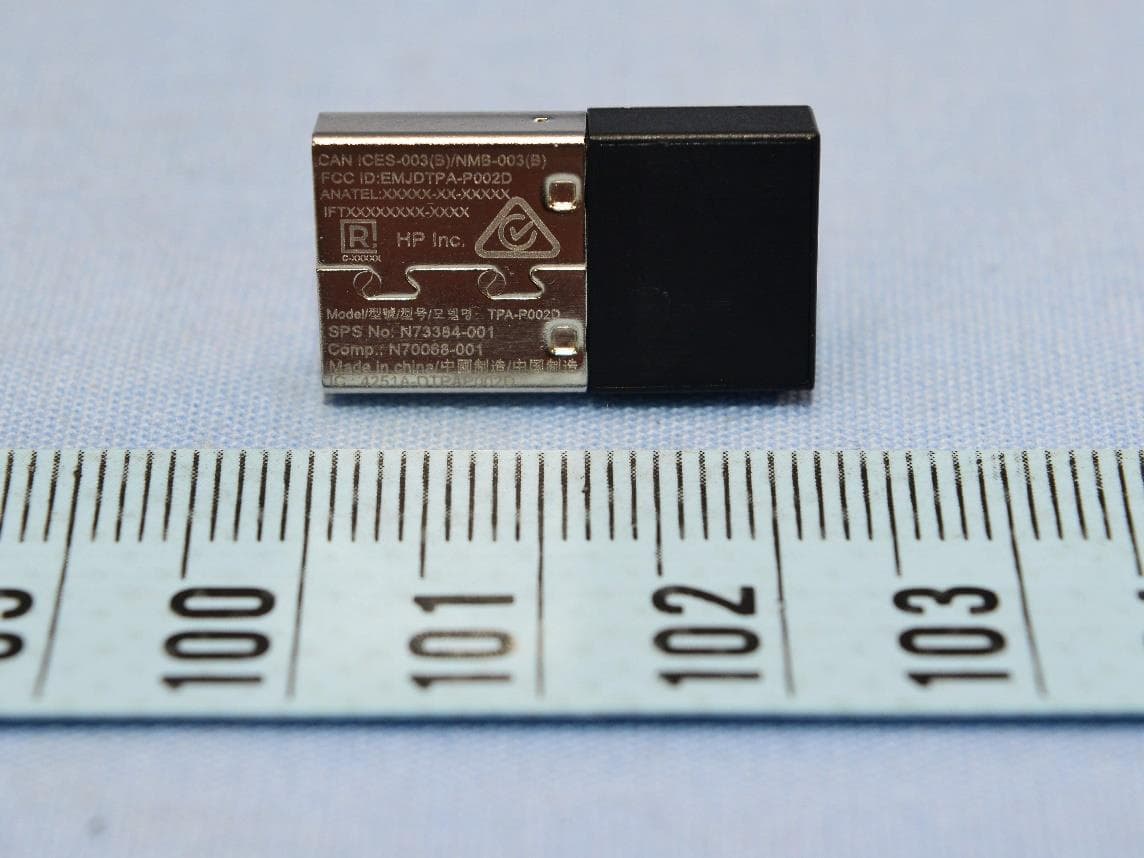
EMJDTPA-P002D
Jan 14, 2024Dongle
Equipment Class
DXX - Part 15 Low Power Communication Device Transmitter
EMJOH1
Oct 29, 2023Level Bridge
Equipment Class
DTS - Digital Transmission System