EMJKKBRF28711HP Ultra Thin Wireless Keyboard
Primax Electronics Ltd
Click to zoom
Application Details
- Equipment Class
- DXX - Part 15 Low Power Communication Device Transmitter
- Date of Grant
- May 20, 2010
- Application Purpose
- Original Equipment
- Date of Application
- May 20, 2010
- Equipment Note
- HP Ultra Thin Wireless Keyboard
- Frequency Range
- 2403.00000000 - 2474.00000000
- Company
- Primax Electronics Ltd
- Country
- Taiwan
Documents & Files
Document Text
Text extracted from the exhibit documents filed with the FCC. Open a document above to read the original.
Users Manual
Page 1 of 10 User’s Quick Guide This guide will take you through all the functions of the keyboard and explain how to configure them using the keyboard. Introduction Congratulations on your purchase of the HP Ultra Thin Wireless Keyboard. This keyboard is the latest in a wide range of computer peripherals manufactured by HP and is designed to provide you with the highest level of comfort available while also allowing for maximum functionality. The HP KBRF28711 Wireless keyboard is a simple yet innovative package that allows you to configure your keyboard and keyboard to best meet your needs. Safety Guidelines Physical discomfort and injury can be caused by the incorrect use of your keyboard. Follow these guidelines to ensure such problems are avoided: Sit up straight in your chair, with your elbows by your side. Adjust the height of your chair so your arm bends at a 90-degree angle respective to your desk. Position your keyboard in front you, to the side of your keyboard. Do not slouch or hunch over your workspace. It is important to keep your wrists, arms and shoulders relaxed. If necessary, use a wrist rest or a palm rest to alleviate extra stress placed on your joints when typing or using the keyboard, especially for long periods of time. If you experience any feelings numbness, cramp, swelling or stiffness in your wrist, arms, neck or shoulders, consult your local doctor or nearest health institution immediately. Navigating HP Wireless Keyboard The simple and straightforward interface makes it easy for you to customize each function of your keyboard. Different settings are indicated by the tabs on the top of the screen. Click on the links to enter each settings screen. Page 2 of 10 Wireless keyboard instructions (Only some models are equipped with wireless keyboard) Before using the wireless keyboard, carefully read the configuration instructions in the Quick Reference poster. If you fail to connect the wireless keyboard according to the steps shown in the Quick Reference poster, you may also connect using the instructions below. Method 1: 1. After installing the batteries, turn on the power switches of the wireless keyboard. 2. Press the wireless connect buttons on the back of the keyboard. When the keyboard wireless indicator lights blink white, turn the computer on immediately Note: If the wireless indicator lights stop blinking, press the connect buttons on the keyboard again. 3. After entering the system, press the Bluetooth connect button on the base stand for over 10 seconds to search for wireless devices. Note: The process of searching for wireless devices could take several minutes. 4. When the wireless keyboard device is found, the driver will be installed automatically. 5. When the wireless keyboard device is found, enter the PIN code and press the Enter key to finish the pairing process. 6. Once the wireless connection has been successfully established, the wireless keyboard will work properly. Method 2: Notes: • Before using the method below, enter the system and prepare a set of wired keyboard. • If you want to install a new set of wireless keyboard, follow the steps below. 1. Using the wired keyboard to enter the system. 2. Turn on the power switches of the wireless keyboard. Page 3 of 10 3. Press the wireless connect buttons on the back of the keyboard. When the keyboard wireless indicator lights blink white, turn the computer on immediately. Note: If the wireless indicator lights stop blinking, press the connect buttons on the keyboard again. 4. To open the Devices and Printers dialog box, go to Windows and click Start → Control Panel → Hardware and Sound. Press Add a device to pop-up a dialog box. 5. Select the HP Bluetooth Keyboard and click Next to establish the Bluetooth connection. 6. Select the HP Wireless keyboard and click Next. (Press Add a device icon if the dialog box is closed and press the connect button again.) 7. Enter the pairing code and press the Enter key to complete the Bluetooth connection. Changing Button Settings You can configure each of the five keyboard buttons through the button settings screen. The 'Select Button' list displays the list of buttons and their current function. The 'Select Task' list displays a list of actions you can take to configure the button highlighted in the 'Select Button' list. Move your keyboard over the 'Select Button' list and click each item to view more information. Restore Defaults Each setting screen has a Restore Defaults button. Click to restore all settings to their original defaults. The Middle Keyboard Button By default, the keyboard wheel is set to operate as Middle Button when pressed. Select the function you wish to assign to the middle button by checking the radio buttons in the Select Task list. Click to save all changes. Move your keyboard over and click any of the Select Task list options for more detailed information. Side Button 1 By default, the button is set to operate as Backward when pressed. Select the function you wish to assign to the button by checking the radio buttons in the Select Task list. Page 4 of 10 Click to save all changes. Move your keyboard over and click any of the Select Task list options for more detailed information. Side Button 2 By default, the button is set to operate as Forward when pressed. Select the function you wish to assign to the button by checking the radio buttons in the Select Task list. Click to save all changes. Move your keyboard over and click any of the Select Task list options for more detailed information. Middle Keyboard Button Select to assign the button to Middle Keyboard Button by checking the radio buttons in the Select Task list. Click to save all changes. Move your keyboard over and click any of the Select Task list options for more detailed information. 3D Flip Select to switch between running programs when you click the keyboard wheel. An application list appears Windows XP: Windows Vista: Click any keyboard button to switch to the selected ap…
Text truncated - open the document above for the full version.
Cover Letter(s)
No. 669, Ruey Kuang Road Neihu Taipei, Taiwan, R.O.C. Tel: 883-2-2798-9008 Fax: 886-2-8798-1565 Date: May 17, 2010 Federal Communications Commission Authorization and Evaluation Division Confidentiality Request FCC ID: EMJKKBRF28711 Pursuant to Sections 0.457 and 0.459 of the Commission’s Rules, the Applicant hereby requests confidential treatment of information accompanying this Application as outlined below: Schematics Block Diagram The above materials contain trade secrets and proprietary information not customarily released to the public. The public disclosure of these matters might be harmful to the Applicant and provide unjustified benefits to its competitors. The Applicant understands that pursuant to Rule 0.457, disclosure of this Application and all accompanying documentation will not be made before the date of the Grant for this application. Sincerely yours, ------------------------------------------------------------------- C.T. Huang Compliance Dept. / Director Phone: 886-2-2798-9008 ext.1710 Fax: 886-2-8797-1565 Email: [email protected]
Cover Letter(s)
No. 669, Ruey Kuang Road Neihu Taipei, Taiwan, R.O.C. Tel: 883-2-2798-9008 Fax: 886-2-8798-1565 Power of Attorney Date: May 17, 2010 To whom it may concern: We, the undersigned PRIMAX ELECTRONICS LTD. hereby authorize Bureau Veritas Consumer Products Services (H.K.) Ltd., Taoyuan Branch (BV CPS Taoyuan Branch) of Taiwan to act on our behalf in all matters relating to all processes required in the FCC Part 15C approval and any communication needed with the national authority. Any and all acts carried out by BV CPS Taoyuan Branch on our behalf shall have the same effects as acts of our own. If you have any questions regarding the authorization, please don’t hesitate to contact us. Thank you! Sincerely yours, ----------------------------- C.T. Huang Compliance Dept. / Director Phone: 886-2-2798-9008 ext.1710 Fax: 886-2-8797-1565 Email: [email protected]
External Photos
Page 1 CONSTRUCTION PHOTOS OF EUT
ID Label/Location Info
1234567 1234567 A B C D E A B C D 80P合成紙+霧膜 背膠 REV. DESCRIPTION ENG. APPROVAL FCC LABEL 29-72801H111 304007327000 304007327000 Ruby.Ai Violet.Hu 2010/05/13 1. 2. TOL:-0.3/0mm. 3.THE DIMENSIONS MARKED WITH''*'' ARE IMPORTANT. 4.GLUE : T=0.022~0.025mm. 2 5.STICKINESS: 3.0kg/cm. 6. NOTE: Requirement of PRIMAX Green Part: 1. Comply with PRIMAX QW-5Q002 '' Green Product Chemical Substances Specification'' 2. Follow customer's specification as required. 7. Pirnt: PANTONE PROCESS BLACK C / PANTONE 429C 1 1 Ruby.Ai *79mm * 5 9 m m E134780 2G55 I.T.E. ACCESSORY XX 廠商UL代碼 HP Product Number : BK114AA Model No : KBRF28711 Rating : DC 4.5 V 100mA FCC ID : EMJKKBRF28711 IC : 4251A-KKBRF28711 Product of China XX REV A S/N:CN P Y WW XXXX Week(01,02,...) Year (2009=9,2010=0,2011=1,...) Unique manufacturing site(PRIMAX) product manufactured (0001~ZZZZ,ExceptA,E,I,O,U ) 0001,0002,...0009,000B,000C,000D,000F,...000Z 0010,0011,.....0019,001B,001C,001D,001F...001Z 0020...009Z,00B0,00B1...00BB..00ZY,00ZZ,... 1000,1001,...1009,100B...100Z,1010,1011...9999, 999B,999C,....999Y,999Z,99B0,99B1...99ZZ...9ZZZ, B000......ZZZZ (S/N reset of beginning of week) S/N : CNPYWWXXXX
Internal Photos
Page 2 Page 3 Page 4 Page 5 Page 6 Page 7 Page 8
Operational Description
FCC ID: EMJKKBRF28711 Report No.: RF990511D01 Operational Description The transmitter of the EUT (HP Ultra Thin Wireless Keyboard) is powered by 4.5Vdc from batteries. The type of antenna is Printed Antenna. The output power of this device is very low. Under normal use condition, the transmitter and the receiver are quite close, so high EIRP power is neither necessary nor allowed because of interference.
Test Report
Report No.: RF990511D01 1 Report Format Version 3.0.1 FCC TEST REPORT REPORT NO.: RF990511D01 MODEL NO.: KBRF28711 RECEIVED: May 11, 2010 TESTED: May 11, 2010 ISSUED: May 17, 2010 APPLICANT: PRIMAX ELECTRONICS LTD. ADDRESS: No. 669, Ruey Kuang Road, Neihu, Taipei, Taiwan, R.O.C. ISSUED BY: Bureau Veritas Consumer Products Services (H.K.) Ltd., Taoyuan Branch LAB LOCATION: No. 47, 14th Ling, Chia Pau Tsuen, Lin Kou Hsiang, Taipei Hsien, 244 Taiwan This test report consists of 23 pages in total. It may be duplicated completely for legal use with the approval of the applicant. It should not be reproduced except in full, without the written approval of our laboratory. The client should not use it to claim product endorsement by TAF or any government agencies. The test results in the report only apply to the tested sample. Report No.: RF990511D01 2 Report Format Version 3.0.1 Table of Contents 1. CERTIFICATION...........................................................................................3 2. SUMMARY OF TEST RESULTS...................................................................4 2.1 MEASUREMENT UNCERTAINTY...............................................................4 3. GENERAL INFORMATION...........................................................................5 3.1 GENERAL DESCRIPTION OF EUT............................................................5 3.2 DESCRIPTION OF TEST MODES..............................................................6 3.2.1 CONFIGURATION OF SYSTEM UNDER TEST.........................................6 3.2.2 TEST MODE APPLICABILITY AND TESTED CHANNEL DETAIL:.............7 3.3 GENERAL DESCRIPTION OF APPLIED STANDARDS.............................8 3.4 DESCRIPTION OF SUPPORT UNITS........................................................8 4. TEST TYPES AND RESULTS.......................................................................9 4.1 CONDUCTED EMISSION MEASUREMENT..............................................9 4.2 RADIATED EMISSION MEASUREMENT...................................................9 4.2.1 LIMITS OF RADIATED EMISSION MEASUREMENT.................................9 4.2.2 TEST INSTRUMENTS..............................................................................10 4.2.3 TEST PROCEDURES...............................................................................11 4.2.4 DEVIATION FROM TEST STANDARD.....................................................11 4.2.5 TEST SETUP............................................................................................12 4.2.6 EUT OPERATING CONDITIONS..............................................................12 4.2.7 TEST RESULTS........................................................................................13 4.3 BAND EDGES MEASUREMENT..............................................................18 4.3.1 LIMITS OF BAND EDGES MEASUREMENT............................................18 4.3.2 TEST INSTRUMENTS..............................................................................18 4.3.3 TEST PROCEDURE.................................................................................18 4.3.4 DEVIATION FROM TEST STANDARD.....................................................18 4.3.5 EUT OPERATING CONDITION................................................................18 4.3.6 TEST RESULTS........................................................................................18 5. PHOTOGRAPHS OF THE TEST CONFIGURATION..................................21 6. INFORMATION ON THE TESTING LABORATORIES................................22 7. APPENDIX A – MODIFICATIONS RECORDERS FOR ENGINEERING CHANGES TO THE EUT BY THE LAB.......................................................23 Report No.: RF990511D01 3 Report Format Version 3.0.1 1. CERTIFICATION PRODUCT: HP Ultra Thin Wireless Keyboard BRAND NAME: hp MODEL NO.: KBRF28711 APPLICANT: PRIMAX ELECTRONICS LTD. TESTED: May 11, 2010 TEST SAMPLE: ENGINEERING SAMPLE STANDARDS: FCC Part 15, Subpart C (Section 15.249) ANSI C63.4-2003 The above equipment has been tested by Bureau Veritas Consumer Products Services (H.K.) Ltd., Taoyuan Branch, and found compliance with the requirement of the above standards. The test record, data evaluation & Equipment Under Test (EUT) configurations represented herein are true and accurate accounts of the measurements of the sample’s EMC characteristics under the conditions specified in this report. PREPARED BY : , DATE: May 17, 2010 ( Celia Chen / Senior Specialist ) TECHNICAL ACCEPTANCE : , DATE: May 17, 2010 Responsible for RF ( Jamison Chan / Supervisor ) APPROVED BY : , DATE: May 17, 2010 ( Ken Liu / Assistant Manager ) Report No.: RF990511D01 4 Report Format Version 3.0.1 2. SUMMARY OF TEST RESULTS The EUT has been tested according to the following specifications: APPLIED STANDARD: FCC Part 15, Subpart C (Section 15.249) STANDARD SECTION TEST TYPE AND LIMIT RESULT REMARK 15.207 Conducted Emission Test N/A Power supply is 4.5Vdc from batteries 15.209 15.249 15.249 (d) Radiated Emission Test Band Edge Measurement Limit: 50dB less than the peak value of fundamental frequency or meet radiated emission limit in section 12.209 PASS Minimum passing margin is –7.9dB at 2390.00MHz 2.1 MEASUREMENT UNCERTAINTY Where relevant, the following measurement uncertainty levels have been estimated for tests performed on the EUT as specified in CISPR 16-4-2: This uncertainty represents an expanded uncertainty expressed at approximately the 95% confidence level using a coverage factor of k=2. Measurement Frequency Uncertainty 30MHz ~ 1GHz 3.67 dB Radiated emissions Above 1GHz 2.89 dB Report No.: RF990511D01 5 Report Format Version 3.0.1 3. GENERAL INFORMATION 3.1 GENERAL DESCRIPTION OF EUT EUT HP Ultra Thin Wireless Keyboard MODEL NO. KBRF28711 FCC ID EMJKKBRF28711 POWER SUPPLY 4.5Vdc from batteries MODULATION TYPE GFSK OPERATING FREQUENCY 2403MHz ~ 2474MHz NUMBER OF CHANNEL 72 ANTENNA TYPE Printed antenna with 0.52dBi gain ANTENNA CONNECTOR …
Text truncated - open the document above for the full version.
Test Setup Photos
1 PHOTOGRAPHS OF THE TEST CONFIGURATION RADIATED EMISSION TEST
Contact Information
Applicant
Nelson Chou(Manager)
Technical Contact
Bureau Veritas CPS (H.K.) Ltd. Taoyuan BranchKen Liu
[email protected]886-2-2605-2180
No. 47, 14 Ling, Chia Pau Tsuen, Lin Kou Hsiang, · Linkou, Taipei · Taiwan
Non-Technical Contact
Bureau Veritas CPS (H.K.) Ltd. Taoyuan BranchZoe Chang
[email protected]886-3-3183232
Test Firm
Bureau Veritas CPS (H.K.) Ltd. Taoyuan BranchRichard Chen
Technical Specifications
| # | Rule Parts | Frequency Range | Power Output |
|---|---|---|---|
| 1 | 15C | 2.40 GHz - 2.47 GHz | - |
Other Applications from Primax Electronics Ltd
EMJ-BHS2705
Aug 28, 2026Wireless Headset
Equipment Class
DTS - Digital Transmission SystemEMJMMOBTN5O
Aug 22, 2024wegear MW1 Creator Mouse
Equipment Class
DTS - Digital Transmission SystemEMJDDGRFN5
Aug 22, 2024wegear MW1 2.4G Dongle
Equipment Class
DXX - Part 15 Low Power Communication Device Transmitter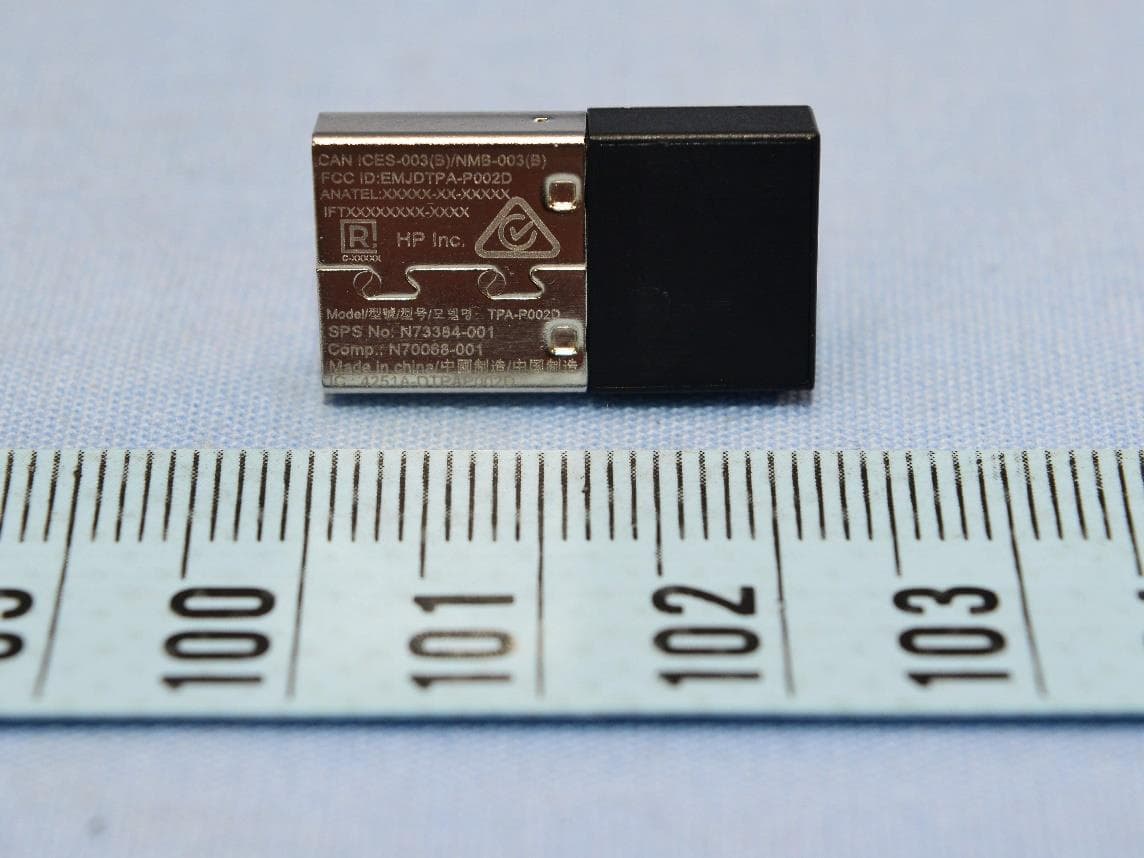
EMJDTPA-P002D
Jan 14, 2024Dongle
Equipment Class
DXX - Part 15 Low Power Communication Device Transmitter
EMJOH1
Oct 29, 2023Level Bridge
Equipment Class
DTS - Digital Transmission System