EMJMMOBTEJOBluetooth Mouse
Primax Electronics Ltd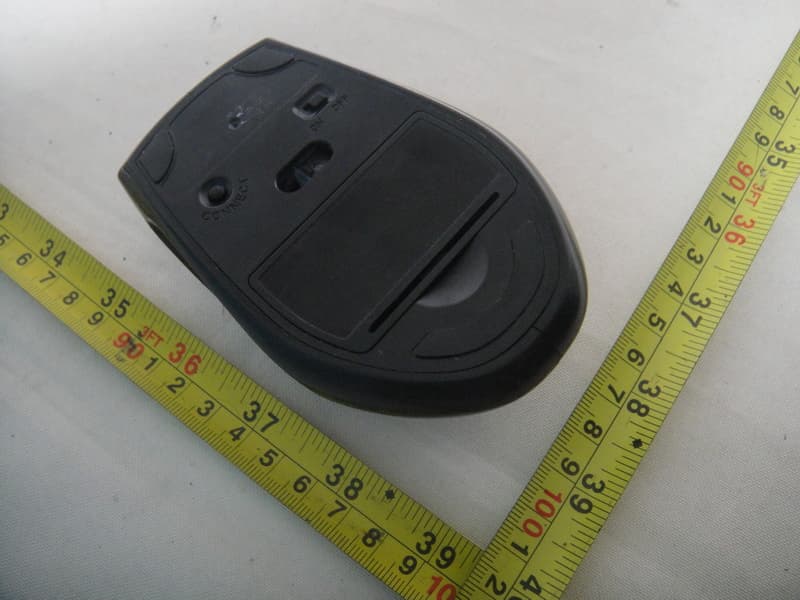
Click to zoom
Application Details
- Equipment Class
- DSS - Part 15 Spread Spectrum Transmitter
- Date of Grant
- Apr 20, 2010
- Application Purpose
- Original Equipment
- Date of Application
- Apr 20, 2010
- Equipment Note
- Bluetooth Mouse
- Frequency Range
- 2402.00000000 - 2480.00000000
- Company
- Primax Electronics Ltd
- Country
- Taiwan
Documents & Files
Document Text
Text extracted from the exhibit documents filed with the FCC. Open a document above to read the original.
Users Manual
Wireless Bluetooth Mouse User’s Guide PRIMAX ELECTRONICS LTD. Model:MOBTEJO Thanks for purchasing Bluetooth Optical Mouse. This creative and easy-to-use Bluetooth Mouse will bring you a whole new wireless life experience. Appearance Drawing System Requirement z Mouse compatible with standard Microsoft Mode. z IBM compatible PCs running Windows Operating System which supports USB devices. z If your computer doesn’t have built in Bluetooth function, please make sure that you have the Bluetooth Dongle. Bluetooth Dongle is not included in this product. Main Features z Switchable CPI among 800/1000/1200/1600(some bluetooth mouse have no this function). z Features comfortable, ergonomic design z Built-in software solutions with Bluetooth human interface device and comply with the standard version of the Bluetooth SIG Bluetooth 2.0 z Work with Windows 98, ME, 2000, XP and Vista OS z AA alkaline battery x2 z Frequency band: 2.402 - 2.480GHz unlicensed ISM band z Receiving sensitivity: -75bm (standard) z Operation distance: 10m z Operating temperature: 0~55°C z Operation Humidity: 10%-85% RH at 25°C z Storage Temperature: -20~+60°C z Storage Humidity: 5%-95% RH at 25°C Precaution ! The optical mouse cannot work on a glass or mirror surface. Avoid operating this mouse on a glossy surface. Otherwise, this mouse may not operate normally. ! For consideration of saving battery power, it is strongly recommended to operate an optical mouse on a bright surface with fine texture to obtain lower power consumption of the Agilest high illumination LED. A very dark surface will cause higher power consumption. ! For a better transmission distance, avoid to use this device on a metal plate or desktop because a large surface of iron, aluminum. Operating on a metal may cause the transmission distance shorter. Installation Guide Step1. Inserting Batteries 1. Remove the battery cover. 2. Inset 2Pcs AA alkaline batteries. (Please be cautious of the polarity of the batteries). 3. Close the battery cover, Let the Power Switch On, then Press the Connect Button and the mouse will be in the match state.. Step2. Connecting the Mouse to the Dongle. Before you install the Bluetooth Mouse, please make sure that your computer supports Bluetooth function, and finished the Bluetooth software installation. Software available like Wincomm(Recommended), IVT or the Microsoft built-in software Press and hold the connect button at the bottom .Please note that the connect button is only useful during the match procedure. Match Procedure A: Match on Widcomm (recommended) 1. Double click the Icon again , “My Bluetooth Place” pops up; 2. click “Bluetooth Setup---Bluetooth Setup Guide”. 3. In the Setup Guild window, click next button, wait until the system found the mouse, select “Mouse”, click “Next”. Hint for connection, 4. click “Click here”, now you can use your mouse at ease. Connect Button Battery Cover Power Switch Note: If being unused after 5 minutes, the mouse will transfer to the battery save mode. Just double click the left button will reactivate the mouse. Once connected, after you drag off the dongle or turn off the computer, double click the left button will reactivate the mouse, no need for reconnecting. Also, if you press the Connect Button inadvertently or some abnormal disconnection occurs during using, please reconnect the mouse. If this is not available, please open the Bluetooth Dongle Software window, delete or disconnect the mouse (as the picture shows), then reconnect. B. Match on Microsoft built-in software 1. Make sure that the Bluetooth Function has been activated. Double click the Bluetooth Icon on the Task Bar or in the Control Panel, open the “Bluetooth Management” window, click “Add”, tick off “facility is ready for searching”, click “Next”. 2. Wait till the Mouse is found, select mouse, click “Next”. 3. Select” No Password”, click “Next”, the system will install the new facility automatically. C. Match on IVT Software 1. Make sure that the Bluetooth function is active. Double click the Bluetooth Icon, open the Management window, select “Search for Bluetooth facilities” or click the Round Ball in the middle of the window. 2. Click the Bluetooth Mouse founded, click the right button for “Refresh Service”. 3. Select the Bluetooth Mouse again, click the right button for “Connect-Bluetooth Input Service”, the system will auto install the HID facility. After that you can use your Bluetooth Mouse at ease. FAQ: If unable to connect the Bluetooth Mouse to the computer, or the Mouse work unconventionally, please try the steps below: 1. Before you install your Bluetooth Mouse, please make sure you have done the Bluetooth Dongle installation procedure, and the Bluetooth facility is turned on. 2. Press and release the “connect” button on the bottom of Bluetooth Mouse. The white LED light on the scroll wheel of mouse will be flashing fastly. 3. Make sure that the Computer is connected to the Bluetooth Mouse. If they are matched to each other before, then under the Standby State, just double click the left button of the mouse. If the Match Button is turned on, please rematch the mouse to computer. If unable to rematch, kindly delete the Mouse Icon to erase the stored info of the mouse in the computer. 4. Make sure that the mouse is within the effective range---10M. 5. Make sure that there’s no change of the Bluetooth facility. If anything changed, please kindly rematch. 6. If your Bluetooth facility is connected to other Bluetooth products, please kindly confirm that the speed of the Bluetooth facility is enough. 7. Please kindly check the batteries. If they are short of power, replace them for new ones. 8. If battery low power, the red LED light will flash at rate of 4 times/secord Note: If being unused after 10 minutes, the mouse will transfer to the battery save mode. Just double click the left button will reactivate the mouse. Once connected, after you drag off the dongle or turn off the computer, double click the le…
Text truncated - open the document above for the full version.
External Photos
Neutron Engineering Inc. Project No.: 1004C084 Page 2 of 7 1004C084 1004C084 Neutron Engineering Inc. Project No.: 1004C084 Page 2 of 7 1004C084 1004C084
Internal Photos
Neutron Engineering Inc. Project No.: 1004C084 Page 3 of 7 1004C084 1004C084 Neutron Engineering Inc. Project No.: 1004C084 Page 3 of 7 1004C084 1004C084 Neutron Engineering Inc. Project No.: 1004C084 Page 4 of 7 1004C084 1004C084 Neutron Engineering Inc. Project No.: 1004C084 Page 4 of 7 1004C084 1004C084 Neutron Engineering Inc. Project No.: 1004C084 Page 5 of 7 1004C084 1004C084 Neutron Engineering Inc. Project No.: 1004C084 Page 5 of 7 1004C084 1004C084 Neutron Engineering Inc. Project No.: 1004C084 Page 6 of 7 1004C084 1004C084 Neutron Engineering Inc. Project No.: 1004C084 Page 6 of 7 1004C084 1004C084 Neutron Engineering Inc. Project No.: 1004C084 Page 7 of 7 1004C084 1004C084 Neutron Engineering Inc. Project No.: 1004C084 Page 7 of 7 1004C084 1004C084
Test Report
Neutron Engineering Inc. Report No.: NEI-FCCP-1-1004C084 Page 2 of 65 Declaration Neutron represents to the client that testing is done in accordance with standard procedures as applicable and that test instruments used has been calibrated with the standards traceable to National Measurement Laboratory (NML) of R.O.C., or National Institute of Standards and Technology (NIST) of U.S.A. Neutron's reports apply only to the specific samples tested under conditions. It is manufacture’s responsibility to ensure that additional production units of this model are manufactured with the identical electrical and mechanical components. Neutron shall have no liability for any declarations, inferences o r generalizations drawn by the client or others from Neutron issued reports. Neutron’s reports must not be used by the client to claim product endorsement by the authorities or any agency of the Government. This report is the confidential property of the client. As a mutual protection to the clients, the public and Neutron-self, extracts from the test report shall not be reproduced except in full with Neutron’s authorized written approval. Neutron’s laboratory quality assurance procedures are in compliance with the ISO Guide 17025 requirements, and accredited by the conformity assessment authorities listed in this test report. Limitation For the use of the authority's logo is limited unless the Test Standard(s)/Scope(s)/Item(s) mentioned in this test report is (are) included in the conformity assessment authorities acceptance respective. Neutron Engineering Inc. Report No.: NEI-FCCP-1-1004C084 Page 3 of 65 Table of Contents Page 1 . CERTIFICATION 6 2 . SUMMARY OF TEST RESULTS 7 2.1 TEST FACILITY 8 2.2 MEASUREMENT UNCERTAINTY 8 3 . GENERAL INFORMATION 9 3.1 GENERAL DESCRIPTION OF EUT 9 3.2 DESCRIPTION OF TEST MODES 11 3.3 TABLE OF PARAMETERS OF TEXT SOFTWARE SETTING 11 3.4 BLOCK DIGRAM SHOWING THE CONFIGURATION OF SYSTEM TESTED 12 3.5 DESCRIPTION OF SUPPORT UNITS(CONDUCTED MODE) 13 4 . EMC EMISSION TEST 14 4.1 CONDUCTED EMISSION MEASUREMENT 14 4.1.1 POWER LINE CONDUCTED EMISSION LIMITS 14 4.1.2 MEASUREMENT INSTRUMENTS LIST AND SETTING 14 4.1.3 TEST PROCEDURE 15 4.1.4 DEVIATION FROM TEST STANDARD 15 4.1.5 TEST SETUP 15 4.1.6 EUT OPERATING CONDITIONS 16 4.1.7 TEST RESULTS 17 4.2 RADIATED EMISSION MEASUREMENT 18 4.2.1 RADIATED EMISSION LIMITS 18 4.2.2 MEASUREMENT INSTRUMENTS LIST ANS SETTING 19 4.2.3 TEST PROCEDURE 20 4.2.4 DEVIATION FROM TEST STANDARD 20 4.2.5 TEST SETUP 21 4.2.6 EUT OPERATING CONDITIONS 21 4.2.7 TEST RESULTS (BETWEEN30 – 1000 MHZ) 22 4.2.8 TEST RESULTS (ABOVE 1000 MHZ) 24 4.2.9 TEST RESULTS (RESTRICTED BANDS REQUIREMENTS) 36 5 . NUMBER OF HOPPING CHANNEL 40 5.1 APPLIED PROCEDURES / LIMIT 40 5.1.1 MEASUREMENT INSTRUMENTS LIST AND SETTING 40 5.1.2 TEST PROCEDURE 40 5.1.3 DEVIATION FROM STANDARD 40 5.1.4 TEST SETUP 40 5.1.5 EUT OPERATION CONDITIONS 40 Neutron Engineering Inc. Report No.: NEI-FCCP-1-1004C084 Page 4 of 65 Table of Contents Page 5.1.6 TEST RESULTS 41 6 . AVERAGE TIME OF OCCUPANCY 42 6.1 APPLIED PROCEDURES / LIMIT 42 6.1.1 MEASUREMENT INSTRUMENTS LIST 42 6.1.2 TEST PROCEDURE 42 6.1.3 DEVIATION FROM STANDARD 42 6.1.4 TEST SETUP 43 6.1.5 EUT OPERATION CONDITIONS 43 6.1.6 TEST RESULTS 44 7 . HOPPING CHANNEL SEPARATION MEASUREMENT 50 7.1 APPLIED PROCEDURES / LIMIT 50 7.1.1 MEASUREMENT INSTRUMENTS LIST AND SETTING 50 7.1.2 TEST PROCEDURE 50 7.1.3 DEVIATION FROM STANDARD 50 7.1.4 TEST SETUP 50 7.1.5 EUT OPERATION CONDITIONS 50 7.1.6 TEST RESULTS 51 8 . BANDWIDTH TEST 53 8.1 APPLIED PROCEDURES / LIMIT 53 8.1.1 MEASUREMENT INSTRUMENTS LIST AND SETTING 53 8.1.2 TEST PROCEDURE 53 8.1.3 DEVIATION FROM STANDARD 53 8.1.4 TEST SETUP 53 8.1.5 EUT OPERATION CONDITIONS 53 8.1.6 TEST RESULTS 54 9 . PEAK OUTPUT POWER TEST 56 9.1 APPLIED PROCEDURES / LIMIT 56 9.1.1 MEASUREMENT INSTRUMENTS LIST AND SETTING 56 9.1.2 TEST PROCEDURE 56 9.1.3 DEVIATION FROM STANDARD 56 9.1.4 TEST SETUP 56 9.1.5 EUT OPERATION CONDITIONS 56 9.1.6 TEST RESULTS 57 10 . ANTENNA CONDUCTED SPURIOUS EMISSION 59 10.1 APPLIED PROCEDURES / LIMIT 59 10.1.1 MEASUREMENT INSTRUMENTS LIST AND SETTING 59 10.1.2 TEST PROCEDURE 59 10.1.3 DEVIATION FROM STANDARD 59 10.1.4 TEST SETUP 60 Neutron Engineering Inc. Report No.: NEI-FCCP-1-1004C084 Page 5 of 65 Table of Contents Page 10.1.5 EUT OPERATION CONDITIONS 60 10.1.6 TEST RESULTS 61 11 . RF EXPOSURE TEST 63 11.1 APPLIED PROCEDURES / LIMIT 63 11.1.1 MEASUREMENT INSTRUMENTS LIST 63 11.1.2 MPE CALCULATION METHOD 64 12 . EUT TEST PHOTO 65 Neutron Engineering Inc. Report No.: NEI-FCCP-1-1004C084 Page 6 of 65 1. CERTIFICATION E q u i p m e n t : Bluetooth Mouse Brand Name : PRIMAX;lenovo Model Name : MOBTEJO A p p l i c a n t : PRIMAX Electronics Ltd. F a c t o r y : Dongguan Primax Electronic & Telecommunication Products Ltd. A d d r e s s : Liu Wu District, Shek Kit Town, Dongguan City, Guang Dong Province, P.R. China T e s t I t e m : ENGINEERING SAMPLE Date of Test: Apr. 09, 2010 ~ Apr. 16, 2010 Standards : FCC Part15, Subpart C(15.247) / ANSI C63.4 : 2003 The above equipment has been tested and found compliance with the requirement of the relative standards by Neutron Engineering Inc. EMC Laboratory. The test data, data evaluation, and equipment configuration contained in our test report (Ref No. NEI-FCCP-1-1004C084) were obtained utilizing the test procedures, test instruments, test sites that has been accredited by the Authority of NVLAP and TAF according to the ISO-17025 quality assessment standard and technical standard(s). Neutron Engineering Inc. Report No.: NEI-FCCP-1-1004C084 Page 7 of 65 2. SUMMARY OF TEST RESULTS Test procedures according to the technical standards: FCC Part15 (15.247) , Subpart C Standard Section Test Item Judgment Remark 15.207 Conducted Emission PASS 15.247 (c) Antenna conducted Spurious EmissionPASS 15.247 (a)(1) Hopping Channel Separation PASS 15.247 (b)(1) Peak Output Power PASS 15.247 (c) Radiated Spurious Emission PASS 15.247 (a)(1)(iii) Number of Hoppin…
Text truncated - open the document above for the full version.
Test Setup Photos
Neutron Engineering Inc. Report No.: NEI-FCCP-1-1004C084 Page 67 of 67 12. EUT TEST PHOTO Radiated Measurement Photos Neutron Engineering Inc. Report No.: NEI-FCCP-1-1004C084 Page 67 of 67 12. EUT TEST PHOTO Radiated Measurement Photos
Contact Information
Applicant
Nelson Chou(Manager)
Technical Contact
Neutron Engineering, Inc.Cathy Wang
[email protected]+86-769-83183000
No.132-1, Lane 329, Sec. 2. Palain Road · Taipei · Taiwan
Test Firm
BTL Inc.Andy Yeh
Technical Specifications
| # | Rule Parts | Frequency Range | Power Output |
|---|---|---|---|
| 1 | 15C | 2.40 GHz - 2.48 GHz | 800.00 µW |
Other Applications from Primax Electronics Ltd
EMJ-BHS2705
Aug 28, 2026Wireless Headset
Equipment Class
DTS - Digital Transmission SystemEMJMMOBTN5O
Aug 22, 2024wegear MW1 Creator Mouse
Equipment Class
DTS - Digital Transmission SystemEMJDDGRFN5
Aug 22, 2024wegear MW1 2.4G Dongle
Equipment Class
DXX - Part 15 Low Power Communication Device Transmitter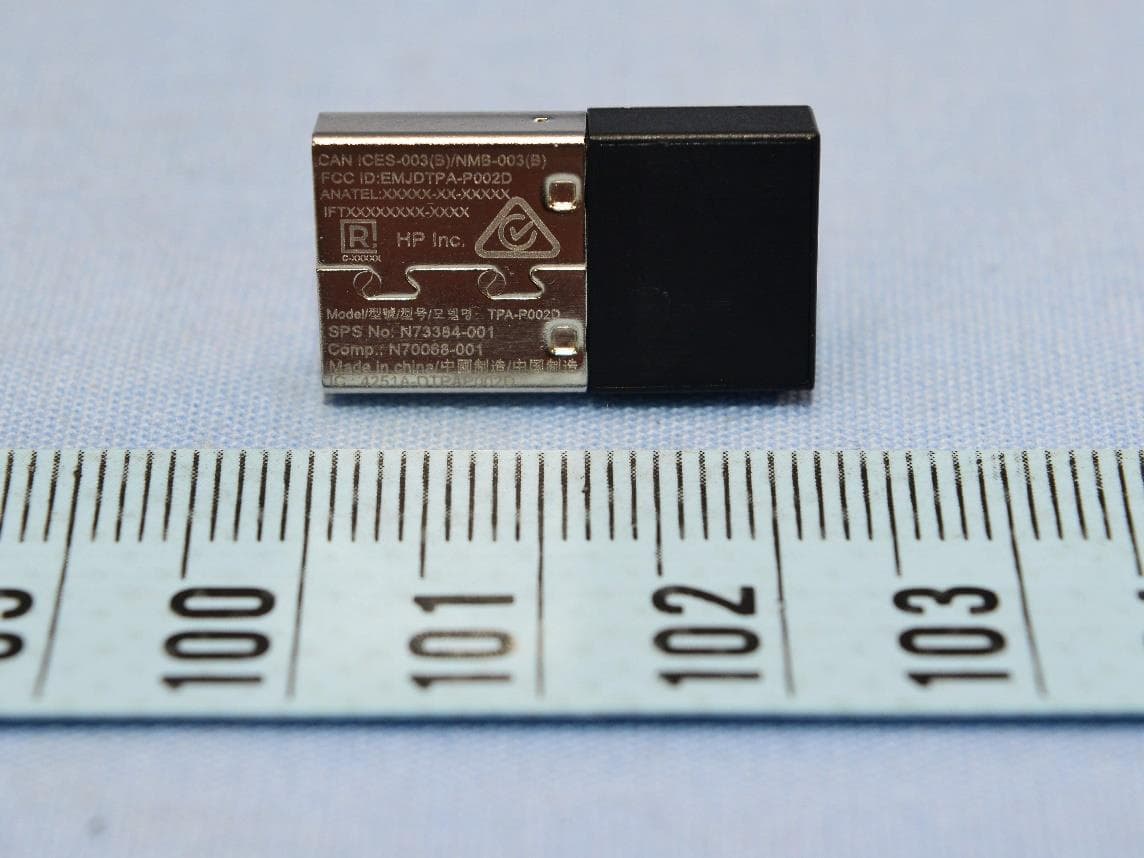
EMJDTPA-P002D
Jan 14, 2024Dongle
Equipment Class
DXX - Part 15 Low Power Communication Device Transmitter
EMJOH1
Oct 29, 2023Level Bridge
Equipment Class
DTS - Digital Transmission System