EMJMP510Wireless gaming mouse
Primax Electronics Ltd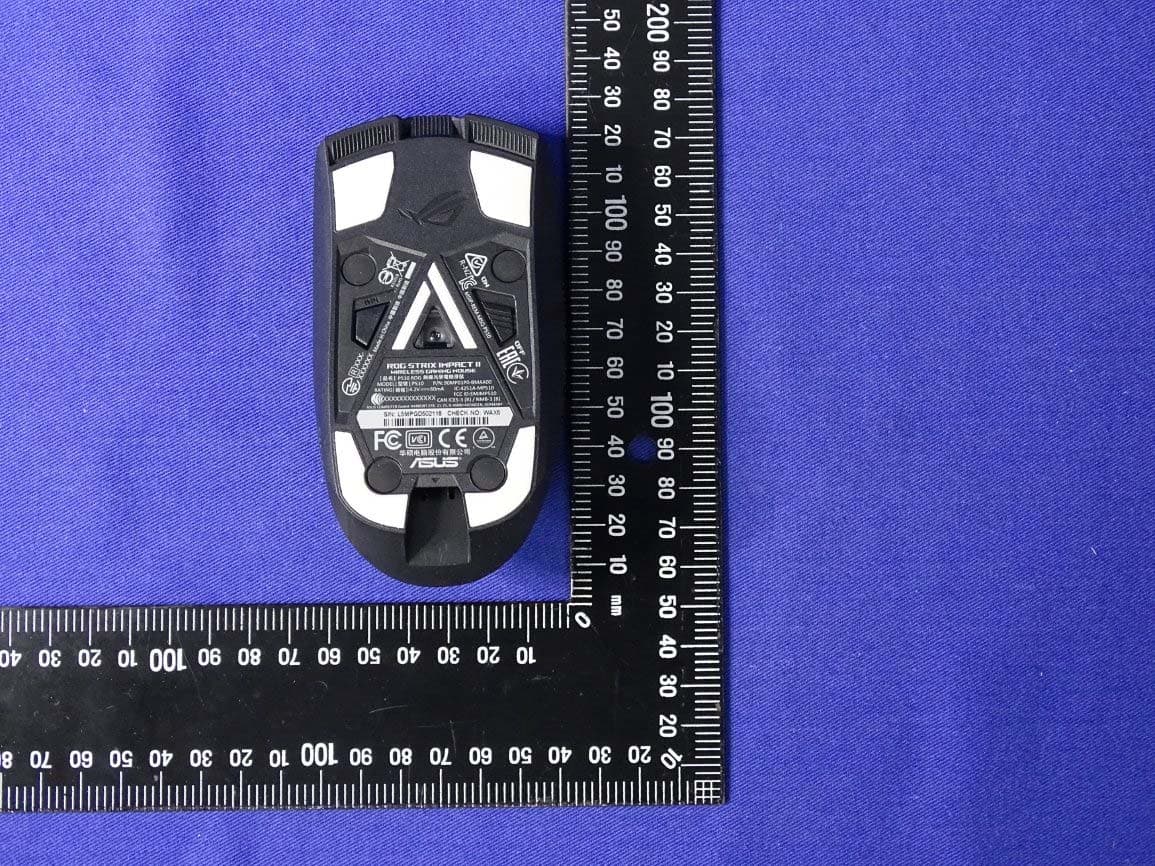
Click to zoom
Application Details
- Equipment Class
- DTS - Digital Transmission System
- Date of Grant
- Jul 26, 2020
- Application Purpose
- Original Equipment
- Date of Application
- Jul 21, 2020
- Equipment Note
- Wireless gaming mouse
- Frequency Range
- 2403.00000000 - 2480.00000000
- Company
- Primax Electronics Ltd
- Country
- Taiwan
Documents & Files
Document Text
Text extracted from the exhibit documents filed with the FCC. Open a document above to read the original.
Users Manual
EN NL SK CS RO TR NO PT:BR SVRU FIES HU FR IT DE Mouse features Package Contents Q16890 Quick Start Guide 快速使用指南(繁體中文) 快速使用指南(簡體中文) クイックスタートガイド (JP) 간단사용설명서 (KO) Guide de démarrage rapide (FR) Schnellstartanleitung (DE) Guida rapida (IT) Guia de Início Rápido (PT:BR) Краткое руководство (RU) Guía de inicio rápido (ES) Beknopte handleiding (NL) Hızlı Başlangıç Kılavuzu (TR) Стисле керівництво для початку експлуатації (UA) Przewodnik szybkiego startu (PL) Rychlý průvodce (CS) Ghid de pornire rapidă (RO) Gyors üzembe helyezési útmutató (HU) Snabbstartshandbok (SV) Pikaopas (FI) Hurtigstartveiledning (NO) )AR(دليل التشغيل السريع Stručný návod na používanie (SK) Replacing the switches Specifications* ResolutionDPI 1DPI 2DPI 3 (Default)DPI 4 100 DPI to 16000 DPI400 DPI800 DPI1600 DPI3200 DPI * You may customize the DPI settings for DPI 1-4 through Armoury Crate. DPI settings range between 100 to 16000 DPI. Aygıt yazılımı güncelleme ve kişiselleştirme 1. Birlikte verilen kabloyu kullanarak oyun farenizi bilgisayarınıza bağlayın. 2. Armoury Crate yazılımını https://www.asus.com/ Keyboards-Mice/ROG-Strix-Impact-II-Wireless/HelpDesk_ Download adresinden indirip yükleyin. 3. Oyun farenizin donanım yazılımını güncellemek için yazılım talimatlarını izleyin. 4. Armoury Crate yazılımını kullanarak oyun farenize özelleştirin. Oyun farenizi bağlama Oyun farenizi kablolu fare olarak ayarlama Birlikte verilen USB Type-C® - Type-A arası kabloyu oyun farenize ve bilgisayarınızdaki bir USB bağlantı noktasına takın. Oyun farenizi RF kablosuz fare olarak ayarlama 1. Birlikte sağlanan USB yardımcı aygıtını bilgisayarınızın USB bağlantı noktasına bağlayın. 2. Oyun farenizi açmak için güç düğmesini yukarı doğru itin. Pil Durumu Kablosuz modda pil gücü %25’in altına düştüğünde oyun farenizdeki LED’ler kırmızıya (nefes alıp verme) döner. Oyun farenizi birlikte verilen USB kablosunu kullanarak şarj edebilirsiniz. Oppdaterer fastvaren og tilpass 1. Koble spillmusen til datamaskinen med den medfølgende kabelen. 2. Last ned og installer Armoury Crate-programvaren fr https://www.asus.com/Keyboards-Mice/ROG-Strix-Impact- II-Wireless/HelpDesk_Download. 3. Følg instruksjonene i programvaren for å oppdatere fastvaren til spillmusen. 4. Tilpass spillmusen ved hjelp av Armoury Crate. Koble til spillmusen Sette opp spillmusen som en kablet mus Koble den medfølgende USB Type-C® til Type-A-kabelen til spillmusen og en USB-port på datamaskinen. Sette opp spillmusen som en trådløs RF-mus 1. Koble den medfølgende USB-donglen til datamaskinens USB-port. 2. Trykk strømbryteren opp for å slå på spillmusen. Batteristatus LED-lampene på spillmusen puster rødt når batteriet er under 25 % i trådlås modus. Du kan lade spillmusen med den medfølgende USB-kabelen. Updating the firmware and customization 1. Connect your gaming mouse to your computer using the bundled cable, then connect the USB dongle to a USB port. 2. Download and install the Armoury Crate software from https://www.asus.com/Keyboards-Mice/ROG-Strix-Impact- II-Wireless/HelpDesk_Download. 3. Follow the software instructions to update your gaming mouse and dongle’s firmware. 4. Customize your gaming mouse using Armoury Crate. Connecting your gaming mouse Setting up your gaming mouse as a wired mouse Connect the bundled USB Type-C ® to Type-A cable to your gaming mouse and a USB port on your computer . Setting up your gaming mouse as a RF wireless mouse 1. Connect the USB dongle to a USB port on your computer. 2. Push the power switch upwards to switch your gaming mouse on. Battery Status The LEDs on your gaming mouse will turn red (breathing) when the battery power is below 25% in wireless mode. You may charge your gaming mouse by using the bundled USB cable. Actualización del firmware y personalización 1. Conecte el ratón para juegos al equipo mediante el cable incluido. 2. Descargue e instale el software Armoury Crate desde https://www.asus.com/Keyboards-Mice/ROG-Strix-Impact- II-Wireless/HelpDesk_Download. 3. Siga las instrucciones de software para actualizar el firmware del ratón para juegos. 4. Personalice el ratón para juegos mediante Armoury Crate. Conectar el ratón para juegos Configurar el ratón para juegos como ratón cableado Conecte el cable USB Tipo-C® a Tipo-A incluido al ratón para juegos y a un puerto USB de su PC. Configurar el ratón para juegos como ratón inalámbrico de RF 1. Conecte la llave USB integrada al puerto USB del equipo. 2. Empuje el conmutador de alimentación hacia arriba para encender el ratón para juegos. Estado de la batería El color de los LED del ratón para juegos cambiará a rojo (respiración) cuando la energía de la batería se inferior al 25 % en modo inalámbrico. Puede cargar el ratón para juegos utilizando el cable USB incluido. Laiteohjelmiston päivitys ja mukauttaminen 1. Liitä pelihiiri tietokoneeseen toimitukseen kuuluvalla kaapelilla. 2. Lataa ja asenna Armoury Crate -ohjelmisto osoitteesta https://www.asus.com/Keyboards-Mice/ROG-Strix-Impact- II-Wireless/HelpDesk_Download. 3. Päivitä pelihiiren laiteohjelmisto ohjelmiston ohjeiden mukaisesti. 4. Mukauta pelihiireesi Armoury Crate-ohjelmistolla. Pelihiiren liittäminen Pelihiiren asettaminen langallisena hiirenä Liitä toimitukseen kuuluva USB Type-C® - Type-A -kaapeli pelihiireen ja tietokoneen USB-porttiin. Pelihiiren asettaminen langattomana radiotaajuushiirenä 1. Liitä toimitukseen kuuluva USB-käyttöavain tietokoneen USB-porttiin. 2. Työnnä virtakytkintä ylöspäin kytkeäksesi pelihiiren päälle. Akun tila Pelihiiren LED-valot muuttuvat punaisiksi (hengitys), kun akkutila on alle 25 % langattomassa tilassa. Voit ladata pelihiiren toimitukseen kuuluvalla USB-kaapelilla. De firmware en aanpassing bijwerken 1. Sluit uw gamemuis aan op uw computer via de meegeleverde kabel. 2. Download en installeer de Armoury Crate-software van https://www.asus.com/Keyboards-Mice/ROG-Strix-Impact- II-Wireless/HelpDesk_Download. 3. Volg de softwareinstructies voor het bijwerken van de firmware van uw gaming-mu…
Text truncated - open the document above for the full version.
Cover Letter(s)
Federal Communications Commission Authorization and Evaluation Division July 07, 2020 ATTESTATION FCC ID: EMJMP510 Product: Wireless gaming mouse Model: P510 We don’t provide any controls or software to allow operation outside the USA frequency band when we sell a product bearing the FCC ID: EMJMP510 anywhere in the world. Sincerely, ------------------------------------------------------------ Vincent Lin / Director DEKRA TESTING AND CERTIFICATION CO., LTD.
External Photos
Report No.: 2050592R-E3032110109 Page: 1 of 16 Attachment 2 : EUT Detailed Photographs (1) EUT Photo (2) EUT Photo Report No.: 2050592R-E3032110109 Page: 2 of 16 (3) EUT Photo (4) EUT Photo Report No.: 2050592R-E3032110109 Page: 3 of 16 (5) EUT Photo (6) EUT Photo Report No.: 2050592R-E3032110109 Page: 4 of 16 (7) EUT Photo (8) EUT Photo
ID Label/Location Info
Primax Electronics Ltd FCC ID.: EMJMP510 669 Ruey Kuang Road Neihu 114, Taipei, Taiwan Tel:886-2-2798-1710 FCC ID Label
ID Label/Location Info
Primax Electronics Ltd FCC ID.: EMJMP510 669 Ruey Kuang Road Neihu 114, Taipei, Taiwan Tel:886-2-2798-1710 The FCC ID will be placed on the equipment as shown in the photograph below.
Internal Photos
Report No.: 2050592R-E3032110109 Page: 5 of 16 (9) EUT Photo (10) EUT Photo Report No.: 2050592R-E3032110109 Page: 6 of 16 (11) EUT Photo (12) EUT Photo Report No.: 2050592R-E3032110109 Page: 7 of 16 (13) EUT Photo (14) EUT Photo Report No.: 2050592R-E3032110109 Page: 8 of 16 (15) EUT Photo (16) EUT Photo Report No.: 2050592R-E3032110109 Page: 9 of 16 (17) EUT Photo (18) EUT Photo Report No.: 2050592R-E3032110109 Page: 10 of 16 (19) EUT Photo (20) EUT Photo Report No.: 2050592R-E3032110109 Page: 11 of 16 (21) EUT Photo (22) EUT Photo Report No.: 2050592R-E3032110109 Page: 12 of 16 (23) EUT Photo (24) EUT Photo Report No.: 2050592R-E3032110109 Page: 13 of 16 (25) EUT Photo (26) EUT Photo Antenna Report No.: 2050592R-E3032110109 Page: 14 of 16 (27) EUT Photo (28) EUT Photo Report No.: 2050592R-E3032110109 Page: 15 of 16 (29) EUT Photo (30) EUT Photo Report No.: 2050592R-E3032110109 Page: 16 of 16 (31) EUT Photo (32) EUT Photo
RF Exposure Info
Report No.: 2050592R-E3082100014 Page: 1 of 5 RF Exposure Evaluation Report Product Name : Wireless gaming mouse Model No. : P510 FCC ID : EMJMP510 Applicant : Primax Electronics Ltd Address : 669 Ruey Kuang Road Neihu 114, Taipei, Taiwan Date of Receipt : May 23, 2020 Date of Declaration : Jun. 30, 2020 Report No. : 2050592R-E3082100014 Report Version : V1.0 The test results relate only to the samples tested. The test results shown in the test report are traceable to the national/international standard through the calibration report of the equipment and evaluated measurement uncertainty herein. This report must not be used to claim product endorsement by TAF or any agency of the government. The test report shall not be reproduced without the written approval of DEKRA Testing and Certification Co., Ltd. Measurement uncertainties evaluated for each testing system and associated connections are given here to provide the system information for reference. Compliance determinations do not take into account measurement uncertainties for each testing system, but are based on the results of the compliance measurement. Report No.: 2050592R-E3082100014 Page: 2 of 5 Issued Date: Jun. 30, 2020 Report No.: 2050592R-E3082100014 Product Name Wireless gaming mouse Applicant Primax Electronics Ltd Address 669 Ruey Kuang Road Neihu 114, Taipei, Taiwan Manufacturer Primax Electronics Ltd Model No. P510 FCC ID. EMJMP510 Trade Name ASUS Applicable Standard KDB 447498 D01 v06 Minimum test separation distance ≥ 20 cm For low power devices Test Result Complied Documented By : ( Adm. Assistant / Ida Tung ) Tested By : ( Senior Engineer / Wen Lee ) Approved By : ( Director / Vincent Lin ) Report No.: 2050592R-E3082100014 Page: 3 of 5 Revision History Report No. Ve r s i o n Description Issued Date 2050592R-E3082100014 V1.0 Initial issue of report. 2020-06-30 Report No.: 2050592R-E3082100014 Page: 4 of 5 1. GENERAL INFORMATION 1.1. EUT Description Product Name Wireless gaming mouse Trade Name ASUS Model No. P510 FCC ID. EMJMP510 Frequency Range 2403 – 2480MHz Channel Number 78CH Type of Modulation GFSK Channel Control Auto Antenna Type Chip Antenna Antenna Gain Refer to the table “Antenna List” 1.2. Antenna List No. Manufacturer Part No. Antenna Type Peak Gain 1 ACX AT3216-B2R7HAA Chip Antenna 0.5dBi for 2.4GHz Report No.: 2050592R-E3082100014 Page: 5 of 5 2. RF Exposure Evaluation 2.1. Standard Applicable According to 1.1307 (b)(1), systems operating under the provisions of this section shall be operated in a manner that ensure that the public is not exposed to radio frequency energy level in excess of the Commission’s guideline. 2.2. Measurement Result: According to KDB Publication 447498 D01, section 4.3.1, per the calculations of item 1 (Power(mW)/separation (mm)*sqrt(f(GHz)≤3.0), SAR is required as shown in the table below where calculated values are greater than 3.0: 1.) Operation frequency = 2450MHz and antenna separation distance = 5mm, SAR Test Exclusion Threshold = 10mW Frequency Band (MHz) Maximum peak output power Peak Gain: 0.5dBi SAR Test Exclusion Threshold Calculated Threshold Value (≦3.0 SAR is not required) conducted (dBm) EIRP (dBm) EIRP (mW) (mW) 2403~2480 5.21 5.71 3.72 10 1.155 Note1: The SAR/MPE measurement is not necessary. Note2: The conducted output power is refer to report No.: 2050592R-E3032110109 from the DEKRA.
Test Report
Report No.: 2050592R-E3032110109 Page: 1 of 53 FCC Test Report Product Name Wireless gaming mouse Model No. P510 FCC ID. EMJMP510 Applicant Primax Electronics Ltd Address 669 Ruey Kuang Road Neihu 114, Taipei, Taiwan Date of Receipt May 23, 2020 Issued Date Jun. 23, 2020 Report No. 2050592R-E3032110109 Report Version V1 .0 The test results relate only to the samples tested. The test results shown in the test report are traceable to the national/international standard through the calibration report of the equipment and evaluated measurement uncertainty herein. This report must not be used to claim product endorsement by TAF or any agency of the government. The test report shall not be reproduced without the written approval of DEKRA Testing and Certification Co., Ltd. Measurement uncertainties evaluated for each testing system and associated connections are given here to provide the system information for reference. Compliance determinations do not take into account measurement uncertainties for each testing system, but are based on the results of the compliance measurement. Report No.: 2050592R-E3032110109 Page: 2 of 53 Test Report Issued Date: Jun. 23, 2020 Report No.: 2050592R-E3032110109 Product Name Wireless gaming mouse Applicant Primax Electronics Ltd Address 669 Ruey Kuang Road Neihu 114, Taipei, Taiwan Manufacturer Primax Electronics Ltd Model No. P510 FCC ID. EMJMP510 EUT Rated Voltage DC 3.7V (Power by Battery) / DC 5V (Power by USB) EUT Test Voltage DC 5V (Power by USB) Trade Name ASUS Applicable Standard FCC CFR Title 47 Part 15 Subpart C ANSI C63.4: 2014, ANSI C63.10: 2013 Test Result Complied Documented By : ( Adm. Assistant / Ida Tung ) Tested By : ( Senior Engi neer / Bill Lin ) Approved By : ( Director / Vincent Lin ) Report No.: 2050592R-E3032110109 Page: 3 of 53 Revision History Report No. Ve r s i o n Description Issued Date 2050592R-E3032110109 V1.0 Initial issue of report. 2020-06-23 Report No.: 2050592R-E3032110109 Page: 4 of 53 TABLE OF CONTENTS Description Page 1. GENERAL INFORMATION ............................................................................................................... 5 1.1. EUT Description ...................................................................................................................................... 5 1.2. Operational Description ........................................................................................................................... 7 1.3. Tested System Details .............................................................................................................................. 8 1.4. Configuration of Tested System .............................................................................................................. 8 1.5. EUT Exercise Software ........................................................................................................................... 8 1.6. Test Facility ............................................................................................................................................. 9 1.7. List of Test Equipment ........................................................................................................................... 10 1.8. Uncertainty ............................................................................................................................................ 11 2. CONDUCTED EMISSION ................................................................................................................ 12 2.1. Test Setup .............................................................................................................................................. 12 2.2. Limits ..................................................................................................................................................... 12 2.3. Test Procedure ....................................................................................................................................... 13 2.4. Test Result of Conducted Emission ....................................................................................................... 14 3. PEAK POWER OUTPUT .................................................................................................................. 16 3.1. Test Setup .............................................................................................................................................. 16 3.2. Limit ...................................................................................................................................................... 16 3.3. Test Procedure ....................................................................................................................................... 16 3.4. Test Result of Peak Power Output ......................................................................................................... 17 4. RADIATED EMISSION ..................................................................................................................... 18 4.1. Test Setup .............................................................................................................................................. 18 4.2. Limits ..................................................................................................................................................... 19 4.3. Test Procedure ....................................................................................................................................... 20 4.4. Test Result of Radiated Emission .......................................................................................................... 22 5. RF ANTENNA CONDUCTED TEST ................................................................................................ 30 5.1. Test Setup .................................................................................................................................…
Text truncated - open the document above for the full version.
Test Setup Photos
Report No.: 2050592R-E3032110109 Page : 1 of 3 Attachment 1: EUT Test Setup Photographs Front View of Conducted Test Back View of Conducted Test Report No.: 2050592R-E3032110109 Page : 2 of 3 Front View of Radiated Test Back View of Radiated Test Report No.: 2050592R-E3032110109 Page : 3 of 3 Front View of Radiated Test (Horn) Back View of Radiated Test (Horn)
Contact Information
Applicant
Nelson Chou(Manager)
Technical Contact
DEKRA Testing and Certification Co., Ltd.Frank Yen
[email protected]886-2-8601-3788
No.5-22, Ruishukeng, Linkou Dist. · New Taipei City · Taiwan
Non-Technical Contact
DEKRA Testing and Certification Co., Ltd.Frank Yen
[email protected]886-2-8601-3788
Test Firm
DEKRA TESTING AND CERTIFICATION CO., LTD. LinKouMirenda Liao
Technical Specifications
| # | Rule Parts | Frequency Range | Power Output |
|---|---|---|---|
| 1 | 15C | 2.40 GHz - 2.48 GHz | 3.00 mW |
Other Applications from Primax Electronics Ltd
EMJ-BHS2705
Aug 28, 2026Wireless Headset
Equipment Class
DTS - Digital Transmission SystemEMJMMOBTN5O
Aug 22, 2024wegear MW1 Creator Mouse
Equipment Class
DTS - Digital Transmission SystemEMJDDGRFN5
Aug 22, 2024wegear MW1 2.4G Dongle
Equipment Class
DXX - Part 15 Low Power Communication Device Transmitter
EMJDTPA-P002D
Jan 14, 2024Dongle
Equipment Class
DXX - Part 15 Low Power Communication Device Transmitter
EMJOH1
Oct 29, 2023Level Bridge
Equipment Class
DTS - Digital Transmission System