HFS-LI170LTE sip module
Quanta Computer Inc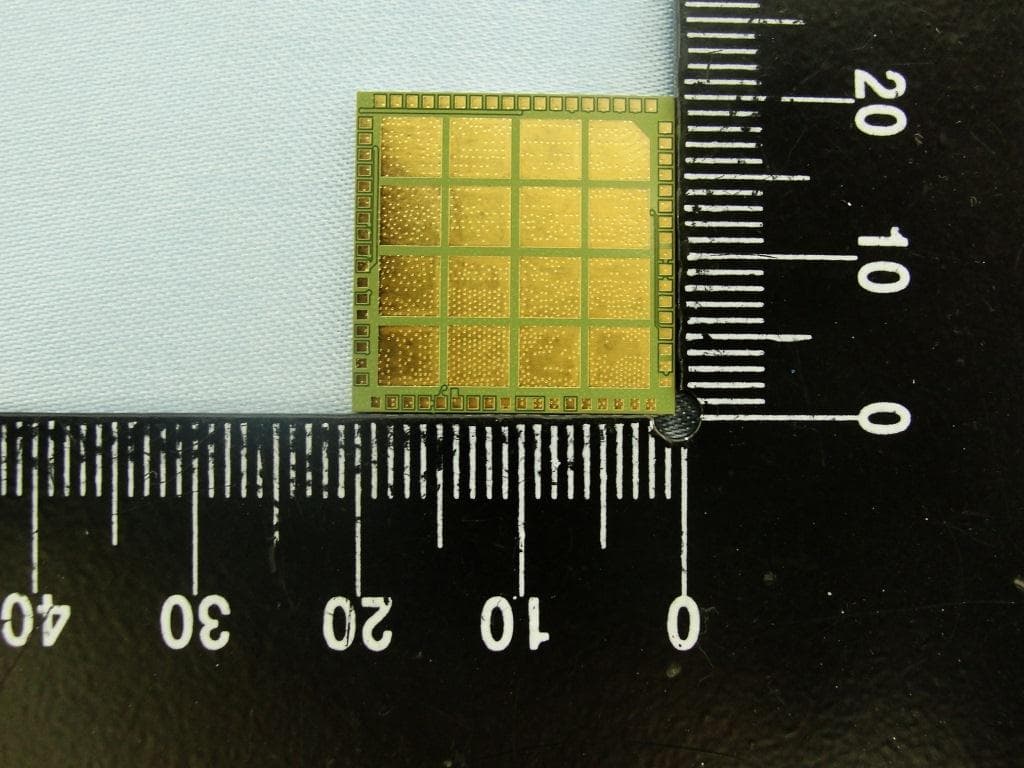
Click to zoom
Application Details
- Equipment Class
- JBP - Part 15 Class B Computing Device Peripheral
- Date of Grant
- Nov 28, 2012
- Application Purpose
- Original Equipment
- Date of Application
- Nov 28, 2012
- Equipment Note
- LTE sip module
- Company
- Quanta Computer Inc
- Country
- Taiwan
Documents & Files
Document Text
Text extracted from the exhibit documents filed with the FCC. Open a document above to read the original.
Users Manual
Quanta LI170 Test Operation Guide Version 0.3 Oct . 07, 201 2 Winn Page 1 Contents 1. Introduction.................................................................................................................................... 3 2. Test Environment............................................................................................................................3 2.1. Uninstallation.........................................................................................................................3 2.1.1. Windows 7 (32 bit).................................................................................................................3 2.2. Installation of drivers..............................................................................................................5 2.2.1. Windows 7 (32 bit).................................................................................................................5 3. Operation of Connection Manager.................................................................................................11 3.1. Windows 7 (32 bit)................................................................................................................11 3.1.1. Basic Configuration................................................................................................................11 3.1.2. Extended Information............................................................................................................13 3.1.3. LTE Manager..........................................................................................................................15 3.1.4. Manual PLMN........................................................................................................................16 3.1.5. Change to Commercial Mode.................................................................................................17 3.1.6. Disable Polling.......................................................................................................................18 3.1.7. PIN Management...................................................................................................................19 3.1.8. Automatic Connect Mode......................................................................................................20 3.1.9. Device Location.....................................................................................................................21 3.1.10. Help.......................................................................................................................................22 3.1.11. Reset..................................................................................................................................... 23 4. Diagnostic Tool...............................................................................................................................24 4.1. MsgView...............................................................................................................................24 4.2. DbgView................................................................................................................................25 5. Firmware Upgrade.........................................................................................................................26 5.1. Image Burn Tool.....................................................................................................................26 6. OMA -DM.......................................................................................................................................30 6.1. Mandatory Configuration.......................................................................................................30 6.2. How to Enable/Disable APN................................................................................................... 31 6.3. How to Modify OMA-DM Server URL.....................................................................................33 6.4. How to Online Enable/Disable Internet APN..........................................................................35 6.5. How to Enable/Disable OMA-DM log.....................................................................................36 6.6. How to Use VI editor..............................................................................................................37 Page 2 Revision History Version Release Date Description 0.1 Oct . 02, 20 12 1 st Test Operation Guide Release 0.2 Oct. 0 4, 2012 Add chapter 6. 0.3 Oct. 07, 2012 Draft Page 3 1. Introduction This document gives the guidance on how to test Quanta devices. 2. Test Environment Quanta LI170 device supports Windows XP, Windows Vista (32 bit), and Windows 7 (32 bit) operating system . It’s recommended to install Quanta LI170 software in Windows 7 32-bit OS. 2.1. Uninstallation In order to install latest version of software, uninstallation of previous version is required, including drivers, connection manager, and corresponding software tool s. 2.1.1. Windows 7 (32 bit) 1. Please c lick StartProgramsAltair SemiconductorLTE ALT3100Uninstall 2. Please c lick “Yes (Y)” button . Page 4 3. Please c lick “Uninstall ” button . 4. Please w ait a few seconds to complete uninstallation. 5. Please click “Close ” button. 6. Please click “OK ” button. 7. Please c lick “StartProgramsAltair SemiconductorLTE ALT3100HLVUSBUninstall ”. 8. Please click “YES (Y) ” button . 9. Please reboot your computer after you have completed the uninstallation. Page 5 2.2. Installation of drivers 2.2.1. Windo ws 7 (32 bit) 1. Please double clicks on “Altair(Quanta) Tool Package v1.0.0.exe” to start installation. 2. Please c lick “Next > ” button . 3. Please click “Install ” button. 4. It will take a few minutes to complete installation. 5. Please click “Next > ” button. Page 6 6. Please check “I accept the terms in the license agreement”. 7. Please c lick “Next > ” button. 8. Please select “Full I…
Text truncated - open the document above for the full version.
Users Manual
Page 21 3.1.9. Device Location 1. For Quanta hostless device, please use “Technician PC” only. 2. Please right click on top of connection manager and select “OptionsDevice LocationTechnician PC”. 3. Please set IP address to “10.0.0.1 ” and click “OK ” button. 4. Connection manager will get information from Quanta hostless device. Page 22 3.1.10. Help 1. Please right click on top of connection manager and select “HelpAbout ”. 2. Connection manager will pop out a “LTE Card Info ” message box. 3. It will show information of IMSI number, IMEI number, Supported Bands, Current firmware version, and System package version. 4. Please click “OK ” button. 5. Please right click on top of connection manager and select “HelpShow Versions”. 6. Connection manager will pop out a “Version info ” message box. 7. It will show information of System release version, SWInfra release version, and Current firmware version. 8. Please click “OK ” button. Page 23 3.1.11. Reset 1. Please right click on top of connection manager and select “Reset ”. 2. Connection manager will pop out a “” message box. Page 24 4. Diagnos tic Tool 4.1. MsgView 1. Please open MsgView by clicking StartProgramsAltair SemiconductorLTE ALT3100MsgView . 2. Please click “Start Logging” button to start message logging. 3. Please plug in Quanta device and wait a few seconds for device to be ready. 4. Once you find an issue, please stop testing and data logging, please save log file and send it to Quanta. Page 25 4.2. DbgView 1. Please open DbgView by clicking StartProgramsAltair SemiconductorLTE ALT3100DbgView . 2. Please plug in Quanta device and wait a few seconds for device to be ready, and the DbgView will start data logging. 3. Please click “Save ” button to save log to a file. 4. Once you find any issue, please stop testing and data logging, and please send this log file to Quanta. Page 26 5. Firmware Upgrade 5.1. Image Burn Tool 1. Please click StartProgramsAltair SemiconductorLTE ALT3100HLVUSBImage Burn Tool. 2. Please check “U-Boot Env ”. 3. Please check “U-Boot ”. 4. Please check “Linux ”. 5. Please check “File System”. 6. Please check “NVM ”. 7. Please click “Start ” button to start firmware upgrade process. 8. Please click “YES (Y) ” button. Page 27 9. It will show message “Waiting for device reset ...” . 10. The easiest way to reset device is to power cycle device (i.e. to take out and plug in device). 11. If you are doing remote firmware upgrade process, please follow the following procedure to reset device. 12. Please open device manager and find network interface of Quanta device “Remote NDIS based Internet Sharing Device #”. 13. Please disable this network interface by right click on it. 14. Please enable this device again. 15. Please find your Gadget Serial COM port number (for example, COM112). Page 28 16. Please open COM112 COM port (for example, open it by putty.exe) 17. Please select “Ser ial” as your “Connection type”. 18. Please fill in “COM112 ” as your “Serial line ”. 19. Please click “Open ” button to set up connection. 20. Please enter “at”. 21. Please check if it responds with “OK ”. 22. Please enter “atz ” AT command to reboot Quanta device. 23. After Qua nta device reboots suc cessfully , the “Image Burn Tool” will start to do firmware upgrade process. 24. Please make sure you Quanta device has finished the firmware upgrade process with “---- Finished ---- “. 25. Please close “Image Burn Tool”. 26. Please take out and plug in Quanta device. Page 29 27. In order to recover the original calibration data, please use ADCC tool. 28. After the device reboot successfully, please open “Altair Device Control Center” by clicking, StartProgramsAltair SemiconductorLTE ALT310 0ADCC. 29. Please click “Open Connection” and wait for a few minutes. 30. Please click “BSP DB ” tab. 31. Please select “Boot Parameters (Boot Bp). 32. Please select “From File ”. 33. Please click Read DB and find the source DB and click “Open ” button to read it. 34. Please click “Burn DB ” button to start burning. 35. Please repeat this procedure to burn the other DBs.
Users Manual
Page 30 6. OMA -DM 6.1. Mandatory Configuration 1. It’s necessary to configure Quanta device with the following parameters before you start OMA -DM testing. 2. It’s mandatory to conf igure Quanta device with the following parameters if your device is upgraded to new firmware. 3. Please make sure that the device is not connected to LTE network (i.e. offline from eNodeB) before you do any configuration. 4. Please open connection manager. 5. Pleas e enter the following AT commands seque ntially (Please refer section 3.1.2). AT% SETCFG="enable_test_mode","0" AT% SETCFG="vzw_mode","1" AT% SETACFG =ecm.Mode.VzwMode,true AT% SETACFG =ecm.Mode.VzwImsTestMode,false 6. Please check if it returns “OK ”. 7. Please confirm your configuration by entering the following AT commands sequentially. AT% GETCFG="enable_test_mode" (it shall be “0 ”) AT% GETCFG="vzw_mode" (it shall be “1 ”) AT% GETACFG =ecm.Mode.VzwMode (it shall be “true ”) AT% GETACFG =ecm.Mode.VzwImsTestMode (it shall be “false ”) Page 31 6.2. How to Enable/Disable APN 1. Please make sure your device has disconnected from network. 2. If you would like to edit APN table, it’s necessary to telnet to embedded connection manager. (Please refer to section 3.1.1) 3. Please open command console. 4. Please key in “telnet 10.0.0.1” and press enter. 5. If you failed to telnet 10.0.0.1, please manually set your IP address to 10.0.0.133. 6. After successfully telnet to 10.0.0.1, please key in “cat /etc/config/APNTable” and press enter. 7. There are 4 APNs in table, and you can see its configurations, including NAME, IP_Type, P_CSCF and so on. 8. For example, if you would like to disable “VZWIMS ” APN, please use the editor tool “vi ” to edit this APNTable. 9. Therefore, please key in “vi /etc/config/APNTable” and pre ss enter. Page 32 10. Please move cursor to Option Enabled “true” 11. Please modify this value to “false”. NOTE: If you are not familiar with vi commands, please refer to section 6.6 for more information. 12. Please enter “Shift+ z” twice to save file. 13. Please key in “ca t /etc/config/APNTable” and press enter. 14. Please check if “VZWIMS ” APN is disabled. Option Enabled ‘false ’ 15. Please enter “reboot” command to reboot device in order to take effect of the configuration. 16. You can also follow above procedures to enable/disable other APNs. NOTE: Please make sure to reboot device in order to take effect of your setting. Page 33 6.3. How to Modify OMA-DM Server URL 1. Please make sure your device has disconnected from network. 2. If you would like to edit OMA -DM server URL, it’s necessary to telnet to embedded connection manager. (Please refer to section 3.1.1) 3. Please open command console. 4. Please key in “telnet 10.0.0.1” and press enter. 5. If you failed to telnet 10.0.0.1, please manually set your IP address to 10.0.0.133. 6. Please key in “vi etc/config/service” and press enter. 7. Please modify the server URL to ”ivzwmdmii.iot.motive.com” 8. Please enter “Shift+ z” twice to save file. 9. Please key in “cat /etc/config/service” and check if the server URL is set up correctly. 10. Please key in “vi etc/config/vdmc/tree-motive.xml” and press enter. 11. Please key in “/https” to search the server URL. 12. Please modify the server URL to https: //ivzwmdmii.iot.motive.com/southbound-con nector/dm Page 34 13. Please also check if port number is “443”. 14. Please enter “Shift+ z” twice to save file. Page 35 6.4. How to Online Enable/Disable Internet APN 1. Please check if your device has connected to LTE network successfully. 2. If you would like to online enable/disable “INTERNET” APN (see NOTE), it’s necessary to enter specific AT command. NOTE: Online enable/disable “INTERNET” APN means it ’s not mandatory to reboot device to take effect of “INTERNET” APN. Please note that this method is applicable to “INTERNET” APN only , and this configuration will be lost after device reboots. 3. If you enter “at%dpdnact=0” to disable “INTERNET” APN, the LTE connection will be lost. On the contrary, if you enter “at%dpdnact=1” to enable “INTERNE T” APN, device will reconnect to LTE network. Page 36 6.5. How to Enable/Disable OMA -DM log 1. Please make sure your device has disconnected from network. 2. If you would like to enable/disable OMA-DM log , it ’s necessary to telnet to embedded connection manager. (Please refer to section 3.1.1) 3. Please open command console. 4. Please key in “telnet 10.0.0.1” and press enter. 5. If you failed to telnet 10.0.0.1, please manually set your IP address to 10.0.0.133. 6. Please key in “vi etc/config/service” and press enter. 7. Please modify the value of DebugLevel to “debug”. 8. Please enter “Shift+ z” twice to save file. 9. Please enter “reboot” command to reboot device. 10. Please enter “cat /tmp/vdm.log” and check OMA -DM logs. Page 37 6.6. How to Use VI editor Please google search “vi manual” or by clicking below URL directly. http://glaciated.org/vi/ Page 38 FCC Regulations: This device complies with part 15 of the FCC Rules. Operation is subject to the following two conditions: (1) This device may not cause harmful interference, and (2) this device must accept any interference received, including interference that may cause undesired operation. This device has been tested and found to comply with the limits for a Class B digital device, pursuant to Part 15 of the FCC Rules. These limits are designed to provide reasonable protection against harmful interference in a residential installation. This equipment generates, uses and can radiated radio frequency energy and, if not installed and used in accordance with the instructions, may cause harmful interference to radio communications. However, there is no guarantee that interference will not occur in a particular installation If this equipment does cause harmful interference to radio or television reception, which can be determined by turning the equipment off and on, the user is encouraged to try to correct the interference by one or more of the …
Text truncated - open the document above for the full version.
External Photos
Photographs of EUT Report No.: EP2O0222 Brand Name: Quanta;Aptos;Topmore Model Name: LI170;S901100003 Marketing Name: LI170;S901100003 SPORTON INTERNATIONAL INC. Page Number : 1 of 4 TEL : 886-3-327-3456 Report Issued Date : Nov. 09, 2012 FAX : 886-3-328-4978 Report Version : Rev. 01 FCC ID : HFS-LI170 720510 1. External Photograph of EUT Photographs of EUT Report No.: EP2O0222 Brand Name: Quanta;Aptos;Topmore Model Name: LI170;S901100003 Marketing Name: LI170;S901100003 SPORTON INTERNATIONAL INC. Page Number : 2 of 4 TEL : 886-3-327-3456 Report Issued Date : Nov. 09, 2012 FAX : 886-3-328-4978 Report Version : Rev. 01 FCC ID : HFS-LI170
ID Label/Location Info
EUT Front Label Location
ID Label/Location Info
LI170 Label Quanta Computer Confidential Monday, November 05, 2012 Quanta LI170xxxxx LTE Band13 YYWWAP FCC ID : HFS-LI170
Internal Photos
Photographs of EUT Report No.: EP2O0222 Brand Name: Quanta;Aptos;Topmore Model Name: LI170;S901100003 Marketing Name: LI170;S901100003 SPORTON INTERNATIONAL INC. Page Number : 3 of 4 TEL : 886-3-327-3456 Report Issued Date : Nov. 09, 2012 FAX : 886-3-328-4978 Report Version : Rev. 01 FCC ID : HFS-LI170 2. Internal Photograph of EUT 2. Internal Photograph of EUT Photographs of EUT Report No.: EP2O0222 Brand Name: Quanta;Aptos;Topmore Model Name: LI170;S901100003 Marketing Name: LI170;S901100003 SPORTON INTERNATIONAL INC. Page Number : 4 of 4 TEL : 886-3-327-3456 Report Issued Date : Nov. 09, 2012 FAX : 886-3-328-4978 Report Version : Rev. 01 FCC ID : HFS-LI170
Test Report
SPORTON INTERNATIONAL INC. Page Number : 1 of 18 TEL : 886-3-327-3456 Report Issued Date : Nov. 28, 2012 FAX : 886-3-328-4978 Report Version : Rev. 02 FCC ID : HFS-LI170 FCC Test Report Report No. : FC2O0222 FCC Test Report APPLICANT : Quanta Computer Inc. EQUIPMENT : LTE sip module BRAND NAME : Quanta;Aptos;Topmore MODEL NAME : LI170;S901100003 MARKETING NAME : LI170;S901100003 FCC ID : HFS-LI170 STANDARD : FCC 47 CFR FCC Part 15 Subpart B CLASSIFICATION : Certification The product was received on Oct. 02, 2012 and completely tested on Nov. 28, 2012. We, SPORTON INTERNATIONAL INC., would like to declare that the tested sample has been evaluated in accordance with the procedures given in ANSI C63.4-2003 and shown the compliance with the applicable technical standards. The test results in this report apply exclusively to the tested model / sample. Without written approval of SPORTON INTERNATIONAL INC., the test report shall not be reproduced except in full. Reviewed by: Jones Tsai / Manager SPORTON INTERNATIONAL INC. No. 52, Hwa Ya 1 st Rd., Hwa Ya Technology Park, Kwei-Shan Hsiang, Tao Yuan Hsien, Taiwan, R.O.C. SPORTON INTERNATIONAL INC. Page Number : 2 of 18 TEL : 886-3-327-3456 Report Issued Date : Nov. 28, 2012 FAX : 886-3-328-4978 Report Version : Rev. 02 FCC ID : HFS-LI170 FCC Test Report Report No. : FC2O0222 TABLE OF CONTENTS REVISION HISTORY .......................................................................................................................................... 3 SUMMARY OF TEST RESULT ......................................................................................................................... 4 1. GENERAL DESCRIPTION .......................................................................................................................... 5 1.1. Applicant ............................................................................................................................................ 5 1.2. Manufacturer ..................................................................................................................................... 5 1.3. Feature of Equipment Under Test ..................................................................................................... 5 1.4. Test Site ............................................................................................................................................ 6 1.5. Applied Standards ............................................................................................................................. 6 1.6. Ancillary Equipment List .................................................................................................................... 6 2. TEST CONFIGURATION OF EQUIPMENT UNDER TEST ........................................................................ 7 2.1. Test Mode ......................................................................................................................................... 7 2.2. Connection Diagram of Test System ................................................................................................ 8 2.3. Test Software .................................................................................................................................... 8 3. TEST RESULT ............................................................................................................................................. 9 3.1. Test of AC Conducted Emission Measurement ................................................................................ 9 3.2. Test of Radiated Emission Measurement ....................................................................................... 13 4. LIST OF MEASURING EQUIPMENT ........................................................................................................ 17 5. UNCERTAINTY OF EVALUATION ........................................................................................................... 18 APPENDIX A. PHOTOGRAPHS OF EUT APPENDIX B. SETUP PHOTOGRAPHS SPORTON INTERNATIONAL INC. Page Number : 3 of 18 TEL : 886-3-327-3456 Report Issued Date : Nov. 28, 2012 FAX : 886-3-328-4978 Report Version : Rev. 02 FCC ID : HFS-LI170 FCC Test Report Report No. : FC2O0222 REVISION HISTORY REPORT NO. VERSION DESCRIPTION ISSUED DATE FC2O0222 Rev. 01 Initial issue of report Nov. 08, 2012 FC2O0222 Rev. 02 Updating report for adding AC Conducted Emission and revising description of test software Nov. 28, 2012 SPORTON INTERNATIONAL INC. Page Number : 4 of 18 TEL : 886-3-327-3456 Report Issued Date : Nov. 28, 2012 FAX : 886-3-328-4978 Report Version : Rev. 02 FCC ID : HFS-LI170 FCC Test Report Report No. : FC2O0222 SUMMARY OF TEST RESULT Report Section FCC Rule IC Rule Description Limit Result Remark 3.1 15.107 7.2.4 AC Conducted Emission < 15.107 limits < RSS-Gen table 2 limits PASS Under limit 13.60 dB at 0.198 MHz 3.2 15.109 7.2.3.2 Radiated Emission < 15.109 limits < RSS-Gen table 1 limits PASS 4.90 dB at 75.090 MHz for Quasi-Peak SPORTON INTERNATIONAL INC. Page Number : 5 of 18 TEL : 886-3-327-3456 Report Issued Date : Nov. 28, 2012 FAX : 886-3-328-4978 Report Version : Rev. 02 FCC ID : HFS-LI170 FCC Test Report Report No. : FC2O0222 1. General Description 1.1. Applicant Quanta Computer Inc. 211 Wen Hwa 2nd Rd., Kueishan, Taoyuan 33377, Taiwan 1.2. Manufacturer 1. Quanta Computer Inc. 211 Wen Hwa 2nd Rd., Kueishan, Taoyuan 33377, Taiwan 2. Aptos Technology Inc. No. 398, Youyi Rd., Jhunan Township, Miaoli County 350, Taiwan 3. Topmore Technology Inc. 1F., No. 2, Liujia 7thRd., Zhubei City, Hsinchu County 302, Taiwan R.O.C. 1.3. Feature of Equipment Under Test Product Feature Equipment LTE sip module Brand Name Quanta;Aptos;Topmore Model Name LI170;S901100003 Marketing Name LI170;S901100003 FCC ID HFS-LI170 EUT supports Radios application LTE HW Version LI170116 EUT Stage Production Unit Remark: The above EUT's information was declared by manufacturer. Please refer to the specificati…
Text truncated - open the document above for the full version.
Test Setup Photos
SPORTON INTERNATIONAL INC. Page Number : B1 of B3 TEL : 886-3-327-3456 Report Issued Date : Nov. 28, 2012 FAX : 886-3-328-4978 Report Version : Rev. 02 FCC ID : HFS-LI170 FCC Test Report Report No. : FC2O0222 Appendix B. Setup Photographs <Conducted Emission> SPORTON INTERNATIONAL INC. Page Number : B2 of B3 TEL : 886-3-327-3456 Report Issued Date : Nov. 28, 2012 FAX : 886-3-328-4978 Report Version : Rev. 02 FCC ID : HFS-LI170 FCC Test Report Report No. : FC2O0222 <Radiated Emission> LF HF SPORTON INTERNATIONAL INC. Page Number : B3 of B3 TEL : 886-3-327-3456 Report Issued Date : Nov. 28, 2012 FAX : 886-3-328-4978 Report Version : Rev. 02 FCC ID : HFS-LI170 FCC Test Report Report No. : FC2O0222
Contact Information
Applicant
Joyce Kuo
Test Firm
Sporton International Inc.Alex Chen
Technical Specifications
| # | Rule Parts | Frequency Range | Power Output |
|---|---|---|---|
| 1 | 15B | - | - |
Other Applications from Quanta Computer Inc
HFS-C306
Sep 03, 2026Mini
Equipment Class
DTS - Digital Transmission SystemHFS-QV28NRW
Jul 15, 2026Telematics Module
Equipment Class
PCB - PCS Licensed TransmitterHFSCIP
Jun 15, 2026QOCA ecg1202
Equipment Class
DTS - Digital Transmission System
HFS-QV28NUS
Apr 16, 2026Telematics Module
Equipment Class
PCB - PCS Licensed TransmitterHFS-C407
Jul 21, 2024Clover Flex Pocket
Equipment Class
NII - Unlicensed National Information Infrastructure TX