HLEPA970PDA W/ GSM/GPRS, WLAN AND BLUETOOTH
Unitech Electronics Co., Ltd.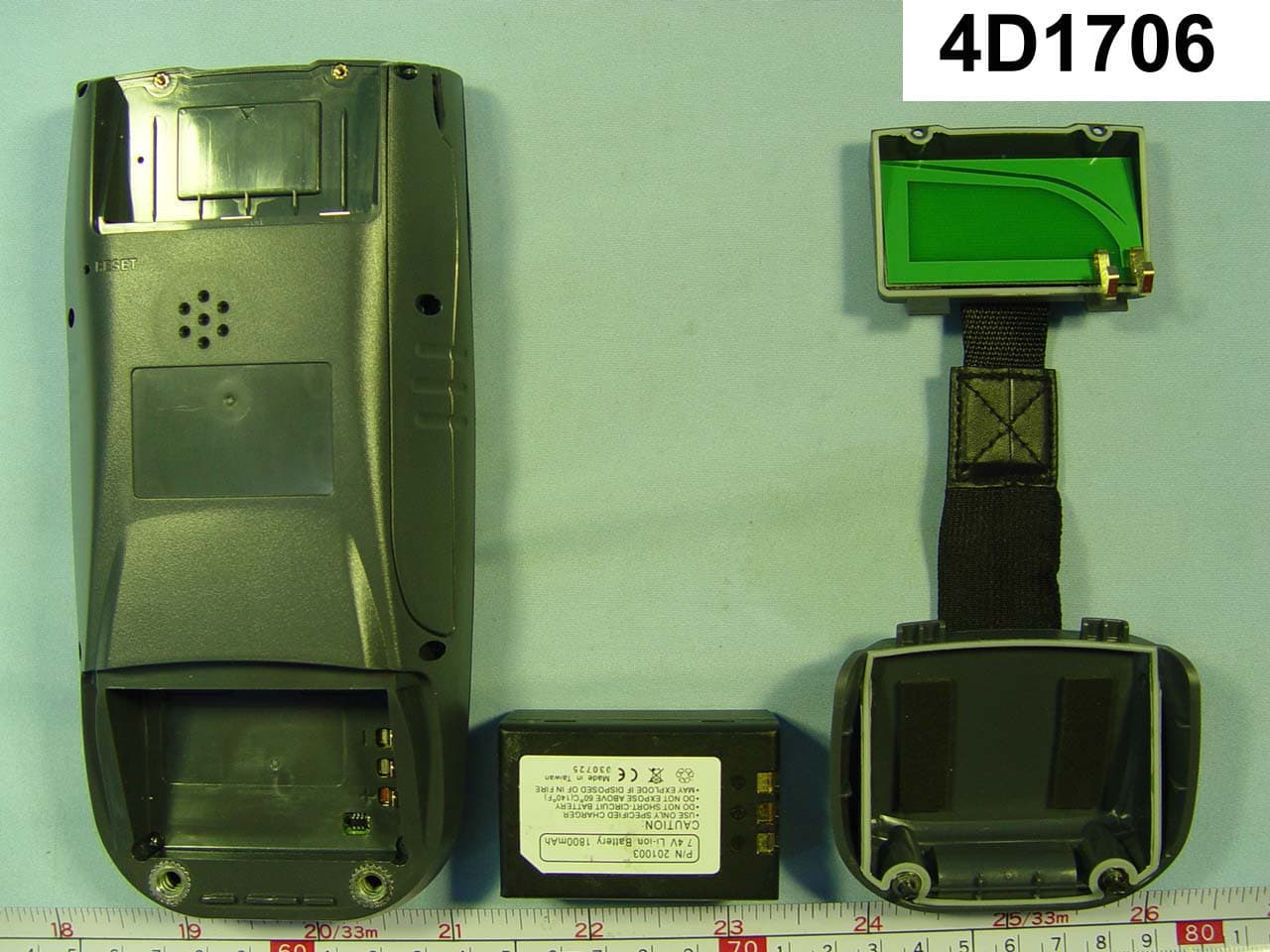
Click to zoom
Application Details
- Equipment Class
- DSS - Part 15 Spread Spectrum Transmitter
- Date of Grant
- Mar 10, 2005
- Application Purpose
- Original Equipment
- Date of Application
- Mar 10, 2005
- Equipment Note
- PDA W/ GSM/GPRS, WLAN AND BLUETOOTH
- Frequency Range
- 2402.00000000 - 2480.00000000
- Country
- Taiwan
Documents & Files
Document Text
Text extracted from the exhibit documents filed with the FCC. Open a document above to read the original.
Users Manual
PA970 Operation Manual Unitech Confidential PA970 CE.NET Operation Manual PA970 Operation Manual Unitech Confidential Table of Contents Chapter 1 Introduction ................................................................................................... 4 Chapter 2 Unitech’s Application ................................................................................. 5 2.1 Bootmode ...................................................................................................... 5 2.2 RegFuncKey ................................................................................................. 7 2.3 Scanner Settings............................................................................................ 9 2.4 Virtual Keys ................................................................................................ 24 2.5 Device Info.................................................................................................. 25 2.6 GetVK ......................................................................................................... 26 2.7 Scan2Key .................................................................................................... 26 Chapter 3 Tools and Applications under “Windows” ............................................... 29 3.1 ActiveNet .................................................................................................... 29 3.2 Calibration...................................................................................................... 33 3.3 connmc ...................................................................................................... 34 3.4 Remote Desktop Connection ...................................................................... 39 3.5 Pegterm ....................................................................................................... 41 3.6 Pmail ........................................................................................................... 45 3.7 Regview ...................................................................................................... 48 3.8 repllog ......................................................................................................... 49 3.9 Taskman ...................................................................................................... 51 3.10 wceload ..................................................................................................... 52 3.11 Screen Rotation ......................................................................................... 53 3.12 WMAGS46 ............................................................................................... 54 3.13 Transcriber-character recognition ............................................................. 60 Chapter 4 Control Panel............................................................................................ 62 4.1 Certificates .................................................................................................. 63 4.2 Date/Time.................................................................................................... 65 4.3 Display ........................................................................................................ 67 4.4 Input Panel .................................................................................................. 69 4.5 Internet Options .......................................................................................... 72 4.6 Keyboard..................................................................................................... 75 4.7 Mouse.......................................................................................................... 76 4.8 Network and Dial-up Connection ............................................................... 77 4.9 Owner.......................................................................................................... 78 4.10 Password ................................................................................................... 81 4.11 PC Connection .......................................................................................... 82 4.12 Power ........................................................................................................ 83 PA970 Operation Manual Unitech Confidential 4.13 Regional Settings ...................................................................................... 86 4.14 Remove Program ...................................................................................... 89 4.15 Stylus......................................................................................................... 90 4.16 System....................................................................................................... 91 4.17 Volume & Sounds ..................................................................................... 94 4.18 Storage Manager ....................................................................................... 96 Chapter 5 Available Function Keys ........................................................................... 101 5.1 Func + Esc................................................................................................. 101 5.2 Func + Up Arrow ...................................................................................... 102 5.3 Func + Down Arrow ................................................................................. 102 5.4 Func + TAB............................................................................................... 102 5.5 Func + 6 .................................................................................................... 103 5.6 Func + 7 .................................................................................................... 104 5.7 Func + 8 .................................................................................................... 104 5.8 Func + 9 .............................…
Text truncated - open the document above for the full version.
Users Manual
PA970 Operation Manual Unitech Confidential 3.5 Pegterm Path: My Computer/Windows/Pegterm.exe Or Start/Program/Communications/Terminal This tool allows you to make a session when you access the network by using modem card or when you want to dial to the phone by using GPRS card. 1. Insert the modem card or GPRS card. 2. Double tap “pegterm”. PA970 Operation Manual Unitech Confidential 3. Tap “Make New Session”. 4. Under “Communication”, Session name: <Enter a name> 5. Select a modem: <Select the modem card you are using> 6. Telephone Number: <Enter the phone number> PA970 Operation Manual Unitech Confidential 7. Tap “Configure”. Set the baud rate, stop bits, parity and so on. 8. Tap “OK” and exit configure window. 9. Tap “Dialing property”. Tap “Edit”. PA970 Operation Manual Unitech Confidential 10. Specify the local calls, long distance calls etc. Tap “OK” to exit. 11. Tap “OK” to exit pegterm. 12. Start to connect. PA970 Operation Manual Unitech Confidential 3.6 Pmail Path: My Computer/Windows/pmail.exe This is an email applications for you to sent/receive email by using the terminal. (Must connect the terminal to the network) 1. Double tap “pmail”. 2. In “Service” menu, select “Options”. PA970 Operation Manual Unitech Confidential 3. Under “Service” tab, tap “Add”. 4. Select the service type. Tap “OK”. PA970 Operation Manual Unitech Confidential 5. For connection, select type of your connection. (If you are using wireless LAN card, select “Network Connection”.) 6. Key in the Pop3 host. 7. Enter user ID and password. 8. Key in the SMTP host and return address. Tap “Next”. PA970 Operation Manual Unitech Confidential 9. Tap “Next”, “Next”. Tap “Finish”. 10. Pmail is ready to be used for email sending. 3.7 Regview Path: /My Computer/Windows/Regview.exe This tool shows the registry keys of the system. (Like “Regedit” in Windows) 1. Double tap “Regview”. PA970 Operation Manual Unitech Confidential 3.8 repllog Path: My Computer/Windows/repllog.exe Repllog is a tool to enable RS232/IrDA communication. 1. On your PC, open ActiveSync. Under “File” menu, select “Connection Settings”. Allow Serial cable or infrared connection to this com port, select “Infrared Port”. PA970 Operation Manual Unitech Confidential 2. On the terminal, control panel/ PC Connection/Change Connection: IR to PC. PA970 Operation Manual Unitech Confidential 3. Open MS Activesync on your PC. 4. Place the IrDA port of the terminal towards the IrDA port of your PC. 5. On the terminal, double tap “repllog.exe”. 6. Terminal and PC are connected by IrDA. 3.9 Taskman Path: My Computer/Windows/TASKMAN.exe This tool shows the tasks that are running currently. 1. Double tap “TASKMAN”. PA970 Operation Manual Unitech Confidential 2. Active tasks are shown. Select a task you want to terminate, tap “End Task”. 3.10 wceload Path: My computer/Windows/wceload.exe This tool is exist to execute *.cab file. PA970 Operation Manual Unitech Confidential 3.11 Screen Rotation Path: /My Computer/Windows/ScrRotation.exe Screen Rotation allows the users to rotate the screen of terminal to the right, to the left or upside down. 1. Double tap “ScrRotation.exe”. 2. The screen rotation icon will appear on the taskbar. Tap the icon to select the option from the menu. PA970 Operation Manual Unitech Confidential 3. Tap “Rotate Right”. The screen is rotated to the right. 4. Tap “Rotate Left”. The screen is rotated to the left. 5. Tap “Upside Down”. The screen is flipped 180° vertically. 6. Tap “About”. The version of screen rotation is shown. 7. Tap “Exit”. Screen rotation icon is disappeared. 3.12 WMAGS46 Path: My Computer/Windows/WMAGS46.exe WMAGS46 is the RF utility for Lucent Orinoco RF card. It allows the users to set the power management, to check site connection and link test etc. 1. Insert the Lucent Orinoco RF card into the PCMCIA slot. 2. Tap “WMAGS46.exe”. PA970 Operation Manual Unitech Confidential 3. Tap “Tools”. 4. Select “Disable Radio” to disconnect RF connection. (select “Enable Radio” to connect the RF) 5. Select “Power Management” > “On” or “Off”. PA970 Operation Manual Unitech Confidential 6. Select/Deselect “Suspend While Connected”. If select “Suspend While Connected”, the terminal will be suspend according to the time set in suspend mode even if the RF connection is on. If deselect “Suspend While Connected”, the terminal will not be suspend while the RF connection is on. 7. Select/deselect “Load/unload automatically”. 8. Select “Version Info”. The information of the utility is shown. PA970 Operation Manual Unitech Confidential 9. Tap “Advanced” > “Network Troubleshooting”. You may check your current IP. 10. Tap “Advanced” to check detail IP address or tap “Repair” to renew IP. 11. You may communicate with a remote computer by entering the name of that computer , then tap “Contact”. PA970 Operation Manual Unitech Confidential 12. Select “Advanced” > “Site Monitor”, tap “Open”, the user can check signal strength. 13. Select “Advanced” > “Link Test”, users can check the link of RF. PA970 Operation Manual Unitech Confidential 14. Tap “Tool” > “Exit” to close WMAGS46. PA970 Operation Manual Unitech Confidential 3.13 Transcriber-character recognition Execute processes of Transcriber: 1. Execute Transcriber at Desktop on PA970 2. Transcriber Icon will display at Taskbar PA970 Operation Manual Unitech Confidential 3. Execute Microsoft WordPad at Desktop on PA970 and write something with Stylus 4. Then you can see that you write on process 4 PA970 Operation Manual Unitech Confidential Chapter 4 Control Panel Settings under “Control Panel” 1. Certificates 2. Date/Time 3. Display 4. Input Panel 5. Internet Options 6. Keyboard 7. Mouse 8. Network and Dial-up connection 9. Owner 10. Password 11. PC Connection 12. Power 13. Regional Settings 14. Remove Programs 15. Stylus 16. System 17. Volume & Sounds 18. Storage Manager PA970 Operation Manual Unitech Confidential 4.1 Certificates Path: Start/Settings/Control Panel/Certificates This setting allows y…
Text truncated - open the document above for the full version.
Users Manual
PA970 Operation Manual Unitech Confidential 2. Tick “Enable character repeat”. 3. Adjust the repeat delay and repeat rate. 4. Place the cursor in the field of “Tap here and hold down a key to test”. 5. Press and hold a key on the keypad. 6. You should see the character is repeated until you release the key. 4.7 Mouse Path: Start/Settings/Control Panel/Mouse This setting allows you to adjust the tapping sensitivity. 1. Double tap “Mouse”. PA970 Operation Manual Unitech Confidential 2. Double tap the grid. Then, double tap the icon to test. 4.8 Network and Dial-up Connection Path: Start/Settings/Control Panels/Network and Dial-up connection This setting is to configure the network setting and Dial-up connection. 1. Double tap “Network and Dial-up connection”. PA970 Operation Manual Unitech Confidential 2. Follow the steps of 2 onwards in chapter 3.6. 4.9 Owner Path: /Start/Settings/Control Panel/Owner This settings is to define the owner of this terminal, set the network ID etc. 1. Double tap “Owner”. PA970 Operation Manual Unitech Confidential 2. Key in the name of the owner, company and the address of the company. Check “Display owner identification”.Tap “OK”. The system will display the owner identification after suspend. PA970 Operation Manual Unitech Confidential 3. Under “Notes”, Key any message and check “Display Owner Notes”.Tap “OK”. System will display the notes after suspend. 4. Under “Network ID”, specify the user name and password that allow you to access the network. PA970 Operation Manual Unitech Confidential 4.10 Password Path: Start/Settings/Control Panel/Password This setting is to protect the terminal from other users to access the windows by setting a unique password. 1. Double tap “Password”. 2. Key in your password twice. Check “Enable password protection at power on” and “Enable password protection for screen saver”. PA970 Operation Manual Unitech Confidential 3. Warm start your terminal. Enter your password to login. 4.11 PC Connection Path: /Start/Settings/Control Panel/PC Connection This setting allows you to set the device name and specify which type of communications you want to set for the device to communicate with the host. 1. Double tap “PC Connection”. 2. Check “Enable direct connection”. Tap “Change Connection”. Select the type of communication that you connect the terminal to your host. Example: PA970 Operation Manual Unitech Confidential If you use RS232 cable, you may select “Desktop@57600” or “Desktop@38400” . If you use USB cable, please select “USB to PC”. 4.12 Power Path: /Start/Settings/Control Panel/Power This setting is to show the power voltage of the batteries, besides allow you to suspend the terminal after a time interval to save the power. 1. Double tap “Power”. PA970 Operation Manual Unitech Confidential 2. Under “Battery” tab, the screen shows you the status and voltage of main battery and backup battery. 3. Under “Schemes”, For Power Scheme, select “Battery Power”. Then, define the idle time for user, system and suspend. PA970 Operation Manual Unitech Confidential 4. Change power scheme to “AC Power”. Define the idle time for user, system and suspend. 5. Tap“Device Status”, the power levels are shown. PA970 Operation Manual Unitech Confidential 4.13 Regional Settings Path: Start/Settings/Control Panel/Regional Settings This setting is to set the regional settings, currency, date format etc. 1. Double tap “Regional Settings”. PA970 Operation Manual Unitech Confidential 2. Under “Region”, select the region you want to use. 3. Under “Number” tab, select the symbol and format you want. 4. Under “Currency”, select the symbol and format you want. PA970 Operation Manual Unitech Confidential 5. Under “Time”, select the time format. 6. Under “Date”, select the date format. PA970 Operation Manual Unitech Confidential 4.14 Remove Program Path: /Start/Settings/Control Panel/Remove Program This setting is to allow you to remove unwanted program. 1. Double tap “Remove Program”. 2. Select the program you want to remove. Tap “Remove”. PA970 Operation Manual Unitech Confidential 4.15 Stylus Path: Start/Settings/Control Panel/Stylus This setting is to set the sensitivity of the tapping and to do the calibration. 1. Double tap “Stylus”. 2. Under “Double Tap”, repeat step 2 in chapter 4.7. PA970 Operation Manual Unitech Confidential 3. Under “Calibration”, tap “Recalibrate”. Calibrate the screen using the stylus. (Please refer to chapter 3.3) 4.16 System Path : Start/Settings/Control Panel/System This setting is to show you the general information of the system and allow you to adjust the size of storage memory and program memory. 1. Double tap “System”. PA970 Operation Manual Unitech Confidential 2. System shows the version of the Win CE and the hardware information of the terminal. 3. Under “Memory”, adjust the size of the memory by using the slider. PA970 Operation Manual Unitech Confidential 4. Under “Device Name”, specify the name of the device. PA970 Operation Manual Unitech Confidential 4.17 Volume & Sounds Path: Start/Settings/Control Panel/Volume & Sounds This setting allows you adjust the volume of the tapping , key clicks, events, notifications etc. Also, it allows the user to specify the type of sounds for a special event and set a scheme for the sounds. 1. Double tap “Volume&Sounds”. 2. Adjust the volume and tick the options that you want the sound to apply on. PA970 Operation Manual Unitech Confidential 3. To build a new scheme, tap “Save As”. 4. Enter a name for the scheme. 5. Under “Events”, click any events. Select the sounds. Tap the Preview button to listen to the sounds. 6. To delete an event from the scheme, tap “Delete”. 7. Tap “Save As” to overwrite when you make new change. PA970 Operation Manual Unitech Confidential 8. You have a new scheme for sounds. You may select any scheme you want at anytime. 4.18 Storage Manager Path: Start/Settings/Control Panel/Storage Manager Storage manager allows the users to check the information of the …
Text truncated - open the document above for the full version.
External Photos
FCC TEST REPORT REPORT NO. : FR4D1706 SPORTON International Inc. PAGE NUMBER : A1 OF A3 TEL : 886-2-2696-2468 ISSUED DATE : Jan. 06, 2005 FAX : 886-2-2696-2255 APPENDIX A. Photographs of EUT FCC TEST REPORT REPORT NO. : FR4D1706 SPORTON International Inc. PAGE NUMBER : A2 OF A3 TEL : 886-2-2696-2468 ISSUED DATE : Jan. 06, 2005 FAX : 886-2-2696-2255 FCC TEST REPORT REPORT NO. : FR4D1706 SPORTON International Inc. PAGE NUMBER : A3 OF A3 TEL : 886-2-2696-2468 ISSUED DATE : Jan. 06, 2005 FAX : 886-2-2696-2255
ID Label/Location Info
Label Location: Label
ID Label/Location Info
Unitech Co., Ltd. FCC ID: HLEPA970 Model : PA970
Internal Photos
FCC TEST REPORT REPORT NO. : FR4D1706 SPORTON International Inc. PAGE NUMBER : B1 OF B12 TEL : 886-2-2696-2468 ISSUED DATE : Jan. 06, 2005 FAX : 886-2-2696-2255 APPENDIX B. Photographs of EUT Internal FCC TEST REPORT REPORT NO. : FR4D1706 SPORTON International Inc. PAGE NUMBER : B2 OF B12 TEL : 886-2-2696-2468 ISSUED DATE : Jan. 06, 2005 FAX : 886-2-2696-2255 FCC TEST REPORT REPORT NO. : FR4D1706 SPORTON International Inc. PAGE NUMBER : B3 OF B12 TEL : 886-2-2696-2468 ISSUED DATE : Jan. 06, 2005 FAX : 886-2-2696-2255 FCC TEST REPORT REPORT NO. : FR4D1706 SPORTON International Inc. PAGE NUMBER : B4 OF B12 TEL : 886-2-2696-2468 ISSUED DATE : Jan. 06, 2005 FAX : 886-2-2696-2255 FCC TEST REPORT REPORT NO. : FR4D1706 SPORTON International Inc. PAGE NUMBER : B5 OF B12 TEL : 886-2-2696-2468 ISSUED DATE : Jan. 06, 2005 FAX : 886-2-2696-2255 FCC TEST REPORT REPORT NO. : FR4D1706 SPORTON International Inc. PAGE NUMBER : B6 OF B12 TEL : 886-2-2696-2468 ISSUED DATE : Jan. 06, 2005 FAX : 886-2-2696-2255 FCC TEST REPORT REPORT NO. : FR4D1706 SPORTON International Inc. PAGE NUMBER : B7 OF B12 TEL : 886-2-2696-2468 ISSUED DATE : Jan. 06, 2005 FAX : 886-2-2696-2255 FCC TEST REPORT REPORT NO. : FR4D1706 SPORTON International Inc. PAGE NUMBER : B8 OF B12 TEL : 886-2-2696-2468 ISSUED DATE : Jan. 06, 2005 FAX : 886-2-2696-2255 FCC TEST REPORT REPORT NO. : FR4D1706 SPORTON International Inc. PAGE NUMBER : B9 OF B12 TEL : 886-2-2696-2468 ISSUED DATE : Jan. 06, 2005 FAX : 886-2-2696-2255 FCC TEST REPORT REPORT NO. : FR4D1706 SPORTON International Inc. PAGE NUMBER : B10 OF B12 TEL : 886-2-2696-2468 ISSUED DATE : Jan. 06, 2005 FAX : 886-2-2696-2255 FCC TEST REPORT REPORT NO. : FR4D1706 SPORTON International Inc. PAGE NUMBER : B11 OF B12 TEL : 886-2-2696-2468 ISSUED DATE : Jan. 06, 2005 FAX : 886-2-2696-2255 FCC TEST REPORT REPORT NO. : FR4D1706 SPORTON International Inc. PAGE NUMBER : B12 OF B12 TEL : 886-2-2696-2468 ISSUED DATE : Jan. 06, 2005 FAX : 886-2-2696-2255
RF Exposure Info
Document No.: 4D1706 RF Exposure Test Report Date: Jan. 19, 2005 FCC ID: HLEPA970 Sporton International Inc. This report man not be reproduced, expect in full, without the prior written consent of Sporton International Inc. RF Exposure Test Report for Unitech Co., Ltd. PA970 Equipment : PDA Trade Name : Unitech Model No. : PA970 FCC ID : HLEPA970 Filing Type : Certification Applicant : Unitech Co., Ltd. 3F, No. 236, Shinsu 2nd Rd., Neihu Chiu, Taipei, Taiwan 114, R.O.C. Without written approval of SPORTON International Inc., the test report shall not be reproduced except in full. SPORTON International Inc. 6F, No.106, Sec. 1, Hsin Tai Wu Rd., Hsi Chih, Taipei Hsien, Taiwan, R.O.C. Document No.: 4D1706 RF Exposure Test Report Date: Jan. 19, 2005 FCC ID: HLEPA970 Sporton International Inc. Maximum Permissible Exposure Test Report for PA970 1.0 Introduction The report has been prepared on behalf of Unitech Co., Ltd. PDA to show compliance with the RF Exposure. 1.1 Requirements Three different categories of transmitters are defined by the FCC in OET Bulletin 65. These categories are fixed installation, mobile and portable and are defined as follows: Fixed installation: fixed location means that the device, including its antenna, is physically secured at a permanent location and is not able to be easily moved to another location. Additionally, distance to humans form the antenna is maintained to at least 2 meters. Mobile Devices: a mobile device is defined as a transmitting device designed to be used in other than fixed locations and to be generally used in such a way that a separation distance of at least 20 centimeters is normally maintained between the transmitter’s radiating structures and the body of the user or nearby persons. Transmitters designed to be used by consumers or workers that can be easily re-located, such as a wireless modem operating in a laptop computer, are considered mobile devices if they meet the 20 centimeter separation requirement. The FCC rules for evaluating mobile devices for RF compliance are found in 47 CFR 2.1091. Portable Devices: a portable device is defined as a transmitting device designed to be used so that the radiating structure(s) of the device is/are within 20 centimeters of the body of the user. Portable device requirements are found in Section 2.1093 of the FCC’s Rules (47 CFR 2.1093) For this test report the Motorola Corporation Indoor UWB Device with unity gain antenna is being done as a mobile device and the MPE is evaluated at the 20cm test distance. The FCC also categorizes the use of the device as based upon the user’s awareness and ability to Document No.: 4D1706 RF Exposure Test Report Date: Jan. 19, 2005 FCC ID: HLEPA970 Sporton International Inc. exercise control over his or her exposure. The two categories defined are Occupational/Controlled Exposure and General Population/Uncontrolled Exposure. These two categories are defined as follows: Occupational/controlled Exposure: In general, occupational/controlled exposure limits are applicable to situation in which persons are exposed as a consequence of their employment, who have been made fully aware of the potential for exposure. Awareness of the potential for RF exposure in a workplcae or similar environment can be provided through specific training as part of a RF safety program. If appropriate, warning signs and labels can also be used to establish such awareness by providing prominent information on the risk of potential exposure and instructions on methods to minimize such exposure risks. General Population/Uncontrolled Exposure: The general population / uncontrolled exposure limits are applicable to situations in which the general public may be exposed or in which persons who are exposed as a consequence of their employment may not be made fully aware of the potential for exposure or cannot exercise control over their exposure. Members of the general public would come under this category when exposure is not employment-related; for example, in the case of a wireless transmitter that exposes persons in its vicinity. Warning labels placed on low-power consumer devices such as cellular telephones are not considered sufficient to allow the device to be considered under the occupational/controlled category, and the general population/uncontrolled exposure limits apply to these devices. Since there are no warnings or training associated with this unit and it can be used by anyone, PDA is evaluated to the General Population / Uncontrolled Exposure limits. 1.2 Radio Frequency Radiation Exposure Evaluation For this device, the calculation is as follows: ¾ No Evaluation Required if power is below this threshold: F (GHz) MW dBm 2.48 24.19 13.84 Maximum measured transmitter power for the EUT: Document No.: 4D1706 RF Exposure Test Report Date: Jan. 19, 2005 FCC ID: HLEPA970 Sporton International Inc. Pout (dBm) -2.17 Threshold for no RF Exposure evaluation is 13.84 dBm. Transmitter power of this device is -2.17 dBm Conclustion: No RF Exposure evaluation required since Transmitter Pout is below FCC threshold.
Test Report
SPORTON International Inc. FCC ID : HLEPA970 TEL : 886-2-2696-2468 Page No. : i FAX : 886-2-2696-2255 Issued Date : Jan. 06, 2004 FCC TEST REPORT Report No. : FR4D1706 Table of Contents History of this test report....................................................................................................................................ii 1. General Description of Equipment under Test.............................................................................................1 1.1. Applicant .................................................................................................................................................1 1.2 Manufacturer ..........................................................................................................................................1 1.3 Basic Description of Equipment under Test ...........................................................................................1 1.4 Feature of Equipment under Test...........................................................................................................1 2 Test Configuration of Equipment under Test ...............................................................................................2 2.1 Test Manner ...........................................................................................................................................2 2.2 Test Mode...............................................................................................................................................2 2.3 Connection Diagram of Test System......................................................................................................3 2.4 Ancillary Equipment List .........................................................................................................................3 3. RF Utility ...........................................................................................................................................................4 4. General Information of Test............................................................................................................................5 4.1 Test Voltage ...........................................................................................................................................5 4.2 Standard for Methods of Measurement..................................................................................................5 4.3 Test in Compliance with .........................................................................................................................5 4.4 Frequency Range Investigated ..............................................................................................................5 4.5 Test Distance..........................................................................................................................................5 5. Test Data and Test Result...............................................................................................................................6 5.1 List of Measurements and Examinations ................................................................................................6 5.2 6dB Bandwidth Measurement .................................................................................................................8 5.3 Power Spectral Density Measurement ..................................................................................................12 5.4 Band Edges Measurement ....................................................................................................................16 5.5 Hopping Channel Separation ................................................................................................................23 5.6 Number of Hopping Frequency .............................................................................................................27 5.7 Hopping Channel Bandwidth.................................................................................................................29 5.8 Dwell Time of Each Frequency within a 30 Seconds Period ................................................................33 5.9 Peak Output Power Measurement ....................................................................................................…
Text truncated - open the document above for the full version.
Contact Information
Applicant
Ben Chiang
Test Firm
SPORTON International IncKathy Lin
Technical Specifications
| # | Rule Parts | Frequency Range | Power Output |
|---|---|---|---|
| 1 | 15C | 2.40 GHz - 2.48 GHz | 600.00 µW |
Other Applications from Unitech Electronics Co., Ltd.
HLERG768PU
Jul 29, 2026RG768 Plus gun grip
Equipment Class
DSS - Part 15 Spread Spectrum TransmitterHLEEA530BWNWU
Feb 16, 2026Rugged Handheld Computer
Equipment Class
DTS - Digital Transmission SystemHLEEA530BWNW
Feb 16, 2026Rugged Handheld Computer
Equipment Class
6XD - 15E 6 GHz Low Power Indoor Client
HLERP300BU
Nov 24, 2025RP300 UHF RFID Mobile Reader
Equipment Class
DSS - Part 15 Spread Spectrum Transmitter
HLERM300PU
Sep 01, 2024RM300 Plus UHF RFID Reader Module
Equipment Class
DSS - Part 15 Spread Spectrum Transmitter