IXMUD23011Bluetooth USB Dongle
Universal Scientific Industrial Co., Ltd.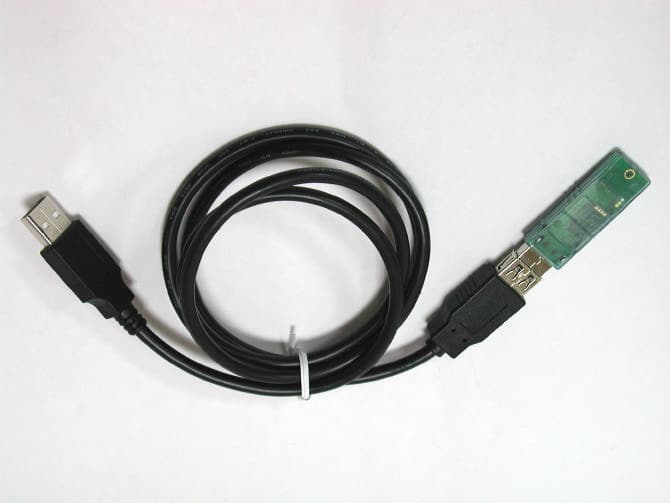
Click to zoom
Application Details
- Equipment Class
- DSS - Part 15 Spread Spectrum Transmitter
- Date of Grant
- Oct 09, 2002
- Application Purpose
- Original Equipment
- Date of Application
- Oct 09, 2002
- Equipment Note
- Bluetooth USB Dongle
- Frequency Range
- 2402.00000000 - 2480.00000000
- Country
- Taiwan
Documents & Files
Document Text
Text extracted from the exhibit documents filed with the FCC. Open a document above to read the original.
Users Manual
Page 1 135, Lane 351, Taiping Road, Sec . 1, Nan-Tou , Taiwan; (049)2325876; www.usi.com.tw Rev 1.29_30Aug02 Getting Started With the Bluetooth Software BTW 1.2.29 and Bluetooth USB Dongle Trademark Information BTW is a product of Widcomm Inc. Windows, Windows 98, Windows NT, Windows Millennium, Windows XP are trademarks of Microsoft Corporation. Internet Explorer is a product of Microsoft Corporation. The BLUETOOTH trademarks are owned by Bluetooth SIG and used by USI under license. T39 handset is a product of Ericsson. All other trade names mentioned in this document or the other documentation provided with Bluetooth USB Dongle are trademarkes or registered trademarks of their respective holders. Page 2 135, Lane 351, Taiping Road, Sec . 1, Nan-Tou , Taiwan; (049)2325876; www.usi.com.tw Rev 1.29_30Aug02 Getting Started With the Bluetooth Software BTW 1.2.29 and Bluetooth USB Dongle Table of Contents ItemPage System Requirement 3 Bluetooth Software Install step by Step3 -9 Start Connection Over The Bluetooth Airwaves – File Transfer10-13 Connecting Over The Bluetooth Airwaves – Security14 - 15 Start Connection Over The Bluetooth Airwaves – Dial Up Networking Profile16 - 18 Page 3 135, Lane 351, Taiping Road, Sec . 1, Nan-Tou , Taiwan; (049)2325876; www.usi.com.tw Rev 1.29_30Aug02 Getting Started With the Bluetooth Software BTW 1.2.29 and Bluetooth USB Dongle System Requirements BTW runs under: - Windows 98 (Second edition) - Millennium (Windows 98 ME) - Windows 2000 - Windows XP During the installation, you need a CD-ROM driver for access to the bundle software. Note: This Getting Started is a simple guide , for more Users Guide please see the ‘BTW Users Guide.pdf’ in BTW CD. Or you can click the Help Topics in the Help Menu of the Tool Bar. Bluetooth Software Install step by step Step 1 Insert the Widcomm BTW CD into the PC’s CDROM drive. Installation proceeds automatically. Since Windows NT does not support USB, the installation of the CD should be done on systems with Windows ’98 or Windows 2000. Step 2 An InstallShield box appears to inform you the installation Wizard is being set up. Please wait. Page 4 135, Lane 351, Taiping Road, Sec . 1, Nan-Tou , Taiwan; (049)2325876; www.usi.com.tw Rev 1.29_30Aug02 Getting Started With the Bluetooth Software BTW 1.2.29 and Bluetooth USB Dongle Figure 2. Welcome Window Note: These images were captured from a Windows 2000 system. Your images may look slightly different. Step 3 A Welcome To The Installation Wizard window appears as shown in Figure 2. Select Next to continue the installation process. Figure 3. License Agreement Window Step 4 The license agreement window appears as shown in Figure 3. If you accept, mark the “I accept the terms in the license agreement” option and click on Next. The installation will proceed. If you do not accept the conditions of the agreement, the installation process will terminate. Page 5 135, Lane 351, Taiping Road, Sec . 1, Nan-Tou , Taiwan; (049)2325876; www.usi.com.tw Rev 1.29_30Aug02 Getting Started With the Bluetooth Software BTW 1.2.29 and Bluetooth USB Dongle Figure 4. Device Information Window Step 5 A Device Information window opens as shown in Figure 4. Enter a device name and choose a device type. These options will not affect the functionality. The device information is used to inform the master device what kinds of other devices are within range to connect to so the user can identify which device is the one they need to connect to if there is more than one device within range. Select the Next Button. Figure 5. Destination Folder Window Step 6 A Destination Folder window appears as shown in Figure 5, which states the default location and gives you the opportunity to choose an alternative folder. When the location is acceptable, select Next. Page 6 135, Lane 351, Taiping Road, Sec . 1, Nan-Tou , Taiwan; (049)2325876; www.usi.com.tw Rev 1.29_30Aug02 Getting Started With the Bluetooth Software BTW 1.2.29 and Bluetooth USB Dongle Figure 6. Ready to Install Window Step 7 A Ready to Install Program window appears as shown in Figure 6. Select Install when you are ready to proceed. Figure 7. Installing Window Step 8 An Installing Widcomm Status window appears. Please be patient, this may take up to 5 minutes. Step 9 A notification window appears asking you to restart your system. Select Yes to proceed. Page 7 135, Lane 351, Taiping Road, Sec . 1, Nan-Tou , Taiwan; (049)2325876; www.usi.com.tw Rev 1.29_30Aug02 Getting Started With the Bluetooth Software BTW 1.2.29 and Bluetooth USB Dongle Figure 8. Install Complete Window Step 10 You will be informed when the installation is complete. Select Finish. Follow the instructions thereafter. You may be asked to restart the computer after the installation completes. In that case click OK and restart the computer. Step 11 A Bluetooth Neighborhood logo has appeared on your desktop and a small Bluetooth icon has appeared on your icon tray (lower right-hand side of the screen). Page 8 135, Lane 351, Taiping Road, Sec . 1, Nan-Tou , Taiwan; (049)2325876; www.usi.com.tw Rev 1.29_30Aug02 Getting Started With the Bluetooth Software BTW 1.2.29 and Bluetooth USB Dongle Figure 9. Device Manager Window Step 12 Plug the Bluetooth USB Dangle into you usb port ,The OS will install the usb Driver auto. And you can check it in the My computer - > Device Manager. You may now remove the Widcomm CD from your CD drive. Step 13 Let’s configure your devices. On your icon tray (lower right-hand side of the screen), right click on the small Bluetooth Neighborhood icon on your icon tray. Figure 10. Bluetooth Configuration Window - General Tab Step 14 A pull down window appears with two words, Security (which we will discuss later) and Configuration. Choose Configuration. Step 15 A Bluetooth Configuration window appears as shown in Figure 10. In this document, there are three tabs-of-interest: General, Information Exchange, and Hardware. Select the General tab. Step 16 Type in a name for your…
Text truncated - open the document above for the full version.
External Photos
Exrternal Photo of the USI UD-23011 Exrternal Photo of the USI UD-23011 Exrternal Photo of the USI UD-23011
ID Label/Location Info
Label Location of the USI UD-23011
Internal Photos
Inrternal Photo of the USI UD-23011 Inrternal Photo of the USI UD-23011 Inrternal Photo of the USI UD-23011 Inrternal Photo of the USI UD-23011
RF Exposure Info
Training Research Co., Ltd. 255 Nanyang Street, Shijr, Taipei Hsien 221, Taiwan, R.O.C. TEL: 886-2-26935155 FAX: 886-2-26934440 TRCSince1985 ® Measurement of MPE 1. Foreword In adopt with the Human Exposure IEEE C95.1, and according to the FCC 1.1310. The Maximum Permissible Exposure (MPE) is obligated to measure in order to prove the safety of radiation harmfulness to the human body. The Gain of the antenna used is measured in an Anechoic chamber. The maximum total power to the antenna is to be recorded. By adopting the Friis Transmission Formula and the power gain of the antenna, we can find the distance right away from the product, where the limit of the MPE is. 2. Description of EUT EUT : Bluetooth USB Dongle Model No. : UD-23011 Classification : Mobile Device (i) Under normal use condition, the antenna is at least 20cm away from the user; (ii) Warning statement for keeping 20cm separation distance and the prohibition of operating next to the person has been printed in the user’s manual Granted FCC ID : IXMUD23011 Frequency Range : 2401 MHz-2480 MHz Support Channel : 79 Channels Antenna type : 1 chip antenna Channel Spacing : 1 MHz Modulation Skill : GFSK Power Type : Powered by the USB port of the client device Applicant : Universal Scientific Industrial Co., Ltd. 135, Lane 351, Taiping Rd., Sect.1, Tsao Tuen, Nantou 542, Taiwan, R.O.C. Training Research Co., Ltd. 255 Nanyang Street, Shijr, Taipei Hsien 221, Taiwan, R.O.C. TEL: 886-2-26935155 FAX: 886-2-26934440 TRCSince1985 ® 3. Limits for Maximum Permissible Exposure (MPE) Frequency Range (MHz) Electric Field Strength (V/m) Magnetic Filed Strength (H) (A/m) Power Density (S) (mW/cm2) Averaging Time |E| 2 , |H| 2 or S (minutes) (A) Limits for Occupational/Controlled Exposure 0.3-3.0 614 1.63 100 6 3.0-30 1842/f 4.89/f 900/f 2 6 30-300 61.4 0.163 1.0 6 300-1500 -- -- f/300 6 1500-100,000 -- -- 5 6 (B) Limits for General Population/Uncontrolled Exposure 0.3-1.34 614 1.63 100 30 1.34-30 824/f 2.19/f 180/f 2 30 30-300 27.5 0.073 0.2 30 300-1500 -- -- f/1500 30 1500-100,000 -- -- 1.0 30 [The EUT is tested in transmit and receive modes and in the first, middle and the last channel separately. The following shows only our observation have the greatest emissions.] According to OET BULLETIN 56 Fourth Edition/August 1999, equation for predicting RF fields, by the Friis Transmission Formula: Power density at the specific separation (portable): 24 22 /10914.8 )20(4 778.152.2 4 cmmW R PG S − ×= × == ππ Estimated safe separation: cm PG R597.0 4 778.152.2 4 = × == ππ Remarks: "The safe estimated separation that the user must maintain from the antenna is at least 0.597 cm." Where: S = power density (in appropriate units, e.g. mW/cm2) P = power input to the antenna (in appropriate units, e.g., mW) G = power gain of the antenna in the direction of interest relative to an isotropic radiator R = distance to the center of radiation of the antenna (appropriate units, e.g., cm) The Numeric gain G of antenna with a gain specified in dB is determined by: G = Log -1 (dB antenna gain/10) G = Log -1 (2.5 / 10) = 1.778
Test Report
Test Report ------------------------------------------------------------------------------ 1/41 Report No.: U1315806 Training Research Co., Ltd., TEL: 886-2-26935155, Fax: 886-2-26934440 MEASUREMENT REPORT of Bluetooth USB Dongle Applicant : Universal Scientific Industrial Co., Ltd. Model No. : UD-23011 EUT : USI Bluetooth USB Dongle FCC ID : IXMUS23011 Report No. : U1315806 Tested by : Training Research Co., Ltd. TEL : 886-2-26935155 FAX : 886-2-26934440 255 Nanyang Street, Shijr, Taipei Hsien 221, Taiwan, R.O.C. Test Report ------------------------------------------------------------------------------ 3/41 Report No.: U1315806 Training Research Co., Ltd., TEL: 886-2-26935155, Fax: 886-2-26934440 Tables of Contents I. GENERAL ..................................................................................................................... 5 1.1 Introduction .............................................................................................................. 5 1.2 Description of EUT .................................................................................................. 5 1.3 Description of Support Equipment ........................................................................... 6 1.4 Configuration of System Under Test ........................................................................ 6 1.5 Verify the Frequency and Channel ........................................................................... 7 1.6 Test Procedure ......................................................................................................... 7 1.7 Location of the Test Site .......................................................................................... 7 1.8 General Test Condition ............................................................................................ 7 II. Section 15.203 : Antenna Requirement......................................................................... 8 III. Section 15.207 : Power Line Conducted Emissions for AC Powered Units .............. 9 3.1 Test Condition & Setup ............................................................................................ 9 3.2 List of Test Instruments ............................................................................................ 9 3.3 Test Configuration .................................................................................................. 10 3.4 Test Results of Conducted Emissions ..................................................................... 11 IV. Section 15.247(a) : Technical Description of the EUT................................................. 14 V. Section 15.247(a)(1) : Carrier Frequency Separation................................................. 15 5.1 Test Condition ........................................................................................................ 15 5.2 Test Instruments Configuration ............................................................................... 15 5.3 List of Test Instruments ........................................................................................... 16 5.4 Test Results ............................................................................................................. 16 VI. Section 15.247(a)(1)(ii) : Number of Hopping Frequencies ....................................... 17 6.1 Test Condition ........................................................................................................ 17 6.2 List of Test Instruments ........................................................................................... 17 6.3 Test Instruments Configuration ............................................................................... 17 6.4 Test Results ............................................................................................................. 18 VII. Section 15.247(a)(1)(ii) : Time of Occupancy (Dwell time) ........................................ 19 7.1 Test Condition ........................................................................................................ 19 7.2 List of Test Instruments ........................................................................................... 19 7.3 Test Results ............................................................................................................. 20 VIII. Section 15.247(a)(1)(ii) : 20dB Bandwidth.................................................................. 21 8.1 Test Condition ........................................................................................................ 21 8.2 Test Instruments Configuration ............................................................................... 22 8.3 List of Test Instruments ........................................................................................... 22 8.4 Test Results ............................................................................................................. 23 Test Report ------------------------------------------------------------------------------ 4/41 Report No.: U1315806 Training Research Co., Ltd., TEL: 886-2-26935155, Fax: 886-2-26934440 IX. Section 15.247(b) : Peak Output Power ....................................................................... 26 9.1 Test Condition & Setup ........................................................................................... 26 9.2 List of Test Instruments ........................................................................................... 26 9.3 Test Results .............................................................................................................. 27 X. Section 15.247(c) : Bandedge Compliance....................................................................... 30 10.1 Test Condition & Setup............................................................................................ 30 10.2 List of Test Instruments............................................................................................ 30 10.3Test Instr…
Text truncated - open the document above for the full version.
Test Setup Photos
Training Research Co., Ltd. 255 Nanyang Street, Shijr, Taipei Hsien 221, Taiwan, R.O.C. TEL: 886-2-26935155 FAX: 886-2-26934440 TRCSince1985 ® Test setup photos USI Bluetooth USB Dongle (Test report no.:U1315806) FCC ID: IXMUD23011 Test Instruments Configuration of Conducted Emissions Training Research Co., Ltd. 255 Nanyang Street, Shijr, Taipei Hsien 221, Taiwan, R.O.C. TEL: 886-2-26935155 FAX: 886-2-26934440 TRCSince1985 ® Configuration of test of carrier frequency separation Configuration of test of number of hopping frequency Horn Antenna Horn Antenna EUT Notebook EUT Notebook Training Research Co., Ltd. 255 Nanyang Street, Shijr, Taipei Hsien 221, Taiwan, R.O.C. TEL: 886-2-26935155 FAX: 886-2-26934440 TRCSince1985 ® Configuration of test of time of occupancy (Dwell time) Configuration of test of 20dB bandwidth Horn Antenna Horn Antenna EUT Notebook EUT Notebook Training Research Co., Ltd. 255 Nanyang Street, Shijr, Taipei Hsien 221, Taiwan, R.O.C. TEL: 886-2-26935155 FAX: 886-2-26934440 TRCSince1985 ® Test Setup of Power Output Test Setup of bandedge compliance Horn Antenna EUT Spectrum Analyzer EUT Spectrum Analyzer Training Research Co., Ltd. 255 Nanyang Street, Shijr, Taipei Hsien 221, Taiwan, R.O.C. TEL: 886-2-26935155 FAX: 886-2-26934440 TRCSince1985 ® Test Instruments Configuration of the Spurious Radiated Emissions Front View of the Test Configuration Rear View of the Test Configuration The test configuration for frequency between 1GHz to 18GHz is same as above.
Contact Information
Applicant
Martin Shih(Section Manager)
Technical Contact
Training Research Co., Ltd.Eric Wong
[email protected]+886 2 26935155
255 Nanyang Street · Taipei Hsien · Taiwan
Test Firm
Training Research Co., Ltd.Jack Tsai
Technical Specifications
| # | Rule Parts | Frequency Range | Power Output |
|---|---|---|---|
| 1 | 15C | 2.40 GHz - 2.48 GHz | 2.50 mW |
Other Applications from Universal Scientific Industrial Co., Ltd.
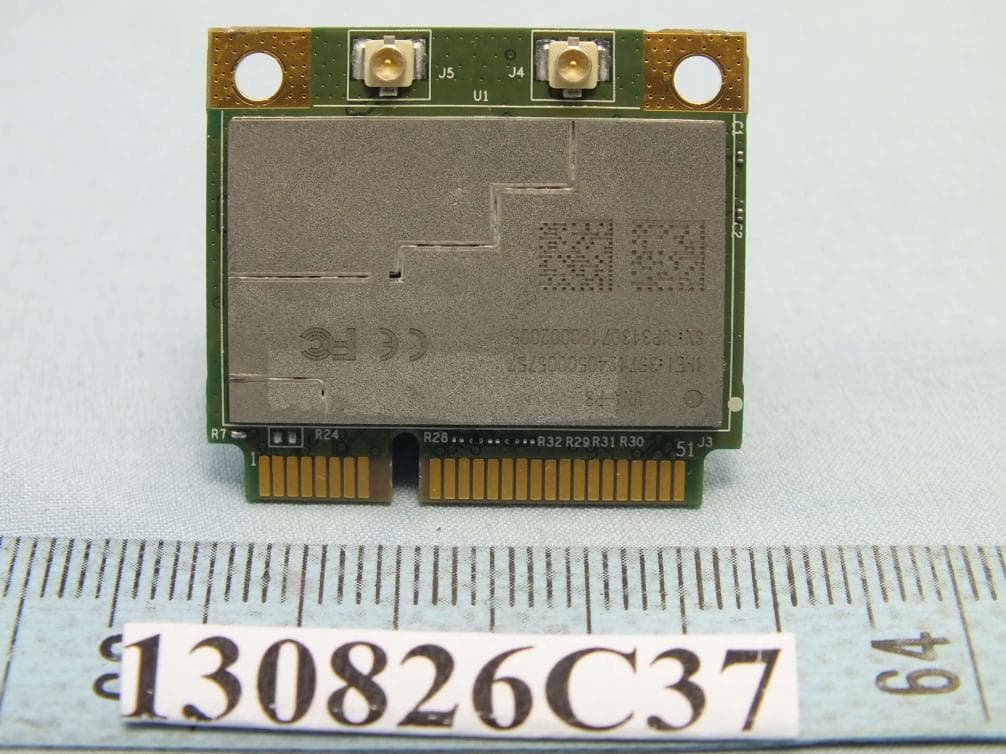
IXM-UNA-P3
Nov 21, 20133G Module
Equipment Class
PCB - PCS Licensed Transmitter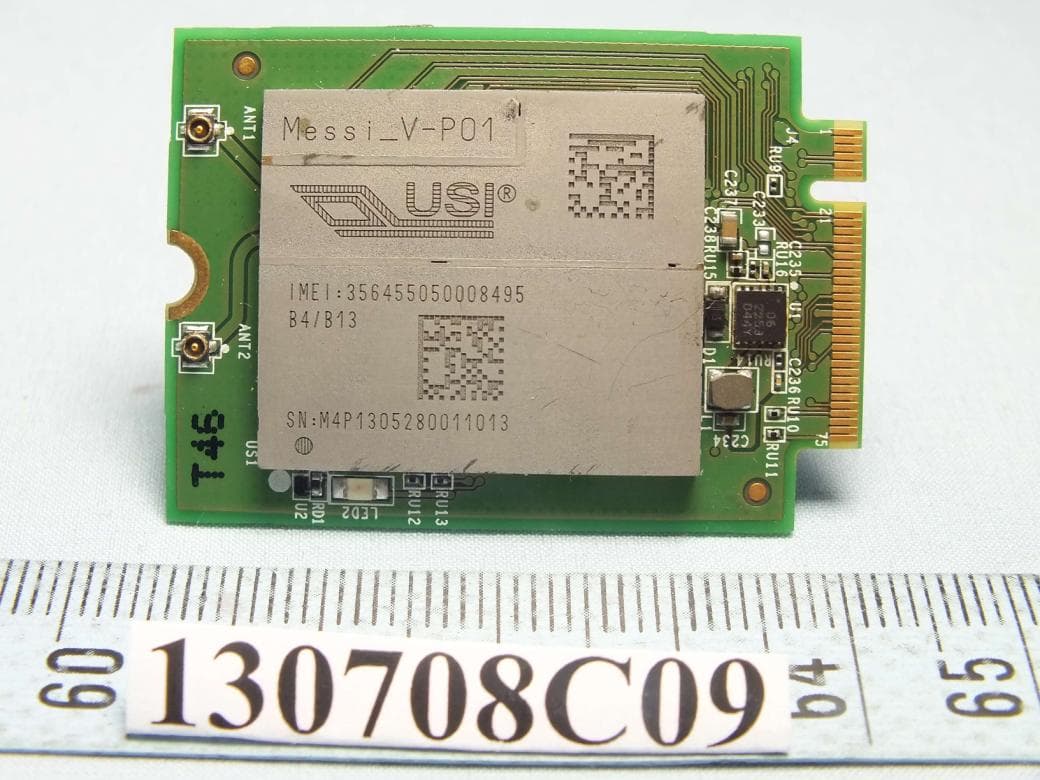
IXMMESSI-V
Sep 29, 2013LTE Module
Equipment Class
JBP - Part 15 Class B Computing Device Peripheral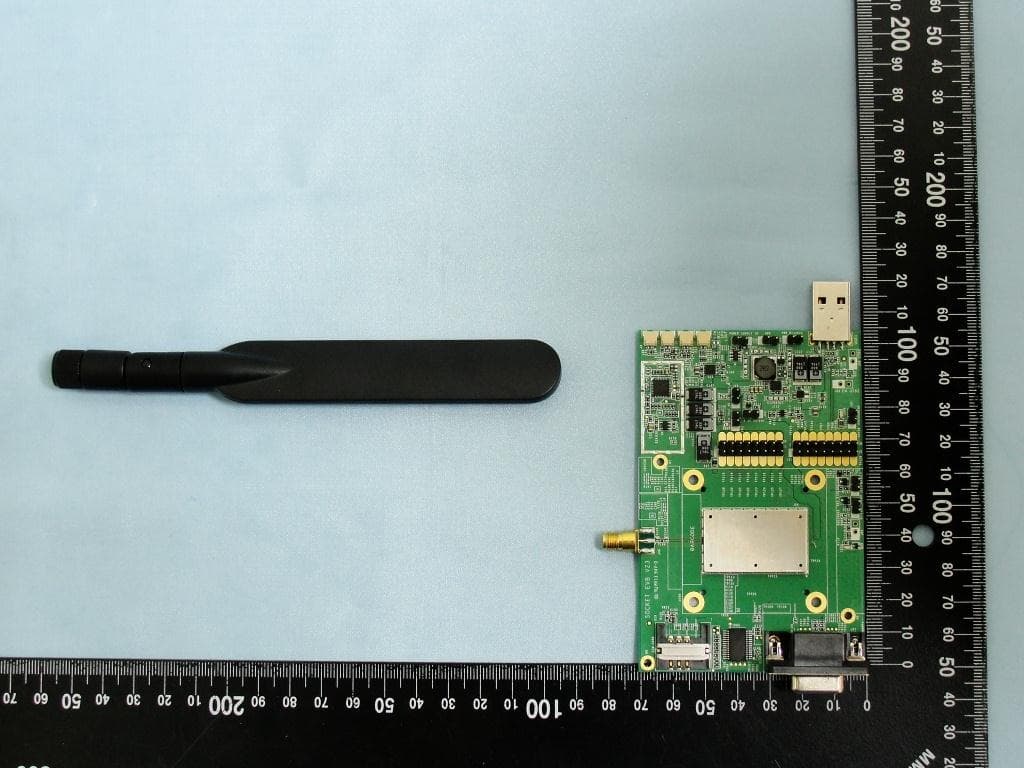
IXM-UNA850
Oct 01, 2012UNA 850 module
Equipment Class
PCB - PCS Licensed Transmitter
IXM-UNA900
Apr 19, 2012WWAN Module
Equipment Class
PCB - PCS Licensed Transmitter
IXMUGNAS-P3
Jul 28, 2011NETWORK ATTACHED STORAGE
Equipment Class
DTS - Digital Transmission System