JY8-WIR002WI-COPY
Carry Technology Co., Ltd.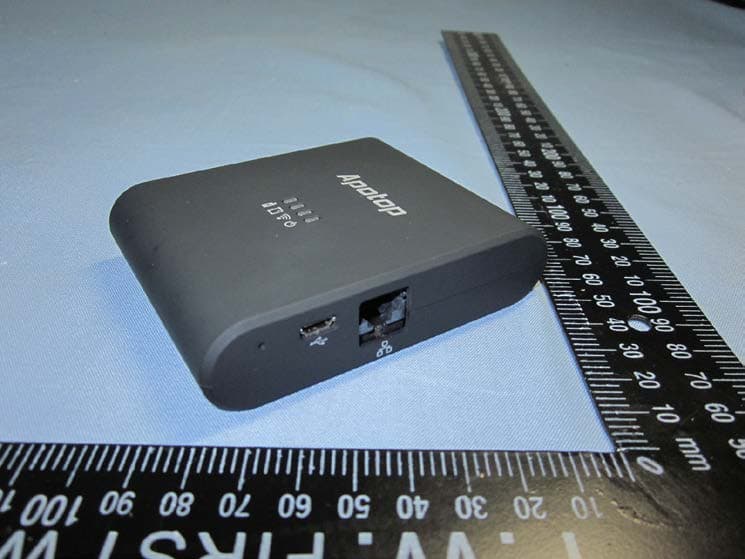
Click to zoom
Application Details
- Equipment Class
- DTS - Digital Transmission System
- Date of Grant
- Apr 28, 2013
- Application Purpose
- Original Equipment
- Date of Application
- Apr 28, 2013
- Equipment Note
- WI-COPY
- Frequency Range
- 2422.00000000 - 2452.00000000
- Company
- Carry Technology Co., Ltd.
- Country
- Taiwan
Documents & Files
Document Text
Text extracted from the exhibit documents filed with the FCC. Open a document above to read the original.
Users Manual
萬國科技 使 用 手冊 Q u i c k G u i d e 無線讀卡分享器+行動電源 Wi-Copy Copyright © 2013, Carry Technology Co., Ltd. All Right Reserved 萬國科技 1 目錄/Catalog 感謝您的購買/ Thanks for your purchasing.....................2 1 . 1 包裝內容/ P a c k a g e C o n te n t...............................2 1.2介面與LED燈號顯示說明/ Interface & LED Indicators Description..3 主要功能介紹/ Main Function......................................5 2.1 無線網卡功能/ Wireless Card Reader......................................5 2.2 如何輕鬆將飯店有線網路轉成無線/ Easy create a wireless network at hotel room .......... . . . . . . . . . . . . . . . . . . . . . . . . . . . . . .5 2.3 如何設定無線網路環境(插網路線)/ How to Setup a wireless network (with an internet cable) ........................................5 2.4 如何設定無線網路環境(不插網路線)/ How to Setup a wireless network (without an internet cable) .............. ..... ...... ...... ...... ..6 2.5 行動電源功能/ Power bank function .......................................6 NCC警語 / FCC Compliance and Advisory Statement......8 萬國科技 2 感謝您的購買/ Thanks for the Purchasing Wi-Copy無線讀卡分享器整合了無線讀卡機、無線路由器以及行 動電源等三種功能。此產品專為平板電腦、智慧型手機設計。藉由內建 的可充電電池提供電源,讓無線裝置不需透過與電腦的連接,直接經由 SD記憶卡、外接硬碟或是USB隨身碟,來無線分享及傳輸您的檔案 及照片,除此之外,整合無線路由器的功能,連接網路線後,使用者可 以相當方便連接至網際網路,可在一般房間大小的空間分享無線網路, 小型化設計便於旅行時攜帶且可滿足基本的無線網路使用需求,內建電 池也可做為智慧型手機的行動電力站。 產品使用前請先至Google Play Store或Apple App store免費下載 Wi-Copy App,並完成安裝。 Wi-Copy is a wireless storage (UFD/ USB HDD or SD card) and wireless router. For Wireless Storage function, you can download the special designed iOS or Android App: “Wi-Copy” based on storage media with FAT16, FAT32, exFAT and NTFS File System Wi-Copy can be powered from USB Power Adapter or PC/ Notebook with USB port. Wi-Copy has embedded battery for portable usage.Please install Wi-Copy App at Google Play Store or Apple App Store before first usage. 萬國科技 3 1.1包裝內容/ Package contents 1. 1 組無線讀卡機Wi-Copy (有內建電池,請於第一次使用前將電 池充滿) 2. 1 條USB Cable 3. 1 份使用手冊 The package contains the following items 1. 1 x Wi-Copy (has built-in battery, please have it full charged before first usage) 2. 1 x USB Cable 3. 1 x Quick Guide 1.2 介面與LED燈號顯示 重置孔 Hole for reset 功能開關: “ ” 開啟WiFi模式 “ ” 電源關閉,內建電池充電 “ ” 行動電源功能Function switch: “ ” for enabling WiFi mode. “ ” power off for built-in battery charging. “ ” for power bank function. Micro-USB連接埠可連結電腦或USB變壓器。 Micro-USB connector can connect PC or USB Power Adapter. 網路孔 WAN RJ-45 SD card slot SD卡插槽 USB port USB連接埠 萬國科技 4 1. 電源/低電量(綠色 / 橘色) 1. 指示燈亮綠色表示電力充足以及切換至無線網路模式; 2. 指示燈亮橘色表示電池電力不足,須盡快進行充電。 2. 無線網路啟動(藍色) 3. 顯示目前無線網路已經啟動,可以使用。 3. SD卡/隨身碟插入與讀寫(綠色) 4. 指示燈亮綠色,顯示SD記憶卡或是隨身碟已經插入,燈號閃 爍,顯示進行資料傳輸。 4. 電池充電中(紅色) 指示燈亮紅色,表示連接USB線正在對內建的電池進行充電, 紅色燈號熄滅表示已經充電完成(註:電力充足時將不會充電)。 5. 重置按鈕 (位於右側重置按鈕孔內) 操作步驟: 1. 開啟WiFi模式,確認無線分享器的電源已正確供應。 2. 確認無線網路連線之藍色燈號閃爍。 3. 使用迴紋針等尖端的工具插入重置按鈕孔,按壓超過3秒, 待藍色燈號熄滅後,請放開重置按鈕孔,即可回復出廠設 定。 LED燈號指示於外殼上方(由右至左依序如下): 萬國科技 5 1. PWR LED / Battery Low LED (Green / Orange): Indicates Wi-Copy is Power On. (Green color). Indicates the power of embedded battery is keeping in Low stage (Orange color). 2. WiFi LED (Blue): Indicates the Wireless LAN is keeping in working stage. 3. Access LED (Green): Indicates Media In/ Out and R/W Access LED. 4. Battery Charger LED (Red): Indicates the External power (USB DC5V) is charging the embedded battery of Wi-Copy. * Charger LED will turn off when charging is finished 5. Reset (3Sec) button on the right side: First, please make sure you had powered on the Wi-Copy and WiFi LED (Blue) is keeping in working stage, then you can use a kit to press the Reset button. After pressing 3 seconds, you will see WiFi LED (Blue) will turn off. Currently, you can release the button for recovering it to Default Network setting. LED Indicators on top panel: (From R to L): 萬國科技 6 主要功能介紹/ Main Function 2.1 無線讀卡機/ Wireless Card Reader 如何使用Wi-Copy無線讀卡功能/ How to use Wi-Copy Storage Function 1. 請至App Store安裝Wi-Copy應用程式。 Install Wi-Copy App from Apple App Store on iPhone/ iPad. 2. 插入儲存媒體 (USB隨身碟或SD記憶卡)至Wi-Copy本體,開啟 Wi-Copy電源並等待35秒,至藍色LED指示燈閃爍。 Plug a storage media (USB Pen Drive or SD Card) into Wi-Copy. Power it on and wait for the blue led flickering (about 35 sec) 3. 在iPad/ iPhone中的”設定-WiFi”中選擇連結至Wi-Copy_xxxxxx。 (標示如Wi-Copy本體背後之SSID)。 Select and connect to “Wi-Copy_xxxxxx”(see SSID number from the back of it) from Settings->Wi-Fi of iPad/ iPhone. 4. 開啟Wi-Copy應用程式,SD 記憶卡或USB隨身碟裡的影片、相片、 音樂、文件會被自動分類到各個資料夾,當然也可以直接點進記憶卡或 萬國科技 7 隨身碟來瀏覽檔案。 Launch Wi-Copy App. You can see Videos, Photos, Music and Documents folder and your SD card/ USB flash drive files would be automatically classified. Or you can click Folder view; then browse and view the files. 5. 自SD Card/ USB隨身碟傳送檔案到iPad/ iPhone 請點按畫面右上角的Edit可以開始選擇檔案,選擇完畢後再按左下方 的小圖示,便可以進行下載、移動、更名或刪除等動作。 Download files from Wi-Copy. Click Edit at the up-right of the screen and you will be able to select the file(s) to download to Photos App/ download to Wi-Copy App(in Collections section), Move, Rename or Delete. 6. 將相簿裡的相片影片傳送至SD Card/ USB隨身碟 請點按收藏區的圖示,再點選從相片膠捲上傳。便可以開始選擇相片/ 影片。選取後請點按Done,就完成傳送檔案至SD Card/ USB隨身碟。 Upload pictures/ videos from Camera roll or files in Collections. Click Collections icon and then click “Upload From Camera Roll” 萬國科技 8 You can select pictures/ videos to upload. After selecting the files; click done to complete upload the files. Wi-Copy App 支援的檔案格式如下/ Wi-Copy Supports files format as follows 影片Video:M4V / MP4 / MOV 音樂Music:MP3 / WAV / AAC 相片Picture:JPG / BMP / PNG / GIF 文件Ducument:PDF / DOC / PPT / TXT / HTM/XLS 2.2 如何輕鬆將飯店有線網路轉成無線網路/ Easy create a wireless network at hotel room 使用飯店網路線(在不需使用者帳號以及密碼的情況下)/ With internet cable (need no User name/Password) 1. 連接網路線至Wi-Copy的WAN Port。 Connect the internet cable to Wi-Copy WAN port. 2. 將網路線另一端接到飯店的網路孔。 Connect the other end of the cable to Ethernet hole of hotel (or ISP router). 3. 打開Wi-Copy電源並等待約35秒。 Power on the Wi-Copy and wait about 35 sec 4. 在iPad或iPhone的”設定-WiFi”中選取Wi-Copy_xxxxxx。(標 示如Wi-Copy本體背後之SSID) 。 萬國科技 9 Choose a WiFi Network: “Wi-Copy_xxxxxxxx”(See individual SSID of each Wi-Copy) 5. 打開iPad/ iPhone瀏覽器(例如Safari),你現在應已連上網路了! Open iPad / iPhone…
Text truncated - open the document above for the full version.
External Photos
Spectrum Research & Testing Lab., Inc. No.167,Ln. 780, Shan-Tong Rd.,Ling 8, Shan-Tong Li, Chung-Li City, Taoyuan County 320, Taiwan (R.O.C.) PHOTOS OF EUT - External
ID Label/Location Info
Spectrum Research & Testing Lab., Inc. No. 101-10, Ling 8, Shan-Tong Li, Chung-Li City, Taoyuan, Taiwan Taiwan, R.O.C. FCC ID:JY8-WIR002
Internal Photos
Spectrum Research & Testing Lab., Inc. No.167,Ln. 780, Shan-Tong Rd.,Ling 8, Shan-Tong Li, Chung-Li C i t y, Taoyuan County 320, Taiwan (R.O.C.) PHOTOS OF EUT - Internal TOP Spectrum Research & Testing Lab., Inc. No.167,Ln. 780, Shan-Tong Rd.,Ling 8, Shan-Tong Li, Chung-Li C i t y, Taoyuan County 320, Taiwan (R.O.C.) PCB-F Wifi module Spectrum Research & Testing Lab., Inc. No.167,Ln. 780, Shan-Tong Rd.,Ling 8, Shan-Tong Li, Chung-Li C i t y, Taoyuan County 320, Taiwan (R.O.C.) PCB-B Spectrum Research & Testing Lab., Inc. No.167,Ln. 780, Shan-Tong Rd.,Ling 8, Shan-Tong Li, Chung-Li C i t y, Taoyuan County 320, Taiwan (R.O.C.) Antenna Spectrum Research & Testing Lab., Inc. No.167,Ln. 780, Shan-Tong Rd.,Ling 8, Shan-Tong Li, Chung-Li C i t y, Taoyuan County 320, Taiwan (R.O.C.) Case Spectrum Research & Testing Lab., Inc. No.167,Ln. 780, Shan-Tong Rd.,Ling 8, Shan-Tong Li, Chung-Li C i t y, Taoyuan County 320, Taiwan (R.O.C.) Battery Spectrum Research & Testing Lab., Inc. No.167,Ln. 780, Shan-Tong Rd.,Ling 8, Shan-Tong Li, Chung-Li C i t y, Taoyuan County 320, Taiwan (R.O.C.) Cable
Operational Description
TECHNOLOGICAL SPEC. 1. Product Name: Wi-Copy Model: DW21 2. Power Source: ■ DC 5.0 V, 0.6 A; □ AC V, A 3. Frequency Band: 2.4 GHz ~ 2.4835 GHz Carrier Frequency: 802.11b/g/n - HT20:2412 MHz ~ 2462 MHz 802.11n - HT40:2422 MHz ~ 2452 MHz 4. Number of Channel: 11 (802.11b/g/n – HT20) 7 (802.11n – HT40) 5. Channel Spacing: 5MHz 6. RF Output Power (ERP or EIRP) : -0.41 dBm 0.909 mW 7. I.F.: MHz; L.O.: MHz 8. Modulation Type: DSSS / SISO-OFDM (BPSK/16QAM/64QAM) 9. Duty Cycle: 100 % 10. Mode of operation (duplex, simplex, half duplex) : Duplex 11. Bit Rate of Transmission: 150 Mbps 12. Antenna Type: PCB Printed Antenna 13. Antenna gain: 3.3 dBi 14. Operating Temperature Range: 0 ~ 40 °C 15. Channel bandwidth : 20/40 MHz
Test Setup Photos
Spectrum Research & Testing Lab., Inc. No.167,Ln. 780, Shan-Tong Rd.,Ling 8, Shan-Tong Li, Chung-Li City, Taoyuan County 320, Taiwan (R.O.C.) PHOTOS OF TESTING - Conducted test Spectrum Research & Testing Lab., Inc. No.167,Ln. 780, Shan-Tong Rd.,Ling 8, Shan-Tong Li, Chung-Li City, Taoyuan County 320, Taiwan (R.O.C.) - Radiated test (below 1G) Spectrum Research & Testing Lab., Inc. No.167,Ln. 780, Shan-Tong Rd.,Ling 8, Shan-Tong Li, Chung-Li City, Taoyuan County 320, Taiwan (R.O.C.) - Radiated test (above 1G)
Contact Information
Applicant
Edward Lee(Senior Manager)
Test Firm
Spectrum Research & Testing Laboratory, IncJohnson Ho
Technical Specifications
| # | Rule Parts | Frequency Range | Power Output |
|---|---|---|---|
| 2 | 15C | 2.42 GHz - 2.45 GHz | 726.00 µW |
Other Applications from Carry Technology Co., Ltd.
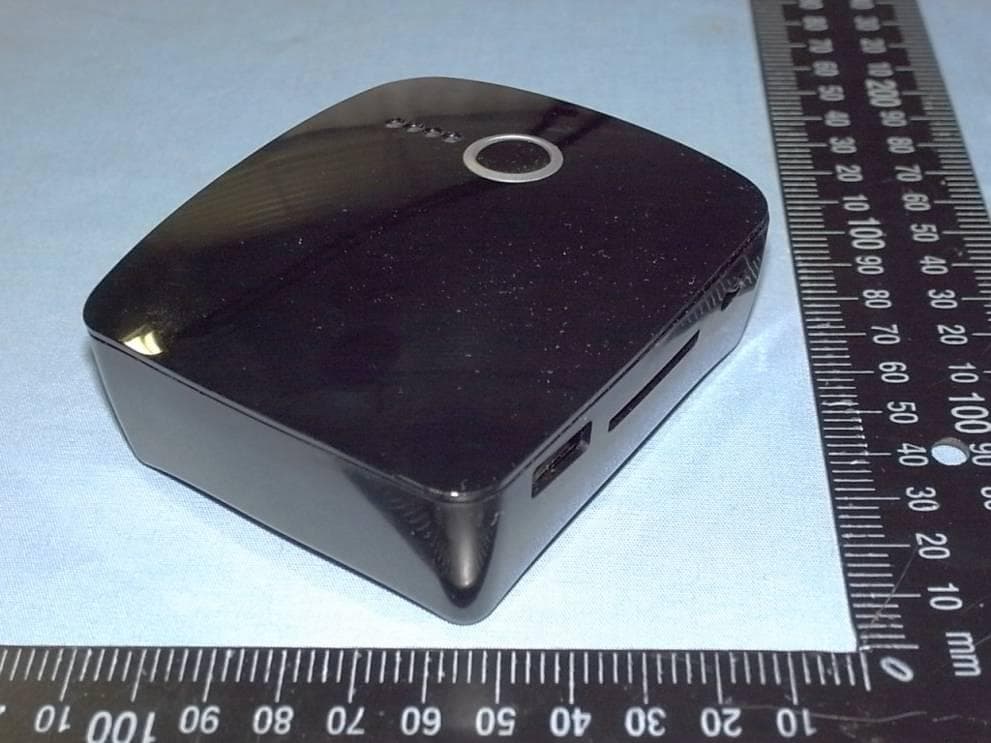
JY8-WIR004
Dec 29, 2013Wireless Reader (DW23, DW28)
Equipment Class
DTS - Digital Transmission System
JY8-WIR003
Dec 16, 2013Wireless Reader
Equipment Class
DTS - Digital Transmission System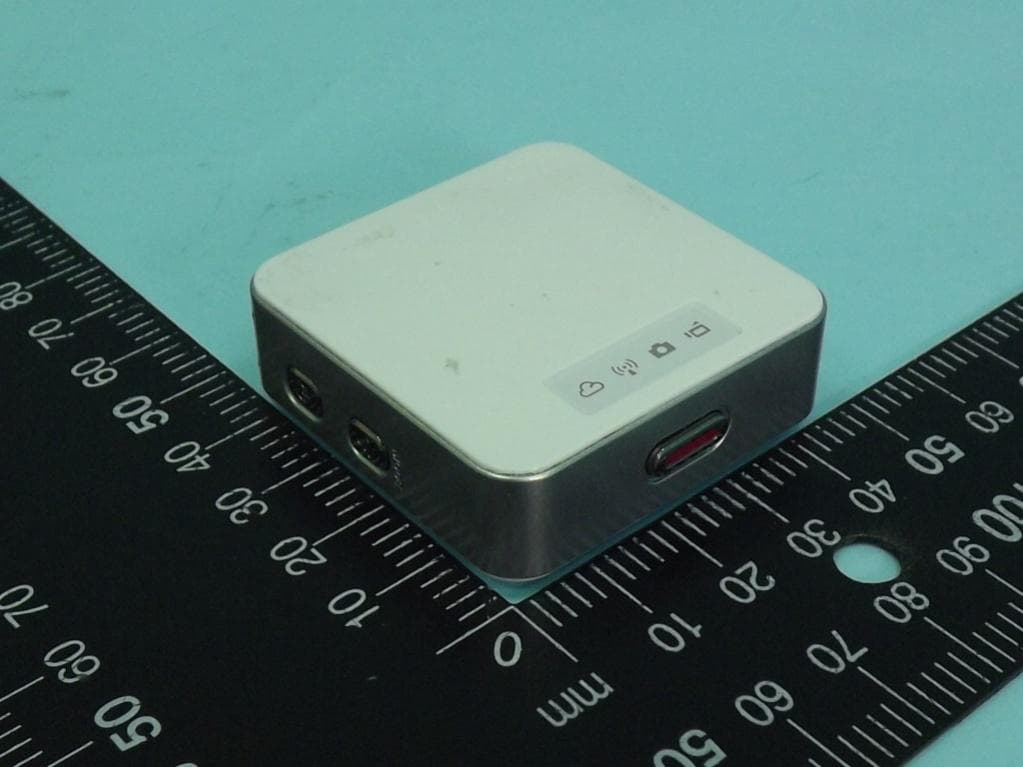
JY8WIE001
Aug 21, 2013APOEYE
Equipment Class
DTS - Digital Transmission System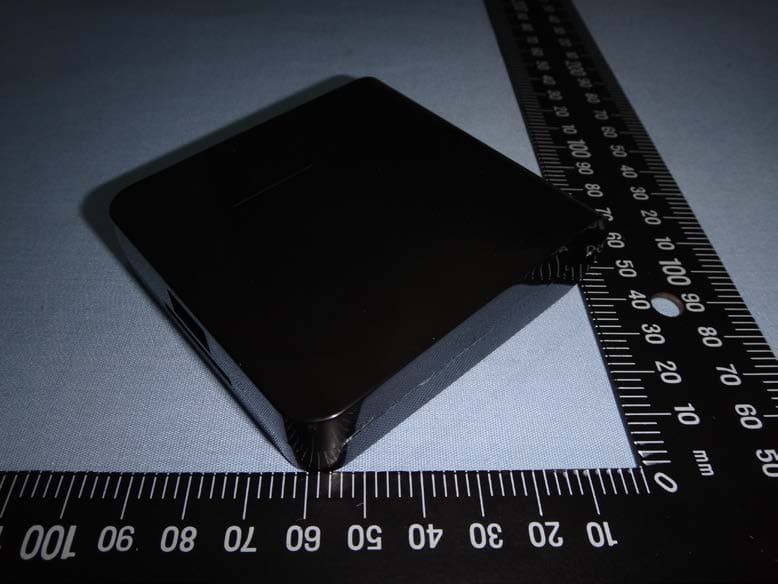
JY8WIR001
Nov 15, 2012WI-READER PRO
Equipment Class
DTS - Digital Transmission System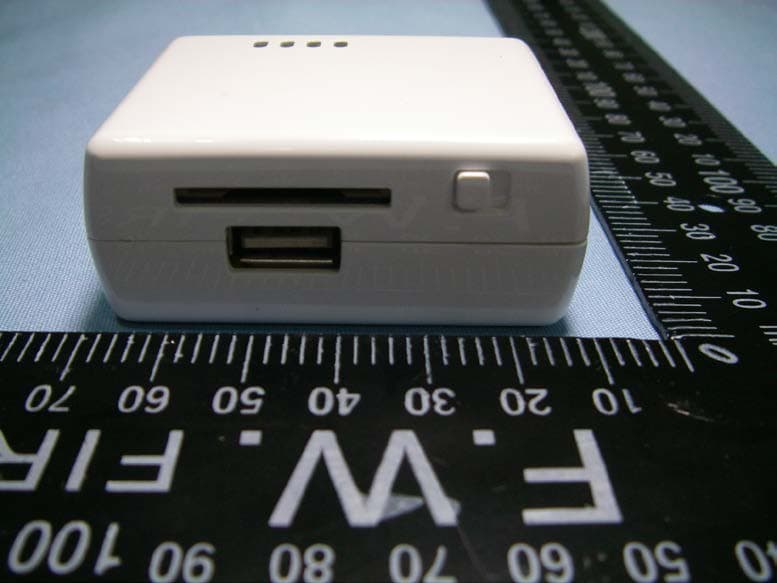
JY8DW09
May 28, 2012WI-READER
Equipment Class
DTS - Digital Transmission System