KBCIX600-IWLLaptop with WLAN
General Dynamics Itronix Corporation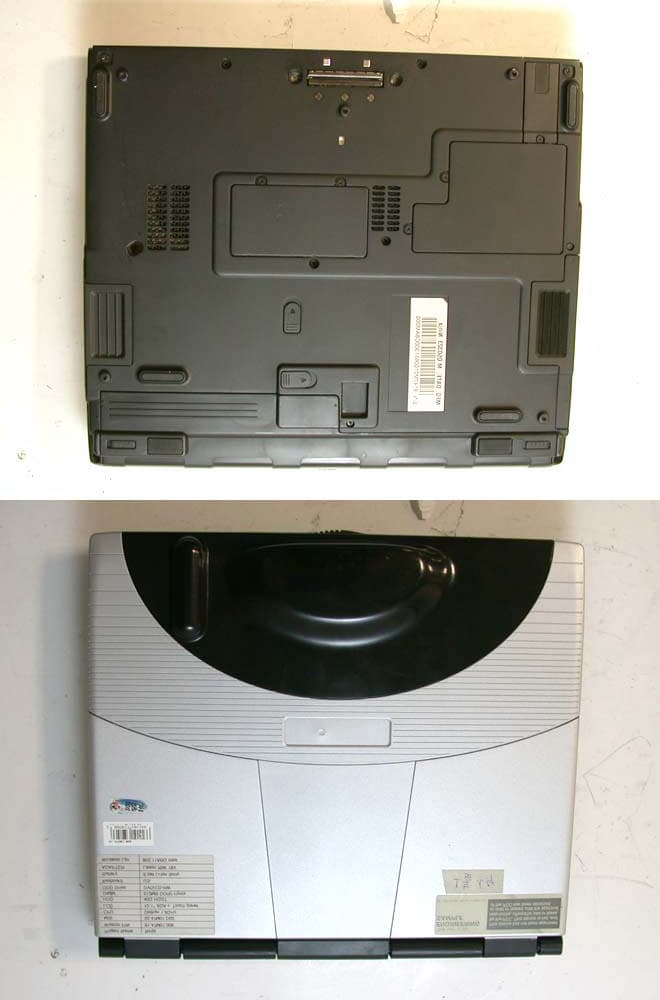
Click to zoom
Application Details
- Equipment Class
- NII - Unlicensed National Information Infrastructure TX
- Date of Grant
- Jun 12, 2005
- Application Purpose
- Original Equipment
- Date of Application
- Jun 12, 2005
- Equipment Note
- Laptop with WLAN
- Frequency Range
- 5745.00000000 - 5805.00000000
- Country
- United States
Documents & Files
Document Text
Text extracted from the exhibit documents filed with the FCC. Open a document above to read the original.
Users Manual
Users’ Manual Model IX600 Itronix Corporation Getting Started Congratulations on your purchase of the Itronix GoBook PRO II computer! Your new GoBook PRO II features the most innovative advances in portable computing technology. It combines state-of-the-art ergonomics with sophisticated architecture to provide you with a personal computer that is compact, powerful, and easy to use. Designed for a wide range of general, business, and personal productivity applications, the semi-rugged, wireless ready GoBook PRO II is an ideal choice wherever you need a computer; in the office, at home, and on the road. Your GoBook II is both expandable and portable, supporting the features you expect in a desktop computer but with the mobility of a laptop. This online document, GoBook PRO II Help, contains all the information you need to set up and use your new GoBook PRO II. For information on printing, navigating or otherwise using GoBook PRO II Help see the How to Use This Help System topics. Unpacking Your System Inside your packaging you will find: GoBook ® PRO II Help Page 1 of 100GoBook PRO II Help 5/16/2005file://C:\Documents%20and%20Settings\barvillj.ITRXNT1\Local%20Settings\Temp\~hh7... Standard Options Where to Look For Information Features This computer was designed with the user in mind. Here are just a few of its many features: Performance Multimedia Connectivity Human -centric design and ergonomics Expansion See Specifications for more information. The First Time. . . Before using your computer, install the battery and then attach the computer to AC power. Installing the battery: 72_0128_001 16 May 2005 © 2005 Itronix Corporation. All rights reserved. GoBook ® PRO II Help 72_0128_001 16 May 2005 © 2005 Itronix Corporation. All rights reserved. GoBook ® PRO II Help 1. Line up the battery connectors. 2. Press gently on the battery until it clicks into place. Page 2 of 100GoBook PRO II Help 5/16/2005file://C:\Documents%20and%20Settings\barvillj.ITRXNT1\Local%20Settings\Temp\~hh7... Attaching AC Power: Begin Using the Computer 3. Slide the battery locks toward the outside of the computer to lock the battery. 1. Connect the AC adapter power cord to the AC adapter. 2. Connect the AC adapter to the DC power port on the rear panel of your computer. 3. Connect the AC adapter power cord to a properly grounded AC outlet. NOTE It is recommended you use a quality surge protector . insert picture 1. Slide the display cover release latch to the right. 2. Open the display to a comfortable viewing angle. 3. Press the power switch to turn on the power. The POST (power-on self-test) routine executes and Windows begins loading. NOTE When using a battery pack for the first time, fully charge the battery, then Page 3 of 100GoBook PRO II Help 5/16/2005file://C:\Documents%20and%20Settings\barvillj.ITRXNT1\Local%20Settings\Temp\~hh7... Turning off Your Computer Turning off the computer properly is important to maintaining your computer. Select Start, Shut Down and follow the instructions on the screen. If you are going to be away from the computer for a short period, there are ways to conserve power without shutting down the system. See Power Saving Modes for details. NOTE If you are unable to shut down your computer normally, press and hold the power button more than four seconds to turn off the computer. If you turn off the computer and want to turn it on again, wait at least two seconds before powering up. CAUTION Shutting off the computer improperly may result in data loss. Loading Windows This section is for installing the Windows operating system only. If you are installing a different operating system, please check with your vendor for installation details. Your computer will begin loading Windows once you turn on the power. Wait a few seconds for Windows setup to load. The Windows setup will prompt you for the product key number. You can find the product key number on a sticker attached to the bottom of the computer. 1. Type your name, and, if applicable, the name of your company. 2. Read the End User's License Agreement. Click Next to accept it. 3. Enter the product key number. You can find this on the Certificate of Authenticity on a sticker attached to the computer. Click Finish . 4. The Start Wizar d will prompt you to set the date, and your local time. disconnect the adapter to use up the battery before recharging again. Perform this action twice to condition the battery pack. Calibrating the battery before use is also highly recommended. Refer to Power Management, for more information. 72_0128_001 16 May 2005 © 2005 Itronix Corporation. All rights reserved. GoBook ® PRO II Help Page 4 of 100GoBook PRO II Help 5/16/2005file://C:\Documents%20and%20Settings\barvillj.ITRXNT1\Local%20Settings\Temp\~hh7... Some software comes pre-loaded with Windows. New users can familiarize themselves with this software by selecting All Programs from the start menu, then clicking on programs to run them. CAUTION When you are installing the Windows operating system and enter the product key number, we strongly recommend connecting the AC adapter - DO NOT use battery alone to avoid warning messages. Startup Problems? If your computer does not operate, try these solutions. z Connect the AC adapter to charge the battery if it is not charged. NOTE The Power LED on the AC adapter should be lit as well as the External Power Indicatoron the GoBook PRO II if the AC adapter is connected and functioning properly. Additionally, one of the power icons should appear in the task tray. z If the AC adapter is connected but the unit will still not turn on, make sure the electrical outlet you are using works. z Check to make sure the battery is installed and charged properly. z If the battery does not begin charging, remove the battery, connect the AC adapter, and turn on the computer by pressing the Power Button. Reinstall the battery. The Battery Indicator is solid orange while the battery is charging. The Troubleshooting section lists ad…
Text truncated - open the document above for the full version.
Users Manual
Intel(R) PRO/Wireless 2915ABG Network Connection User Guide With your wireless network card, you can access wireless networks, share files or printers, or even share your Internet connection. All of these features can be explored using a wireless network in your home or office. This wireless LAN solution is designed for both home and business use. Additional users and features can be added as your networking needs grow and change. Your Intel(R) PROSet/Wireless 2915ABG Network Connection adapter is compatible with 802.11a, 802.11b or 802.11g wireless standards. Operating at 5 GHz or 2.4 GHz frequency at speeds of up to 54 Mbps you can now connect your computer to existing high-speed networks using multiple access points within large or small environments. Your wireless adapter maintains automatic data rate control according to access point location to achieve the fastest possible connection. provide enhanced security measures using 802.1x network authentication. All of your wireless networks connections can be easily managed by Intel PROSet/Wireless. Intel(R) PRO/Wireless profiles provide enhanced security measures using 802.1x network authentication. NOTE: The software is compatible with the Intel PROSet/Wireless 2915ABG Network Connection and the Intel PROSet Wireless 2200BG Network Connection. Table of Contents l Using Intel PROSet/Wireless l Using Profiles l Setting up Security l Security Overview l Introduction to Wireless Networking l Connecting to a Network l Specifications l Troubleshooting l Glossary l Customer Support l Safety and Regulatory Information l Warranty l Adapter Registration Information in this document is subject to change without notice. © 2000–2004 Intel Corporation. All rights reserved. Intel Corporation, 5200 N.E. Elam Young Parkway, Hillsboro, OR 97124-6497 USA The copying or reproducing of any material in this document in any manner whatsoever without the written permission of Intel Corporation is strictly forbidden. Intel(R) is a trademark or registered trademark of Intel Corporation or its subsidiaries in the United States and other countries. Other trademarks and trade names may be used in this document to refer to either the entities claiming the marks and names or their products. Intel disclaims any proprietary interest in trademarks and trade names other than its own. Microsoft and Windows are registered trademarks of Microsoft Corporation. *Other names and brands may be claimed as the property of others. Intel Corporation assumes no responsibility for errors or omissions in this document. Nor does Intel make any commitment to update the information contained herein. June 2004 Back to Contents Using Intel PROSet/Wireless Software: Intel(R) PRO/Wireless 2915ABG Network Connection User Guide l Using Intel(R) PROSet/Wireless as your Wireless Manager l Starting Intel PROSet/Wireless l Launch Intel PROSet/Wireless from the task tray l Task Tray Menu Options l Tool Tips and Balloon Message Prompts l Intel PROSet/Wireless Main Window l Connection Status Icons l Connection Details l Profile List l Available Networks l Menus (Tools and Profile menus) l Tools Menu m Application Settings m Adapter Settings m Use Microsoft Client m Advanced Statistics m Intel Wireless Troubleshooter m Administrator Tool l Profiles Menu m Import/Export m Manage Exclusions l Enabling and Disabling the Radio l Installing and Uninstalling the Software l Installing and Uninstalling Single Sign On Feature Using Intel(R) PROSet/Wireless as your Wireless Manager Intel PROSet/Wireless can be used to setup, edit and manage network profiles to connect to a network. It also includes advanced settings such as power management and channel selection for setting up ad-hoc networks. If you are using Windows XP as your wireless manager, you can disable it from the Wireless Network tab. To disable Windows XP as your wireless manager: 1. Double-click the Intel PROSet/Wireless icon in the desktop task tray or click Start ‡Settings ‡Control Panel and double- click on Network Connections. 2. Right-click Wireless Network Connection and click Properties. 3. Click on Wireless Networks tab on the Wireless Network Connection Properties. 4. Verify that the Use Windows to configure my wireless network settings box is not selected. If it is, deselect it. 5. Click OK. This confirms that the Intel PROSet/Wireless utility is configured to manage your network profiles. NOTE: Check that the Application Settings option Notify me when another application is using the wireless device is selected. This option prompts you when Windows XP starts to manage your network profiles. Starting Intel PROSet/Wireless Launch Intel PROSet/Wireless either from the task tray icon, the Windows Start button, or from the Windows Control Panel icon. To launch Intel PROSet/Wireless use either of the following methods: l Click Start > Programs > Intel Wireless > Intel PROSet/Wireless. l Right-click the task tray icon located in the lower right corner of your Windows Desktop, and click the menu option Open Intel PROSet/Wireless. l Double-click the task tray icon to open Intel PROSet/Wireless. Exit Intel PROSet/Wireless: l To exit Intel PROSet/Wireless and close the task tray icon, click Exit from the from the task tray menu or click the Close button on the Intel PROSet/Wireless main window. Launch Intel PROSet/Wireless from the task tray To launch Intel PROSet/Wireless, double-click the task tray icon located in the lower right corner of your Windows desktop or right-click the task tray icon and click Open Intel PROSet/Wireless. Exit Intel PROSet/Wireless To exit Intel PROSet/Wireless and hide the task tray icon, right-click the task tray icon and click Hide Icon on the task tray menu. l To show the task tray icon after the Intel PROSet/Wireless is launched, select "Show application icon in the taskbar" in the Application Settings options. Close Intel PROSet/Wireless l Click Close to close the Intel PROSet Wireless main window. To open the mai…
Text truncated - open the document above for the full version.
Users Manual
GoBook ® PRO II Radio Specific Safety Information Identification GoBook PRO II (IX600) Radio Specific Safety Information April 2005 · Revision 002 Copyright Notice © Copyright 2005 Itronix Corporation. All rights reserved. No part of this document may be reproduced, transmitted, transcribed, stored in a retrieval system, or translated into any other language or computer language in whole or in part, in any form or by any means, whether it be electronic, mechanical, magnetic, optical, manual, or otherwise, without the prior written consent of Itronix Corporation, South 801 Stevens Street, Spokane, Washington 99204. Disclaimer This document is printed in the U.S.A. Itronix Corporation reserves the right to revise the manual and make periodic changes to the content without a direct or inferred obligation to Itronix to notify any person of such revision or changes. Itronix Corporation does not assume responsibility for the use of this help manual, nor for any patent infringements or other rights or third parties who may use the manual. This document contains valuable trade secrets and proprietary information of Itronix Corporation. This product is available for purchase under the terms of the Itronix Hardware Purchase and Software License Agreement. Itronix hardware products may be reconditioned, or be manufactured from parts and components that may be new, used, rebuilt, or recycled and in some cases, the hardware product may not be new and may have been previously installed. In any event, Itronix warranty terms apply. Trademark and Patent Notice Itronix is a registered trademark of Itronix Corporation. GoBook PRO II is a registered trademark of Itronix Corporation Microsoft, MS, Windows, and MS-DOS are registered trademarks of Microsoft Corporation. IBM is a trademark of International Business Machines Corporation. Warnings and Safety Information WARNING It is important that only authorized Itronix personnel attempt repairs on Itronix equipment as this might void any maintenance contract with your company. Unauthorized service personnel might be subject to shock hazard on some Itronix equipment if removal of protective covers is attempted. Changes or Modifications not expressly approved by the party responsible for compliance could void the users authority to operate the equipment. Internal radio(s) may have an individual FCC Identifier which are not applicable to this configuration. Only the FCC ID Identifier KBCIX600-IWL shown on the label located on the bottom of the IX600 Laptop PC is applicable. The IX600 Laptop PC must not be co-located or operating in conjunction with any other antenna or transmitter than specified in the FCC Identifier KBCIX600-IWL filing . Safety Information This device contains a WLAN radio transmitter. When using the WLAN transmitter, a minimum separation distance of 20 cm must be maintained between the upper right and left edges of the display screen and all users/bystanders. The WLAN transmitter should be turned off before carrying the Laptop PC order to comply with FCC RF exposure requirements. FCC Radio Frequency Interface Requirements This device required the product to be used indoors for the frequency range of 5.15 to 5.25 GHz to reduce the potential for harm full interference to co-channel Mobile satellite systems. High power radars are allocated as primary users of the 5.25 to 5.35 GHz and 5.65 GHz to 5.85 GHz bands. These radar stations can cause interference with and or damage this device. © 2005 Itronix Corporation. All rights reserved.
Cover Letter(s)
Letter Of Agency Date: May 5th, 2005 American Telecommunications Certification Body, Inc. 6731 Whittier Avenue Suite C110 McLean, VA 22101 RE: FCC Certification Applications FCC ID: KBCIX600-IWL Model: IX600 To Whom It May Concern: Please be advised that Itronix Corporation authorizes International Standards Laboratory (ISL) to act on our behalf, until otherwise notified, for applications submitted to American Telecommunications Certification Body, Inc. (ATCB). We certify that we are not subject to denial of federal benefits that includes FCC benefits, pursuant to Section 5301 of the Anti-Drug Abuse ACT of 1988, U.S.C. 862. Further, no party as defined in 47 CFR 1.2002(b), for this application is subject to denial of federal benefits that includes FCC benefits. Thank you for your attention to this matter. --------------------------- Jammy Chen/ Director Wistron Corporation on behalf of Itronix Corporation Letter Of Agency Date: May 5th, 2005 American Telecommunications Certification Body, Inc. 6731 Whittier Avenue Suite C110 McLean, VA 22101 RE: Industry Canada Certification Applications IC ID: 1943A-IX600a Model: IX600-IWL To Whom It May Concern: Please be advised that Itronix Corporation authorizes International Standards Laboratory (ISL) to act on our behalf, until otherwise notified, for applications submitted to American Telecommunications Certification Body, Inc. (ATCB). Thank you for your attention to this matter. --------------------------- Richard Sargent / Title Itronix Corporation
Cover Letter(s)
No. 65, Ku Dai Keng St., Hsichih, Taipei 221, R.O. C. Tel: 886-2-2646-2550 FAX: 886-2-26464641 No. 120, Lane 180, San Ho Tsuen, Hsin Ho Rd. Lung-Tan Hsiang, Tao Yuan County 325, Taiwan, R.O.C. Tel: 886-3-407-1718 FAX:886-3-407-1738 Rev 2 C:\tmp\05LR008 IX600\FCC\AP FORM.doc 02/08/02 Date: May 6th, 2005 American Telecommunications Certification Body, Inc. 6731 Whittier Avenue Suite C110 McLean, VA 22101 RE: Certification Application FCC ID: KBCIX600-IWL Model: IX600 We would like to apply for FCC Certification on the subject model (EUT). The EUT is a Notebook PC. We have uploaded the related document for the EUT onto your website. Please review the information we submitted and issue us a grant for the subject model. If you have any comments, please do not hesitate to contact us . Thank you for your attention to these matters. Sincerely, ________________ Eddy Hsiung / Director International Standards Laboratory No. 65, Ku Dai Keng St., Hsichih, Taipei 221, R.O. C. Tel: 886-2-2646-2550 FAX: 886-2-26464641 No. 120, Lane 180, San Ho Tsuen, Hsin Ho Rd. Lung-Tan Hsiang, Tao Yuan County 325, Taiwan, R.O.C. Tel: 886-3-407-1718 FAX:886-3-407-1738 Rev 2 C:\tmp\05LR008 IX600\FCC\AP FORM.doc 02/08/02 FCC Labeling Requirements and Information Date: May 6th, 2005 American Telecommunications Certification Body, Inc. 6731 Whittier Avenue Suite C110 McLean, VA 22101 RE: Certification Application FCC ID: KBCIX600-IWL Model: IX600 The following label information is required by the FCC Rules and Regulations for certified devices. Please find marketing information required by the FCC Rules and Regulations as following: Label Requirements An intentional radiator device subject to certification by the FCC shall carry a warning label which includes the following statement (Due to space limitation, the statement was listed on users’ manual page 1): This device complies with Part 15 of the FCC Rules. Operation is subject to the following two conditions: (1) this device may not cause harmful interference, and (2) this device must accept any interference received, including interference that may cause undesired operation. The sample label shown shall be permanently affixed at a conspicuous location on the device and be readily visible to the user at the time of purchase. FCC ID: KBCIX600-IWL This device complies with Par t 15 of the FCC Rules. Operation is subject to the following two conditions: (1) this device may not cause harmful interference, and (2) this device must accept any interference received, including interference that may cause undesired operation. Sincerely, ________________ Eddy Hsiung / Director International Standards Laboratory No. 65, Ku Dai Keng St., Hsichih, Taipei 221, R.O. C. Tel: 886-2-2646-2550 FAX: 886-2-26464641 No. 120, Lane 180, San Ho Tsuen, Hsin Ho Rd. Lung-Tan Hsiang, Tao Yuan County 325, Taiwan, R.O.C. Tel: 886-3-407-1718 FAX:886-3-407-1738 Rev 2 C:\tmp\05LR008 IX600\FCC\AP FORM.doc 02/08/02 Request for Confidentiality Date: May 6th, 2005 American Telecommunications Certification Body, Inc. 6731 Whittier Avenue Suite C110 McLean, VA 22101 RE: Certification Application FCC ID: KBCIX600-IWL Model: IX600 Please be advised that the following information is to be held confidential on behalf of Itronix Corporation ?? Block Diagram ?? Schematics ?? Technical Spec The application contains technical information which Itronix Corporation deems to be trade secrets and proprietary. If made public, the information might be used to the disadvantage of the applicant in the market place. Thank you for your attention to this matter. Sincerely, ________________ Eddy Hsiung / Director International Standards Laboratory
Cover Letter(s)
801 S. STEVENS STREET SPOKANE, WA 99204 509.624.6600 800.441.1309 FAX 509.626.4203 www.itronix.com May 31, 2005 .Subject: FCCID :KBCIX600-IWL Response to ATCB questions. . Dear Tim, Here are our answers to per your commentts 1) Please note that the IC Listing letter mentions Nemko and not ATCB. Please correct this on future applications. Response: This will be corrected on future applications. 2) Page 11 of the users manual shows additional antennas for GPS and CRMA Express. Page 10 mentions Bluetooth. While the GPS is a RX only device, the Bluetooth and CRMA Express are TX’s and do not appear to be covered by this application. Please note that as presented this application will be granted for the WLAN device only and also with limitations of no-colocation. To remove these restrictions at a later time will require the CRMA Express or bluetooth to be approved under their own FCC ID as a limited modular approval specific to this device only and also a Permissive Change application would be required to this application covering the co- location RF exposure concerns and any other necessary items for the Permissive Change, or alternatively the device must be approved with a different FCC ID Number. Please explain as we want to be certain this device is being approved as expected by the manufacturer. Response: The product will have GPS, CRMA WAN , Bluetooth PAN and WLAN in product definition. The GPS, CRMA and Bluetooth will be optional according to end user requirements. We wish not remove them from user manual. It is understood the product will have a different FCC ID for different configurations. In this application, the FCC ID will be for the WLAN configuration only. Please see attached (Radio Specific Safety-02.pdf) document to be packaged with each computer. 3) Page 100 of the users manual mentions a WLAN, WAN, and PAN radio. Please explain as 2 of these do not appear to be covered by this application. Response: It is understood the product will have a different FCC ID for different configurations. In this application, the FCC ID will be for the WLAN configuration only. Please see attached (Radio Specific Safety-02.pdf) document to be packaged with each computer. 4) Section 15.15(b) prohibits adjustments of any control by the user that will cause operation of a device in violation of the regulations. Accordingly, any proposal to allow the end user to choose extended channels on frequencies outside of an allowable frequency band in the USA is not acceptable. For example, a WLAN device operating according to Section 15.247 on channels 1- 11 between 2.4 - 2.483.5 GHz must not have any user controls or software to allow the device to operate on channels 12 and 13 which are outside of the allowed USA band. For instance, the user should not be able to select alternative countries which would allow different channel plans outside of the allowed USA band. Please explain how this device is compliant to this requirement for all 802.11 bands of operation. Response: The WLAN device to be sold in the USA is controlled by software built into the device as to allow only US Bands to be used. See attached exhibit. (US only frequency attestation.pdf) 5) The modular functional description (page 12 of 13) appears to mention that this device has 200 mW and 1000 mW levels for 801.11A and 100 mW levels for 802.11 b/g. These levels do not appear to correlate to those measured. Please explain and correct as necessary. Response: Intel has provided an updated functional description as uploaded. 6) Please provide information to explain compliance to 15.407(c). Response: This filing is using a Pre approved WLAN Radio FCCID: PD9WM3B2915ABG. Compliance to 15.407(c) is controlled by the firmware of this device. 7) The users manual does not appear to explain that the 5150-5250 MHz band is for indoor operation only. This information was found in the Manufacturer manual for the card, but this manual does not appear to be intended for the end user. Please update the users manual. Response: Please see attached (Radio Specific Safety-02.pdf). 8) The test report suggests that this device contains Bluetooth as well, but this does not appear to be covered by this application. Please explain. Response: It is understood the product will have a different FCC ID for different configurations. In this application, the FCC ID will be for the WLAN configuration only. I have deleted the wording. Please see the updated report .. 9) Page 29 shows limits of 80 and 90 dBuV ERP. Normally these limits are -17 dBm EIRP or -27 dBm EIRP and are adjusted by the antenna gain. Therefore, -17 dBm – 2.26 dBi = -19.3 dBm EIRP (87.7 dBuV), and -27 dBm - 2.26 dBi = -29.3 dBm EIRP (77.7 dBuV). Please correct data as necessary. Response: Antenna gain has been added to calculate corrected emissions. Corrected Emissions=Spectrum + Corrected Factor,Corrected Factor=Cable Loss+Antenna Peak Gain (dBi) corrected to dBuV EIRP. Please see the updated report. 10) Section 4.8.4 shows a data point that appears out of compliance. Please review and correct. Response: It has been corrected. Please see the updated report .
Cover Letter(s)
American Telecommunications Certification Body Inc. 6731 Whittier Ave, McLean, VA 22101 June 13, 2005 RE: Itronix Corporation FCC ID: KBCIX600-IWL After a review of the submitted information, I have a few comments on the above referenced Application. 1) FYI....While we realize the TX may be a previously approved device, please note that each application must stand on its own merit. You can not simply be reference from the previously application. However, please note that the information previously requested for 15.407 (item 6) was provided in the updated functional description. 2) FYI....This application will only cover the WLAN configuration as noted in your response. Other configurations will require new FCC ID’s. 3) FYI....The users manual mentions that the internal radio(s) may have an individual FCC ID which is not applicable to the configuration certified. While the FCC has never issued firm interpretation regarding these issues, they have discussed this verbally in certain TCB training sessions. Generally, they have commented that if the other FCC ID’s are not considered valid, they should be removed, marked out, or new labels placed over them. This is especially true of the user is ever expected to be able to see these labels. Simply stating the information provided in the manual is not considered sufficient (Radio Specific Safety-02.pdf). Timothy R. Johnson Examining Engineer mailto: [email protected] The items indicated above must be submitted before processing can continue on the above referenced application. Failure to provide the requested information may result in application termination. Correspondence should be considered part of the permanent submission and may be viewed from the Internet after a Grant of Equipment Authorization is issued. Please do not respond to this correspondence using the email reply button. In order for your response to be processed expeditiously, you must submit your documents through the AmericanTCB.com website. Also, please note that partial responses increase processing time and should not be submitted. Any questions about the content of this correspondence should be directed to the sender.
External Photos
International Standards Laboratory Report Number: ISL-05LR008P HC LAB:NVLAP:200234-0;VCCI: R-341,C-354;NEMKO:ELA 113a,113c;BSMI:SL2-IN-E-0037;SL2-R1-E-0037;CNLA:1178 LT LAB:NVLAP:200234-0;VCCI: R-1435,C-1440;NEMKO:ELA 113b,113d;BSMI:SL2-IN-E-0013;CNLA:0997 Appendix Photographs of EUT of of Product Name Notebook Personal Computer (with Intel PRO/Wireless 2915ABG Network Connection inside) Model IX600 (Brand: Itronix) International Standards Laboratory Report Number: ISL-05LR008P HC LAB:NVLAP:200234-0;VCCI: R-341,C-354;NEMKO:ELA 113a,113c;BSMI:SL2-IN-E-0037;SL2-R1-E-0037;CNLA:1178 LT LAB:NVLAP:200234-0;VCCI: R-1435,C-1440;NEMKO:ELA 113b,113d;BSMI:SL2-IN-E-0013;CNLA:0997 -1- EUT-1. International Standards Laboratory Report Number: ISL-05LR008P HC LAB:NVLAP:200234-0;VCCI: R-341,C-354;NEMKO:ELA 113a,113c;BSMI:SL2-IN-E-0037;SL2-R1-E-0037;CNLA:1178 LT LAB:NVLAP:200234-0;VCCI: R-1435,C-1440;NEMKO:ELA 113b,113d;BSMI:SL2-IN-E-0013;CNLA:0997 -2- EUT-2. International Standards Laboratory Report Number: ISL-05LR008P HC LAB:NVLAP:200234-0;VCCI: R-341,C-354;NEMKO:ELA 113a,113c;BSMI:SL2-IN-E-0037;SL2-R1-E-0037;CNLA:1178 LT LAB:NVLAP:200234-0;VCCI: R-1435,C-1440;NEMKO:ELA 113b,113d;BSMI:SL2-IN-E-0013;CNLA:0997 -3- EUT-3. International Standards Laboratory Report Number: ISL-05LR008P HC LAB:NVLAP:200234-0;VCCI: R-341,C-354;NEMKO:ELA 113a,113c;BSMI:SL2-IN-E-0037;SL2-R1-E-0037;CNLA:1178 LT LAB:NVLAP:200234-0;VCCI: R-1435,C-1440;NEMKO:ELA 113b,113d;BSMI:SL2-IN-E-0013;CNLA:0997 -4- EUT-4.
ID Label/Location Info
LABEL FCC ID: KBCIX600-IWL IC:1943A-IX600a This device complies with Part 15 of the FCC Rules. Operation is subject to the following two conditions: (1) This device may not cause harmful interference, and (2) this device must accept any interference received, including interference that may cause undesired operation. Label & Location Label
Internal Photos
International Standards Laboratory Report Number: ISL-05LR008P HC LAB:NVLAP:200234-0;VCCI: R-341,C-354;NEMKO:ELA 113a,113c;BSMI…
Text truncated - open the document above for the full version.
Contact Information
Applicant
Ray Garcia(Agency Manager)
Technical Contact
International Standards LaboratoryJerry Chiou
[email protected]886-3-407-1718
No. 65, Ku Dai Keng Street · Hsichih · Taiwan
Non-Technical Contact
International Standards LaboratoryDaphne Liu
[email protected]886-2-2646-2550
Test Firm
International Standards LaboratoryDavid Wu
Technical Specifications
| # | Rule Parts | Frequency Range | Power Output |
|---|---|---|---|
| 3 | 15E | 5.75 GHz - 5.80 GHz | 61.00 mW |
Other Applications from General Dynamics Itronix Corporation

KBCIX-BR-51
Jan 20, 2008IX-BTBR51
Equipment Class
DSS - Part 15 Spread Spectrum Transmitter
KBCIX-MC8775
May 30, 2007IX-MC8775
Equipment Class
PCB - PCS Licensed Transmitter
KBCIX-4965AGN
May 21, 2007IX-4965AGN
Equipment Class
NII - Unlicensed National Information Infrastructure TX
KBCIX-AC595
Apr 19, 2007IX-AC595 DUAL-BAND CDMA/EV-DO PCMCIA MODEM CARD
Equipment Class
PCB - PCS Licensed Transmitter
KBCIX-NW620
Mar 13, 2007IX-NW620 CDMA/EV-DO
Equipment Class
PCB - PCS Licensed Transmitter