MSQE9GE112Eee PC
ASUSTeK Computer Inc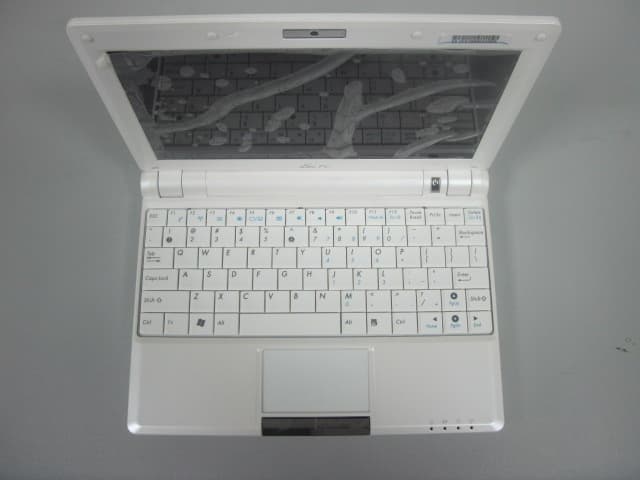
Click to zoom
Application Details
- Equipment Class
- DTS - Digital Transmission System
- Date of Grant
- Dec 30, 2009
- Application Purpose
- Original Equipment
- Date of Application
- Dec 29, 2009
- Equipment Note
- Eee PC
- Frequency Range
- 2412.00000000 - 2462.00000000
- Company
- ASUSTeK Computer Inc
- Country
- Taiwan
Documents & Files
Document Text
Text extracted from the exhibit documents filed with the FCC. Open a document above to read the original.
Users Manual
Eee PC User’s Manual Windows® XP Edition Eee PC 900HA Series September 2008 iiTable of Contents Table of Contents Chapter 1: Introducing the Eee PC About This User’s Manual ............................................................................1-2 Notes for This Manual ...................................................................................1-3 Safety Precautions .........................................................................................1-4 Transportation Precautions ......................................................................1-6 Charging Your Batteries ..............................................................................1-6 Airplane Precautions ...................................................................................1-6 Preparing your Eee PC ..................................................................................1-7 Chapter 2: Knowing the Parts Top Side .............................................................................................................2-2 Bottom Side ......................................................................................................2-5 Right Side ..........................................................................................................2-7 Left Side .............................................................................................................2-8 Rear Side ............................................................................................................2-9 Chapter 3: Getting Started Power System ..................................................................................................3-2 Using AC Power .............................................................................................3-2 Using Battery Power ....................................................................................3-3 Battery Care ....................................................................................................3-5 Touchpad Usage .............................................................................................3-7 Single-finger gesture input .......................................................................3-7 Multi-finger gesture input .........................................................................3-8 Keyboard Usage ..............................................................................................3-9 Special Function Keys .................................................................................3-9 First-time Startup .........................................................................................3-11 Desktop ............................................................................................................3-14 ASUS EeePC Tray Utility ..............................................................................3-15 Enabling and Disabling Devices ............................................................3-15 Adjusting the display resolution ...........................................................3-16 Shutdown........................................................................................................3-17 Chapter 4: Using the Eee PC Network Connection .....................................................................................4-2 Configuring a wireless network connection .......................................4-2 Configuring a network connection ........................................................4-4 ASUS Eee PCiii Table of Contents Browsing web pages .................................................................................4-10 ASUS Update ..................................................................................................4-11 Updating the BIOS through the Internet ...........................................4-11 Updating the BIOS through a BIOS file ...............................................4-13 Outlook Express ............................................................................................4-14 Eee Storage .....................................................................................................4-15 Skype™ ............................................................................................................4-17 Microsoft ® Works (in selected territories) .............................................4-18 Initializing Microsoft® Works ..................................................................4-18 Using Microsoft® Works ...........................................................................4-19 Chapter 5: Support DVD &System Recovery Support DVD information ...........................................................................5-2 Running the support DVD .........................................................................5-2 Drivers menu ..................................................................................................5-3 Utilities menu .................................................................................................5-3 Contact ...........................................................................................................5-3 Other information ........................................................................................5-3 System Recovery ............................................................................................5-4 Using the Support DVD ..............................................................................5-4 Appendix Declarations and Safety Statements .......................................................A-2 Federal Communications Commission Statement ...........................A-2 FCC Radio Frequency (RF) Exposure Caution Statement ...............A-3 Declaration of Conformity(R&TTE directive 1999/5/EC) .................A-4 CE Mark Warning ...........................................................................................A-4 IC Radiation Exposure Statement for Canada .........…
Text truncated - open the document above for the full version.
Users Manual
Network Connection ASUS Update Outlook Express Eee Storage Skype™ Microsoft® Works 4 Using the Eee PC 4-2Chapter 4: Using the Eee PC Network Connection Configuring a wireless network connection 1. Double-click the crossed wireless network icon in the Notification area. 3. When connecting, you may have to enter a password. 2. Select the wireless access point you want to connect to from the list and click Connect to build the connection. If you cannot find the desired access point, click Refresh network list in the left pane and search in the list again. If the wireless connection icon does not show on the taskbar. Activate the wireless LAN function by pressing + (<Fn> + <F2>) before configuring a wireless network connection. ASUS Eee PC4-3 4. After a connection has been established, the connection is shown on the list. 5. You can see the wireless network icon in the Notification area. The wireless connection icon disappears when you Press + (<Fn> + <F2>) to disable the WLAN function. 4-4Chapter 4: Using the Eee PC Configuring a network connection If you want to obtain network access, connect the network cable, with RJ-45 connectors on each end, to the network port on the Eee PC and the other end to a hub or switch. The illustration below is the example of your Eee PC connected to a network hub or switch for use with the built-in Ethernet controller. Connect to network before enjoying all the network services and functions in Eee PC. Using a dynamic IP: 1. Right-click the network icon with a yellow warning triangle in the Notification area and select Open Network Connections. Local Area Network Network hub or switch Network cable with RJ-45 connectors ASUS Eee PC4-5 3. Highlight Internet Protocol(TCP/IP) and click Properties. 4. Click Obtain an IP address automatically and click OK. 2. Right-click Local Area Connection and select Properties. 4-6Chapter 4: Using the Eee PC 5. Click Create a new connection to start the New Connection Wizard. 6. Click Next. 7. Click Connect to the Internet and click Next. 8. Click Set up my connection manually. ASUS Eee PC4-7 9. Select your connection type and click Next. 10. Enter your ISP Name and click Next. 11. Enter your User name and Password. Click Next. 12. Click Finish to finish the configuration. 4-8Chapter 4: Using the Eee PC 13. Enter your user name and password. Click Connect to connect to the Internet. Contact your Internet Service Provider (ISP) if you have problems connecting to the network. ASUS Eee PC4-9 Using a static IP: 1. Repeat the step 1–3 of Using a dynamic IP to start the static IP network configuration. 3. Enter the IP address, Subnet mask and Gateway from your service provider. 4. If needed, enter the preferred DNS Server address and alternative address. 5. After entering all the related values, click OK to build the network connection. 2 Click Use the following IP address. Contact your Internet Service Provider (ISP) if you have problems connecting to the network. 4-10Chapter 4: Using the Eee PC Browsing web pages After you finish the network setup, click Internet Explorer on the desktop and start enjoying net surfing. Launches the Internet Explorer web browser Visit our Eee PC homepage (http://eeepc.asus.com) to obtain the latest information and register at http://vip.asus.com for full service of your Eee PC. ASUS Eee PC4-11 ASUS Update The ASUS Update is a utility that allows you to manage, save, and update the Eee PC BIOS in Windows® environment. The ASUS Update utility allows you to: • Save the current BIOS file • Download the latest BIOS file from the Internet • Update the BIOS from an updated BIOS file • Update the BIOS directly from the Internet, and • View the BIOS version information. This utility is pre-loaded in your Eee PC and is also available in the support DVD that comes with the Eee PC package. ASUS Update requires an Internet connection either through a network or an Internet Service Provider (ISP). Updating the BIOS through the Internet To update the BIOS through the Internet: 1. Launch the ASUS Update utility from the Windows ® desktop by clicking Start > Programs > ASUS > ASUSUpdate for Eee PC> ASUSUpdate. The ASUS Update main window appears. 4-12Chapter 4: Using the Eee PC 2. Select Update BIOS from Internet from the drop-down menu, then click Next. 3. Select the ASUS FTP site nearest you to avoid network traffic, or click Auto Select. Click Next. ASUS Eee PC4-13 4. From the FTP site, select the desired BIOS version and click Next. 5. Follow the screen instructions to complete the update process. The ASUS Update utility is capable of updating itself through the Internet. Always update the utility to avail all its features. Updating the BIOS through a BIOS file To update the BIOS through a BIOS file: 1. Launch the ASUS Update utility from the Windows ® desktop by clicking Start > Programs > ASUS > ASUSUpdate for EeePC> ASUSUpdate. The ASUS Update main window appears. 2. Select Update BIOS from file from the drop-down menu, then click Next. 3. Locate the BIOS file from the Open window, then click Open. 4. Follow the screen instructions to complete the update process. 4-14Chapter 4: Using the Eee PC Outlook Express The Outlook Express e-mail client allows to import preferences, account settings, address books, and other data from an existing account in your original personal computer or notebook. To launch Outlook Express: 1. Click Start > Programs > Outlook Express. 2. Follow the Wizard to finish a new account setup. Contact your service provider If you do not know the incoming and outgoing server address of your e-mail account. 3. The Outlook Express main window appears as follows. ASUS Eee PC4-15 The content of the free service provided to you is subject to Eee Storage Web Hard Drive Service Agreement on Eee Storage official website. Eee Storage reserves the rights to modify or discontinue the provided web storage service with or without further notice. Visit the official website (http://www.eeestorage. com) f…
Text truncated - open the document above for the full version.
Cover Letter(s)
ASUSTeK COMPUTER INC. FCC ID: MSQE9GE112 4FL., No.150, Li-te Rd., Peitou, Taipei, Taiwan, R.O.C. Tel : 886-2-2894-3447 Federal Communications Commission Authorization and Evaluation Division December. 21 , 2009 Confidential Statement We have understood that the following request for confidential documents has been and viewable since the date of grant, since it has been granted. Confidentiality Request Pursuant to Sections 0.457 and 0.459 of the Commission’s Rules, the Applicant Hereby requests confidential treatment of information accompanying this Application As outlined below: Schematics : (Eee PC 900HA) Schem Block Diagram: (Eee PC 900HA) BlkDia Operational Description: (Eee PC 900HA) OPDes Above mentioned document contains detailed system and equipment description are considered as proprietary information in operation of the equipment. The public disclosure of above documents might be harmful to our company and would give competitor an unfair advantage in the market. The Applicant understands that pursuant to Rule 0.457, disclosure of this Application and all accompanying documentation will not be made before the date of the Grant for this application. In additional to above mentioned documents, pursuant to Public Notice DA 04-1705 of the Commission’s policy, in order to comply with the marketing regulations in 47 DFR § 2.803 and the importation rules in 47 CFR § 2.1204, while ensuring that business sensitive information remains confidential until the actual marketing of newly authorized devices . . We are requesting the commission to grant forty-five days short-term confidentiality request on the following attachments: External Photos: (Eee PC 900HA) Expho Internal Photos: (Eee PC 900HA) Inpho Test Setup Photos: (Eee PC 900HA) Tsup User Manual: (Eee PC 900HA) UserMan It is our understanding that all measurement test reports, FCC ID label format and correspondent during certification review process cannot be granted as confidential documents and those information will be available for public review once the grant of equipment authorization is issued. Sincerely, Jackson Yen / Associate Vice President ASUSTeK Computer Inc. Tel: +886-2-28943447 Extension:3106 Fax: +886-2-28987364 Email: [email protected]
Cover Letter(s)
ASUSTeK Computer Inc. Date: December, 21, 2009 Federal Communications Commission Authorization and Evaluation Division FCC ID:MSQE9GE112 ATTESTATION FCC ID: MSQE9GE112 Product: Eee PC Model: Eee PC 900HA We don't provide any controls or software to allow operation outside the USA frequency band when we sell this product in USA.
Cover Letter(s)
RF_160, Issue 02 ASUSTeK Computer Inc. We Name: ASUSTeK Computer Inc. Address: No.150, Li-te Rd City: ......... Peitou, Taipei ............................................................... . Country: ......... Taiwan ........................................................................... . Declare that: Name Representative of agent: Gene Chang (1) Agent Company name: QuieTek Corp. Address: Fl.2, No.345, Xin-hu 2 nd Rd., Nei-hu District City: Taipei Country Taiwan is authorized to apply for Certification of the following product(s): Product description: ...... Eee PC ............ ..................... . Type designation: ...... Eee PC 900HA ............ ..................... Trademark: ... ASUS ....................................... . ............ on our behalf. Date: ...... 2009/12/21 ......... .. City: ...... Peitou, Taipei ........................ .. Name: ...... Jackson Yen ...... ........................ .. (2) Function: .......Associate Vice President /EMC & Safety Department............ Signature: Tel: . ...... +886-2-28943447 Extension:3106 ......... . Fax: ...... +886-2-28987364 Email: ...... [email protected] Notes: (1): Required for FCC application (2): For FCC it must be the Grantee Code “owner” or the authorized agent.
Cover Letter(s)
ASUSTeK Computer Inc. No.150, Li-te Rd Peitou, Taipei Ta i wa n Attestation for FCC Declaration of Conformity FCC ID:MSQE9GE112 Date: 2009/12/21 Please be notified that we, the undersigned, ASUSTEK COMPUTER INC. declares that the product which bears the above FCC ID is also compliant with the FCC requirements for DOC. The test report number supporting the DOC is 09BS107R-RF-US-P06V01. Testing in regards to this report was done by QuieTek Corp., located at No.5-22, Rueishu Keng, Rueiping Tsuen, Linkou Shiang, Taipei County 244, Taiwan, which has been accredited in accordance to all of the requirements of 47CFR 2.948 (d) and (e) of the FCC rules and KDB349827.
External Photos
Eee PC (ID: MSQE9GE112) EUT Photograph-External Photographs (1) EUT Photo (2) EUT Photo (3) EUT Photo (4) EUT Photo (5) EUT Photo (6) EUT Photo
ID Label/Location Info
15G102300842 0512-66366558 0512-66368556 59.6x29.6mm(+/-0.2) 2Rx3 5Cx1 021-38113768 021-58136669 8B35 0.178+SONY G9000 15G102304820 F5 Eee PC 900HA 12V3A,36W 59.6mm 29.6mm 3x2R Eee PC/ T D 0 8 - 0 1 7 0 0 0 1 黑底白字 A 46 MSQ-EeePC900A(B) Remark(备注) Customer(客户) Model(品名) 1. 要求美在打稿前必须对客户信息进行审查,并按照客户要求进 行相关参数设定和稿件制作; 2. 美工制稿完毕时,必须将此图表送交业务部审查; 3. 无误后并由业务人员负责将其送交其它单位及主管审查、核准; 4. 标签中的环境管理物质含量,必须符合YS-C-001标准要求,禁 止使用HS材料或附料。 15G102304812 FCC ID: MSQE9GE112 19mm 31mm CCAE08LP1590T0 003GZA081037 003WWA081036 Wireless Module: AW-GE112
Internal Photos
Eee PC (ID: MSQE9GE112) EUT Photograph-Internal photograph (1) EUT Photo (2) EUT Photo (3) EUT Photo (4) EUT Photo (5) EUT Photo (6) EUT Photo (7) EUT Photo (8) EUT Photo (9) EUT Photo (10) EUT Photo (11) EUT Photo (12) EUT Photo (13) EUT Photo (14) EUT Photo (15) EUT Photo (16) EUT Photo (17) EUT Photo
RF Exposure Info
Report No:09C053R-HPUSP09V01 Page: 1 of 21 SAR Test Report Product Name :Eee PC Model No. :Eee PC 900HA Applicant :ASUSTEK COMPUTER INC. Address :No.150, Li-Te Rd., Peitou, Taipei, Taiwan, R.O.C Date of Receipt :2009/11/30 Issued Date :2009/12/07 Report No. :09C053R-HPUSP09V01 Report Version :V1.0 The test results relate only to the samples tested. The test report shall not be reproduced except in full without the written approval of QuieTek Corporation. Report No:09C053R-HPUSP09V01 Page: 2 of 21 Test Report Certification Issued Date: 2009/12/07 Report No.:09C053R-HPUSP09V01 Product Name : Eee PC Applicant : ASUSTEK COMPUTER INC. Address : No.150, Li-Te Rd., Peitou, Taipei, Taiwan, R.O.C Manufacturer : PROTEK(Shang hai)Limited Model No. : Eee PC 900HA Trade Name : ASUS FCC ID : MSQE09GE112 Applicable Standard : FCC Oet65 Supplement C June 2001 IEEE Std. 1528-2003 47CFR § 2.1093 Test Result : Max. SAR Measurement (1g) 0.00395 W/kg Application Type : Certification The test results relate only to the samples tested. The test report shall not be reproduced except in full without the written approval of QuieTek Corporation. Documented By : (Adm. Assistant / Anny Chou ) Tested By : (Engineer / Jung Chang) Approved By : (Manager / Vincent Lin) Report No:09C053R-HPUSP09V01 Page: 3 of 21 TABLE OF CONTENTS Description Page 1. General Information.......................................................................................5 1.1 EUT Description ............................................................................................................5 1.3 Test Environment ...........................................................................................................6 2. SAR Measurement System..........................................................................7 2.1 DASY5 System Description .......................................................................................... 7 2.1.1 Applications ................................................................................................................ 8 2.1.2 Area Scans................................................................................................................... 8 2.1.3 Zoom Scan (Cube Scan Averaging)............................................................................ 8 2.1.4 Uncertainty of Inter-/Extrapolation and Averaging .................................................... 8 2.2 DASY5 E-Field Probe ................................................................................................... 9 2.2.1 Isotropic E-Field Probe Specification ......................................................................... 9 2.3 Boundary Detection Unit and Probe Mounting Device ............................................... 10 2.4 DATA Acquisition Electronics (DAE) and Measurement Server ............................... 10 2.5 Robot ............................................................................................................................ 11 2.6 Light Beam Unit........................................................................................................... 11 2.7 Device Holder ..............................................................................................................12 2.8 SAM Twin Phantom .................................................................................................... 12 3. Tissue Simulating Liquid...........................................................................13 3.1 The composition of the tissue simulating liquid .......................................................... 13 3.2 Tissue Calibration Result ............................................................................................. 13 3.3 Tissue Dielectric Parameters for Head and Body Phantoms ....................................... 14 4. SAR Measurement Procedure..................................................................15 4.1 SAR System Validation................................................................................................ 15 4.1.1 Validation Dipoles..................................................................................................... 15 4.1.2 Validation Result ....................................................................................................... 15 4.2 SAR Measurement Procedure ...................................................................................... 16 5. SAR Exposure Limits..................................................................................17 6. Test Equipment List.....................................................................................18 7. Measurement Uncertainty..........................................................................19 8. Test Results....................................................................................................20 8.1 SAR Test Results Summary ......................................................................................... 20 Appendix ............................................................................................................................ 21 Appendix A. SAR System Validation Data Report No:09C053R-HPUSP09V01 Page: 4 of 21 Appendix B. SAR measurement Data Appendix C. Test Setup Photographs & EUT Photographs Appendix D. Probe Calibration Data Appendix E. Dipole Calibration Data Report No:09C053R-HPUSP09V01 Page: 5 of 21 1. General Information 1.1 EUT Description Product Name Eee PC Trade Name ASUS Model No. Eee PC 900HA FCC ID MSQE09GE112 TX Frequency 2412MHz ~ 2462MHz WLAN Module MFR : AzureWave , M/N: AW-GE112 Antenna Type PIFA Antenna Kit MFR : ACON, P/N: APP6P-700190 Number of Channel 11 Type of Modulation DSSS/OFDM Device Category Portable RF Exposure Environment Uncontrolled Max. Output Power (Conducted) 802.11b: 18.94 dBm 802.11g: 21.86 dBm Report No:09C053R-HPUSP09V01 Page: 6 of 21 1.3 Test Environment Ambient conditions in the laboratory: Items Required Actual Temperature (…
Text truncated - open the document above for the full version.
Test Report
FCC Part15 Subpart C Test Report Product Name : Eee PC Model No. : Eee PC 900HA FCC ID : MSQE9GE112 Applicant : ASUSTEK COMPUTER INC. Address : NO.150, Li-Te Rd., Peitou, Taipei, Taiwan, R. O. C Date of Receipt : Nov. 24, 2009 Test Date : Nov. 26, 2009 ~ Dec. 01, 2009 Issued Date : Dec. 02, 2009 Report No. : 09BS107R-RF-US-P05V01 Report Version : V1.0 The test results relate only to the samples tested. The test results shown in the test report are traceable to the national/international standard through the calibration of the equipment and evaluated measurement uncertainty herein. This report must not be used to claim product endorsement by CNLA, NVLAP or any agency of the Government. The test report shall not be reproduced except in full without the written approval of QuieTek Corporation. Report No:09BS107R-RF-US-P05V01 Page: 2 of 67 Test Report Certification Issued Date : Dec. 02, 2009 Report No. : 09BS107R-RF-US-P05V01 Product Name : Eee PC Applicant : ASUSTEK COMPUTER INC. Address : NO.150, Li-Te Rd., Peitou, Taipei, Taiwan, R. O. C Manufacturer : PROTEK (Shanghai) Limited Address : NO.3668 Xiu Yan Rd.Kang Qiao Town.Nan Hui Dist, Shang Hai Model No. : Eee PC 900HA FCC ID : MSQE9GE112 EUT Voltage : 12Vdc Trade Name : ASUS Applicable Standard : FCC CFR Title 47 Part 15 Subpart C: 2008 ANSI C63.4: 2003 Test Result : Complied Performed Location : SuZhou EMC laboratory No.99 Hongye Rd., Suzhou Industrial Park Loufeng Hi-Tech Development Zone., SuZhou, China TEL: +86-512-6251-5088 / FAX: +86-512-6251-5098 FCC Registration Number: 800392 Documented By : ( Engineering ADM: Alice Ni ) Reviewed By : ( Engineering Supervisor: Marlin Chen ) Approved By : ( Engineering Manager: Dream Cao ) Report No:09BS107R-RF-US-P05V01 Page: 3 of 67 Laboratory Information We , QuieTek Corporation, are an independent EMC and safety consultancy that was established the whole facility in our laboratories. The test facility has been accredited by the following accreditation Bodies in compliance with ISO 17025, EN 45001 and Guide 25: The related certificate for our laboratories about the test site and management system can be downloaded from QuieTek Corporation’s Web Site : http://tw.quietek.com/modules/myalbum/ The address and introduction of QuieTek Corporation’s laboratories can be founded in our Web site : http://www.quietek.com/ If you have any comments, Please don’t hesitate to contact us. Our contact information is as below: HsinChu Testing Laboratory : No.75-2, 3rd Lin, Wangye Keng, Yonghxing Tsuen, Qionglin Shiang, Hsinchu County 307, Taiwan, R.O.C. TEL:+886-3-592-8858 / FAX:+886-3-592-8859 E-Mail : [email protected] LinKou Testing Laboratory : No. 5, Ruei-Shu Valley, Ruei-Ping Tsuen, Lin-Kou Shiang, Taipei, Taiwan, R.O.C. TEL : +886-2-8601-3788 / FAX : 886-2-8601-3789 E-Mail : [email protected] Suzhou Testing Laboratory : No.99 Hongye Rd., Suzhou Industrial Park Loufeng Hi-Tech Development Zone., SuZhou, China TEL : +86-512-6251-5088 / FAX : 86-512-6251-5098 E-Mail : [email protected] Taiwan R.O.C. :BSMI, DGT, CNLA Germany :TUV Rheinland Norway :Nemko, DNV USA :FCC, NVLAP Japan :VCCI Report No:09BS107R-RF-US-P05V01 Page: 4 of 67 TABLE OF CONTENTS Description Page 1. General Information .................................................................................................6 1.1. EUT Description ......................................................................................................6 1.2. Mode of Operation...................................................................................................8 1.3. Tested System Details .............................................................................................9 1.4. Configuration of Tested System .............................................................................10 1.5. EUT Exercise Software.......................................................................................... 11 2. Technical Test ........................................................................................................12 2.1. Summary of Test Result.........................................................................................12 2.2. Test Environment...................................................................................................13 3. Conducted Emission..............................................................................................14 3.1. Test Equipment......................................................................................................14 3.2. Test Setup..............................................................................................................14 3.3. Limit.......................................................................................................................15 3.4. Test Procedure......................................................................................................15 3.5. Uncertainty ............................................................................................................15 3.6. Test Result.............................................................................................................16 4. Radiated Emission.................................................................................................22 4.1. Test Equipment......................................................................................................22 4.2. Test Setup..............................................................................................................23 4.3. Limit.......................................................................................................................24 4.4. Test Procedure......................................................................................................24 4.5. Uncertainty ............................................................................................................24 4.6. Test Result.........................................…
Text truncated - open the document above for the full version.
Test Setup Photos
Eee PC (ID: MSQE9GE112) Test Photograph of CE&RE Description: Front View of Conducted Emission Test Setup Description: Back View of Conducted Emission Test Setup Description : Front View of Radiated Emission Test Setup for Below 1GHz Description : Back View of Radiated Emission Test Setup for Below 1GHz Description : Front View of Radiated Emission Test Setup for 1~18GHz Description : Back View of Radiated Emission Test Setup for 1~18GHz Description : Front View of Radiated Emission Test Setup for Above 18GHz De…
Text truncated - open the document above for the full version.
Contact Information
Applicant
Jackson Yen(Associate Vice President)
Technical Contact
QuieTek Technology (Suzhou) Co.,Ltd.Dream Cao
[email protected]86-0512-6251-5088
No.99 Hongye RD.Suzhou IndustrialPark, · Suzhou · China
Test Firm
DEKRA Testing and Certification (Suzhou) Co., Ltd.Jerry Pan
Technical Specifications
| # | Rule Parts | Frequency Range | Power Output |
|---|---|---|---|
| 1 | 15C | 2.41 GHz - 2.46 GHz | 153.00 mW |
Other Applications from ASUSTeK Computer Inc
MSQ-GC701
Aug 21, 2026Wireless Gaming Controller
Equipment Class
DSS - Part 15 Spread Spectrum TransmitterMSQMPDONGLE3
Aug 18, 2026WIRELESS DONGLE
Equipment Class
DTS - Digital Transmission System
MSQ-GC701D
Aug 13, 2026USB Wireless Dongle
Equipment Class
DSS - Part 15 Spread Spectrum TransmitterMSQ-CM3206DM4A
May 27, 2026Chromebook/Notebook PC
Equipment Class
DCD - Part 15 Low Power Transmitter Below 1705 kHz
MSQ-GST868003
Apr 03, 2026MODULE-WIRELESS CHRG
Equipment Class
DCD - Part 15 Low Power Transmitter Below 1705 kHz