MSQEPC9GE780Eee PC
ASUSTeK Computer Inc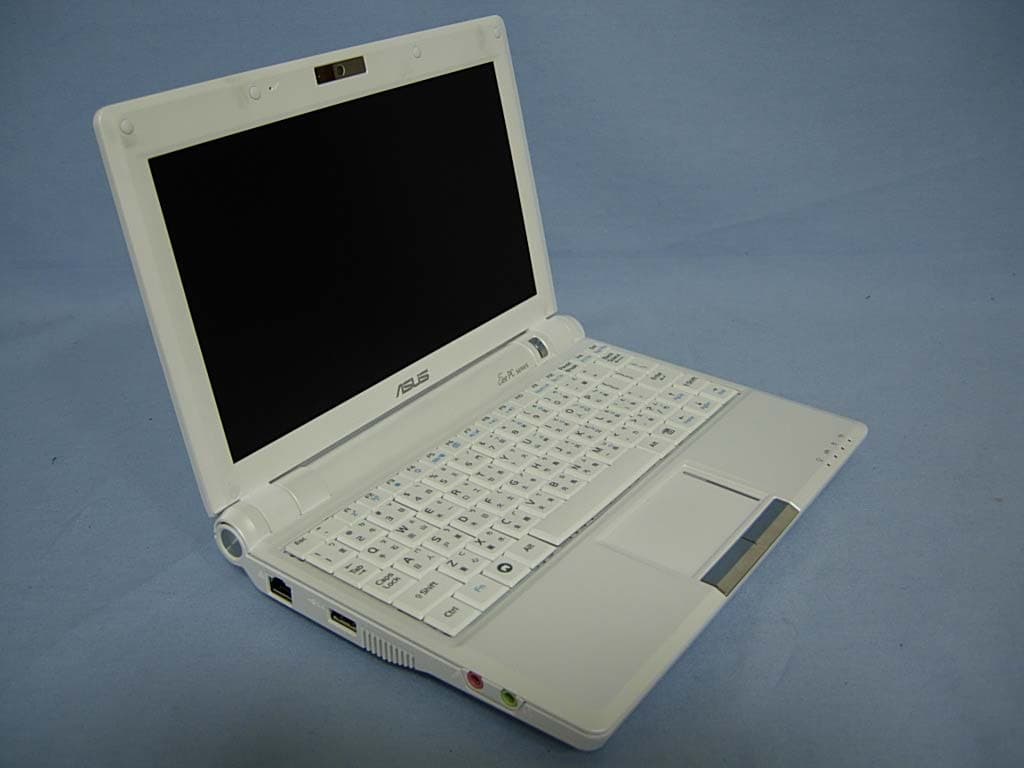
Click to zoom
Application Details
- Equipment Class
- DTS - Digital Transmission System
- Date of Grant
- Mar 25, 2008
- Application Purpose
- Original Equipment
- Date of Application
- Mar 25, 2008
- Equipment Note
- Eee PC
- Frequency Range
- 2412.00000000 - 2462.00000000
- Company
- ASUSTeK Computer Inc
- Country
- Taiwan
Documents & Files
Document Text
Text extracted from the exhibit documents filed with the FCC. Open a document above to read the original.
Users Manual
iiTable of Contents Table of Contents Chapter 1: Introducing the Eee PC About This User’s Manual ............................................................................1-2 Notes for This Manual ...................................................................................1-3 Safety Precautions .........................................................................................1-4 Transportation Precautions ......................................................................1-5 Charging Your Batteries ..............................................................................1-5 Airplane Precautions ...................................................................................1-5 Preparing your Eee PC ..................................................................................1-6 Chapter 2: Knowing the Parts Top Side .............................................................................................................2-2 Bottom Side ......................................................................................................2-5 Right Side ..........................................................................................................2-7 Left Side .............................................................................................................2-8 Rear Side ............................................................................................................2-9 Chapter 3: Getting Started Power System ..................................................................................................3-2 Using AC Power .............................................................................................3-2 Using Battery Power ....................................................................................3-3 Battery Care ....................................................................................................3-4 Touchpad Usage .............................................................................................3-6 Single-finger gesture input .......................................................................3-6 Multi-finger gesture input .........................................................................3-8 Keyboard Usage ..............................................................................................3-9 Special Function Keys .................................................................................3-9 First Run Wizard ............................................................................................3-12 Operating Mode ...........................................................................................3-14 Shutdown........................................................................................................3-15 Chapter 4: Using the Eee PC Internet ..............................................................................................................4-2 Configuring a wireless network connection .......................................4-2 Configuring a network connection ........................................................4-4 Wireless Point-to-Point Protocol over Ethernet .................................4-9 ASUS Eee PCiii Table of Contents Browsing web pages .................................................................................4-11 Enjoying free resources ............................................................................4-12 Accessing E-mail .........................................................................................4-13 Chatting with friends ................................................................................4-14 Checking the World Clock .......................................................................4-16 Work ...............................................................................................................4-17 Office applications .....................................................................................4-17 Management software .............................................................................4-21 Accessories & Dictionary ..........................................................................4-23 Learn ...............................................................................................................4-24 Science .........................................................................................................4-24 Language .......................................................................................................4-25 Math .........................................................................................................4-25 Paint .........................................................................................................4-26 Web Learn .....................................................................................................4-26 Play ...............................................................................................................4-27 Media Player .................................................................................................4-27 Music Manager ............................................................................................4-28 Photo Manager ............................................................................................4-29 Video Manager ............................................................................................4-30 Webcam .........................................................................................................4-30 Sound Recorder...........................................................................................4-31 Games .........................................................................................................4-31 Settings ............................................................................................................4-32 Desktop Mode .....................…
Text truncated - open the document above for the full version.
Users Manual
ASUS Eee PC2-5 Bottom Side Refer to the illustration below to identify the components on this side of the Eee PC. The bottom side may vary in appearance depending on model. The bottom of the Eee PC can get very hot. Be careful when handling the Eee PC while it is in operation or recently been in operation. High temperatures are normal during charging or operation. DO NOT use on soft surfaces such as beds or sofas ,which may block the vents. DO NOT PUT THE Eee PC ON YOUR LAP OR OTHER PARTS OF THE BODY TO AVOID INJURY FROM THE HEAT. 21 3 5 4 66 Battery Lock - Spring The spring battery lock keeps the battery pack secure. When the battery pack is inserted, it will automatically lock. When removing the battery pack, this spring lock must be retained in the unlocked position. 1 2-6Chapter 2: Knowing the Parts Battery Pack The battery pack is automatically charged when connected to an AC power source and maintains power to the Eee PC when AC power is not connected. This allows use when moving temporarily between locations. Battery time varies by usage and by the specifications for this Eee PC. The battery pack cannot be disassembled and must be purchased as a single unit. Battery Lock - Manual The manual battery lock is used to keep the battery pack secured. Move the manual lock to the unlocked position to insert or remove the battery pack. Move the manual lock to the locked position after inserting the battery pack. Solid-State Disk & Memory Compartment The solid-state disk drive and memory are secured in a dedicated compartment. Reset Button (Emergency) In case your operating system cannot properly turn OFF or restart, the reset button can be depressed with a pin or a straightened paper clip to restart the Eee PC. Audio Speaker System The built-in stereo speaker system allows you to hear audio without additional attachments. The multimedia sound system features an integrated digital audio controller that produces rich, vibrant sound (results improved with external stereo headphones or speakers). Audio features are software controlled. 2 3 4 5 6 ASUS Eee PC2-7 Right Side Refer to the illustration below to identify the components on this side of the Eee PC. 12 34 Memory Card Slot The built-in memory card reader can read MMC/SD cards from devices such as digital cameras, MP3 players, mobile phones, and PDAs. 2.0 USB Port (2.0/1.1) The USB (Universal Serial Bus) port is compatible with USB 2.0 or USB 1.1 devices such as keyboards, pointing devices, cameras, and storage devices, connected in a series up to 12Mbits/sec (USB 1.1) and 480Mbits/sec (USB 2.0). USB allows many devices to run simultaneously on a single computer, with some peripherals acting as additional plug-in sites or hubs. Also, the USB supports hot-swapping function. Display (Monitor) Output The 15-pin D-sub monitor port supports a standard VGA- compatible device such as a monitor or projector to allow viewing on a larger external display. Kensington® Lock Port The Kensington® lock port allows the Eee PC to be secured using Kensington® compatible security products. These security products usually include a metal cable and lock that prevent the Eee PC to be removed from a fixed object. 1 2 3 4 2-8Chapter 2: Knowing the Parts 1 234 Left Side Refer to the illustration below to identify the components on this side of the Eee PC. LAN Port The eight-pin RJ-45 LAN port (10/100M bit) supports a standard Ethernet cable for connection to a local network. The built-in connector allows convenient use without additional adapters. 2.0 USB Port (2.0/1.1) The USB (Universal Serial Bus) port is compatible with USB 2.0 or USB 1.1 devices such as keyboards, pointing devices, cameras, and storage devices, connected in a series up to 12Mbits/sec (USB 1.1) and 480Mbits/sec (USB 2.0). USB allows many devices to run simultaneously on a single computer, with some peripherals acting as additional plug- in sites or hubs. Also, it supports hot-swapping function. Microphone Jack The microphone jack is designed to connect the microphone used for Skype, voice narrations, or simple audio recordings. Headphone Output Jack The 1/8” stereo headphone jack (3.55mm) connects the Eee PC’s audio out signal to amplified speakers or headphones. Using this jack automatically disables the built-in speakers. 1 2 3 4 ASUS Eee PC2-9 Rear Side Refer to the illustration below to identify the components on this side of the Eee PC. 12 Battery Pack The battery pack is automatically charged when connected to an AC power source and maintains power to the Eee PC when AC power is not connected. This allows use when moving temporarily between locations. Battery time varies by usage and by the specifications for this Eee PC. The battery pack cannot be disassembled and must be purchased as a single unit. Power (DC) Input The supplied power adapter converts AC power to DC power for use with this jack. Power supplied through this jack supplies power to the Eee PC and charges the internal battery pack. To prevent damage to the Eee PC and battery pack, always use the supplied power adapter. 1 2 CAUTION: MAY BECOME WARM TO HOT WHEN IN USE. BE SURE NOT TO COVER THE ADAPTER AND KEEP IT AWAY FROM YOUR BODY. 2-10Chapter 2: Knowing the Parts Power System Touchpad Usage Keyboard Usage First Run Wizard Operating Mode Shutdown 3 Getting Started 3-2Chapter 3: Getting Started This Eee PC may come with either a two or three-prong plug depending on territory to fit your wall outlet. If a three-prong plug is provided, you must use a grounded AC outlet or use a properly grounded adapter to ensure safe operation of the Eee PC. THE POWER ADAPTER MAY BECOME WARM TO HOT WHEN IN USE. BE SURE NOT TO COVER THE ADAPTER AND KEEP IT AWAY FROM YOUR BODY. Power System Using AC Power The Eee PC power comprises two parts, the power adapter and the battery power system. The power adapter converts AC power from a wall outlet to the DC power required by the Eee PC. Your Eee PC comes with a universal AC-DC adapter for connecti…
Text truncated - open the document above for the full version.
Users Manual
ASUS Eee PC3-13 4. Enter your Password and enter again to confirm the password. Click Next to continue. 5 Click to expand the drop-down menu and locate the city you are in or the nearest city in your time zone. Adjust the correct date and your local time. Click Next to continue. 6. After you complete all the wizard instructions, click Finish to restart the system, or click Back to make changes. Click the box before Log me in automatically when system starts up if you want to log in without entering your password. Doing so will allow people to access your computer without permission. Keep your password in mind! You have to pass the password check every time you start up your Eee PC if you select not to login automatically. 3-14Chapter 3: Getting Started Operating Mode The system is designed with an operating mode that is function- oriented and clearly divides functions into six categories, Internet, Work, Learn, Play, Settings, Favorites. The lucid desktop categorization is convenient for first-time users to operate this Eee PC and enables sophisticated users to more easily locate and initiate applications. Switch the display category by clicking the category tabs on the top, at which time the screen changes to the selected category and shows pertinent items. Returns to the desktop Number lock Displays power status Adjusts volume Displays the time Shuts down, restarts, or recall Task Manager Hides or displays the taskbar Starts the task manager Caps lock Displays the wireless network connection Refer to Eee PC Help for detailed instructions for using your Eee PC Displays USB connction Shows the Eee PC Tips Displays the input method ASUS Eee PC3-15 Shutdown Do the following instructions to turn down your Eee PC. 1. Click the red power switch in the Notification area. Or, click Instant Shutdown from the Settings tab and select Shutdown. Or, press the power switch of the Eee PC directly. 2. Select Shut Down from the dialog box. 3. Select OK to proceed. 1 2 3 1 3-16Chapter 3: Getting Started Internet Work Learn Play Settings Favorites 4 Using the Eee PC 4-2Chapter 4: Using the Eee PC 2. (A) Click the TCP/IP tab on the top and (B) click the drop- down menu to select DHCP. Internet Configuring a wireless network connection 1. Press + (<Fn> + <F2>) to activate the wireless LAN function. 2. Click Wireless Networks from Internet tab. 4. When connecting, you may have to enter a password. 3. Select the wireless access point you want to connect to from the list and click Connect to build the connection. Ensure that the box before Enable wireless is checked. ASUS Eee PC4-3 5. After a connection has been established, the connection is shown on the list. 6. You can see the wireless signal strength bars in the Notification area. In Windows XP environment, the wireless connection icon disappears when you disable the wireless LAN by pressing + (<Fn> + <F2>). Activate the wireless LAN function before configuring a wireless network connection. 4-4Chapter 4: Using the Eee PC Configuring a network connection If you want to obtain network access, connect the network cable, with RJ-45 connectors on each end, to the network port on the Eee PC and the other end to a hub or switch. The illustration below is the example of your Eee PC connected to a network hub or switch for use with the built-in Ethernet controller. Connect to network before enjoying all the network services and functions in Eee PC. Using a dynamic IP: 1. From the Internet tab, select Network to start the configuration. Local Area Network Network hub or switch Network cable with RJ-45 connectors ASUS Eee PC4-5 3. Select the type of connection you are using and click Next. 4. Toggle the first option Dynamic IP address (DHCP) and click Next. 2. Click Create to create a network connection. 5. Enter a name for this connection and click Next.
Users Manual
4-6Chapter 4: Using the Eee PC 6. Click Finish to apply the settings or click Back to make changes. Using a static IP: 1. Repeat the step 1–3 of Using a dynamic IP to start the static IP network configuration. 2. Toggle the second option Static IP address and click Next. 3. Enter the IP address, Subnet mask and Gateway from your service provider. Click the box before Connect automatically at system startup or before the box Start this connection when finished based on your needs. ASUS Eee PC4-7 Contact your service provider if you have problem connecting to the internet. 4. There is no need to enter the DNS and WINS address unless you want to override the server provided DNS server address. If so, enter the preferred DNS Server address, alternative address and WINS address of your service provider. 5. Enter the DNS domain name for your network or click Next to proceed directly. 6. Enter a name for this connection and click Next. 7. Click Finish to apply the settings or click Back to make changes. 4-8Chapter 4: Using the Eee PC Point-to-Point Protocol over Ethernet (PPPoE) 1. Repeat the step 1–2 of Using a static IP to start the PPPoE network configuration. 2. Select the type of connection you are using and click Next. 3. Select the hardware that you want to use to make your connection and click Next. 5. Enter a name for this connection and click Next. 4. Enter your user name and password and click Next. ASUS Eee PC4-9 6. Click Finish to apply the settings or click Back to make changes. Select Connect automatically at system startup or Start this connection when finished based on your individual configuration. Wireless Point-to-Point Protocol over Ethernet 1. Repeat the step 1–2 of Using a static IP to start the wireless PPPoE network configuration. 2. Select the type of connection you are using and click Next. 3. Select the hardware that you want to use to make your connection and click Next.
Users Manual
4-10Chapter 4: Using the Eee PC 5. Enter the wireless channel information and click Next. 6. Set the encryption information for the wireless connection and click Next. 7. Enter your user name and password and click Next. 8. Enter a name for this connection and click Next. 9. Click Finish to apply the settings or click Back to make changes. ASUS Eee PC4-11 Browsing web pages After you finish the network setup, click Web from the Internet tab to launch the Mozilla Firefox web browser and start enjoying net surfing. Launches the Mozilla Firefox web browser Visit our Eee PC homepage (http://eeepc.asus.com) to obtain the latest information and register at http://vip.asus.com for full service of your Eee PC. If you think the browser font size too small to read, go to View > Text Size to adjust. 4-12Chapter 4: Using the Eee PC Enjoying free resources Eee PC thoughtfully builds several resources shortcuts, including iGoogle, Google Docs, and Wikipedia. Click an item and enjoy a charge-free service through Mozilla Firefox web browser. Connects to Wikipedia Connects to iGoogle Connects to Google Docs ASUS Eee PC4-13 Accessing E-mail Select Web Mail to display the webmail accesses, including Gmail, Hotmail, Yahoo Mail, and AOL Mail. Opens the built-in webmail list Click to link to the webmail homepage Select your e-mail service provider. If you do not use any of the displayed e-mail provider, click the Back to Internet tab button and select Web to log onto your own e-mail account. Click to return to the Internet tab
Users Manual
4-14Chapter 4: Using the Eee PC Chatting with friends Messenger 1. Select Messenger from the Internet tab and the Welcome to Pidgin screen displays. Press the Add button to configure your instant messaging account. Press to select an instant messaging service 2. Select an instant messaging service you are using from the drop-down list and fill out your password along with other necessary information to login your account. If you do not have an IM account, apply one from the service providers. If you have multiple IM accounts from different service providers, press Add button again to add and configure more IM accounts. Select an instant messaging service ASUS Eee PC4-15 Skype™ 1. Select Skype from the Internet tab and start chatting through Skype. Initiate Skype application 3. Enter your Skype name and password to login. Press to continue Click to select language 2. Select your preferred language and press Accept button to agree to the end user license agreement. 4-16Chapter 4: Using the Eee PC Checking the World Clock 1. Select World Clock to start the KDE world clock software. Starts the KDE World Clock 2. Major cities and territories are marked on the map in black. When you move the pointer over the map, the screen automatically displays the city name and its local time wherever you leave the pointer. The city name and respective local time appears ASUS Eee PC4-17 Work Office applications Documents/Spreadsheets/Presentations/PDF Reader The Work tab includes several office software items like Documents, Spreadsheets, Presentations, and PDF Reader. Some applications may require setup before use. Follow the steps as provided by the respective wizard to finish the initialization and get your jobs done more efficiently. Starts the application to create, and share presentations Starts the Adobe® PDF reader Starts the word processor to edit documents Starts the spreadsheet to perform calculation and manage information If you have problems using these applications, click Help on the top right corner and select Work tab for detailed instructions. 4-18Chapter 4: Using the Eee PC Accessing files The following example describes how to locate and open your document from the connected external storage device: 1. Double-click Documents to start OpenOffice.org Writer. 2. On the File menu, click Open, or press <Ctrl> + <O>. 3. At the prompt, click My Home on the left. Select D: and click OK to enter. ASUS Eee PC4-19 4. Double-click the folder to display the files within. Select the desired file, and click OK to open. 5. After the file is opened, you can start editing your document and doing your job. For other office applications, follow the general steps above to access files. 4-20Chapter 4: Using the Eee PC Mail The Mozilla Thunderbird e-mail client allows to import preferences, account settings, address books, and other data from an existing account in your original personal computer or notebook. Follow the Account Wizard for new account setup. Starts the Mozilla Thunderbird e-mail client Contact your service provider If you do not know the incoming and outgoing server address of your e-mail account. Local folders paneMail list panePreview pane ASUS Eee PC4-21 Management software Your Eee PC includes two management-related applications. I. File Manager provides an overview of all your files and enables easy management of data. Starts the File Manager To locate and open your file: 1. Connect your USB flash memory disk or USB portable hard disk drive containing desired data to your Eee PC. 2. Highlight and select Open in File Manager at the prompt. Eee PC supports file compression in a zip and tgz file format only, and file extraction from zip, gz, tar, and rar formats. 4-22Chapter 4: Using the Eee PC 3. All the files and folders in your USB external storage device are shown in the right pane. Locate the desired file and double-click it to open. • Use the directory tree in the left pane to locate files more quickly if numerous folders are listed. • To remove your connecting the USB device, right click the USB icon in the Notification area and select Safely remove. Click to open the Accessories II. PIM (Personal Information Manager) helps manage personal information like appointments, to-do items and contacts. Select PIM to initiate KDE Personal Information Manager Click to return to the Work tab ASUS Eee PC4-23 Accessories & Dictionary The bundled accessories, Calculator and Screen Capture, are convenient and easy to use; the built-in Dictionary prevents you from being lost in translation. Calculator and Screen Capture To start these tools: Click to open the Accessories Runs the Screen capture application Starts the Dictionary Opens the calculator Dictionary (in selected territories) Click to return to the Work tab Press + (<Fn> + <Prt Sc>) to initiate the screen capture tool directly and capture the full screen.
Users Manual
4-24Chapter 4: Using the Eee PC Learn Science After entering Science, you will find the options of the interactive Periodic Table and Planetarium. Move the pointer over and start your science learning. Select Science to enter Opens the interactive Periodic table Click to return to the Learn tab Activates the Planetarium 1. Periodic Table provides miscellaneous information, including picture, energy information, chemical data, and atom model for all elements. Click any wanted element and know more. 2. Planetarium projects and simulates the motions of the heavenly bodies, and marks constellations with latitude and longitude. ASUS Eee PC4-25 Language Several English learning games are included in Language, providing entertaining exercises for English typing and spelling. Starts the Hangman game Starts the Function Plotter Starts the Fraction Tutorial Starts the vocabulary spelling game Starts the typing practice tool Math Study fractions with your personal tutor in Eee PC. Fraction Tutorial clearly demonstrates and teaches you fractions. TuxMath teaches math more fun, teaching math by incorporating a shooting game. The Geometry tool allows drawing objects like points, lines, polygons, etc. to construct spatial objects. Function Plotter is a useful tool to plot different function expressions. You can zoom in and out the corresponding graph. Click to return to the Learn tab Click to return to the Learn tab Starts the TuxMath Starts the interactive Geometry tool 4-26Chapter 4: Using the Eee PC Paint Paint includes an image editing program (Paint) and a drawing program (Tux Paint). Web Learn This is a shortcut to Skoool. Double-click the item to link to Skoool interactive learning site (www.skoool.com). Click your own country or the country you would like to visit and enter. Links to Skoool Starts Tux Paint Starts mtPaint Click to return to the Learn tab ASUS Eee PC4-27 Play Media Player Enjoy your music and movies with the Media Player. Starts the Media Player Move the pointer over the items on the user interface, and the pop out message would show the function of the button or the slider. Volume adjustment Mute Full Screen 10 mins forward 1 min forward 10 secs forward Jump to 10 secs rewind 1 min rewind 10 mins rewind Pause Play Stop Loads subtitles 4-28Chapter 4: Using the Eee PC Music Manager The built-in music manager helps you arrange your multi-media data in a well-organized fashion. Starts the Music Manager • Closing the main window only minimizes the music manager in the Notification area. Quit the music manager by clicking Actions > Quit. • All rights of the built-in music samples are reserved by Michelle Chen. Unauthorized copy, reproduction, broadcasting and public performance are prohibited. Shows the connected media device Locates your media files Shows your playlists Displays your collection Shows the track playing, newest albums and favorite albums Drag and drop to create the playlists Connect your iPod to your Eee PC and click the Media Device tab to show the playlists in your iPod. You can drag and drop the desired files to create your playlist in the right pane. ASUS Eee PC4-29 Photo Manager Manage, view, and edit image files with the Photo Manager. Starts the Photo Manager Photo Manager supports image files in PNG, JPG, TIF, TIFF, GIF, BMP, XPM, PPM, PNM, XCT, PCX format. Locates pictures in folders Displays folders and files Preview paneAdds your comments 4-30Chapter 4: Using the Eee PC Webcam Click Webcam and start video recording or image capture. Activates Webcam Video Manager Starts the Video Manager Changes the view mode Changes the display window Switches to tree display Shows the properties of the selected item Moves the selected item to trash can ASUS Eee PC supports video and audio files in the following format: wmv, DVD, MPEG1, MPEG2, MPEG4 SP, Xvid, mp3, wma, ogg, wav, MPEG4 AAC, PCM, Dolby digital (2.0 decode) format. The actual supported codecs vary depending on model.
Users Manual
ASUS Eee PC4-31 Games Select an available game and have fun. Click to return to the Play tab Sound Recorder Allows you to record a sound clip. Initiates Sound Recorder Switches to new buffer Starts recording Stops recording Playback Review Advance Turns on/off monitor 4-32Chapter 4: Using the Eee PC Settings Desktop Mode The Desktop Mode allows you to select the display mode and adjust your Eee PC display resolution. You can use both external and internal displays, external display only or internal display only. If an external display is not connected, the first two options will be grayed out. You can also manually adjust the display resolution or set it automatically adjust. If you set your display resolution to 600x480 or below, use the touchpad to scroll up and down the screen. Connect an external monitor before booting up the Eee PC. If you have installed Windows XP to your Eee PC, right-click the ASUS Eee PC Utility icon in the Notification area to adjust the display resolution. Click to start the anti-virus application ASUS Eee PC4-33 Anti-Virus From the Settings tab, select Anti-Virus and perform virus scanning to protect your Eee PC. Volume Click the speakers icon to open the control panel. Adjust the system volume and balance by moving the sliders. Click to customize Adjust the system and microphone volume Adjust the balance Click to start the anti-virus application 4-34Chapter 4: Using the Eee PC Instant Shutdown Click Instant Shutdown and select an action from the dialog box shown below. You can activate the task manager, put the system in standby, restart, or shut down the system. Printers To setup your printer, double-click Printers and press Add to add a new printer. The installed printers display in the window. Refer to the QVL in Appendix or visit our website for the latest qualified vendor f…
Text truncated - open the document above for the full version.
Contact Information
Applicant
Jackson Yen(Associate Vice President)
Technical Contact
QuieTek CorporationVincent Lin
[email protected]886-2-8601-3788
No. 5-22, Ruei-Shu Valley,Ruei-Ping Tsuen, Lin-Kou · Taipei · Taiwan
Non-Technical Contact
QuieTek CorporationEmily Chen
[email protected]886-2-8792-6808
Test Firm
DEKRA Testing and Certification Co., Ltd.Sky Hsu
Technical Specifications
| # | Rule Parts | Frequency Range | Power Output |
|---|---|---|---|
| 1 | 15C | 2.41 GHz - 2.46 GHz | 153.00 mW |
Other Applications from ASUSTeK Computer Inc
MSQ-GC701
Aug 21, 2026Wireless Gaming Controller
Equipment Class
DSS - Part 15 Spread Spectrum TransmitterMSQMPDONGLE3
Aug 18, 2026WIRELESS DONGLE
Equipment Class
DTS - Digital Transmission System
MSQ-GC701D
Aug 13, 2026USB Wireless Dongle
Equipment Class
DSS - Part 15 Spread Spectrum TransmitterMSQ-CM3206DM4A
May 27, 2026Chromebook/Notebook PC
Equipment Class
DCD - Part 15 Low Power Transmitter Below 1705 kHz
MSQ-GST868003
Apr 03, 2026MODULE-WIRELESS CHRG
Equipment Class
DCD - Part 15 Low Power Transmitter Below 1705 kHz