MSQWL500GDWIRELESS ROUTER
ASUSTeK Computer Inc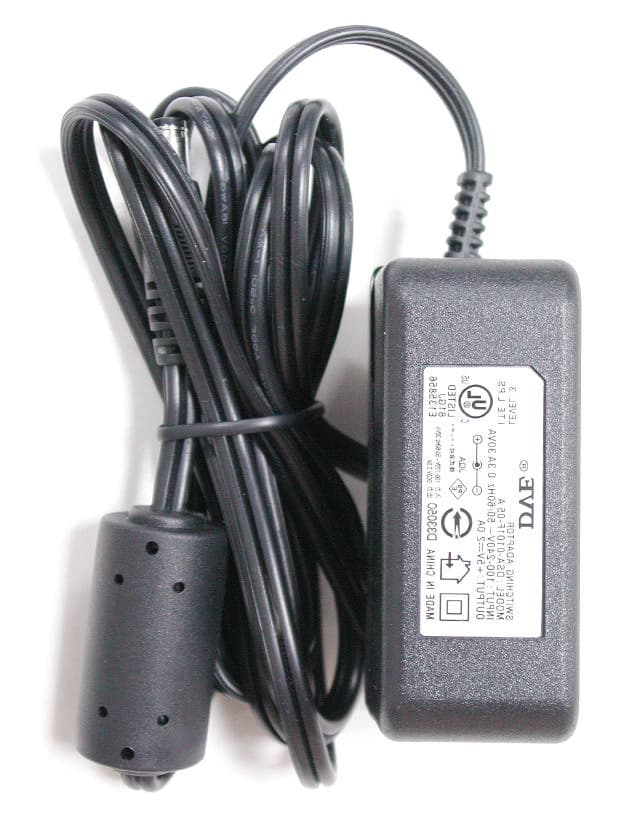
Click to zoom
Application Details
- Equipment Class
- DTS - Digital Transmission System
- Date of Grant
- Oct 27, 2004
- Application Purpose
- Original Equipment
- Date of Application
- Oct 27, 2004
- Equipment Note
- WIRELESS ROUTER
- Frequency Range
- 2412.00000000 - 2462.00000000
- Company
- ASUSTeK Computer Inc
- Country
- Taiwan
Documents & Files
Document Text
Text extracted from the exhibit documents filed with the FCC. Open a document above to read the original.
Users Manual
WL500g / WL500g Deluxe Wireless Router (For 802.11g/b Wireless Clients) WL500b Wireless Router (For 802.11b Wireless Clients) User’s Manual 2ASUS Wireless Router No part of this manual, including the products and software described in it, may be reproduced, transmitted, transcribed, stored in a retrieval system, or translated into any language in any form or by any means, except documentation kept by the purchaser for backup purposes, without the express written permission of ASUSTeK COMPUTER INC. (“ASUS”). ASUS PROVIDES THIS MANUAL “AS IS” WITHOUT WARRANTY OF ANY KIND, EITHER EXPRESS OR IMPLIED, INCLUDING BUT NOT LIMITED TO THE IMPLIED WARRANTIES OR CONDITIONS OF MERCHANTABILITY OR FITNESS FOR A PARTICULAR PURPOSE. IN NO EVENT SHALL ASUS, ITS DIRECTORS, OFFICERS, EMPLOYEES OR AGENTS BE LIABLE FOR ANY INDIRECT, SPECIAL, INCIDENTAL, OR CONSEQUENTIAL DAMAGES (INCLUDING DAMAGES FOR LOSS OF PROFITS, LOSS OF BUSINESS, LOSS OF USE OR DATA, INTERRUPTION OF BUSINESS AND THE LIKE), EVEN IF ASUS HAS BEEN ADVISED OF THE POSSIBILITY OF SUCH DAMAGES ARISING FROM ANY DEFECT OR ERROR IN THIS MANUAL OR PRODUCT. Product warranty or service will not be extended if: (1) the product is repaired, modified or altered, unless such repair, modification of alteration is authorized in writing by ASUS; or (2) the serial number of the product is defaced or missing. Products and corporate names appearing in this manual may or may not be registered trademarks or copyrights of their respective companies, and are used only for identification or explanation and to the owners’ benefit, without intent to infringe. SPECIFICATIONS AND INFORMATION CONTAINED IN THIS MANUAL ARE FURNISHED FOR INFORMATIONAL USE ONLY, AND ARE SUBJECT TO CHANGE AT ANY TIME WITHOUT NOTICE, AND SHOULD NOT BE CONSTRUED AS A COMMITMENT BY ASUS. ASUS ASSUMES NO RESPONSIBILITY OR LIABILITY FOR ANY ERRORS OR INACCURACIES THAT MAY APPEAR IN THIS MANUAL, INCLUDING THE PRODUCTS AND SOFTWARE DESCRIBED IN IT. Copyright © 2004 ASUSTeK COMPUTER INC. All Rights Reserved. Copyright Information Product Name:WL500g/WL500g Deluxe/WL500b Manual Revision:E1697 Release Date:July 2004 ASUS Wireless Router3 Contact Information ASUSTeK COMPUTER INC. (Asia-Pacific) Company Address:15 Li-Te Road, Peitou, Taipei 112 General Telephone:+886-2-2894-3447 General Fax:+886-2-2894-7798 Web Site Address:www.asus.com.tw General Email:[email protected] Technical Support MB/Others (Tel):+886-2-2890-7121 Notebook (Tel):+886-2-2894-3447 Desktop/Server (Tel): +886-2-2890-7123 Networking (Tel):+886-2-2890-7902 Support Fax:+886-2-2890-7698 ASUS COMPUTER INTERNATIONAL (America) Company Address:44370 Nobel Drive, Fremont, CA 94538, USA General Fax:+1-510-608-4555 Web Site Address:usa.asus.com General Email:[email protected] Technical Support General Support:+1-502-995-0883 Notebook (Tel):+1-510-739-3777 x5110 Support Email:[email protected] Support Fax:+1-502-933-8713 ASUS COMPUTER GmbH (Germany & Austria) Company Address:Harkort Str. 25, D-40880 Ratingen, Germany General Telephone:+49-2102-95990 General Fax:+49-2102-959911 Web Site Address:www.asuscom.de Online Contact:www.asuscom.de/sales Technical Support Component Support:+49-2102-95990 Notebook Support:+49-2102-959910 Online Support:www.asuscom.de/support Support Fax:+49-2102-959911 ASUS COMPUTER (Middle East and North Africa) Company Address:P.O. Box 64133, Dubai, U.A.E. General Telephone:+9714-283-1774 General Fax:+9714-283-1775 Web Site Address:www.ASUSarabia.com 4ASUS Wireless Router Federal Communications Commission Statement This device complies with Part 15 of the FCC Rules. Operation is subject to the following two conditions: •This device may not cause harmful interference, and •This device must accept any interference received, including interference that may cause undesired operation. This equipment has been tested and found to comply with the limits for a class B digital device, pursuant to Part 15 of the Federal Communications Commission (FCC) rules. These limits are designed to provide reasonable protection against harmful interference in a residential installation. This equipment generates, uses, and can radiate radio frequency energy and, if not installed and used in accordance with the instructions, may cause harmful interference to radio communications. However, there is no guarantee that interference will not occur in a particular installation. If this equipment does cause harmful interference to radio or television reception, which can be determined by turning the equipment off and on, the user is encouraged to try to correct the interference by one or more of the following measures: •Reorient or relocate the receiving antenna. •Increase the separation between the equipment and receiver. •Connect the equipment into an outlet on a circuit different from that to which the receiver is connected. •Consult the dealer or an experienced radio/TV technician for help. WARNING! The use of a shielded-type power cord is required in order to meet FCC emission limits and to prevent interference to the nearby radio and television reception. It is essential that only the supplied power cord be used. Use only shielded cables to con- nect I/O devices to this equipment. You are cautioned that changes or modifications not expressly approved by the party responsible for compliance could void your authority to operate the equipment. Reprinted from the Code of Federal Regulations #47, part 15.193, 1993. Washington DC: Office of the Federal Register, National Archives and Records Administration, U.S. Government Printing Office. Canadian Department of Communications This digital apparatus does not exceed the Class B limits for radio noise emissions from digital apparatus set out in the Radio Interference Regulations of the Canadian Department of Communications. This Class B digital apparatus complies with Canadian ICES-003. Cet appareil numérique de la classe B est conforme à la norme NMB-003 du Canada. Notices ASUS Wireless Router 5 Notices FCC…
Text truncated - open the document above for the full version.
Users Manual
3. Utilities 76ASUS Wireless Router Chapter 3 - Software Configuration System Setup - Setting Management Click this item on the menu to reveal a sub menu. Follow the instructions to setup the ASUS Wireless Router. Tips are given when you move your cursor over each item. Setting Management This function allows you to save current settings to a file, or load settings from a file. Save As a File Move your cursor over the HERE link on the web page. Then click the right button of mouse and select Save As... to save current setting into a file. Note:When current settings are saved to file, it will be saved to flash as well. Load From a File Specify the path of and name of the downloaded file in the New Setting File below. Then, click Uploadto write the file to. It takes a few time to finish the process and then the system will reboot. New Setting File ClickBrowse to locate the file. 3. Utilities ASUS Wireless Router77 Chapter 3 - Software Configuration System Setup Click this item on the menu to reveal a sub menu. Follow the instructions to setup the ASUS Wireless Router. Tips are given when you move your cursor over each item. Factory Default Restoring Factory Default Settings Web Manager You can reset all settings to their factory defaults through the web manager using the “Factory Default” page in “Advanced Setup”. Click the Restore button and wait about 30 seconds before trying to access the ASUS Wireless Router. Hardware You can reset all settings to their factory defaults manually by pushing the “Restore” button in a hole on the back of the ASUS Wireless Router while it is ON. Use a pen or straightened paper clip to hold the “Restore” button depressed over 5 seconds until the power LED on the front of the ASUS Wireless Router starts blinking. Note: You will be notified when factory default settings are restored while using the web manager. 3. Utilities 78ASUS Wireless Router Chapter 3 - Software Configuration Status & Log The Status & Log pages give you all the necessary information for monitoring the Wireless Router’s condition. Status System information for WAN, LAN, and Printer are displayed on this page. The buttons for WAN interface allow you to release or renew the IP address if your WAN Connection Type is set as Automatic IP. The button for Printer Server is used to remove printing jobs manually. Wireless Wireless clients, who connect to the Wireless Router, are displayed on this page. You can use buttons for radio control to manually disable or enable the wireless function. DHCP Leases Clients who request IP from DHCP server of your local area network or DHCP server in you’re your wireless network behind Wireless Firewall are displayed in this page. WL500g Deluxe WL500g 3. Utilities ASUS Wireless Router79 Chapter 3 - Software Configuration Port Forwarding Information of port forwarding rules, which are added by Port Mapping, Virtual Server, Virtual DMZ or UPnP, are displayed in this page. Routing Table Static routing rules or dynamic routing rules updated by RIP are displayed in this page. System Log The last 1024 system log entries are recorded in this page. Status & Log (Cont.) 3. Utilities 80ASUS Wireless Router Chapter 3 - Software Configuration Firmware Restoration This utility will automatically search out failed ASUS Wireless Routers and upload a firmware that you specify. The process takes about 3 to 4 minutes and during this process the PWR, AIR, and WAN LEDs will remain lit while the LAN LED will flash slowly. The Firmware Restoration utility is an emergency rescue tool to restore a ASUS Wireless Router which has failed during a previous firmware upload. A failed firmware upgrade will cause the ASUS Wireless Router to enter a failure mode, waiting for the user to use the Firmware Restoration utility to find and upload a new firmware. This is not a firmware upgrade utility and cannot be used on a working ASUS Wireless Router. Normal firmware upgrades must be done through the web manager. Using a Hub If you have problems upload a firmware while using a network hub, try connecting your computer directly to the LAN port. Either 10Base-T or 100Base-TX connections will work. 3. Utilities ASUS Wireless Router81 Chapter 3 - Software Configuration Setup Printer Wizard Follow the procedures below to set up your computers to utilize the printer server function of the ASUS Wireless Router. Installing the Printer Driver Adding a printer to your computer simplifies the ASUS Wireless Router Printer Setup Wizard. You are recommended to install a printer driver by the setup program that comes with your printer (see following Note), and then continue to the “Printer Setup Wizard” in the next section. If you run the “Printer Setup Wizard” without a printer driver installed, you are directed to the “Add Printer Wizard”. Note: Some printer setup utilities require a printer to be physically con- nected to your PC during installation. Follow the driver installation in- structions to connect your printer to the PC to install the driver and reconnect the Wireless Router after the printer driver has been installed. (1) Run the “Add Printer Wizard” from Start | Printers and Faxes | Add Printer. (2) Choose “Install by the Add Printer Wizard”. 3. Utilities 82ASUS Wireless Router Chapter 3 - Software Configuration (5) Find your manufacturer and model. ClickHave Disk if you cannot find your printer in the list and use the driver provided with your printer. (6) Click Nextto set this as your default printer. (3) Choose “Local printer attached to this computer”. (4) Choose “Remote Port (Printer Sharing Port)”. If this is not available, select LPT1*. You can select a USB port later in the “Printer Setup Wizard” if you are using a USB printer. * WL500b/g also supports standard based network printing protocol, called, LPR, which is also supported by Windows XP, Windows 2000, MAC or Unix based system. If you are a Windows XP user, please refer to Setup for LPR client under Windows XP for setting as a LPR cl…
Text truncated - open the document above for the full version.
Users Manual
3. Utilities 76ASUS Wireless Router Chapter 3 - Software Configuration System Setup - Setting Management Click this item on the menu to reveal a sub menu. Follow the instructions to setup the ASUS Wireless Router. Tips are given when you move your cursor over each item. Setting Management This function allows you to save current settings to a file, or load settings from a file. Save As a File Move your cursor over the HERE link on the web page. Then click the right button of mouse and select Save As... to save current setting into a file. Note:When current settings are saved to file, it will be saved to flash as well. Load From a File Specify the path of and name of the downloaded file in the New Setting File below. Then, click Uploadto write the file to. It takes a few time to finish the process and then the system will reboot. New Setting File ClickBrowse to locate the file. 3. Utilities ASUS Wireless Router77 Chapter 3 - Software Configuration System Setup Click this item on the menu to reveal a sub menu. Follow the instructions to setup the ASUS Wireless Router. Tips are given when you move your cursor over each item. Factory Default Restoring Factory Default Settings Web Manager You can reset all settings to their factory defaults through the web manager using the “Factory Default” page in “Advanced Setup”. Click the Restore button and wait about 30 seconds before trying to access the ASUS Wireless Router. Hardware You can reset all settings to their factory defaults manually by pushing the “Restore” button in a hole on the back of the ASUS Wireless Router while it is ON. Use a pen or straightened paper clip to hold the “Restore” button depressed over 5 seconds until the power LED on the front of the ASUS Wireless Router starts blinking. Note: You will be notified when factory default settings are restored while using the web manager. 3. Utilities 78ASUS Wireless Router Chapter 3 - Software Configuration Status & Log The Status & Log pages give you all the necessary information for monitoring the Wireless Router’s condition. Status System information for WAN, LAN, and Printer are displayed on this page. The buttons for WAN interface allow you to release or renew the IP address if your WAN Connection Type is set as Automatic IP. The button for Printer Server is used to remove printing jobs manually. Wireless Wireless clients, who connect to the Wireless Router, are displayed on this page. You can use buttons for radio control to manually disable or enable the wireless function. DHCP Leases Clients who request IP from DHCP server of your local area network or DHCP server in you’re your wireless network behind Wireless Firewall are displayed in this page. WL500g Deluxe WL500g 3. Utilities ASUS Wireless Router79 Chapter 3 - Software Configuration Port Forwarding Information of port forwarding rules, which are added by Port Mapping, Virtual Server, Virtual DMZ or UPnP, are displayed in this page. Routing Table Static routing rules or dynamic routing rules updated by RIP are displayed in this page. System Log The last 1024 system log entries are recorded in this page. Status & Log (Cont.) 3. Utilities 80ASUS Wireless Router Chapter 3 - Software Configuration Firmware Restoration This utility will automatically search out failed ASUS Wireless Routers and upload a firmware that you specify. The process takes about 3 to 4 minutes and during this process the PWR, AIR, and WAN LEDs will remain lit while the LAN LED will flash slowly. The Firmware Restoration utility is an emergency rescue tool to restore a ASUS Wireless Router which has failed during a previous firmware upload. A failed firmware upgrade will cause the ASUS Wireless Router to enter a failure mode, waiting for the user to use the Firmware Restoration utility to find and upload a new firmware. This is not a firmware upgrade utility and cannot be used on a working ASUS Wireless Router. Normal firmware upgrades must be done through the web manager. Using a Hub If you have problems upload a firmware while using a network hub, try connecting your computer directly to the LAN port. Either 10Base-T or 100Base-TX connections will work. 3. Utilities ASUS Wireless Router81 Chapter 3 - Software Configuration Setup Printer Wizard Follow the procedures below to set up your computers to utilize the printer server function of the ASUS Wireless Router. Installing the Printer Driver Adding a printer to your computer simplifies the ASUS Wireless Router Printer Setup Wizard. You are recommended to install a printer driver by the setup program that comes with your printer (see following Note), and then continue to the “Printer Setup Wizard” in the next section. If you run the “Printer Setup Wizard” without a printer driver installed, you are directed to the “Add Printer Wizard”. Note: Some printer setup utilities require a printer to be physically con- nected to your PC during installation. Follow the driver installation in- structions to connect your printer to the PC to install the driver and reconnect the Wireless Router after the printer driver has been installed. (1) Run the “Add Printer Wizard” from Start | Printers and Faxes | Add Printer. (2) Choose “Install by the Add Printer Wizard”. 3. Utilities 82ASUS Wireless Router Chapter 3 - Software Configuration (5) Find your manufacturer and model. ClickHave Disk if you cannot find your printer in the list and use the driver provided with your printer. (6) Click Nextto set this as your default printer. (3) Choose “Local printer attached to this computer”. (4) Choose “Remote Port (Printer Sharing Port)”. If this is not available, select LPT1*. You can select a USB port later in the “Printer Setup Wizard” if you are using a USB printer. * WL500b/g also supports standard based network printing protocol, called, LPR, which is also supported by Windows XP, Windows 2000, MAC or Unix based system. If you are a Windows XP user, please refer to Setup for LPR client under Windows XP for setting as a LPR cl…
Text truncated - open the document above for the full version.
Cover Letter(s)
ASUSTeK COMPUTER INC. Tel : +886-2-28943447 Fax : +886-2-28950114 www.asus.com Request for Confidentiality Federal Communications Commission Authorization and Evaluation Division Subject: Confidentiality Request regarding application for certification of FCC ID : MSQWL500GD Dear Madam or Sir: Pursuant to Sections 0.457 and 0.459 of the Commission’s Rules, we hereby request confidential treatment of information accompanying this application as outlined below: z Schematics z Part List z Block diagram z Operational description The above materials contain trade secrets and proprietary information not customarily released to the public. The public disclosure of these materials may be harmful to the applicant and provide unjustified benefits to its competitors. The applicant understands that pursuant to Section 0.457 of the Rules, disclosure of this application and all accompanying documentation will not be made before the date of the Grant for this application. ASUSTeK COMPUTER INC. Tel : +886-2-28943447 Fax : +886-2-28950114 www.asus.com Pursuant to DA 04-1705 June 15, 2004 of the Commission’s public notice, we also request temporary confidential treatment of information accompanying this application as outlined below: z External Photos z Internal Photos z Test Setup Photos z User’s Manual Sincerely, Lawrence Yu / Manager ASUSTek Computer Inc.
External Photos
External Photos of Wireless Router -------------------------------------------------- 1/7 Applicant: ASUSTeK Computer Inc. FCC ID: MSQWL500GD Training Research Co., Ltd., TEL: 886-2-26935155, Fax: 886-2-26934440 External Photos of Wireless Router -------------------------------------------------- 2/7 Applicant: ASUSTeK Computer Inc. FCC ID: MSQWL500GD Training Research Co., Ltd., TEL: 886-2-26935155, Fax: 886-2-26934440 External Photos of Adapter ----------------------------------------------------------- 3/7 Applicant: ASUSTeK Computer Inc. FCC ID: MSQWL500GD Training Research Co., Ltd., TEL: 886-2-26935155, Fax: 886-2-26934440
ID Label/Location Info
LABEL Sample and Location information -------------------------------------------------- 1/2 Applicant: ASUSTeK Computer Inc. FCC ID: MSQWL500GD Training Research Co., Ltd., TEL: 886-2-26935155, Fax: 886-2-26934440 LABEL Format: This device complies with Part 15 of the FCC Rules. Operation is subject to the following two conditions: (1) this device may not cause harmful interference, and (2) this device must accept any interference received, including interference that may cause undesired operation. LABEL Sample and Location information -------------------------------------------------- 2/2 Applicant: ASUSTeK Computer Inc. FCC ID: MSQWL500GD Training Research Co., Ltd., TEL: 886-2-26935155, Fax: 886-2-26934440 LABEL Position:
Internal Photos
Internal Photos of Wireless Router --------------------------------------------------4/8 Applicant: ASUSTeK Computer Inc. FCC ID: MSQWL500GD Training Research Co., Ltd., TEL: 886-2-26935155, Fax: 886-2-26934440 Internal Photos of Wireless Router --------------------------------------------------5/8 Applicant: ASUSTeK Computer Inc. FCC ID: MSQWL500GD Training Research Co., Ltd., TEL: 886-2-26935155, Fax: 886-2-26934440 Internal Photos of Wireless Router --------------------------------------------------6/8 Applicant: ASUSTeK Computer Inc. FCC ID: MSQWL500GD Training Research Co., Ltd., TEL: 886-2-26935155, Fax: 886-2-26934440 Internal Photos of Wireless Router --------------------------------------------------7/8 Applicant: ASUSTeK Computer Inc. FCC ID: MSQWL500GD Training Research Co., Ltd., TEL: 886-2-26935155, Fax: 886-2-26934440 Internal Photos of Wireless Router --------------------------------------------------8/8 Applicant: ASUSTeK Computer Inc. FCC ID: MSQWL500GD Training Research Co., Ltd., TEL: 886-2-26935155, Fax: 886-2-26934440
RF Exposure Info
Measurement of Maximum Permissible Exposure----------------------------------------- 1/3 Applicant: ASUSTeK Computer Inc. FCC ID: MSQWL500GD Training Research Co., Ltd., TEL: 886-2-26935155, Fax: 886-2-26934440 Measurement of Maximum Permissible Exposure 1. Foreword In adopt with the Human Exposure IEEE C95.1, and according to the FCC 1.1310. The Maximum Permissible Exposure (MPE) is obligated to measure in order to prove the safety of radiation harmfulness to the human body. The Gain of the antenna used is measured in an Anechoic chamber. The maximum total power to the antenna is to be recorded. By adopting the Friis Transmission Formula and the power gain of the antenna, we can find the distance right away from the product, where the limit of the MPE is. 2. Description of EUT FCC ID : MSQWL500GD Product name : Wireless Router Model : WL-500G Deluxe Classification : Mobile Device (i) Under normal use condition, the antenna is at least 20cm away from the user; (ii) Warning statement for keeping 20cm separation distance and the prohibition of operating next to the person has been printed in the user’s manual Frequency Range : 2.412 GHz ~ 2.462GHz Supported Channel : 11 Channels Modulation Skill : DBPSK, DQPSK, CCK, OFDM Power Type : Powered by the Switching adapter, Mfg.: DVE Model: DSA-0101F-05 A I/P: 100-240VAC, 50/60Hz, 0.3A, 30VA O/P: +5VDC, 2.0A Measurement of Maximum Permissible Exposure----------------------------------------- 2/3 Applicant: ASUSTeK Computer Inc. FCC ID: MSQWL500GD Training Research Co., Ltd., TEL: 886-2-26935155, Fax: 886-2-26934440 3. Limits for Maximum Permissible Exposure (MPE) Frequency Range (MHz) Electric Field Strength (V/m) Magnetic Filed Strength (H) (A/m) Power Density (S) (mW/cm2) Averaging Time |E| 2 , |H| 2 or S (minutes) (A) Limits for Occupational/Controlled Exposure 0.3-3.0 614 1.63 100 6 3.0-30 1842/f 4.89/f 900/f 2 6 30-300 61.4 0.163 1.0 6 300-1500 -- -- f/300 6 1500-100,000 -- -- 5 6 (B) Limits for General Population/Uncontrolled Exposure 0.3-1.34 614 1.63 100 30 1.34-30 824/f 2.19/f 180/f 2 30 30-300 27.5 0.073 0.2 30 300-1500 -- -- f/1500 30 1500-100,000 -- -- 1.0 30 [The EUT is tested in transmit and receive modes and in the first, middle and the last channel separately. The following shows only our observation have the greatest emissions.] According to OET BULLETIN 56 Fourth Edition/August 1999, Equation for Predicting RF Fields: Friis Transmission Formula: 2 22 /0342.0 )20(4 5136.15011.113 4 cmmW R PG S= × == ππ Estimated safe separation: cm PG R697.3 4 5136.1501.113 4 = × == ππ Remarks: "The safe estimated separation that the user must maintain from the antenna is at least 3.697 cm." Where: S = power density (in appropriate units, e.g. mW/cm2) P = power input to the antenna (in appropriate units, e.g., mW) G = power gain of the antenna in the direction of interest relative to an isotropic radiator R = distance to the center of radiation of the antenna (appropriate units, e.g., cm) The Numeric gain G of antenna with a gain specified in dB is determined by: G = Log -1 ( dB antenna gain / 10 ) G = Log -1 (1.8 / 10) = 1.5136 Measurement of Maximum Permissible Exposure----------------------------------------- 3/3 Applicant: ASUSTeK Computer Inc. FCC ID: MSQWL500GD Training Research Co., Ltd., TEL: 886-2-26935155, Fax: 886-2-26934440 Appendix Antenna Specification
Test Report
Test Report ---------------------------------------------------------------------------------------------- 1/55 Report No.: A5415022, FCC Part 15.247 Training Research Co., Ltd., TEL: 886-2-26935155, Fax: 886-2-26934440 MEASUREMENT REPORT of Wireless Router Applicant : ASUSTek Computer Inc. EUT : Wireless Router Model No. : WL-500G Deluxe FCC ID : MSQWL500GD Report No. : A5415022 Tested by : Training Research Co., Ltd. TEL : 886-2-26935155 FAX : 886-2-26934440 No. 255, Nanyang Street, Shijr, Taipei Hsien 221, Taiwan, R.O.C. Test Report ---------------------------------------------------------------------------------------------- 2/55 Report No.: A5415022, FCC Part 15.247 Training Research Co., Ltd., TEL: 886-2-26935155, Fax: 886-2-26934440 CERTIFICATION We here by verify that: The test data, data evaluation, test procedures and equipment configurations shown in this report were made mainly in accordance with the procedures given in ANSI C63.4 (2003) as a reference. All test were conducted by Training Research Co., Ltd., 255 Nanyang Street, Shijr, Taipei Hsien 221, Taiwan, R.O.C. Also, we attest to the accuracy of each. We further submit that the energy emitted by the sample EUT tested as described in the report is in compliance with the technical requirements set forth in the FCC Rules Part 15 Subpart B (Declaration of Conformity) and C Section 15.247. Applicant : ASUSTek Computer Inc. Applicant address : 4F, No. 150, Li-Te Rd., Peitou, Taipei, Taiwan, R.O.C. Product Name : Wireless Router Model Name : WL-500G Deluxe FCC ID : MSQWL500GD Report No. : A5415022 Test Date : October 11, 2004 Prepared by: Approved by: Jack Tsai Frank Tsai Conditions of issue : (1) This test report shall not be reproduced except in full, without written approval of TRC. And the test result contained within this report only relate to the sample submitted for testing. (2) This report must not be used by the client to claim product endorsement by NVLAP or any agency of U.S. Government. (3) This test report, measurements made by TRC are traceable to the NIST only Conducted and Radiated Method. ́ NVLAP LAB CODE: 200174-0 Test Report ---------------------------------------------------------------------------------------------- 3/55 Report No.: A5415022, FCC Part 15.247 Training Research Co., Ltd., TEL: 886-2-26935155, Fax: 886-2-26934440 Federal Communications Commission Declaration of Conformity (DoC) for the following equipment: Product name : Wireless Router Model name : WL-500G Deluxe Trade name : ASUS Is herewith confirmed and found to comply with the requirements of CFR 47 part15 Subpart B - Unintentional Radiators regulation. The results of electromagnetic mission evaluation are shown in the report number : A5415022 This device complies with Part 15 of the FCC Rules. Operation is subject to the following two conditions: (1) This device may not cause harmful interference, and (2) This device must accept any interference received, including interference that may cause undesired operation Manufacturer USA local representative Company name: ASUSTeK Computer Inc. To be determined Computer address: 4/F, 150, Li-Te Rd., Peitou, Taipei, Taiwan ZIP / Postal code 112 Contact person: Lawrence Yu Title: Manager Internet e-mail address: [email protected] Tel / Fax: 886-2-28943447 / 886-2-28950113 Test Report ---------------------------------------------------------------------------------------------- 4/55 Report No.: A5415022, FCC Part 15.247 Training Research Co., Ltd., TEL: 886-2-26935155, Fax: 886-2-26934440 Tables of Contents I. GENERAL ....................................................................................................................... 6 1.1 Introduction ........................................................................................................... 6 1.2 Description of EUT ............................................................................................... 6 1.3 Test method ........................................................................................................... 7 1.4 Description of Support Equipment ........................................................................ 8 1.5 Configuration of System Under Test .................................................................... 11 1.6 Verify the Frequency and Channel ....................................................................... 13 1.7 Test Procedure ...................................................................................................... 14 1.8 Location of the Test Site ....................................................................................... 14 1.9 General Test Condition ........................................................................................ 14 II. Section 15.101(a) : Equipment Authorization of Unintentional Radiato…
Text truncated - open the document above for the full version.
Contact Information
Applicant
Jackson Yen(Associate Vice President)
Test Firm
Training Research Co., LtdJack Tsai
Technical Specifications
| # | Rule Parts | Frequency Range | Power Output |
|---|---|---|---|
| 1 | 15C | 2.41 GHz - 2.46 GHz | 113.50 mW |
Other Applications from ASUSTeK Computer Inc
MSQ-GC701
Aug 21, 2026Wireless Gaming Controller
Equipment Class
DSS - Part 15 Spread Spectrum TransmitterMSQMPDONGLE3
Aug 18, 2026WIRELESS DONGLE
Equipment Class
DTS - Digital Transmission System
MSQ-GC701D
Aug 13, 2026USB Wireless Dongle
Equipment Class
DSS - Part 15 Spread Spectrum TransmitterMSQ-CM3206DM4A
May 27, 2026Chromebook/Notebook PC
Equipment Class
DCD - Part 15 Low Power Transmitter Below 1705 kHz
MSQ-GST868003
Apr 03, 2026MODULE-WIRELESS CHRG
Equipment Class
DCD - Part 15 Low Power Transmitter Below 1705 kHz