NPI53788Mindstorm-NxT
LEGO Systems Inc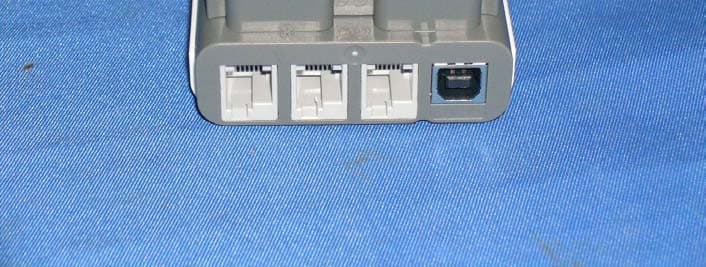
Click to zoom
Application Details
- Equipment Class
- DXT - Part 15 Low Power Transceiver, Rx Verified
- Date of Grant
- Aug 20, 2006
- Application Purpose
- Original Equipment
- Date of Application
- Aug 15, 2006
- Equipment Note
- Mindstorm-NxT
- Frequency Range
- 2402.00000000 - 2480.00000000
- Company
- LEGO Systems Inc
- Country
- Denmark
Documents & Files
Document Text
Text extracted from the exhibit documents filed with the FCC. Open a document above to read the original.
Users Manual
LEGO ® MINDSTORMS ® User Guide BUILD AND PROGRAM ROBOTS THAT DO WHAT YOU WANT! WELCOME TO THE WORLD OF LEGO ® MINDSTORMS ® Congratulations on your new LEGO ® MINDSTORMS ® NXT robotics tool set. You now have the power to build and program robots that do what you want! Dream it, build it Your MINDSTORMS NXT set enables you to create thousands of robotic inventions. Intelligent robots that see, hear, speak, feel and move. Advanced robots that you can control with your mobile phone. Cool robots that guard your room and do your chores. If you can dream it, you can build it. Build. Program. Go! Creating a MINDSTORMS robot is easy. Build the robot using your LEGO elements. Program it using the easy-to-use soft- ware and watch your robot come alive. For your fi rst robotic adventure, try out the quick-build model that you can build and program in less than 30 minutes. Smart technologies Your MINDSTORMS NXT set features the latest in robotic technology: an advanced 32-bit programmable microcontroller; icon-based drag and drop programming software and interactive challenges; smart sensors and Inter- active Servo Motors; wireless Bluetooth and USB connection. In fact all the smart technologies you need to create your dream robot. MINDSTORMS.com You are now a part of the worldwide LEGO MINDSTORMS community. Log on to MINDSTORMS.com and get more robotic challenges. Download programs, sound effects and other cool stuff. Share your inventions and exchange tips and tricks with other MINDSTORMS users. www.MINDSTORMS.com is your new robotic hot spot. Find out more In this User Guide you can learn more about the technology and the many exciting features in your MINDSTORMS set. Have fun building your own amazing robots! The LEGO MINDSTORMS team. 2 INTRODUCTION Build. Program. Go! ................................................ 4 NXT TECHNOLOGY NXT technology overview ....................................... 6 Connecting the NXT technology .............................. 8 About the NXT ......................................................... 10 Installing batteries in your NXT .............................. 12 NXT main menu ....................................................... 13 NXT icons ................................................................ 20 Touch Sensor .......................................................... 22 Sound Sensor ......................................................... 23 Light Sensor ........................................................... 24 Ultrasonic Sensor ................................................... 25 Interactive Servo Motors ........................................ 26 Using Bluetooth ..................................................... 28 SOFTWARE System requirements ............................................. 38 Installing the software ........................................... 38 Your fi rst program ................................................. 40 Software user interface ......................................... 42 The Robo Center ..................................................... 44 The programming palette ....................................... 45 The confi guration panel ......................................... 47 The Controller ........................................................ 47 LEGO BRICKS Element overview ................................................... 48 Building instructions .............................................. 49 Test pad ................................................................. 72 USEFUL INFORMATION Troubleshooting ..................................................... 74 CONTENTS 3 Build Build a robot. You can fi nd building instructions in this User Guide, in the software or at www.MINDSTORMS.com. Or you can use your imagination to build your own unique robot. BUILD. PROGRAM. GO! Program Program your robot to do what you want. Use the LEGO ® MINDSTORMS ® NXT Software to make a program. Download the program to the NXT by using the USB cable or the wireless Bluetooth connection. INTRODUCTION 4 Go! Run the program and watch your robot come to life. INTRODUCTION Quick Start Use the Quick Start kit to get your fi rst MINDSTORMS experience. In the Quick Start kit you will fi nd everything you need to get off to a great start. It will only take you a few minutes to create your fi rst MINDSTORMS robot, test it, and get a fun reaction. 5 The NXT The NXT is an intelligent, computer-controlled LEGO ® brick and the brain of the MINDSTORMS ® robot. NXT TECHNOLOGY OVERVIEW Sound Sensor Enables the robot to hear and react to sound. Touch Sensor Enables the robot to feel and react to its environment. Light Sensor Enables the robot to detect light and color. NXT TECHNOLOGY 6 Ultrasonic Sensor Enables the robot to see, measure distance to an object, and react to movement. Interactive Servo Motors Ensure that the robot moves with precision. NXT TECHNOLOGY Standard port settings for sensors and motors To make your robot work correctly, the sensors and motors should be connected to specifi c input and out- put ports. Here are the standard port settings: Input ports Port 1: Touch Sensor Port 2: Sound Sensor Port 3: Light Sensor Port 4: Ultrasonic Sensor Output ports Port A: Motor used for an extra function Port B: Motor for movement Port C: Motor for movement 7 CB A 12 34 CONNECTING THE NXT TECHNOLOGY Connecting motors To connect a motor to the NXT, use one of the black 6-wire cables. Attach one end of the cable to the motor and the other to one of the NXT’s output ports (A, B, or C). Connecting sensors To connect a sensor to the NXT, use one of the black 6-wire cables. Attach one end of the cable to the sensor and the other to one of the NXT’s input ports (1, 2, 3, or 4). Downloading and uploading The USB port and wireless Bluetooth connection let you download and upload data between your computer and the NXT. If your computer has Bluetooth capability, you can download programs to the NXT without using the USB cable. If you…
Text truncated - open the document above for the full version.
Users Manual
2 1 29 NXT TECHNOLOGY CONNECTING YOUR NXT TO A COMPUTER Before you try to set up a wireless Bluetooth connection, make sure that your computer has Bluetooth capability. If your computer does not have built-in Bluetooth capability, you must use a Bluetooth USB dongle. Make sure that you use the right type of Bluetooth USB dongle. Read more about the different types of Bluetooth USB dongles to use at www.MINDSTORMS.com/bluetooth MAKING THE CONNECTION TO A PC Make sure that your NXT is turned on. Also make sure that you have Bluetooth set to On and that your NXT is set to be Visible (read how in the Bluetooth submenu on the NXT on page 34). Also make sure that Bluetooth is installed and enabled on your computer. See your computer’s and Bluetooth USB dongle’s instruction manu- als for details. Find the Controller at the lower right corner of the work area in the software. Click on the NXT window button (the one at the upper left) and the NXT window will open. 4 5 3 30 NXT TECHNOLOGY Click Scan. Your computer will automatically search for Bluetooth devices. After a short interval, a list of available Bluetooth devices will appear in the window on the computer screen. Select the device you want to connect to and click the Connect button. When you connect to a device for the fi rst time, the Enter Passkey window will pop up. Enter the passkey to use with this device (the default passkey is 1234) and click OK. 7 2 1 6 31 NXT TECHNOLOGY Find the Controller at the lower right corner of the work area in the software. Click on the NXT window button (the one at the upper left) and the NXT window will open. Make sure that your NXT is turned on. Also make sure that you have Bluetooth set to On and that your NXT is set to be Visible (read how in the Bluetooth submenu on the NXT on page 34). Also make sure that Bluetooth is installed and enabled on your computer. See your computer’s and Bluetooth USB dongle’s instruction manu- als for details. Enter the passkey on your NXT and confi rm the connection by pushing the orange (Enter) button. If you have chosen the default passkey, just click the orange (Enter) button. In the NXT window, the status of your NXT has now changed from Available to Connected. Your NXT and computer are now connected and can share data. MAKING THE CONNECTION TO A MACINTOSH 4 5 3 32 NXT TECHNOLOGY The NXT that you want to connect to appears in the NXT window as available. Click the Connect button. A list of Bluetooth devices will appear in the Select Bluetooth Device window on the screen. Select the device you want to connect to and click the Select button. Click Scan. The Bluetooth device window will pop up on the screen. 6 7 8 9 33 NXT TECHNOLOGY Your Macintosh and NXT are now connected and can share data. Enter the passkey on your NXT and confi rm the connection by pushing the orange (Enter) button. If you have chosen the default passkey, just click the orange (Enter) button. When you connect to a device for the fi rst time, a Passkey window will pop up. Enter the passkey to use with this device (the default passkey is 1234) and click OK. The Pair with a Bluetooth Device window pops up. Select the NXT. Click Pair. 34 BLUETOOTH SUBMENU ON NXT NXT TECHNOLOGY Search Search for other Bluetooth devices. After you have chosen the Search icon, your NXT will automatically start to search for other Bluetooth devices that it can connect to. Bluetooth Select the Bluetooth submenu on the NXT display. My Contacts You can see all of your trusted Bluetooth contacts in My Contacts. These contacts can automatically connect and send data to your NXT without using a passkey. To add a new contact to the list, you must have been connected to the contact before. Devices which you have been connected to, will automatically be added to the list in My Contacts. Connections This item displays your current connections. You can connect your NXT to three devices at the same time (on Line 1, 2 and 3), while one device can connect to you (on Line 0). Note, however, that while you can be “connected” to up to three devices, you can only “communicate” with one device at a time. 35 NXT TECHNOLOGY You can also view the connection status in the NXT window in the software. There you can change the name of your NXT, check battery and memory levels, and delete programs on your NXT. Check the connection status in the icon bar at the top of the NXT’s display. If there is no Bluetooth icon shown, Bluetooth is OFF. Bluetooth is ON but your NXT is not visible to other Bluetooth devices. Bluetooth is ON and your NXT is visible to other Bluetooth devices. Bluetooth is ON and your NXT is connected to a Bluetooth device. Visibility Use the Visible option to make your NXT visible or invisible to other Bluetooth devices when they do a Bluetooth search. Passkey The Passkey ensures that only Bluetooth devices approved by you can connect to your NXT. Whenever you connect to a Bluetooth device for the fi rst time using your NXT, you will be asked for a passkey. Select the preset passkey 1234 or make up your own code. Other Bluetooth devices must know your passkey in order to confi rm a connection with your NXT. On/Off You can turn Bluetooth functionality on or off. If you turn Bluetooth off, you will not be able to send or receive data over Bluetooth. To save battery power, turn off the Bluetooth function when it is not in use. Note! Bluetooth is turned off by default. 23 5 1 46 7 36 NXT TECHNOLOGY CONNECTING YOUR NXT TO ANOTHER NXT Select the Bluetooth submenu on the NXT’s display. Select the Search icon to search for other Bluetooth devices. Your NXT will automatically search for Bluetooth devices. Depending on how many devices are detected in the area, a list will pop up on the NXT’s display after a few seconds. Select the device you want to connect to. Remember that you can give each NXT a unique name – see Naming the NXT on page 11. Select which of the three lines of communication you want the connection to be on (1, 2 or 3). You…
Text truncated - open the document above for the full version.
Users Manual
49 50 51 52 53 54 55 56 57 58 59 60 61 62
Users Manual
63 64 65 66 67 68 69 70 71 TEST PAD Test all your models on this test pad. This is the starting point on the pad. LEGO ® BRICKS 72 LABELS Use these labels to decorate your robots. You can use these labels to stick around both ends of a cable, to make sure the cable is connected to the right port. LEGO ® BRICKS 73 TROUBLESHOOTING Resetting the NXT If the running icon stops spinning, your NXT has frozen and you will need to reset it. Follow these steps to reset your NXT: Make sure that your NXT is turned on. Push the reset button that is located on the back of your NXT in the LEGO ® Technic hole in the upper left corner. Use, for example, an unfolded paperclip to press the button. If you press the reset button for more than 4 seconds you will need to update the fi rmware [see below]. Updating the fi rmware in the NXT from your computer Go to Tools > Update NXT Firmware. Make sure that your NXT is turned on. Note! If you have just reset your NXT (see above) the display will not show anything. A ticking sound will tell whether it is turned on or not. Make sure that your NXT and computer are connected with the USB cable. Go to the Tools pull-down menu in the software’s menu bar and select Update NXT Firmware. USEFUL INFORMATION 74 FCC approval: Model: MINDSTORMS NXT FCC ID:NPI53788 This device complies with part 15 of the FCC Rules. Operation is subject to the following 2 conditions: 1. This device may not cause harmful interference. 2. This device must accept any interference received including interference that may cause undesired operation. Warning: Changes or modifi cations to this unit not expressly approved by the party responsible for compliance could void the user’s authority to operate the equipment. NOTE: This equipment has been tested and found to comply with the limits for a Class 8 digital device, pursuant to part 15 of the FCC Rules. These limits are designed to provide reasonable protection against harmful interference in a residential installation. This equipment generates, uses an can radiate radio frequency energy and, if not installed and used in accordance with the instructions, may cause harmful interference to radio communications. However, there is no guarantee that interference will not occur in a particular installation. If this equipment does cause harmful interference to radio or television reception, which can be determined by turning the equipment off an on, the user is encouraged to try to correct the interference by one or more of the following measures: - Reorient or relocate the receiving antenna. - Increase the separation between the equipment and receiver. - Connect the equipment into an outlet on a circuit different from that to which the receiver is connected. Consult the dealer or an experienced radio/TV technician for help. Hereby LEGO Company declares that MINDSTORMS NXT (8527) is in compliance with the essential requirements and other relevant provisions of Directive 199/5/E. Select the fi rmware you want to update. Click download. (Note! The Windows ‘Found new hardware wizard’ will pop up the fi rst time you update your fi rmware. Complete the wizard by following the on-screen instruction before you continue). For other types of troubleshooting, go to www.MINDSTORMS.com/support USEFUL INFORMATION 75 1:1 1:1 Advanced Build Profi modelle Construction avancée Costruzione avanzata Geavanceerd bouwen Construcción avanzada Byg avanceret Taitavalle rakentajalle Bygg avancerat Construção Avançada Profi knak Quick Build Schnellbaumodelle Construction rapide Costruzione rapida Snel bouwen Construcción rápida Byg hurtigt Nopeaan rakentamiseen Bygg snabbt Construção Rápida Kísérletezöknek Experienced Build Könnermodelle Construction normale Costruzione esperta Bouwen voor gevorderden Construcción experta Byg videre Kokeneelle rakentajalle Bygg mer Construção para Experimentados Haladóknak BLUETOOTH is a trademark owned by Bluetooth SIG, Inc. and licensed to the LEGO Group. LEGO, the LEGO logo and MINDSTORMS are trademarks of the LEGO Group. ©2006 The LEGO Group. 4499268 Other product and company names listed are trademarks or trade names of their respective companies
Users Manual
49 50 51 52 53 54 55 56 57 58 59 60 61 62
Users Manual
63 64 65 66 67 68 69 70 71 TEST PAD Test all your models on this test pad. This is the starting point on the pad. LEGO ® BRICKS 72 LABELS Use these labels to decorate your robots. You can use these labels to stick around both ends of a cable, to make sure the cable is connected to the right port. LEGO ® BRICKS 73 TROUBLESHOOTING Resetting the NXT If the running icon stops spinning, your NXT has frozen and you will need to reset it. Follow these steps to reset your NXT: Make sure that your NXT is turned on. Push the reset button that is located on the back of your NXT in the LEGO ® Technic hole in the upper left corner. Use, for example, an unfolded paperclip to press the button. If you press the reset button for more than 4 seconds you will need to update the fi rmware [see below]. Updating the fi rmware in the NXT from your computer Go to Tools > Update NXT Firmware. Make sure that your NXT is turned on. Note! If you have just reset your NXT (see above) the display will not show anything. A ticking sound will tell whether it is turned on or not. Make sure that your NXT and computer are connected with the USB cable. Go to the Tools pull-down menu in the software’s menu bar and select Update NXT Firmware. USEFUL INFORMATION 74 FCC approval: Model: MINDSTORMS NXT FCC ID:NPI53788 This device complies with part 15 of the FCC Rules. Operation is subject to the following 2 conditions: 1. This device may not cause harmful interference. 2. This device must accept any interference received including interference that may cause undesired operation. Warning: Changes or modifi cations to this unit not expressly approved by the party responsible for compliance could void the user’s authority to operate the equipment. NOTE: This equipment has been tested and found to comply with the limits for a Class 8 digital device, pursuant to part 15 of the FCC Rules. These limits are designed to provide reasonable protection against harmful interference in a residential installation. This equipment generates, uses an can radiate radio frequency energy and, if not installed and used in accordance with the instructions, may cause harmful interference to radio communications. However, there is no guarantee that interference will not occur in a particular installation. If this equipment does cause harmful interference to radio or television reception, which can be determined by turning the equipment off an on, the user is encouraged to try to correct the interference by one or more of the following measures: - Reorient or relocate the receiving antenna. - Increase the separation between the equipment and receiver. - Connect the equipment into an outlet on a circuit different from that to which the receiver is connected. Consult the dealer or an experienced radio/TV technician for help. Hereby LEGO Company declares that MINDSTORMS NXT (8527) is in compliance with the essential requirements and other relevant provisions of Directive 199/5/E. Select the fi rmware you want to update. Click download. (Note! The Windows ‘Found new hardware wizard’ will pop up the fi rst time you update your fi rmware. Complete the wizard by following the on-screen instruction before you continue). For other types of troubleshooting, go to www.MINDSTORMS.com/support USEFUL INFORMATION 75 1:1 1:1 Advanced Build Profi modelle Construction avancée Costruzione avanzata Geavanceerd bouwen Construcción avanzada Byg avanceret Taitavalle rakentajalle Bygg avancerat Construção Avançada Profi knak Quick Build Schnellbaumodelle Construction rapide Costruzione rapida Snel bouwen Construcción rápida Byg hurtigt Nopeaan rakentamiseen Bygg snabbt Construção Rápida Kísérletezöknek Experienced Build Könnermodelle Construction normale Costruzione esperta Bouwen voor gevorderden Construcción experta Byg videre Kokeneelle rakentajalle Bygg mer Construção para Experimentados Haladóknak BLUETOOTH is a trademark owned by Bluetooth SIG, Inc. and licensed to the LEGO Group. LEGO, the LEGO logo and MINDSTORMS are trademarks of the LEGO Group. ©2006 The LEGO Group. 4499268 Other product and company names listed are trademarks or trade names of their respective companies
Users Manual
49 50 51 52 53 54 55 56 57 58 59 60 61 62
Users Manual
49 50 51 52 53 54 55 56 57 58 59 60 61 62
Cover Letter(s)
:
External Photos
INTERTEK TESTING SERVICES External Photos FCC ID: NPI53788 external photos - 1 of 4 INTERTEK TESTING SERVICES External Photos FCC ID: NPI53788 external photos - 2 of 4 INTERTEK TESTING SERVICES External Photos FCC ID: NPI53788 external photos - 3 of 4 INTERTEK TESTING SERVICES External Photos FCC ID: NPI53788 external photos - 4 of 4
ID Label/Location Info
FCC ID: NPI53788
Internal Photos
INTERTEK TESTING SERVICES Internal photos FCC ID: NPI53788 internal photos - 1 of 6 Main Unit assembly (View 1) Main Unit assembly (View 2) INTERTEK TESTING SERVICES Internal photos FCC ID: NPI53788 internal photos - 2 of 6 Main Unit’s PCB comp side (View 1) Main Unit’s PCB comp side (View 2) INTERTEK TESTING SERVICES Internal photos FCC ID: NPI53788 internal photos - 3 of 6 Main Unit’s PCB comp side (View 3) Main Unit’s PCB solder side INTERTEK TESTING SERVICES Internal photos FCC ID: NPI53788 internal photos - 4 of 6 Bluetooth PCB comp side Bluetooth PCB solder side INTERTEK TESTING SERVICES Internal photos FCC ID: NPI53788 internal photos - 5 of 6 LCD display front side LCD display rear side INTERTEK TESTING SERVICES Internal photos FCC ID: NPI53788 internal photos - 6 of 6 Servo Motor assembly Light Sensor assembly
Internal Photos
INTERTEK TESTING SERVICES Internal photos FCC ID: NPI53788 internal photos - 1 of 4 Light Sensor PCB comp side Light Sensor PCB solder side INTERTEK TESTING SERVICES Internal photos FCC ID: NPI53788 internal photos - 2 of 4 Ultrasonic sensor assembly Ultrasonic sensor PCB comp side INTERTEK TESTING SERVICES Internal photos FCC ID: NPI53788 internal photos - 3 of 4 Ultrasonic Sensor PCB solder side Microphone assembly INTERTEK TESTING SERVICES Internal photos FCC ID: NPI53788 internal photos - 4 of 4 Microphone PCB comp side Microphone PCB solder side
Internal Photos
INTERTEK TESTING SERVICES Internal photos FCC ID: NPI53788 internal photos - 1 of 4 Light Sensor PCB comp side Light Sensor PCB solder side INTERTEK TESTING SERVICES Internal photos FCC ID: NPI53788 internal photos - 2 of 4 Touch Sensor assembly Touch Sensor PCB comp side INTERTEK TESTING SERVICES Internal photos FCC ID: NPI53788 internal photos - 3 of 4 Touch Sensor PCB solder side Rechargeable Battery Pack assembly INTERTEK TESTING SERVICES Internal photos FCC ID: NPI53788 internal photos - 4 of 4 Rechargeable Battery Pack PCB comp side Rechargeable Battery Pack PCB solder side
Internal Photos
INTERTEK TESTING SERVICES Internal photos FCC ID: NPI53788 internal photos - 1 of 4 Light Sensor PCB comp side Light Sensor PCB solder side INTERTEK TESTING SERVICES Internal photos FCC ID: NPI53788 internal photos - 2 of 4 Touch Sensor assembly Touch Sensor PCB comp side INTERTEK TESTING SERVICES Internal photos FCC ID: NPI53788 internal photos - 3 of 4 Touch Sensor PCB solder side Rechargeable Battery Pack assembly INTERTEK TESTING SERVICES Internal photos FCC ID: NPI53788 internal photos - 4 of 4 Rechargeable Battery Pack PCB comp side Rechargeable Battery Pack PCB solder side
Internal Photos
INTERTEK TESTING SERVICES Internal photos FCC ID: NPI53788 internal photos - 1 of 4 Light Sensor PCB comp side Light Sensor PCB solder side INTERTEK TESTING SERVICES Internal photos FCC ID: NPI53788 internal photos - 2 of 4 Touch Sensor assembly Touch Sensor PCB comp side INTERTEK TESTING SERVICES Internal photos FCC ID: NPI53788 internal photos - 3 of 4 Touch Sensor PCB solder side Rechargeable Battery Pack assembly INTERTEK TESTING SERVICES Internal photos FCC ID: NPI53788 internal photos - 4 of 4 Rechargeable Battery Pack PCB comp side Rechargeable Battery Pack PCB solder side
Internal Photos
INTERTEK TESTING SERVICES Internal photos FCC ID: NPI53788 internal photos - 1 of 4 Light Sensor PCB comp side Light Sensor PCB solder side INTERTEK TESTING SERVICES Internal photos FCC ID: NPI53788 internal photos - 2 of 4 Touch Sensor assembly Touch Sensor PCB comp side INTERTEK TESTING SERVICES Internal photos FCC ID: NPI53788 internal photos - 3 of 4 Touch Sensor PCB solder side Rechargeable Battery Pack assembly INTERTEK TESTING SERVICES Internal photos FCC ID: NPI53788 internal photos - 4 of 4 Rechargeable Battery Pack PCB comp side Rechargeable Battery Pack PCB solder side
Test Report
• The test results reported in this test report shall refer only to the sample actually tested and shall not refer or be deemed to refer to bulk from which such a sample may be said to have been obtained. • This report shall not be reproduced except in full without prior authorization from Intertek Testing Services Hong Kong Limited. • For Terms And Conditions of the services, it can be provided upon request. • The evaluation data of the report will be kept for 3 years from the date of issuance. Intertek Testing Services Hong Kong Ltd. 2/F., Garment Centre, 576 Castle Peak Road, Kowloon, Hong Kong. Tel: (852) 2173 8888 Fax: (852) 2741 1693 Website: www.hk.intertek-etlsemko.com LEGO Systems Inc Application For Certification Mindstorm-NxT (FCC ID: NPI53788) 06059431 KL/ Ann Choy July 10, 2006 INTERTEK TESTING SERVICES FCC ID: NPI53788 i LIST OF EXHIBITS INTRODUCTION EXHIBIT 1: General Description EXHIBIT 2: System Test Configuration EXHIBIT 3: Emission Results EXHIBIT 4: Equipment Photographs EXHIBIT 5: Product Labelling EXHIBIT 6: Technical Specifications EXHIBIT 7: Instruction Manual EXHIBIT 8: Confidentiality Request INTERTEK TESTING SERVICES FCC ID: NPI53788 ii MEASUREMENT/TECHNICAL REPORT LEGO Systems Inc - Model: 53788 FCC ID: NPI53788 This report concerns (check one:) Original Grant X Class II Change Equipment Type : DXT - Part 15 Low Power Transceiver, Rx Verified JBP - Part 15 Class B Computer Peripheral Deferred grant requested per 47 CFR 0.457(d)(1)(ii)? Yes No X If yes, defer until : date Company Name agrees to notify the Commission by: date of the intended date of announcement of the product so that the grant can be issued on that date. Transition Rules Request per 15.37 ? Yes No X If no, assumed Part 15, Subpart C for intentional radiator - the new 47 CFR [ 04-05-05 Edition] Provision. Report prepared by: Lam Chun Cheong, Kenneth Intertek Testing Services Hong Kong Ltd. 2/F., Garment Centre, 576 Castle Peak Road, Kowloon, Hong Kong. Phone : 852-2173-8474 Fax: 852-2741-1693 INTERTEK TESTING SERVICES FCC ID: NPI53788 iii Table of Contents 1.0 General Description ................................................................................................... 2 1.1 Product Description ................................................................................................... 2 1.2 Related Submittal(s) Grants ...................................................................................... 3 1.3 Test Methodology...................................................................................................... 3 1.4 Test Facility ...............................................................................................................3 2.0 System Test Configuration........................................................................................ 5 2.1 Justification ...............................................................................................................5 2.2 EUT Exercising Software .......................................................................................... 5 2.3 Support Equipment List and Description ................................................................... 6 2.4 Measurement Uncertainty ......................................................................................... 7 2.5 Equipment Modification ............................................................................................. 7 3.0 Emission Results ....................................................................................................... 9 3.1 Field Strength Calculation ....................................................................................... 10 3.2 Radiated Emission Configuration Photograph ......................................................... 11 3.3 Radiated Emission Data.......................................................................................... 12 3.4 Radiated Emission on the Bandedge ...................................................................... 16 3.5 Line Conducted Configuration Photograph.............................................................. 17 3.6 Line Conducted Emission Data ............................................................................... 18 3.7 Radiated Emissions from Digital Portion of EUT and Class B PC Peripheral .......... 20 3.8 Transmitter Duty Cycle Calculation and Measurements .......................................... 23 4.0 Equipment Photographs .......................................................................................... 25 5.0 Product Labelling..................................................................................................... 27 6.0 Technical Specifications......................................................................................... 29 7.0 Instruction Manual................................................................................................... 31 8.0 Confidentiality Request........................................................................................... 33 INTERTEK TESTING SERVICES FCC ID: NPI53788 iv List of attached file Exhibit type File Description filename Cover Page Confidentiality Request request.pdf Test Report Test Report report.pdf Operation Description Technical Description descri.pdf Test Setup Photo Radiated Emission config photos.doc Test Report Emission Plot emission.pdf Test Setup Photo Co…
Text truncated - open the document above for the full version.
Contact Information
Applicant
Henning Mikkelsen(Senior Quality Engineer)
Technical Contact
Intertek Testing Services Hong Kong Ltd.Tommy Leung
[email protected]852-2173-8538
2/F., Garment Centre, · Kowloon · Hong Kong
Non-Technical Contact
Intertek Testing Services Hong Kong Ltd.Tommy Leung
[email protected]852-2173-8538
Test Firm
Intertek Testing Services Hong KongBilly Chow
Technical Specifications
| # | Rule Parts | Frequency Range | Power Output |
|---|---|---|---|
| 1 | 15C | 2.40 GHz - 2.48 GHz | - |
Other Applications from LEGO Systems Inc
NPI116357
Sep 07, 2026Hand-held remote control with BLE for use with LEGO units.
Equipment Class
DTS - Digital Transmission SystemNPI116360
Sep 07, 2026Hand-held remote control with BLE for use with LEGO units.
Equipment Class
DTS - Digital Transmission SystemNPI106929
Dec 10, 2025Smart brick
Equipment Class
DXX - Part 15 Low Power Communication Device TransmitterNPI103651
Sep 12, 2024Toy with Bluetooth Low Energy transceiver
Equipment Class
DTS - Digital Transmission System
NPI47591
Apr 27, 2021Construction toy with Bluetooth transceiver
Equipment Class
DSS - Part 15 Spread Spectrum Transmitter