O2Z-BTXZ0Smartphone
Intel Corporation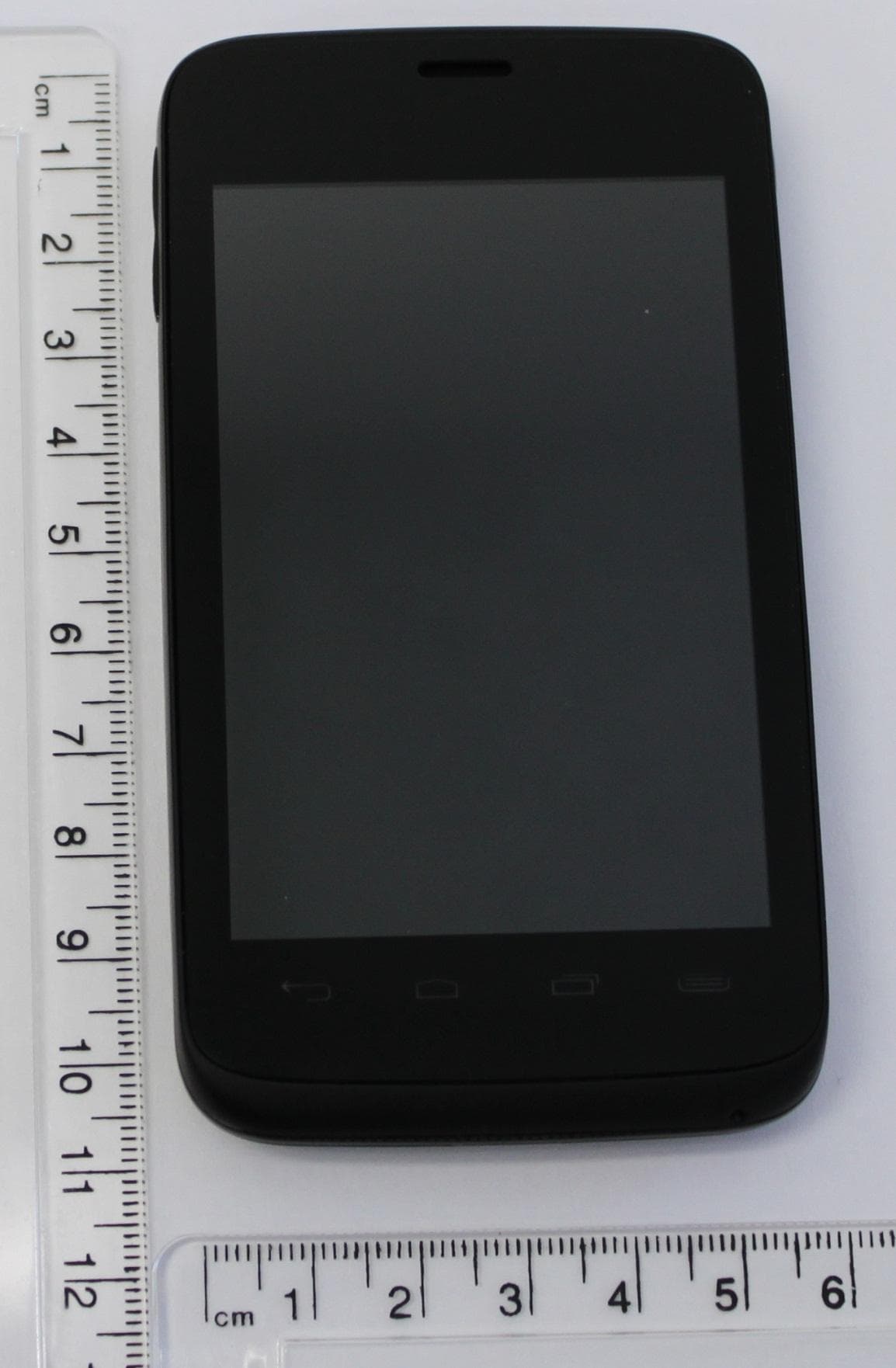
Click to zoom
Application Details
- Equipment Class
- PCE - PCS Licensed Transmitter held to ear
- Date of Grant
- Dec 03, 2012
- Application Purpose
- Original Equipment
- Date of Application
- Dec 03, 2012
- Equipment Note
- Smartphone
- Frequency Range
- 1852.40000000 - 1907.60000000
- Company
- Intel Corporation
- Country
- United States
Documents & Files
Document Text
Text extracted from the exhibit documents filed with the FCC. Open a document above to read the original.
Users Manual
User Guide Yolo ™ PAGE : 2contEnts contEnts 1 Getting Started .............................................................................................4 1.1 Your Phone .................................................................................4 1.2 Phone Buttons ............................................................................5 1.3 Phone Slots, Ports & Jacks ...........................................................5 1.4 Charge the Battery.......................................................................6 1.4.1 Battery Tips ..............................................................................................6 1.5 Insert Battery/SD Card/SIM Card ...................................................6 1.6 Using the Headset .......................................................................7 1.7 Turn on the Phone .......................................................................7 1.8 Sleep & Wake ............................................................................8 1.9 Touchscreen ...............................................................................8 1.10 Tips on using the touchscreen ....................................................8 2 Home Screen & Basic Features .....................................................................9 2.1 Customizing Your Home Screen ..................................................10 2.2 Status & Notification Icons .........................................................11 2.2.1 Status Icons ...........................................................................................11 2.2.2 Notification Icons ....................................................................................12 2.3 Search .....................................................................................12 2.3.1 Search Settings ......................................................................................13 2.4 Securing your Phone ..................................................................13 2.5 Using the App Launcher ............................................................13 2.6 Using the Play Store ..................................................................13 3 Onscreen Keyboard Basics .........................................................................14 3.1 Suggestions and Auto-Complete ..................................................14 4 Making & Answering Calls .........................................................................15 4.1 Using the Phone Tab .................................................................15 4.1.1 Working with Multiple Calls ......................................................................16 4.1.2 Voicemail ...............................................................................................17 4.2 Answering & Rejecting Calls .......................................................17 4.3 Using the Call Log Tab ...............................................................18 4.4 Using the Contacts Tab ..............................................................18 4.4.1 Contact Synchronization ..........................................................................18 4.5 Contact Settings........................................................................20 5 Sending & Receiving Messages ..................................................................21 5.1 Sending messages .....................................................................21 5.2 Managing Messages ...................................................................22 5.3 Message Settings ......................................................................22 5.4 Additional Messaging Features ...................................................23 6 Taking Photos & Videos .............................................................................24 6.1 view your pictures & video ..........................................................26 7 Browsing the Web ......................................................................................27 7.1 Bookmarks, Most Visited & History ..............................................28 7.2 Using multiple browser windows .................................................28 7.3 Set Your Home Page ..................................................................28 7.4 Changing Browser Settings .........................................................29 8 Playing Music ............................................................................................30 8.1 Playback Screen........................................................................30 8.2 Working with Playlists ................................................................31 8.3 Managing Music on Your Phone ..................................................31 8.3.1 Transferring Music from Computer ............................................................31 9 FM Radio ...................................................................................................32 9.1 Controls ..................................................................................32 9.2 Set Favorite Channels ................................................................32 9.3 Channel management ................................................................32 9.4 Options and Settings .................................................................33 9.4.1 Settings .................................................................................................33 9.4.2 Enter Channel ........................................................................................33 9.4.3 Scan Channel .........................................................................................33 9.4.4 Time Settings .........................................................................................33 10 Connections ............................................................................................34 10.1 Using Wi-Fi ..................................…
Text truncated - open the document above for the full version.
Users Manual
User Guide PAGE : 2contEnts contEnts 1 Getting Started .............................................................................................4 1.1 Your Phone .................................................................................4 1.2 Phone Buttons ............................................................................5 1.3 Phone Slots, Ports & Jacks ...........................................................5 1.4 Charge the Battery.......................................................................6 1.4.1 Battery Tips ..............................................................................................6 1.5 Insert Battery/SD Card/SIM Card ...................................................6 1.6 Using the Headset .......................................................................7 1.7 Turn on the Phone .......................................................................7 1.8 Sleep & Wake ............................................................................8 1.9 Touchscreen ...............................................................................8 1.10 Tips on using the touchscreen ....................................................8 2 Home Screen & Basic Features .....................................................................9 2.1 Customizing Your Home Screen ..................................................10 2.2 Status & Notification Icons .........................................................11 2.2.1 Status Icons ...........................................................................................11 2.2.2 Notification Icons ....................................................................................12 2.3 Search .....................................................................................12 2.3.1 Search Settings ......................................................................................13 2.4 Securing your Phone ..................................................................13 2.5 Using the App Launcher ............................................................13 2.6 Using the Play Store ..................................................................13 3 Onscreen Keyboard Basics .........................................................................14 3.1 Suggestions and Auto-Complete ..................................................14 4 Making & Answering Calls .........................................................................15 4.1 Using the Phone Tab .................................................................15 4.1.1 Working with Multiple Calls ......................................................................16 4.1.2 Voicemail ...............................................................................................17 4.2 Answering & Rejecting Calls .......................................................17 4.3 Using the Call Log Tab ...............................................................18 4.4 Using the Contacts Tab ..............................................................18 4.4.1 Contact Synchronization ..........................................................................18 4.5 Contact Settings........................................................................20 5 Sending & Receiving Messages ..................................................................21 5.1 Sending messages .....................................................................21 5.2 Managing Messages ...................................................................22 5.3 Message Settings ......................................................................23 6 Taking Photos & Videos .............................................................................24 6.1 View Your Pictures & Video .........................................................26 7 Browsing the Web ......................................................................................27 7.1 Bookmarks, Most Visited & History ..............................................28 7.2 Using multiple browser windows .................................................28 7.3 Set Your Home Page ..................................................................28 7.4 Changing Browser Settings .........................................................29 8 Playing Music ............................................................................................30 8.1 Playback Screen........................................................................30 8.2 Working with Playlists ................................................................31 8.3 Managing Music on Your Phone ..................................................31 8.3.1 Transferring Music from Computer ............................................................31 9 FM Radio ...................................................................................................32 9.1 Controls ..................................................................................32 9.2 Set Favorite Channels ................................................................32 9.3 Channel management ................................................................32 9.4 Options and Settings .................................................................33 9.4.1 Settings .................................................................................................33 9.4.2 Enter Channel ........................................................................................33 9.4.3 Scan Channel .........................................................................................33 9.4.4 Time Settings .........................................................................................33 10 Connections ............................................................................................34 10.1 Using Wi-Fi ...........................................................................34 10.2 Wireless Bluetooth ® Connection ...............…
Text truncated - open the document above for the full version.
Users Manual
Getting Started Guide Page: 2 Congratulations on your new phone purchase. This guide will help you to quickly come up to speed on the important features of your phone. Keep in mind your phone has: • Fast Processor: Featuring the Intel ® Atom ™ processor 1.2GHz that enables fast web browsing, super-responsive apps, and effortless multi-tasking, so that enjoying the things you love to do has never been easier. • Intelligent Camera: Featuring an advanced 5MP HD camera that lets you capture images quickly - up to 7 photos a second - so you’ll never miss the best shot, even in challenging environments. • Dual-SIM Functionality: Featuring two SIM card slots, so you will never miss a call again. Just plug in your SIM cards and decide which one to use as you go - no need to switch off your phone or change cards in and out. NOTE: Screen images and icons are simulated for the purpose of this guide. Actual displays may vary. Instructions in this guide may change depending on the software version on your device. welcome Page: 3 Menu Back RecentHome Earpiece Power Button Volume your phone – front view Page: 4 your phone – back view 5.0MP Rear-Facing Camera Speaker USB/Power Port 3.5mm Audio Jack Page: 5 insert battery, SIM cards & SD card Turn phone over and locate slot on bottom. Pull up on slot to remove back cover. Insert card(s) according to diagram. Insert battery with arrow pointing to top of phone. TIP: Data can be enabled on only one SIM card at a time. The slot labelled SIM 1 is the default position for data usage. TIP: For additional media storage, insert an SD card. Page: 6 charge the battery Connect this end to phone’s USB port. Connect this end to plug. Plug into wall. NOTE: For optimal charging, please use the USB cable and charger provided with the phone. Page: 7 turn the phone on and off sleep / lock / wake unlock phone / camera Hold down the power button to turn the phone on. Hold down the power button, then touch Power off to turn the phone off. When the power is on, and you want to put the phone in sleep mode, press the power button. When the phone is in sleep mode, and you want to wake the phone, press the power button to bring up the unlock screen. Unlock your phone by dragging the circle lock to the right. Launch the Camera app by dragging the circle lock to the left. TIP: For extra protection, set a security lock. Press System settings Security Screen lock. Page: 8 home screen & apps TIP: To move an icon, touch and hold it, then drag the icon to a new location. Swipe left or right to see more panels. Touch and hold to change the wallpaper. Touch an app to open it. Touch to send a text message. Touch to browse the web. Touch to view all apps. Touch to view contacts. Touch to make a call. Page: 9 status & notifications The Status bar shows your phone’s status and notifications. The Notification panel is your centre for new events—like new email, voicemail, updates, and more. notificationstatus icons Drag down to display notifications. Touch to clear notifications. Touch to launch System settings. NOTE: Select services are displayed across the top of the Notification panel (Wi-Fi, Bluetooth, GPS, Account sync, and Display Brightness). Touch an icon to turn that service ON or OFF. Services that are ON are illuminated and have a blue bar beneath them. G82393-001 Page: 11 calling & texting Incoming calls Place a call 1. From the Home screen, touch . 2. Dial a phone number using the dial pad. 3. Touch to place your call. Set a ringtone 1. From the Home screen, press , then touch System settings Sound Phone ringtone. 2. Touch a ringtone to hear it. Touch OK to select it. Send a text 1. From the Home screen, touch . 2. Touch . 3. Enter a recipient’s name. 4. Touch the Enter text field and enter a message. 5. Touch to send your message. Slide circle here to reject call. Slide circle here to answer call. Page: 12 using dual SIM cards Set 2G or 3G network 1. From the Home screen, press , then touch System settings More... (under Wireless & Networks) Mobile networks Dual SIM network settings. 2. Choose a tab at the top of the page (SIM 1 or SIM 2), then touch Use only 2G networks. Change data SIM settings: 1. From the Home screen, touch . 2. Touch to launch the SimConfig app. 3. At the bottom of the screen, 1 (by default) is blue and displays APPS. Touch 2 to use SIM 2 for data. Place a call 1. From the Home screen, touch . 2. Dial a phone number using the dial pad. 3. Touch either or to place your call using that particular SIM card. Send a text 1. From the Home screen, touch . 2. Touch . 3. Enter a recipient’s name. 4. Touch the Enter text field and enter a message. 5. Touch either SIM 1 Send or SIM 2 Send to send your message using that particular SIM card. Page: 13 wireless connections Connect to Wi-Fi 1. From the Home screen, press System settings. 2. If Wi-Fi is OFF, touch OFF to toggle it on. 3. Touch Wi-Fi. The available networks display. 4. Touch a network, then touch Connect. Pair Phone with Bluetooth Device 1. From the Home screen, press System settings. 2. If Bluetooth is OFF, touch OFF to toggle it on. 3. Touch Bluetooth. The available Bluetooth wireless technology-enabled products display. 4. Select the product you wish to pair. 5. Confirm the product number and touch Pair to pair the product. Once paired, your phone will automatically connect with the product. Page: 14 camera & video Take a picture 1. Touch in your apps. 2. Frame your subject in the camera. 3. Touch the Shutter button to take your picture and save the image to the Gallery. For Burst mode, touch MODE, and then touch . Touch the Shutter button to take a series of pictures and save the images to the Gallery. Shoot a video 1. From the Camera app, touch the Mode button, and then select the camcorder. 2. Touch the Shutter button to begin recording. When done, press the Shutter button again to stop recording and save the video to the Gallery. Share a photo 1. From the Home screen, touch , then touch . 2. Touch an al…
Text truncated - open the document above for the full version.
Attestation Statements
Intel Corporation 3065 Bowers Ave. MS: SC1-20 Santa Clara, CA 95054 PRODUCT EQUALITY DECLARATION We, Intel Corporation, declare on our sole responsibility that the products with Model name: BT210 Marketing name: Yolo And Model name: BT230 And Model name: BT510 Marketing name: Lava X500 in all relevant parts are identical products. The only hardware difference between the products is the naming convention. There are differences in the software from BT210/BT230 and BT510. The BT 210/BT230 only have one SIM port active and BT510 has both SIM ports active. Intel Corporation 3065 Bowers Avenue MS: SC1-20 Santa Clara, CA 95054 Dated: 16 Nov. 2012 Christine M. Ryan Product Certification Manager +1-408-300-2167 [email protected]
Attestation Statements
Intel Corporation 3065 Bowers Ave. MS: SC1-20 Santa Clara, CA 95054 PRODUCT RELEASE DECLARATION We, Intel Corporation, hereby declare on our sole responsibility, that the pre-production model presented to the lab Cetecom, Inc. for testing against applicable FCC and EC regulations represents the final production release in all relevant parts for product, model name : BT210/BT230/BT510. Should you have any questions or comments regarding this matter, please feel free to contact: Intel Corporation 2200 Mission College MS: SC1-20 Santa Clara, CA 95054 Christine M. Ryan Dated: 26 Nov 2012 Product Certification Manager +1-408-300-2167 [email protected]
Cover Letter(s)
Federal Communications Commission Equipment Authorization Division, Application Processing Branch 7435 Oakland Mills Road Columbia, MD 21048 Subject: Request for Permanent Confidentiality FCC ID: O2Z-BTXZ0 To Whom It May Concern: In accordance with §0.457(d) and §0.459 of CFR 47, Intel Corporation requests permanent confidentiality for the following items 1. Block Diagram 2. Schematic Diagram 3. Part List and Tune-up information 4. Operational Description These items contain detailed system and equipment description and related information about the product which Intel Corporation considers to be proprietary, confidential and a custom design which otherwise would not be released to the general public. Since this design is a basis from which future technological products will evolve, Intel Corporation also feels that this information would be of benefit to its competitors, and that the disclosure of the information in these exhibits would give our competitors an unfair advantage in the market. Best Regards, Christine Ryan Dated: November 26, 2012 in Santa Clara, CA
Cover Letter(s)
Federal Communications Commission Equipment Authorization Division, Application Processing Branch 7435 Oakland Mills Road Columbia, MD 21048 Subject: Request for Short Term Confidentiality FCC ID: O2Z-BTXZ0 To Whom It May Concern: In accordance with §0.457(d) and §0.459 of CFR 47, Intel Corporation requests short term confidentiality for the following items 1. External Photographs 2. Internal Photographs 3. User Manual 4. Test Setup photographs until the product will be publicly announced. Short term confidentiality release date: 90 days from Grant Date These items contain detailed system and equipment description and related information about the product which Intel Corporation considers to be proprietary, confidential and a custom design which otherwise would not be released to the general public. Since this design is a basis from which future technological products will evolve, Intel Corporation also feels that this information would be of benefit to its competitors, and that the disclosure of the information in these exhibits would give our competitors an unfair advantage in the market. Best Regards, Christine Ryan Dated: November 26, 2012 in Santa Clara, CA
External Photos
BT210/BT230/BT510: External photos Intel Corporation 3065 Bowers Ave. MS: SC1-20 Santa Clara, CA 954054 Figure 1: front view BT210/BT230/BT510: External photos Intel Corporation 3065 Bowers Ave. MS: SC1-20 Santa Clara, CA 954054 Figure 2: rear view BT210/BT230/BT510: External photos Intel Corporation 3065 Bowers Ave. MS: SC1-20 Santa Clara, CA 954054 Figure 3: right-side view BT210/BT230/BT510: External photos Intel Corporation 3065 Bowers Ave. MS: SC1-20 Santa Clara, CA 954054 Figure 4: left-side view BT210/BT230/BT510: External photos Intel Corporation 3065 Bowers Ave. MS: SC1-20 Santa Clara, CA 954054 Figure 5: top view BT210/BT230/BT510: External photos Intel Corporation 3065 Bowers Ave. MS: SC1-20 Santa Clara, CA 954054 Figure 6: bottom view
ID Label/Location Info
FCC ID: O2Z-BTXZ0 Mobile Phone (Back) Label Location (inside battery well- under back cover)
Internal Photos
BT210/BT230/BT510: Internal Photos Intel Corporation 2200 Mission College Blvd. Santa Clara, CA 954054 Figure 1: BT210/BT230/BT510 with back cover removed BT210/BT230/BT510: Internal Photos Intel Corporation 2200 Mission College Blvd. Santa Clara, CA 954054 Figure 2: BT210/BT230/BT510 with back cover removed BT210/BT230/BT510: Internal Photos Intel Corporation 2200 Mission College Blvd. Santa Clara, CA 954054 Figure 3: BT210/BT230/BT510 battery back side BT210/BT230/BT510: Internal Photos Intel Corporation 2200 Mission College Blvd. Santa Clara, CA 954054 Figure 4: BT and GPS antenna back side BT210/BT230/BT510: Internal Photos Intel Corporation 2200 Mission College Blvd. Santa Clara, CA 954054 Figure 5: Cellular antenna front side BT210/BT230/BT510: Internal Photos Intel Corporation 2200 Mission College Blvd. Santa Clara, CA 954054 Figure 6: Main circuit board removed BT210/BT230/BT510: Internal Photos Intel Corporation 2200 Mission College Blvd. Santa Clara, CA 954054 Figure 7: Main circuit board rear view Figure 8: Co m m ponent locations r B T ear side T 210/BT230/B T T 510: Internal P h Intel Corpo r 2200 Mission Colle g Santa Clara, CA 95 4 h otos r ation g e Blvd. 4 054
Internal Photos
BT210/BT230/BT510: Internal Photos Intel Corporation 2200 Mission College Blvd. Santa Clara, CA 954054 Figure 9: Main circuit board front side BT210/BT230/BT510: Internal Photos Intel Corporation 2200 Mission College Blvd. Santa Clara, CA 954054 Figure 10: Battery removed Figure 11: Co m m ponent locations fr B T fr ont side T 210/BT230/B T T 510: Internal P h Intel Corpo r 2200 Mission Colle g Santa Clara, CA 95 4 h otos r ation g e Blvd. 4 054 S B Single band F BT/WIFI ante FPC enna Surfac ceram BT2 ce mount mic GPS ante 210/BT230/B enna BT510: Inter I n 220 Sa rnal Photos ntel Corporati 00 Mission College Bl nta Clara, CA 954054 Dual band diversity antenna Pent a main anten ion lvd. 4 d FPC a‐band FPC cellular nna BT210/BT230/BT510: Internal Photos Intel Corporation 2200 Mission College Blvd. Santa Clara, CA 954054 Figure 12: Antenna Placement
RF Exposure Info
FCC Listed #: A2LA Accredited IC Recognized # 3462B-1 CETECOM Inc. 411 Dixon Landing Road Milpitas, CA 95035 U.S.A. Phone: + 1 (408) 586 6200 Fax: + 1 (408) 586 6299 E-mail: [email protected] http://www.cetecom.com CETECOM Inc. is a Delaware Corporation with Corporation number: 2905571 V4.0 2012-09-25 © Copyright by CETECOM SAR Test Report FOR: Manufacturer: Intel Corporation Model Name: BT210/BT230/BT510 FCC ID: O2Z-BTXZ0 Test Report #: SAR_INTEL_023_12001_FCC_rev1 Date of Report: 2012-12-04 Test Report #: SAR_INTEL_023_12001_FCC_rev1 FCC ID: O2Z-BTXZ0 Date of Report : 2012-12-04 Page 2 of 30 V3.0 2010-12-30 This report shall not be reproduced except in full without the written approval of: CETECOM Inc. SAR 411 Dixon Landing Road Milpitas, CA 95035 U.S.A. TABLE OF CONTENTS 1. Assessment ............................................................................................................................ 4 2. Administrative Data ............................................................................................................. 5 2.1. Identification of the Testing Laboratory Issuing the SAR Test Report ............................ 5 2.2. Identification of the Client .................................................................................................... 5 2.3. Identification of the Manufacturer ...................................................................................... 5 3. Equipment under Test (EUT) .............................................................................................. 6 3.1. Specification of the Equipment under Test ......................................................................... 6 3.2. Identification of the Equipment Under Test (EUT) ............................................................ 7 3.3. Identification of Accessory equipment ................................................................................. 7 4. Subject of Investigation ....................................................................................................... 8 4.1. The IEEE Standard C95.1 and the FCC Exposure Criteria.............................................. 8 4.2. SAR Limit ............................................................................................................................... 8 5. The FCC Measurement Procedure ..................................................................................... 9 5.1. General Requirements ........................................................................................................... 9 5.2. Body-worn and Other Configurations ................................................................................. 9 5.3. Procedure for assessing the peak spatial-average SAR .................................................... 10 5.4. Determination of the largest peak spatial-average SAR .................................................. 12 6. The Measurement System .................................................................................................. 13 6.1. Robot system specification .................................................................................................. 13 6.2. Isotropic E-Field Probe for Dosimetric Measurements ................................................... 14 6.3. Data Acquisition Electronics ............................................................................................... 14 6.4. Phantoms .............................................................................................................................. 14 6.5. Interpolation and Extrapolation schemes .......................................................................... 14 7. Uncertainty Assessment ..................................................................................................... 15 Test Report #: SAR_INTEL_023_12001_FCC_rev1 FCC ID: O2Z-BTXZ0 Date of Report : 2012-12-04 Page 3 of 30 V3.0 2010-12-30 This report shall not be reproduced except in full without the written approval of: CETECOM Inc. SAR 411 Dixon Landing Road Milpitas, CA 95035 U.S.A. 7.1. Measurement Uncertainty Budget ..................................................................................... 15 8. Test results summary ......................................................................................................... 16 8.1. Conducted Average Output Power .................................................................................... 16 8.2. Stand-Alone SAR Evaluation Exclusion ............................................................................ 21 8.3. Test Positions and Configurations ...................................................................................... 22 8.4. SAR Results for Head .......................................................................................................... 23 8.5. SAR Results for Body and Wireless Router Mode ........................................................... 24 8.6. SAR Results Extrapolated to Upper Tolerance Limit ...................................................... 25 8.7. Simultaneous Transmission SAR Evaluation Consideration .......................................... 26 9. Dipole verification .............................................................................................................. 28 10. References .............................................................…
Text truncated - open the document above for the full version.
Contact Information
Applicant
Christine Ryan(Sr. Certification Engineer)
Test Firm
CETECOM Inc.Meinolf Glunz
[email protected]408-586-6301
Technical Specifications
| # | Rule Parts | Frequency Range | Power Output | Emission | Tolerance |
|---|---|---|---|---|---|
| 6 | 24E | 1.85 GHz - 1.91 GHz | 238.00 mW | 4M07F9W | 28 Hz |
Other Applications from Intel Corporation

O2Z-EP110
Dec 18, 2014Intel 4.7-inch Smartphone
Equipment Class
JBP - Part 15 Class B Computing Device Peripheral
O2Z-CZ120
Aug 28, 2013HSPA+ Smartphone
Equipment Class
DSS - Part 15 Spread Spectrum Transmitter
O2Z-AZ510
Nov 18, 2012ANDROID SMART PHONE
Equipment Class
DSS - Part 15 Spread Spectrum Transmitter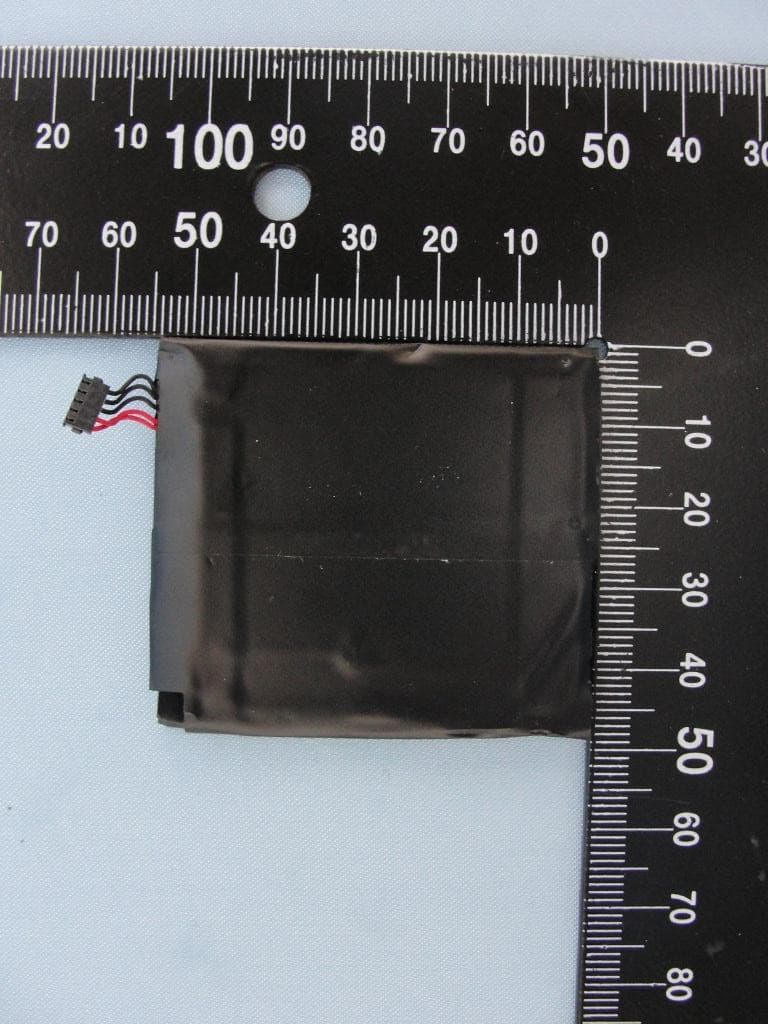
O2Z-AZ210
Sep 06, 2012SMARTPHONE
Equipment Class
NII - Unlicensed National Information Infrastructure TX
O2Z-BT2
Jun 07, 2001Intel Personal Wireless Module
Equipment Class
DSS - Part 15 Spread Spectrum Transmitter